
Darwin Mini by Robotis
ROBOTIS MINI for Synthiam ARC: 16 XL-320 servos, OpenCM9.04 controller, 3D-printable frame and Bluetooth/firmware setup tips.
Connection Type
USB / Bluetooth
Number of Servos
16
Audio Support
No
Camera Support
No
UARTs
None
I2C Support
No
ADC Ports
None
Digital Ports
None
The ROBOTIS MINI (Darwin Mini) is a small humanoid robot that works with Synthiam ARC. It uses 16x ROBOTIS XL-320 Dynamixel servos for movement, an OpenCM9.04 (32-bit ARM) controller board as the “brain,” and a mostly 3D-printable frame so you can repair or customize parts.
Beginner tip: ARC does not connect directly to the XL-320 servos by itself. ARC connects to the robot’s controller
(OpenCM9.04), and the controller then communicates with the servos.
Get Started
- Identify the controller: Your Darwin Mini uses the ROBOTIS OpenCM9.04 controller.
- Install ARC firmware on the OpenCM9.04: The OpenCM9.04 must be flashed with ARC-compatible firmware before ARC can talk to it. You can download and follow the firmware instructions here: /Hardware/17530
- Connect to ARC: After flashing, you can connect from ARC either by USB (most reliable for first-time setup) or by Bluetooth (optional, after setup).
USB vs Bluetooth (Which Should I Use?)
USB (Recommended for beginners)
- Most reliable connection for flashing and troubleshooting
- No pairing required
- Best choice if this is your first time programming the board
Bluetooth (Optional)
- Lets you connect without a USB cable
- Requires the Bluetooth module to be enabled in the firmware
- You must also pair the robot with your PC/tablet (like pairing headphones)
Optional: Enable Bluetooth in the Firmware
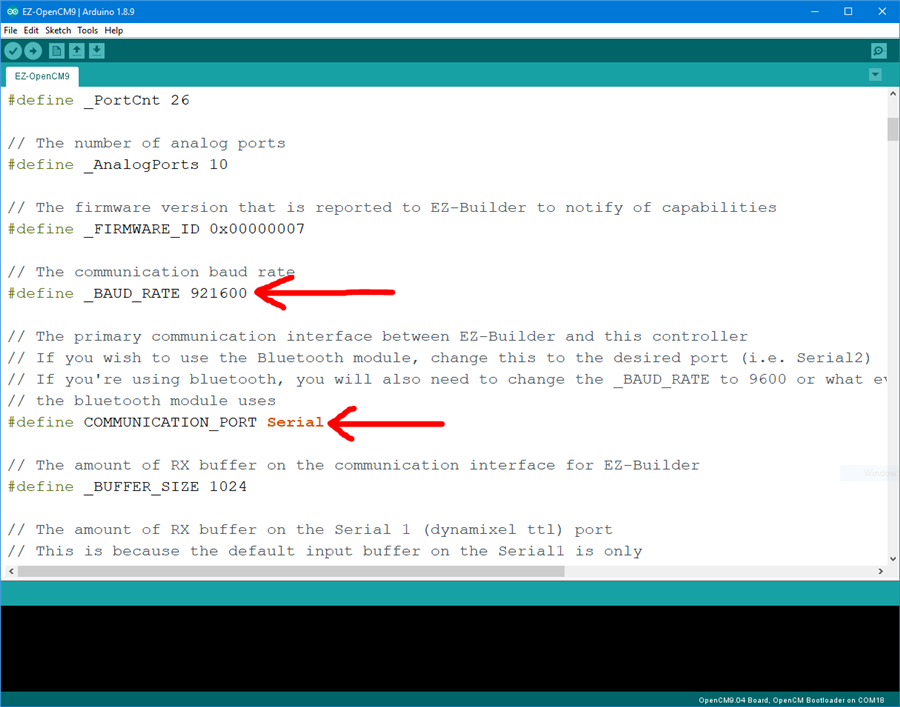
If you want ARC to connect using Bluetooth (so you don’t need a USB cable), you can enable the Bluetooth serial port in the
Arduino .ino source code before flashing the OpenCM9.04.
Important: Only change these settings if your Darwin Mini has a working Bluetooth module installed.
If you’re not sure, start with USB first to confirm everything is working.
In the Arduino .ino file, locate the communication settings and change them to use the Bluetooth serial port:
#define _BAUD_RATE 9600
#define COMMUNICATION_PORT Serial2
After making the change:
- Save the file
- Compile/Upload (flash) the updated firmware to the OpenCM9.04 using the instructions in the firmware link above
- Pair Bluetooth on your computer/tablet (it will appear as a serial/COM port)
- In ARC, select that Bluetooth COM port when connecting
Note: The baud rate (
9600) must match on both sides (firmware and ARC connection settings).
If you later change the baud rate in the code, you must reconnect using the same new rate.