

Monitor ARCx CPU, memory, threads, skills, devices and .NET health with alerts, history graphs, and AI-accessible diagnostics.
 Windows
 ARM
ARM
 Linux
Linux
 MacOS
MacOS
How to add the Task Manager robot skill
- Load the most recent release of ARCx on a compatible operating system (Get ARCx).
- Press the + Skills menu from the top menu bar in ARCx.
- Choose any of these category tabs, the robot skill appears in each of them: General, Graphs.
- Press the Task Manager icon to add the robot skill to your project.
Don't have a robot yet?
Follow the Getting Started Guide to build a robot and use the Task Manager robot skill.
How to use the Task Manager robot skill
A task manager for ARCx itself. Where the Windows Task Manager shows ARCx as one line, this robot skill looks inside it: which robot skills are using the processor, how many threads each one runs, how much memory ARCx and the computer are using, what the .NET runtime underneath is doing, and which scripts, controllers and cameras are active. A health check reads the figures for you and says in plain words when something looks wrong, such as a robot skill hogging a core, memory that keeps climbing, or a camera that has stopped.
It measures once a second by default and keeps the last two minutes of history for its graphs. Only one Task Manager can be added to a project, because it measures the whole of ARCx.
The window
Five tiles run across the top: ARCx CPU, Computer CPU, ARCx memory, Computer memory and Health. Each tile has a ring that fills with the load and turns from green to amber at 50% and to red at 80%, with the figure's recent history drawn faintly behind it. Click the Health tile to jump to the health check.
Processor figures are a percentage of the whole computer (all cores together), the same way the Windows Task Manager shows them, so 8% on a 12 core computer is about one core busy. The ARCx CPU tile also says how many cores' worth that is.
Under the tiles are five tabs. Only the open tab is drawn, so a long thread list costs nothing while you look at the graphs. A short log at the bottom records alerts and garbage collections.
Performance
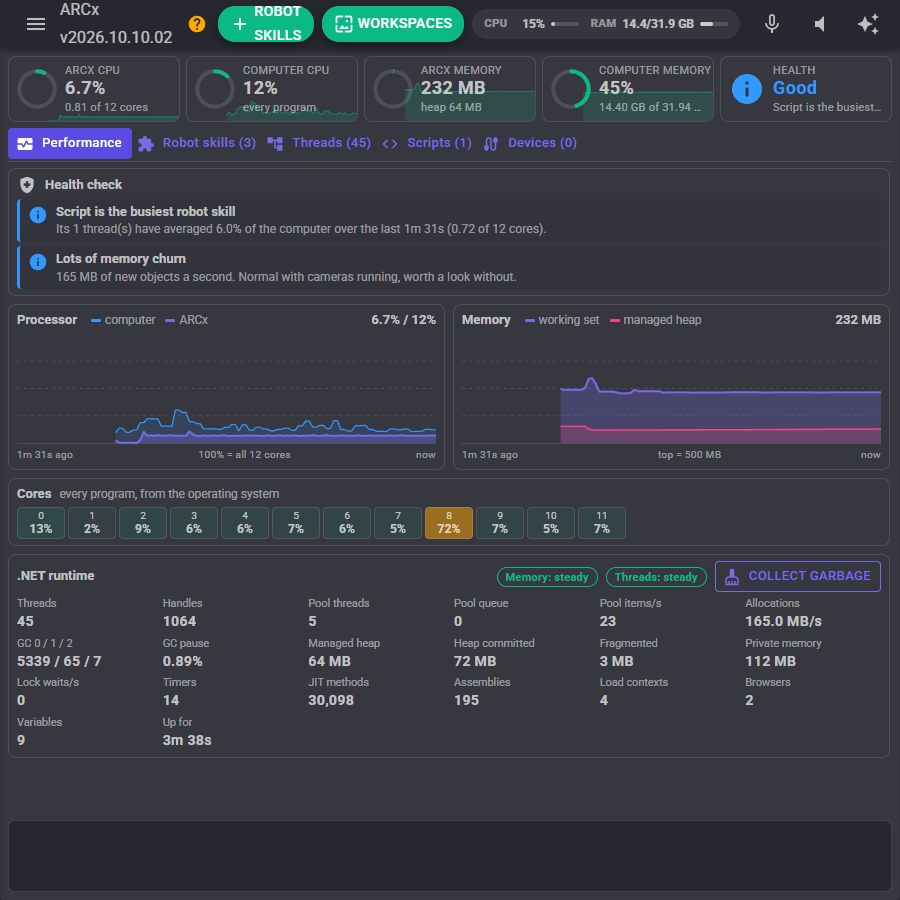
- Health check - what the task manager noticed, worst first. See The health check.
- Processor - ARCx's processor use against the whole computer's over the history kept.
- Memory - ARCx's working set (the physical memory it holds) and the managed heap (the memory .NET's garbage collector manages).
- Cores - every core's load, from the operating system. This is every program on the computer, not only ARCx.
- .NET runtime - the figures behind ARCx: threads, handles, thread pool threads and queue, allocations per second, garbage collections by generation, time paused for garbage collection, heap sizes, lock contention, timers, compiled methods, loaded assemblies, connected browsers, global variables and how long ARCx has been running. Hover over any figure for what it means.
- Memory and Threads chips - whether each is steady, rising or falling, from the straight line through its history. They say learning until there is enough history.
- Collect garbage - runs a full, compacting garbage collection and gives unused memory back to the operating system. ARCx pauses for a moment while it runs, and the log says how much was freed. If memory climbs and a collection brings it back down, it was garbage that had not been collected yet. If it stays up, something is holding on to it.
Robot skills
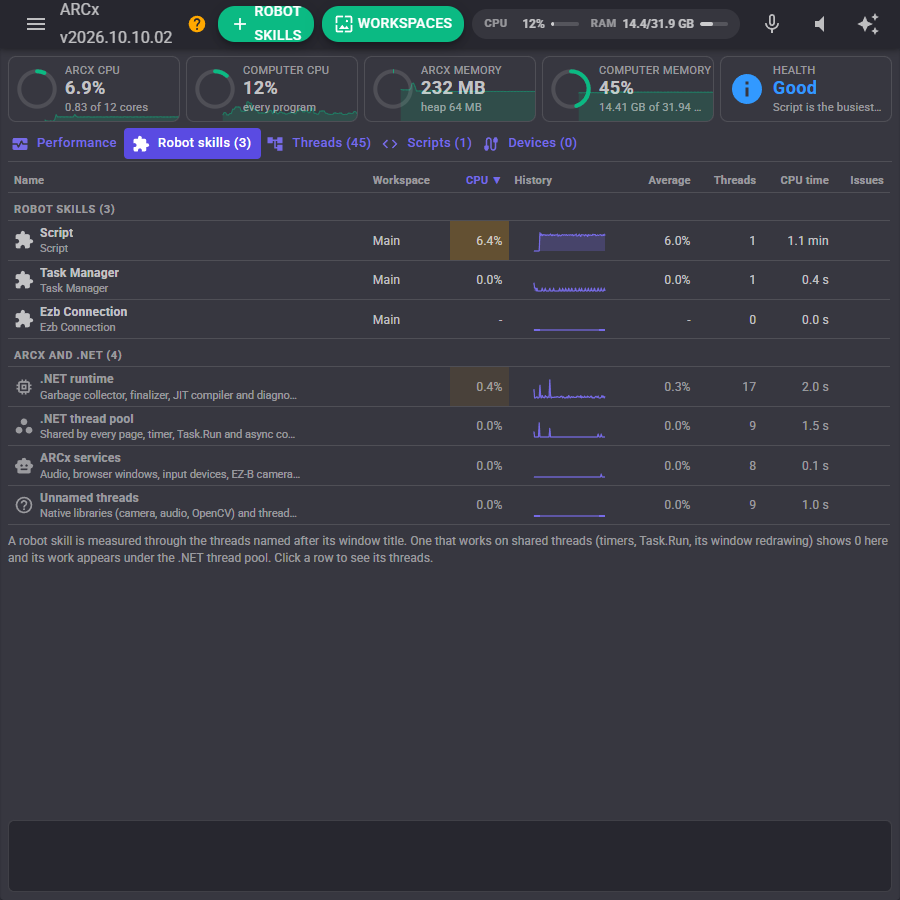
Every robot skill in the project, busiest first, with its workspace, its processor use now, a graph of its recent history, its average, how many threads it runs, the processor time those threads have used, and the warnings and errors it logged in the last 10 minutes. Click a column heading to sort by it, and click a row to see that robot skill's threads.
Below the robot skills are the shared groups that belong to no single robot skill:
| Group | What it is |
|---|---|
| .NET runtime | The garbage collector, finalizer, JIT compiler and diagnostics threads. |
| .NET thread pool | Shared by every page, timer, Task.Run and async continuation of every robot skill. |
| ARCx services | ARCx's own audio, browser window, input device, EZ-B camera, controller connection and web server threads. |
| Unnamed threads | Native libraries (camera drivers, audio, OpenCV) and threads nobody named. |
| A script executor's name | A script engine that is not inside a robot skill, such as one created by the Script Manager, listed under its executor's name. |
| Other named threads | Named threads that match no robot skill or script in the project. The Threads tab shows their names. |
Threads
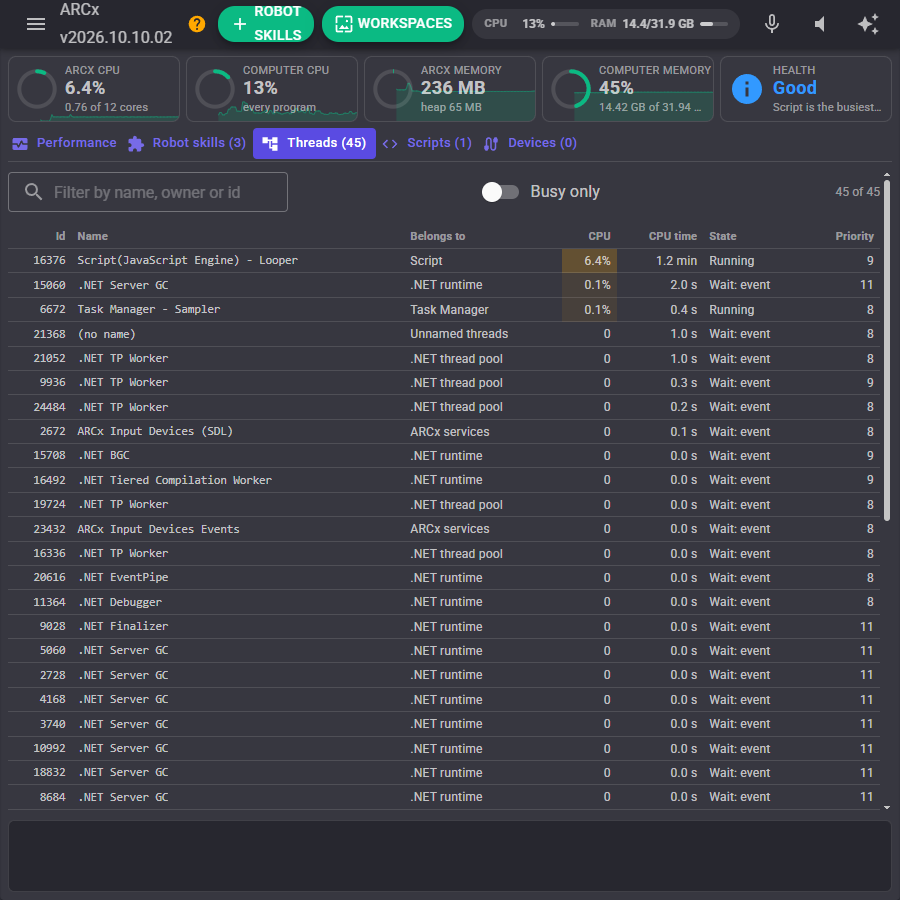
Every thread in ARCx with its id, its name, the robot skill or group it belongs to, its processor use now, its total processor time, its state (running, or what it is waiting on) and its priority. Type in the filter box to find a name, an owner or a thread id, and turn on Busy only to hide the idle ones. After clicking a row on the Robot skills tab, a chip shows whose threads are listed; close it to see them all. The table shows the busiest 150 threads unless you change Most thread rows.
Scripts
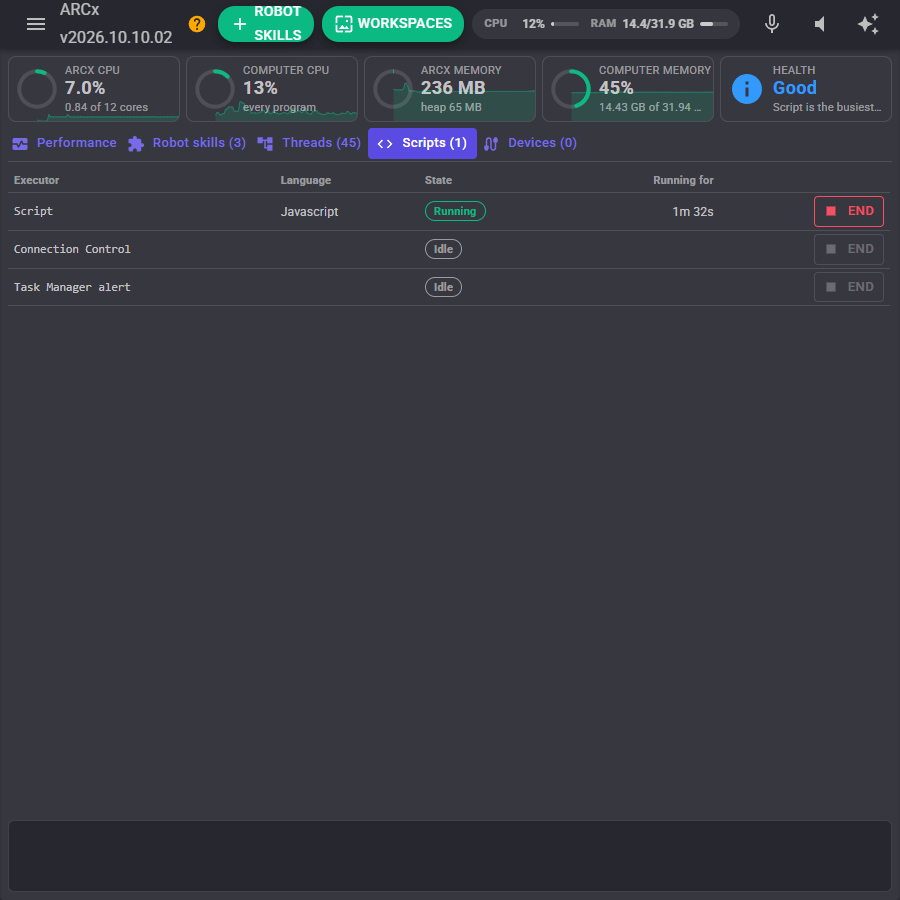
Every script executor in ARCx: robot skills, the Script Manager and the Task Manager's own alert executor. Each shows its language, whether it is running and for how long. End stops the script running in that executor, which is the quickest way to stop a script that is stuck in a loop.
Devices
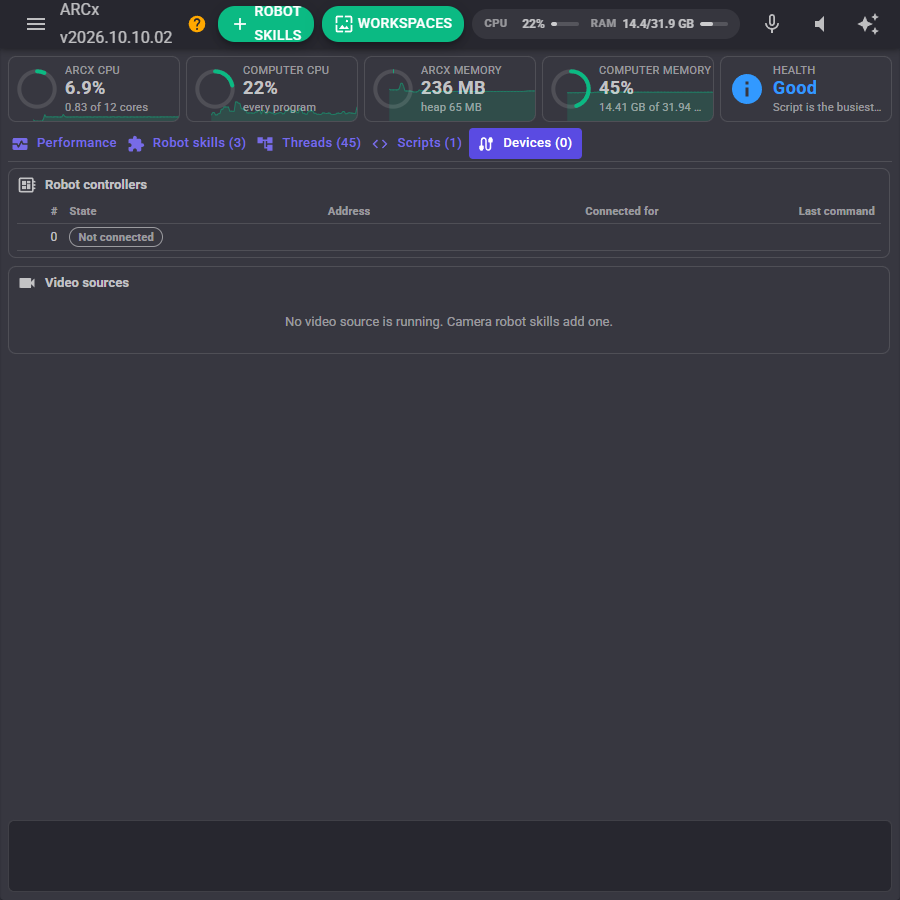
Robot controllers lists every controller slot of the project, whether it is connected, its address, how long it has been connected and how long ago ARCx last sent it a command.
Video sources lists every running camera with the frame rate it is really delivering, a bar comparing that with the rate it declared, the frames it has sent and how long ago the last one arrived. A camera that is far below its declared rate is usually limited by the processor, the network or a slow robot skill reading its frames.
How robot skills are measured
The operating system measures the processor time of each thread, not of each robot skill. The Task Manager reads every thread's time and name, and gives a thread to the robot skill whose window title its name starts with. Robot skills are asked to name the threads that run for as long as they do after their window title, such as Camera Source (usb) - Reader, and script engines name theirs after their executor, so a robot skill's own work and its scripts show up under its name.
A robot skill that does its work on shared threads (a timer, Task.Run, redrawing its window, async code) shows - for its processor use, and that work appears under the .NET thread pool instead. The thread pool is shared, so the Task Manager cannot tell whose work it is. If the thread pool is busy, remove robot skills one at a time and watch it drop to find which one is responsible.
Memory cannot be split by robot skill at all. Every robot skill shares one managed heap, so the Task Manager shows ARCx's memory as a whole and watches its trend instead.
If you write robot skills, name every thread that runs for the life of the skill after its window title (Name = $"{Properties.WindowTitle} - Reader"). It costs nothing and is what makes the skill visible here.
The health check
The health check runs after every measurement and lists what it notices, worst first:
| Finding | When |
|---|---|
| ARCx is busy / working very hard | ARCx has averaged 30% / 60% of the whole computer over the history kept. |
| ... is the busiest robot skill | A robot skill's own threads have averaged at least 3% of the computer. |
| Much of the work is on the shared thread pool | A large share of ARCx's processor time is on the thread pool, where it cannot be put down to one robot skill. |
| A thread is using a whole core | One thread is using almost a whole core. That is usually a loop without a sleep or a wait in it. |
| Another program is using the processor | The computer is busy but ARCx is not the reason. |
| ARCx's memory is climbing | Memory has risen steadily (a good straight line fit, at least 20 MB) over at least 90 seconds of history. A possible leak. |
| The thread count is climbing | Threads that are not part of the thread pool keep being added and not ended. |
| Memory churn | ARCx is creating 50 MB (or 200 MB) of new objects a second, which keeps the garbage collector busy. |
| The garbage collector is pausing ARCx | ARCx spends more than 5% of the time stopped for garbage collection. |
| The thread pool is falling behind | Work is queueing for pool threads, so pages and timers will be slow. |
| The computer is low on / out of memory | The computer's memory is over 88% / 95% used. |
| Camera ... has stopped | A camera that was sending frames has sent none for 5 seconds. |
| ... has run for ... | A script has been running for more than 30 minutes. Fine for a script that loops on purpose. |
| ... logged errors | A robot skill logged errors in the last 10 minutes. |
When nothing stands out, it says Everything looks healthy. The leak checks wait for 90 seconds of history, so a project that is still loading is not mistaken for one.
Alerts
The Task Manager can raise an alert when ARCx uses too much of the processor for too long, or holds too much memory. An alert shows as a banner in the window, is written to the window's log and the ARCx log, sets the TaskManagerAlert global variable to its text, and runs the alert's script if you gave it one. Each alert is raised once and only raised again after the figure has dropped well back below the limit and gone over again, so a figure that hovers at the line does not raise it every second.
An alert script could, for example, stop the robot, speak a warning, or stop the robot skill named in TaskManagerTopSkill:
var skill = getVar("TaskManagerTopSkill");

Audio.Say("Warning. " + skill + " is using too much of the processor.");
Alert scripts do not run while a configuration window is open anywhere in ARCx.
Global variables
When Publish global variables is on, these are set after every measurement, for scripts, Custom UI labels and other robot skills:
| Variable | Value |
|---|---|
TaskManagerArcxCpu |
Percentage of the whole computer's processor time ARCx is using. |
TaskManagerComputerCpu |
Percentage of the whole computer's processor time in use by every program, -1 when unknown. |
TaskManagerArcxMemoryMB |
Physical memory ARCx is holding, in megabytes. |
TaskManagerComputerMemory |
Percentage of the computer's memory in use, -1 when unknown. |
TaskManagerThreads |
Number of threads in ARCx. |
TaskManagerTopSkill |
Window title of the busiest robot skill, empty when none is busy. |
TaskManagerTopSkillCpu |
Processor use of the busiest robot skill. |
TaskManagerAlert |
The text of the alert raised, empty when none is. |
Custom UI widgets
Four widgets can be placed on your own Custom UI screens, so a phone, tablet or the robot's own screen can show how hard the robot is working.
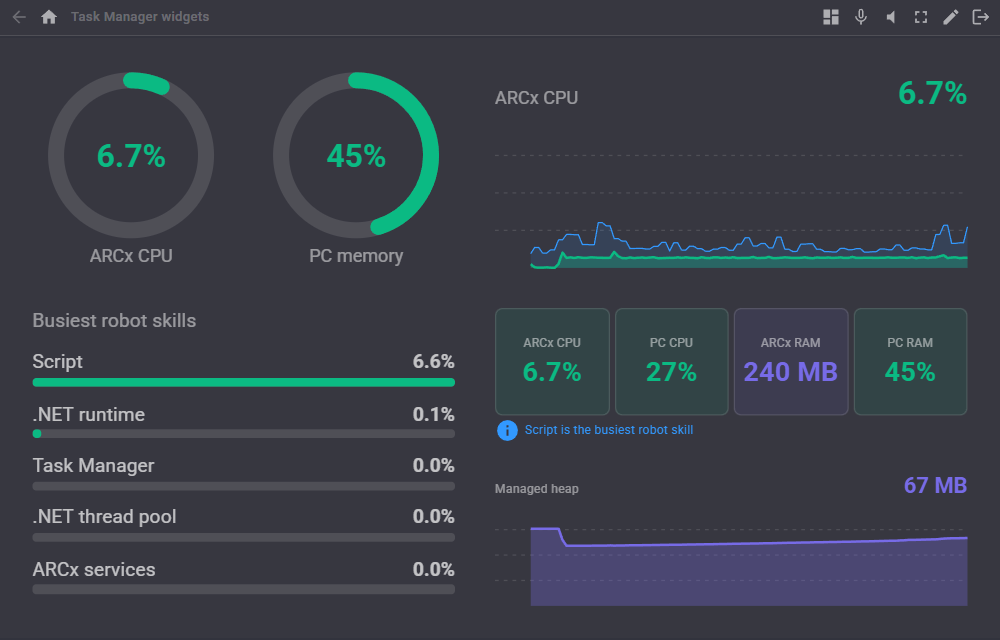
Gauge - a ring gauge of one figure, with its value in the middle. It scales to any size.
Live graph - a scrolling graph of one figure with its current value. For the processor and memory figures it can draw the whole computer faintly behind ARCx.
Busiest robot skills - the robot skills using the most processor time right now, with bars.
Summary - ARCx's and the computer's processor and memory as four figures coloured by load, with the health check's worst finding underneath.
| Setting | Widgets | Meaning |
|---|---|---|
| Metric | Gauge, Live graph | ArcxCpu, ComputerCpu, ArcxMemory, ComputerMemory, GcHeap (managed heap), Threads or Allocations (MB of new objects a second). |
| Caption | Gauge, Live graph, Busiest robot skills | The label. Blank uses the figure's name. |
| Compare | Live graph | true draws the whole computer behind ARCx on the processor and memory graphs. |
| Count | Busiest robot skills | How many rows, 1 to 20. |
| IncludeShared | Busiest robot skills | true also lists the thread pool, ARCx services and the .NET runtime. |
| ShowHealth | Summary | true shows the health check's worst finding along the bottom. |
AI assistants (MCP)
An AI connected to ARCx through the Model Context Protocol (Options Preferences AI connections) gets the Task Manager's figures as tools of their own: get_overview (everything at a glance), get_skill_usage (processor use per robot skill), get_threads (the thread list, filtered and sorted), diagnose (the health check with the memory and thread trends), get_history (any figure's recent history), collect_garbage and stop_script. The overview is also readable as a resource. Ask the AI why is my robot slow? and it can answer from the same figures this window shows.
Configuration
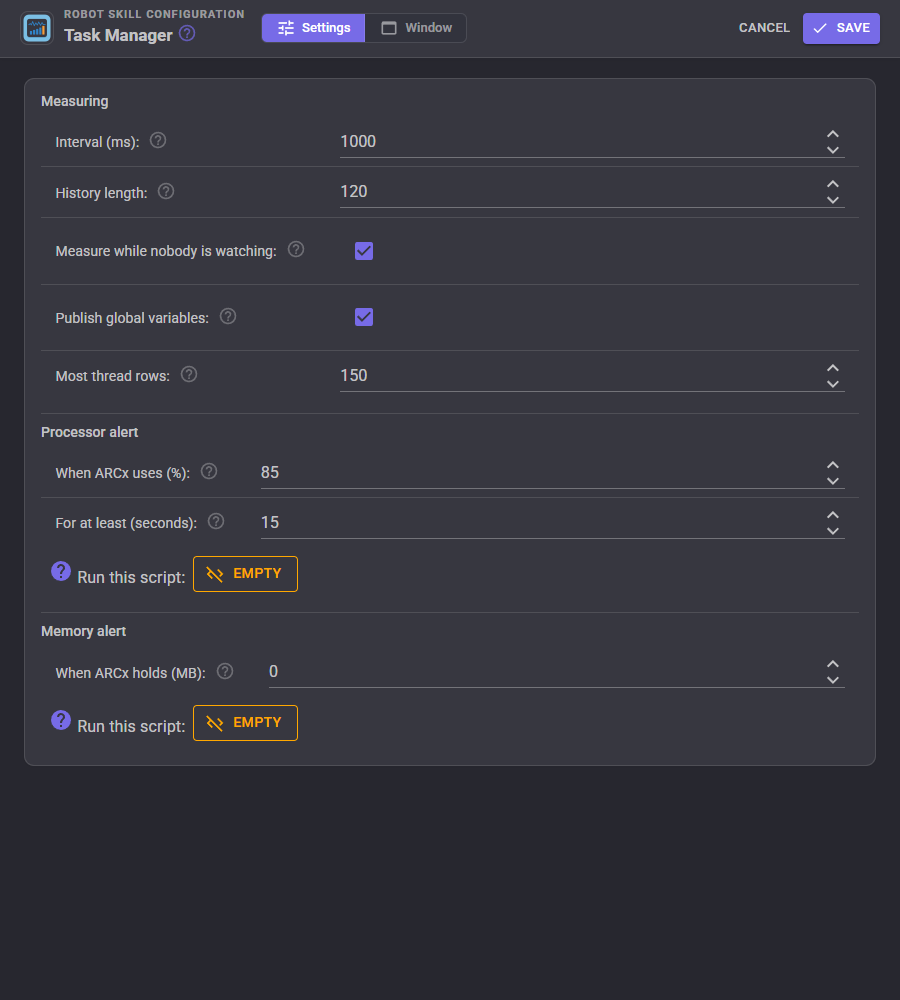
Measuring
| Setting | Meaning | Default |
|---|---|---|
| Interval (ms) | How often ARCx is measured, 500 to 10000 milliseconds. Shorter reacts faster and costs a little more processor time. | 1000 |
| History length | How many measurements the graphs and the trend checks keep, 30 to 600. With a one second interval, 120 is two minutes. | 120 |
| Measure while nobody is watching | Keep measuring when no browser is connected to ARCx. Needed for the variables and the alerts on a robot that runs on its own. Off, the Task Manager costs nothing while nobody has ARCx open. | on |
| Publish global variables | Set the TaskManager... variables after every measurement. |
on |
| Most thread rows | The most rows the Threads tab shows, busiest first, 20 to 1000. | 150 |
Processor alert
| Setting | Meaning | Default |
|---|---|---|
| When ARCx uses (%) | Raise the alert when ARCx uses at least this share of the whole computer. 0 turns it off. | 85 |
| For at least (seconds) | How long ARCx has to stay over the limit first, so a short burst such as loading a project does not raise it. | 15 |
| Run this script | The script run once when the alert is raised. | empty |
Memory alert
| Setting | Meaning | Default |
|---|---|---|
| When ARCx holds (MB) | Raise the alert when ARCx holds at least this many megabytes of physical memory. 0 turns it off. | 0 |
| Run this script | The script run once when the alert is raised. | empty |
Notes and limitations
- Thread names come from the operating system. On Windows they are complete. On Linux the kernel keeps only the first 15 characters, so two robot skills whose window titles start with the same 15 characters cannot be told apart. macOS does not give the names of another thread at all, so on a Mac every thread is listed under Unnamed threads and robot skills show no processor use of their own.
- The computer's processor and memory figures come from the same readings as the CPU and RAM figures in ARCx's top bar, which are taken every two seconds, so they change a little less often than ARCx's own.
- The Task Manager measures itself too. Its own thread normally uses well under a tenth of a percent.
- Collect garbage pauses ARCx for a moment. Do not press it while the robot is doing something that needs smooth timing.
Control Commands for the Task Manager robot skill
There are Control Commands available for this robot skill which allows the skill to be controlled programmatically from scripts or other robot skills. These commands enable you to automate actions, respond to sensor inputs, and integrate the robot skill with other systems or custom interfaces. If you're new to the concept of Control Commands, we have a comprehensive manual available here that explains how to use them, provides examples to get you started and make the most of this powerful feature.
Control Command ManualThis robot skill has 11 control commands, listed below. Send them from a JavaScript or Python script, from Blockly, or from another robot skill.
The first value is always the window title, which is the name in the title bar of the robot skill on your workspace. It starts out as Task Manager, which is what every example below uses. If you rename the robot skill, or add a second copy of it to the project, use the title as it appears on that window instead.
ControlCommand() can be shortened to CC(), and both spellings work in JavaScript and in Python. The examples are JavaScript; Python is the same call, except that true and false are written True and False.
CollectGarbage
Run a full, compacting garbage collection and give unused memory back to the operating system. Returns the megabytes of managed heap freed. ARCx pauses briefly while it runs.
Syntax
ControlCommand("Task Manager", "CollectGarbage")
Returns: Double [5.0e324 to 1.7e308]
Example
var result = ControlCommand("Task Manager", "CollectGarbage");
GetArcxCpu
The percentage of the whole computer's processor time ARCx is using, 0 to 100, all cores together (the figure Windows Task Manager shows).
Syntax
ControlCommand("Task Manager", "GetArcxCpu")
Returns: Double [5.0e324 to 1.7e308]
Example
var result = ControlCommand("Task Manager", "GetArcxCpu");
GetArcxMemoryMB
The physical memory ARCx is holding (its working set), in megabytes.
Syntax
ControlCommand("Task Manager", "GetArcxMemoryMB")
Returns: Double [5.0e324 to 1.7e308]
Example
var result = ControlCommand("Task Manager", "GetArcxMemoryMB");
GetComputerCpu
The percentage of the whole computer's processor time in use by every program, 0 to 100. -1 when the operating system did not say.
Syntax
ControlCommand("Task Manager", "GetComputerCpu")
Returns: Double [5.0e324 to 1.7e308]
Example
var result = ControlCommand("Task Manager", "GetComputerCpu");
GetComputerMemory
The percentage of the computer's physical memory in use by every program, 0 to 100. -1 when the operating system did not say.
Syntax
ControlCommand("Task Manager", "GetComputerMemory")
Returns: Double [5.0e324 to 1.7e308]
Example
var result = ControlCommand("Task Manager", "GetComputerMemory");
GetHealth
What the health check noticed, worst first, one finding per line.
Syntax
ControlCommand("Task Manager", "GetHealth")
Returns: Array of String
Example
var result = ControlCommand("Task Manager", "GetHealth");
GetReport
A readable multi-line report of ARCx's processor, memory, runtime, busiest robot skills and health.
Syntax
ControlCommand("Task Manager", "GetReport")
Returns: String
Example
var result = ControlCommand("Task Manager", "GetReport");
GetSkillCpu
The percentage of the whole computer's processor time a robot skill's own named threads are using. 0 for a robot skill that does its work on shared threads.
Syntax
ControlCommand("Task Manager", "GetSkillCpu", (String)windowTitle)
Parameters
| # | Name | Type | What to pass |
|---|---|---|---|
| 1 | windowTitle | Text | Your text, in quotes |
Returns: Double [5.0e324 to 1.7e308]
Example
var result = ControlCommand("Task Manager", "GetSkillCpu", "windowTitle");
GetThreadCount
How many threads the ARCx process has.
Syntax
ControlCommand("Task Manager", "GetThreadCount")
Returns: Integer [-2,147,483,648 to 2,147,483,647]
Example
var result = ControlCommand("Task Manager", "GetThreadCount");
GetTopSkills
The busiest robot skills, busiest first, as "window title: percent" text, at most count of them.
Syntax
ControlCommand("Task Manager", "GetTopSkills", (Number)count)
Parameters
| # | Name | Type | What to pass |
|---|---|---|---|
| 1 | count | Number | A number, without quotes |
Returns: Array of String
Example
var result = ControlCommand("Task Manager", "GetTopSkills", 0);
StopScript
Stop a running script by its executor name, as the Scripts tab lists it. Returns false when no script by that name was running.
Syntax
ControlCommand("Task Manager", "StopScript", (String)executorName)
Parameters
| # | Name | Type | What to pass |
|---|---|---|---|
| 1 | executorName | Text | Your text, in quotes |
Returns: Boolean [true or false]
Example
var result = ControlCommand("Task Manager", "StopScript", "executorName");
This list is read out of the robot skill itself each time its package is uploaded, so it matches the published version (v1).



This robot skill has been updated to v1.
What has changed
intiial release