
Sensor-based SLAM navigation: builds maps, plans routes to waypoints, and drives using positioning, distance, and movement skills.
 Windows
 ARM
ARM
 Linux
Linux
 MacOS
MacOS
How to add the Another Navigator robot skill
- Load the most recent release of ARCx on a compatible operating system (Get ARCx).
- Press the + Skills menu from the top menu bar in ARCx.
- Choose the Navigation category tab.
- Press the Another Navigator icon to add the robot skill to your project.
Don't have a robot yet?
Follow the Getting Started Guide to build a robot and use the Another Navigator robot skill.
How to use the Another Navigator robot skill
Uses the NMS sensors to navigate your robot in the environment.
Another Navigator listens to whatever distance sensor and positioning sensor your project already publishes to the navigation messaging system, builds a map of the room from them, plans a route across that map, and drives the robot there. You give places names, and then a script - or a button, or a phone - can say "go to the kitchen".
What it needs in your project
Three things, and it will tell you in its log which one is missing.
| You need | What it does | Examples |
|---|---|---|
| A positioning robot skill | Reports where the robot is, as X, Y and a heading. This is Level #3 Group #2 data. | Wheel encoders, an Intel RealSense T265, a tracking camera |
| A distance robot skill | Reports what it can see, as a sweep of bearings and distances. | An RPLIDAR, a 360 lidar, a servo-swept ultrasonic sensor |
| A movement panel | Turns "go forward" into motor power. | Any Movement Panel - H-bridge, Sabertooth, Roomba, a custom one |
Without a positioning skill, Another Navigator has nowhere to navigate from and will refuse to start a run. Without a distance skill it has no map and everything is unknown space. Without a Movement Panel it will plan beautiful routes and the robot will not move.
How it works
Three things happen to every sweep the sensor reports, and it is worth knowing which is which when something misbehaves.
The map. Every beam carves the space it passed through as free and marks where it stopped as occupied. That is stored as accumulated evidence rather than a snapshot, so a single reflection off a window cannot invent a wall, and a wall that has genuinely been moved is forgotten once enough beams pass through it.
The position. Wheel encoders drift, permanently, and a robot that only believes its encoders draws the same wall four times in slightly different places. So each sweep is slid around against the map already built until it lines up, and that is where the robot really is. This is the Hector SLAM scan matching method. Whether it is used, and how much, is the Where the robot thinks it is setting.
The route. Obstacles are grown by half the robot's width, so a route the planner accepts is one the whole robot fits along. Beyond that there is a band where driving is allowed but costs more, which is what makes the robot take the middle of a corridor rather than grazing the wall. The staircase a grid search produces is then straightened back into the handful of straight runs a person would have driven.
The window
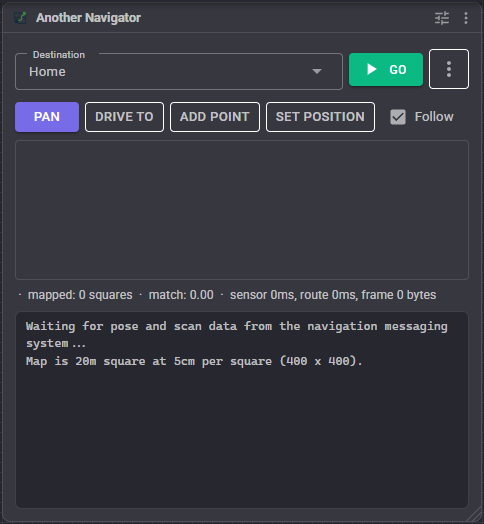
The map fills most of it. Red is an obstacle, the faint blue wash is space the sensor has seen through, and black is somewhere it has never looked. The yellow circle is the robot, drawn at its real configured size with a red nose showing which way it faces.
- Destination - pick a saved waypoint. Picking one only draws the route to it; the robot does not move until you press Go.
- Go / Stop - set off for the selected destination, or abandon the run.
- ** menu** - reset the view, put the robot back at 0,0, clear the map, save the map to a file, or load one of the maps you have already saved.
- Pan / Drive to / Add point / Set position - what a click on the map does. It starts on Pan, which is the only one of the four that cannot make the robot do anything.
- Follow - keep the robot centred as it drives. Dragging the map turns this off.
- Mouse wheel zooms, always.
The route is drawn along the ground at the robot's real width: green when it reaches the destination, orange when the planner could only get part of the way. If the green band does not fit through a doorway on screen, the robot will not fit through it either.
Under the map: where the pointer is, how many squares have been mapped, the scan match quality, and how long the sensor, the route and the drawing each took.
Saving places
Three ways, all equivalent:
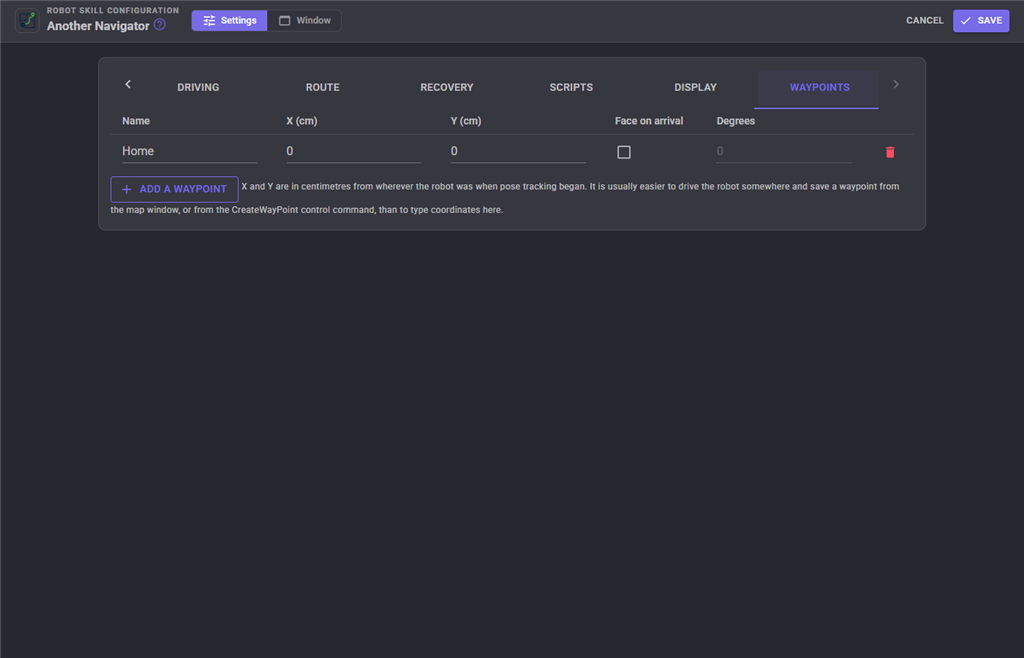
- Drive the robot somewhere, switch the map to Add point, and click on the robot.
- Call
CreateWayPointfrom a script, which saves wherever the robot is standing. - Type the coordinates on the Waypoints tab of the configuration.
A waypoint can also ask the robot to face a particular way on arrival, which matters for a charging dock and matters for nothing else. Leave it off and the robot stops facing whichever way it happened to arrive.
Waypoints are saved in your project.
Configuration
Map
| Setting | Meaning | Default |
|---|---|---|
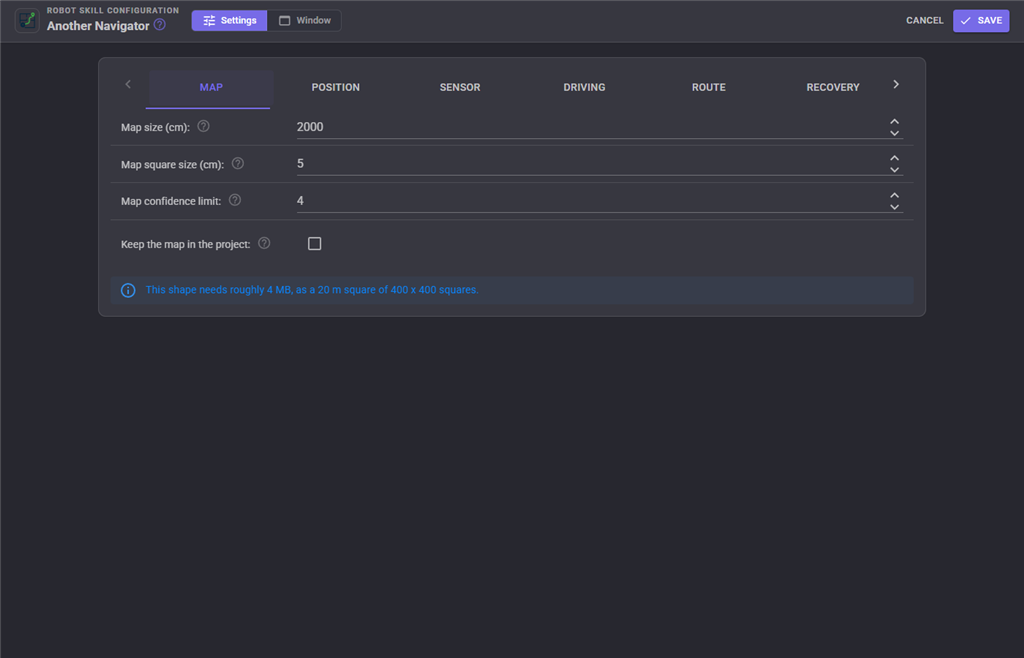
| Map size (cm) | How far the robot can travel from its starting point before running out of map - half of this in any direction. Takes effect on the next project load. | 2000 |
| Map square size (cm) | Smaller records thinner obstacles and uses the square of the memory. Takes effect on the next project load. | 5 |
| Map confidence limit | How stubborn the map is about an obstacle it has already seen. Lower makes the map change quickly and also lets one bad reflection paint a wall. | 4 |
| Keep the map in the project | Store the map inside the project file so reopening brings it back. Off keeps project files small. | off |
The panel under these settings tells you how much memory the shape you have chosen needs.
Position
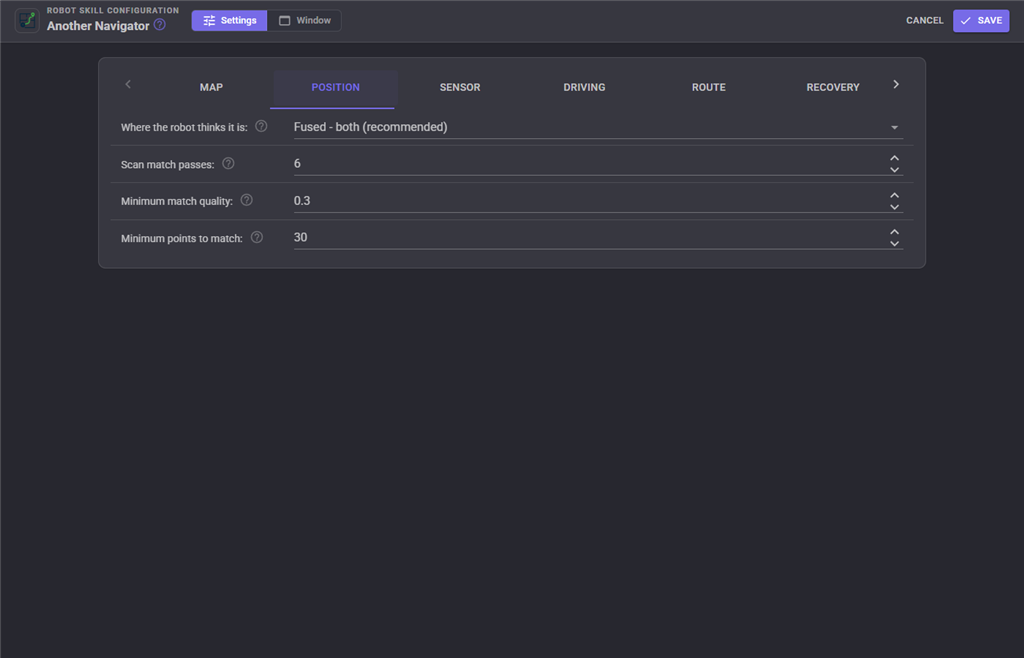
| Setting | Meaning | Default |
|---|---|---|
| Where the robot thinks it is | External trusts the positioning sensor exactly. Scan match ignores it and works the position out from the map alone. Fused starts from how far the sensor says the robot moved, then lets scan matching correct it. | Fused |
| Scan match passes | Refinement passes per sweep. More is slightly better and slightly slower. | 6 |
| Minimum match quality | How well a sweep must fit the map, 0 to 1, before the corrected position is believed. A poor fit usually means the robot is somewhere new, where the reported position is the safer one. | 0.3 |
| Minimum points to match | A handful of ultrasonic readings cannot pin a position down; below this, scan matching is skipped. | 30 |
Sensor
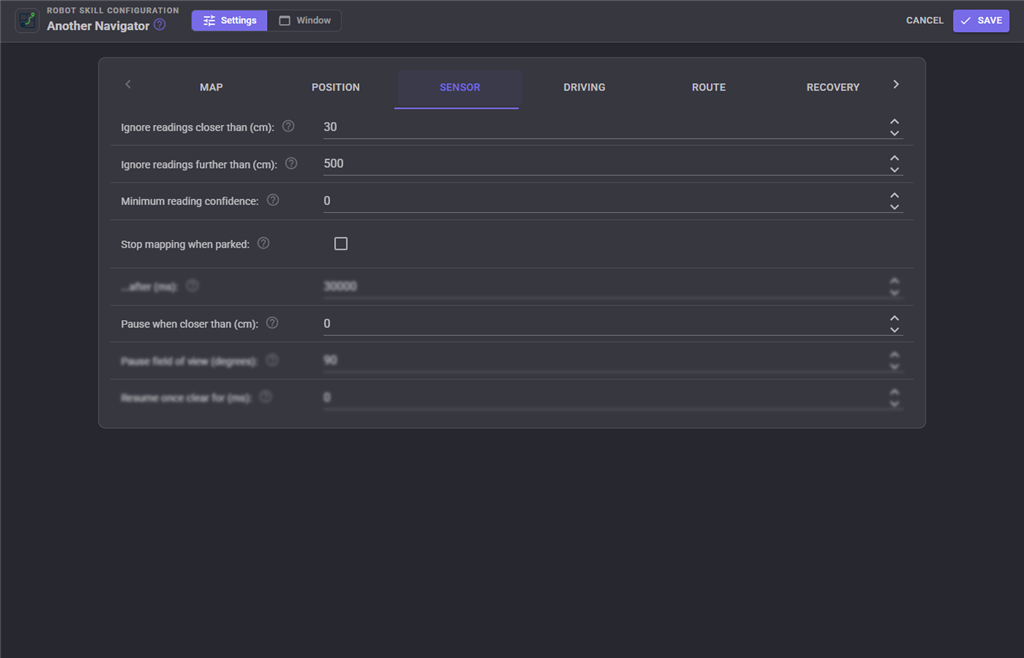
| Setting | Meaning | Default |
|---|---|---|
| Ignore readings closer than (cm) | Sensors report nonsense very close up, and a bumper in front of the sensor would otherwise be mapped as a wall that follows the robot around. | 30 |
| Ignore readings further than (cm) | Long readings are the least accurate and the most likely to be a reflection. | 500 |
| Minimum reading confidence | 0 to 255. Zero accepts everything, which is right for a sensor that does not report confidence. | 0 |
| Stop mapping when parked | Stop updating the map once the robot has been still a while, so people walking past a parked robot are not burnt in as walls. | off |
| ...after (ms) | How long "still" means. | 30000 |
| Pause when closer than (cm) | Pause the run when something appears this close in front. Zero leaves obstacle avoidance entirely to the route planner. | 0 |
| Pause field of view (degrees) | How wide an ARC in front is watched. 90 watches 45 either side; 360 watches all the way round. | 90 |
| Resume once clear for (ms) | Resume a paused run by itself once nothing has been seen for this long. Zero waits for a script or the user. | 0 |
Driving
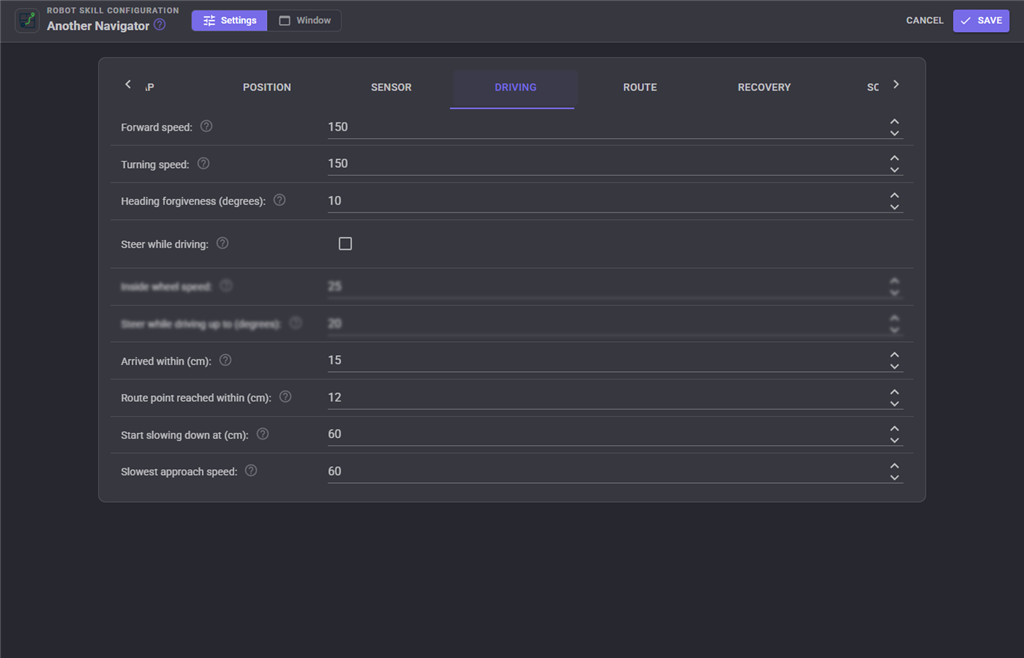
| Setting | Meaning | Default |
|---|---|---|
| Forward speed / Turning speed | 0 to 255, handed to your movement panel. | 150 |
| Heading forgiveness (degrees) | How far off course the robot may be before it stops and turns on the spot. Too small and an imprecise robot hunts back and forth; too large and it wanders. | 10 |
| Steer while driving | Make small corrections by slowing one wheel instead of stopping to turn. Needs a Movement Panel that supports separate left and right speeds. | off |
| Inside wheel speed | What the inside wheel drops to during the sharpest steer. | 25 |
| Steer while driving up to (degrees) | Larger errors than this still stop and turn on the spot. | 20 |
| Arrived within (cm) | How close counts as arrived. | 15 |
| Route point reached within (cm) | How exactly the robot follows the intermediate points along a route. | 12 |
| Start slowing down at (cm) | Easing off near the destination. Zero makes the robot far more likely to overshoot and then circle. | 60 |
| Slowest approach speed | Set it high enough that the robot can still actually move. | 60 |
Route
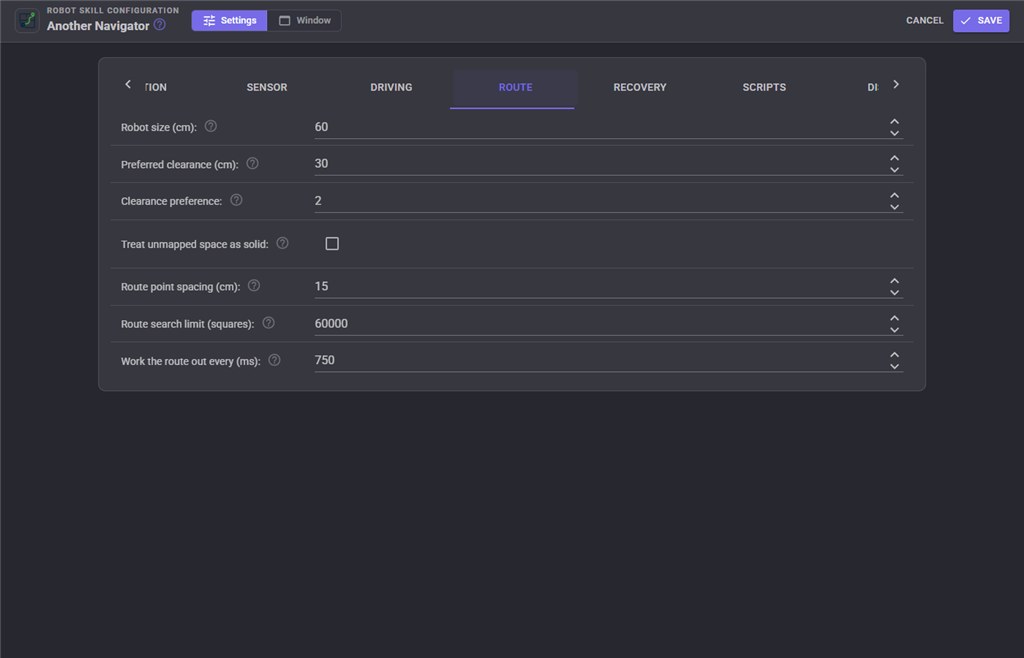
| Setting | Meaning | Default |
|---|---|---|
| Robot size (cm) | How wide the robot is, including anything that sticks out. The single most important setting here. Too small and it clips door frames; too large and it refuses to go through doors at all. | 60 |
| Preferred clearance (cm) | Extra room the robot would rather leave. It will squeeze closer when there is no roomier option. | 30 |
| Clearance preference | How strongly. Zero takes the shortest route regardless of how close it runs to the walls. | 2 |
| Treat unmapped space as solid | Safer once the area is fully mapped, but it stops the robot exploring anywhere new. | off |
| Route point spacing (cm) | How often the robot gets a course correction down a long straight. | 15 |
| Route search limit (squares) | Raise it if long routes across a large map keep coming back orange. | 60000 |
| Work the route out every (ms) | More often reacts faster to obstacles that have just appeared. | 750 |
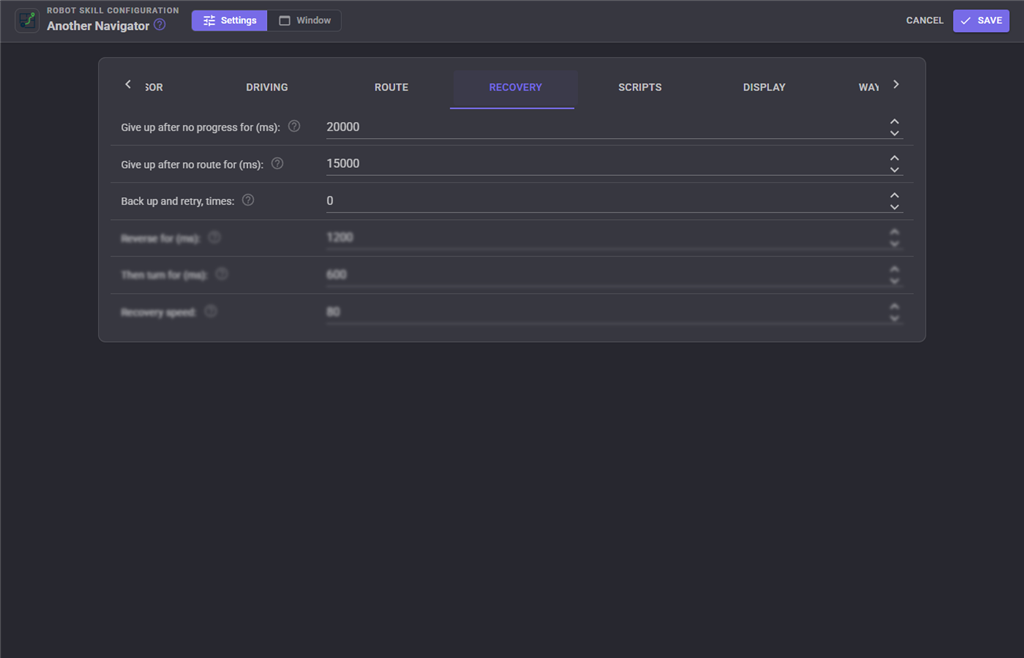
Recovery
| Setting | Meaning | Default |
|---|---|---|
| Give up after no progress for (ms) | Zero never gives up, which means a wedged robot pushes against a wall indefinitely. | 20000 |
| Give up after no route for (ms) | Zero waits forever for the planner. | 15000 |
| Back up and retry, times | Zero is the safe default: most robots only see forwards, so a reversing robot is driving blind. | 0 |
| Reverse for (ms) / Then turn for (ms) | The manoeuvre. Turning matters - reversing back along the line it came in on puts it straight back in the same corner. | 1200 / 600 |
| Recovery speed | Keep it slow. | 80 |
Scripts
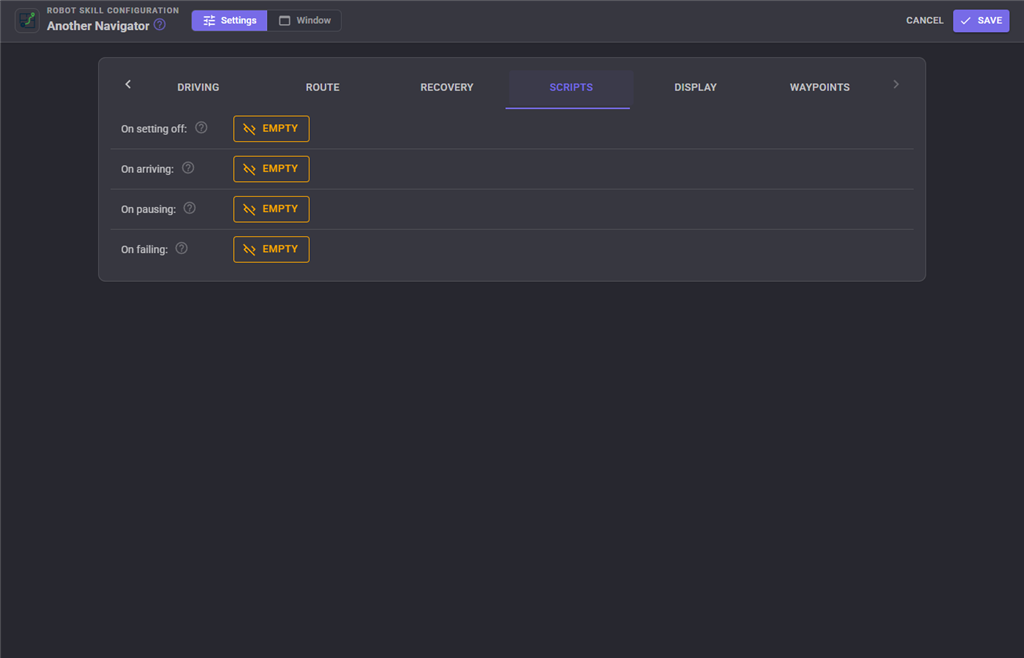
Four scripts, each optional.
| Script | When it runs |
|---|---|
| On setting off | Each time the robot sets off for a destination. |
| On arriving | Each time it reaches one. |
| On pausing | Each time a run is paused because something is in the way. |
| On failing | When a run ends without arriving - no route, stopped making progress, or cancelled. |
Read ANavResult in the failure script to find out which.
Display
| Setting | Meaning | Default |
|---|---|---|
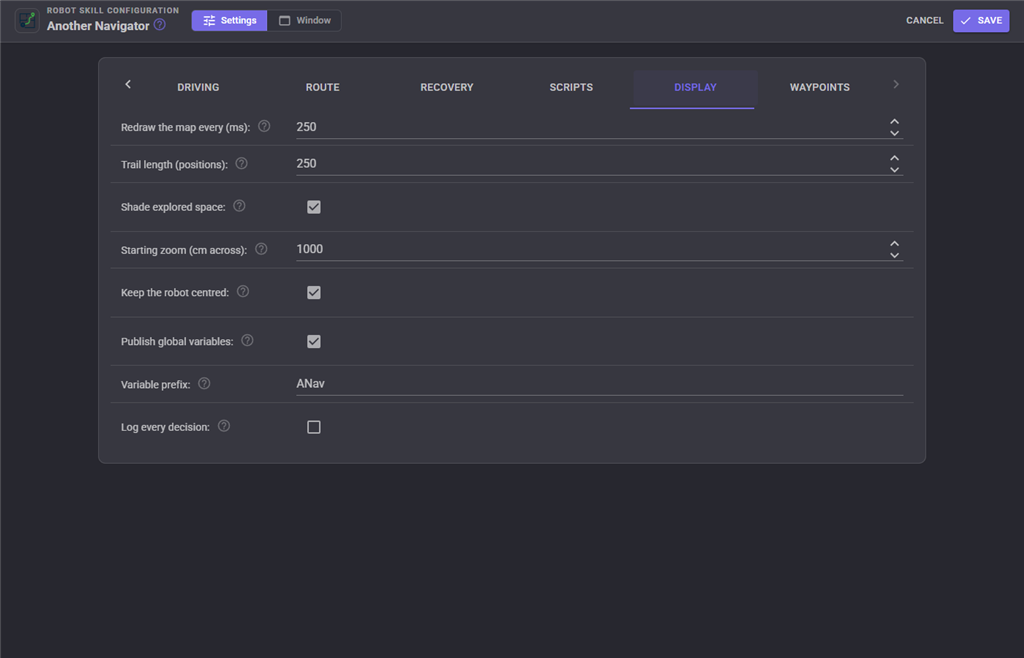
| Redraw the map every (ms) | Costs nothing while nobody is looking at the window. | 250 |
| Trail length (positions) | The pink trail behind the robot. Zero draws none. | 250 |
| Shade explored space | The faint blue wash showing where the sensor has looked. | on |
| Starting zoom (cm across) | What the map shows before you touch the wheel. | 1000 |
| Keep the robot centred | Follow the robot as it drives. | on |
| Publish global variables | Publish the position and the rest for scripts to read. | on |
| Variable prefix | Change this when two navigators share a project, so their variables do not overwrite each other. | ANav |
| Log every decision | Every steering decision and every route, in the log. Invaluable when a robot will not go where it is told, far too noisy otherwise. | off |
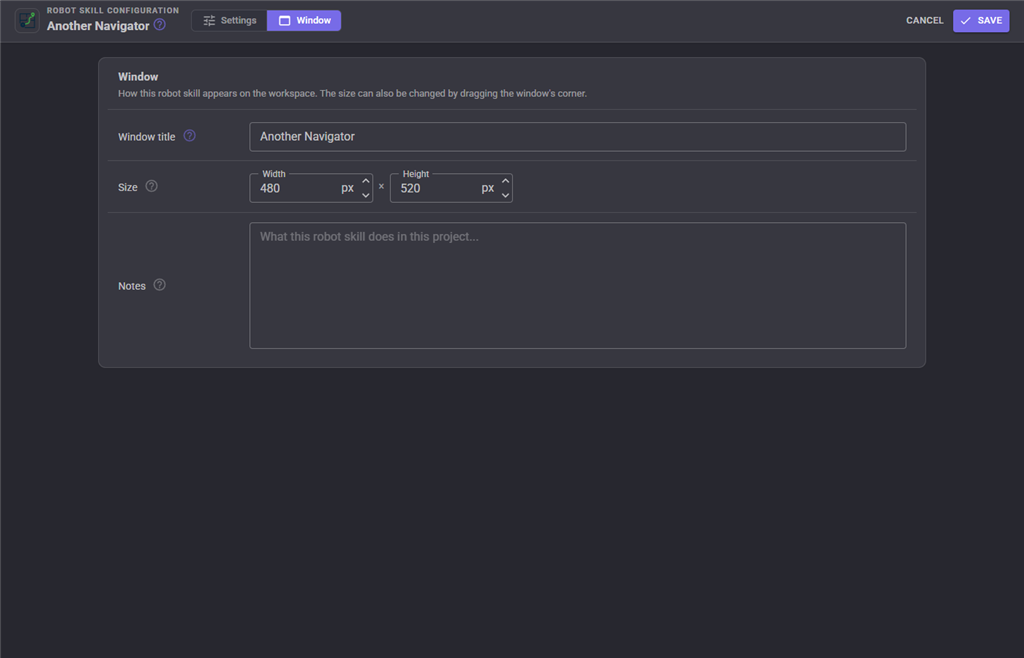
The Window tab sets the robot skill's window title, its size on the workspace and notes about what it does in this project.
Global variables
With the default prefix of ANav. All are updated as each sweep arrives.
| Variable | What it holds |
|---|---|
ANavCurrentX, ANavCurrentY |
Where the robot is, in cm from where tracking began. |
ANavCurrentHeading |
Which way it faces, in degrees. |
ANavIsNavigating |
True while it is driving to a destination. |
ANavStatus |
Navigating, Paused or StoppedCancelled. |
ANavWayPointName, ANavWayPointX, ANavWayPointY |
The destination of the current run. |
ANavDistanceToDestination |
How far is left, in a straight line. |
ANavPathLengthCM |
How long the route is following every turn. |
ANavResult |
How the last run ended: Arrived, Cancelled, NoPath, Stuck, LostPose or Error. |
ANavNearestDistance, ANavNearestDistanceDegree |
The closest thing the sensor can see, and its bearing. |
ANavFurthestDistance, ANavFurthestDistanceDegree |
The furthest. |
ANavScanMatchConfidence |
How well the last sweep fitted the map, 0 to 1. |
ANavSavedWayPoints |
An array of every saved waypoint name. |
Custom UI widget
A Send robot to widget for your own control panel screens: a destination, one big button, and the distance counting down.
| Setting | Meaning |
|---|---|
Caption |
The label across the top. |
ShowDistance |
true or false, whether the remaining distance is shown. |
WayPoint |
Name one saved waypoint and the drop-down disappears, leaving a single button that always sends the robot there. Leave it empty to let the user choose. |
Locking each copy to a different waypoint and dropping four on a screen gives you a room-by-room remote control without writing a line of script.
The whole map window is also available on a Custom UI screen through ARCx's built-in Robot skill window widget.
Map files
Save map writes to Another Navigator Maps inside your ARCx documents folder, as a .anavmap file. Saved maps appear in the menu ready to load.
A map can only be loaded back into a navigator configured with the same map size and map square size it was saved at - a map stretched to a different scale would put every wall in the wrong place, so it is refused with a message telling you what to change.
When it does not work
| What you see | Usually means |
|---|---|
| "No position information has been received yet" | Nothing in the project is reporting a pose. Add a positioning robot skill. |
| The map is empty | Nothing is reporting distances, or every reading falls outside the ignore closer / further than range. |
| The same wall appears several times, slightly offset | Position drift. Try Fused, and watch ANavScanMatchConfidence - below about 0.3 means the matcher is being ignored. |
| The robot refuses to go through a doorway | Robot size plus preferred clearance is wider than the gap. Reduce the clearance first; only reduce the robot size if it is genuinely wrong. |
| The route is orange and stops short | No complete route exists yet. Either the destination is walled off, or the area between has not been mapped and treat unmapped space as solid is on. |
| The robot circles its destination | Turn start slowing down up, or arrived within up. It is overshooting by however far it travels between two position updates. |
| The robot clips door frames | Robot size is smaller than the robot. Measure the widest part, including handles and bumpers. |
Runs end as Stuck |
It stopped making progress. Turn on log every decision and watch whether it is steering or waiting for a route. |
| "The robot is standing where the map says there is an obstacle" | Position drift has walked the robot into a mapped wall. The planner frees its own footprint so it can escape; if it keeps happening, clear the map or use Set position to put the robot back where it really is. |
Control Commands for the Another Navigator robot skill
There are Control Commands available for this robot skill which allows the skill to be controlled programmatically from scripts or other robot skills. These commands enable you to automate actions, respond to sensor inputs, and integrate the robot skill with other systems or custom interfaces. If you're new to the concept of Control Commands, we have a comprehensive manual available here that explains how to use them, provides examples to get you started and make the most of this powerful feature.
Control Command ManualThis robot skill has 18 control commands, listed below. Send them from a JavaScript or Python script, from Blockly, or from another robot skill.
The first value is always the window title, which is the name in the title bar of the robot skill on your workspace. It starts out as Another Navigator, which is what every example below uses. If you rename the robot skill, or add a second copy of it to the project, use the title as it appears on that window instead.
ControlCommand() can be shortened to CC(), and both spellings work in JavaScript and in Python. The examples are JavaScript; Python is the same call, except that true and false are written True and False.
AdjustRobotPose
Tell the robot it is actually standing somewhere else, in metres and radians in ROS's frame (X ahead, Y left, yaw counter-clockwise). Use this when the map has drifted, or after the robot has been picked up and put down.
Syntax
ControlCommand("Another Navigator", "AdjustRobotPose", (Number)x, (Number)y, (Number)yaw)
Parameters
| # | Name | Type | What to pass |
|---|---|---|---|
| 1 | x | Number | A number, without quotes |
| 2 | y | Number | A number, without quotes |
| 3 | yaw | Number | A number, without quotes |
Returns: Boolean [true or false]
Example
var result = ControlCommand("Another Navigator", "AdjustRobotPose", 0, 0, 0);
ClearMap
Forget everything the robot has mapped, and start building the map again from here.
Syntax
ControlCommand("Another Navigator", "ClearMap")
Returns: Boolean [true or false]
Example
var result = ControlCommand("Another Navigator", "ClearMap");
CreateWayPoint
Save a place under a name. Pass just a name to save wherever the robot is standing now. Pass a second value to also set which way to face on arrival: a yaw in radians (counter-clockwise from the starting direction, as in ROS), or "current" for whichever way the robot is facing now.
Syntax
ControlCommand("Another Navigator", "CreateWayPoint", (String)waypointName, (String)facingRadiansOrCurrent)
Parameters
| # | Name | Type | What to pass |
|---|---|---|---|
| 1 | waypointName | Text | Your text, in quotes |
| 2 | facingRadiansOrCurrent | Text | Your text, in quotes |
Returns: Boolean [true or false]
Example
var result = ControlCommand("Another Navigator", "CreateWayPoint", "waypointName", "facingRadiansOrCurrent");
DeleteWayPoint
Delete a saved waypoint by name. If the robot is on its way there, it stops.
Syntax
ControlCommand("Another Navigator", "DeleteWayPoint", (String)waypointName)
Parameters
| # | Name | Type | What to pass |
|---|---|---|---|
| 1 | waypointName | Text | Your text, in quotes |
Returns: Boolean [true or false]
Example
var result = ControlCommand("Another Navigator", "DeleteWayPoint", "waypointName");
GetDistanceToDestination
How far, in metres, the robot still has to go in a straight line. Zero when it is not going anywhere.
Syntax
ControlCommand("Another Navigator", "GetDistanceToDestination")
Returns: Double [5.0e324 to 1.7e308]
Example
var result = ControlCommand("Another Navigator", "GetDistanceToDestination");
GetPose
Where the robot believes it is, as an array of three numbers in ROS's frame and units: X in metres (ahead of where tracking began), Y in metres (to its left), and the yaw in radians from -pi to pi (counter-clockwise, growing as it turns left).
Syntax
ControlCommand("Another Navigator", "GetPose")
Returns: Array of Double
Example
var result = ControlCommand("Another Navigator", "GetPose");
GetWayPoints
The names of every saved waypoint.
Syntax
ControlCommand("Another Navigator", "GetWayPoints")
Returns: Array of String
Example
var result = ControlCommand("Another Navigator", "GetWayPoints");
GoToLocation
Drive to a position on the map that is not a saved waypoint. X and Y are in metres from where pose tracking began, as in ROS: X ahead along the way the robot faced then, Y to its left.
Syntax
ControlCommand("Another Navigator", "GoToLocation", (Number)x, (Number)y)
Parameters
| # | Name | Type | What to pass |
|---|---|---|---|
| 1 | x | Number | A number, without quotes |
| 2 | y | Number | A number, without quotes |
Returns: Boolean [true or false]
Example
var result = ControlCommand("Another Navigator", "GoToLocation", 0, 0);
GoToWayPoint
Drive to a saved waypoint by name. Returns once the robot has set off, not once it has arrived; watch the IsNavigating variable, or use the arrival script, to know when it gets there.
Syntax
ControlCommand("Another Navigator", "GoToWayPoint", (String)waypointName)
Parameters
| # | Name | Type | What to pass |
|---|---|---|---|
| 1 | waypointName | Text | Your text, in quotes |
Returns: Boolean [true or false]
Example
var result = ControlCommand("Another Navigator", "GoToWayPoint", "waypointName");
IsNavigating
Is the robot currently driving to a destination ?
Syntax
ControlCommand("Another Navigator", "IsNavigating")
Returns: Boolean [true or false]
Example
var result = ControlCommand("Another Navigator", "IsNavigating");
LoadMap
Read a map back from a file, replacing whatever is in memory. The file has to have been saved at the same map size and square size as this robot skill is configured for.
Syntax
ControlCommand("Another Navigator", "LoadMap", (String)fileName)
Parameters
| # | Name | Type | What to pass |
|---|---|---|---|
| 1 | fileName | Text | Your text, in quotes |
Returns: Boolean [true or false]
Example
var result = ControlCommand("Another Navigator", "LoadMap", "fileName");
PauseNavigating
Hold the robot still without abandoning the destination. Use ResumeNavigating to carry on.
Syntax
ControlCommand("Another Navigator", "PauseNavigating")
Returns: Boolean [true or false]
Example
var result = ControlCommand("Another Navigator", "PauseNavigating");
ResetPose
Put the robot back at 0, 0 facing 0 degrees, without clearing the map.
Syntax
ControlCommand("Another Navigator", "ResetPose")
Returns: Boolean [true or false]
Example
var result = ControlCommand("Another Navigator", "ResetPose");
ResumeNavigating
Carry on driving to the destination after PauseNavigating, or after the robot paused itself for an obstacle.
Syntax
ControlCommand("Another Navigator", "ResumeNavigating")
Returns: Boolean [true or false]
Example
var result = ControlCommand("Another Navigator", "ResumeNavigating");
SaveMap
Write the map to a file. A bare name is saved into the Another Navigator Maps folder in the ARCx documents folder; a full path is used as given. Returns the full path written.
Syntax
ControlCommand("Another Navigator", "SaveMap", (String)fileName)
Parameters
| # | Name | Type | What to pass |
|---|---|---|---|
| 1 | fileName | Text | Your text, in quotes |
Returns: String
Example
var result = ControlCommand("Another Navigator", "SaveMap", "fileName");
SetWayPointFacing
Set which way the robot should be facing when it arrives at a waypoint. Pass a yaw in radians (counter-clockwise from the starting direction, as in ROS), "current" for whichever way the robot is facing now, or "none" to stop caring.
Syntax
ControlCommand("Another Navigator", "SetWayPointFacing", (String)waypointName, (String)radiansOrCurrentOrNone)
Parameters
| # | Name | Type | What to pass |
|---|---|---|---|
| 1 | waypointName | Text | Your text, in quotes |
| 2 | radiansOrCurrentOrNone | Text | Your text, in quotes |
Returns: Boolean [true or false]
Example
var result = ControlCommand("Another Navigator", "SetWayPointFacing", "waypointName", "radiansOrCurrentOrNone");
StartTour
Drive to each of several waypoints in turn, given as one comma separated list of names. The tour stops at the first waypoint the robot cannot reach. Returns how many stops were queued.
Syntax
ControlCommand("Another Navigator", "StartTour", (String)commaSeparatedWaypointNames)
Parameters
| # | Name | Type | What to pass |
|---|---|---|---|
| 1 | commaSeparatedWaypointNames | Text | Your text, in quotes |
Returns: Integer [-2,147,483,648 to 2,147,483,647]
Example
var result = ControlCommand("Another Navigator", "StartTour", "commaSeparatedWaypointNames");
StopNavigating
Stop driving and abandon the current destination and any tour.
Syntax
ControlCommand("Another Navigator", "StopNavigating")
Returns: Boolean [true or false]
Example
var result = ControlCommand("Another Navigator", "StopNavigating");
This list is read out of the robot skill itself each time its package is uploaded, so it matches the published version (v8).




This robot skill has been updated to v1.
This robot skill has been updated to v2.
This robot skill has been updated to v3.
What has changed
compatible with latest ARCx v2026.09.27.01
This robot skill has been updated to v4.
What has changed
log size can be specified in the configuration
This robot skill has been updated to v5.
What has changed
added a center map button to recenter the map
This robot skill has been updated to v6.
What has changed
updated to work with latest ARCx NMS
This robot skill has been updated to v7.
What has changed
Fix for a stack overflow error during navigation to waypoint
This robot skill has been updated to v8.
What has changed
updated to use new threading features of ARCx v2026.10.04.01