Getting Started
Learn how to build a robot with ARCx, Synthiam's robot programming platform. This beginner's guide takes you from choosing a robot controller, motors and a camera to driving your robot, adding voice commands and controlling it from your phone. You can get movement and live video working through robot skills and their settings before learning to write scripts.
Your first goal is simple: connect the robot, move it deliberately, stop it, and see through its camera. Add speech, remote control and autonomous features one working step at a time.
Your path to a working robot
- Choose your robot hardware.
- Install ARCx and create a project.
- Connect your EZB controller.
- Use the robot designer to map your ports.
- Choose a movement panel and drive.
- Add a camera and view live video.
- Add a speech listener and phrase scripts.
- Add joystick or phone remote control.
- Grow into AI, navigation and talking robots.
- Start and stop your robot each session.
How ARCx works
ARCx runs on a robot computer: the computer that runs the software and communicates with your hardware. That computer can sit on the robot or nearby. You use ARCx through a web browser on that computer, or through a phone, tablet or another computer configured to reach it.
| Term | What it means |
|---|---|
| EZB controller | The hardware interface between ARCx and the robot's servos, motors and sensors. Use a controller supported by ARCx, with the appropriate firmware and connection method. |
| Port | A numbered connection on a controller. Settings must refer to the port where the part is actually wired. |
| Robot skill | An add-on that provides a capability, such as a camera source, movement panel, speech recognition or joystick control. |
| Project | Your saved robot setup: skills, their settings, scripts, robot port map and custom screens. ARCx project files use the .arcx extension. |
| Workspace | A page where you arrange and use robot skill windows. |
| Script | A sequence of instructions, such as stopping the wheels or playing a greeting. Buttons, spoken phrases and other skills can run scripts. |
Robot skills work together. A joystick, a voice command and a navigation skill can all send movement commands through the robot's movement panel. A camera source supplies video to viewers and vision skills. A speech listener converts sound into text; a phrase recognition skill decides which script that text should run.
Phone or computer browser --> ARCx running on the robot computer
                                  |
                    Robot skills and your project
                                  |
                       EZB controller --> Robot hardware

Microphone --> Speech listener --> Phrase recognition --> Script
Joystick / phone controls / script --> Movement panel --> Wheels or legs
Camera --> Camera source --> Live view / vision skills
1. Choose your robot hardware
For a first project, a small wheeled robot is easier to set up than a walking robot. Choose compatible parts before wiring them together; the movement panel and camera skill you use later depend on these choices.
| Part | What to decide |
|---|---|
| Robot computer | Choose a computer covered by the installation guides. It runs ARCx throughout your session. |
| EZB controller | Check that ARCx supports the board, its firmware, the connection method and the ports your parts need. |
| Frame or chassis | This holds the controller, battery, wheels and other parts. An existing robot kit can provide this structure. |
| Motors and wheels | DC gear motors need a suitable motor driver, often called an H-bridge. Continuous rotation servos are another way to drive wheels. |
| Position servos | These move to a chosen position, useful for a head, arm or camera mount. They behave differently from continuous rotation servos, which spin for wheel movement. |
| Camera | Choose a USB camera connected to the ARCx computer, or a camera supported by a video-capable EZB. |
| Power | Match the controller, motors, servos and driver to an appropriate battery or supply, including their voltage and current requirements. |
| Microphone and speaker | Add these for speech recognition and spoken responses. Start with audio devices attached to the ARCx computer. |
| Remote control | Use a compatible game controller, or build a touchscreen interface for your phone. |
Follow each hardware manufacturer's wiring instructions. A motor driver handles the power needed by DC motors; do not wire a DC motor directly to a controller's signal pin. Power off before changing wiring, and check polarity and any required shared ground connections.
Write down which controller and port each part uses. Keep the robot supported with its wheels clear of the floor for the first movement tests, and keep its power switch within reach.
Ready to continue: You know how the robot will move, how its controller connects, and which camera you will use.
Adafruit
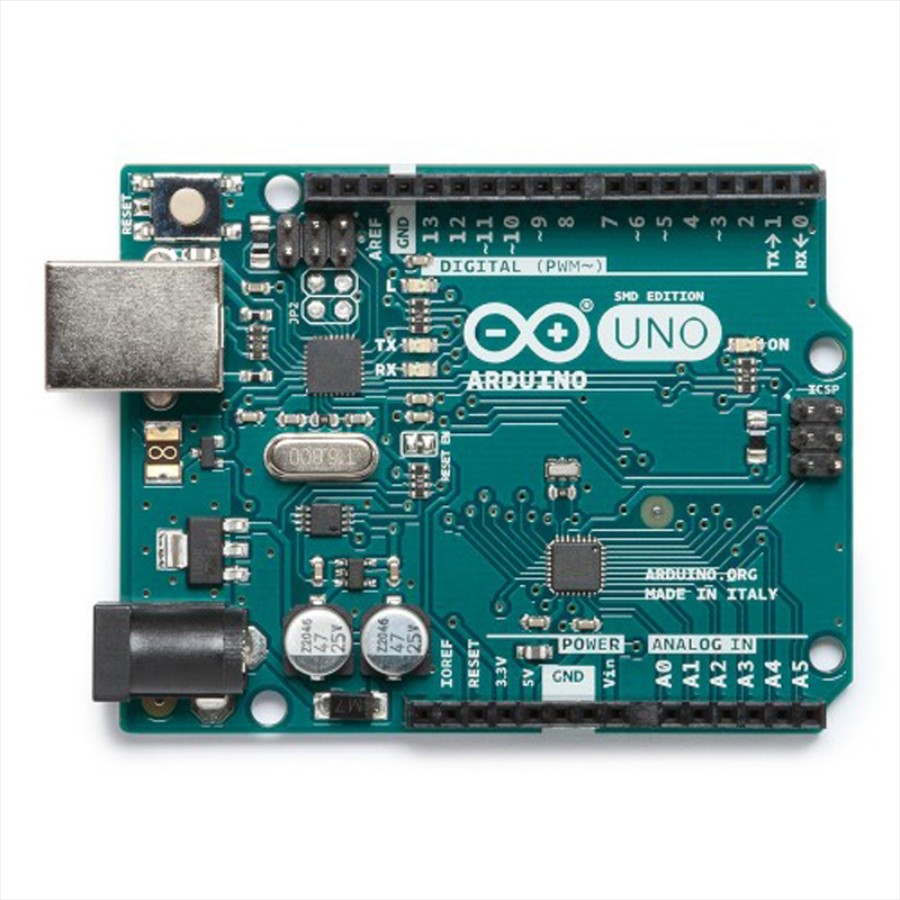
Arduino
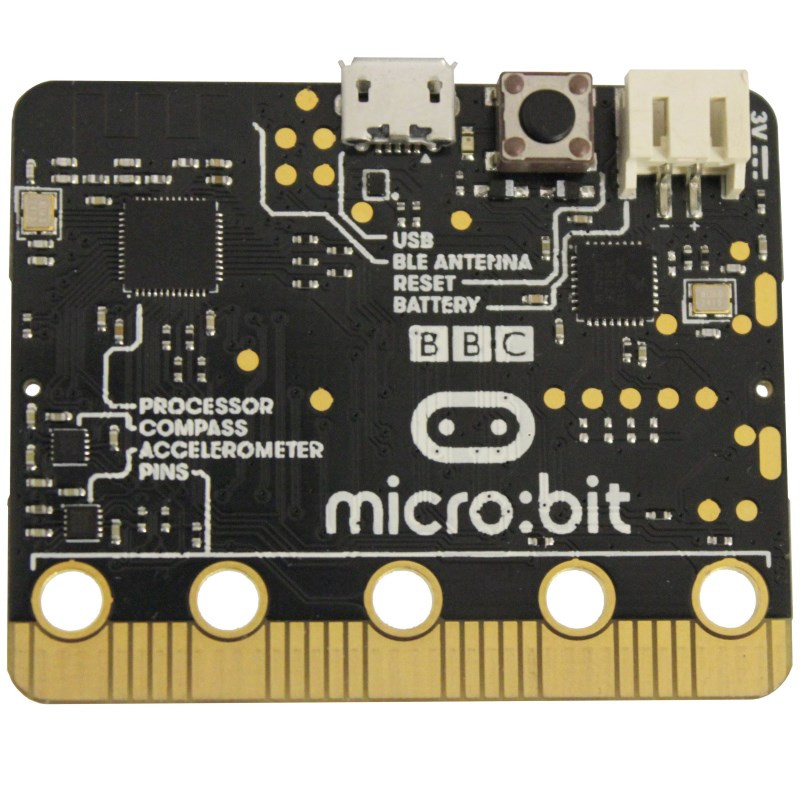
BBC
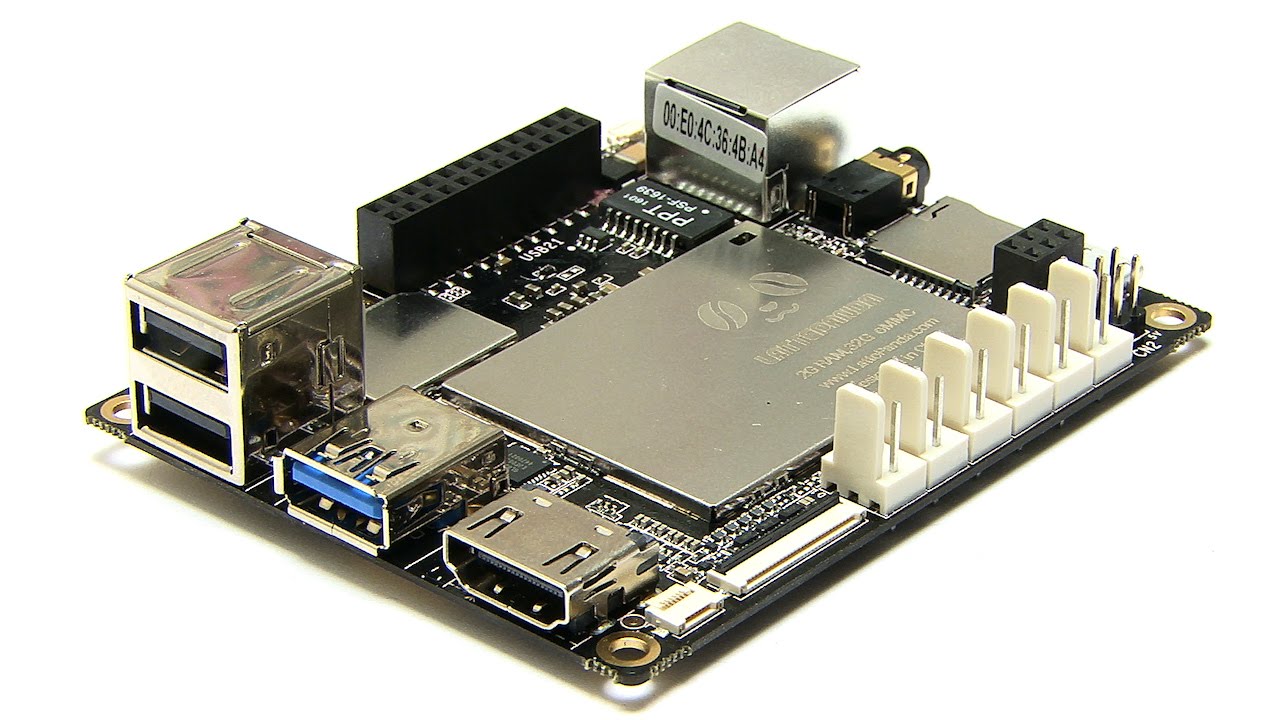
DF Robot
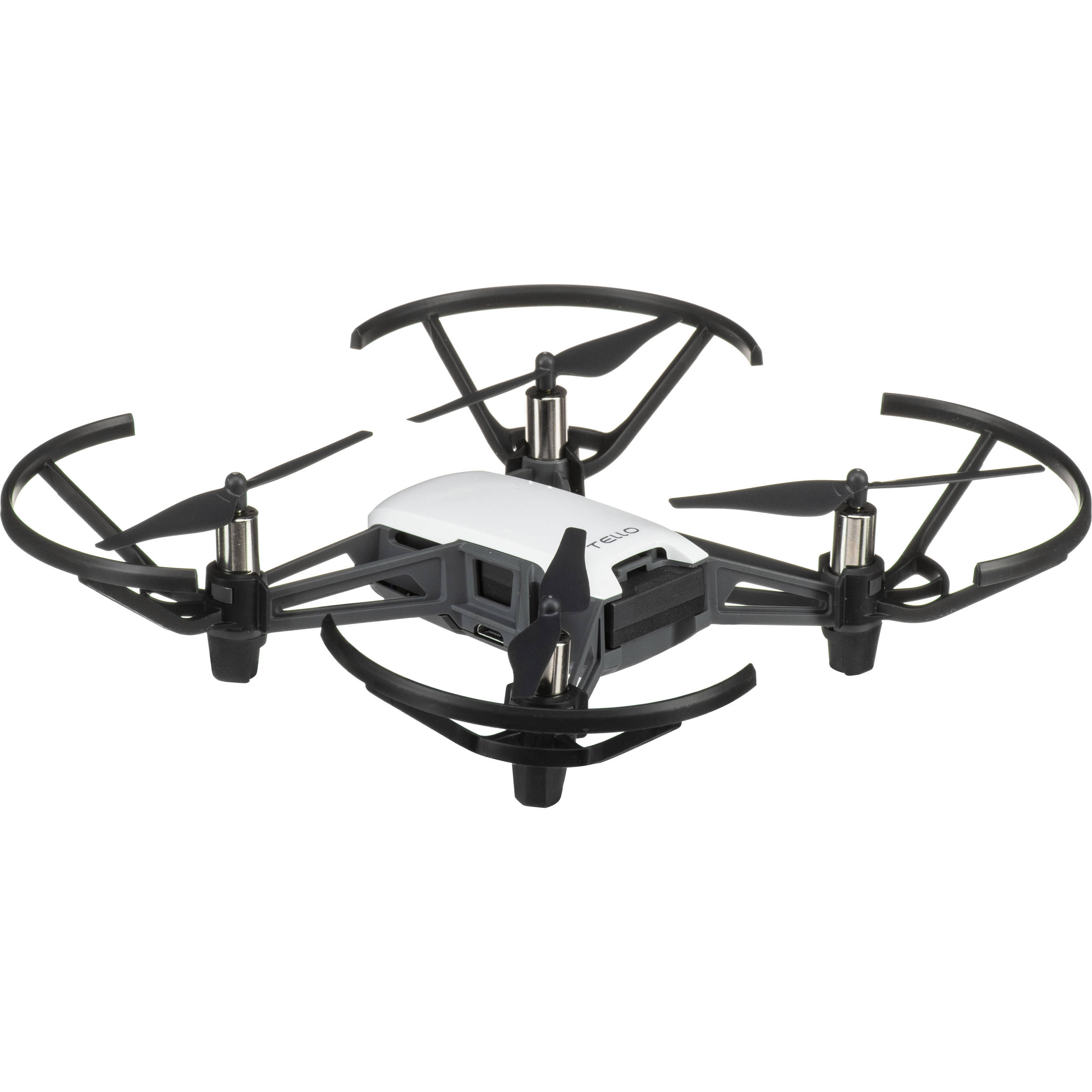
DJI
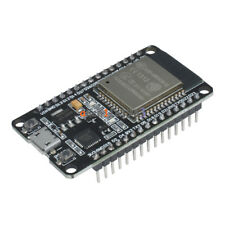
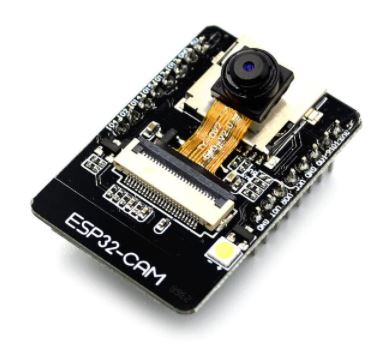
Espressif
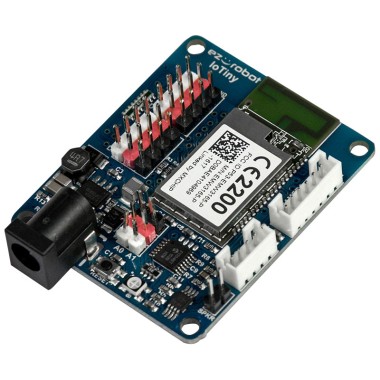
EZ-Robot
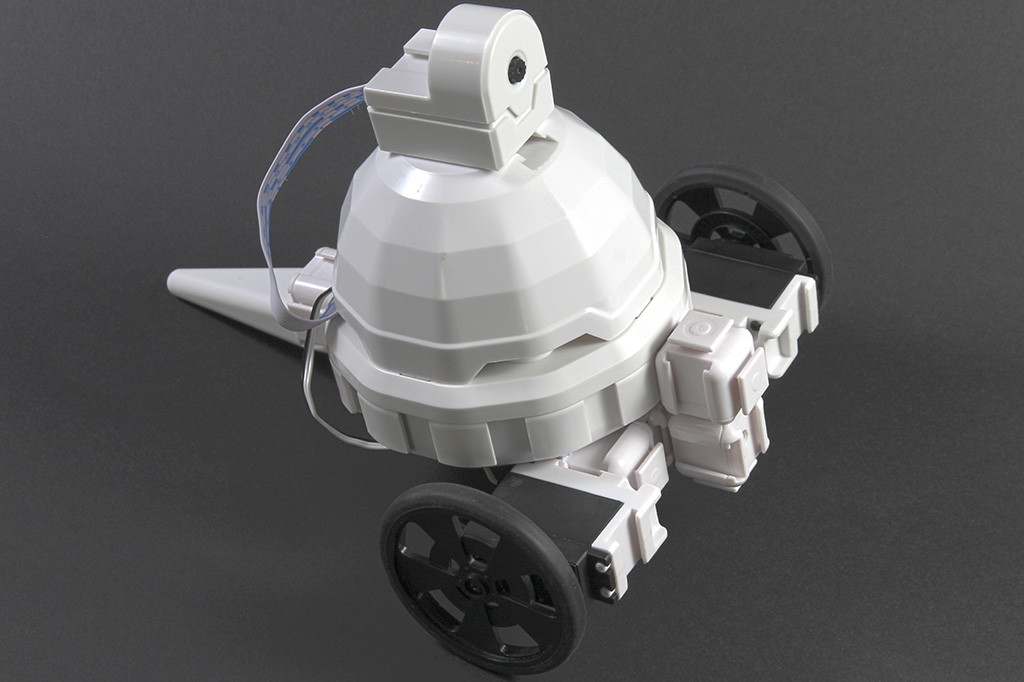
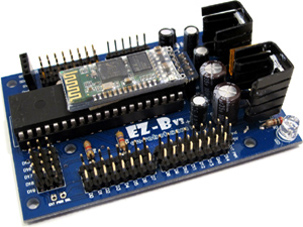
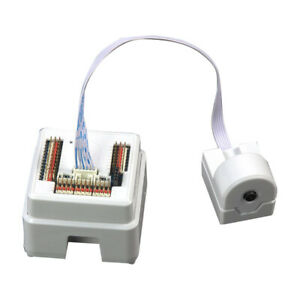
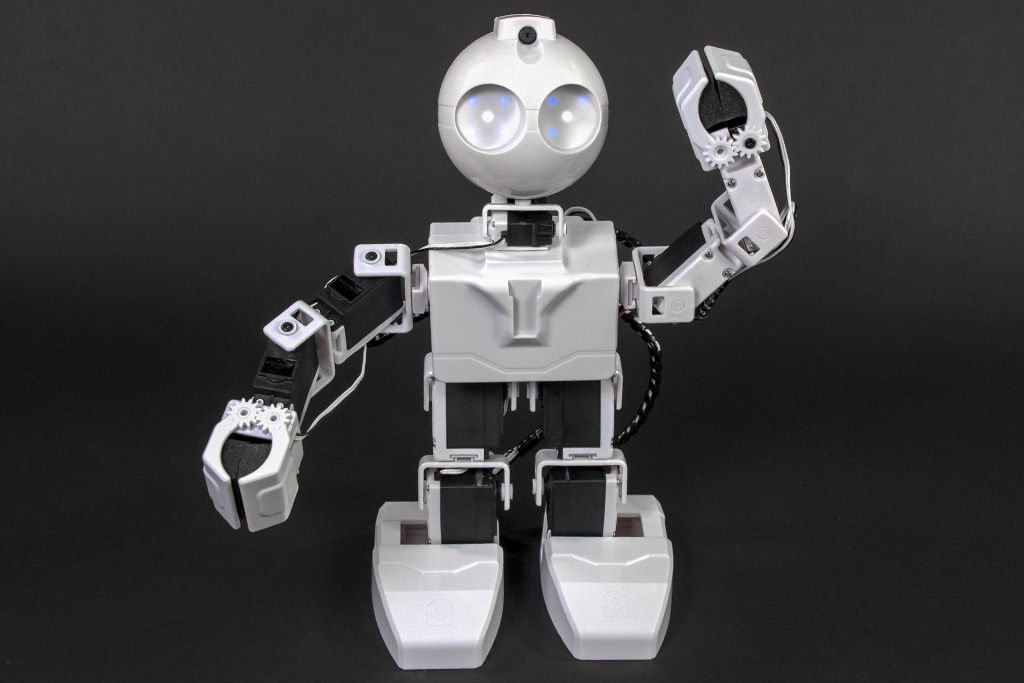
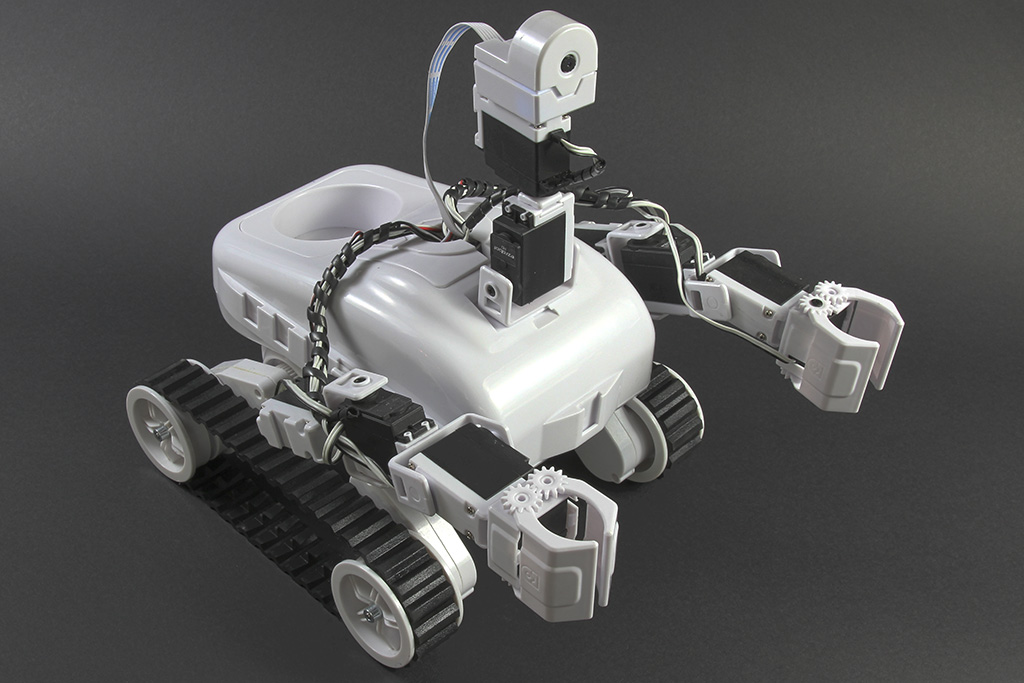
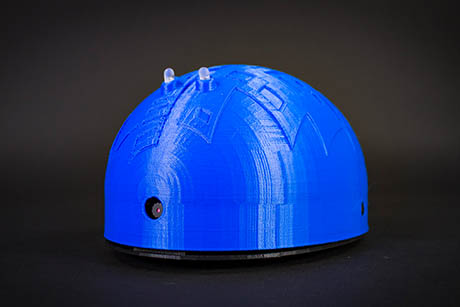
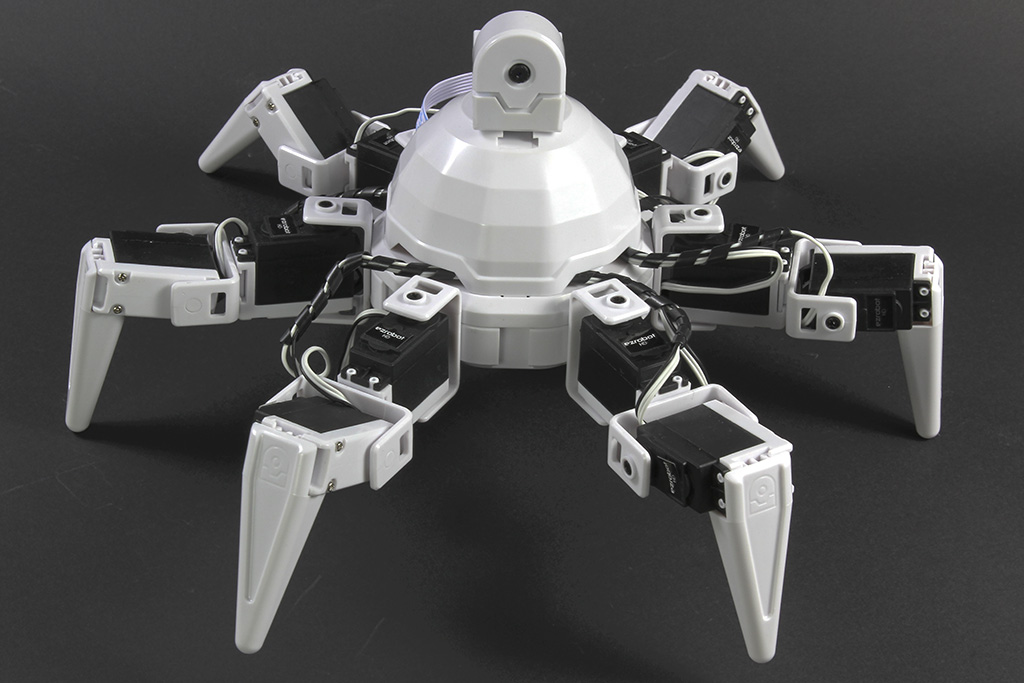
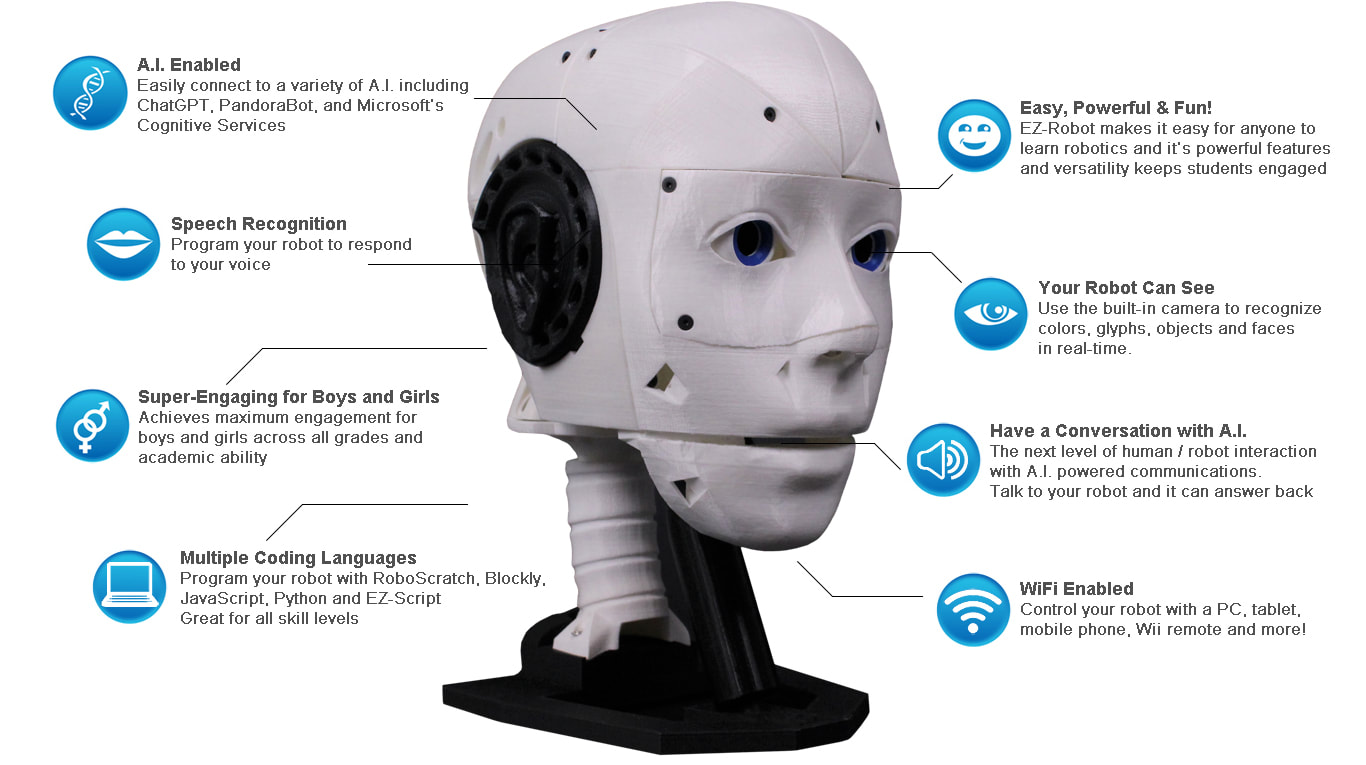
EZ-Robot & Gael Langevin
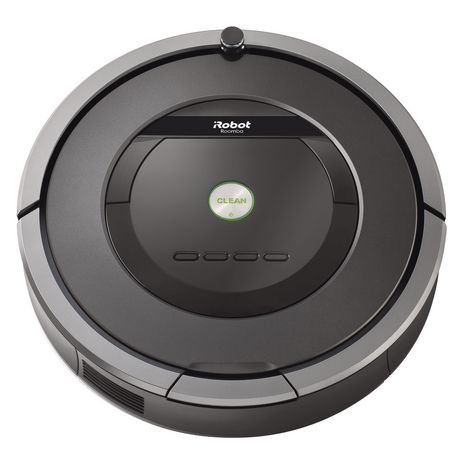
iRobot
Ohmnilabs
Open Robotics
Parrot
Pi Foundation
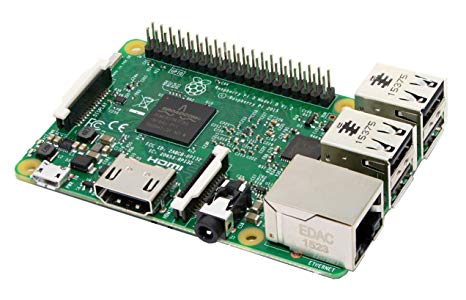
Radxa
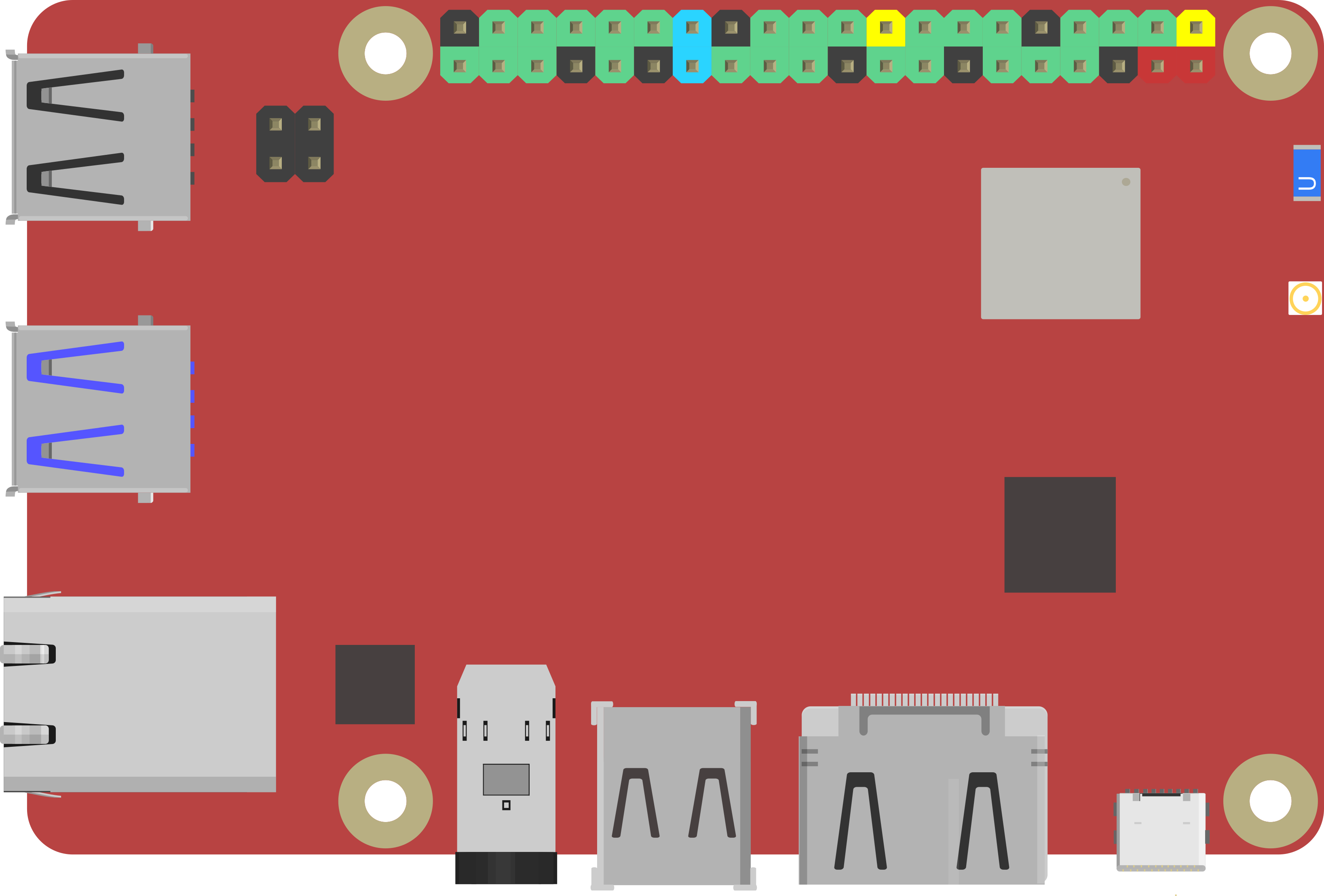
Robotis
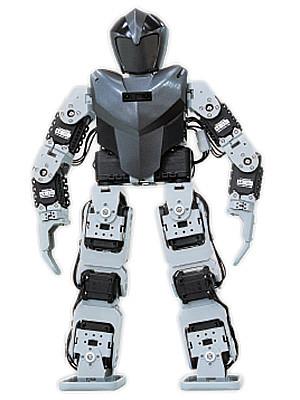
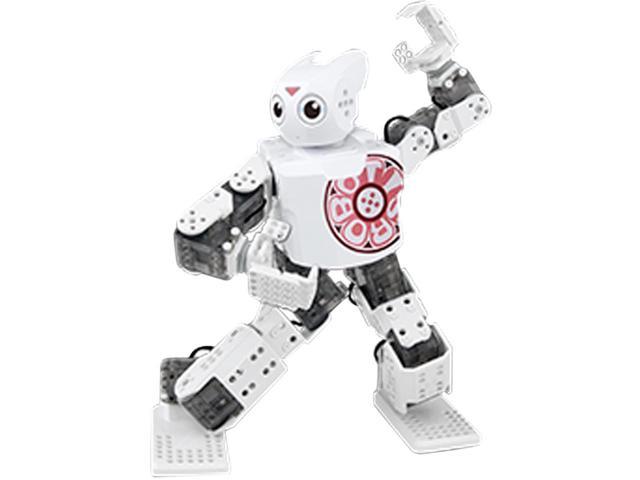
Sain
Sphero
Team IoT
Up
Viam
2. Install ARCx and create a project
- Follow the guide for Windows, Raspberry Pi or Linux x64.
- Start ARCx. On Windows, use the ARCx shortcut. On Linux, use the launch instructions in your installation guide.
- Open
http://127.0.0.1:5000in a browser on that computer if the interface does not open automatically. Leave the ARCx console running. - Complete the initial setup and sign in to your Synthiam account when prompted.
- Use File > New to create your robot project. Save any existing work before replacing an open project.
- Use File > Save and give the project a recognizable name, such as
My First Robot.
To add capabilities, select Robot Skills > Add, find the skill you need, and add it to your workspace. Open a skill's configuration using its settings control. Read its help for hardware-specific requirements, then save your project after configuring it.
You will use this same add, configure, test, save sequence throughout the guide. Skills may need downloads, models or service credentials; their instructions explain those requirements.
Ready to continue: ARCx opens in your browser and you have a saved project.
3. Connect your EZB controller
- Prepare the controller using its setup instructions, including any required firmware and USB or network setup.
- Power the robot controller and connect it to the ARCx computer using the controller's supported method.
- Find EZB Connection in the workspace. If it is missing, add it through Robot Skills > Add.
- For your first controller, use EZB 0. The number identifies the controller within your project; it is separate from the port number on that board.
- Select or enter the controller's Address / port. Use the address or serial port provided by your controller's setup, rather than copying an address from a different robot.
- Press the connect button and confirm the controller shows as connected.
Serial controllers may need connection settings such as a baud rate in the skill's configuration. Match these to the controller's instructions. Add further EZB entries only when your robot needs more controllers.
Connecting establishes communication. The movement, servo and camera skills still need their own configuration.
Ready to continue: EZB Connection reports that your controller is connected.
4. Use the robot designer to map your ports
ARCx's robot designer is called Robot Configuration in the interface. It turns your wiring notes into a visual map so you can select a named part instead of remembering its port number.
- Open Project > Robot Configuration.
- Give the robot a name.
- Select Upload a picture. Use a clear photograph or a drawing saved as an image. A simple labeled sketch is enough.
- Under Add a port, choose the type of connection you want to describe, then click where the part belongs on the picture.
- Enter a helpful Name, such as
Head tilt, and a Description with wiring notes. - Set EZB Index and Port to match the physical wiring. Repeat for the ports your robot uses.
- For position servos, configure appropriate Hard limits and enable Enforce hard limits on this servo to keep requested positions within the robot's mechanical range.
- Use File > Save to keep the picture and port definitions.
For example, if your head-tilt servo is physically connected to D2 on EZB 0, map that servo to EZB index 0, port D2, and name it Head tilt. This is an example, not a required wiring arrangement.
Adjusting a servo's hard-limit sliders can move the connected servo. Support the mechanism and make small adjustments within a known safe range. Continuous rotation wheel servos need their stop and direction settings configured in their movement panel.
Port names appear in ARCx's port selectors, and the picture helps you select parts visually. You must still choose the correct ports in each robot skill's settings; drawing a marker does not wire or configure a motor driver for you.
Ready to continue: Your port map matches your wiring, with clear names and suitable position-servo limits.
5. Choose a movement panel and drive
A movement panel translates commands such as Forward, Reverse, Left, Right and Stop into the actions your particular robot needs.
| How your robot moves | Movement panel to look for |
|---|---|
| Two driven wheels using continuous rotation servos | Continuous Rotation Movement Panel |
| DC motors controlled through a compatible H-bridge | Hbridge Movement Panel |
| Legs driven by servo pose sequences | Auto Position (movement Panel); this also requires configured walking animations |
- Add the movement panel that matches your hardware. Start with one movement panel for the robot's drive system.
- Open its configuration and choose the controller and ports from your wiring map.
- Configure the panel's direction, stop and speed settings as appropriate. An H-bridge may require separate direction and speed-control ports; follow its wiring instructions.
- With the wheels raised, test Stop, then briefly test each direction at a low usable speed. Press Stop after each test.
- Correct any reversed direction or wheel assignment before placing the robot on the floor.
- Test on a clear, level surface, then save the project.
For an arm, head or other individual joint, add a Servo skill and select the appropriate position-servo port. A movement panel controls travel; a servo skill lets you test a particular joint.
Later, your joystick, phone controls and voice scripts can use the same movement system. Get the panel working directly before adding those controls.
Ready to continue: The robot moves in the expected directions and stops reliably from the panel.
6. Add a camera and view live video
- Add Camera Source (usb) for a USB camera attached to the ARCx computer, or Camera Source (ezb) for a supported EZB camera.
- Select the USB camera in the skill's configuration, or provide the EZB camera address in its camera controls.
- Start the camera using the skill's start control.
- Confirm that the live image changes when you move something in front of the lens.
- Save the project.
The camera source provides the live view and makes its video available to other skills. When you later add camera widgets, recording or vision skills, select this source in their settings.
A USB camera is connected to the computer running ARCx. Opening ARCx on a phone does not automatically make the phone's camera the robot's camera.
Ready to continue: You can see a live image from the robot's camera.
7. Add a speech listener and phrase scripts
Robot voice control has two parts:
| Part | What it does |
|---|---|
| Speech-to-text engine, or listener | Listens to microphone audio and turns speech into recognized text. |
| Speech Phrase Recognition | Matches that text to phrases you define and executes the associated scripts. This is your phrase engine. |
Set up the listener
- Connect and check the microphone on the ARCx computer.
- Add a speech-to-text skill suitable for your system. Examples include Windows Speech Engine for Windows or Sherpa-Onnx Speech To Text for local model-based recognition.
- Follow the engine's configuration instructions for language, audio input and any required model downloads or credentials.
- Configure its listening mode, including a wake word if the selected engine supports one. A wake word tells the listener when you want to address the robot.
Connect phrases to actions
-
Add Speech Phrase Recognition and open its configuration.
-
In Speech To Text Engine, select the listener you added.
-
Use the + control in the phrase table to add a phrase such as
robot stop. -
Open that row's script editor. For a first JavaScript example, select JavaScript and enter:
Movement.Stop(); -
Save the script and skill settings, and turn on Enabled in the Speech Phrase Recognition window. Make sure the listener is not paused.
-
Say the phrase, using the wake word first if configured. Check the phrase log and confirm the action runs.
-
Save the project, then add more phrases one at a time.
A script is simply the action attached to the phrase. Use the script editor's command and API tools to build actions for your installed skills. Start with a stop command or a small, already-tested gesture before adding spoken driving commands.
Use distinct phrases and test them in the room where the robot will operate. Keep a manual Stop control available; microphone noise or a missed phrase can prevent a voice command from being recognized.
Ready to continue: Your listener recognizes a phrase and Speech Phrase Recognition runs its script.
8. Add joystick or phone remote control
Option A: Drive with a joystick or game controller
- Connect or pair the controller with the computer running ARCx using USB or Bluetooth.
- Add the Joystick robot skill.
- Select your controller in its configuration and check that its live inputs respond.
- Configure the driving controls to send movement commands. You can also assign buttons to scripts and sticks to servos.
- Test direction, stopping and pause behavior with the wheels raised before driving normally.
- Save the project.
The Joystick skill supplies the driver's input; your movement panel still handles the motors.
Option B: Build a phone control panel with Custom UI
Custom UI means a custom user interface: your own screen of buttons, joysticks, sliders and camera views.
-
Open Workspaces > Custom UI > Manage Custom UI.
-
Select Add screen, name it
Robot Remote, and choose Portrait 390 x 780 (phone) or another suitable layout. -
Select Design and add widgets from the palette: movement buttons or a movement joystick, a camera view, and any servo or script buttons you need.
-
Configure each widget's properties. Select your camera source for the camera widget, the correct ports for servo controls, and scripts for action buttons.
-
Include an easily reached Stop control. Use Preview or View to test the screen, then save the project.
-
Enable access from another device using your installation guide. ARCx listens only on its own computer by default; the launch option for local-network access is:
-b http://0.0.0.0:5000 -
Restart ARCx with that option, reopen your project and reconnect the robot. Put the phone on the same trusted network and browse to
http://<robot-computer-ip>:5000, replacing the placeholder with the ARCx computer's actual address. -
Open your custom screen from Workspaces > Custom UI. Bookmark its viewer page for the next session.
127.0.0.1 on your phone refers to the phone itself, so use the robot computer's network address. Follow the platform guide's firewall instructions. Keep remote access on a trusted network: the browser interface can control the robot, and HTTPS alone does not add a login.
Ready to continue: You can drive, stop and view the camera from your chosen remote control.
9. Grow into AI, navigation and talking robots
Once manual control works, add one capability at a time. Reuse the movement panel, camera source and named ports you have already tested.
| Next capability | What to explore | What to prepare |
|---|---|---|
| Text-to-speech (TTS) | A speech synthesis skill so the robot can say greetings, status messages or responses | A working speaker and the chosen engine's requirements. Basic Speech Synthesis uses Synthiam's cloud service and requires a Synthiam login and internet connection. |
| Robot vision | Face Tracking or Object Training And Tracking | A working camera source; configure any tracking servos and their limits before enabling motion. |
| Servo animations | Auto Position for gestures and coordinated poses | Tested servo ports and limits; build a small motion before combining many joints. |
| AI robot skills | Autonomous Ai for an AI-driven robot personality and behaviors | Configure the chosen AI service or local endpoint, then connect the camera, speech and actions you want it to use. Provider requirements and costs vary. |
| Robot navigation | Visual Waypoint Navigation for learning camera-based locations and routes | A forward-facing camera, working movement panel and a clear test area. Follow the skill's route-training instructions. |
| Custom robot behaviors | Workspaces > Blockly, scripts and script collections | Begin with a short sequence of actions you have already tested individually. |
Speech recognition lets the robot hear; text-to-speech lets it talk. Configure audio output to the computer's speaker or a supported EZB speaker as appropriate. Keep the microphone from repeatedly recognizing the robot's own speech.
Navigation and AI can issue movement commands. First supervise short tests in an open area with manual stopping available. Add and test any required sensing separately; a camera or AI skill alone does not establish that the robot will avoid obstacles.
When you are ready to build your own add-on, see Create Your First Robot Skill.
10. Start and stop your robot each session
After the initial setup, use this routine:
- Check the robot's battery, wiring and space around it.
- Start the robot computer and ARCx, then open the browser interface.
- Open your saved
.arcxproject through File > Open. The installation guides also explain the-foption for opening a project at launch. - Power and connect the EZB controller. Check any connection scripts you have configured, because they may run as soon as the controller connects.
- Start or verify the camera, listener and other skills you intend to use. Loading a project and connecting the controller are separate steps; startup behavior depends on each skill's settings.
- Check manual Stop and basic movement before enabling voice-driven motion, navigation or autonomous AI.
- Open your joystick controls or Custom UI and use the robot.
When finished, stop movement and disable autonomous behaviors, save your project, and power down the robot hardware according to its instructions. Press Ctrl+C in ARCx's console to shut down the application; allow time for it to finish.
Closing the browser or locking your phone does not stop ARCx or guarantee that the robot stops. Stop the robot explicitly before leaving it.
Troubleshooting your first robot
| Problem | What to check first |
|---|---|
| The browser cannot open ARCx | Is the ARCx process running? On its own computer, try http://127.0.0.1:5000. |
| EZB will not connect | Check controller power, firmware, address or serial port, network connection and controller-specific settings. |
| A servo or motor does not move | Check the EZB connection, power, controller index, physical port and skill configuration. A named port marker alone does not configure the skill. |
| The robot turns when asked to go forward | Check left/right assignments and direction settings in the movement panel. Retest with the wheels raised. |
| The camera has no live picture | Check the selected USB device or EZB camera address, then verify that the camera source is started. |
| Speech is heard but no action runs | Check the selected engine in Speech Phrase Recognition, its Enabled switch, phrase text, confidence setting and script. Test the script separately. |
| The listener hears nothing | Check the microphone, audio input settings, model or service setup, pause state and wake-word configuration. |
| The joystick appears but cannot drive | Check its driving configuration and confirm that the movement panel works directly. |
| The phone cannot connect | Check the bind option, computer IP address, shared network and firewall. Use the computer's IP, not 127.0.0.1. |
| Changes are missing after reopening | Use File > Save after editing skills, the robot map or Custom UI screens. Confirm that you reopened the same project. |
Use Workspaces > Debug Log and the affected skill's own log for error details. Fix the first failing step before adding another capability.