Reads an MPU6050 IMU on EZB, calculates orientation, shows 3D/horizon/graphs, publishes variables, and triggers tilt/shock/fall alarms
 Windows
 ARM
ARM
 Linux
Linux
 MacOS
MacOS
How to add the Mpu6050 Imu robot skill
- Load the most recent release of ARCx on a compatible operating system (Get ARCx).
- Press the + Skills menu from the top menu bar in ARCx.
- Choose any of these category tabs, the robot skill appears in each of them: Graphs, I2C, Navigation.
- Press the Mpu6050 Imu icon to add the robot skill to your project.
Don't have a robot yet?
Follow the Getting Started Guide to build a robot and use the Mpu6050 Imu robot skill.
How to use the Mpu6050 Imu robot skill
The MPU6050 IMU robot skill reads an InvenSense MPU6050 6-axis motion sensor (a 3-axis accelerometer, a 3-axis gyroscope and a temperature sensor) on the I2C bus of an EZB. It turns the raw readings into real units, calibrates them, works out the board's roll, pitch and yaw, shows the orientation as a live 3D model, an artificial horizon or graphs, and publishes everything as global variables that every script in the project can read. Alarms run your scripts when the robot tips over, is bumped or is dropped.
The MPU6050 is sold on small breakout boards such as the GY-521. Use it to know whether a robot is level, about to fall or upside down, to measure how fast it turns, to balance a two wheeled robot, to stabilize a camera, or to let a walking robot feel the ground tilt under it.
Wiring
Connect the board's VCC and GND to the EZB's I2C port power, SCL to SCL and SDA to SDA. Most boards have their own regulator and pull-up resistors and work from 3.3 V or 5 V; check yours.
The sensor answers at I2C address 0x68. Pulling the board's AD0 pin high moves it to 0x69, so two sensors can share one bus: add this robot skill twice and give each its own address.
The window
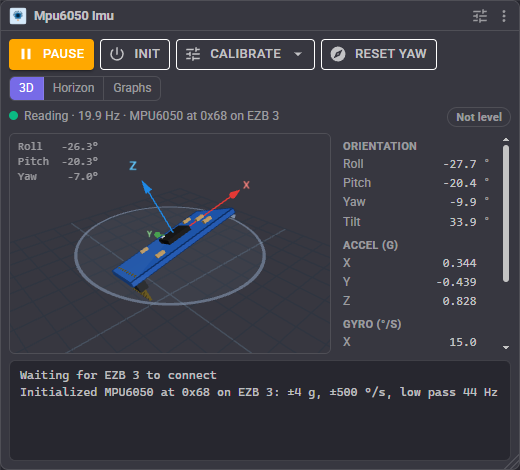
- Pause / Resume stops and restarts reading, like the Pause checkbox in ARC. While paused the variables keep their last values and RunOnce is ignored.
- Init wakes the sensor and sets its ranges and low pass filter now. With Auto init on (the default) this happens by itself whenever the EZB connects or the settings change; an MPU6050 powers up asleep and reads zeros until it is initialized.
- Calibrate measures the sensor's errors while the robot keeps still: Gyro bias (the robot must not move), Level (the robot must also stand on a level floor) or both at once. It takes a few seconds, shows a progress bar, and refuses (keeping the old values) when the robot moves. Save the project to keep the result.
- Reset yaw sets the heading to 0 where the robot faces now.
- 3D / Horizon / Graphs switch the view. The choice is saved with the project.
- The status line shows how fast the sensor is being read and which chip answered, or what is wrong: no EZB, EZB not connected, nothing at that address, sensor asleep. Chips beside it show the alarm, whether the board is level, and Not calibrated until a calibration has been done.
- The table on the right lists roll, pitch, yaw and tilt, the acceleration, the rotation rates, the chip temperature and the total acceleration (|a|, 1 g at rest).
3D view
A model of the breakout board tilts and turns exactly as the sensor does, with its X (red), Y (green) and Z (blue) axes. The ring around it is level and the small triangle on the ring is yaw 0. Drag to look around, scroll to zoom, double-click to reset the view. The board glows orange during a tilt alarm, red during a shock and purple during a fall, and turns grey when there is no reading.
Horizon
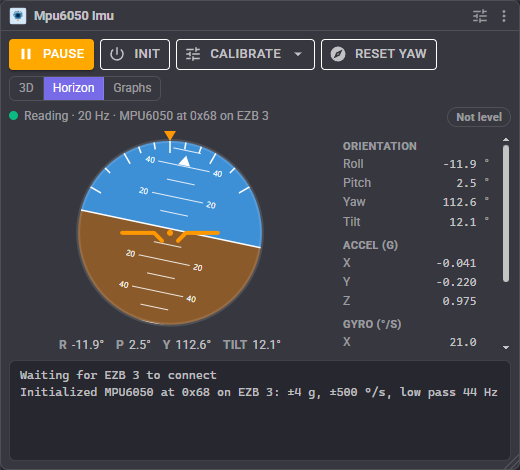
An aircraft style attitude indicator: the horizon tilts with roll and rises and falls with pitch, the pointer at the top shows the bank angle against marks at 10, 20, 30, 45 and 60 degrees, and the ring turns orange or red during an alarm. Roll, pitch, yaw and tilt are written under it; the tilt turns green when the board is level.
Graphs
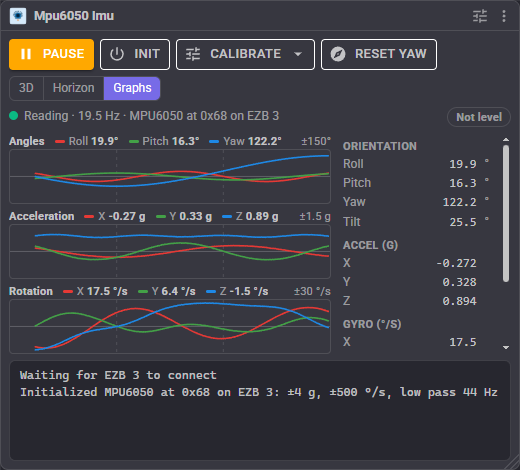
Three scrolling graphs of the angles, the acceleration and the rotation rates over the last few seconds (15 by default). Each graph scales itself to its data and shows its range at the top right.
Orientation
Roll, pitch and yaw use the axes printed on the board, the way an aircraft or a ROS robot does when the board's X arrow points forward and Z points up:
| Angle | Range | Positive when |
|---|---|---|
| Roll | -180 to 180 | the board's +Y side rises (rotation around X) |
| Pitch | -90 to 90 | the board's +X end dips (rotation around Y) |
| Yaw | -180 to 180 | the board turns counter-clockwise seen from above |
| Tilt | 0 to 180 | the board leaves level in any direction; 180 is upside down |
The gyroscope measures turning fast and smoothly but drifts; the accelerometer knows which way is down but is shaken by every bump. The orientation filter blends the two. Complementary is simple and predictable; Madgwick is a quaternion filter that behaves better near 90 degrees of pitch. While the board is being accelerated hard (a bump, a fast swing) the accelerometer is ignored and the gyroscope carries on alone.
Yaw has nothing to correct it, because the MPU6050 has no compass, so it drifts slowly. A gyro calibration and the Yaw deadband keep a still robot's yaw steady; reset it with Reset yaw or the ResetYaw ControlCommand whenever the robot faces a known direction.
If the board is mounted on its side or upside down the angles are those of the board, not of the robot; mount it flat with X towards the robot's front for angles that match the robot.
Calibration
Every MPU6050 has small errors: the gyroscope reads a few degrees per second while still, and the accelerometer reads slightly off level. Calibrate once the board is mounted in the robot:
- Put the robot on a level floor and leave it completely still.
- Choose Calibrate > Gyro and level in the window (or send the Calibrate control command).
- Keep it still for the calibration time (3 seconds by default).
- Save the project.
The gyro bias drifts a little with temperature. A robot that is always still when it starts, such as a balancing robot or a drone on the ground, can recalibrate the gyro by itself each time with Calibrate gyro on init.
Alarms
| Alarm | Goes off when | Script |
|---|---|---|
| Tilt | the tilt from level reaches the set angle (45 degrees by default); clears 3 degrees below it | When tilted, and When upright again |
| Shock | the total acceleration strays from 1 g by more than the threshold (1.5 g by default), with a cooldown so one collision counts once | On a shock; the shock variable holds how hard it was |
| Free fall | the total acceleration stays under the threshold (0.35 g) for the set time (100 ms) | On a fall |
The alarm variable (MPUAlarm by default) holds None, Tilt, Shock or FreeFall. The alarms only see the readings that are taken, so read the sensor often (a short Interval) to catch short bumps and falls, and choose an accelerometer range larger than the shocks you want to measure.
A script that stops the robot when it tips over:
// When tilted
Movement.stop();
Audio.say("Help, I have fallen over");
Global variables
The first seven keep the names the ARC version used; the $ is optional in ARCx, so getVar("$MPUAccelX") and getVar("MPUAccelX") read the same variable. Every name can be changed, or left empty to not publish it.
| Variable | Holds |
|---|---|
| MPUAccelX, MPUAccelY, MPUAccelZ | Acceleration in g (or m/s, or raw counts) |
| MPUGyroX, MPUGyroY, MPUGyroZ | Rotation rates in degrees per second (or radians per second, or raw counts) |
| MPUTempC | The chip temperature in C (or F) |
| MPURoll, MPUPitch, MPUYaw | The orientation in degrees |
| MPUTilt | Degrees from level in any direction |
| MPUIsLevel | True within the level tolerance (2 degrees by default) |
| MPUAlarm | None, Tilt, Shock or FreeFall |
| MPUShockG | How hard the last shock was, in g |
Projects that relied on ARC's numbers can choose Raw counts (as ARC) for the accelerometer and gyroscope units: the variables then hold the sensor's signed 16 bit readings before calibration, as ARC published them (16384 per g and 131 per degree per second at the 2 g and 250 /s ranges). ARC's temperature was rounded and wrong below 36 C; this one is not.
// Lean a robot's head against the body's roll
var roll = getVar("MPURoll");
Servo.setPosition(d0, 90 - roll);

if (getVar("MPUIsLevel"))
  print("Standing level");
if getVar("MPUTilt") > 30:
    Movement.Stop()
ARC's way of reading also still works: turn Read continuously off and call RunOnce whenever a reading is wanted.
controlCommand("Mpu6050 Imu", "RunOnce");
print(getVar("MPUAccelZ"));
Configuration
Sensor
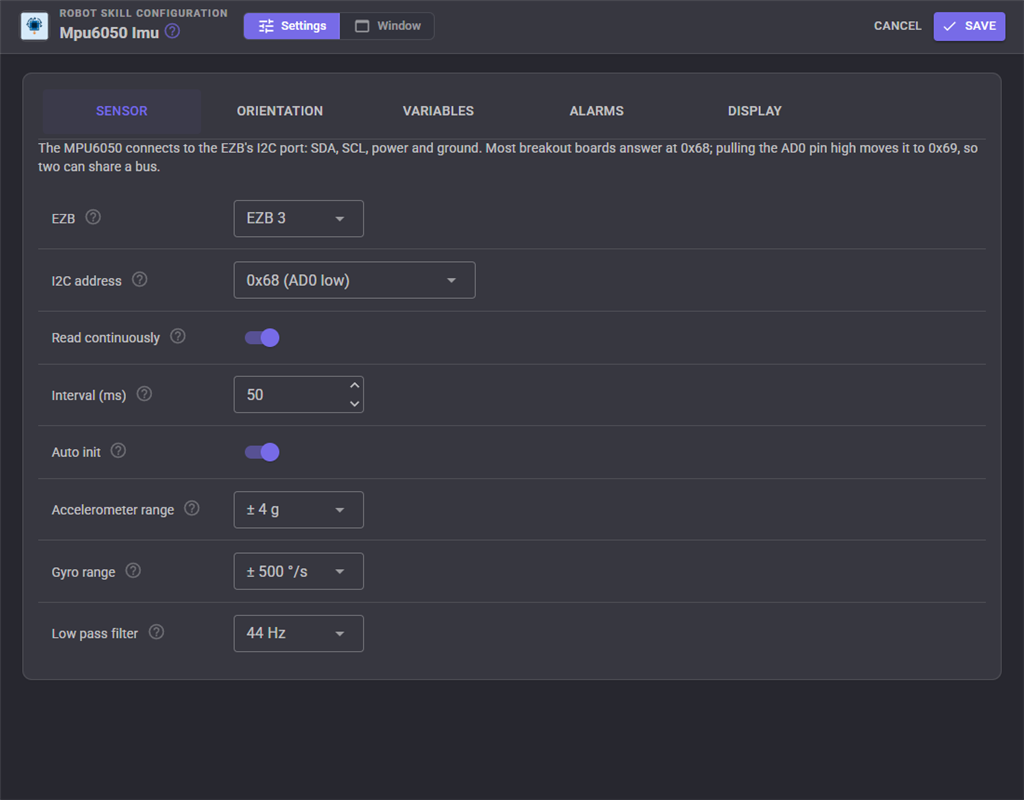
| Setting | What it does |
|---|---|
| EZB | The controller whose I2C bus the sensor is on |
| I2C address | 0x68 (AD0 low, the usual) or 0x69 (AD0 high) |
| Read continuously | Read on its own every interval; off reads only on RunOnce, as ARC did |
| Interval (ms) | How often it is read, 10 to 5000 (50 by default, 20 readings a second). Each reading is two I2C exchanges on the EZB connection |
| Auto init | Configure the sensor by itself when the EZB connects or the settings change |
| Accelerometer range | 2, 4, 8 or 16 g. Smaller is more precise, larger does not clip in knocks |
| Gyro range | 250, 500, 1000 or 2000 /s. Smaller is more precise, larger does not clip in fast turns |
| Low pass filter | The sensor's own vibration filter, 260 to 5 Hz. Lower is smoother but slower |
Orientation
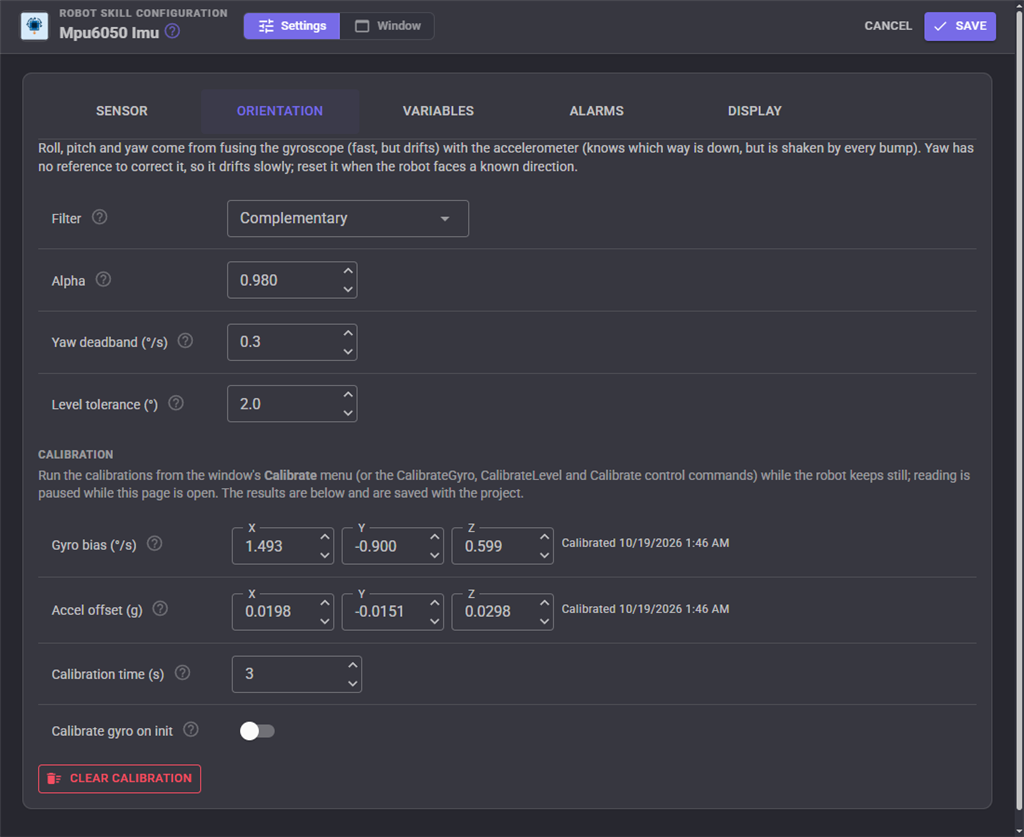
| Setting | What it does |
|---|---|
| Filter | Complementary or Madgwick |
| Alpha | The complementary filter's trust in the gyroscope, 0.5 to 0.999 (0.98) |
| Beta | The Madgwick filter's gain, 0.005 to 1 (0.1) |
| Yaw deadband (/s) | Slower turns than this are ignored, which keeps a still robot's yaw steady |
| Level tolerance () | How far from level still counts as level |
| Gyro bias, Accel offset | The calibration results; they can be typed or cleared here |
| Calibration time (s) | How long a calibration averages, 1 to 30 |
| Calibrate gyro on init | Recalibrate the gyroscope each time the sensor starts |
The calibrations themselves run from the window, because reading is paused while a configuration page is open.
Variables
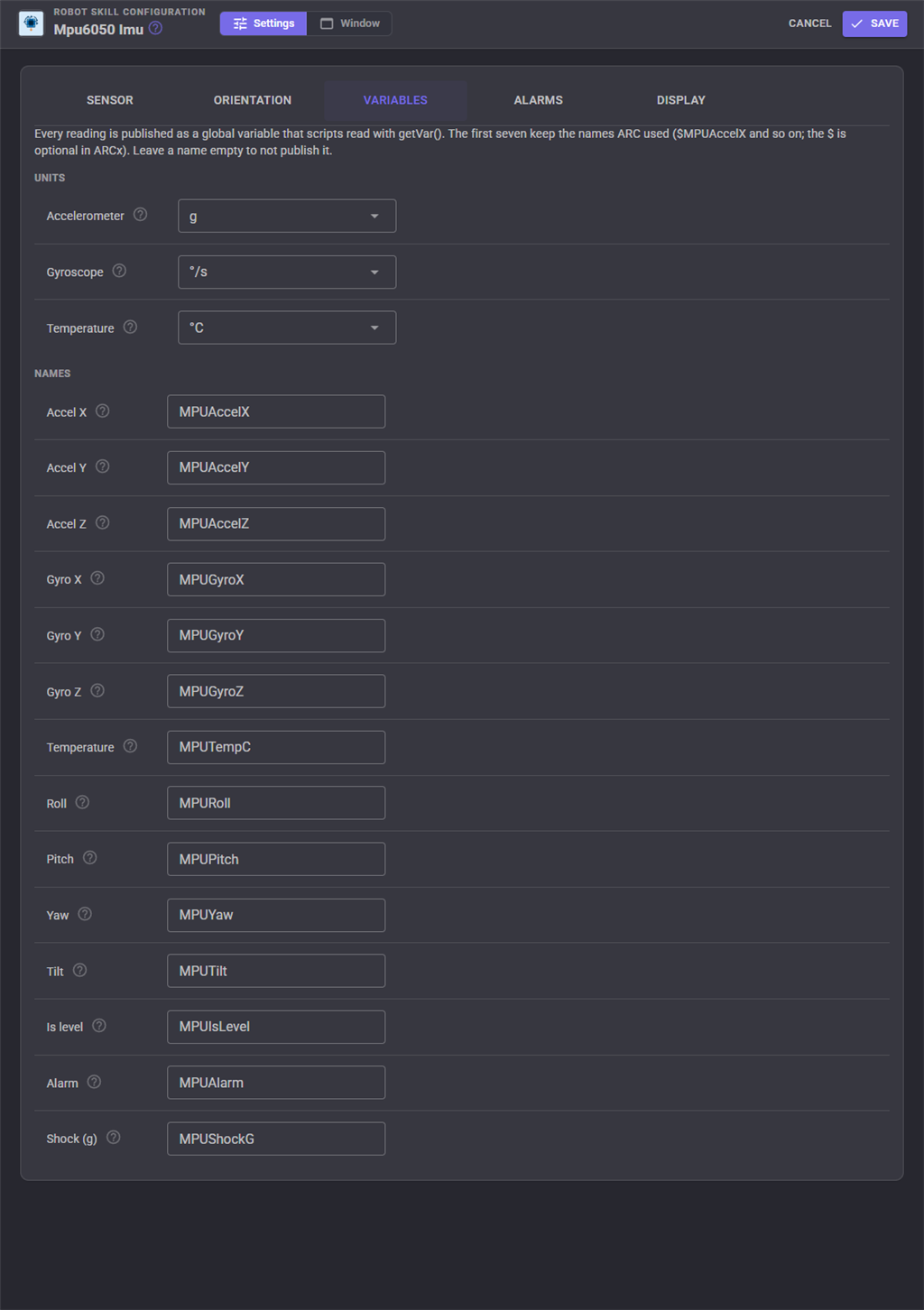
The units of the accelerometer, gyroscope and temperature variables, and the name of every variable.
Alarms
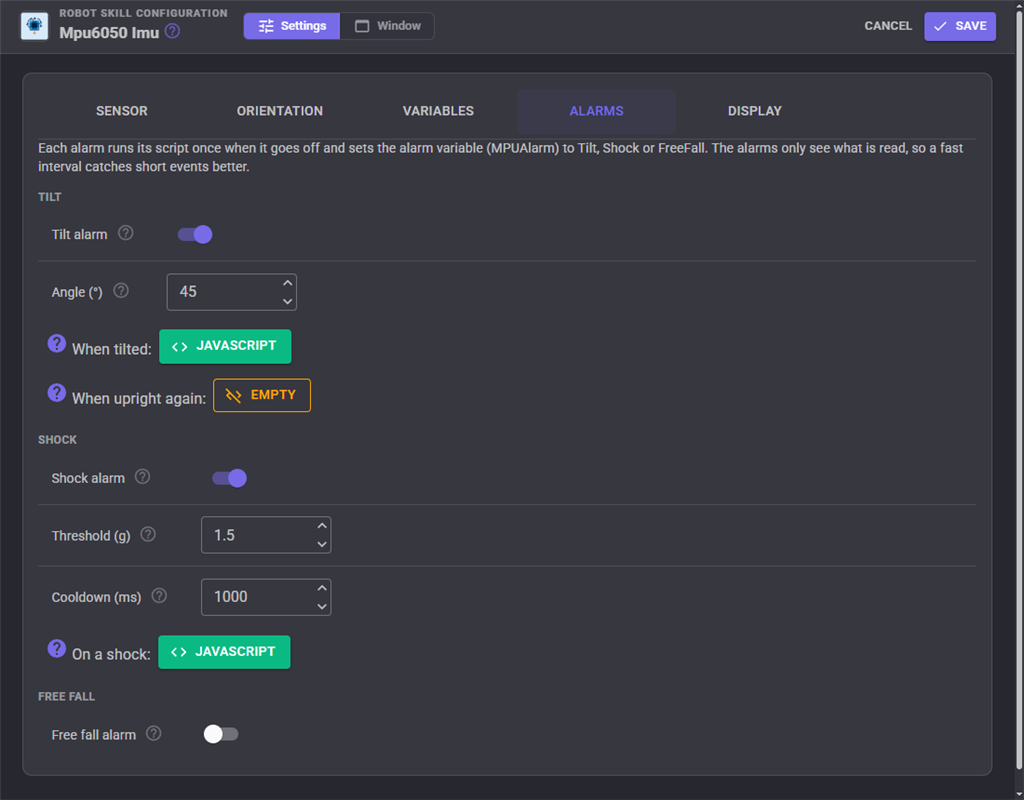
Turn each alarm on, set its threshold and give it scripts. The page warns when a shock threshold is beyond the accelerometer range or the interval is too slow to see a fall.
Display
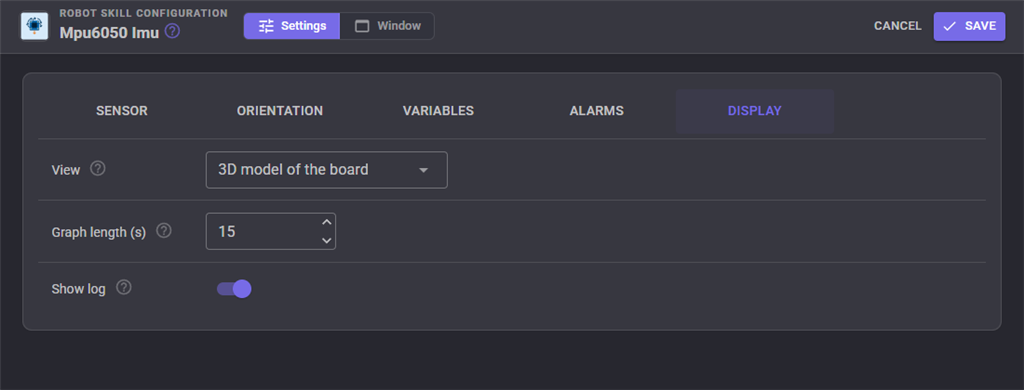
| Setting | What it does |
|---|---|
| View | 3D model, artificial horizon or graphs |
| Graph length (s) | How many seconds the graphs show, 5 to 120 |
| Show log | Show the log at the bottom of the window |
Custom UI widgets
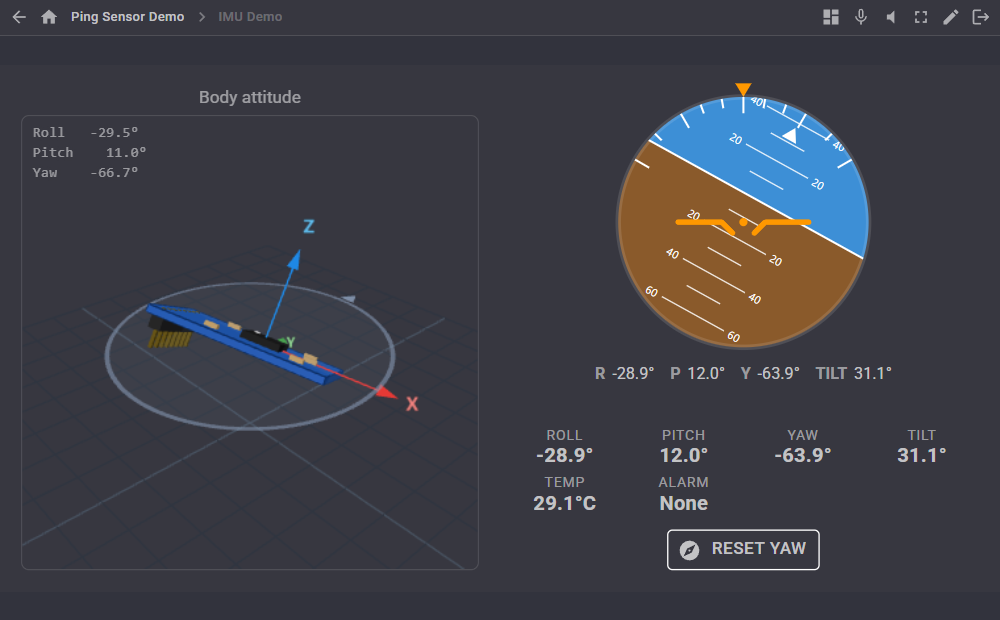
Three widgets can be placed on your own Custom UI screens:
| Widget | Shows | Settings |
|---|---|---|
| IMU 3D attitude | The 3D model of the board | Caption, ShowValues (roll, pitch and yaw over the view) |
| IMU artificial horizon | The attitude indicator with the angles | Caption |
| IMU readings | Roll, pitch, yaw, tilt, temperature and the alarm as large numbers | Caption, ShowResetYaw (a Reset yaw button) |
AI assistants
AI assistants connected to ARCx can ask for the orientation (roll, pitch, yaw, tilt, level, alarm, acceleration, rotation and temperature in one answer), run a calibration and reset the yaw, so an assistant can check whether the robot is upright before it drives.
Troubleshooting
| What you see | What to do |
|---|---|
| Nothing answered at I2C address 0x68 | Check SDA, SCL, power and ground, and the address: 0x69 if AD0 is pulled high. WhoAmI should return 104 |
| Reads all zeros | The sensor is asleep. Press Init, or turn Auto init on |
| WHO_AM_I is not 0x68 | A compatible chip (MPU6500, MPU9250 or a clone). The readings are used as they come |
| Yaw creeps | Calibrate the gyro with the robot still, raise the yaw deadband a little, and reset the yaw from time to time |
| Angles jitter when the motors run | Lower the low pass filter, or raise the complementary alpha |
| Angles lag behind quick moves | Read faster (a shorter interval) |
Control Commands for the Mpu6050 Imu robot skill
There are Control Commands available for this robot skill which allows the skill to be controlled programmatically from scripts or other robot skills. These commands enable you to automate actions, respond to sensor inputs, and integrate the robot skill with other systems or custom interfaces. If you're new to the concept of Control Commands, we have a comprehensive manual available here that explains how to use them, provides examples to get you started and make the most of this powerful feature.
Control Command ManualThis robot skill has 23 control commands, listed below. Send them from a JavaScript or Python script, from Blockly, or from another robot skill.
The first value is always the window title, which is the name in the title bar of the robot skill on your workspace. It starts out as Mpu6050 Imu, which is what every example below uses. If you rename the robot skill, or add a second copy of it to the project, use the title as it appears on that window instead.
ControlCommand() can be shortened to CC(), and both spellings work in JavaScript and in Python. The examples are JavaScript; Python is the same call, except that true and false are written True and False.
Calibrate
CalibrateGyro and CalibrateLevel together, from one still period on a level floor (seconds: 0 uses the configured calibration time). Returns true when it worked. Save the project to keep the result.
Syntax
ControlCommand("Mpu6050 Imu", "Calibrate", (Number)seconds)
Parameters
| # | Name | Type | What to pass |
|---|---|---|---|
| 1 | seconds | Number | A number, without quotes |
Returns: Boolean [true or false]
Example
var result = ControlCommand("Mpu6050 Imu", "Calibrate", 0);
CalibrateGyro
Measure the gyroscope's zero offsets. The robot must stay perfectly still for the given seconds (0 uses the configured calibration time, 1 to 30); the command waits that long. Returns true when it worked; it refuses and keeps the old values if the robot moved. Save the project to keep the result.
Syntax
ControlCommand("Mpu6050 Imu", "CalibrateGyro", (Number)seconds)
Parameters
| # | Name | Type | What to pass |
|---|---|---|---|
| 1 | seconds | Number | A number, without quotes |
Returns: Boolean [true or false]
Example
var result = ControlCommand("Mpu6050 Imu", "CalibrateGyro", 0);
CalibrateLevel
Measure the accelerometer's offsets so the robot reads level where it stands now. Put it on a level floor and keep it still for the given seconds (0 uses the configured calibration time); the command waits that long. Returns true when it worked; it refuses if the robot moved or the board is not flat. Save the project to keep the result.
Syntax
ControlCommand("Mpu6050 Imu", "CalibrateLevel", (Number)seconds)
Parameters
| # | Name | Type | What to pass |
|---|---|---|---|
| 1 | seconds | Number | A number, without quotes |
Returns: Boolean [true or false]
Example
var result = ControlCommand("Mpu6050 Imu", "CalibrateLevel", 0);
ClearCalibration
Forget the gyro bias and accelerometer offsets.
Syntax
ControlCommand("Mpu6050 Imu", "ClearCalibration")
Returns: Boolean [true or false]
Example
var result = ControlCommand("Mpu6050 Imu", "ClearCalibration");
ClearHistory
Clear the graphs.
Syntax
ControlCommand("Mpu6050 Imu", "ClearHistory")
Returns: Boolean [true or false]
Example
var result = ControlCommand("Mpu6050 Imu", "ClearHistory");
GetAccel
The acceleration as an array [x, y, z] in the configured accelerometer units.
Syntax
ControlCommand("Mpu6050 Imu", "GetAccel")
Returns: Array of Double
Example
var result = ControlCommand("Mpu6050 Imu", "GetAccel");
GetAlarm
The current alarm: "None", "Tilt", "Shock" or "FreeFall".
Syntax
ControlCommand("Mpu6050 Imu", "GetAlarm")
Returns: String
Example
var result = ControlCommand("Mpu6050 Imu", "GetAlarm");
GetGyro
The rotation rates as an array [x, y, z] in the configured gyroscope units.
Syntax
ControlCommand("Mpu6050 Imu", "GetGyro")
Returns: Array of Double
Example
var result = ControlCommand("Mpu6050 Imu", "GetGyro");
GetPitch
The pitch angle in degrees, -90 to 90, positive when the board's +X end dips.
Syntax
ControlCommand("Mpu6050 Imu", "GetPitch")
Returns: Double [5.0e324 to 1.7e308]
Example
var result = ControlCommand("Mpu6050 Imu", "GetPitch");
GetRoll
The roll angle in degrees, -180 to 180, positive when the board's +Y side rises.
Syntax
ControlCommand("Mpu6050 Imu", "GetRoll")
Returns: Double [5.0e324 to 1.7e308]
Example
var result = ControlCommand("Mpu6050 Imu", "GetRoll");
GetStatus
What the robot skill is doing, as one line of text: reading and how fast, paused, waiting for the EZB, or the last problem.
Syntax
ControlCommand("Mpu6050 Imu", "GetStatus")
Returns: String
Example
var result = ControlCommand("Mpu6050 Imu", "GetStatus");
GetTemperature
The sensor's chip temperature in the configured units.
Syntax
ControlCommand("Mpu6050 Imu", "GetTemperature")
Returns: Double [5.0e324 to 1.7e308]
Example
var result = ControlCommand("Mpu6050 Imu", "GetTemperature");
GetTilt
How far the board is from level in degrees, 0 to 180, in any direction.
Syntax
ControlCommand("Mpu6050 Imu", "GetTilt")
Returns: Double [5.0e324 to 1.7e308]
Example
var result = ControlCommand("Mpu6050 Imu", "GetTilt");
GetYaw
The yaw (heading) in degrees, -180 to 180, counter-clockwise from where it was last reset. Integrated from the gyro, so it drifts slowly.
Syntax
ControlCommand("Mpu6050 Imu", "GetYaw")
Returns: Double [5.0e324 to 1.7e308]
Example
var result = ControlCommand("Mpu6050 Imu", "GetYaw");
Init
Wake and configure the MPU6050 now (ranges and low pass filter from the configuration). Needed once after power up when Auto init is off. Returns true when a sensor answered.
Syntax
ControlCommand("Mpu6050 Imu", "Init")
Returns: Boolean [true or false]
Example
var result = ControlCommand("Mpu6050 Imu", "Init");
IsLevel
Whether the board is level, within the configured level tolerance.
Syntax
ControlCommand("Mpu6050 Imu", "IsLevel")
Returns: Boolean [true or false]
Example
var result = ControlCommand("Mpu6050 Imu", "IsLevel");
IsPaused
Whether reading is paused.
Syntax
ControlCommand("Mpu6050 Imu", "IsPaused")
Returns: Boolean [true or false]
Example
var result = ControlCommand("Mpu6050 Imu", "IsPaused");
PauseOff
Resume reading the sensor.
Syntax
ControlCommand("Mpu6050 Imu", "PauseOff")
Returns: Boolean [true or false]
Example
var result = ControlCommand("Mpu6050 Imu", "PauseOff");
PauseOn
Pause reading the sensor (as ARC's Pause checkbox). RunOnce is ignored while paused. The variables keep their last values.
Syntax
ControlCommand("Mpu6050 Imu", "PauseOn")
Returns: Boolean [true or false]
Example
var result = ControlCommand("Mpu6050 Imu", "PauseOn");
PauseToggle
Pause reading if it is running, resume it if it is paused. Returns true when it is now paused.
Syntax
ControlCommand("Mpu6050 Imu", "PauseToggle")
Returns: Boolean [true or false]
Example
var result = ControlCommand("Mpu6050 Imu", "PauseToggle");
ResetYaw
Set the yaw to 0, or to the given heading in degrees, keeping roll and pitch. Returns the new yaw.
Syntax
ControlCommand("Mpu6050 Imu", "ResetYaw", (Number)degrees)
Parameters
| # | Name | Type | What to pass |
|---|---|---|---|
| 1 | degrees | Number | A number, without quotes |
Returns: Double [5.0e324 to 1.7e308]
Example
var result = ControlCommand("Mpu6050 Imu", "ResetYaw", 0);
RunOnce
Read the sensor once and update every variable now. Use it in a loop when continuous reading is off. Returns false when no reading could be taken (paused, not connected, no sensor).
Syntax
ControlCommand("Mpu6050 Imu", "RunOnce")
Returns: Boolean [true or false]
Example
var result = ControlCommand("Mpu6050 Imu", "RunOnce");
WhoAmI
Read the sensor's WHO_AM_I register now: 104 (0x68) for an MPU6050, 112 to 115 for its MPU6500/9250 cousins, 0 or 255 when nothing answers. A quick wiring check.
Syntax
ControlCommand("Mpu6050 Imu", "WhoAmI")
Returns: Integer [-2,147,483,648 to 2,147,483,647]
Example
var result = ControlCommand("Mpu6050 Imu", "WhoAmI");
This list is read out of the robot skill itself each time its package is uploaded, so it matches the published version (v1).


This robot skill has been updated to v1.
What has changed
initial release