
Loops
Repeat blocks a number of times, forever, or while something is true. A loop that runs for a long time should have a Sleep block inside it, so the robot stays responsive.
Where to find it: the Loops category of the toolbox, in any script editor set to Blockly or on Top bar → Workspaces → Blockly
Blocks
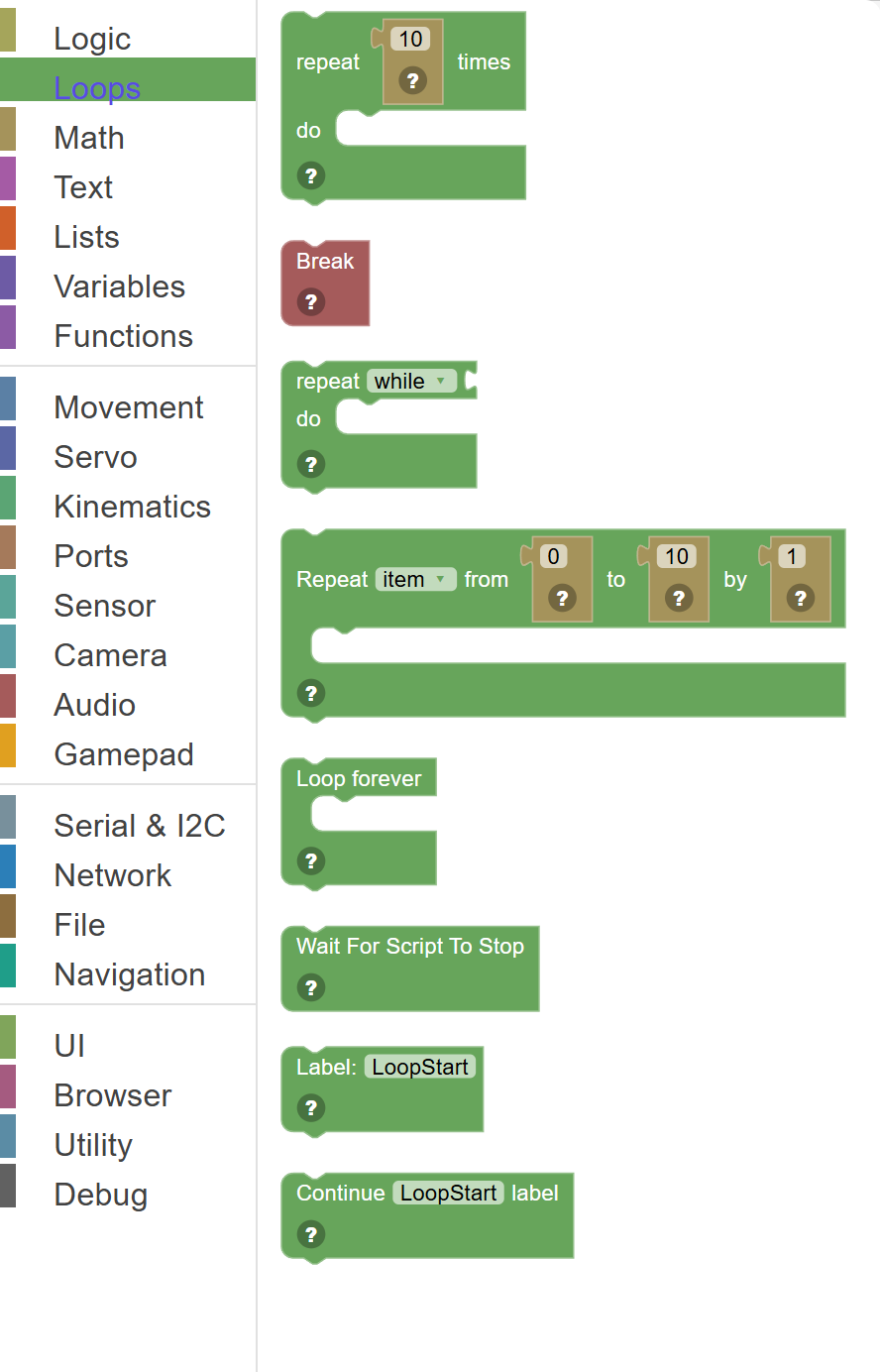
| Block | What it does |
|---|---|
| Repeat N Times | Runs the blocks inside it a specific number of times, then stops. |
| Break Out of Loop | Immediately exits the current While or For loop, skipping any remaining repetitions and continuing with the blocks after the loop. |
| While / Until Loop | Keeps repeating the blocks inside as long as a condition is true (WHILE), or stops when a condition becomes true (UNTIL). |
| For Loop (Count) | Repeats a set of blocks while a counter variable goes from a start value to an end value, increasing by a step each time. |
| Loop Forever | Runs the blocks inside it over and over, forever, until the script is stopped. |
| Wait Until Stopped | Pauses the script at this point and waits forever until someone presses the STOP button. |
| Label | Places a named marker at this position in the script. |
| Continue Label (Goto) | Jumps execution back (or forward) to a Label block with a matching name. |
Details
Repeat N Times
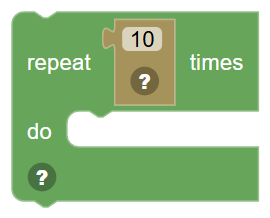
Runs the blocks inside it a specific number of times, then stops. Connect a number block to specify exactly how many repetitions to do.
When to use it: Use this when you want to do something a fixed number of times — like flashing an LED 5 times, or running a check 10 times.
Example: Repeat 3 times → Say "Hello!" — the robot says Hello three times in a row.
Tips:
- The number can come from a variable — so you can change how many repeats happen dynamically.
- Blocks inside run one after another each time through.
- Use a For loop instead if you need to track a counter variable.
In JavaScript: this block runs
for (var count = 0; count < 10; count++) {

}
delete count;
Break Out of Loop
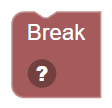
Immediately exits the current While or For loop, skipping any remaining repetitions and continuing with the blocks after the loop.
When to use it: Use this to escape a loop early when a specific condition is met — like stopping a scanning loop as soon as an object is found.
Example: While true → check sensor → if object found: Break → the loop stops and continues after it.
Tips:
- Break only exits the innermost loop — if loops are nested, it exits one level.
- Always place Break inside an If block so it only triggers when needed.
- Without Break, you'd have to structure the loop condition differently to stop early.
In JavaScript: this block runs
break;
While / Until Loop
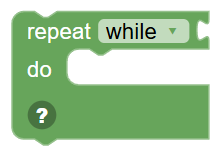
Keeps repeating the blocks inside as long as a condition is true (WHILE), or stops when a condition becomes true (UNTIL). Checks the condition before each repeat.
When to use it: Use this when you don't know exactly how many repetitions you need — like "keep moving until an obstacle is detected".
Example: While distance > 30 → move forward. Keeps going as long as the ping sensor shows more than 30 cm of space.
Tips:
- WHILE keeps going as long as the condition is TRUE.
- UNTIL keeps going until the condition BECOMES true (i.e. while it's false).
- Make sure something inside the loop can eventually change the condition — or it runs forever!
In JavaScript: this block runs
while (false) {

}
For Loop (Count)
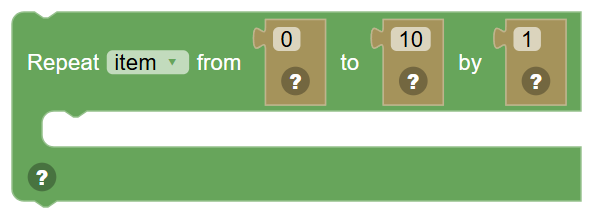
Repeats a set of blocks while a counter variable goes from a start value to an end value, increasing by a step each time. Classic counting loop.
When to use it: Use this when you need to count through a range of numbers — like moving a servo from 0 to 180 in steps of 10.
Example: Repeat with i from 0 to 180 by 10 → sets a servo to 0, 10, 20, ... 180 in sequence.
Tips:
- The counter variable is available inside the loop — use it to drive servo positions, delays, etc.
- "By" controls the step size. Use 1 for one-at-a-time, 10 for bigger jumps.
- Step can be negative to count down: from 180 to 0 by -10.
In JavaScript: this block runs
for (var JKPANZ2r7=mPr_vv/W@3 = 0 ; JKPANZ2r7=mPr_vv/W@3 <= 10; JKPANZ2r7=mPr_vv/W@3++) {

}
delete JKPANZ2r7=mPr_vv/W@3;
Loop Forever
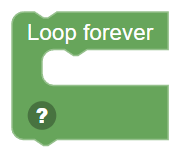
Runs the blocks inside it over and over, forever, until the script is stopped. This is an infinite loop implemented using a GOTO statement.
When to use it: Use this for the main "brain" of your robot — continuously checking sensors and responding. Most robot programs need a permanent loop.
Example: Loop forever → check distance → if close, stop; else, move forward → repeats indefinitely.
Tips:
- Use a "Wait For Script To Stop" block at the very end of a non-looping script instead.
- Sleep blocks inside the loop prevent it from running so fast it overloads the system.
- You can use Break to exit the loop if needed (if your loop has a break exit).
In JavaScript: this block runs
while (true) {

}
Wait Until Stopped
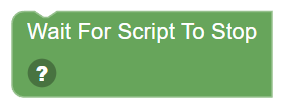
Pauses the script at this point and waits forever until someone presses the STOP button. The script keeps running (keeping any settings active) but doesn't execute any more blocks.
When to use it: Put this at the very end of a script when you want to keep the last settings (like servo positions or tracking modes) active until manually stopped.
Example: Set camera tracking to Face → Wait Until Stopped → tracking stays on until you press Stop.
Tips:
- Nothing after this block will ever run — place it at the very end.
- Great for "set it and forget it" scripts that configure the robot and then just hold that state.
- Press the STOP button in the script editor to end the wait.
In JavaScript: this block runs
// Loop until the script is stopped
while (true) {

  // Pause for a short while to not consume all the CPU
  sleep(1000);
}
Label
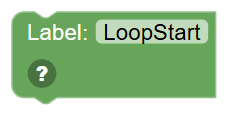
Places a named marker at this position in the script. Other blocks can jump to this label by name. Used together with the "Continue Label" block to create loops.
When to use it: Use this with the Goto/Continue block to create a loop: place a Label at the top, do some blocks, then jump back with Continue.
Example: Label: "LoopStart" → do robot stuff → Continue "LoopStart" → goes back to the Label and repeats.
Tips:
- The label name must exactly match the name in the Continue block.
- Use a descriptive name like "MainLoop" or "ScanLoop".
- The Loop Forever block is an easier way to create simple infinite loops — Labels give more flexibility.
In JavaScript: this block runs
LoopStart:
Continue Label (Goto)
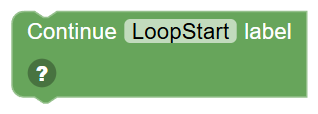
Jumps execution back (or forward) to a Label block with a matching name. This creates a loop when the Label is placed earlier in the script.
When to use it: Use together with a Label block to create loops, or to skip sections of code by jumping over them.
Example: Continue "MainLoop" → jumps back to wherever the Label named "MainLoop" is placed.
Tips:
- The name here must exactly match the Label name — spelling and capitalisation matter.
- Jumping forward over code is possible too, though loops are the most common use.
- For simple infinite loops, the Loop Forever block is easier.
In JavaScript: this block runs
continue LoopStart;