
Detects taught colors in camera video, reporting position, size, shape, rotation and distance with per-color scripts and tracking support.
 Windows
 ARM
ARM
 Linux
Linux
 MacOS
MacOS
How to add the Color Tracking robot skill
- Load the most recent release of ARCx on a compatible operating system (Get ARCx).
- Press the + Skills menu from the top menu bar in ARCx.
- Choose the Camera category tab.
- Press the Color Tracking icon to add the robot skill to your project.
Don't have a robot yet?
Follow the Getting Started Guide to build a robot and use the Color Tracking robot skill.
How to use the Color Tracking robot skill
Teach the robot colors and it finds every object of those colors in the camera's video: where each one is, how big it is, its shape, which way it is turned, and how far away it is. A color is a range of values in HSL, YCbCr or RGB, like ARC's custom color and YCbCr color tracking, and you set it by dragging a box over the object in live video rather than by guessing at numbers.
Each color can run a script when it comes into view and another when it goes. To keep a color in the middle of the picture with pan/tilt servos, drive the robot to it, or read where it is from variables, add the Vision Detection Tracking Script skill. It follows what any detection skill finds, colors included.
Requirements
- A video source in the project, such as Camera Source (usb) or Camera Source (ezb), with video running.
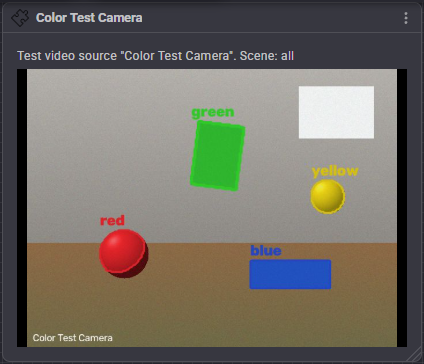
- Something colorful. Matt, evenly colored objects work best: a ball, a card, a toy block.
Getting started
- Start the video in the camera skill.
- The skill starts out looking for red, green and blue. Hold up something of one of those colors and it lights up in the skill window.
- For anything else, press Colors, then Add Color, choose custom, and drag a box over the object in the video. The color is fitted to what is in the box and named after it.
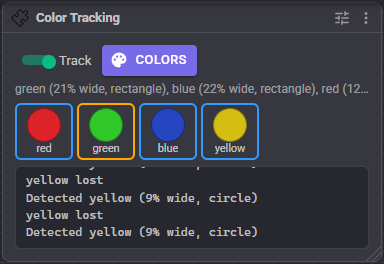
The skill window
| Control | What it does |
|---|---|
| Track | Looks for colors. Turning it off forgets the colors in view without running their scripts |
| Colors | Opens the Colors editor |
Below the switch, the status line lists the colors in view, largest first, with how wide the largest object of each is, its shape and its distance when that is known. Each enabled color has a swatch that lights up while it is in view, with the number of objects when there is more than one. The color with the largest object has a yellow border. Click a swatch to open the editor on that color.
The Colors editor
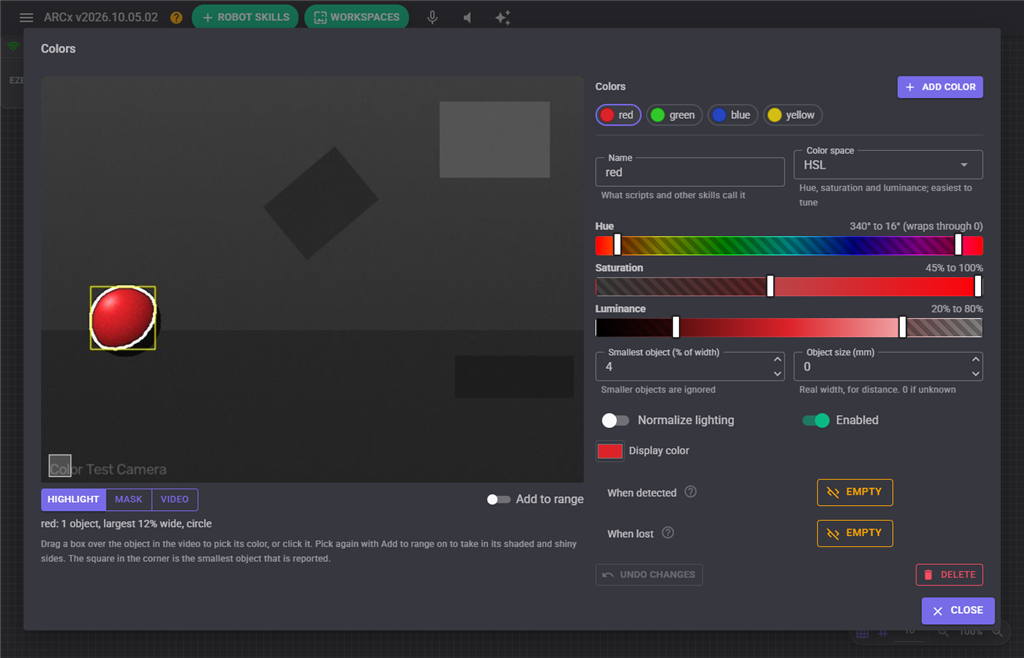
The editor shows live video of exactly what the chosen color matches, next to the colors and the settings of the chosen one. Everything you change takes effect at once, both in the video and in tracking, so you see the result while you move a handle. Undo Changes puts the color back as it was when you chose it.
Picking a color from the video
Drag a box over the object, or click it. The color's ranges are fitted to the pixels in the box. The box does not need to be tight: pixels that are clearly something else, such as the table around a ball, are left out. A color still called custom is renamed after what you picked, such as yellow.
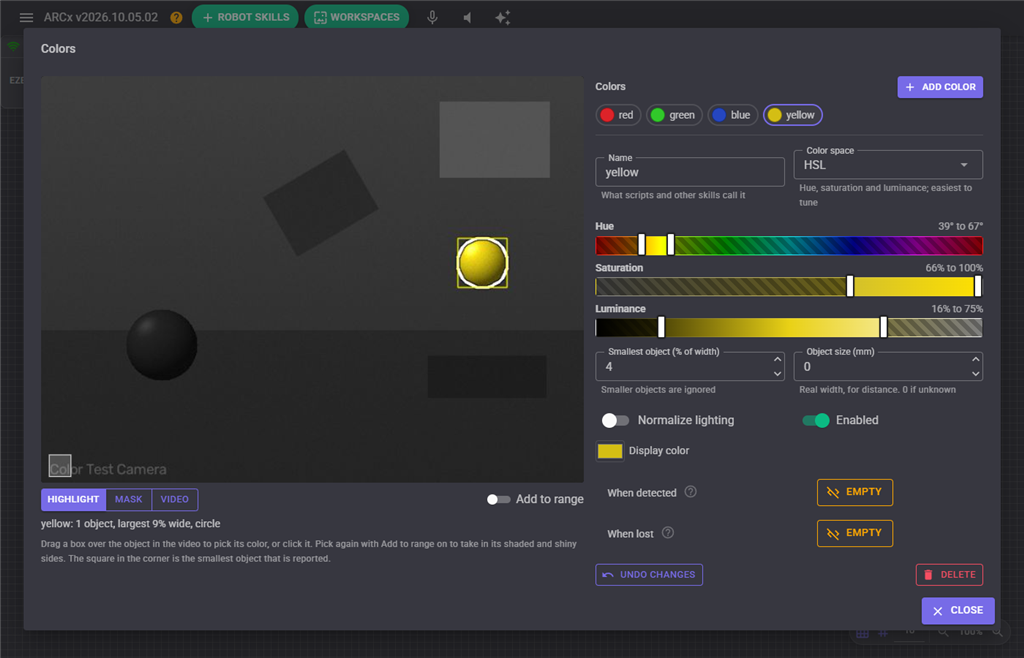
A ball is lit on one side and in shadow on the other. If only part of it is found, turn on Add to range (or hold Shift) and drag over the part that is missing. The ranges grow to take it in as well, rather than starting again.
The small square in the bottom left corner of the video is the Smallest object size. Anything smaller is ignored.
Views
| View | Shows |
|---|---|
| Highlight | The video in grey, with only the pixels that match the color left in color. The best view for tuning |
| Mask | Matching pixels in white on black, after noise reduction: exactly what is grouped into objects |
| Video | The video as it is |
In every view the objects found are outlined, and the largest one, the one a tracking skill would follow, has a yellow box. The line under the video says how many objects there are and how big, round and far away the largest one is.
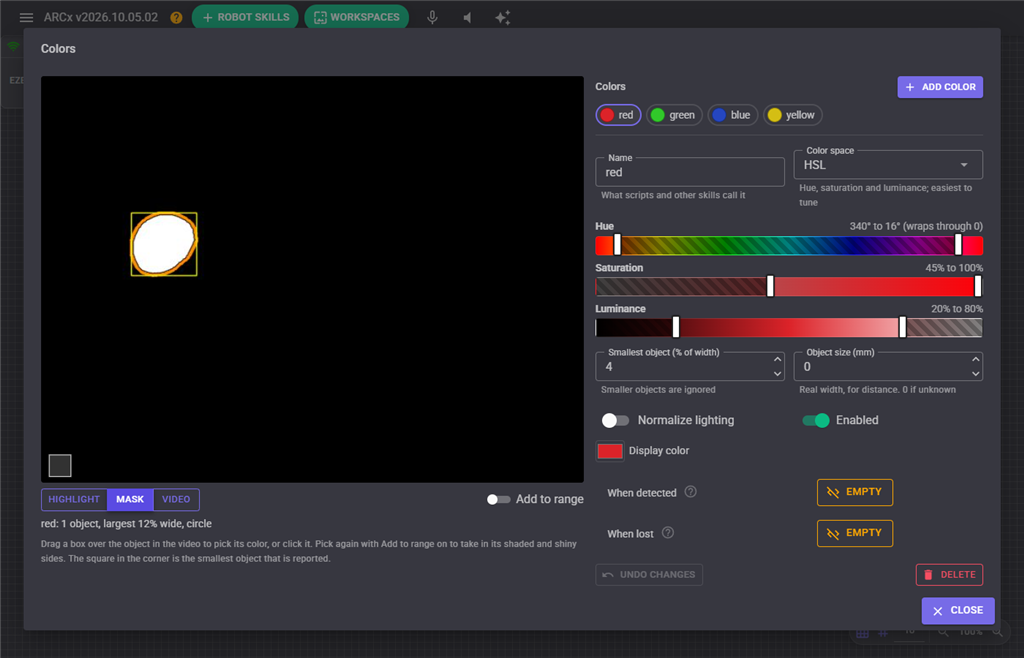
Color settings
| Setting | Description |
|---|---|
| Name | What scripts and other skills call the color. Each color needs its own name |
| Color space | HSL, YCbCr or RGB. See below. Changing it starts the new ranges around the same color; pick from the video again to fit them |
| Ranges | Three bars, one per channel of the color space, each showing what its values look like. Drag the two handles to set the lowest and highest value. The dimmed parts are outside the range |
| Smallest object (% of width) | Objects narrower or shorter than this percentage of the picture's width are ignored |
| Object size (mm) | The real width of the object at its widest, such as a ball's diameter. When set, the distance to the object is estimated from how big it looks. 0 when unknown |
| Normalize lighting | Evens out the brightness of the picture before looking for this color, which helps in dim or uneven light. It changes how colors look, so pick the color again after turning it on |
| Enabled | Disabled colors are kept but not looked for |
| Display color | The color the objects are outlined and shown in. Auto uses the middle of the color's range |
| When detected | A script that runs when the color comes into view |
| When lost | A script that runs when the color goes out of view |
Color spaces
| Space | Channels | Best for |
|---|---|---|
| HSL | Hue (0 to 359, round the color wheel), Saturation (0 to 100%, grey to vivid), Luminance (0 to 100%, black to white) | Most things. The easiest to tune by hand: hue says which color, saturation how strong. A hue range whose left handle is past its right one wraps through 0, which is how red is described |
| YCbCr | Y (brightness), Cb (blue difference), Cr (red difference), each 0 to 255, with 128 meaning no color | Changing light. Brightness is kept apart from color, so keep Y wide and the color holds up as the light changes. Also the best space for white, black and skin |
| RGB | Red, Green, Blue, each 0 to 255 | Things that give off light, such as LEDs and screens, in steady lighting. Every channel changes with brightness |
Presets
Add Color offers ready made colors to start from. They are deliberately generous; picking from the video fits your own object and lighting far better.
| Preset | Space |
|---|---|
| red, orange, yellow, green, cyan, blue, purple, pink | HSL |
| white, black | YCbCr |
| skin | YCbCr, the classic skin tone range |
| bright red | RGB, red well above green and blue, like ARC's simple red tracking |
| custom | HSL, every value, to narrow down by picking from the video |
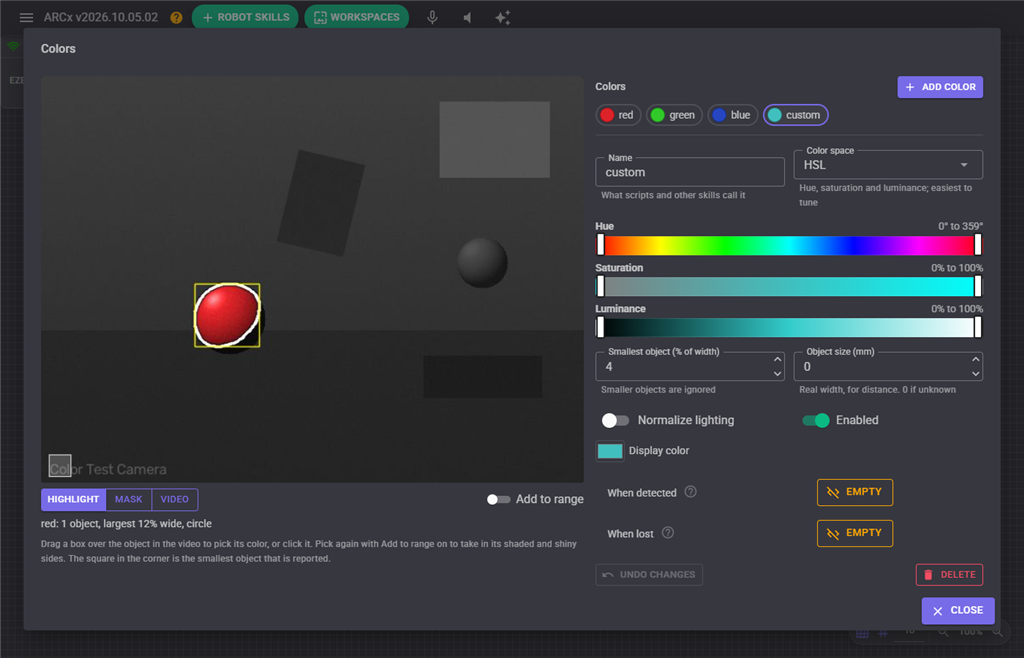
Configuration
Video
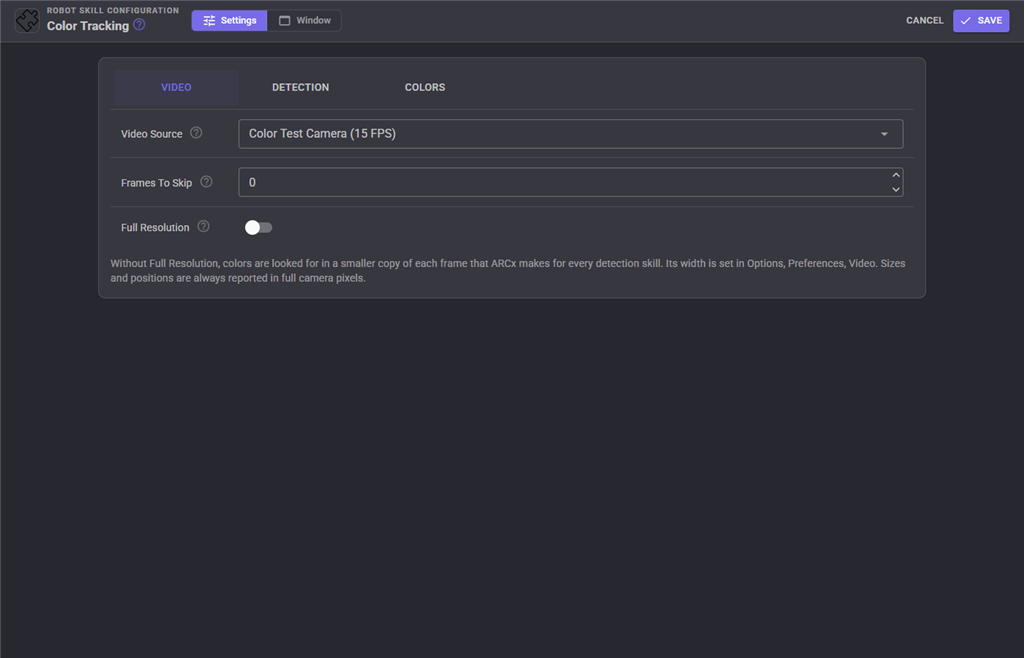
| Setting | Description |
|---|---|
| Video Source | The camera to look for colors in |
| Frames To Skip | Frames ignored between each one searched, to save processor time. 0 searches every frame. The outlines stay on the video in between |
| Full Resolution | Search the full camera resolution instead of the smaller copy ARCx makes for computer vision. Finds smaller and more distant objects, at a processor cost that grows with the camera resolution |
Detection
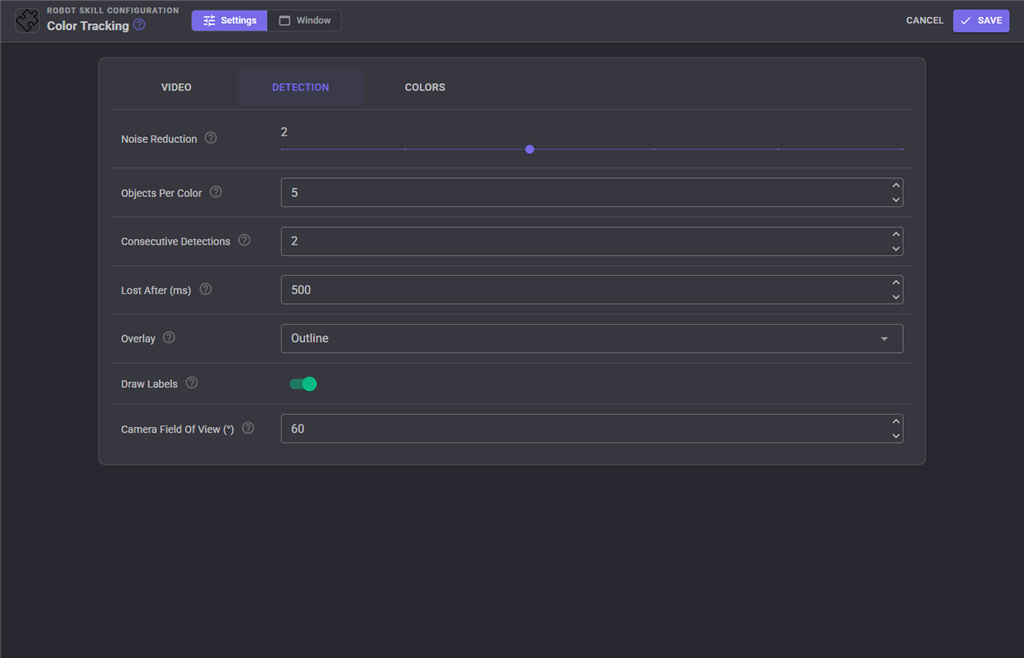
| Setting | Description |
|---|---|
| Noise Reduction | From 0 to 5, how hard specks are removed and gaps filled before matching pixels are grouped into objects. Higher values join a ball broken up by a reflection into one object, but lose thin and small objects |
| Objects Per Color | The most objects reported for each color, largest first |
| Consecutive Detections | How many searched frames in a row must see a color before it counts as in view. Raise it if a color flickers in and out |
| Lost After (ms) | A color not seen for this long counts as lost, and its When lost script runs |
| Overlay | How objects are drawn on the processed video: Box, Outline, Filled (outline with a see-through tint) or None |
| Draw Labels | Write each object's color name, and its distance when known, beside it |
| Camera Field Of View () | The camera's horizontal field of view, used with a color's Object size to estimate distance. Most webcams are between 55 and 78; the EZ-B camera is about 60 |
To calibrate the distance, hold the object at a measured distance and adjust Camera Field Of View until the reported distance matches.
Colors
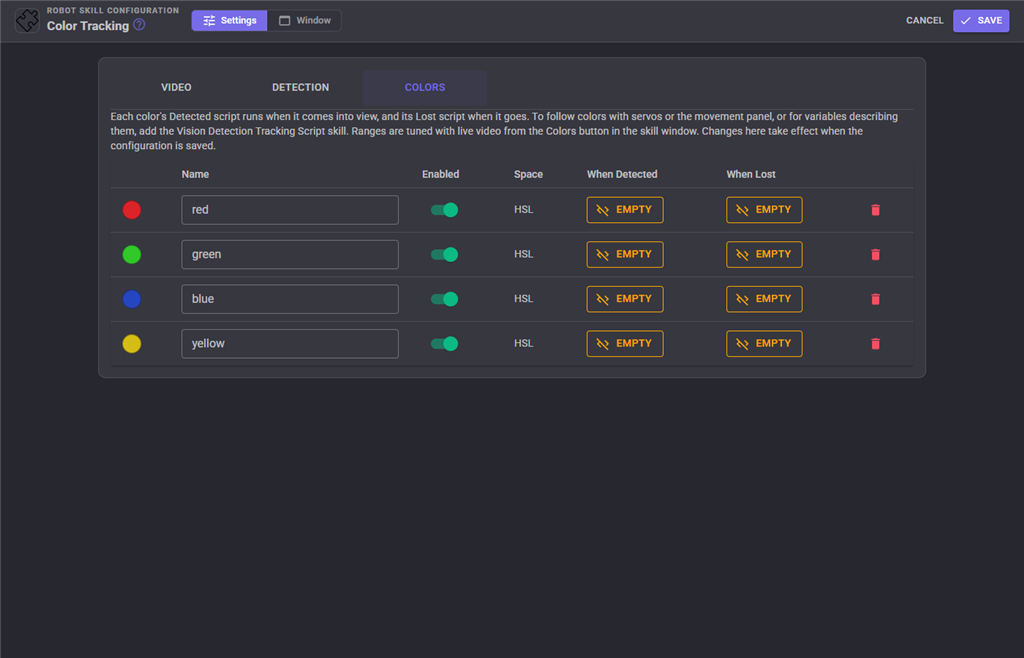
Every color, with its name, whether it is enabled, its color space, and its two scripts. Ranges are tuned in the Colors editor, where you can see the video.
Following colors, variables and scripts
This skill finds colors. It does not move servos, drive the robot or set variables. Add the Vision Detection Tracking Script skill for the same camera, and it does all of that for colors and for every other detection skill:
- pan/tilt servo tracking, with scanning when the color is lost
- movement tracking, to turn toward and drive up to a color
- variables describing the target:
$ObjectName,$ObjectCenterX,$ObjectDistance... - scripts when any color, or a particular one, comes into or goes out of view
Set its Kinds to color to follow only colors, and its Names to red to follow only red. Each object reaches it as a color detection named after its color, with these details:
| Detail | Description |
|---|---|
| Shape | Circle, Square, Rectangle, Triangle or Other |
| Rotation | The direction of the object's long side, 0 to 179 degrees clockwise from horizontal. 0 for a circle |
| AreaPercent | The object's area as a percentage of the picture |
| Circularity | 1 for a perfect circle, lower for anything more ragged or stretched |
| Fill | How much of its turned bounding rectangle the object fills, from 0 to 1 |
| Index | 1 for the largest object of its color, 2 for the next... |
| ColorHex | The color it is drawn in, i.e. #DC2328 |
| DistanceM | The estimated distance in metres, when the color has an Object size. Vision Detection Tracking Script uses it as the object's distance |
The largest object of any color is flagged as the primary detection.
A color's own scripts can ask where it is:
// When detected, for "red"
var x = ControlCommand("Color Tracking", "GetColorValue", "red", "CenterX");
print("Red is at x " + x + ", " + ControlCommand("Color Tracking", "GetColorShape", "red"));
A robot can learn a color it is shown, and say what color something is:
Audio.SayWait("Show me the ball");
sleep(3000);
ControlCommand("Color Tracking", "LearnColor", "ball");
Audio.Say("That is a " + ControlCommand("Color Tracking", "IdentifyColor") + " ball");
LearnColor and IdentifyColor look at the middle of the picture, so hold the object in the middle.
Custom UI widgets
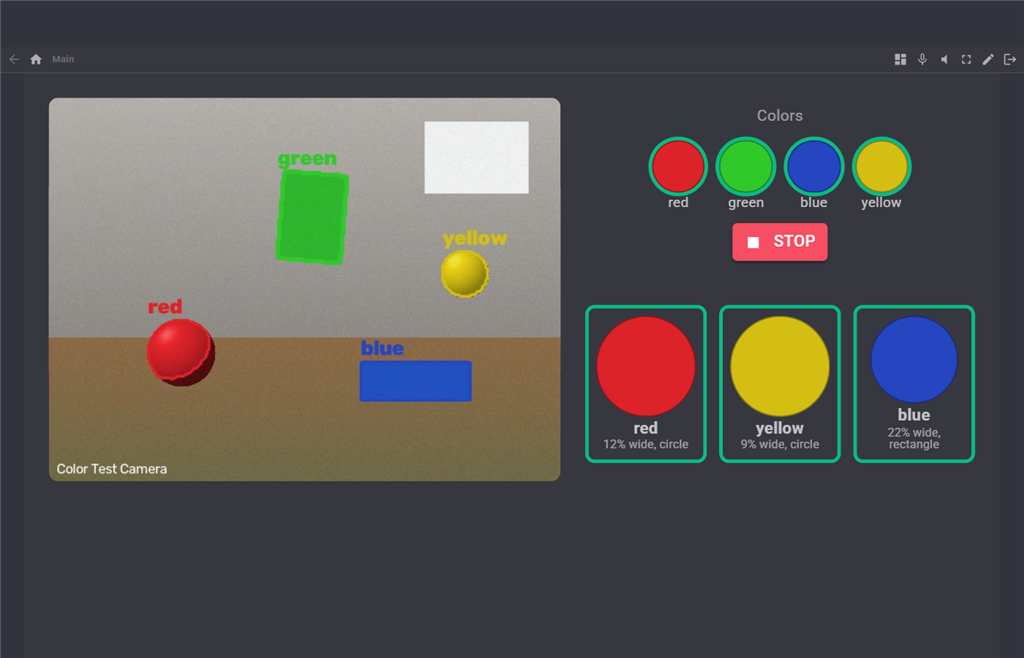
| Widget | Shows |
|---|---|
| Colors In View | A swatch for each color, lit while it is in view, with the number of objects. Its settings can limit it to some colors and add a button that starts and stops tracking |
| Color Indicator | One color that lights up while it is in view, with the size, shape and distance of its largest object. Put one on the screen for each color the robot reacts to |
Tips for reliable color tracking
- Pick colors from the video in the room and light the robot will work in. A color picked by a sunny window will not match under a desk lamp.
- Vivid colors are far easier than pale or dark ones. In HSL, raise the minimum Saturation until grey walls, skin and wood stop matching.
- Shiny objects reflect the light as white patches. Pick again with Add to range over the shiny part, or raise Noise Reduction so the pieces join.
- Use Highlight or Mask view to see what else in the room matches. If something does, narrow the range or raise Smallest object.
- For white or black, use the YCbCr presets: in HSL, nearly white and nearly black pixels have a hue and saturation that are mostly camera noise.
- In dim or uneven light, turn on Normalize lighting, then pick the color again.
Coming from ARC
ARC's Color tracking (red, green or blue) is the red, green and blue colors this skill starts with, or the bright red preset for ARC's exact way of finding red. ARC's Custom Color (multi color) tracking is the HSL color space: its hue, saturation and luminance work the same way, with saturation and luminance as 0 to 100% rather than 0 to 1. ARC's YCbCr tracking is the YCbCr color space, with 0 to 255 rather than 0 to 1. ARC's Use Histogram is Normalize lighting, and its object size slider is Smallest object, which is now a percentage of the picture so it means the same at any camera resolution.
Control Commands for the Color Tracking robot skill
There are Control Commands available for this robot skill which allows the skill to be controlled programmatically from scripts or other robot skills. These commands enable you to automate actions, respond to sensor inputs, and integrate the robot skill with other systems or custom interfaces. If you're new to the concept of Control Commands, we have a comprehensive manual available here that explains how to use them, provides examples to get you started and make the most of this powerful feature.
Control Command ManualThis robot skill has 17 control commands, listed below. Send them from a JavaScript or Python script, from Blockly, or from another robot skill.
The first value is always the window title, which is the name in the title bar of the robot skill on your workspace. It starts out as Color Tracking, which is what every example below uses. If you rename the robot skill, or add a second copy of it to the project, use the title as it appears on that window instead.
ControlCommand() can be shortened to CC(), and both spellings work in JavaScript and in Python. The examples are JavaScript; Python is the same call, except that true and false are written True and False.
AddColor
Add a color from a preset, under a name of your choice. Presets: red, orange, yellow, green, cyan, blue, purple, pink, white, black, skin, bright red, custom. Returns the name it was added under, which has a number added if the name was taken.
Syntax
ControlCommand("Color Tracking", "AddColor", (String)name, (String)preset)
Parameters
| # | Name | Type | What to pass |
|---|---|---|---|
| 1 | name | Text | Your text, in quotes |
| 2 | preset | Text | Your text, in quotes |
Returns: String
Example
var result = ControlCommand("Color Tracking", "AddColor", "name", "preset");
DeleteColor
Remove the named color
Syntax
ControlCommand("Color Tracking", "DeleteColor", (String)name)
Parameters
| # | Name | Type | What to pass |
|---|---|---|---|
| 1 | name | Text | Your text, in quotes |
Returns: Boolean [true or false]
Example
var result = ControlCommand("Color Tracking", "DeleteColor", "name");
DisableColor
Stop looking for the named color, without forgetting it
Syntax
ControlCommand("Color Tracking", "DisableColor", (String)name)
Parameters
| # | Name | Type | What to pass |
|---|---|---|---|
| 1 | name | Text | Your text, in quotes |
Returns: Boolean [true or false]
Example
var result = ControlCommand("Color Tracking", "DisableColor", "name");
EnableColor
Look for the named color
Syntax
ControlCommand("Color Tracking", "EnableColor", (String)name)
Parameters
| # | Name | Type | What to pass |
|---|---|---|---|
| 1 | name | Text | Your text, in quotes |
Returns: Boolean [true or false]
Example
var result = ControlCommand("Color Tracking", "EnableColor", "name");
GetColorCount
How many objects of the named color are in view, 0 when it is not
Syntax
ControlCommand("Color Tracking", "GetColorCount", (String)name)
Parameters
| # | Name | Type | What to pass |
|---|---|---|---|
| 1 | name | Text | Your text, in quotes |
Returns: Integer [-2,147,483,648 to 2,147,483,647]
Example
var result = ControlCommand("Color Tracking", "GetColorCount", "name");
GetColorNames
The names of every color the skill knows, enabled or not
Syntax
ControlCommand("Color Tracking", "GetColorNames")
Returns: Array of String
Example
var result = ControlCommand("Color Tracking", "GetColorNames");
GetColorShape
The shape of the largest object of the named color: Circle, Square, Rectangle, Triangle or Other. Empty when it is not in view.
Syntax
ControlCommand("Color Tracking", "GetColorShape", (String)name)
Parameters
| # | Name | Type | What to pass |
|---|---|---|---|
| 1 | name | Text | Your text, in quotes |
Returns: String
Example
var result = ControlCommand("Color Tracking", "GetColorShape", "name");
GetColorValue
One value of the largest object of the named color, or -1 when it is not in view. An empty name is the largest object of any color. Values: CenterX (horizontal middle in camera pixels); CenterY (vertical middle in camera pixels); X (left edge in camera pixels); Y (top edge in camera pixels); Width (width in camera pixels); Height (height in camera pixels); SizePercent (width as a percentage of the picture's width); AreaPercent (area as a percentage of the picture); Rotation (direction of the long side, 0 to 179 degrees); Circularity (1 for a perfect circle, lower for anything else); Fill (how much of its turned box the object fills, 0 to 1); Distance (estimated distance in metres, -1 when the color has no Object Size).
Syntax
ControlCommand("Color Tracking", "GetColorValue", (String)name, (String)valueName)
Parameters
| # | Name | Type | What to pass |
|---|---|---|---|
| 1 | name | Text | Your text, in quotes |
| 2 | valueName | Text | Your text, in quotes |
Returns: Double [5.0e324 to 1.7e308]
Example
var result = ControlCommand("Color Tracking", "GetColorValue", "name", "valueName");
GetDetectedColors
The names of the colors in view, the one with the largest object first
Syntax
ControlCommand("Color Tracking", "GetDetectedColors")
Returns: Array of String
Example
var result = ControlCommand("Color Tracking", "GetDetectedColors");
IdentifyColor
The everyday name of the color in the middle of the picture, i.e. "red", "light blue", "white". For a robot to say what color something is.
Syntax
ControlCommand("Color Tracking", "IdentifyColor")
Returns: String
Example
var result = ControlCommand("Color Tracking", "IdentifyColor");
IsColorDetected
Is the named color in view? An empty name is any color.
Syntax
ControlCommand("Color Tracking", "IsColorDetected", (String)name)
Parameters
| # | Name | Type | What to pass |
|---|---|---|---|
| 1 | name | Text | Your text, in quotes |
Returns: Boolean [true or false]
Example
var result = ControlCommand("Color Tracking", "IsColorDetected", "name");
IsTracking
Is color tracking running?
Syntax
ControlCommand("Color Tracking", "IsTracking")
Returns: Boolean [true or false]
Example
var result = ControlCommand("Color Tracking", "IsTracking");
LearnColor
Learn the color of whatever is held in the middle of the picture, under the given name. Creates the color, or retunes it if the name exists, and starts looking for it.
Syntax
ControlCommand("Color Tracking", "LearnColor", (String)name)
Parameters
| # | Name | Type | What to pass |
|---|---|---|---|
| 1 | name | Text | Your text, in quotes |
Returns: Boolean [true or false]
Example
var result = ControlCommand("Color Tracking", "LearnColor", "name");
SetColorRange
Set one channel's range of the named color. Channel is one of the color's own color space: Hue (0-359 degrees; min above max wraps through 0), Saturation or Luminance (0-100 percent) for HSL; Y, Cb or Cr (0-255) for YCbCr; Red, Green or Blue (0-255) for RGB.
Syntax
ControlCommand("Color Tracking", "SetColorRange", (String)name, (String)channel, (Number)min, (Number)max)
Parameters
| # | Name | Type | What to pass |
|---|---|---|---|
| 1 | name | Text | Your text, in quotes |
| 2 | channel | Text | Your text, in quotes |
| 3 | min | Number | A number, without quotes |
| 4 | max | Number | A number, without quotes |
Returns: Boolean [true or false]
Example
var result = ControlCommand("Color Tracking", "SetColorRange", "name", "channel", 0, 0);
Start
Start looking for colors
Syntax
ControlCommand("Color Tracking", "Start")
Returns: Boolean [true or false]
Example
var result = ControlCommand("Color Tracking", "Start");
Stop
Stop looking for colors. Colors in view are forgotten without running their Lost scripts.
Syntax
ControlCommand("Color Tracking", "Stop")
Returns: Boolean [true or false]
Example
var result = ControlCommand("Color Tracking", "Stop");
WaitForColor
Wait until the named color is in view, or the timeout in milliseconds passes. Returns true when it was seen. An empty name is any color.
Syntax
ControlCommand("Color Tracking", "WaitForColor", (String)name, (Number)timeoutMS)
Parameters
| # | Name | Type | What to pass |
|---|---|---|---|
| 1 | name | Text | Your text, in quotes |
| 2 | timeoutMS | Number | A number, without quotes |
Returns: Boolean [true or false]
Example
var result = ControlCommand("Color Tracking", "WaitForColor", "name", 0);
This list is read out of the robot skill itself each time its package is uploaded, so it matches the published version (v2).




This robot skill has been updated to v1.
What has changed
initial release
This robot skill has been updated to v2.
What has changed
updated to use some new ARCx UI features for improved performance.