
Script
The Script workspace is a scratch pad for JavaScript and Python. Use it to try an idea, test a few lines against the robot, or write a longer script before it goes into a robot skill. It is the same editor that opens for any script in ARCx, with suggestions, syntax checking, the console and the AI assistant, plus buttons to save scripts as files and open them again.
Where to find it: Top bar → Workspaces → Script
Contents
The editor
The page fills with the script editor. Pick JavaScript or Python at the top, type the script, and press Run (or F5) to try it. What the script prints, and any error, shows in the console at the bottom. The prompt under the console runs one line straight away, which is handy for checking a servo position or a variable while you write.
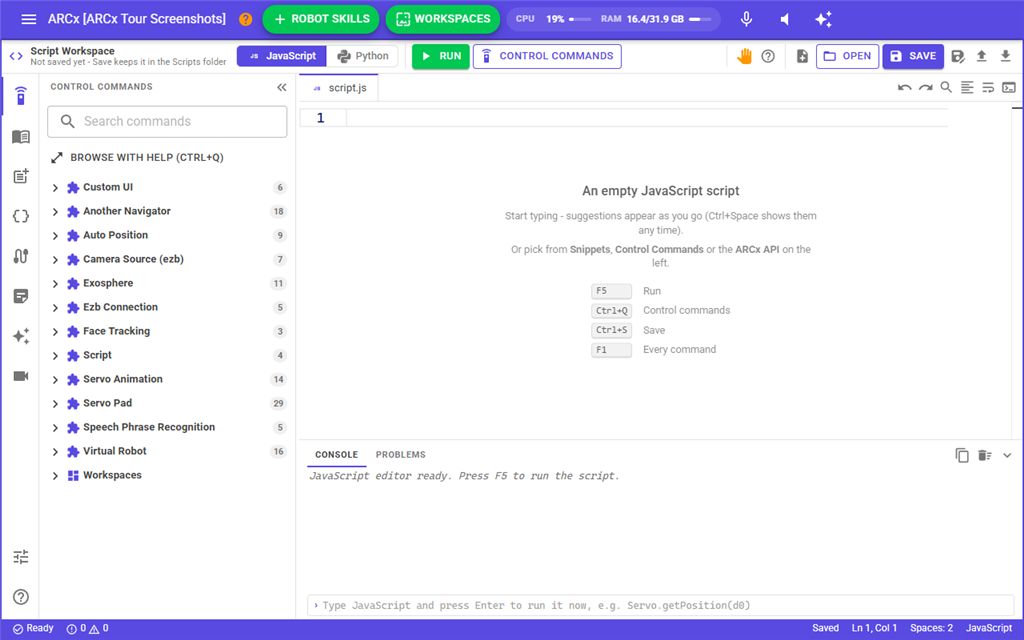
The bar down the left opens the same views as in any script editor: control commands, the ARCx API, snippets, variables, ports, project notes, the AI assistant, a camera view, settings and help.
To build a program from blocks instead, use Workspaces → Blockly.
Saving and opening scripts
Scripts are saved as files in the Scripts folder of ARCx Data on the computer ARCx runs on (on Windows, Documents\ARCx Data\Scripts). JavaScript is saved as a .js file and Python as a .py file.
| Button | What it does |
|---|---|
| New (the page with a plus) | Starts a new, empty script in the language on screen. |
| Open | Lists the scripts in the Scripts folder, newest first. Click one to open it. The bin next to a script deletes it, after asking. |
| Save | Saves the script to its file. A script that has not been saved yet asks for a name first. Ctrl+S does the same. |
| Save As (the disk with a pencil) | Saves the script under a new name. If a script with that name exists, ARCx asks before replacing it. |
The name of the open file shows on the editor's tab, and its full path under the title. A dot on the tab, and "Unsaved changes" in the status bar, mean the script has changed since it was saved. New, Open and Import ask before throwing unsaved changes away.
If you switch a saved script to the other language, Save asks for a name, because a JavaScript file cannot hold Python.
Moving scripts to and from your computer
When the browser is on a different computer from ARCx, these two buttons move scripts between them:
| Button | What it does |
|---|---|
| Import (the arrow up) | Picks a .js, .py or .txt file on the browser's computer and opens it in the editor. A .py file opens as Python; anything else opens as JavaScript. It is not saved in ARCx until you press Save, which offers the file's own name. |
| Download (the arrow down) | Saves the script on screen to the browser's computer, named after its file. |
Notes
- The script on screen is kept in memory while ARCx runs. Leaving the page and coming back finds it as it was, saved or not. Closing ARCx loses anything not saved.
- Every browser that opens this page sees the same script.
- A script running when you leave the page is stopped.
- Scripts saved here are not part of the project. To make a script part of the robot, copy it into a robot skill's script, such as one in the Script Collection or Script Scheduler robot skills.