
Install And Run
ARCx is the robot programming platform by Synthiam. It runs on the computer that controls your robot and serves its user interface over HTTP, so you program and drive the robot from a web browser on the same machine or on any phone, tablet or PC that can reach it.
Pick the guide for the computer that will run ARCx:
| Computer | Download | Guide |
|---|---|---|
| Windows 10 / 11, 64-bit (x64) | Installer (.exe) |
Windows.md |
| Raspberry Pi and other 64-bit ARM single board computers, running Ubuntu 24.04 LTS | Zip (ARCx-Linux-ARM64.zip) |
Raspberry-Pi.md |
| Linux PC, 64-bit (x64), running Ubuntu 24.04 LTS | Zip (ARCx-Linux-64.zip) |
Linux-x64.md |
On Linux, ARCx supports Ubuntu 24.04 LTS only, on both x64 and ARM64. macOS is not supported yet.
Things that are the same on every platform
ARCx is a server, the browser is the interface
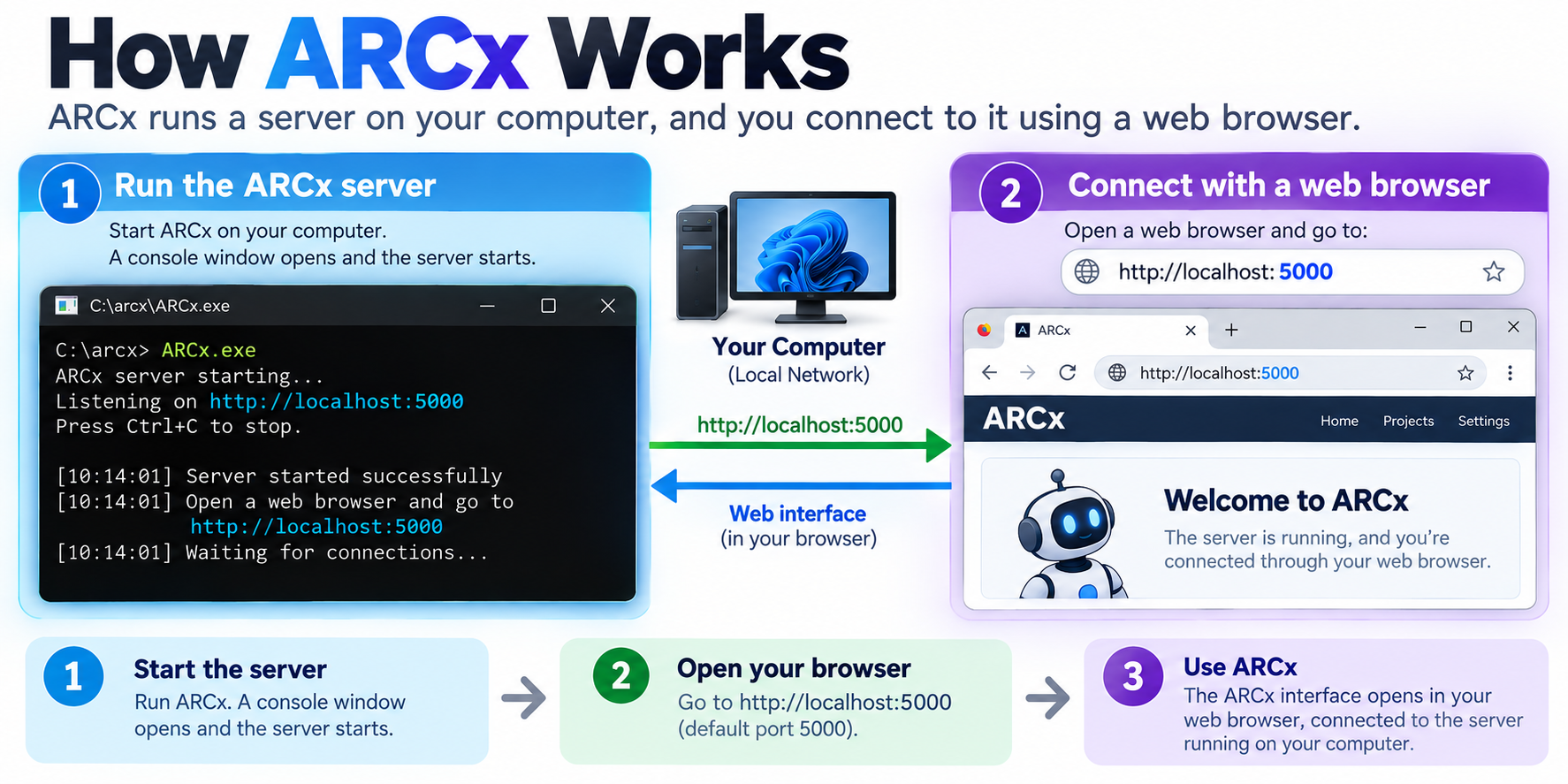
ARCx has no desktop window of its own. It runs in a terminal (console) window and the interface opens in your web browser at:
http://127.0.0.1:5000
Closing the browser does not stop ARCx, and the robot keeps running. To stop ARCx, press Ctrl+C in its terminal window (or close that window). A clean shutdown takes around 20 seconds; that is normal.
Only this computer can connect by default
Out of the box ARCx only accepts connections from the computer it runs on. To reach it from another device, start it with the -b (bind) option:
ARCx -b http://0.0.0.0:5000
Then browse to http://<ip-address-of-the-robot-computer>:5000 from the other device.
Command line options
| Option | What it does |
|---|---|
-h, --help |
Show the help text and exit |
-f, --file <project.arcx> |
Open this project file on start-up |
-b, --bind <url> |
The address to listen on. Default http://127.0.0.1:5000 |
-c, --cert <file> |
Server certificate for an https:// bind (.pfx/.p12, or .pem/.crt with --cert-key) |
--cert-key <file> |
Private key file, when --cert is a .pem/.crt |
--cert-password <password> |
Password for the .pfx/.p12 bundle or an encrypted key |
Examples:
ARCx -f MyRobot.arcx
ARCx -b http://0.0.0.0:5000
ARCx -b https://0.0.0.0:5001 --cert server.pfx --cert-password secret
ARCx -b https://0.0.0.0:5001 --cert server.crt --cert-key server.key
HTTPS encrypts the connection. It does not add a login.
Where your files go
ARCx keeps your projects, settings, logs and installed robot skills in a folder named ARCx Data. It is separate from the program folder, so updating or reinstalling ARCx never touches your projects.
| Platform | Your projects and settings | Robot skills and shared files |
|---|---|---|
| Windows | Documents\ARCx Data |
C:\ProgramData\ARCx Data |
| Linux / Raspberry Pi | ~/ARCx Data |
~/ARCx Data (same folder) |
Projects are saved in ARCx Data/My Projects.
Updates
ARCx checks synthiam.com for a newer version when it starts and shows an update badge in the interface when one is available. Each guide explains how to install the update.
Help
Documentation, robot skills, tutorials and the community forum are at synthiam.com.