Text
Words and sentences: join them, measure them, search them, change them, and print them to the console.
Where to find it: the Text category of the toolbox, in any script editor set to Blockly or on Top bar → Workspaces → Blockly
Blocks
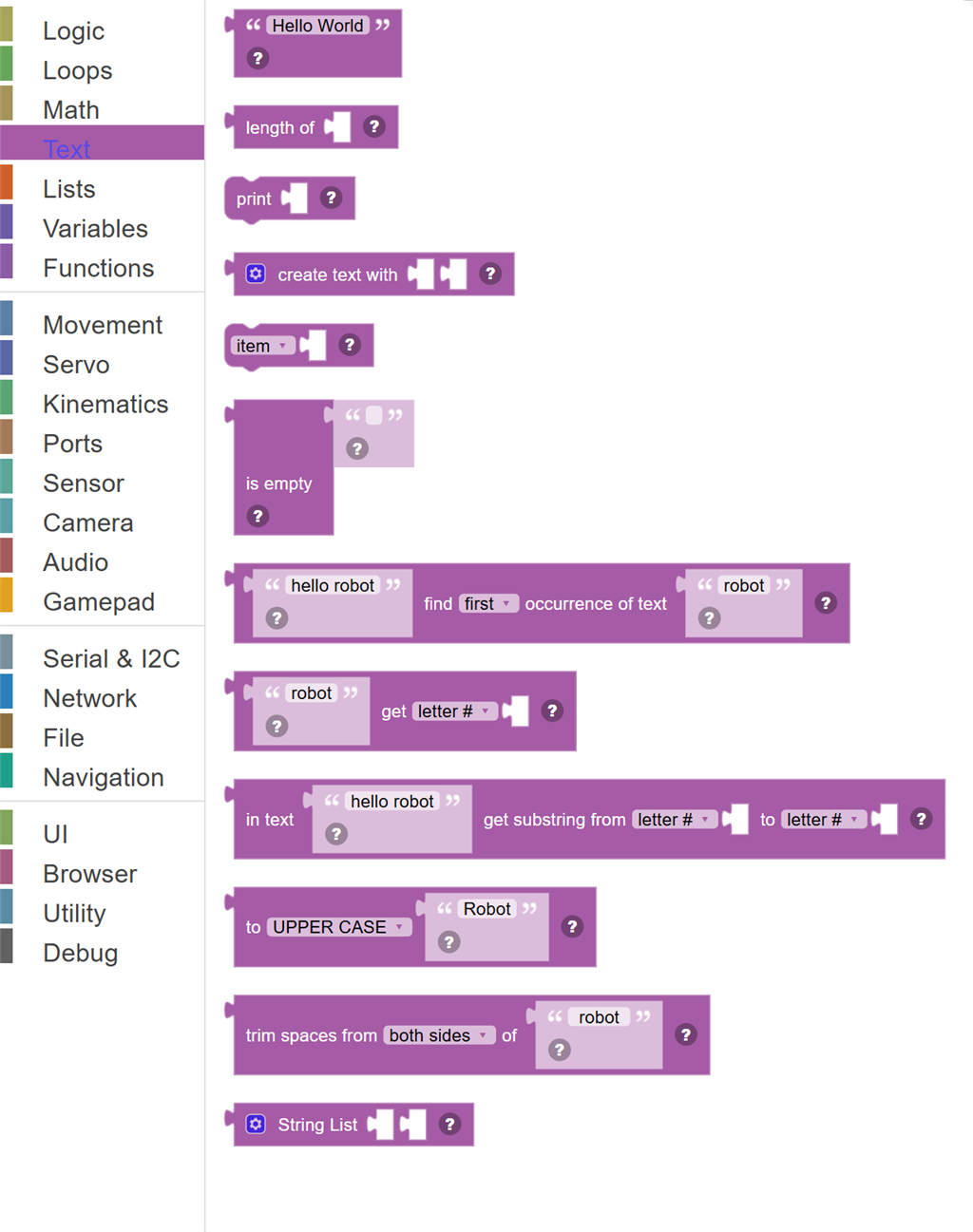
| Block | What it does |
|---|---|
| Text String | A fixed piece of text (also called a "string") that you type in. |
| Text Length | Counts how many characters are in a piece of text and returns that number. |
| Print / Display Text | Outputs a piece of text to the script's log/output window. |
| Join Text | Glues multiple pieces of text together into one longer piece. |
| Append to Text Variable | Adds text onto the end of an existing text variable. |
| Is Text Empty? | Checks if a piece of text has zero characters and returns true if it's empty, or false if it contains anything at all. |
| Find Text Position | Searches for a smaller piece of text inside a larger piece, and tells you the position where it was found. |
| Get Character At | Gets a single character from a piece of text at a specific position. |
| Get Part of Text | Extracts a portion of a text string between two positions — like cutting out a section of text. |
| Change Text Case | Changes all the letters in a text to UPPERCASE, lowercase, or Title Case (first letter of each word is capitalised). |
| Trim Spaces | Removes extra spaces from the beginning and/or end of text. |
| String List | Creates a list of text items joined together. |
Details
Text String
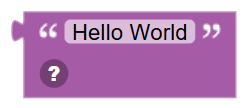
A fixed piece of text (also called a "string") that you type in. It can be any words, letters, numbers, or symbols surrounded by quotes.
When to use it: Use this whenever you need to provide words to another block — like what to say, a label, or a command name.
Example: Say [" Hello, I am your robot! "] → connects a text block with that phrase to the Say block.
Tips:
- Text is different from numbers — "5" (text) and 5 (number) are different things.
- You can put anything in a text block: letters, numbers, emoji, or punctuation.
- Connect it to the input of blocks that accept text, like Say or Print.
In JavaScript: this block gives back the value of
'Hello World'
Text Length
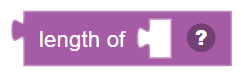
Counts how many characters are in a piece of text and returns that number. Spaces and punctuation are also counted.
When to use it: Use this to check how long a piece of text is — like validating that a name isn't too long, or making decisions based on the size of a response.
Example: Length of "hello" → returns 5.
Tips:
- Spaces count as characters.
- An empty string "" has length 0.
- Great for checking if user input is within an expected length.
In JavaScript: this block gives back the value of
''.length
Print / Display Text
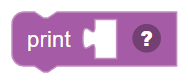
Outputs a piece of text to the script's log/output window. Great for showing messages, debug info, or results while your script runs.
When to use it: Use this to see what's happening inside your script — like showing sensor values or confirming that a section of code ran.
Example: Print "Robot is starting up!" → displays that message in the log panel.
Tips:
- The output appears in the Blockly script log panel at the bottom.
- Print numbers or joined text to see live values while debugging.
- Print statements don't affect the robot — they're just for you to read.
In JavaScript: this block runs
print("");
Join Text
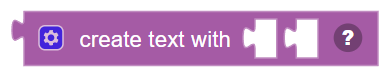
Glues multiple pieces of text together into one longer piece. You can add as many items as you like using the gear ⚙️ menu.
When to use it: Use this when you want to build a message from different parts — like combining a label with a sensor value.
Example: "Distance is " + distance + " cm" → creates a message like "Distance is 42 cm".
Tips:
- Click the gear icon to add more slots for joining.
- You can join text with numbers — numbers get converted to text automatically.
- Join is also useful for building dynamic messages that change at runtime.
In JavaScript: this block gives back the value of
"" + ""
Append to Text Variable
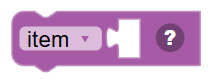
Adds text onto the end of an existing text variable. Whatever is already stored in the variable keeps its value, and the new text is glued on at the end.
When to use it: Use this to build up a longer message piece by piece — like collecting log entries or assembling a sentence word by word.
Example: Append " world" to "Hello" → the variable now holds "Hello world".
Tips:
- This is a shortcut for: variable = variable + new text.
- The variable must exist and be set to text (or empty string) first.
- Great for building log messages or constructing a list of results over time.
In JavaScript: this block runs
W|KppUuo,!jyOzrId7do = W|KppUuo,!jyOzrId7do + "";
Is Text Empty?
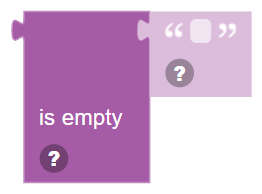
Checks if a piece of text has zero characters and returns true if it's empty, or false if it contains anything at all.
When to use it: Use this to check if a variable has been filled in yet, or if a user left an input blank.
Example: Is "" empty? → TRUE. Is "hello" empty? → FALSE.
Tips:
- A string with just spaces is NOT empty — it has space characters.
- Combine with an If block to handle empty input differently.
- Useful for input validation — making sure the user actually typed something.
In JavaScript: this block gives back the value of
!''.length
Find Text Position

Searches for a smaller piece of text inside a larger piece, and tells you the position where it was found. Returns -1 (or 0) if not found.
When to use it: Use this to check if a certain word or phrase appears in a text, or to find where it starts.
Example: Find first "cat" in "the black cat sat" → returns the position number of where "cat" starts.
Tips:
- Position numbers start at 1 in Blockly (the first character is at position 1).
- Use "first occurrence" to find the first match, or "last occurrence" for the last.
- If the text isn't found at all, the block returns 0 (not found).
In JavaScript: this block gives back the value of
'hello robot'.indexOf('robot') + 1
Get Character At
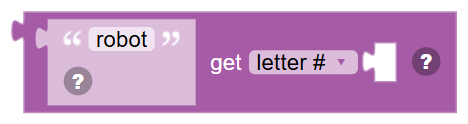
Gets a single character from a piece of text at a specific position. You can get the character at position 1, from the end, the first character, the last character, or a random one.
When to use it: Use this to read one character at a time from text — like checking the first letter of a word.
Example: Character at position 1 of "Hello" → returns "H".
Tips:
- Position 1 is the first character (Blockly uses 1-based indexing).
- "From end" counts backwards — position 1 from end is the last character.
- "Random" picks a random character from the string.
In JavaScript: this block gives back the value of
'robot'.charAt(0)
Get Part of Text

Extracts a portion of a text string between two positions — like cutting out a section of text.
When to use it: Use this to grab just part of a longer text — like the first 3 characters of a code, or everything after a certain position.
Example: Substring of "Hello World" from position 1 to 5 → returns "Hello".
Tips:
- Both start and end positions are included in the result.
- You can count from the start or from the end.
- Combine with Find Position to extract text around a known keyword.
In JavaScript: this block gives back the value of
'hello robot'.slice(0, 1)
Change Text Case
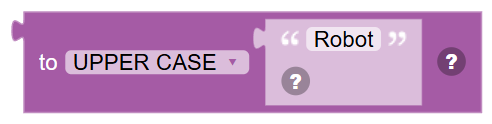
Changes all the letters in a text to UPPERCASE, lowercase, or Title Case (first letter of each word is capitalised).
When to use it: Use this when comparing text to make sure case doesn't matter — or to display text in a specific style.
Example: Uppercase "hello robot" → "HELLO ROBOT".
Tips:
- Compare text more reliably by converting both sides to lowercase first.
- Title Case makes each word start with a capital — great for names.
- Only letters change — numbers and symbols stay the same.
In JavaScript: this block gives back the value of
'Robot'.toUpperCase()
Trim Spaces

Removes extra spaces from the beginning and/or end of text. Choose to trim from both sides, the left side only, or the right side only.
When to use it: Use this to clean up user input — people often accidentally type extra spaces before or after their text.
Example: Trim " hello " → "hello" (spaces removed from both sides).
Tips:
- Trim does NOT remove spaces in the middle of text — only from the edges.
- Always trim text before comparing it to another value for reliability.
- "Both" is the most common choice and removes spaces from both ends.
In JavaScript: this block gives back the value of
' robot '.trim()
String List
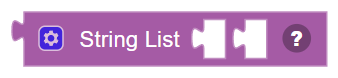
Creates a list of text items joined together. Similar to Join Text but uses a list-building approach — add as many string items as you need.
When to use it: Use this to build a comma-separated list of options or items as a single text value.
Example: String List ["yes", "no", "maybe"] → creates the text "yesnomaybe" (or with separators if you add them).
Tips:
- Click the gear icon to add or remove items.
- Add separator text (like ", " or " | ") between items if needed.
- Useful when building option lists or constructing messages from multiple parts.
In JavaScript: this block gives back the value of
"", ""