
New
File → New closes the open project and starts a new, empty one. Use it when you want to begin a new robot from scratch.
Where to find it: Side menu → File → New. You can also reach it from the New project buttons on the Home page and the Start a new project button on File → Open.
The New Project box
The page is a single box titled New Project, with a warning:
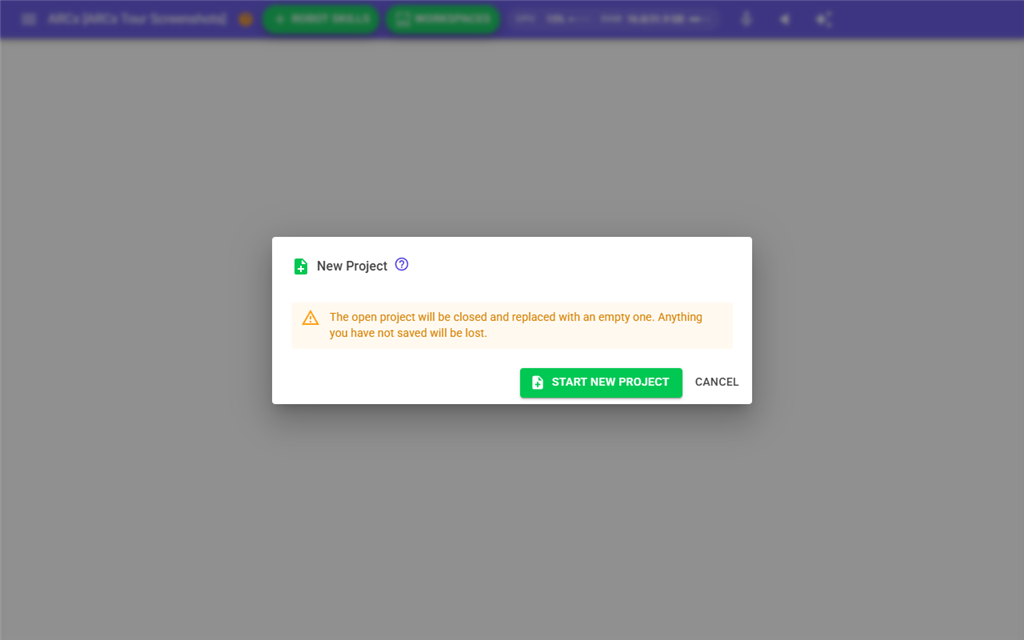
The open project will be closed and replaced with an empty one. Anything you have not saved will be lost.
| Control | What it does |
|---|---|
| Start New Project | Closes the open project and starts a new one, then shows the first workspace. |
| Cancel | Leaves the open project as it is and goes back to the first workspace. |
| Help icon (?) next to the title | Opens the synthiam.com guide on how to plan and build a robot, in a new browser tab. |
The box cannot be closed by pressing Escape or clicking outside it. Choose one of the two buttons.
To start a new project:
- If you want to keep the open project, save it first with File → Save.
- Go to Side menu → File → New.
- Press Start New Project.
What a new project contains
A new project starts with one workspace and the robot skills listed in Options → Preferences → Robot skills in every new project. By default that is the connection robot skill, which you use to connect to your EZB. If you have removed all of them from that list, new projects start empty.
If one of those robot skills is not installed on this computer yet, ARCx downloads and installs it from the store while the new project is created, so pressing Start New Project can take a moment. A robot skill that cannot be added is skipped and the problem is written to the log.
Starting a new project also disconnects the EZBs and closes everything the previous project had open, such as COM ports, files and browser windows opened by its scripts.