
How To Use Chat Agent
Talk to an AI model about your ARC project. Ask questions about robot skills, control commands, scripting, and project globals. The assistant pulls live context server-side so its answers stay grounded in your current project.
Getting Started
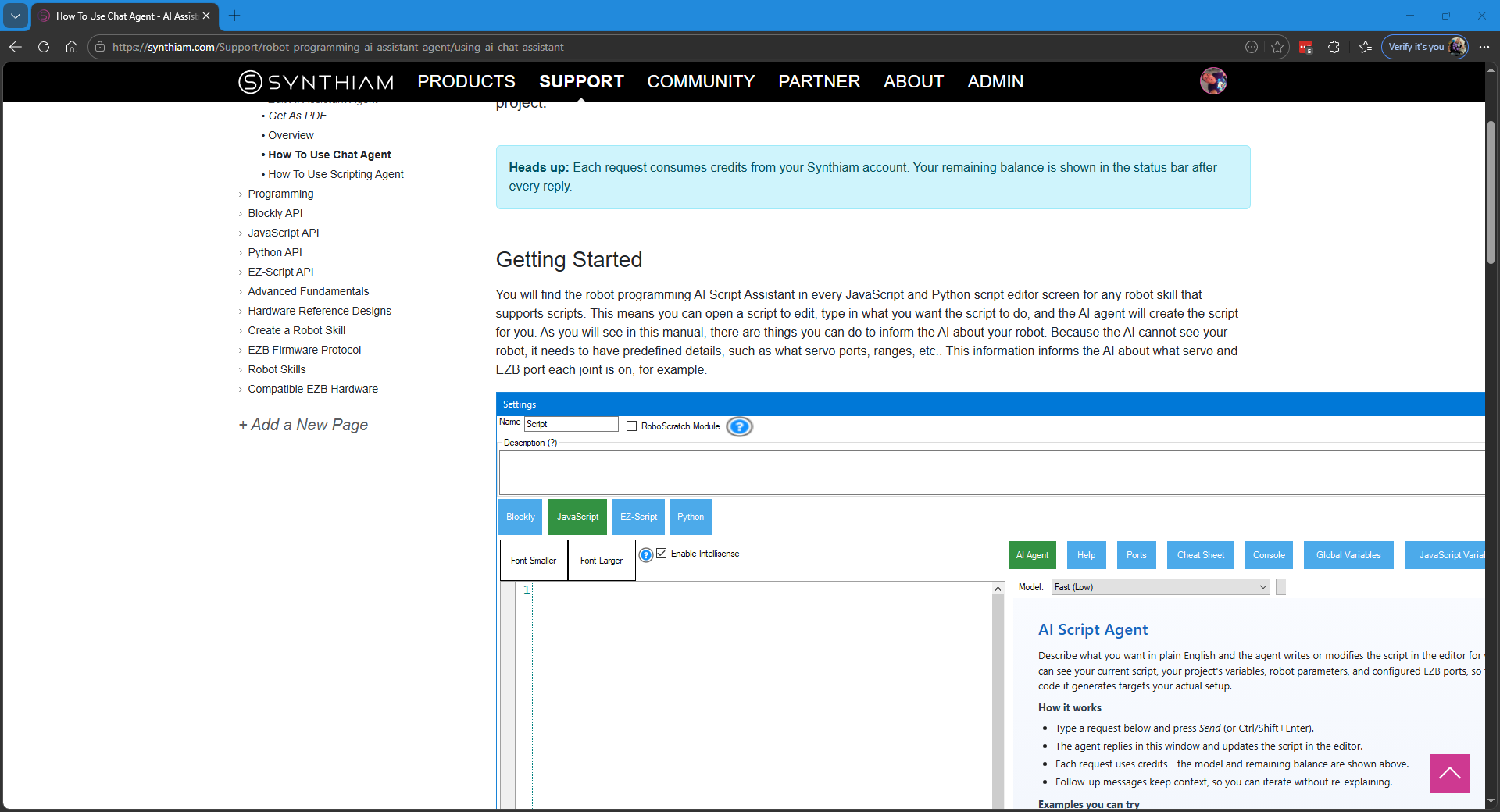
You will find the robot programming AI Script Assistant in every JavaScript and Python script editor screen for any robot skill that supports scripts. This means you can open a script to edit, type in what you want the script to do, and the AI agent will create the script for you. As you will see in this manual, there are things you can do to inform the AI about your robot. Because the AI cannot see your robot, it needs to have predefined details, such as what servo ports, ranges, etc.. This information informs the AI about what servo and EZB port each joint is on, for example.
-
Pick a modelOpen the Model dropdown and choose the AI model you want to use. Models marked with a usage level, such as Pro, indicate their tier.
-
Type your promptEnter your question in the input box. Multi-line prompts are supported, and you can press Enter to add a new line.
-
SendClick Send, or press Ctrl+Enter to submit.
-
Read the replyThe response appears in the transcript with full markdown formatting, including fenced code blocks.
Keyboard Shortcuts
| Shortcut | Action |
|---|---|
| Ctrl + Enter | Submit prompt |
| Enter | Insert a new line in the prompt without submitting |
Toolbar Controls
Model
Dropdown of available AI models. The list is fetched from the server when the chat opens. Send is disabled until a model is selected.
Refresh
Re-pulls the model list and your credit balance. Use this when a new model has been added mid-session, or after purchasing credits in the browser.
Manage Credits
Opens the Synthiam AI credits page in your default web browser so you can review usage or purchase additional credits.
Status Bar
Displays loading state, credit cost of the most recent reply, your remaining balance, and any errors, which appear in red.
What the Assistant Knows
Every time you send a prompt, the chat automatically includes the following context with your request:
-
ClientConversation historyAll prior turns in the current session, including any code the assistant has already suggested.
-
ClientProject global variablesA snapshot of every global variable in your project, including name, value, type, description, and array entries.
-
ClientProject nameThe filename of the currently open project, or
Unnamedif the project has not been saved. -
ServerControl commands and robot skill infoPulled server-side through tool calls when the assistant needs them.
-
ServerSynthiam documentationRetrieved server-side through tool calls when relevant to your question.
Tips for Good Results
Be specific
Mention the robot skill or control by name. “How do I make the Auto Position skill loop?” is better than “How do I loop?”
Reference your variables
The assistant can see all your project globals, so ask about them by name and it will use the current values.
Iterate
Conversation history is preserved. Refine an answer with follow-up prompts instead of starting over.
Use code blocks for code
If you are pasting an error or snippet, wrap it in triple backticks so the assistant parses it correctly.
Compared to the AI Script Agent
AI Assistant Chat keeps the full response, including code blocks, inline in the transcript. Use it for questions, explanations, and exploratory conversations.
AI Script Agent strips code from the chat and pushes it directly into a script editor. Use it when you want generated code dropped straight into a runnable script.
Troubleshooting
Project Configured. Time to Build.
Open any script in ARC, click the AI Script Assistant button, and describe what you want. The work you just did makes every reply better.