
Zivid 3D camera skill for ARCx: captures aligned color/depth snapshots, detects pick points, measures objects, exports clouds, and drives arm picks.
 Windows
 ARM
ARM
 Linux
Linux
 MacOS
MacOS
How to add the Zivid 3D Camera robot skill
- Load the most recent release of ARCx on a compatible operating system (Get ARCx).
- Press the + Skills menu from the top menu bar in ARCx.
- Choose any of these category tabs, the robot skill appears in each of them: Camera, Infrared Distance, Navigation.
- Press the Zivid 3D Camera icon to add the robot skill to your project.
Don't have a robot yet?
Follow the Getting Started Guide to build a robot and use the Zivid 3D Camera robot skill.
How to use the Zivid 3D Camera robot skill
Connects Zivid industrial 3D cameras to ARCx for robot arm picking: it takes Zivid snapshots (a 2D colour picture and a 3D point cloud that line up pixel for pixel), finds the table, splits what stands on it into objects, measures each one and publishes a pick point, an approach point, the surface normal and the gripper angles, in the arm's own coordinates once the hand-eye transform is known. It can move a Kinematics arm there, measure between two points of the picture, watch an obstacle zone, export point clouds and share its depth with ARCx's depth service, so every detection a vision skill makes on its colour picture gets a measured distance.
A Zivid camera is a structured light camera: it projects patterns and measures every pixel to a fraction of a millimetre. It takes snapshots, not video. A snapshot takes from about 0.1 to 3 seconds depending on the settings, which is what a pick-and-place cell needs and too slow to steer a moving robot by.
A built-in simulator imitates any Zivid model above a bin of boxes and cylinders (some of them shiny metal) or a tabletop, with Zivid-like noise, missing points on shiny parts and realistic capture times, so a picking project can be built and tried before the camera arrives.
Supported cameras
The skill drives what the user's Zivid SDK drives. It knows these models, their resolution and working distance, and Zivid's presets for each:
| Family | Models | Connection | Notes |
|---|---|---|---|
| Zivid 2+ | M60, M130, L110 | 10 GbE | Omni engine, sub-sampled pixels for speed. |
| Zivid 2+R | MR60, MR130, LR110 | 10 GbE | The Sage engine for shiny parts. |
| Zivid 2 | M70, L100 | 10 GbE | Phase and stripe engines, all pixels. |
| Zivid 3 | XL250 | Ethernet | Depalletization presets. |
| Zivid One+ | S, M, L | USB 3 | Only supported by older Zivid SDKs. The settings the skill writes are in the format of SDK 2.18, which an older SDK may not read, so use a settings file saved by that SDK's Zivid Studio. |
A camera the skill does not recognise still works, with a generic single exposure instead of a model preset; a settings file from Zivid Studio then gives the best results.
This skill has been built and tested with the simulator and with Zivid's own recorded file cameras (real Zivid 2+ M130 captures, played back by the Zivid SDK). It has not been run with a real Zivid camera yet.
What you need
The Zivid SDK is free from Zivid but is not part of this skill, and Zivid does not allow it to be passed on, so it is installed separately from https://www.zivid.com/downloads. The skill finds it at run time. Without it, only the simulator is available, and the Camera tab says what to install.
The Zivid SDK does its 3D computation on the graphics card, so the computer needs a supported GPU. Zivid makes it for Windows x64, Ubuntu x64 and NVIDIA Jetson; there is no macOS version, so on a Mac the skill runs with the simulator only.
Windows. Install the Zivid SDK. Zivid offers it for OpenCL (Intel and AMD graphics) and for CUDA (NVIDIA graphics); install the one for your graphics card, because the OpenCL version does not work on NVIDIA cards. The skill uses the SDK's .NET API from C:\Program Files\Zivid\bin (or where ZIVID_INSTALL_FOLDER points). The Full installation also adds Zivid's GenICam GenTL producer, the skill's other driver.
Ubuntu (24.04, x64 and ARM64). Install Zivid's packages for Ubuntu, the SDK and its GenICam producer, from the same download page:
sudo apt install ./zivid_*.deb ./zivid-genicam_*.deb
The skill uses the GenTL producer, libZividGenTLProducer.cti, which the zivid-genicam package installs under /usr/lib/zivid/genicam (or where GENICAM_GENTL64_PATH points). Zivid calls its GenTL producer on Linux experimental.
NVIDIA Jetson. Zivid makes ARM64 packages for Jetson. ARCx runs on Ubuntu 24.04 only, so this needs a Jetson whose JetPack is based on Ubuntu 24.04. Not tested.
The network. The Zivid 2, 2+, 2+R and 3 connect over Ethernet, ideally a 10 GbE port of their own. Give the computer's port a fixed address in the camera's subnet (Zivid's factory address for a camera is 172.28.60.5, so for example 172.28.60.10 with mask 255.255.255.0) and turn on jumbo frames (MTU 9000) as Zivid recommends. Zivid Studio, which comes with the SDK, is the quickest way to check that the camera answers and to change its address. The skill's Look for cameras for setting is how long it waits for cameras to answer.
The first snapshot. After connecting, the graphics card compiles Zivid's programs, so the first snapshot can take a minute or two. The skill always allows it at least two minutes.
The window
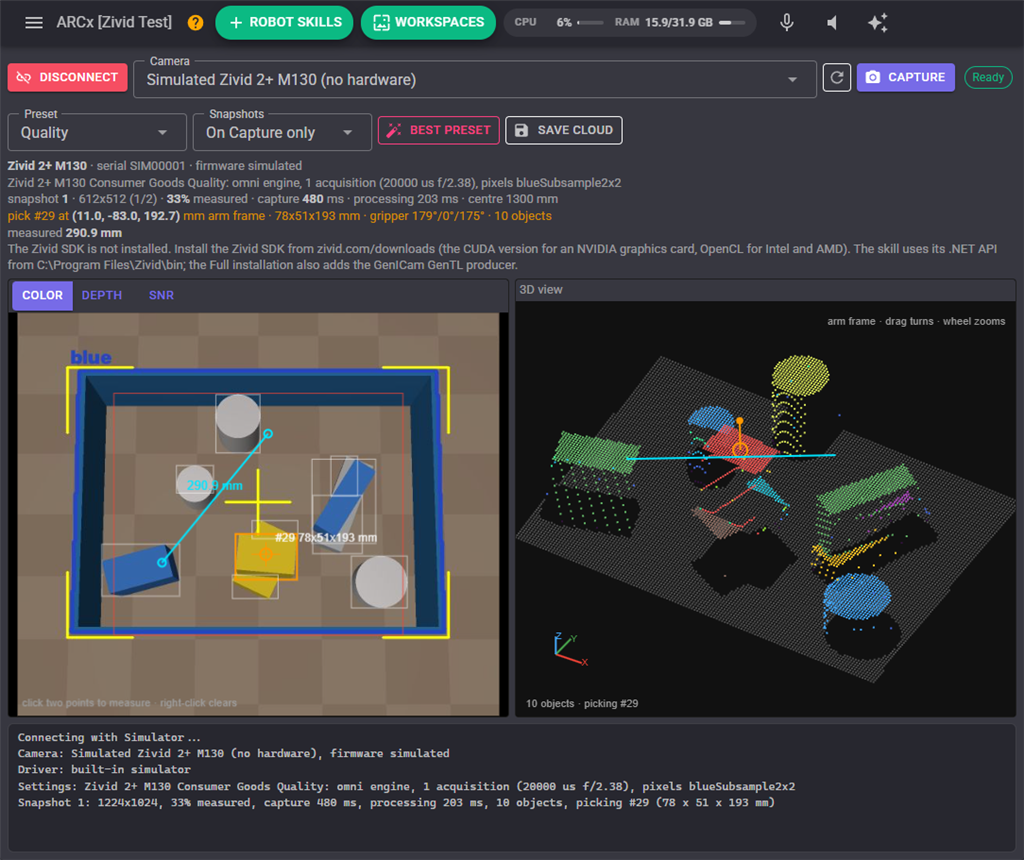
- Connect / Disconnect opens the camera (or a file camera, or the simulator) and closes it.
- Camera chooses which camera, by model, serial number and address. "First camera found" suits a cell with one camera. The refresh button looks again.
- Capture takes a snapshot. The chip beside it says Disconnected, Connecting, Ready, Capturing or Reconnecting.
- Preset switches between Zivid's presets for the connected model (Fast, Quality, Reflective for shiny metal, Matte, Small features, Parcels) from the next snapshot.
- Snapshots chooses what takes snapshots: only Capture, one after another on an interval, or a script setting the trigger variable.
- Best preset tries the Fast, Quality, Reflective and Matte presets on the scene in front of the camera and keeps the one that measures most of it, then the one with the best signal to noise ratio.
- Save cloud saves the last snapshot as a point cloud file (see Point clouds).
- Readouts: the camera's model, serial number and firmware; the settings in use; the last snapshot's size, how much of it was measured, how long the capture and the processing took and the distance to the middle of the picture; the pick point, in the arm's frame or the camera's, with the object's size, the gripper angles and the number of objects; the last measurement; and which Zivid driver the computer has.
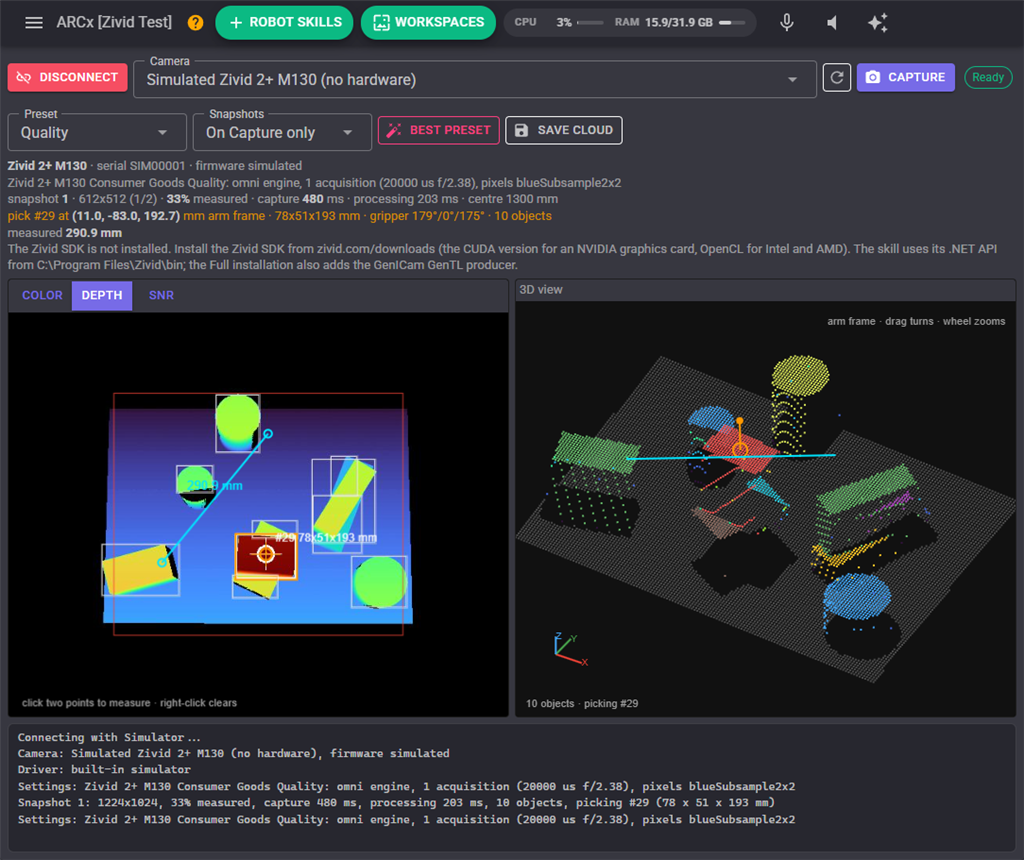
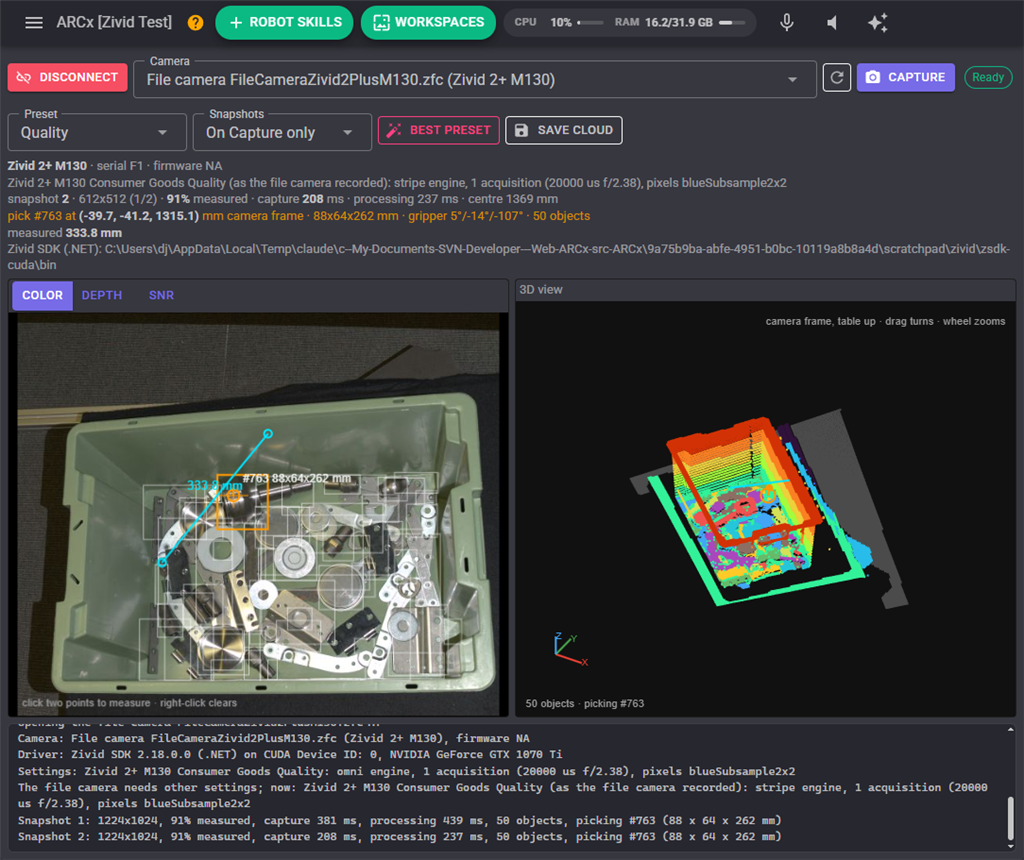
- Color, Depth, SNR switch the picture. Depth is coloured near to far, black where nothing was measured. SNR is the signal to noise ratio of every point, dark (poor) to bright (good): where it is dark, more exposure or another preset would help. Every object found is outlined, the chosen one in orange with its size, and the pick point is marked. The region of interest and the obstacle zone are drawn on it.
- Measuring: click two points of the picture to measure the straight distance between what they see, in millimetres. A right click clears it.
- The 3D view shows the point cloud with the table in grey and each object in its own colour, the pick point and its surface normal in orange and the measurement in blue. Drag to turn it, the mouse wheel zooms and a right click puts it back. With a hand-eye transform it is drawn in the arm's frame; without one, with the table level.
- The log says what the skill is doing: the camera it opened, the settings it sent, each snapshot and its pick, and anything that went wrong.
Drivers
| Driver | Where | What it is |
|---|---|---|
| Automatic | Everywhere | The Zivid SDK's .NET API on Windows when it is installed, else the GenTL producer. |
| Zivid GenTL producer | Windows, Ubuntu, Jetson | Zivid's GenICam producer, called through the standard GenTL interface. The skill sends its settings as a Zivid settings file and reads the point cloud, the signal to noise ratio and the colour picture from each snapshot. Camera features can be read and set by their GenICam names. |
| Zivid SDK .NET | Windows | The SDK's own .NET API. It also plays Zivid's file cameras, and runs Zivid's Capture Assistant. |
| Simulator | Everywhere | No camera needed. |
File cameras. Zivid publishes recordings of real captures as file cameras (.zfc) on its sample data page. Put them in %ProgramData%\Zivid or in the File camera folder of the Camera tab and they are listed as cameras, played back by the Zivid SDK .NET driver as if a real camera took them. A file camera only accepts the settings it was recorded with, so the skill adapts the preset to it and says so in the log.
Capture Assistant. Zivid's Capture Assistant chooses settings for the scene in front of a real camera within a time limit, and the skill's RunCaptureAssistant command saves them as a settings file and uses it. It needs the Zivid SDK .NET driver and a real camera. Otherwise, the Best preset button does a similar job with the presets.
The simulator
Choose Simulator as the driver to try everything without a camera. The simulated camera looks down at a bin of boxes and cylinders, some stacked, some lying on their sides and some shiny metal, or at parts standing on a table seen at an angle. It has the resolution, field of view and working distance of the model chosen, the same presets, and takes as long as those settings would take on a real camera. The points have Zivid-like noise, and a single exposure misses the highlights on shiny parts, which the Reflective preset (several exposures) or the stripe and Sage engines recover.
The simulated cell has an exact hand-eye transform (the UseSimulatorHandEye command sets it), so picks come out in the arm's millimetres. SimulatorRemovePicked takes the last picked part out of the bin, as if the arm had picked it, so a whole picking cycle can be run until the bin is empty, and SimulatorShuffle tips out a new arrangement.
Configuration
Camera
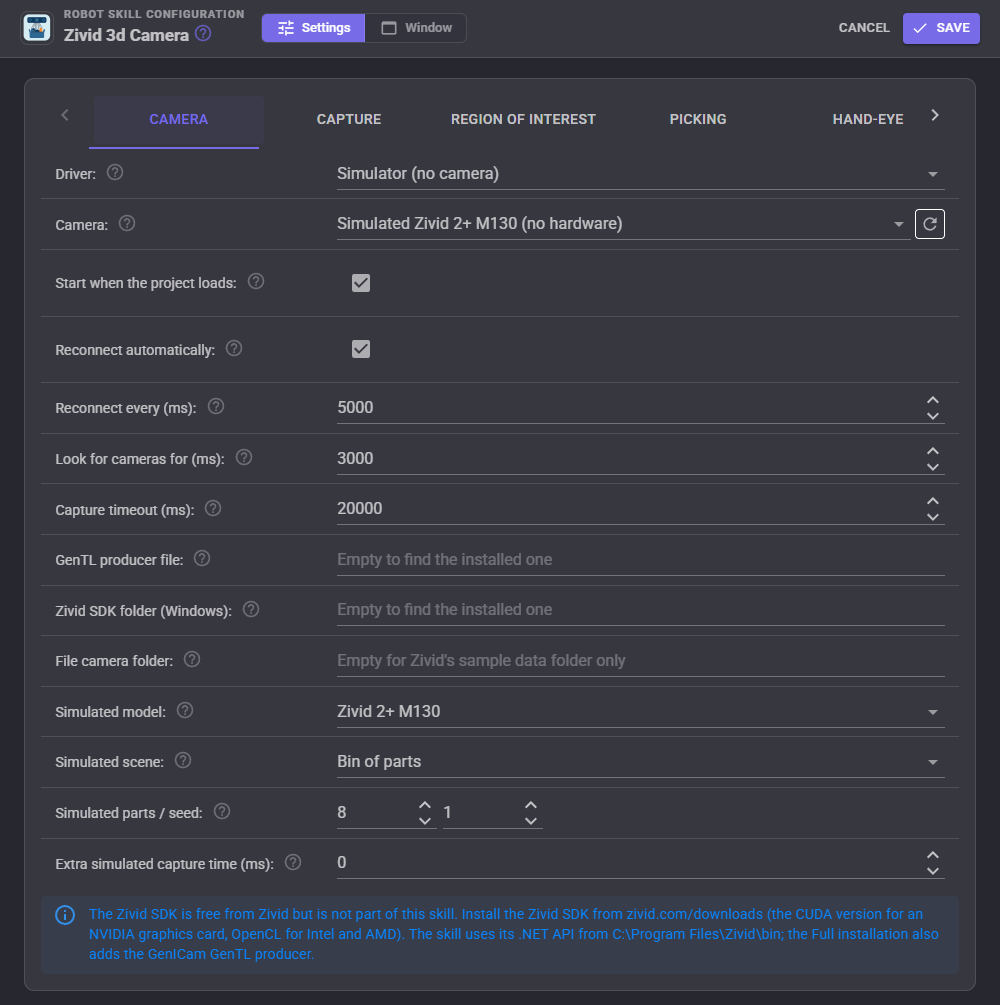
| Setting | What it does |
|---|---|
| Driver | Automatic, the Zivid GenTL producer, the Zivid SDK .NET or the simulator (see Drivers). |
| Camera | Which camera. "First camera found" suits a cell with one. With two, give each robot skill its own. |
| Start when the project loads | Connect as soon as the project has loaded. |
| Reconnect automatically / every (ms) | When the camera stops answering, is unplugged or cannot be opened, keep trying until the skill is disconnected. |
| Look for cameras for (ms) | How long to wait for cameras to answer on the network. |
| Capture timeout (ms) | How long a snapshot may take before it is given up. The first after connecting always gets at least 2 minutes. |
| GenTL producer file | Empty finds ZividGenTLProducer.cti where the Zivid SDK installs it; or its full path. |
| Zivid SDK folder (Windows) | Empty finds the Zivid SDK where it installs; or the folder holding ZividCoreNET.dll. |
| File camera folder | A folder of Zivid file cameras (.zfc) to offer as cameras, besides %ProgramData%\Zivid. |
| Simulated model, scene, parts, seed | The camera the simulator imitates, the bin or the tabletop, how many parts (1 to 30) and the arrangement (the same seed, the same arrangement). |
| Extra simulated capture time (ms) | Added to the simulator's realistic capture time. |
Capture
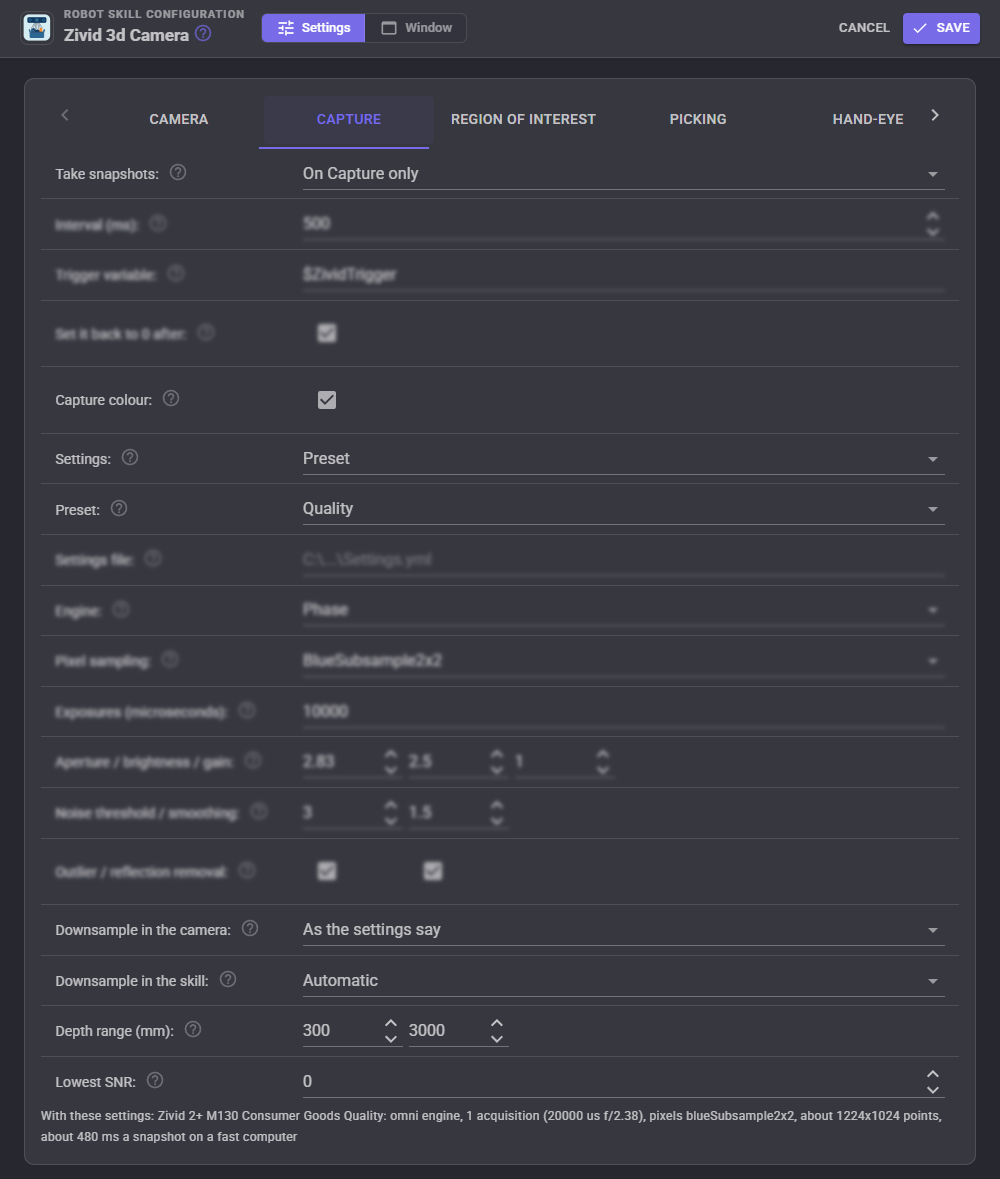
| Setting | What it does |
|---|---|
| Take snapshots | Manual: on the Capture button, the Capture command, the widget or an AI. Interval: one after another while connected. Variable: whenever a script sets the trigger variable to something other than 0. |
| Interval (ms) | From the end of one snapshot to the start of the next. 0 captures back to back. |
| Trigger variable / set it back to 0 after | The global variable a script sets to take a snapshot ($ZividTrigger), set back to 0 after the snapshot so the next one is just another setVar("$ZividTrigger", 1). |
| Capture colour | Take the 2D colour picture with the point cloud. Off is quicker but leaves the colour video and the vision skills without a picture. |
| Settings | A preset, Custom (the values below), or a settings file. |
| Preset | Zivid's own settings for the connected model. Fast and Quality are Zivid's Consumer Goods presets (Depalletization on a Zivid 3), Reflective is Manufacturing Specular (several exposures for shiny metal), Matte is Manufacturing Diffuse, Small features uses full resolution for small parts and Parcels is the fastest for boxes. |
| Settings file | A Zivid settings .yml saved from Zivid Studio, Zivid's recommended way to tune a cell. The SaveSettingsFile command writes the settings in use to one, to start from. |
| Engine, pixel sampling, exposures, aperture, brightness, gain | The Custom settings: the 3D engine (phase, stripe, omni, sage), which pixels are used, one exposure time per acquisition (two or three make an HDR capture), and the lens, projector and sensor values for every acquisition. |
| Noise threshold / smoothing, outlier / reflection removal | Zivid's filters for the Custom settings. |
| Downsample in the camera | Zivid's own resampling after the capture. Not on a Zivid 2. |
| Downsample in the skill | Before picking, the depth service and the views. Automatic keeps about 1000 pixels across, plenty for picking and quick on a small computer. Saved point clouds keep the camera's full resolution unless the Video & variables tab says otherwise. |
| Depth range (mm) | Points nearer or further than this are dropped (also sent to the camera). |
| Lowest SNR | Points with a lower signal to noise ratio are ignored by the skill. 0 keeps everything the camera delivers. |
The settings the skill generates are in the settings file format of Zivid SDK 2.18. With an older SDK, use a settings file saved by that SDK's Zivid Studio.
Region of interest
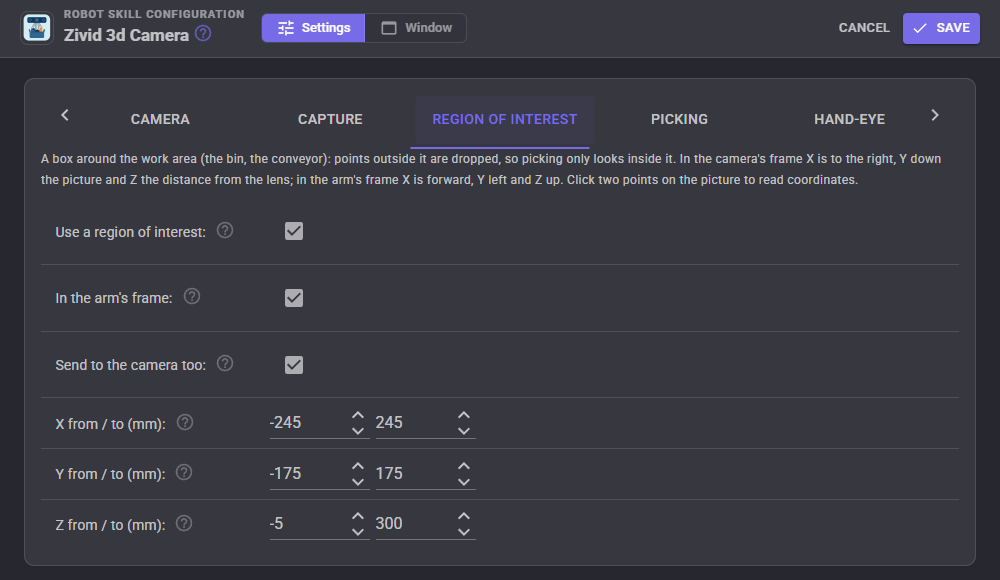
A box in millimetres: only the points inside it are kept, which removes the bin's surroundings and speeds up picking. It can be given in the camera's frame or in the arm's (needs the hand-eye transform, and stays on the table when the camera moves on the arm). Send to the camera too uses Zivid's own region of interest, so the camera does not even compute the points outside it.
Picking
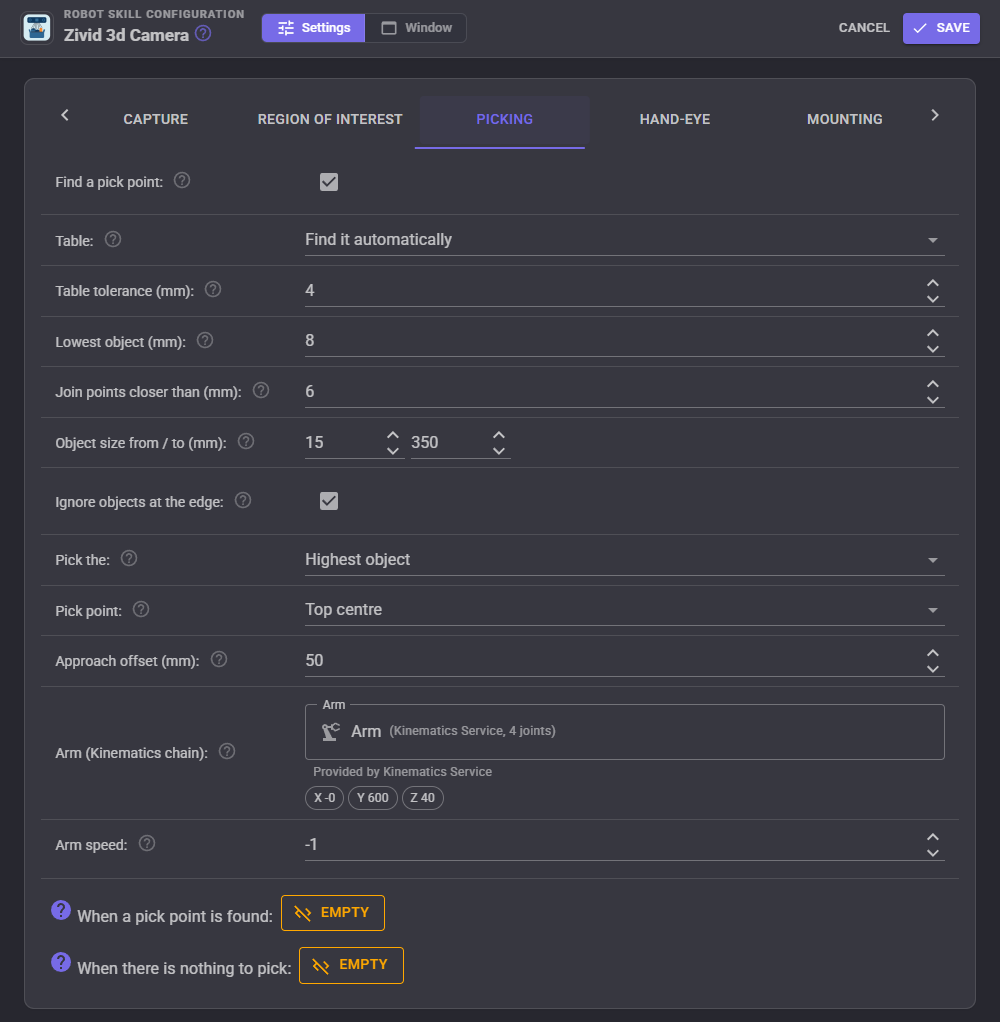
After every snapshot the skill finds the table (the biggest flat surface, the table or the bin's floor), looks at what stands on it from above, splits it into objects where their heights step apart, and measures each: its size along the table, its height, the middle of its top surface and that surface's normal. Objects that are too small, too big, thin or long like the bin's walls, or too sparse to be solid are ignored. Then it chooses one.
| Setting | What it does |
|---|---|
| Find a pick point | Turns picking on. |
| Table | Automatic finds the table and measures heights from it. Off measures heights towards the camera from the furthest points. |
| Table tolerance (mm) | Points this close to the table belong to it. |
| Lowest object (mm) | Anything lower above the table is ignored: labels, tape, noise. |
| Join points closer than (mm) | Neighbouring points closer than this belong to the same object. Smaller splits touching objects apart; larger joins an object the camera saw in pieces. |
| Object size from / to (mm) | Objects narrower than the first or longer than the second are ignored. |
| Ignore objects at the edge | Objects touching the edge of the picture are cut off, or are the bin's walls. |
| Pick the | Highest (the top of the pile first, the usual bin picking order), Nearest to the camera, Largest, or Centermost in the picture. |
| Pick point | The middle of the object's top surface (for a suction cup or a gripper from above), or the centroid of all its points. |
| Approach offset (mm) | How far out along the surface normal the arm stops before going in. |
| Arm (Kinematics chain) | The arm that MoveArmToPick moves and whose pose the calibration reads, from a kinematics skill such as Kinematics Service. |
| Arm speed | The speed MoveArmToPick asks for, 1 to 255, or -1 for the arm's default. |
| When a pick point is found | A script that runs after every snapshot that finds something, with the pick variables already set. |
| When there is nothing to pick | A script that runs when a snapshot finds no object: the bin is empty. |
The gripper angles (roll, pitch, yaw in degrees, rotation Z then Y then X) point the tool's Z axis into the surface and its X axis along the object's long side, ready for a Kinematics pose. Boxes of the same height pressed tightly together look like one object from above; a smaller Join points closer than helps when there is any gap at all.
A complete picking cycle in a script, with the hand-eye transform set and a Kinematics arm:
controlCommand("Zivid 3d Camera", "Capture");

if (getVar("$ZividObjectCount") > 0) {

  controlCommand("Zivid 3d Camera", "MoveArmToPick", false);
  // close the gripper here, then lift
}
Hand-eye
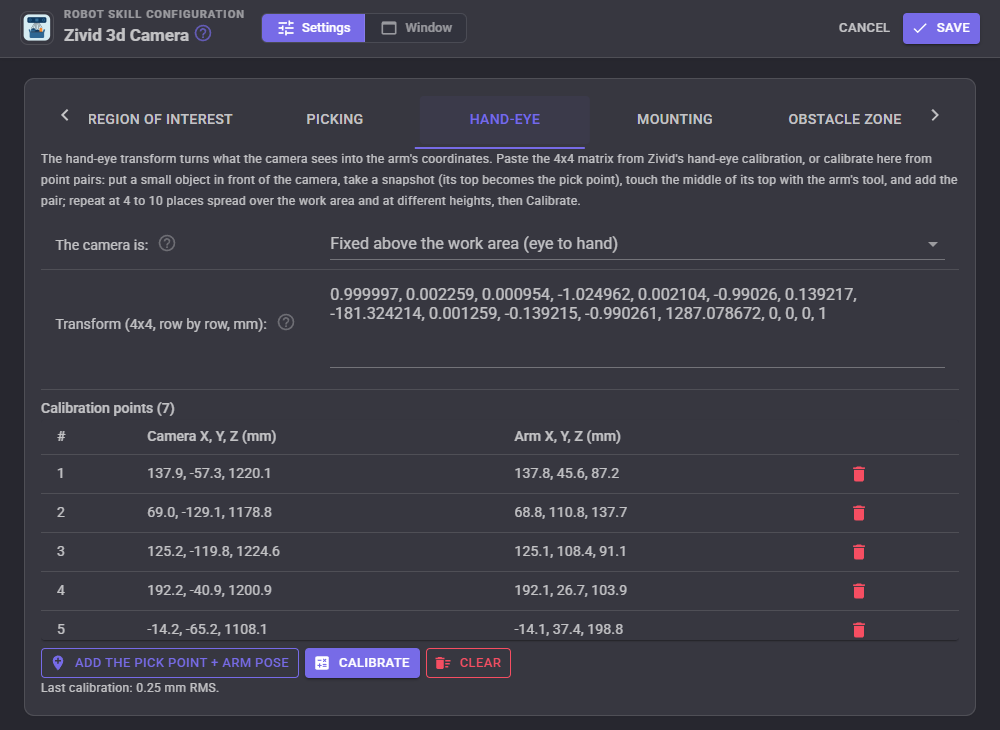
The hand-eye transform turns what the camera sees into the arm's coordinates. With the camera fixed above the work area (eye to hand) it takes camera points to the arm's base. With the camera on the arm (eye in hand) it takes them to the arm's flange, and the arm's pose from the Kinematics service at the moment of the snapshot takes them on to its base.
There are two ways to get it:
- Paste it. Zivid's own hand-eye calibration (in Zivid Studio or its samples, with a Zivid calibration board) gives a 4x4 matrix in millimetres. Paste its 16 numbers, row by row.
- Calibrate here from point pairs. Put a small object in front of the camera and take a snapshot, so its top becomes the pick point. Move the arm until the middle of the tool touches the middle of that top, then press Add the pick point + arm pose (or call AddCalibrationPairFromPick). Repeat at 4 to 10 places spread over the work area and at different heights, then press Calibrate. The skill solves the best rigid transform and reports the error in millimetres. Pairs can also be typed in with the AddCalibrationPair command, from an arm that is not a Kinematics chain.
Mounting
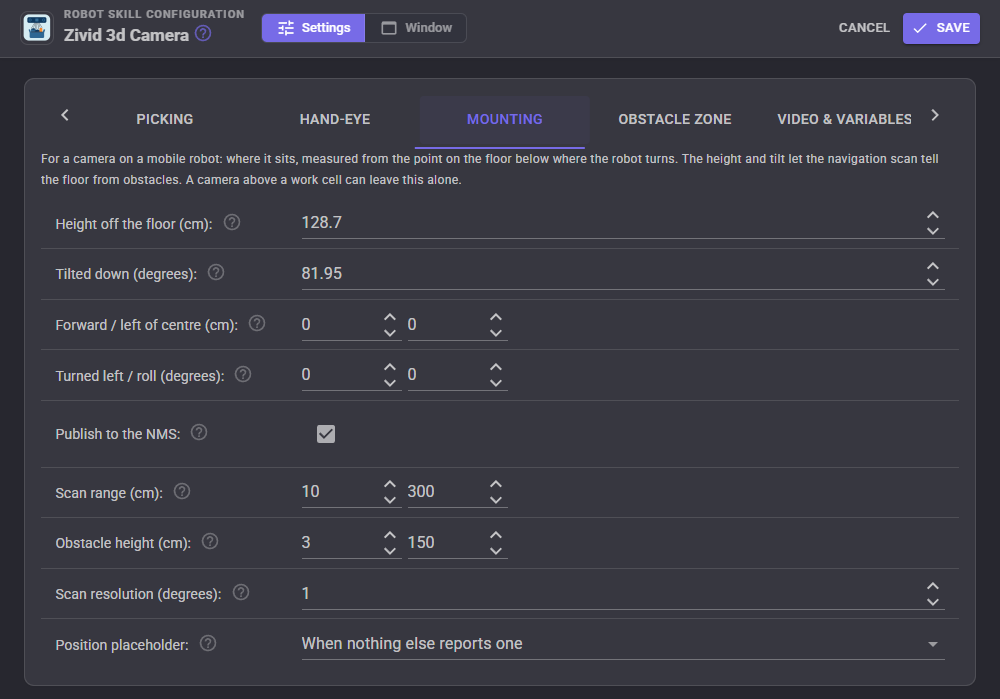
For a Zivid on a mobile robot: where it sits on the robot (height, tilt, forward and left of the point the robot turns around, heading and roll). With Publish to the NMS on, each snapshot also becomes an obstacle scan for the navigation messaging system, with the floor removed, and the Position placeholder keeps navigators receiving it when nothing else reports the robot's position. Snapshots are slow for driving, so pair it with a lidar for anything fast. A camera above a work cell can leave this tab alone.
Obstacle zone
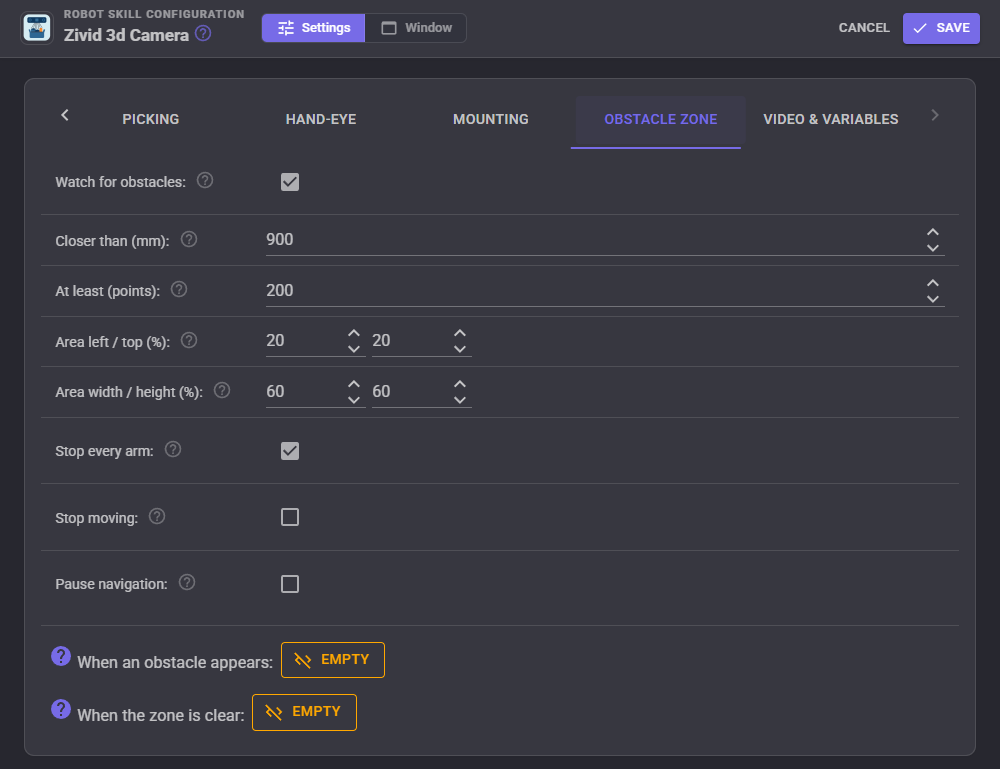
After every snapshot, the skill checks whether at least a given number of points inside an area of the picture are closer to the camera than a given distance: a hand reaching into the cell under the camera, or a person in front of the robot. It can then stop every Kinematics arm, stop the movement panel, pause a navigation until the zone is clear, and run a script when something enters and when it leaves. Use the Interval trigger so the zone is watched all the time.
This is a convenience, not a safety function. A robot cell needs certified safety equipment.
Video & variables
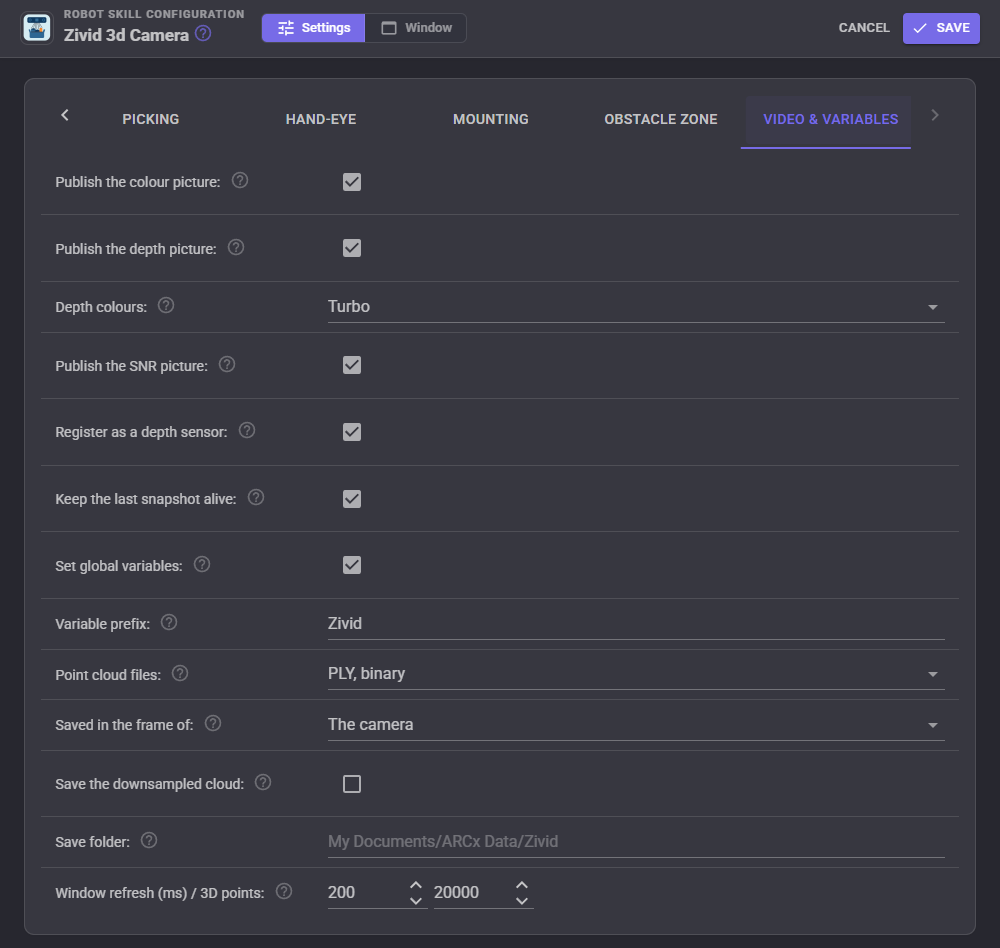
| Setting | What it does |
|---|---|
| Publish the colour picture | The colour picture as the video source "Zivid 3d Camera Color". The depth lines up with it pixel for pixel, so face, colour, glyph and object detections on it get measured distances. |
| Publish the depth picture / depth colours | The coloured depth with the objects and the pick point drawn, as "Zivid 3d Camera Depth". |
| Publish the SNR picture | The signal to noise ratio picture, as "Zivid 3d Camera SNR". |
| Register as a depth sensor | Share the depth and the camera's intrinsics with ARCx's depth service, so vision detections on the colour picture get distances and other skills can read the depth. |
| Keep the last snapshot alive | Send the last snapshot's pictures and depth again twice a second, so viewers and vision skills always have them between snapshots. Turn it off on a moving robot, where an old snapshot would mislead. |
| Set global variables / variable prefix | Publish the variables below. Give each camera in a project its own prefix. |
| Point cloud files / saved in the frame of | The format and frame of saved point clouds (see Point clouds). |
| Save the downsampled cloud | Save the skill's downsampled cloud, with the region of interest applied, instead of the camera's full resolution. |
| Save folder | Where point clouds and settings files go when a command does not say. Empty uses My Documents/ARCx Data/Zivid. |
| Window refresh (ms) / 3D points | How often the window's pictures and 3D view are redrawn, and how many points the 3D view draws at most. |
Point clouds
Save cloud and the SavePointCloud command save the last snapshot as binary or text PLY (MeshLab, CloudCompare, Blender, Open3D), organized PCD (the Point Cloud Library) or CSV, with colour and the signal to noise ratio of every point. Points are in millimetres in the camera's frame (like Zivid Studio) or the arm's base frame, or in metres in the mobile robot's frame. The SaveSettingsFile command saves the settings in use as a Zivid settings .yml that opens in Zivid Studio.
Variables
With the default prefix Zivid:
| Variable | What it holds |
|---|---|
| $ZividIsConnected, $ZividIsCapturing | Whether the camera is connected, and taking a snapshot. |
| $ZividModel, $ZividSerial | The camera's model and serial number. |
| $ZividCaptureCount, $ZividCaptureMs | Snapshots taken since connecting, and how long the last one took. |
| $ZividValidPercent | How much of the last snapshot has a 3D point. |
| $ZividCenterDistance | The distance in millimetres to what the middle of the picture sees. |
| $ZividObjectCount, $ZividPickFound | How many objects the last snapshot found, and whether there is something to pick. |
| $ZividPickX, $ZividPickY, $ZividPickZ | The pick point in millimetres, in the arm's frame when a hand-eye transform is set (+X forward, +Y left, +Z up), else the camera's (+X right, +Y down, +Z away from the lens). |
| $ZividApproachX, $ZividApproachY, $ZividApproachZ | The approach point: the pick point moved out along the surface normal. |
| $ZividPickNormalX, $ZividPickNormalY, $ZividPickNormalZ | The surface normal at the pick point. |
| $ZividPickRoll, $ZividPickPitch, $ZividPickYaw | The gripper angles in degrees. |
| $ZividPickLength, $ZividPickWidth, $ZividPickHeight | The picked object's size in millimetres. |
| $ZividPickDistance | The distance from the camera to the pick point. |
| $ZividPickCameraX, $ZividPickCameraY, $ZividPickCameraZ | The pick point in the camera's frame. |
| $ZividMeasureDistance | The last distance measured between two points of the picture. |
| $ZividObstacle, $ZividObstacleDistance | Whether something is inside the obstacle zone, and how near it was. |
| $ZividTrigger | The trigger variable a script sets to take a snapshot. |
Custom UI widget
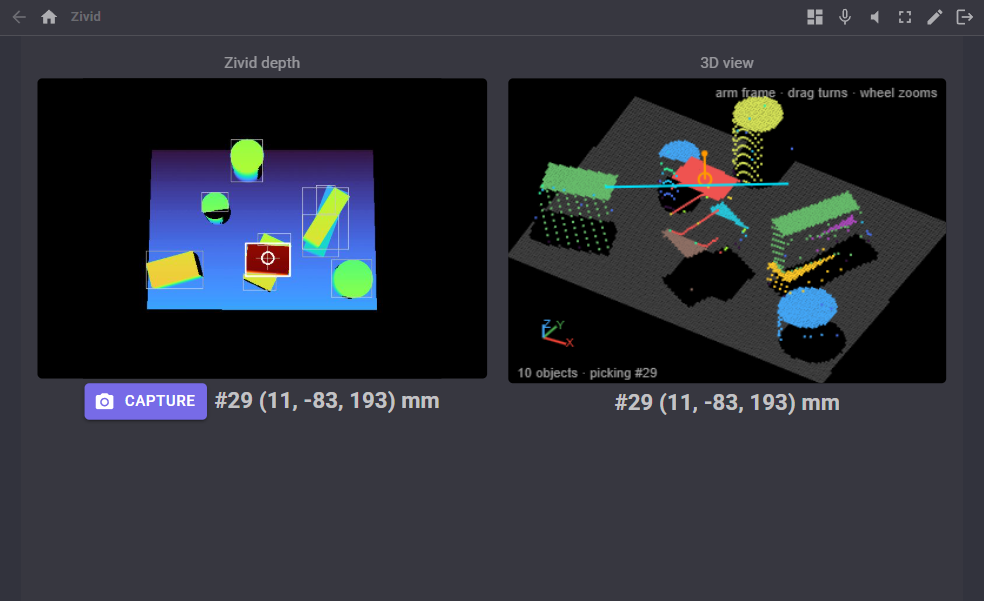
The Zivid 3D camera widget shows the colour, depth or SNR picture with the objects and the pick point drawn, or the 3D view, with an optional Capture button and the pick point below it. Its settings are Caption, View (Color, Depth, Snr or Cloud), ShowButton and ShowReadout.
AI and MCP
The skill gives an AI agent connected to ARCx these tools: capture (take a snapshot and report the pick), get_status, get_pick_point, get_distance_at and measure_distance (points of the picture as fractions of its width and height), export_point_cloud and move_arm_to_pick, and a status resource. Every setting is described to the agent, so it can configure the skill too.
Control Commands for the Zivid 3D Camera robot skill
There are Control Commands available for this robot skill which allows the skill to be controlled programmatically from scripts or other robot skills. These commands enable you to automate actions, respond to sensor inputs, and integrate the robot skill with other systems or custom interfaces. If you're new to the concept of Control Commands, we have a comprehensive manual available here that explains how to use them, provides examples to get you started and make the most of this powerful feature.
Control Command ManualThis robot skill has 37 control commands, listed below. Send them from a JavaScript or Python script, from Blockly, or from another robot skill.
The first value is always the window title, which is the name in the title bar of the robot skill on your workspace. It starts out as Zivid 3d Camera, which is what every example below uses. If you rename the robot skill, or add a second copy of it to the project, use the title as it appears on that window instead.
ControlCommand() can be shortened to CC(), and both spellings work in JavaScript and in Python. The examples are JavaScript; Python is the same call, except that true and false are written True and False.
AddCalibrationPair
Add a hand-eye calibration point: where the camera saw something (cameraX, cameraY, cameraZ) and where the arm's tool touched it (armX, armY, armZ), in millimetres. Returns how many points there are.
Syntax
ControlCommand("Zivid 3d Camera", "AddCalibrationPair", (Number)cameraX, (Number)cameraY, (Number)cameraZ, (Number)armX, (Number)armY, (Number)armZ)
Parameters
| # | Name | Type | What to pass |
|---|---|---|---|
| 1 | cameraX | Number | A number, without quotes |
| 2 | cameraY | Number | A number, without quotes |
| 3 | cameraZ | Number | A number, without quotes |
| 4 | armX | Number | A number, without quotes |
| 5 | armY | Number | A number, without quotes |
| 6 | armZ | Number | A number, without quotes |
Returns: Integer [-2,147,483,648 to 2,147,483,647]
Example
var result = ControlCommand("Zivid 3d Camera", "AddCalibrationPair", 0, 0, 0, 0, 0, 0);
AddCalibrationPairFromPick
Add a hand-eye calibration point from the last pick point (seen by the camera) and where the arm's tool is now (from its Kinematics chain): snapshot the calibration object, touch its top with the tool, then call this. Returns how many points there are.
Syntax
ControlCommand("Zivid 3d Camera", "AddCalibrationPairFromPick")
Returns: Integer [-2,147,483,648 to 2,147,483,647]
Example
var result = ControlCommand("Zivid 3d Camera", "AddCalibrationPairFromPick");
AutoSelectPreset
Try the Fast, Quality, Reflective and Matte presets on the scene in front of the camera and keep the one that measures most of it (then the best signal to noise ratio) within maxMs milliseconds a capture (2000 when not given). Takes several snapshots. Returns a report.
Syntax
ControlCommand("Zivid 3d Camera", "AutoSelectPreset", (Number)maxMs)
Parameters
| # | Name | Type | What to pass |
|---|---|---|---|
| 1 | maxMs | Number | A number, without quotes |
Returns: String
Example
var result = ControlCommand("Zivid 3d Camera", "AutoSelectPreset", 0);
CalibrateHandEye
Solve the hand-eye transform from the calibration points (3 or more, 8 spread over the work area is better) and use it. Returns the error in millimetres as text.
Syntax
ControlCommand("Zivid 3d Camera", "CalibrateHandEye")
Returns: String
Example
var result = ControlCommand("Zivid 3d Camera", "CalibrateHandEye");
Capture
Take a snapshot (2D colour and 3D point cloud), process it and find the pick point. Waits until it is done, which takes the capture time of the settings (0.2 to 3 seconds; the first after connecting up to a couple of minutes). Returns true.
Syntax
ControlCommand("Zivid 3d Camera", "Capture")
Returns: Boolean [true or false]
Example
var result = ControlCommand("Zivid 3d Camera", "Capture");
CaptureAndPick
Take a snapshot and return the pick point as [x, y, z, nx, ny, nz]: the position in millimetres and the surface normal, in the arm's base frame when a hand-eye transform is set, else in the camera's frame. An empty array when there is nothing to pick.
Syntax
ControlCommand("Zivid 3d Camera", "CaptureAndPick")
Returns: Array of Float
Example
var result = ControlCommand("Zivid 3d Camera", "CaptureAndPick");
ClearCalibrationPairs
Remove every hand-eye calibration point.
Syntax
ControlCommand("Zivid 3d Camera", "ClearCalibrationPairs")
Returns: Boolean [true or false]
Example
var result = ControlCommand("Zivid 3d Camera", "ClearCalibrationPairs");
Connect
Connect to the camera (or the simulator). Returns false if it was already connected or connecting.
Syntax
ControlCommand("Zivid 3d Camera", "Connect")
Returns: Boolean [true or false]
Example
var result = ControlCommand("Zivid 3d Camera", "Connect");
Disconnect
Disconnect from the camera. Returns false if it was not connected.
Syntax
ControlCommand("Zivid 3d Camera", "Disconnect")
Returns: Boolean [true or false]
Example
var result = ControlCommand("Zivid 3d Camera", "Disconnect");
GetApproachPoint
Where the gripper should stop before going in: the pick point moved out along the surface normal by the approach offset, [x, y, z] millimetres. An empty array when there was nothing to pick.
Syntax
ControlCommand("Zivid 3d Camera", "GetApproachPoint")
Returns: Array of Float
Example
var result = ControlCommand("Zivid 3d Camera", "GetApproachPoint");
GetCameraFeature
Read a GenICam feature of the camera by name (e.g. CameraInfoSerialNumber, ExposureTime). Returns its value as text.
Syntax
ControlCommand("Zivid 3d Camera", "GetCameraFeature", (String)name)
Parameters
| # | Name | Type | What to pass |
|---|---|---|---|
| 1 | name | Text | Your text, in quotes |
Returns: String
Example
var result = ControlCommand("Zivid 3d Camera", "GetCameraFeature", "name");
GetDeviceInfo
The camera: model, serial number, firmware, IP address, driver, settings in use.
Syntax
ControlCommand("Zivid 3d Camera", "GetDeviceInfo")
Returns: String
Example
var result = ControlCommand("Zivid 3d Camera", "GetDeviceInfo");
GetDistanceAtPixel
The straight-line distance in millimetres from the camera to what a point of the picture sees. x and y are fractions of the picture's width and height from the top left (0.5, 0.5 is the middle). 0 when nothing is measured there.
Syntax
ControlCommand("Zivid 3d Camera", "GetDistanceAtPixel", (Number)x, (Number)y)
Parameters
| # | Name | Type | What to pass |
|---|---|---|---|
| 1 | x | Number | A number, without quotes |
| 2 | y | Number | A number, without quotes |
Returns: Float [1.5e45 to 3.4e38]
Example
var result = ControlCommand("Zivid 3d Camera", "GetDistanceAtPixel", 0, 0);
GetObjectCount
How many objects the last snapshot found on the table.
Syntax
ControlCommand("Zivid 3d Camera", "GetObjectCount")
Returns: Integer [-2,147,483,648 to 2,147,483,647]
Example
var result = ControlCommand("Zivid 3d Camera", "GetObjectCount");
GetObjects
Every object the last snapshot found, as JSON: id, pick point, size (length, width, height in mm), point count, and which one is chosen.
Syntax
ControlCommand("Zivid 3d Camera", "GetObjects")
Returns: String
Example
var result = ControlCommand("Zivid 3d Camera", "GetObjects");
GetPickPoint
The last snapshot's pick point as [x, y, z, nx, ny, nz] (millimetres and the unit surface normal), in the arm's base frame when a hand-eye transform is set, else the camera's. An empty array when there was nothing to pick.
Syntax
ControlCommand("Zivid 3d Camera", "GetPickPoint")
Returns: Array of Float
Example
var result = ControlCommand("Zivid 3d Camera", "GetPickPoint");
GetPickPose
The last pick as a gripper pose [x, y, z, roll, pitch, yaw]: millimetres and degrees (R = Rz Ry Rx), tool Z into the surface and tool X along the object's long side, ready for Kinematics.moveToPose. An empty array when there was nothing to pick.
Syntax
ControlCommand("Zivid 3d Camera", "GetPickPose")
Returns: Array of Float
Example
var result = ControlCommand("Zivid 3d Camera", "GetPickPose");
GetPointAtPixel
Where the thing at a point of the picture is, [x, y, z] in millimetres, in the arm's base frame when a hand-eye transform is set, else the camera's. x and y are fractions of the picture from the top left. An empty array when nothing is measured there.
Syntax
ControlCommand("Zivid 3d Camera", "GetPointAtPixel", (Number)x, (Number)y)
Parameters
| # | Name | Type | What to pass |
|---|---|---|---|
| 1 | x | Number | A number, without quotes |
| 2 | y | Number | A number, without quotes |
Returns: Array of Float
Example
var result = ControlCommand("Zivid 3d Camera", "GetPointAtPixel", 0, 0);
IsConnected
Whether the camera is connected and ready for snapshots.
Syntax
ControlCommand("Zivid 3d Camera", "IsConnected")
Returns: Boolean [true or false]
Example
var result = ControlCommand("Zivid 3d Camera", "IsConnected");
ListCameraFeatures
The camera's GenICam feature names.
Syntax
ControlCommand("Zivid 3d Camera", "ListCameraFeatures")
Returns: Array of String
Example
var result = ControlCommand("Zivid 3d Camera", "ListCameraFeatures");
ListCameras
The Zivid cameras on the network plus the simulator: one "name [id]" each. The id goes in the configuration's DeviceId.
Syntax
ControlCommand("Zivid 3d Camera", "ListCameras")
Returns: Array of String
Example
var result = ControlCommand("Zivid 3d Camera", "ListCameras");
MeasureDistance
The distance in millimetres between what two points of the picture see (x1, y1, x2, y2 as fractions of the picture from the top left). 0 when either has no measurement.
Syntax
ControlCommand("Zivid 3d Camera", "MeasureDistance", (Number)x1, (Number)y1, (Number)x2, (Number)y2)
Parameters
| # | Name | Type | What to pass |
|---|---|---|---|
| 1 | x1 | Number | A number, without quotes |
| 2 | y1 | Number | A number, without quotes |
| 3 | x2 | Number | A number, without quotes |
| 4 | y2 | Number | A number, without quotes |
Returns: Float [1.5e45 to 3.4e38]
Example
var result = ControlCommand("Zivid 3d Camera", "MeasureDistance", 0, 0, 0, 0);
MoveArmToPick
Move the arm (the Kinematics chain in the Picking tab) to the approach point above the last pick point, then down onto it unless approachOnly is true. Needs the hand-eye transform. Returns what the arm said.
Syntax
ControlCommand("Zivid 3d Camera", "MoveArmToPick", (Bool)approachOnly)
Parameters
| # | Name | Type | What to pass |
|---|---|---|---|
| 1 | approachOnly | True or false | true or false, without quotes |
Returns: String
Example
var result = ControlCommand("Zivid 3d Camera", "MoveArmToPick", true);
RunCaptureAssistant
Zivid's Capture Assistant (Zivid SDK driver, a real camera): settings for the scene in front of the camera within maxMs milliseconds a capture (1200 when not given), with ambientLight none, hz50 or hz60 (mains lights). Saves them as a settings file, uses it, and returns its path.
Syntax
ControlCommand("Zivid 3d Camera", "RunCaptureAssistant", (Number)maxMs, (String)ambientLight)
Parameters
| # | Name | Type | What to pass |
|---|---|---|---|
| 1 | maxMs | Number | A number, without quotes |
| 2 | ambientLight | Text | Your text, in quotes |
Returns: String
Example
var result = ControlCommand("Zivid 3d Camera", "RunCaptureAssistant", 0, "ambientLight");
SavePointCloud
Save the last snapshot as a point cloud file (PLY, PCD or CSV per the configuration, in the camera's, the arm's or the robot's frame). filename is optional: empty saves a dated file in the save folder. Returns the file's full path.
Syntax
ControlCommand("Zivid 3d Camera", "SavePointCloud", (String)filename)
Parameters
| # | Name | Type | What to pass |
|---|---|---|---|
| 1 | filename | Text | Your text, in quotes |
Returns: String
Example
var result = ControlCommand("Zivid 3d Camera", "SavePointCloud", "filename");
SaveSettingsFile
Save the capture settings in use as a Zivid settings .yml (opens in Zivid Studio). filename is optional. Returns the file's full path.
Syntax
ControlCommand("Zivid 3d Camera", "SaveSettingsFile", (String)filename)
Parameters
| # | Name | Type | What to pass |
|---|---|---|---|
| 1 | filename | Text | Your text, in quotes |
Returns: String
Example
var result = ControlCommand("Zivid 3d Camera", "SaveSettingsFile", "filename");
SetCameraFeature
Set a GenICam feature of the camera by name. Settings written this way last until the next settings change in the skill. Returns true.
Syntax
ControlCommand("Zivid 3d Camera", "SetCameraFeature", (String)name, (String)value)
Parameters
| # | Name | Type | What to pass |
|---|---|---|---|
| 1 | name | Text | Your text, in quotes |
| 2 | value | Text | Your text, in quotes |
Returns: Boolean [true or false]
Example
var result = ControlCommand("Zivid 3d Camera", "SetCameraFeature", "name", "value");
SetHandEyeMatrix
Set the hand-eye transform: 16 numbers row by row (camera to arm base, or to flange for a camera on the arm), millimetres. Returns true.
Syntax
ControlCommand("Zivid 3d Camera", "SetHandEyeMatrix", (String)matrix)
Parameters
| # | Name | Type | What to pass |
|---|---|---|---|
| 1 | matrix | Text | Your text, in quotes |
Returns: Boolean [true or false]
Example
var result = ControlCommand("Zivid 3d Camera", "SetHandEyeMatrix", "matrix");
SetInterval
The milliseconds between snapshots with the Interval trigger. Returns the new interval.
Syntax
ControlCommand("Zivid 3d Camera", "SetInterval", (Number)ms)
Parameters
| # | Name | Type | What to pass |
|---|---|---|---|
| 1 | ms | Number | A number, without quotes |
Returns: Integer [-2,147,483,648 to 2,147,483,647]
Example
var result = ControlCommand("Zivid 3d Camera", "SetInterval", 0);
SetPreset
Use one of Zivid's presets for the connected model from the next snapshot: Fast, Quality, Reflective (shiny metal), Matte, SmallFeatures or Parcels. Returns the settings it means.
Syntax
ControlCommand("Zivid 3d Camera", "SetPreset", (String)preset)
Parameters
| # | Name | Type | What to pass |
|---|---|---|---|
| 1 | preset | Text | Your text, in quotes |
Returns: String
Example
var result = ControlCommand("Zivid 3d Camera", "SetPreset", "preset");
SetRoi
Set the region of interest box in millimetres (camera frame, or the arm's when the configuration says so): minX, maxX, minY, maxY, minZ, maxZ. Turns it on. Returns true.
Syntax
ControlCommand("Zivid 3d Camera", "SetRoi", (Number)minX, (Number)maxX, (Number)minY, (Number)maxY, (Number)minZ, (Number)maxZ)
Parameters
| # | Name | Type | What to pass |
|---|---|---|---|
| 1 | minX | Number | A number, without quotes |
| 2 | maxX | Number | A number, without quotes |
| 3 | minY | Number | A number, without quotes |
| 4 | maxY | Number | A number, without quotes |
| 5 | minZ | Number | A number, without quotes |
| 6 | maxZ | Number | A number, without quotes |
Returns: Boolean [true or false]
Example
var result = ControlCommand("Zivid 3d Camera", "SetRoi", 0, 0, 0, 0, 0, 0);
SetRoiEnabled
Turn the region of interest on or off. Returns the new setting.
Syntax
ControlCommand("Zivid 3d Camera", "SetRoiEnabled", (Bool)enabled)
Parameters
| # | Name | Type | What to pass |
|---|---|---|---|
| 1 | enabled | True or false | true or false, without quotes |
Returns: Boolean [true or false]
Example
var result = ControlCommand("Zivid 3d Camera", "SetRoiEnabled", true);
SetSettingsFile
Use a Zivid settings .yml file (saved from Zivid Studio) from the next snapshot. Returns true.
Syntax
ControlCommand("Zivid 3d Camera", "SetSettingsFile", (String)path)
Parameters
| # | Name | Type | What to pass |
|---|---|---|---|
| 1 | path | Text | Your text, in quotes |
Returns: Boolean [true or false]
Example
var result = ControlCommand("Zivid 3d Camera", "SetSettingsFile", "path");
SetTrigger
What takes snapshots: Manual, Interval or Variable (the trigger variable in the configuration). Returns the new trigger.
Syntax
ControlCommand("Zivid 3d Camera", "SetTrigger", (String)trigger)
Parameters
| # | Name | Type | What to pass |
|---|---|---|---|
| 1 | trigger | Text | Your text, in quotes |
Returns: String
Example
var result = ControlCommand("Zivid 3d Camera", "SetTrigger", "trigger");
SimulatorRemovePickedPart
Simulator only: take the last picked part out of the bin, as if the arm picked it. Take a snapshot to see the next one.
Syntax
ControlCommand("Zivid 3d Camera", "SimulatorRemovePickedPart")
Returns: Boolean [true or false]
Example
var result = ControlCommand("Zivid 3d Camera", "SimulatorRemovePickedPart");
SimulatorShuffle
Simulator only: a new arrangement of parts in the bin (the same seed always gives the same one). Take a snapshot to see it.
Syntax
ControlCommand("Zivid 3d Camera", "SimulatorShuffle", (Number)seed)
Parameters
| # | Name | Type | What to pass |
|---|---|---|---|
| 1 | seed | Number | A number, without quotes |
Returns: Boolean [true or false]
Example
var result = ControlCommand("Zivid 3d Camera", "SimulatorShuffle", 0);
UseSimulatorHandEye
Simulator only: set the hand-eye transform to the simulated cell's exact one (the table's frame, mm, Z up), so picks come out in arm coordinates. Returns the matrix.
Syntax
ControlCommand("Zivid 3d Camera", "UseSimulatorHandEye")
Returns: String
Example
var result = ControlCommand("Zivid 3d Camera", "UseSimulatorHandEye");
This list is read out of the robot skill itself each time its package is uploaded, so it matches the published version (v2).




This robot skill has been updated to v1.
What has changed
initial release
This robot skill has been updated to v2.
What has changed
updated to use some new ARCx UI features for improved performance.