
Manage
This screen lists the robot skills you own in the Robot Skill Store, next to what is installed on this computer. From here you upload a new build of a skill to the store, open its store entry to edit it, get the AI prompt for it, or uninstall its files from this computer.
Use it once you have created a robot skill with Robot Skills → Create and built it, and whenever you publish a new version.
Where to find it: Top bar → Robot Skills → Manage. Also the Manage Robot Skills button on Robot Skills → Create, and Go to Manage on the page shown after creating a skill.
You need to be signed in under Options → Account. The list comes from your Synthiam account.
Contents
- Page header
- The robot skill table
- Publishing a new version
- Why the upload button is greyed out
- The upload window
- Uninstalling a robot skill
- Troubleshooting
Page header
| Button | What it does |
|---|---|
| Refresh | Gets your robot skills from the store again and checks what is installed on this computer again. Press it after you edit a store entry on the website, or after you rebuild a skill. |
| Create Robot Skill | Opens Robot Skills → Create. |
| Developer Docs | Opens the robot skill developer documentation on synthiam.com in a new tab. |
The robot skill table
The bar above the table shows Fetching robot skills... while the list loads, then a short note on how to use the page. If something goes wrong, the bar shows the error instead. Click a column heading to sort by it.
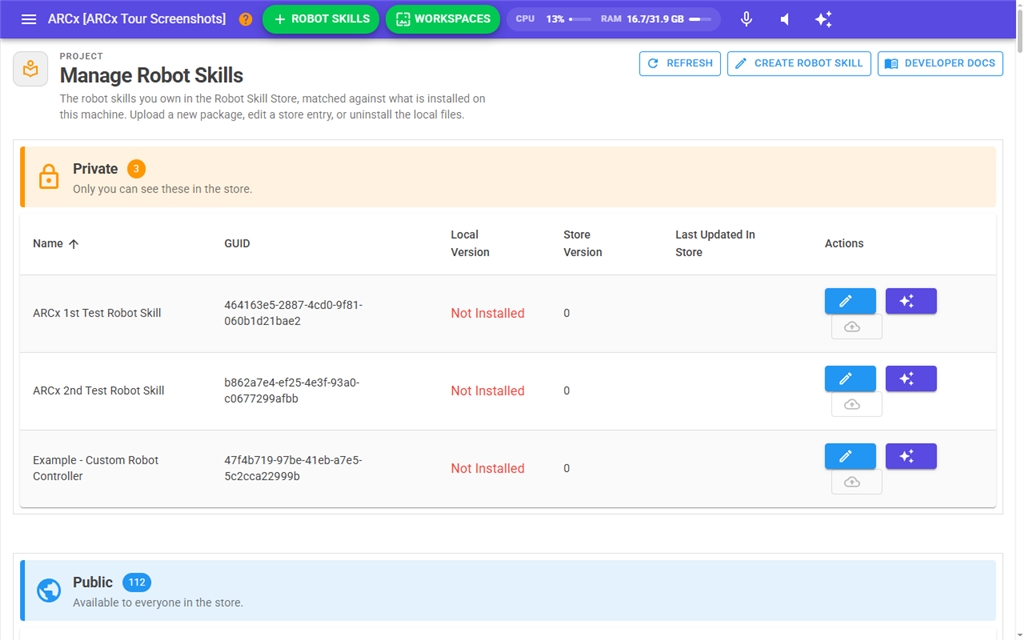
| Column | Meaning |
|---|---|
| Name | The skill's name in the store. |
| GUID | The skill's permanent store ID. |
| Local Version | The version installed on this computer, or Not Installed in red. |
| Store Version | The version most recently uploaded to the store. |
| Visibility | Public means anyone can find and download it. Private means it has been uploaded but is not public. Blank means it has never been uploaded. |
| Last Updated In Store | When the store entry was last updated. |
| Actions | Buttons for the skill, below. Hover over each one for a description. |
The buttons in Actions are icons:
| Button | What it does |
|---|---|
| Pencil | Opens the skill's store entry on synthiam.com in a new tab. Edit the description and manual there, and make the skill public. |
| Sparkle | Shows the AI prompt for the skill, built from its store description, in a window. It has the same controls as the prompt on the page shown after Robot Skills → Create, plus Close. |
| Cloud | Uploads the installed build to the store as a new version. See The upload window. Greyed out when the skill isn't ready. See Why the upload button is greyed out. |
| Bin | Uninstalls the skill's files from this computer. Only shown when the skill is installed. See Uninstalling a robot skill. |
Publishing a new version
- In the project's
plugin.json, raise Version above the Store Version shown here. - Make sure the project folder has
title.png, a square PNG at least 256x256. - Build the project in Visual Studio. The build installs the skill on this computer.
- Press Refresh on this page.
- Press the cloud button on the skill's row, fill in What has changed, and press Upload.
- When the upload succeeds, press the pencil button to check the store entry. If the skill is not public yet, make it public there.
Why the upload button is greyed out
The upload button is greyed out until the installed build is complete. Hover over it to see what is missing. The checks run in this order:
| Tooltip | What to do |
|---|---|
| It is not installed on this computer. | Build the project in Visual Studio, which installs it, then press Refresh. |
| The installed version (...) is not newer than the store version (...). | Raise Version in plugin.json, rebuild, then press Refresh. |
| There is no build output in the install folder | Build the project, then press Refresh. |
| plugin.json does not name a DLLFilename | Fix plugin.json and rebuild. |
| The built assembly ... is not in any platform folder of the install. | Build the project, then press Refresh. |
| The thumbnail title.png is missing from the install folder. | Put a square title.png, 256x256 or larger, in the project folder and rebuild. The build copies it. |
| plugin.json has no Name. / has no Description. / lists no Categories. | Fix plugin.json and rebuild. |
The upload window
Pressing the cloud button opens Upload ... to the Robot Skill Store. It lists what the upload changes in the store entry, all taken from the uploaded package: version, name, short description, categories, thumbnail image, supported platforms and the package file. Your release notes are posted as a comment on the skill's page.
If the skill is already public, the new version is available to everyone as soon as it is uploaded. If not, it stays private until you make it public in the store entry.
| Field | What it does |
|---|---|
| What has changed | Required, up to 4,000 characters. Posted on the skill's page as the release notes for this version, so people who follow the skill see what is new. Markdown is supported. Upload stays greyed out until you write something. |
| Send control command syntax | Ticked by default. ARCx reads the skill's control commands and publishes them as the Control Commands section of its manual on synthiam.com, with the syntax, parameters, return values and an example for each command. It replaces whatever is in that section now, so untick it if you wrote that section by hand. If the skill has no control commands, the section is left as it is. |
Press Upload to start, or Cancel. A progress window then shows each step: reading the control commands, creating the package, uploading (with a byte count and percentage), and updating ARCx's copy of the store list. At the end it shows the store's reply. Press Close. The table refreshes by itself.
Reading the control commands loads the skill the same way adding it to a workspace does. If it won't load, the upload is stopped, nothing is sent, and the window shows Upload stopped with the error. Anyone who downloaded that package would get the same error. The usual causes are a NuGet package or other DLL the skill uses but doesn't ship next to its own DLL, or an ARCx reference left with Copy Local set to true. Fix it, rebuild, and upload again. Views → Debug Log has more detail.
Uninstalling a robot skill
The bin button deletes the skill's files from this computer. Your projects and the store entry are not touched, and the skill can be downloaded again at any time.
- Press the bin button on the skill's row.
- ARCx asks Uninstall '...'? and shows the folder it will delete. Press Uninstall to go ahead, or Cancel.
- The bar above the table confirms the skill has been uninstalled.
A project that uses the skill can't load it until it is downloaded again.
A skill that is in the open project can't be uninstalled. ARCx says '...' is in the open project and lists its window titles. Remove each one from the workspace with Remove on its own menu, or start an empty project with File → New, then try again.
A skill used at any point since ARCx started can keep its files locked until ARCx closes. Then ARCx says '...' could not be removed and tells you whether anything was deleted. If some files were deleted, the skill is damaged. Download it again, or uninstall it after restarting, before you use it. To remove it:
- Close ARCx completely.
- Start ARCx again and come straight to this page, without opening a project that uses the skill.
- Uninstall it here.
If the skill is one of your default robot skills, remove it from that list first under Options → Preferences. A default robot skill is added to every new project, including the empty one made when ARCx starts. You can also delete the folder named in the message by hand while ARCx is closed.
Troubleshooting
| Problem | What to do |
|---|---|
| The bar shows an error instead of the list | Usually you are not signed in, or synthiam.com could not be reached. Sign in under Options → Account and press Refresh. |
| A skill you just made public still shows Private | Press Refresh. The page only reads the store when it opens or when you refresh. |
| A skill you just built still shows the old Local Version | Press Refresh. |