

Offline English sentiment analysis with mood tracking, speech/chat scoring, scripts, variables, and AI tools for ARCx robots
 Windows
 ARM
ARM
 Linux
Linux
 MacOS
MacOS
How to add the Vader Sentiment Analysis robot skill
- Load the most recent release of ARCx on a compatible operating system (Get ARCx).
- Press the + Skills menu from the top menu bar in ARCx.
- Choose any of these category tabs, the robot skill appears in each of them: Artificial Intelligence, Audio.
- Press the Vader Sentiment Analysis icon to add the robot skill to your project.
Don't have a robot yet?
Follow the Getting Started Guide to build a robot and use the Vader Sentiment Analysis robot skill.
How to use the Vader Sentiment Analysis robot skill
The Vader Sentiment Analysis robot skill listens to what people say or type to the robot and works out how positive or negative it is. It keeps a running mood that rises with kind words, falls with harsh ones and slowly returns to neutral, so the robot can smile, sulk or apologise like it noticed how it is being treated.
It uses VADER (Valence Aware Dictionary and sEntiment Reasoner), a lexicon and rule based sentiment model built for short, informal text such as speech and chat. It runs entirely on the robot's computer: no internet, no account, no cost per phrase, and a sentence is scored in a few microseconds. VADER is English only.
VADER understands more than single words:
- Negation: "not good" is negative and "not bad at all" is positive.
- Boosters and dampeners: "very good" scores higher than "good", "kind of good" lower.
- Capitals and punctuation: "GREAT!!!" scores higher than "great".
- "But": in "the food was good but the service was terrible", what comes after "but" counts more.
- Slang, emoticons and emoji: "lol", "sux",
 and all count.
The Window
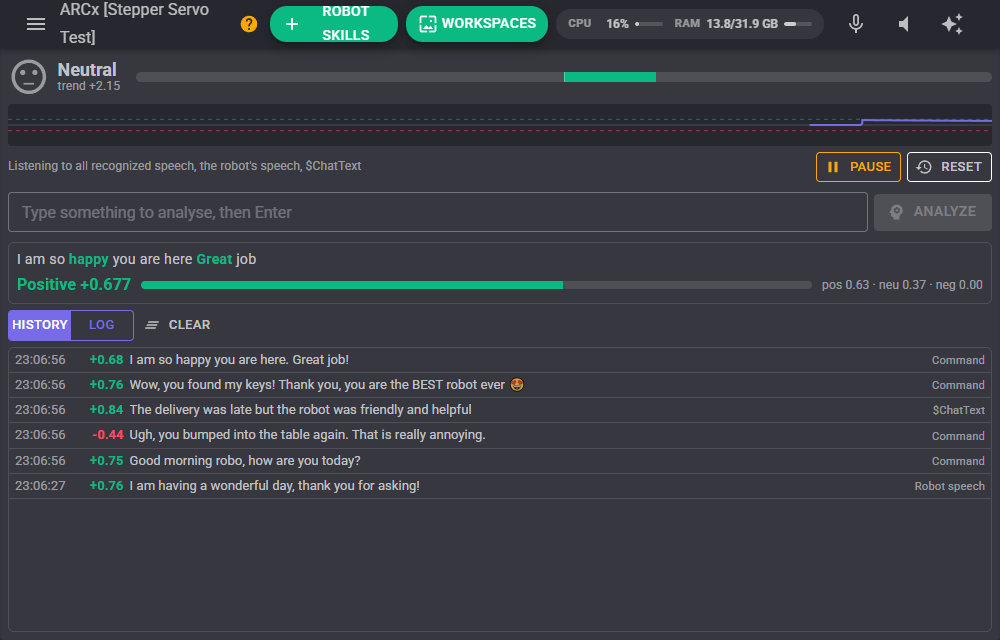
- Mood: the face shows the mood (Happy, Neutral or Upset), with the trend number under it. The bar grows right and green for a positive trend, left and red for a negative one.
- Trend graph: the last ten minutes of the trend. The dashed green and red lines are the happy and upset thresholds.
- Listening to: where text is coming from right now. Pause stops the automatic sources (speech, the robot's own speech and watched variables); typed text and scripts still work. Reset sets the trend back to 0.
- Text box: type something and press Enter or Analyze. It is treated exactly like something the robot heard.
- Last result: the last text with every word that counted coloured green (positive) or red (negative); hover a word for its valence. Under it are the label, the compound score and the positive, neutral and negative proportions.
- History / Log: the history lists each analysed text with its time, compound score and source. The log shows what the robot skill is doing, such as which speech engine it is listening through.
Scores
Every analysed text gets four scores:
| Score | Range | Meaning |
|---|---|---|
| Compound | -1 to +1 | The overall sentiment. This is the one to use in most scripts. |
| Positive | 0 to 1 | The proportion of the text that is positive. |
| Neutral | 0 to 1 | The proportion of the text that is neutral. |
| Negative | 0 to 1 | The proportion of the text that is negative. |
The compound score also gives the text a label: Positive at or above the positive threshold (0.05), Negative at or below the negative threshold (-0.05), and Neutral in between.
The Mood
Every analysed text adds its compound score to the trend. Three compliments in a row push the trend up by about 2.5; an insult pulls it down again. The trend is held between -10 and +10 and fades back towards 0 when nobody is talking, halving every 5 minutes by default, so the robot gets over it.
The trend decides the mood: Happy at or above +3, Upset at or below -3, Neutral in between. A mood only ends once the trend has come back past its threshold by the hysteresis (0.5), so a trend sitting on the line does not flip the mood back and forth. Each change of mood runs its own script.
Where Text Comes From
- Typed: the text box in the window, or the Analyse text widget on a Custom UI screen.
- Speech: by default, every phrase any speech to text engine recognizes for any robot skill in the project. This starts no recognition of its own, so it works alongside a chatbot or a phrase recognizer that is already listening. When nothing else is listening, choose Own dictation and the robot skill asks a speech to text engine to listen continuously itself.
- The robot's own speech: optionally, everything the robot says through text to speech is scored into separate variables (RobotCompound, RobotSentiment, RobotText) and runs its own script. A face or lights can then follow the tone of what the robot says, such as the answers of a chatbot. It does not move the mood unless you ask it to.
- Watched variables: name any global variables and their text is analysed whenever a script or robot skill sets them to something new: a chat message, a web request, anything that produces words.
- Scripts and AI: the Analyze control command, and the analyze_text tool for AI assistants connected to ARCx.
Configuration
Analysis
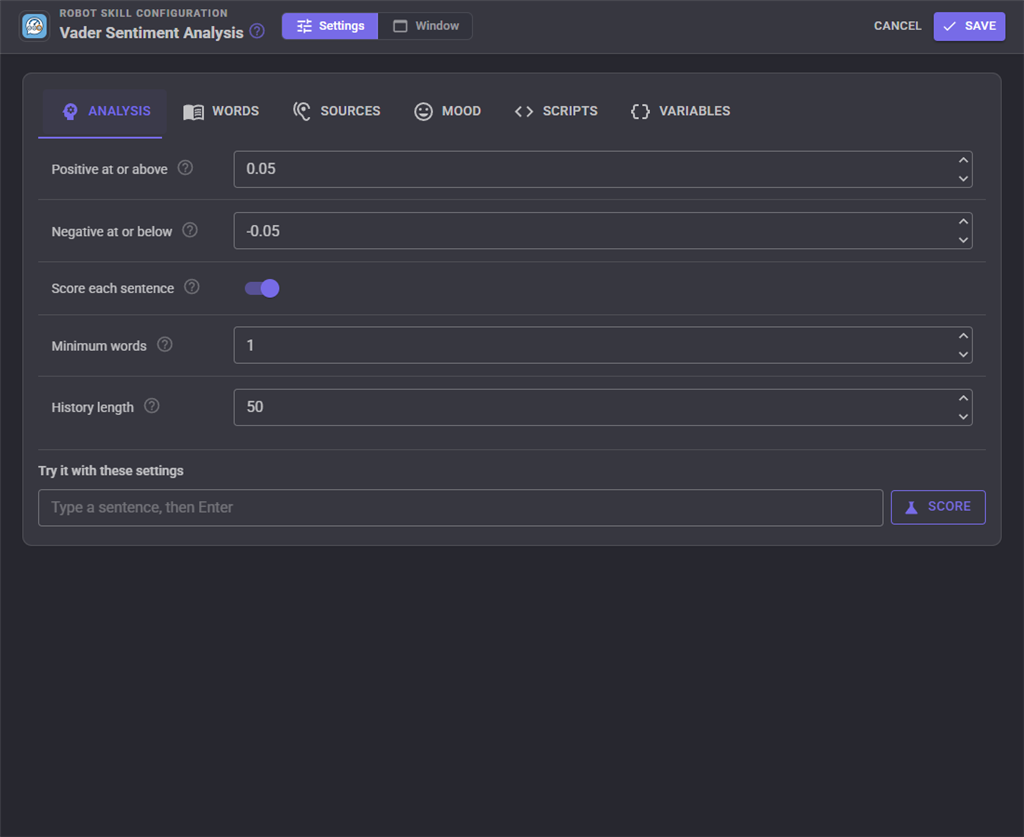
| Setting | Description |
|---|---|
| Positive at or above | A compound score at or above this is labelled Positive. Raise it (0.3, say) so only clearly positive text runs the positive script. |
| Negative at or below | A compound score at or below this is labelled Negative. Lower it (-0.3, say) so only clearly negative text counts. |
| Score each sentence | Scores each sentence on its own and averages them. Without it, a long paragraph piles up towards +1 or -1. |
| Minimum words | Ignores text shorter than this, so a stray "uh" from speech recognition does not move the mood. |
| History length | How many analysed texts the window keeps. |
Every tab with scoring settings has a Try it with these settings box that scores a sentence with the settings on screen, before they are saved.
Words
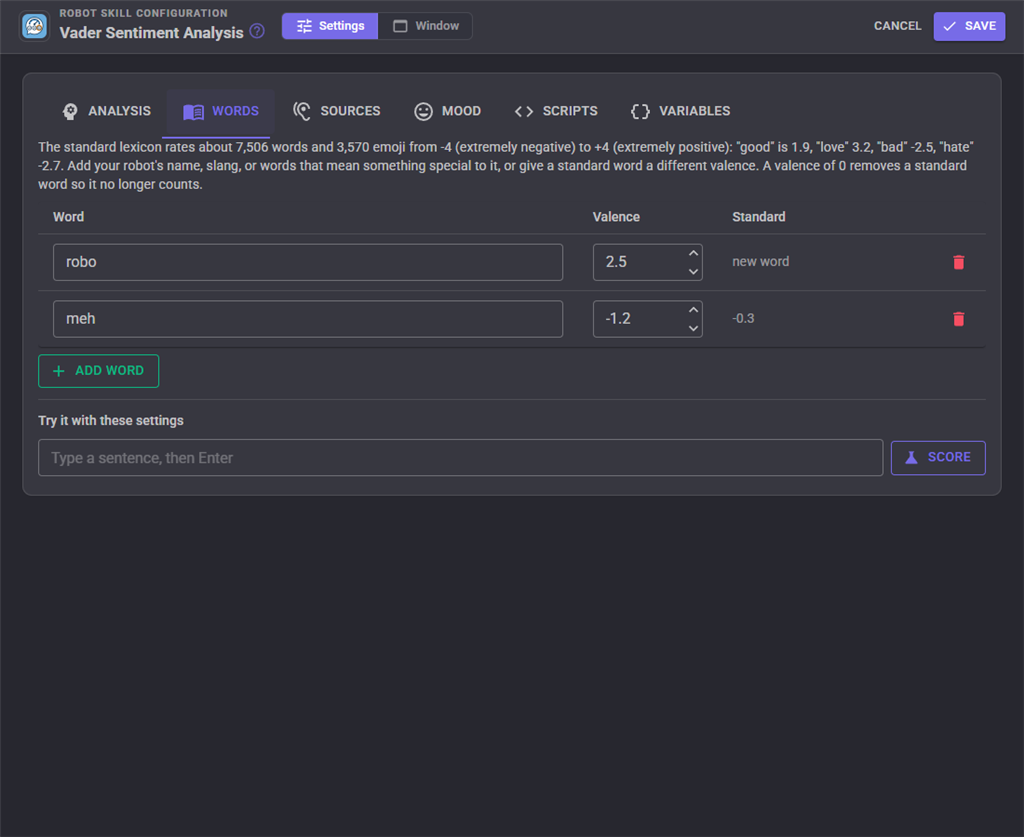
The standard lexicon rates about 7,500 words and 3,500 emoji from -4 (extremely negative) to +4 (extremely positive): "good" is 1.9, "love" 3.2, "bad" -2.5 and "hate" -2.7. Add your robot's name, slang, or words that mean something special to your robot, or give a standard word a different valence. The Standard column shows what the lexicon says about the word, or "new word". A valence of 0 removes a standard word so it no longer counts at all.
Sources
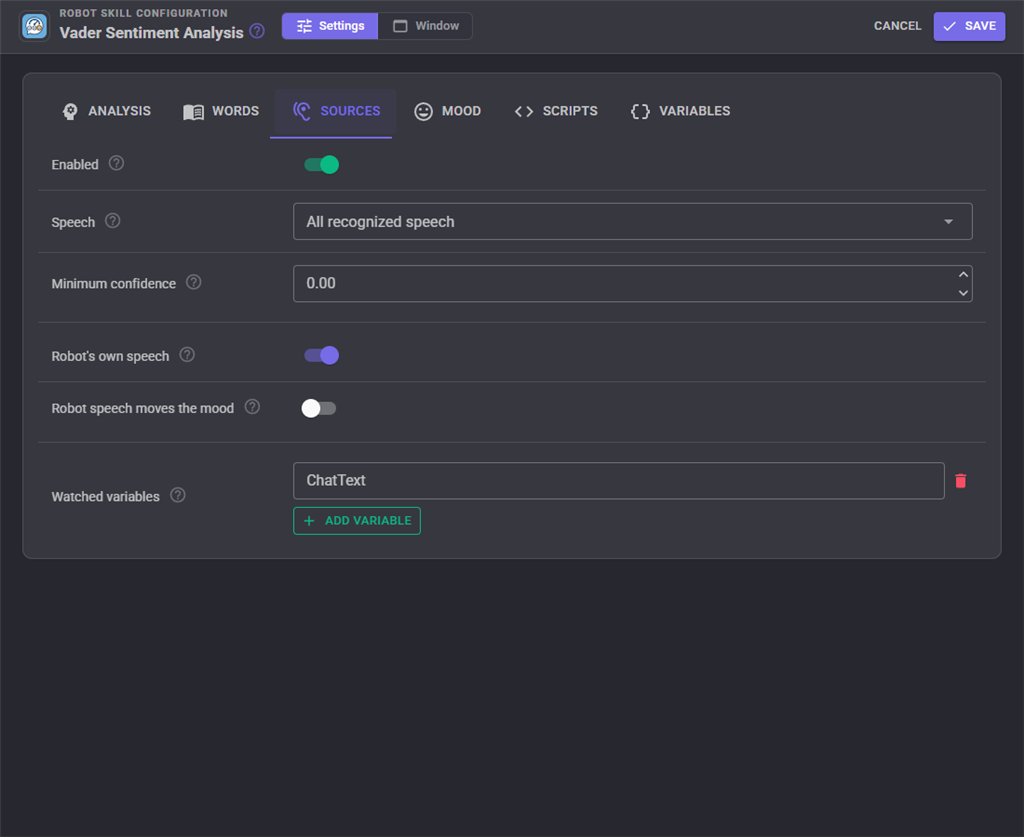
| Setting | Description |
|---|---|
| Enabled | When off, speech, the robot's own speech and watched variables are ignored. The Pause button in the window does the same. |
| Speech | Off, All recognized speech (hear every phrase any engine recognizes) or Own dictation (listen through one engine itself). |
| Speech to text engine | For Own dictation, the engine to listen through. An engine serves one continuous listener, so if another robot skill already listens through it, use All recognized speech instead. |
| Minimum confidence | Ignores recognized speech below this confidence. Engines that do not report a confidence are never filtered. |
| Robot's own speech | Also scores what the robot says, into the robot speech variables and script. |
| Robot speech moves the mood | Lets the robot's own speech move the trend as well. Usually left off. |
| Watched variables | Global variables whose text is analysed whenever it changes. |
Mood
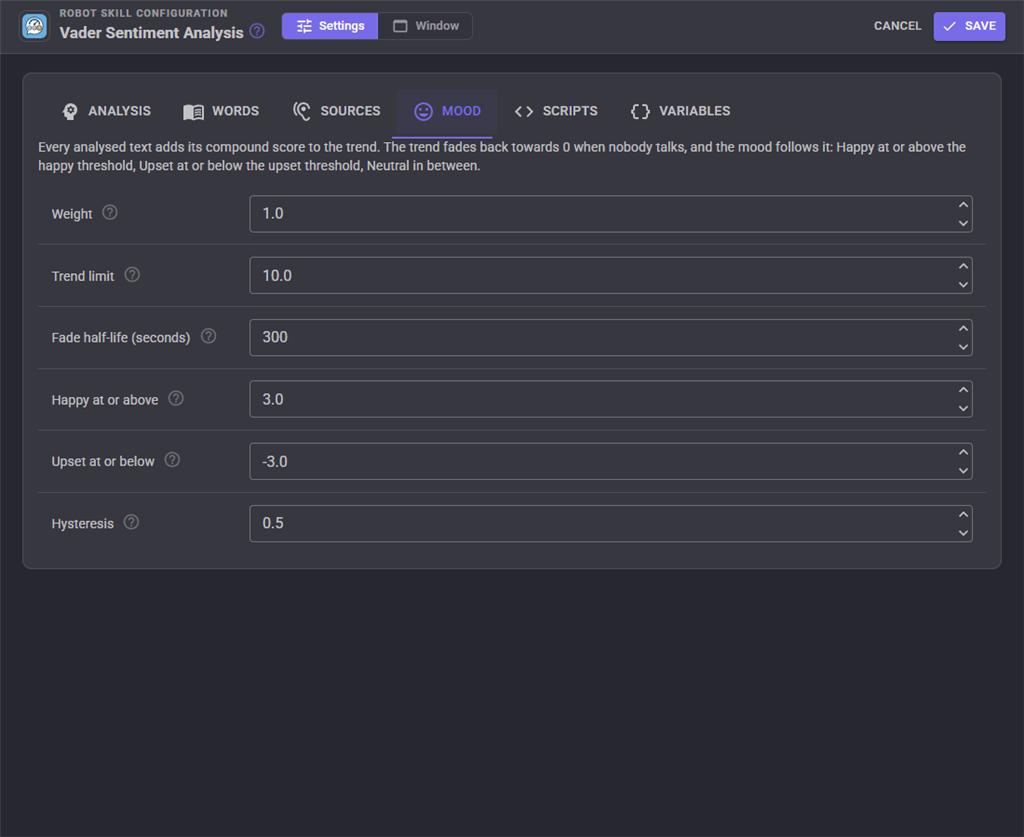
| Setting | Description |
|---|---|
| Weight | Each text adds its compound score times this to the trend. 2 makes the mood swing twice as fast. |
| Trend limit | The trend is held between minus and plus this value. |
| Fade half-life (seconds) | How long the trend takes to fade half way back to 0. 0 keeps it until something changes it. |
| Happy at or above | The trend at which the mood becomes Happy. |
| Upset at or below | The trend at which the mood becomes Upset. |
| Hysteresis | How far the trend must come back past a threshold before Happy or Upset ends. |
Scripts
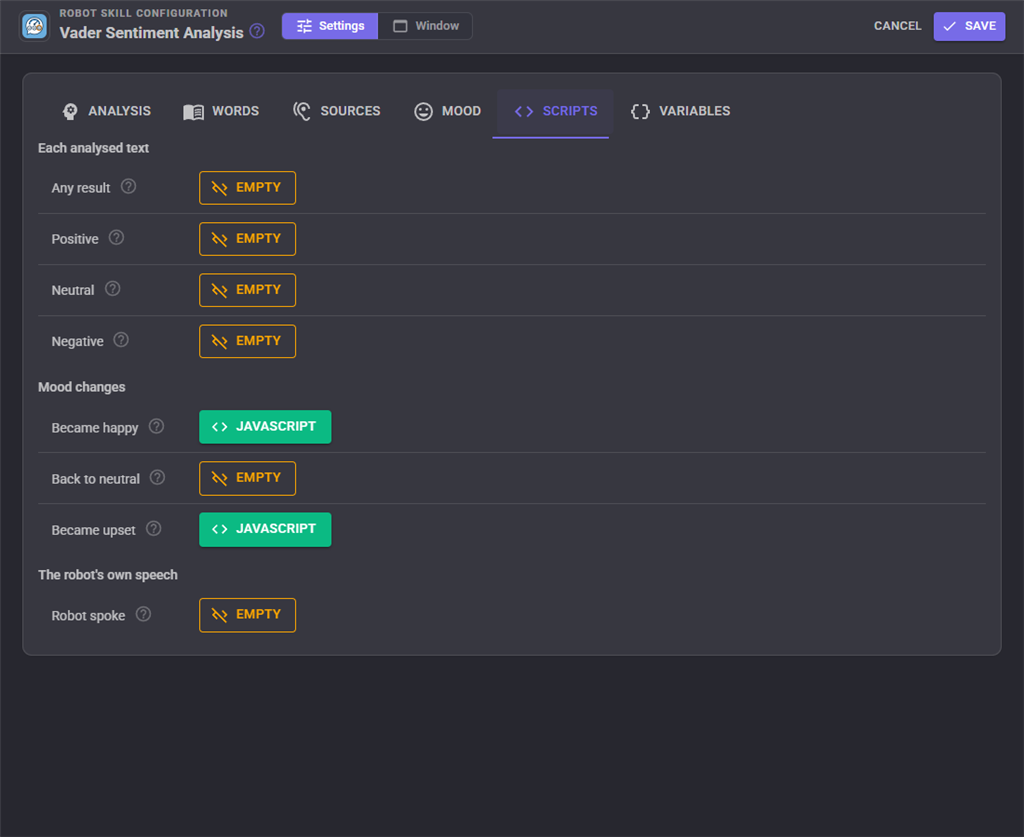
| Script | Runs when |
|---|---|
| Any result | After every analysed text, whatever its label. |
| Positive, Neutral, Negative | An analysed text gets that label. |
| Became happy | The mood becomes Happy. |
| Back to neutral | The mood returns to Neutral from Happy or Upset. |
| Became upset | The mood becomes Upset. |
| Robot spoke | The robot's own speech was analysed. |
The variables already hold the new scores when a script starts. For example, a Became upset script could make the robot apologise:
Audio.say("I'm sorry. I'll try to do better.");
And an Any result script could tilt a head servo with the sentiment of each sentence:
var compound = getVar("VaderCompound");

Servo.setPosition(d1, 90 + Math.round(compound * 30));
Variables
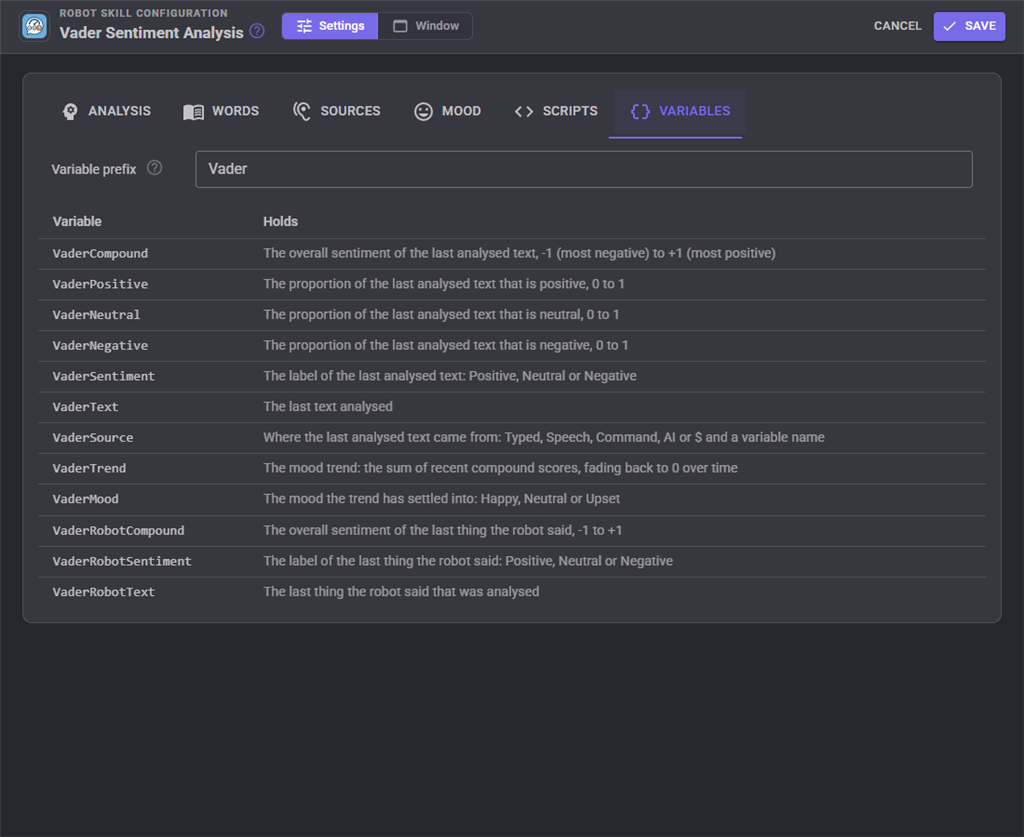
Every variable starts with the Variable prefix, "Vader" by default, which gives the same names the ARC version of this robot skill used, so existing scripts keep working. Give a second copy of the robot skill a different prefix.
| Variable | Holds |
|---|---|
| VaderCompound | The compound score of the last analysed text, -1 to +1. |
| VaderPositive, VaderNeutral, VaderNegative | The proportions of the last analysed text, 0 to 1. |
| VaderSentiment | The label of the last analysed text: Positive, Neutral or Negative. |
| VaderText | The last text analysed. |
| VaderSource | Where it came from: Typed, Speech, Command, AI, or $ and a variable name. |
| VaderTrend | The mood trend. |
| VaderMood | The mood: Happy, Neutral or Upset. |
| VaderRobotCompound, VaderRobotSentiment, VaderRobotText | The same for the last thing the robot said. |
Custom UI Widgets
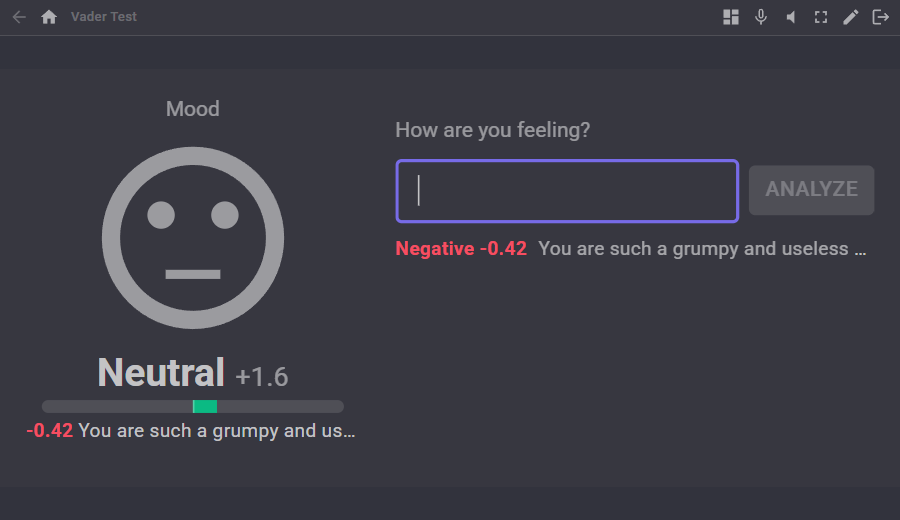
Two widgets can be placed on your own Custom UI screens:
- Mood: the mood as a large face, with the trend bar and the last text heard. Settings: Caption, ShowTrend, ShowLastText.
- Analyse text: a text box and button that analyse what is typed, with its score. Settings: Caption, ButtonText.
AI Assistants
AI assistants connected to ARCx (Claude, Cursor, VS Code and others) get three tools from this robot skill: score_text scores text without changing anything and lists what each word contributed, analyze_text analyses text as if the robot heard it, and get_mood reports the trend, the mood and the recent history.
Tips
- Sentiment is about the words, not the voice. "Great, just great" said sarcastically still scores positive.
- Speech recognition rarely returns punctuation or capitals, so spoken text scores a little milder than the same words typed with "!!!".
- A robot that reacts to every single sentence feels twitchy. Hang reactions off the mood scripts, which only run when the mood changes, and keep the result scripts for small things like a glance or a light.
- Turn on Robot's own speech with a chatbot robot skill to give the robot a face that matches the tone of its answers.
Credits
VADER is by C.J. Hutto and Eric Gilbert, MIT licensed: Hutto, C.J. and Gilbert, E.E. (2014). VADER: A Parsimonious Rule-based Model for Sentiment Analysis of Social Media Text. Eighth International Conference on Weblogs and Social Media (ICWSM-14), Ann Arbor, MI.
Control Commands for the Vader Sentiment Analysis robot skill
There are Control Commands available for this robot skill which allows the skill to be controlled programmatically from scripts or other robot skills. These commands enable you to automate actions, respond to sensor inputs, and integrate the robot skill with other systems or custom interfaces. If you're new to the concept of Control Commands, we have a comprehensive manual available here that explains how to use them, provides examples to get you started and make the most of this powerful feature.
Control Command ManualThis robot skill has 14 control commands, listed below. Send them from a JavaScript or Python script, from Blockly, or from another robot skill.
The first value is always the window title, which is the name in the title bar of the robot skill on your workspace. It starts out as Vader Sentiment Analysis, which is what every example below uses. If you rename the robot skill, or add a second copy of it to the project, use the title as it appears on that window instead.
ControlCommand() can be shortened to CC(), and both spellings work in JavaScript and in Python. The examples are JavaScript; Python is the same call, except that true and false are written True and False.
AddWord
Add a word to the lexicon, or give a standard word a different valence, from -4 (extremely negative) to +4 (extremely positive). 0 removes the word. Saved with the project.
Syntax
ControlCommand("Vader Sentiment Analysis", "AddWord", (String)word, (Number)valence)
Parameters
| # | Name | Type | What to pass |
|---|---|---|---|
| 1 | word | Text | Your text, in quotes |
| 2 | valence | Number | A number, without quotes |
Returns: nothing
Example
ControlCommand("Vader Sentiment Analysis", "AddWord", "word", 0);
Analyze
Analyse the text as if it was heard: publish the scores to the variables, add the compound score to the mood trend, add it to the history and run the result scripts. Returns the compound score, -1 to +1.
Syntax
ControlCommand("Vader Sentiment Analysis", "Analyze", (String)text)
Parameters
| # | Name | Type | What to pass |
|---|---|---|---|
| 1 | text | Text | Your text, in quotes |
Returns: Double [5.0e324 to 1.7e308]
Example
var result = ControlCommand("Vader Sentiment Analysis", "Analyze", "text");
ClearHistory
Empty the history list in the window.
Syntax
ControlCommand("Vader Sentiment Analysis", "ClearHistory")
Returns: nothing
Example
ControlCommand("Vader Sentiment Analysis", "ClearHistory");
Disable
Stop analysing the automatic sources (speech, the robot's own speech, watched variables). Typed text and the Analyze command still work.
Syntax
ControlCommand("Vader Sentiment Analysis", "Disable")
Returns: nothing
Example
ControlCommand("Vader Sentiment Analysis", "Disable");
Enable
Analyse the automatic sources again: speech, the robot's own speech and watched variables.
Syntax
ControlCommand("Vader Sentiment Analysis", "Enable")
Returns: nothing
Example
ControlCommand("Vader Sentiment Analysis", "Enable");
GetMood
The mood the trend has settled into: Happy, Neutral or Upset.
Syntax
ControlCommand("Vader Sentiment Analysis", "GetMood")
Returns: String
Example
var result = ControlCommand("Vader Sentiment Analysis", "GetMood");
GetSentiment
Label the text Positive, Neutral or Negative with the configured thresholds, without changing anything.
Syntax
ControlCommand("Vader Sentiment Analysis", "GetSentiment", (String)text)
Parameters
| # | Name | Type | What to pass |
|---|---|---|---|
| 1 | text | Text | Your text, in quotes |
Returns: String
Example
var result = ControlCommand("Vader Sentiment Analysis", "GetSentiment", "text");
GetTrend
The mood trend now: the sum of recent compound scores, faded for the time since, between -limit and +limit.
Syntax
ControlCommand("Vader Sentiment Analysis", "GetTrend")
Returns: Double [5.0e324 to 1.7e308]
Example
var result = ControlCommand("Vader Sentiment Analysis", "GetTrend");
IsEnabled
Whether the automatic sources are being analysed.
Syntax
ControlCommand("Vader Sentiment Analysis", "IsEnabled")
Returns: Boolean [true or false]
Example
var result = ControlCommand("Vader Sentiment Analysis", "IsEnabled");
RemoveWord
Remove a custom word, which puts back its standard valence if it had one. Returns false when there was no such custom word.
Syntax
ControlCommand("Vader Sentiment Analysis", "RemoveWord", (String)word)
Parameters
| # | Name | Type | What to pass |
|---|---|---|---|
| 1 | word | Text | Your text, in quotes |
Returns: Boolean [true or false]
Example
var result = ControlCommand("Vader Sentiment Analysis", "RemoveWord", "word");
ResetTrend
Set the mood trend back to 0.
Syntax
ControlCommand("Vader Sentiment Analysis", "ResetTrend")
Returns: nothing
Example
ControlCommand("Vader Sentiment Analysis", "ResetTrend");
Score
Score the text without changing anything: no variables, trend, history or scripts. Returns the compound score, -1 to +1.
Syntax
ControlCommand("Vader Sentiment Analysis", "Score", (String)text)
Parameters
| # | Name | Type | What to pass |
|---|---|---|---|
| 1 | text | Text | Your text, in quotes |
Returns: Double [5.0e324 to 1.7e308]
Example
var result = ControlCommand("Vader Sentiment Analysis", "Score", "text");
Send
The same as Analyze. Kept so scripts written for the ARC robot skill (ControlCommand("Vader Sentiment Analysis", "send", "text")) keep working.
Syntax
ControlCommand("Vader Sentiment Analysis", "Send", (String)text)
Parameters
| # | Name | Type | What to pass |
|---|---|---|---|
| 1 | text | Text | Your text, in quotes |
Returns: Double [5.0e324 to 1.7e308]
Example
var result = ControlCommand("Vader Sentiment Analysis", "Send", "text");
SetTrendTo
Set the mood trend to a value (clamped to the trend limit, 10 by default). The mood follows, running its script if it changes. Returns the trend it was set to.
Syntax
ControlCommand("Vader Sentiment Analysis", "SetTrendTo", (Number)value)
Parameters
| # | Name | Type | What to pass |
|---|---|---|---|
| 1 | value | Number | A number, without quotes |
Returns: Double [5.0e324 to 1.7e308]
Example
var result = ControlCommand("Vader Sentiment Analysis", "SetTrendTo", 0);
This list is read out of the robot skill itself each time its package is uploaded, so it matches the published version (v2).




This robot skill has been updated to v1.
What has changed
initial release
This robot skill has been updated to v2.
What has changed
updated to use some new ARCx UI features for improved performance.