
Browser
Open web pages, dashboards and kiosk screens in browser windows on the computer's monitors, and control them. Each window has a name you choose.
Where to find it: the Browser category of the toolbox, in any script editor set to Blockly or on Top bar → Workspaces → Blockly
Blocks
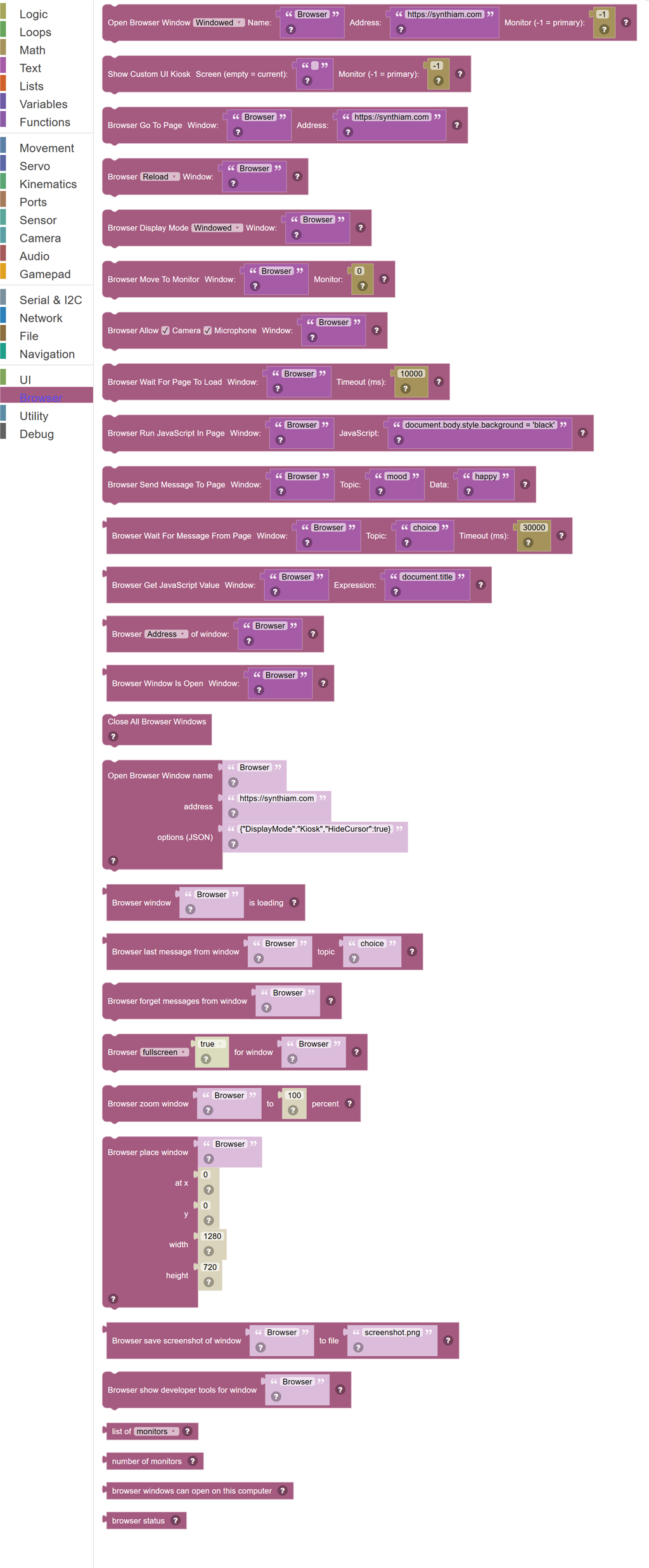
| Block | What it does |
|---|---|
| Open Browser Window | Shows a web page in a browser window on a monitor connected to the robot's computer. |
| Show Custom UI Kiosk | Shows the project's custom UI on a monitor connected to the robot's computer, as a kiosk: fullscreen, always on top, no menus or shortcuts, and it reopens by itself if closed. |
| Browser Go To Page | Loads a different page in a browser window that is already open. |
| Browser Action | Reloads, goes back or forward, returns to the first page, stops loading, shows, hides, brings to the front, saves a screenshot of, or closes a browser window. |
| Browser Display Mode | Switches a browser window between an ordinary window, fullscreen and kiosk. |
| Browser Move To Monitor | Moves a browser window to another monitor attached to the robot's computer. |
| Browser Allow Camera And Microphone | Lets the page in a browser window use the camera and the microphone. |
| Browser Wait For Page To Load | Waits until the page in a browser window has finished loading, or until the timeout passes. |
| Browser Run JavaScript In Page | Runs JavaScript inside the web page showing in a browser window, without waiting for it to finish. |
| Browser Send Message To Page | Sends a message to the page. |
| Browser Wait For Message From Page | Waits for the page to call window.ARCx.send("topic", data) and returns the data. |
| Browser Get JavaScript Value | Runs a JavaScript expression in the page and returns its value as text. |
| Browser Address Or Title | Returns the address or the title of the page showing in a browser window. |
| Browser Window Is Open | True when a browser window with this name is open. |
| Close All Browser Windows | Closes every browser window that is open. |
| Open Browser Window name … address … options (JSON) … | Open a browser window with any window option, written as JSON - for example {"DisplayMode":"Kiosk","AllowCamera":true,"AllowMicrophone":true,"HideCursor":true}. |
| Browser window … is loading | True while the page in a browser window is still loading. |
| Browser last message from window … topic … | The last data the page sent on this topic with window.ARCx.send(), without waiting. |
| Browser forget messages from window … | Discard the messages a page has sent that have not been read yet, so the next wait only sees new ones. |
| Browser … … for window … | Turn fullscreen, always on top or muted on or off for a browser window. |
| Browser zoom window … to … percent | Zoom the page in a browser window, 25 to 500. |
| Browser place window … at x … y … width … height … | Move and size an ordinary (not fullscreen) browser window, in pixels from the top left of its monitor. |
| Browser save screenshot of window … to file … | Save a PNG of the page in a browser window, in the robot pictures folder, and return where it was saved. |
| Browser show developer tools for window … | Open the Chromium developer tools for a browser window, to debug the page. |
| List of … | The monitors (one line each, such as "0: DISPLAY1 1920x1080 at 0,0 (primary)") or the names of the browser windows that are open. |
| Number of monitors | How many monitors this computer has. |
| Browser windows can open on this computer | True when this computer can open browser windows. |
| Browser status | A sentence saying whether browser windows work on this computer, and if not, why. |
Details
Open Browser Window

Shows a web page in a browser window on a monitor connected to the robot's computer. Windowed is an ordinary window, Fullscreen covers the monitor, and Kiosk is fullscreen and locked down for an unattended screen: no menus or shortcuts, always on top, and it reopens by itself if closed.
When to use it: Use this to give the robot a face, show a dashboard, play a video, start a video call, or turn a screen into a kiosk.
Example: Open Browser Window (Kiosk) Name: "Face" Address: "http://127.0.0.1:5000/face.html" Monitor: -1 → the robot's face fills the main screen.
Tips:
- The name is how the other Browser blocks find this window again.
- Opening a name that is already open shows the new page in the same window instead of opening another.
- Monitor -1 is the primary monitor. Monitors are numbered from 0.
- On Linux, a screen needs an X server running. See Views, Browser Windows if nothing appears.
In JavaScript: this block runs
Browser.open('Browser', 'https://synthiam.com', "Windowed", -1);
Show Custom UI Kiosk

Shows the project's custom UI on a monitor connected to the robot's computer, as a kiosk: fullscreen, always on top, no menus or shortcuts, and it reopens by itself if closed. The window is called "Custom UI".
When to use it: Use this when the robot has its own screen and the custom UI is its control panel, so nobody standing at the robot sees ARCx behind it.
Example: Show Custom UI Kiosk Screen: "Main menu" Monitor: -1 → the main menu screen fills the robot's main screen.
Tips:
- Leave the screen empty to show whichever custom UI screen is showing now.
- Every viewer shows the same screen, so picking a screen here changes it in other browsers on the custom UI too.
- Set an exit password in the project properties so nobody can leave the custom UI for the workspace.
- Close it with the Browser Close block and the name "Custom UI".
- The window stays open when another project loads, and shows that project's custom UI.
In JavaScript: this block runs
Browser.openCustomUI('', -1);
Browser Go To Page

Loads a different page in a browser window that is already open.
When to use it: Use this to switch what a screen shows: a menu, a map, a video, or a status page.
Example: Browser Go To Page Window: "Face" Address: "https://example.com/happy.html"
Tips:
- Typing example.com is fine; https:// is added for you.
- The window must be open first, with Open Browser Window.
In JavaScript: this block runs
Browser.navigate('Browser', 'https://synthiam.com');
Browser Action
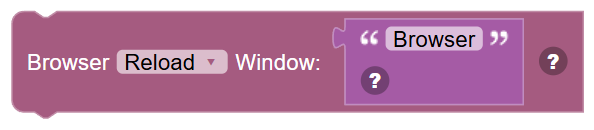
Reloads, goes back or forward, returns to the first page, stops loading, shows, hides, brings to the front, saves a screenshot of, or closes a browser window.
When to use it: Use this to control a browser window without writing JavaScript.
Example: Browser Home Page Window: "Kiosk" → after a visitor has wandered off, go back to the start screen.
Tips:
- Home Page returns to the address the window was opened with.
- Save Screenshot puts a PNG in the My ARCx Robot Pictures folder.
- A kiosk closed with this block does not reopen by itself.
In JavaScript: this block runs
Browser.reload('Browser');
Browser Display Mode

Switches a browser window between an ordinary window, fullscreen and kiosk.
When to use it: Use this to make a page fill the screen when it matters, like a video or a greeting.
Example: Browser Display Mode (Fullscreen) Window: "Browser"
Tips:
- Kiosk also turns off menus and shortcuts and keeps the screen awake.
In JavaScript: this block runs
Browser.setDisplayMode('Browser', "Windowed");
Browser Move To Monitor

Moves a browser window to another monitor attached to the robot's computer.
When to use it: Use this on a robot with more than one screen, like a face screen and a chest screen.
Example: Browser Move To Monitor Window: "Menu" Monitor: 1
Tips:
- Monitors are numbered from 0. -1 is the primary monitor.
- Views, Browser Windows lists the monitors and their numbers.
In JavaScript: this block runs
Browser.moveToMonitor('Browser', 0);
Browser Allow Camera And Microphone

Lets the page in a browser window use the camera and the microphone. There is no pop-up asking for permission, because nobody is standing at a robot's screen to click Allow.
When to use it: Use this before a video call or any web page that needs to see or hear.
Example: Open Browser Window "Call" → Browser Allow Camera ✓ Microphone ✓ Window: "Call" → Browser Go To Page (the call address).
Tips:
- The page must ask again after this block runs, so set permissions before loading the call page.
- A page that asks for both the camera and the microphone is refused if either one is not allowed.
In JavaScript: this block runs
Browser.setMediaPermissions('Browser', true, true);
Browser Wait For Page To Load

Waits until the page in a browser window has finished loading, or until the timeout passes.
When to use it: Use this before running JavaScript in a page or sending it a message, so the page is ready to hear it.
Example: Browser Go To Page → Browser Wait For Page To Load Timeout: 10000 → Browser Send Message.
Tips:
- 1000 milliseconds is one second.
- A page that cannot be reached counts as finished. Check the address if nothing happens.
In JavaScript: this block runs
Browser.waitForLoad('Browser', 10000);
Browser Run JavaScript In Page

Runs JavaScript inside the web page showing in a browser window, without waiting for it to finish.
When to use it: Use this to click a button on a page, change its colours, or start a video.
Example: Browser Run JavaScript In Page Window: "Face" JavaScript: "document.body.style.background = 'black'"
Tips:
- This JavaScript runs in the page, not in the robot. Use Browser Get JavaScript Value to read something back.
In JavaScript: this block runs
Browser.executeScript('Browser', 'document.body.style.background = \'black\'');
Browser Send Message To Page

Sends a message to the page. A page made for the robot listens with window.ARCx.on("topic", function (data) { ... }).
When to use it: Use this to tell a face page which expression to show, or a dashboard which value to display.
Example: Browser Send Message To Page Window: "Face" Topic: "mood" Data: "happy"
Tips:
- Wait for the page to load first, or it may not be listening yet.
- Data can be text, a number, or JSON text like {"speed": 5}, which the page receives as an object.
In JavaScript: this block runs
Browser.sendMessage('Browser', 'mood', 'happy');
Browser Wait For Message From Page

Waits for the page to call window.ARCx.send("topic", data) and returns the data. Returns empty text if the timeout passes first.
When to use it: Use this to make the robot react to a touch screen: a page button that says "wave" can make the robot wave.
Example: If (Browser Wait For Message Window: "Menu" Topic: "choice" Timeout: 60000) = "dance" → run the dance.
Tips:
- Leave the topic empty to accept a message with any topic.
- Messages wait up to a minute to be read, so a button pressed while the robot was busy is not lost.
In JavaScript: this block gives back the value of
Browser.waitForMessage('Browser', 'choice', 30000)
Browser Get JavaScript Value

Runs a JavaScript expression in the page and returns its value as text.
When to use it: Use this to read something from a page, like a form field, a score, or the page title.
Example: Say (Browser Get JavaScript Value Window: "Kiosk" Expression: "document.querySelector('#name').value")
Tips:
- Numbers and objects come back as text. Text comes back without quotes.
In JavaScript: this block gives back the value of
Browser.evaluate('Browser', 'document.title')
Browser Address Or Title

Returns the address or the title of the page showing in a browser window. Empty when the window is not open.
When to use it: Use this to check which page a visitor has navigated to.
Example: If (Browser Address of window "Kiosk") contains "checkout" → say "Thank you!"
In JavaScript: this block gives back the value of
Browser.getUrl('Browser')
Browser Window Is Open

True when a browser window with this name is open.
When to use it: Use this to open a window only if it is not already showing.
Example: If not (Browser Window Is Open "Face") → Open Browser Window "Face".
In JavaScript: this block gives back the value of
Browser.isOpen('Browser')
Close All Browser Windows
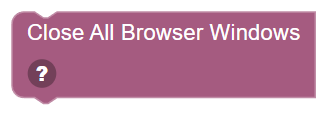
Closes every browser window that is open.
When to use it: Use this at the end of a routine to clear the screens.
Example: Close All Browser Windows
Tips:
- Loading another project closes the windows it opened automatically.
In JavaScript: this block runs
Browser.closeAll();
Open Browser Window name … address … options (JSON) …
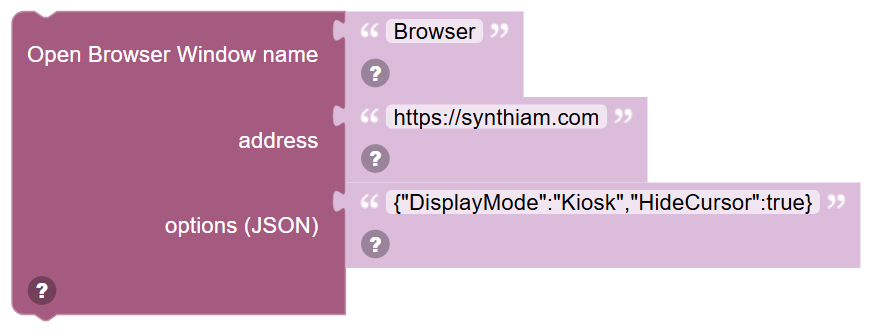
Open a browser window with any window option, written as JSON - for example {"DisplayMode":"Kiosk","AllowCamera":true,"AllowMicrophone":true,"HideCursor":true}.
In JavaScript: this block runs
Browser.openWithOptions('Browser', 'https://synthiam.com', '{"DisplayMode":"Kiosk","HideCursor":true}');
Browser window … is loading
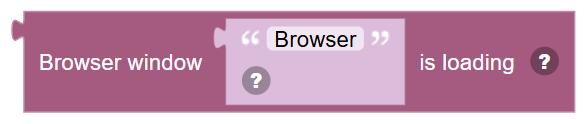
True while the page in a browser window is still loading.
In JavaScript: this block gives back the value of
Browser.isLoading('Browser')
Browser last message from window … topic …

The last data the page sent on this topic with window.ARCx.send(), without waiting. Empty when there has been none.
In JavaScript: this block gives back the value of
Browser.getLastMessage('Browser', 'choice')
Browser forget messages from window …

Discard the messages a page has sent that have not been read yet, so the next wait only sees new ones.
In JavaScript: this block runs
Browser.clearMessages('Browser');
Browser … … for window …

Turn fullscreen, always on top or muted on or off for a browser window.
In JavaScript: this block runs
Browser.setFullscreen('Browser', true);
Browser zoom window … to … percent

Zoom the page in a browser window, 25 to 500. 100 is normal size.
In JavaScript: this block runs
Browser.setZoom('Browser', 100);
Browser place window … at x … y … width … height …
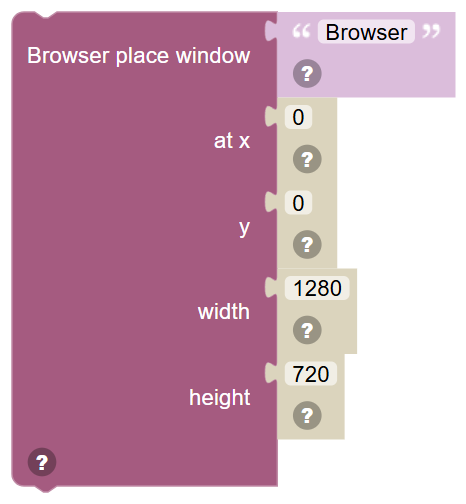
Move and size an ordinary (not fullscreen) browser window, in pixels from the top left of its monitor.
In JavaScript: this block runs
Browser.setBounds('Browser', 0, 0, 1280, 720);
Browser save screenshot of window … to file …

Save a PNG of the page in a browser window, in the robot pictures folder, and return where it was saved.
In JavaScript: this block gives back the value of
Browser.saveScreenshot('Browser', 'screenshot.png')
Browser show developer tools for window …

Open the Chromium developer tools for a browser window, to debug the page.
In JavaScript: this block runs
Browser.showDevTools('Browser');
List of …
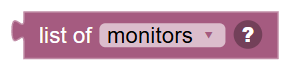
The monitors (one line each, such as "0: DISPLAY1 1920x1080 at 0,0 (primary)") or the names of the browser windows that are open.
In JavaScript: this block gives back the value of
Browser.getMonitors()
Number of monitors
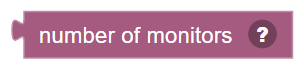
How many monitors this computer has.
In JavaScript: this block gives back the value of
Browser.getMonitorCount()
Browser windows can open on this computer

True when this computer can open browser windows. The "browser status" block says why not when it cannot.
In JavaScript: this block gives back the value of
Browser.isAvailable()
Browser status
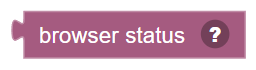
A sentence saying whether browser windows work on this computer, and if not, why.
In JavaScript: this block gives back the value of
Browser.getStatus()