
Athena
Athena is the AI assistant built into ARCx. You describe what you want in plain language, such as I have a USB webcam and two servos for a pan and tilt head, make it follow faces, and she works out which robot skills you need, finds them in the Robot Skill Store, adds them to your project, configures them, and writes the scripts that tie them together. Every change she makes waits for you to press Approve first.
This page explains what you need before you start, how to ask Athena to set up a project for you, what happens behind the scenes when she works, what she can and cannot do, and how she relates to the Model Context Protocol (MCP), the other way to put an AI to work on your robot.
Contents
- What Athena is
- Before you start
- Opening Athena
- "Just tell me what to do": setting up a project from a description
- How Athena works
- Approving changes
- What Athena does not do
- Athena and MCP
- Credits, models and privacy
- Tips for good requests
- Troubleshooting
What Athena is
ARCx on its own does nothing; the capability comes from robot skills. A robot that follows faces needs a camera robot skill, a face tracking robot skill pointed at that camera, and servos set up for the pan and tilt. Knowing which robot skills exist, which ones go together and how each is configured is the hard part for someone new, and it is exactly what Athena is for.
Athena is not a general chatbot that has read about robots. She is connected to your running copy of ARCx, so she can see the robot skills in your open project, read how each one is configured, read its scripts and the global variables, and look up what each robot skill accepts. She can also search the Robot Skill Store, read any robot skill's manual, and search the Synthiam support documents. Her answers are about your robot.
Use Athena when:
- You are starting out and do not know which robot skills you need.
- You want a working setup built for you from a description.
- You want a script written that uses the robot skills already in your project.
- Something is not working and you want her to look at the configuration and explain.
Before you start
A Synthiam account, signed in. Athena runs on Synthiam's AI service, which needs to know who is asking. Sign in from Options → Account in the side menu. If you do not have an account yet, create one free on synthiam.com and then sign in. Until you sign in, the chat shows Sign in to ARCx with your Synthiam account to use Athena. with a Sign in link.
The first time ARCx starts, the welcome page appears before you have signed in, which is why its Just tell me what to do option brings you to this page rather than straight into the chat. Finish the welcome page, sign in, and Athena is ready.
AI credits. Each request uses Synthiam AI credits from your account. The amount depends on the AI model you pick and on how much work the request takes. Your balance is shown in the chat, and you can buy more on synthiam.com.
An internet connection. The computer running ARCx must be able to reach synthiam.com. The AI model runs in the cloud, not on your computer. If your robot has to work with no internet, see Athena and MCP for a way to use a local AI model instead.
Opening Athena
There are several ways in, and they all show the same conversation:
- The sparkle button on the right of the top bar (Chat with Athena, the AI assistant.) slides the chat in from the right, over whatever screen you are on. This is the most useful one while you work, because you can watch the workspace change as she adds robot skills.
- Athena AI in the side menu opens the chat as a full page.
- Ask Athena on the home page, and Open Athena on the Help page.
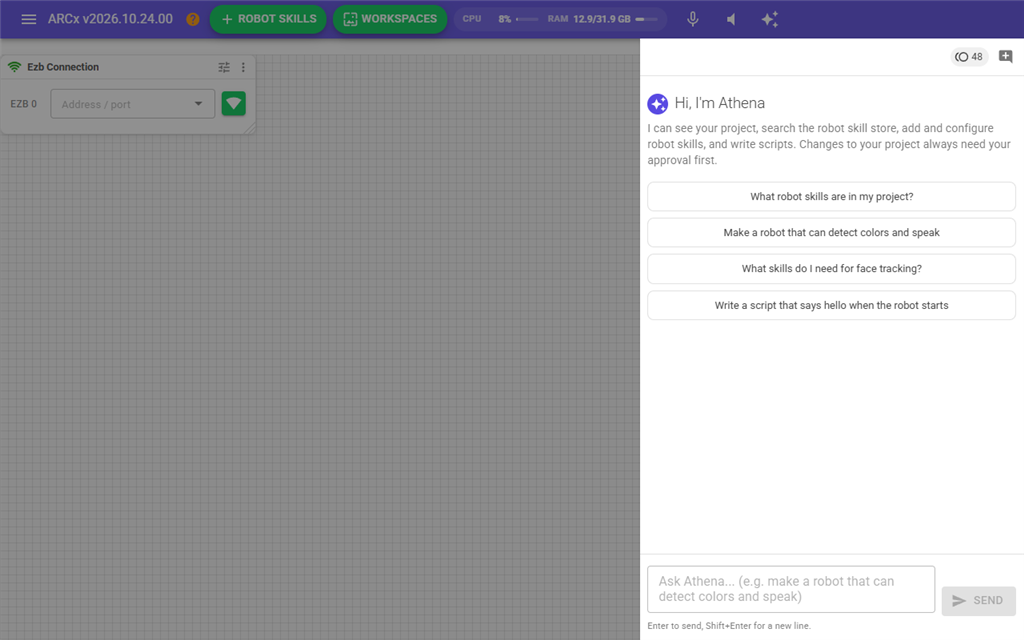
When the conversation is empty, Athena offers a few example questions, such as Make a robot that can detect colors and speak. Clicking one puts it in the message box for you to edit or send.
There is one conversation for each running copy of ARCx. Every browser connected to it sees the same chat, and a chat started in the panel carries on in the full page. The conversation is not saved; it is gone when ARCx closes. Start a new conversation (the speech bubble with a plus) clears it.
"Just tell me what to do": setting up a project from a description
The quickest way to a working robot is to tell Athena what you have and what you want it to do, and let her build the project.
1. Start from the project you want to change
Athena works on the project that is open. To start fresh, use File → New first. To add to an existing robot, open its project.
2. Describe the robot
Say what hardware you have and what you want it to do. The more concrete, the better:
I have an EZ-B v4 at 192.168.1.1. There's a camera on the EZ-B, a pan servo on D0 and a tilt servo on D1, and a speaker on the EZ-B. I want the head to follow faces and the robot to say hello when it sees someone.
You do not need to know the names of any robot skills. Describing the hardware (the controller, what is plugged into which port, the camera, the speaker or microphone) and the behaviour you want is enough.
3. Watch her plan and look things up
Athena reads your project first, so she knows what is already there. Then she searches the Robot Skill Store for robot skills that fit, reads their manuals, and works out how they connect. Each step she finishes stays in the conversation as a short line with a lightning icon, such as Read the project's robot skills or Searched the robot skill store. While she works, a line under the conversation says what she is doing, such as Thinking....
None of this changes anything, so it happens without asking you.
4. Approve each change
When she is ready to change the project, a card appears for each change: Athena wants to: Add a robot skill to the project, Change configuration of 'Camera', Write script .... Read it and press Approve or Deny. If several are waiting, Approve all approves every one. See Approving changes.
As you approve, the robot skills appear in your workspace, configured. A robot skill that is not installed on your computer yet is downloaded from the store first.
5. Try it, then ask for changes
Athena finishes with a summary of what she set up and anything you still have to do yourself, such as plugging something in or pressing Connect on the EZB Connection robot skill. Try the robot. If something is not right, say so in the same conversation: the head moves the wrong way when I move left, make it say hello only once a minute. She can read back what she configured and adjust it.
6. Save the project
Athena's changes are made to the open project, exactly as if you had made them by hand. They are not saved for you. Use File → Save to keep them.
How Athena works
Knowing what happens behind the scenes helps you understand what she can see, why she sometimes asks before acting, and where your credits go.
The conversation loop
- You send a message. ARCx sends it to Synthiam's AI service, along with the conversation so far and the AI model you picked.
- The model reads it and decides what it needs. Rather than answering straight away, it usually asks for one or more tools to be run: list the robot skills in the project, search the store for face tracking.
- Tools that look things up on synthiam.com (the store and the support documents) are run by Synthiam's AI service directly. Tools that look at or change your project are sent back to ARCx, because only ARCx can see your project.
- ARCx runs the project tools. Tools that only read run at once. Tools that change something wait for your approval.
- The results go back to the model, which decides what to do next: run more tools, or write its answer.
One message can take several rounds of this. To keep a single request from running up credits indefinitely, Athena stops after ten rounds and says The AI requested too many actions in one turn. Ask again to continue. Send another message, such as carry on, and she picks up where she stopped.
Athena's tools
| Tool | What it does | Runs where | Needs approval |
|---|---|---|---|
| Search the robot skill store | Find robot skills by what they do. | synthiam.com | No |
| Read a robot skill's manual | The full manual of a robot skill in the store. | synthiam.com | No |
| Search the support docs | Find Synthiam support documents. | synthiam.com | No |
| Read a support doc | One support document in full. | synthiam.com | No |
| Read the project's robot skills | The robot skills in the open project, by window title. | ARCx | No |
| List installed robot skills | Robot skills that can be added: installed on this computer and in the store. | ARCx | No |
| Read control commands | The control commands a robot skill accepts, with their parameters. | ARCx | No |
| Read configuration and its schema | A robot skill's configuration, and the description of every field in it. | ARCx | No |
| List scripts, read a script | The scripts stored inside a robot skill's configuration. | ARCx | No |
| Read global variables | Every global variable with its value. | ARCx | No |
| Add a robot skill | Add a robot skill to the project, downloading it first if needed. | ARCx | Yes |
| Remove a robot skill | Remove a robot skill and its configuration. | ARCx | Yes |
| Change configuration | Change the settings of a robot skill. | ARCx | Yes |
| Write a script | Write JavaScript or Python into a script inside a robot skill. | ARCx | Yes |
| Send a control command | Send a command to a robot skill, which can make the robot move or speak. Waits up to 30 seconds for it to finish. | ARCx | Yes |
The ARCx tools are the same ones the Model Context Protocol server offers an outside AI, so Athena and an AI connected over MCP agree about what your project is and how to change it.
Why she reads the configuration schema
Every robot skill describes its configuration: what each field means, what values it accepts. Before Athena changes a configuration she reads that description, so she sets the camera's resolution or the servo's port in the field that actually holds it rather than guessing. This is also why a robot skill's author writing good descriptions makes Athena better at configuring it.
Approving changes
Anything that changes your project or acts on the robot waits for you. A card appears in the conversation:
- It starts with Athena wants to: and a short description, such as Remove robot skill 'Camera'.
- Under that are the details she will send: the robot skill, the configuration change, the script. Long details are cut short.
Press Approve to let her go ahead, or Deny to refuse. When you deny, the conversation shows Declined: followed by the action, and Athena is told you refused, so she can suggest something else. Pressing Cancel or Start a new conversation while a card is waiting counts as a denial.
Approving a control command can make the robot move. Keep the robot somewhere safe, and keep a hand near the power on a large robot, the first time you let her drive it.
What Athena does not do
Athena works through robot skills. That keeps her changes understandable, but it means some things are outside her reach:
- She does not save your project. Use File → Save.
- She does not look through the cameras. She can configure camera and vision robot skills, but she does not receive images. An AI connected over MCP can.
- She does not open projects, change ARCx's preferences, edit the robot configuration or build Custom UI screens. Those are done in the interface, or by an AI connected over MCP.
- She does not move servos or drive the robot directly. She can do it through a robot skill's control commands, with your approval, but she has no direct servo or movement tool.
- She does not run on her own. Athena answers when you ask. For a robot that thinks and acts on its own, use a robot skill such as Autonomous AI or Chat GPT.
- She does not remember past conversations. Each conversation starts from your project as it is now.
Athena and MCP
ARCx gives AI two ways in. Athena is built in. The Model Context Protocol (MCP) lets an AI application you choose, such as Claude, ChatGPT, Cursor, VS Code Copilot or a model running on your own computer in LM Studio, connect to ARCx from outside. Both use the same project tools, so you can use either, or both.
| Athena | An AI connected over MCP | |
|---|---|---|
| Setup | None. Sign in and open the chat. | Install an AI application and add ARCx to it. |
| Account and cost | Your Synthiam account and AI credits. | Whatever the AI application needs: its own account, subscription or API key, or nothing for a local model. |
| Internet | Required. | Not with a local model. ARCx's MCP server works offline. |
| Where you chat | Inside ARCx, beside your workspace. | In the AI application. |
| Sees camera images | No. | Yes, with a model that accepts images. |
| Drives, speaks, moves servos | Through robot skill control commands. | Directly, with tools for movement, speech and servos. |
| Projects, preferences, robot configuration, Custom UI | No. | Yes. |
| Writes and runs test scripts | Writes scripts into robot skills. | Writes, runs, reads the output and fixes them. |
| Develops robot skills | No. | Yes, from creating one in the store to publishing it. |
| Asks before changing anything | Always, with an approval card. | The AI application asks, and ARCx's permission switches limit what it may do. |
Start with Athena if you are new: there is nothing to install and she is aimed at getting a project working. Add an MCP connection when you already use an AI application, want one that can look through the camera, want to work offline, or are writing robot skills.
The full guide to MCP, including which AI applications work and how to connect each one, is at https://synthiam.com/Support/ai-integration/Model-Context-Protocol.
Credits, models and privacy
Models. The list at the top left of the chat shows the AI models Athena can use, as Synthiam offers them. ARCx remembers the one you pick. Larger models handle long, multi-step setups better; smaller ones cost fewer credits for simple questions.
Credits. Each request is charged in Synthiam AI credits, depending on the model and the amount of work. Your balance is the chip at the top right of the chat (click it to buy more), and each reply says how many credits it used. If the AI service fails, no credits are charged.
What is sent. To answer, Athena sends your messages and the results of her tools to Synthiam's AI service, which passes them to the AI model you picked. Those results can include the names of the robot skills in your project, their configurations and scripts, and your global variables. API keys and passwords saved in a robot skill's configuration are part of that configuration, so avoid asking her to read the configuration of a robot skill that holds a secret. Camera images are never sent; she has no tool to get them.
Tips for good requests
- Say what hardware you have and where it is plugged in. A pan servo on D0 gets a working setup; a servo gets a question back.
- Say what you want the robot to do, not which robot skills to use. Choosing the robot skills is what she is good at.
- One goal at a time. Follow faces, try it, then say hello when you see someone. Smaller steps are cheaper and easier to check.
- Tell her what went wrong. The head turns right when the face is on the left is enough for her to find and change the setting.
- Ask her to explain. What does the Face Tracking robot skill do with these settings? is a cheap way to learn ARCx.
- Save when it works. Her changes are not saved until you save the project.
Troubleshooting
| What you see | What to do |
|---|---|
| Sign in to ARCx with your Synthiam account to use the AI assistant. | Sign in from Options → Account, or with the Sign in link beside the message. |
| The model list stays at Loading models..., or says No AI models available, and Send stays greyed out | ARCx could not get the list of models. Check the internet connection and your sign-in, then open Athena again. The cause is in Views → Debug Log. |
| You don't have enough AI credits to make a request. | Buy more with the Buy AI credits link beside the message. |
| The AI requested too many actions in one turn. Ask again to continue. | Send another message, such as carry on. |
| The conversation is too large for the selected model. Start a new conversation. | Press Start a new conversation and describe where you are. |
| The AI provider returned an error. No credits were charged. | Try again in a moment, or pick another model. |
| Could not reach the Synthiam AI service. | The computer running ARCx cannot reach synthiam.com. Check its internet connection. |
| She added robot skills but they are gone after restarting ARCx | The project was not saved. Use File → Save after she finishes. |