
Diagnostics
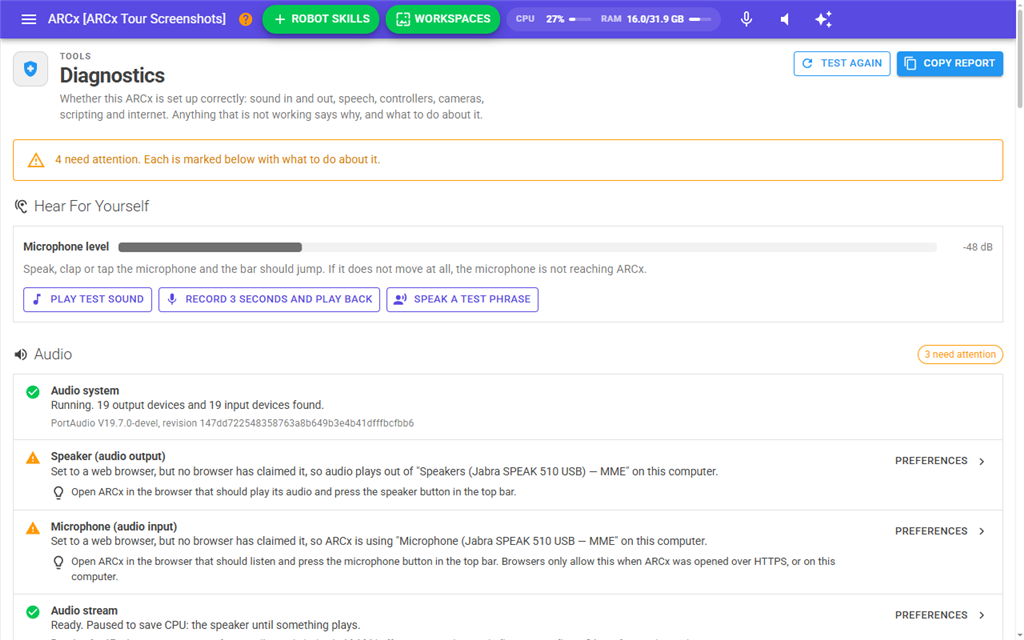
Diagnostics checks whether this ARCx is set up correctly: sound in and out, speech, robot controllers, gamepads, cameras, browser windows, scripting, the internet and the computer itself. Anything that is not working says why, and what to do about it. It also has hands-on sound tests, because a speaker that exists is not the same as sound you can hear.
Open it first when the robot does not talk, does not hear you, or something else does not work and you do not know where to start. When you ask for help, copy the report from here and include it.
Where to find it: Side menu → Views → Diagnostics. You can also click the CPU and RAM figures in the top bar and press Diagnostics in the popup.
Contents
- The buttons at the top
- The summary line
- Hear For Yourself
- The checks
- What each section checks
- ARCx Data Folder
- Notes
The buttons at the top
| Button | What it does |
|---|---|
| Test Again | Tests the internet connection and the JavaScript and Python script engines again. Greyed out while a test is running. |
| Copy Report | Copies every result as text, ready to paste into a support request or forum post. The report includes the ARCx version, the operating system, every check with its details, each startup step, the last sound test, the last 10 errors in the log, and the sizes of the ARCx Data folder and its folders. |
The internet and script engine tests also run by themselves when the page opens, unless they ran in the last 2 minutes.
The summary line
The coloured line under the heading sums up every check:
- Green: "Everything that was checked is working." If something still does not work, try the sound tests, then copy the report and include it when you ask for help.
- Yellow or red: how many things are not working and how many need attention, for example "1 thing is not working and 2 need attention. Each is marked below with what to do about it."
Hear For Yourself
Microphone level
A live bar of what the microphone is hearing, in decibels. Speak, clap or tap the microphone and the bar should jump. If it does not move at all, the microphone is not reaching ARCx.
| The bar | What it means |
|---|---|
| silent | Nothing at all is coming in. |
| Grey | Very quiet, below about -45 dB. |
| Green | A healthy level, such as normal speech. |
| Red | Close to the loudest the microphone can record, so loud sounds may be distorted. |
The microphone stays open while this page is on screen, even when nothing else is listening. If the microphone is a web browser's, that browser records while you are here. When no microphone is open, the meter says No microphone is open.
Sound tests
Only one sound test runs at a time. While one runs, the buttons are greyed out. When it finishes, a green or red message gives the result.
| Button | What it does |
|---|---|
| Play Test Sound | Plays a short chime out of the speaker ARCx is using. If you do not hear it, check the speaker is on, its volume is up, and it is the device chosen in Options → Preferences, Audio. |
| Record 3 Seconds And Play Back | Records 3 seconds from the microphone while a red bar fills, then plays the recording back. This one test proves the microphone and the speaker both work. If the recording plays but you do not hear yourself, the speaker is the problem rather than the microphone. |
| Speak A Test Phrase | Has the project's text to speech robot skill say "This is the ARCx diagnostics speech test." It fails if the project has no text to speech robot skill. |
The checks
The checks are grouped into sections. A section with a problem shows a chip such as 2 need attention beside its heading. Each check has:
- An icon: a green tick for working, a yellow triangle for needs attention, a red mark for not working, or a grey i for something this project does not use.
- A title, and one line saying what was found.
- Supporting details in smaller text, such as device names, counts and timings.
- For anything not working, a light bulb with what to do about it.
- On the right, a link to the screen where you fix it, such as Preferences, Workspace or Debug Log.
The checks refresh every 2 seconds, so unplugging a microphone or connecting a controller shows up while you watch. Every browser that has this page open shows the same results.
What each section checks
| Section | What it checks |
|---|---|
| Audio | Audio system: whether ARCx's sound system started, and how many input and output devices it found. Speaker (audio output) and Microphone (audio input): which device is in use, whether it is the one chosen in Preferences, and whether a web browser has claimed it when the choice is a browser. Audio stream: whether sound is really flowing, not only set up, and whether it is stuttering. A stream that is stopped on purpose because nothing needs it is fine. Microphone signal: warns when the microphone has sent perfect silence for more than 5 seconds, which almost always means it is muted or blocked. Audio plays out of: where sound goes (this computer, a web browser or an EZB) and whether that works right now. Master volume: warns at 0%. |
| Speech | Text to speech: which robot skill makes the robot speak, if any. Speech recognition: one line per speech recognition robot skill, saying whether it is listening, asleep waiting to be woken, idle, or failed on its last attempt. |
| Robot Controllers | One line per EZB the project uses, with its address and how long it has been connected. EZB discovery: whether ARCx is finding EZBs on the network and on serial ports. |
| Gamepads And HID | Whether gamepad and HID support is on and running, each connected controller, and on Linux whether this user is allowed to read input devices. |
| Cameras And Video | One line per camera or other video source, saying whether it is streaming and at about how many frames per second. |
| Browser Windows | Whether browser windows are on and Chromium can run, on Linux which screen they appear on, and one line per open window with any load error or crash. |
| Scripting | How many script engines exist and how many are running, plus a test script run in the JavaScript engine and the Python engine. |
| Project And Robot Skills | The open project and how many robot skills it has, and any robot skill that has logged an error in the last 15 minutes, with its latest error. |
| Network And Account | ARCx web server: the addresses ARCx can be reached at. Internet (synthiam.com): whether synthiam.com can be reached and how fast it replied. Synthiam account: whether you are signed in. ARCx version: whether a newer version is available. |
| This Computer | Startup: whether every startup step completed. Memory: how much memory ARCx is using, with a warning above 80% of what is available. Computer: the operating system and processor count. ARCx errors: errors logged in the last 15 minutes, with the latest one. Data folder: whether ARCx can save to its data folder, with a warning under 1 GB free and an error under 200 MB. |
ARCx Data Folder
The last section shows how much space the ARCx Data folder uses and where it goes. It is the place to look when the disk is filling up: it is usually speech models, project backups, logs or robot skill downloads, and this says which.
The first row gives the folder's total size and number of files, the free space on the drive, when it was measured and how long that took, and the folder's location. File Manager opens File → File Manager.
Under it, each folder directly inside ARCx Data has a row, largest first. Each shows its size, a bar comparing it with the largest folder, how many files it holds, and its share of the whole folder. Show opens File → File Manager at that folder. Files that sit directly in ARCx Data, rather than in one of its folders, are counted on a row of their own.
The folder is measured when the page opens, unless it was measured in the last 2 minutes, because measuring reads every file. Measure Again measures it again. Copy Report includes these sizes.
Notes
- A grey i is not a problem. It marks something this project does not use, such as speech recognition in a project with no speech recognition robot skill. These do not count toward the summary line.
- The internet test needs synthiam.com. The robot skill store, cloud projects, signing in and cloud robot skills such as speech and AI all need it too.
- If a whole section shows "The diagnostics for this section could not be read.", the check itself failed. The details give the reason, and Views → Debug Log has more.
- For more detail on the computer's processor and memory, see Views → Computer. For each robot skill's own log, see Views → Skills Log.