
Runs scripts on robot direction changes for lights, sounds, logs and actions without driving the motors
 Windows
 ARM
ARM
 Linux
Linux
 MacOS
MacOS
How to add the Movement Script robot skill
- Load the most recent release of ARCx on a compatible operating system (Get ARCx).
- Press the + Skills menu from the top menu bar in ARCx.
- Choose any of these category tabs, the robot skill appears in each of them: General, Scripting.
- Press the Movement Script icon to add the robot skill to your project.
Don't have a robot yet?
Follow the Getting Started Guide to build a robot and use the Movement Script robot skill.
How to use the Movement Script robot skill
The Movement Script robot skill runs your own scripts when the robot changes direction. It watches ARCx's movement manager, so it hears every movement whoever asked for it: a movement panel's buttons, a joystick, Movement.forward() in a script, a camera tracker, a navigator, the AI. When the robot starts going forward, stops, reverses or turns, the script you wrote for that moment runs.
Movement Script does not drive the motors. A Movement Panel does that (a project has exactly one), and Movement Script sits beside it to add everything else that should happen with the movement: headlights on when the robot starts to move, a brake light when it stops, a reversing beeper, the head looking into a turn, the robot saying where it is going, a log of every movement. Because it never drives anything, it works with any movement panel, and a project can have several Movement Script robot skills.
Compare it with the Custom Movement Panel: that one is the movement panel, and its scripts are what move the wheels. Use the Custom Movement Panel when there is no Movement Panel for your hardware; use Movement Script when the robot already drives and you want things to happen as it does.
The Window
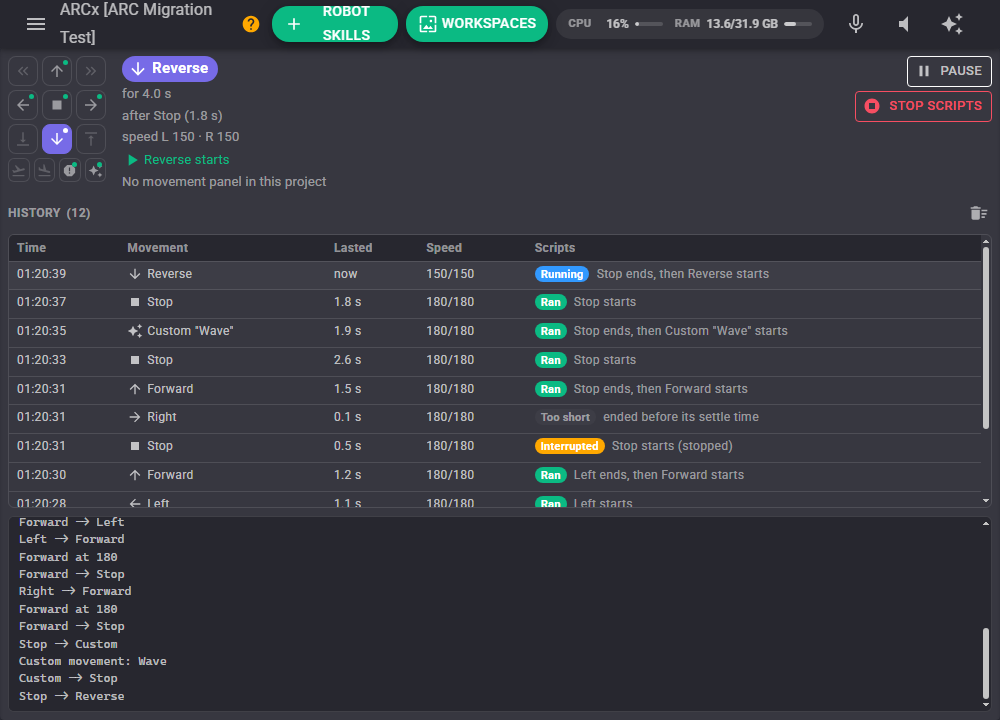
- Direction indicator - A compass of every direction (roll left, forward, roll right, left, stop, right, down, reverse, up) with takeoff, land, emergency and custom underneath. The direction the robot is moving is lit, whoever started it. A green dot marks a direction that has a script.
- Status - The direction, how long the robot has been going that way, the direction before it and how long that one lasted, the left and right speed, the script running now, and the Movement Panel that drives the robot (or a note that the project has none).
- Pause / Resume - Pauses the scripts, as ARC's Pause checkbox did. The scripts that are running stop, and no more run until you resume. Movements are still followed, listed and published in the variables. The paused state is saved with the project.
- Stop scripts - Shown while a script runs. Stops every script of this robot skill without pausing it.
- History - Every change of direction, newest first: the time, the direction, how long it lasted, the speed, and what the scripts did. The clear button empties it (the current movement stays).
- Log - Anything the scripts
print(), script errors, and every movement when Log movements is on.
Banners appear while the scripts are paused, when a script has failed (dismiss it with the X), and when no script has been written yet.
What the history says
| Result | Meaning |
|---|---|
| Ran | The scripts ran to the end. The detail lists them, for example "Stop ends, then Forward starts". |
| Running | The scripts are running now. |
| Settling | The direction is waiting out its settle time. |
| Too short | The direction ended before its settle time, so its scripts never ran. |
| No script | Neither the end script of the direction before nor this direction's start script is written. |
| Interrupted | A script was stopped part way, because the direction changed again, the scripts were paused, or Stop scripts was pressed. |
| Skipped | A newer direction arrived while a script was finishing (Let it finish mode), so this one was passed over. |
| Unchanged | The robot went back to the direction the scripts had last run for before anything ran (a short flick of a joystick), so there was nothing to do. |
| Paused | The scripts were paused. |
| Error | A script failed. The error is in the detail, the log and the banner. |
Writing the Scripts
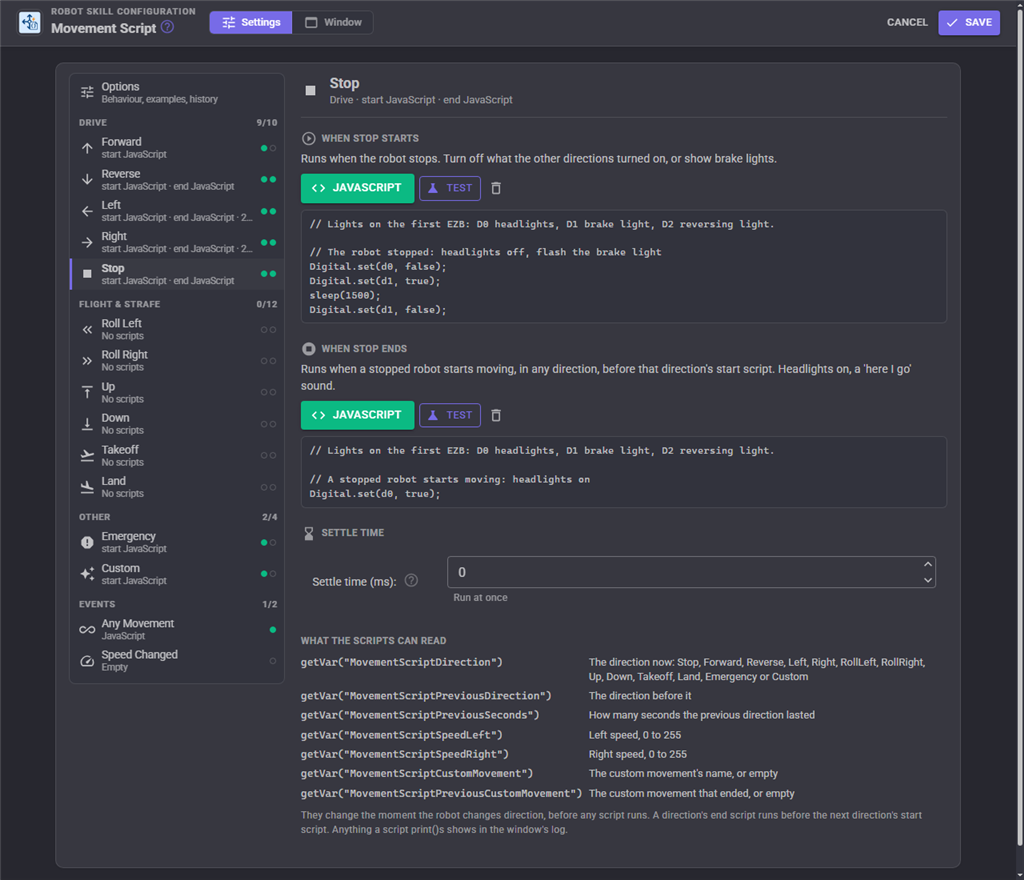
The configuration lists every direction on the left, grouped as Drive, Flight & strafe and Other, with the event scripts underneath. Two dots beside each direction show whether its start and end scripts are written. Pick one to edit it with the usual script editor (Blockly, JavaScript or Python); the pane shows the start of each script and what the scripts can read.
Every direction has two scripts:
| Script | When it runs |
|---|---|
| When it starts | When the robot starts moving in this direction, once the direction has lasted its settle time. This is the script ARC's Movement Script ran. |
| When it ends | When the robot leaves this direction, because it stopped or took another direction, just before the next direction's start script. Use it to undo what the start script did: a light or beeper off, a servo back to centre. |
Stop is a direction too, and its two scripts are some of the most useful: Stop, when it starts runs when the robot stops, and Stop, when it ends runs when a stopped robot starts moving in any direction.
The directions are Forward, Reverse, Left, Right and Stop; Roll Left and Roll Right (a drone rolling, or a mecanum, omni or holonomic robot strafing); Up and Down; Takeoff and Land; Emergency (the Movement Panel does the stopping, these scripts can sound an alarm or send a notification); and Custom, for every custom movement such as Movement.fromString("Wave"). Going from one custom movement to another counts as a change of direction, and the variables say which one.
The Test button beside each script runs it right away, as it is on the page, without moving the robot. Anything it prints goes to the window's log, and an error shows under the button.
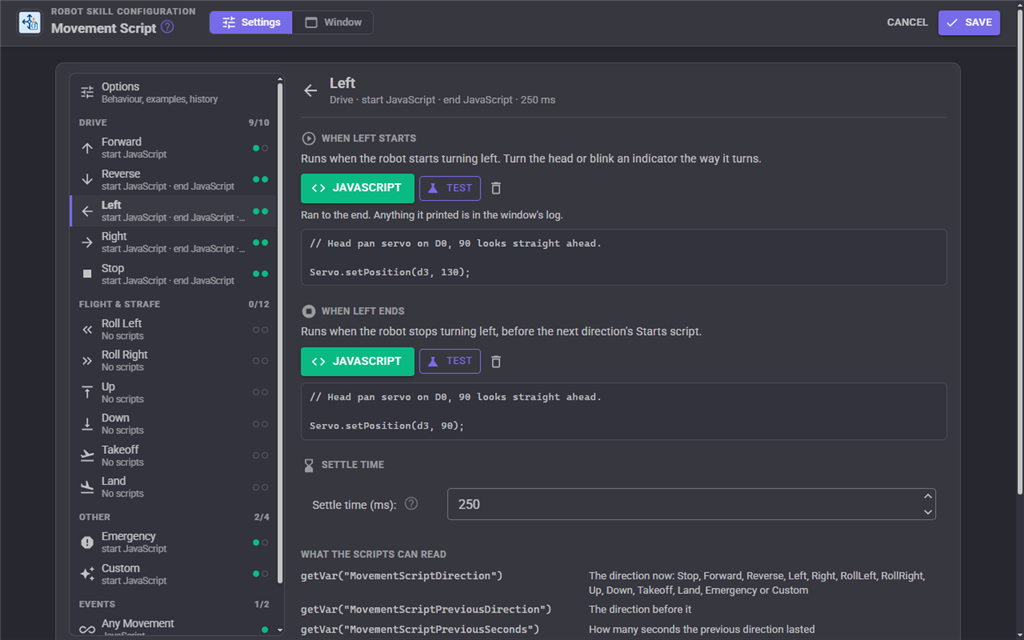
Settle time
Each direction has a Settle time in milliseconds: how long the robot must keep that direction before its scripts run. A direction that ends sooner is listed as Too short and nothing runs for it. A joystick or a tracker often flicks through a direction for a moment; a settle time of 200 to 500 ms on the turns keeps a head servo or a voice from twitching along. At 0 (the default) the scripts run at once.
Event scripts
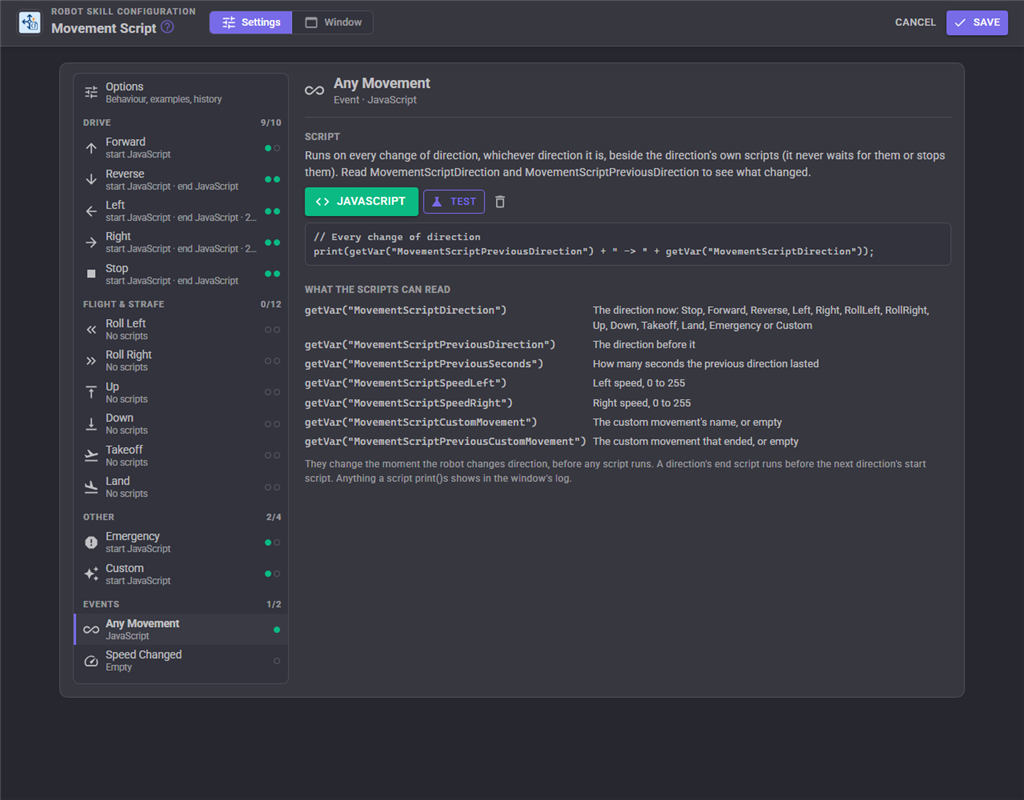
| Script | When it runs |
|---|---|
| Any Movement | On every change of direction (once it has settled), whatever the direction, beside that direction's own scripts. It never waits for them and they never stop it. |
| Speed Changed | When the left or right speed changes, moving or not, at most once per Speed Changed interval and always with the latest speed. |
What the scripts can read
These global variables change the moment the robot changes direction, before any script runs, so every script sees them already set:
| Variable | Value |
|---|---|
MovementScriptDirection |
The direction now: Stop, Forward, Reverse, Left, Right, RollLeft, RollRight, Up, Down, Takeoff, Land, Emergency or Custom |
MovementScriptPreviousDirection |
The direction before it |
MovementScriptPreviousSeconds |
How many seconds the previous direction lasted |
MovementScriptSpeedLeft |
Left speed, 0 to 255 |
MovementScriptSpeedRight |
Right speed, 0 to 255 |
MovementScriptCustomMovement |
The name of the custom movement running now, or empty |
MovementScriptPreviousCustomMovement |
The name of the custom movement that just ended, or empty |
A start script can loop for as long as its direction lasts. This reversing beeper stops by itself when the direction changes, in either overlap mode:
// Beep for as long as the robot reverses
while (getVar("$MovementScriptDirection") == "Reverse") {

  Audio.soundNote("C3", 300);
  sleep(600);
}
An end script can use how long the direction lasted:
// Forward, when it ends
print("Drove forward for " + getVar("$MovementScriptPreviousSeconds") + " seconds");
Options
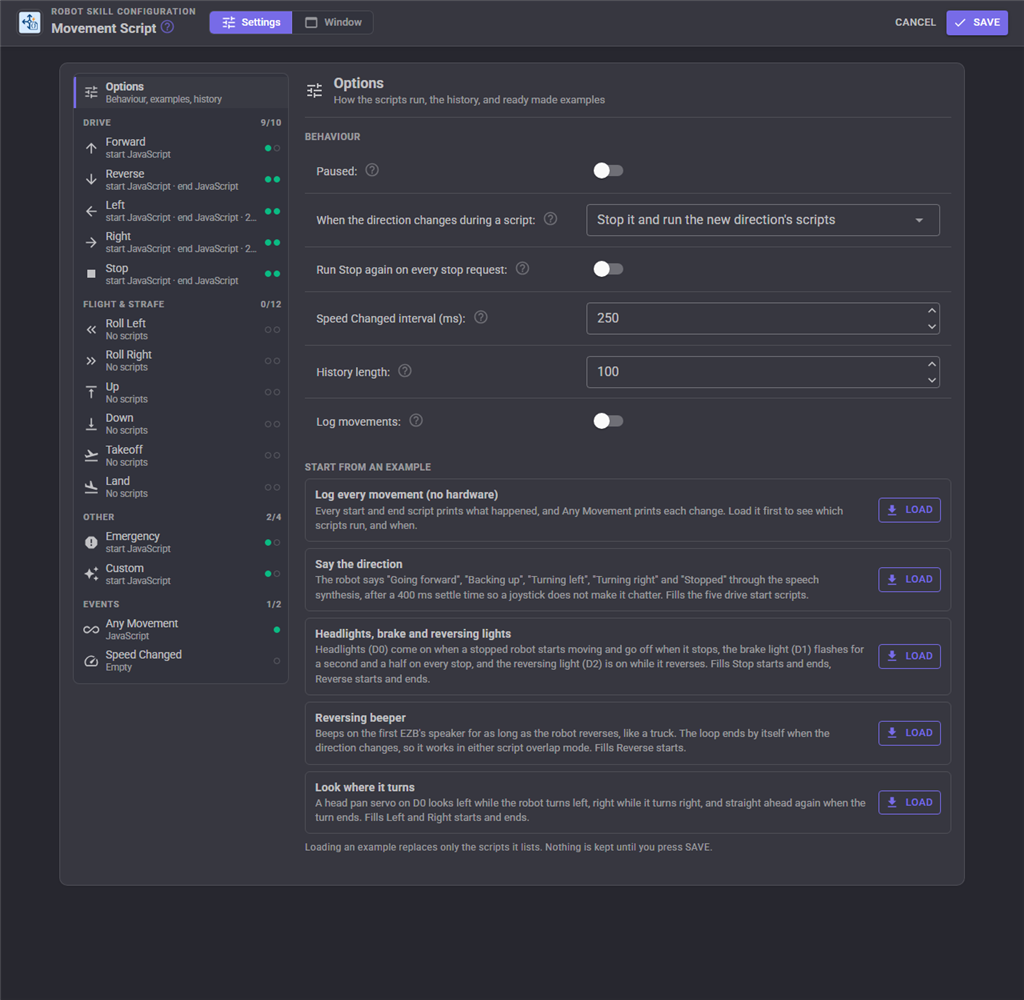
| Setting | Description | Default |
|---|---|---|
| Paused | No script runs while paused. Movements are still followed, listed and published. | Off |
| When the direction changes during a script | Stop it and run the new direction's scripts: the running script is stopped and the new direction's scripts start at once, so a start script may loop until the direction changes (ARC's behaviour). Let it finish, then run the newest direction's scripts: the running script ends normally first; directions the robot passed through meanwhile are skipped. Use it for scripts that must not be cut short, such as a phrase spoken or an animation finished, and never loop forever in this mode. | Stop it |
| Run Stop again on every stop request | Joysticks and trackers ask a stopped robot to stop over and over. On: the Stop start script runs every time. Off: it runs once, when the robot actually stops. | Off |
| Speed Changed interval (ms) | The shortest time between two runs of the Speed Changed script. Changes in between are folded into the next run, which sees the latest speed. 0 runs it for every change. | 250 |
| History length | How many movements the window lists. 0 hides the history. | 100 |
| Log movements | Also write every change of direction and the scripts it ran to the log. | Off |
Start from an example
Five ready made sets of scripts, each loaded with one click after a confirmation. Loading one replaces only the scripts it lists, and nothing is kept until you press Save.
- Log every movement (no hardware) - Every start and end script prints what happened, and Any Movement prints each change. Load it first to see which scripts run, and when.
- Say the direction - The robot says "Going forward", "Backing up", "Turning left", "Turning right" and "Stopped", with a 400 ms settle time so a joystick does not make it chatter.
- Headlights, brake and reversing lights - Headlights on D0 come on when the robot starts moving and go off when it stops, a brake light on D1 flashes on every stop, and a reversing light on D2 is on while it reverses.
- Reversing beeper - Beeps on the first EZB's speaker for as long as the robot reverses.
- Look where it turns - A head pan servo on D0 looks left or right while the robot turns, and straight ahead again when the turn ends.
Change the ports in the examples to match your robot.
Several Movement Scripts
A project can have as many Movement Script robot skills as you like, for instance one for lights and one for sounds, each paused on its own. They all see the same movements, so they publish the same variables.
Custom UI Widgets
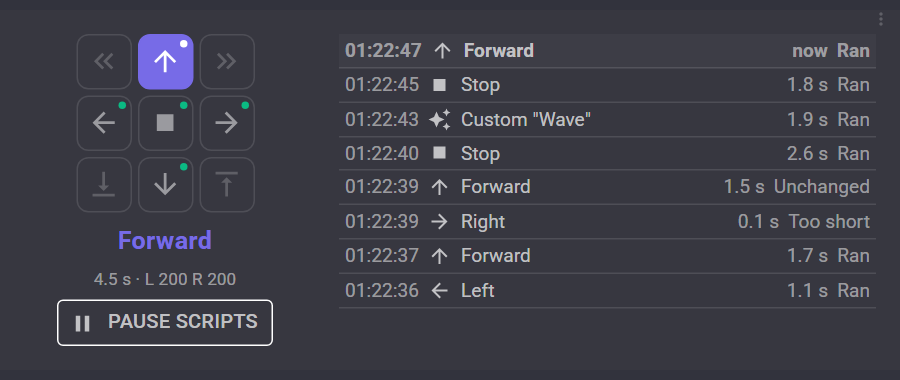
- Direction indicator - The compass with the current direction lit, how long the robot has been going that way, the speed (ShowSpeed) and a button that pauses and resumes the scripts (ShowPause).
- Movement history - The latest movements with their time, how long each lasted and what its scripts did. Rows sets how many.
For AI Assistants
The status tool reports the direction, the previous direction and how long it lasted, the speeds, whether the scripts are paused, which scripts each direction has and its settle time, the script running now, the last error, the Movement Panel and the latest movements with what ran. set_paused pauses or resumes the scripts, and test_script runs one start or end script without moving the robot, which is handy after writing a script with set_skill_config. Movement Script does not move the robot; move it with ARCx's move_robot tool and watch the scripts run.
Differences from ARC
ARC's Movement Script ran one script for Forward, Reverse, Left, Right and Stop when the direction changed, with a Pause checkbox and the PauseOn, PauseOff and PauseToggle control commands. All of that is here under the same names, and the Stop script still runs when the robot stops. Every direction also has an end script, the flight, emergency and custom directions have scripts, and the settle time, overlap mode, event scripts, variables, history, Test buttons, widgets and AI tools are new. One change in behaviour: ARC ran the Stop script again every time something asked a stopped robot to stop; turn on Run Stop again on every stop request for that.
Control Commands for the Movement Script robot skill
There are Control Commands available for this robot skill which allows the skill to be controlled programmatically from scripts or other robot skills. These commands enable you to automate actions, respond to sensor inputs, and integrate the robot skill with other systems or custom interfaces. If you're new to the concept of Control Commands, we have a comprehensive manual available here that explains how to use them, provides examples to get you started and make the most of this powerful feature.
Control Command ManualThis robot skill has 15 control commands, listed below. Send them from a JavaScript or Python script, from Blockly, or from another robot skill.
The first value is always the window title, which is the name in the title bar of the robot skill on your workspace. It starts out as Movement Script, which is what every example below uses. If you rename the robot skill, or add a second copy of it to the project, use the title as it appears on that window instead.
ControlCommand() can be shortened to CC(), and both spellings work in JavaScript and in Python. The examples are JavaScript; Python is the same call, except that true and false are written True and False.
ClearHistory
Empty the movement history shown in the window.
Syntax
ControlCommand("Movement Script", "ClearHistory")
Returns: nothing
Example
ControlCommand("Movement Script", "ClearHistory");
ClearLastError
Forget the last script error and hide its banner in the window.
Syntax
ControlCommand("Movement Script", "ClearLastError")
Returns: nothing
Example
ControlCommand("Movement Script", "ClearLastError");
GetDirection
The direction the robot is moving: Stop, Forward, Reverse, Left, Right, RollLeft, RollRight, Up, Down, Takeoff, Land, Emergency or Custom.
Syntax
ControlCommand("Movement Script", "GetDirection")
Returns: String
Example
var result = ControlCommand("Movement Script", "GetDirection");
GetHistory
The latest movements, newest first, one line each: time, direction, how long it lasted, speeds and which scripts ran.
Syntax
ControlCommand("Movement Script", "GetHistory")
Returns: Array of String
Example
var result = ControlCommand("Movement Script", "GetHistory");
GetLastError
The last script error with the script it came from, or an empty string when there has been none.
Syntax
ControlCommand("Movement Script", "GetLastError")
Returns: String
Example
var result = ControlCommand("Movement Script", "GetLastError");
GetPreviousDirection
The direction the robot was moving before the current one.
Syntax
ControlCommand("Movement Script", "GetPreviousDirection")
Returns: String
Example
var result = ControlCommand("Movement Script", "GetPreviousDirection");
GetSecondsInDirection
How many seconds the robot has been moving in the current direction (or stopped, when the direction is Stop).
Syntax
ControlCommand("Movement Script", "GetSecondsInDirection")
Returns: Double [5.0e324 to 1.7e308]
Example
var result = ControlCommand("Movement Script", "GetSecondsInDirection");
IsPaused
True while the movement scripts are paused.
Syntax
ControlCommand("Movement Script", "IsPaused")
Returns: Boolean [true or false]
Example
var result = ControlCommand("Movement Script", "IsPaused");
IsScriptRunning
True while any script of this robot skill is running.
Syntax
ControlCommand("Movement Script", "IsScriptRunning")
Returns: Boolean [true or false]
Example
var result = ControlCommand("Movement Script", "IsScriptRunning");
PauseOff
Resume running the movement scripts after PauseOn.
Syntax
ControlCommand("Movement Script", "PauseOff")
Returns: nothing
Example
ControlCommand("Movement Script", "PauseOff");
PauseOn
Pause: stop the scripts that are running and run no more until PauseOff. Movements are still followed and shown.
Syntax
ControlCommand("Movement Script", "PauseOn")
Returns: nothing
Example
ControlCommand("Movement Script", "PauseOn");
PauseToggle
Pause when running, resume when paused.
Syntax
ControlCommand("Movement Script", "PauseToggle")
Returns: nothing
Example
ControlCommand("Movement Script", "PauseToggle");
RunEndScript
Run a direction's end script now and wait for it, without moving the robot, to try it out.
Syntax
ControlCommand("Movement Script", "RunEndScript", (String)direction)
Parameters
| # | Name | Type | What to pass |
|---|---|---|---|
| 1 | direction | Text | Your text, in quotes |
Returns: nothing
Example
ControlCommand("Movement Script", "RunEndScript", "direction");
RunStartScript
Run a direction's start script now and wait for it, without moving the robot, to try it out: forward, reverse, left, right, stop, rollLeft, rollRight, up, down, takeoff, land, emergency, custom, or the event scripts anyMovement and speedChanged.
Syntax
ControlCommand("Movement Script", "RunStartScript", (String)direction)
Parameters
| # | Name | Type | What to pass |
|---|---|---|---|
| 1 | direction | Text | Your text, in quotes |
Returns: nothing
Example
ControlCommand("Movement Script", "RunStartScript", "direction");
StopScripts
Stop every script this robot skill is running now. The next change of direction runs its scripts as usual.
Syntax
ControlCommand("Movement Script", "StopScripts")
Returns: nothing
Example
ControlCommand("Movement Script", "StopScripts");
This list is read out of the robot skill itself each time its package is uploaded, so it matches the published version (v2).



This robot skill has been updated to v1.
What has changed
initial release
This robot skill has been updated to v2.
What has changed
updated to use some new ARCx UI features for improved performance.