

Flexible script scheduler for timed, solar, cron, and one-time runs with conditions, history, and parallel execution
 Windows
 ARM
ARM
 Linux
Linux
 MacOS
MacOS
How to add the Script Scheduler robot skill
- Load the most recent release of ARCx on a compatible operating system (Get ARCx).
- Press the + Skills menu from the top menu bar in ARCx.
- Choose any of these category tabs, the robot skill appears in each of them: General, Scripting.
- Press the Script Scheduler icon to add the robot skill to your project.
Don't have a robot yet?
Follow the Getting Started Guide to build a robot and use the Script Scheduler robot skill.
How to use the Script Scheduler robot skill
The Script Scheduler runs your scripts on schedules. A schedule can repeat every few seconds, minutes, hours or days, wait a random time between runs, run at times of day on chosen weekdays, on days of the month, on dates every year, once at a date and time, at sunrise, sunset, dawn, dusk or solar noon, by a cron expression, or once when the project loads. Any schedule can be limited further to weekdays, months, active hours, a date range, all but some excluded dates, and a condition that is checked just before each run.
Each schedule has its own script (JavaScript, Python or Blockly) and runs on its own script thread, so schedules run side by side and a slow script never delays another schedule. The scheduler works out every run in the computer's local time and waits in universal time, so daylight saving changes neither run a script twice nor skip it.
The window
The top of the window has the Start/Stop button for the whole scheduler and a line that says which schedule runs next and when. While scripts are running, a button stops them all.
Schedules
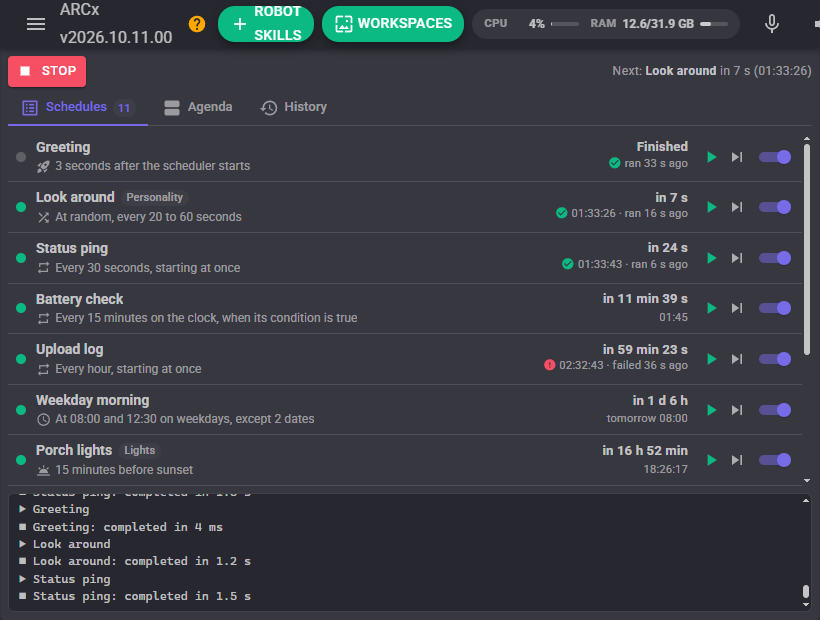
Every schedule is a row with a status dot, its name, its group, its timing in plain words, a countdown to its next run and how its last run ended. Hover over the countdown for the last run and the last skipped run in full.
| Dot | Meaning |
|---|---|
| Green | Waiting for its next run |
| Blue, pulsing | Its script is running |
| Orange | Snoozed |
| Red | Its settings are not valid; the timing line says why |
| Grey | Disabled, finished, or the scheduler is stopped |
Each row has three controls:
- Run now (or Stop while it runs) runs the script straight away, whatever its timing, filters and condition say. A disabled schedule can still be run this way.
- Skip next skips only the next scheduled run. Press it again to change your mind.
- The switch enables or disables the schedule. This is saved with the project.
Agenda
The coming runs of every schedule over the next week, grouped by day, with a countdown to each. A few runs of each schedule are listed so a schedule that runs every few seconds does not hide the others. Conditions are only checked when a run comes due, so a listed run can still be skipped.
History
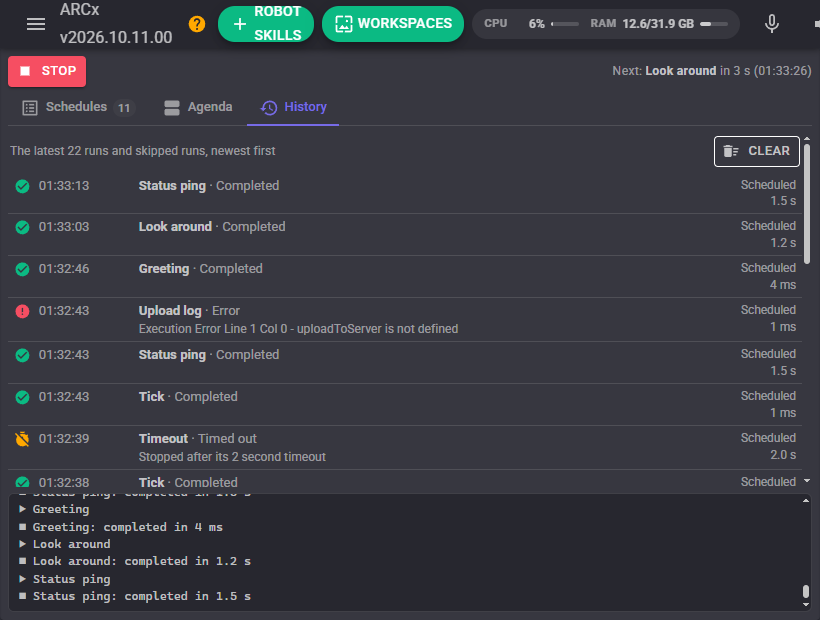
The latest runs and skipped runs, newest first: when, which schedule, how it ended (Completed, Error, Stopped, Timed out, Skipped, Missed), why it ran (Scheduled, Catch up, Run now, Command, Queued, Run in), how long it took, and the error message or the reason it was skipped. The same skip repeated, such as a condition that is false every few seconds, is one line with a count. Clear empties the list.
Configuration
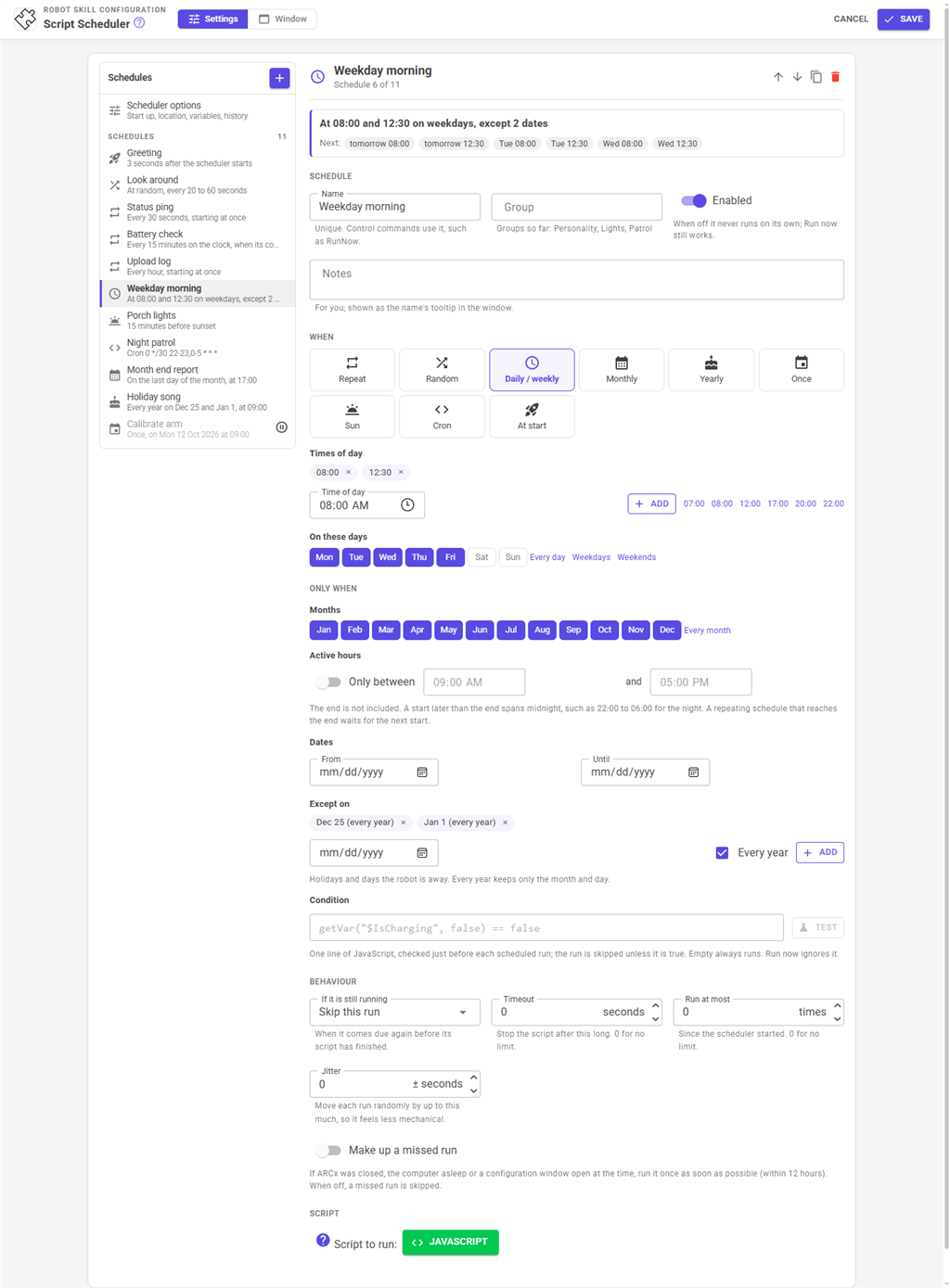
The configuration has a list of schedules on the left and the selected schedule on the right. Use + to add a schedule; with no schedules yet, the page offers a few starting points (every 5 minutes, weekdays at 08:00, an idle animation at random, sunset, when the project loads). The buttons at the top of a schedule move it up or down, duplicate it and delete it.
At the top of every schedule is a preview: its timing in plain words and its next six runs, worked out the same way the scheduler does. Anything wrong with the schedule is shown there in red, and a schedule that is valid but will never run (a date that has passed, a 31st of February) in orange.
Schedule
| Setting | What it does |
|---|---|
| Name | Unique within the scheduler. Scripts and control commands refer to the schedule by this name. |
| Group | Optional. Schedules with the same group can be switched on and off together, for example a Night group. |
| Enabled | When off, the schedule never runs on its own. Run now still runs it. |
| Notes | For you. Shown when you hover over the name in the window. |
When
Pick the kind of schedule, then its settings.
| Kind | Runs | Settings |
|---|---|---|
| Repeat | Every so many seconds, minutes, hours or days | The interval. On the clock runs on round times counted from midnight, so every 15 minutes is :00, :15, :30 and :45; otherwise it counts from when the scheduler started. Also run as soon as the scheduler starts runs it straight away as well. |
| Random | After a random wait between a shortest and a longest time, again and again | The two times and their unit. Good for idle animations, blinking and looking around, which look mechanical on a fixed interval. |
| Daily / weekly | At times of day, every day or on chosen weekdays | The times, and the days of the week. |
| Monthly | On days of the month, or on a weekday such as the first Monday or the last Friday | Numbered days (and Last for the last day of every month), or which weekday of the month, and the times. A month without the day, such as the 31st in April, is skipped. |
| Yearly | On dates every year, such as birthdays and holidays | The dates and the times. February 29 runs only in leap years. |
| Once | At one date and time | The date and time. After it has passed the schedule does not run again on its own. |
| Sun | At dawn, sunrise, solar noon, sunset or dusk | The event, an offset in minutes (negative for before), the days of the week, and the robot's latitude and longitude. The page shows today's sun times for the location, so you can check it is right. |
| Cron | By a cron expression | Five fields (minute, hour, day of month, month, day of week) or six with seconds first. See below. |
| At start | Once each time the scheduler starts, normally when the project loads | A delay in seconds. Good for a greeting, homing servos or setting things up once the robot is ready. |
Cron expressions accept * for any value, lists such as 5,10, ranges such as 1-5, steps such as */15, month and weekday names such as JAN and MON-FRI, L in the day of month for the last day, 5L in the day of week for the last Friday, 1#2 for the second Monday, and the shortcuts @hourly, @daily, @weekly, @monthly and @yearly. When both the day of month and the day of week are given, a day matching either runs, as in classic cron. Examples: 0 9-17 * * MON-FRI is on the hour from 09:00 to 17:00 on weekdays; */30 * * * * * is every 30 seconds.
Only when
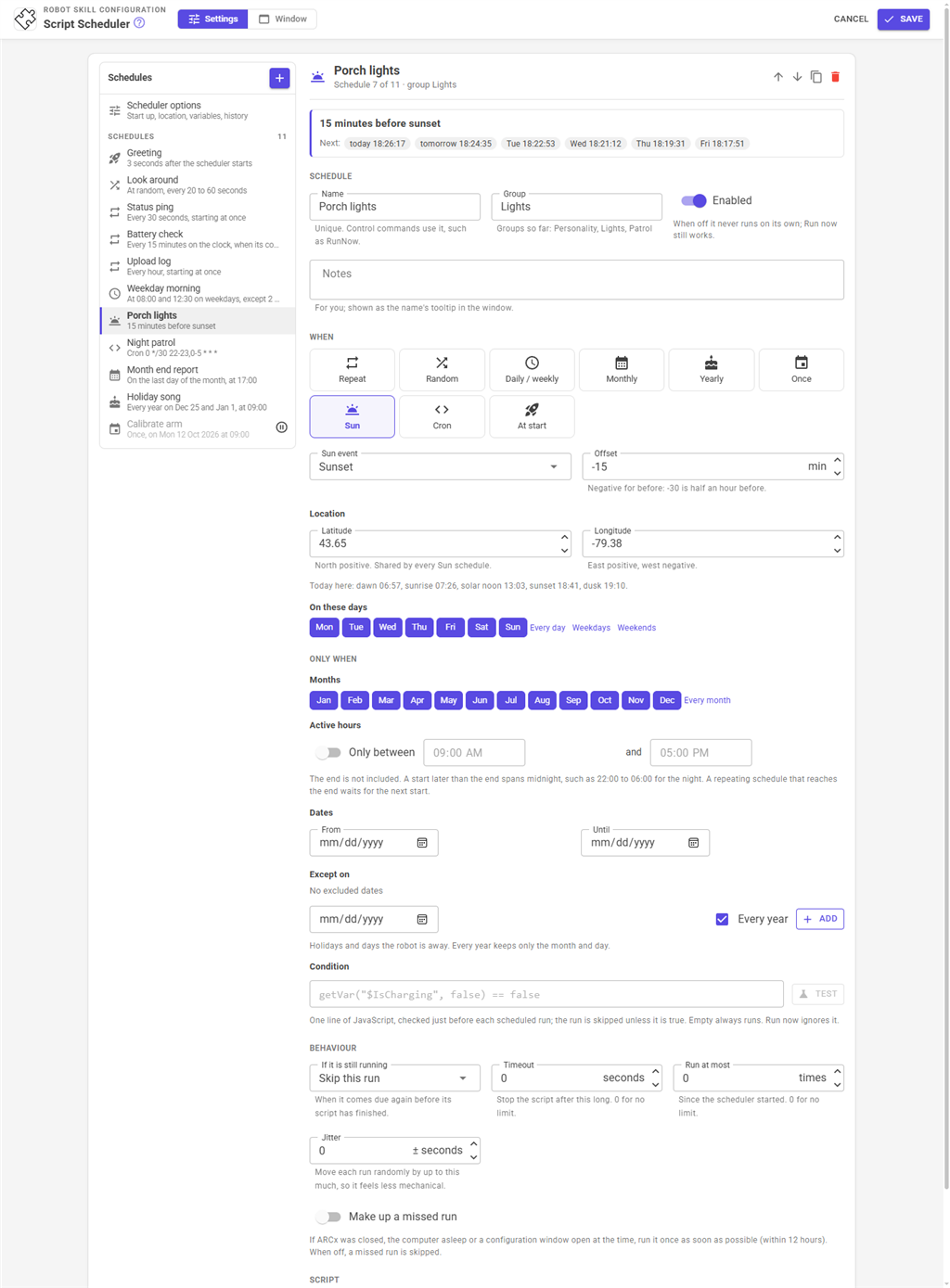
These limit any kind of schedule. A run that falls outside them does not happen.
| Setting | What it does |
|---|---|
| Days of the week | Only on these days. Daily / weekly and Sun schedules have this under When. |
| Months | Only in these months. |
| Active hours | Only between two times of day. The end is not included. A start later than the end spans midnight, such as 22:00 to 06:00. A repeating schedule that reaches the end waits for the next start. |
| Dates | Not before the first date and not after the last. |
| Except on | Dates to leave out, such as holidays. Every year keeps only the month and day. |
| Condition | One line of JavaScript checked just before each scheduled run. The run happens only when it is true, for example getVar("$IsCharging", false) == false. Test runs it once and shows what it gives. Run now ignores the condition. |
Behaviour
| Setting | What it does |
|---|---|
| If it is still running | What happens when the schedule comes due while its last run is still going: Skip this run, Stop it and start again, or Run again when it finishes (at most one waiting run). |
| Timeout | Stops the script if it runs longer than this. 0 lets it run as long as it likes. A stopped script shows as Timed out in the history. |
| Run at most | Stops the schedule after this many runs since the scheduler started. 0 for no limit. |
| Jitter | Moves each run randomly by up to this many seconds earlier or later, so the robot does not act like clockwork. The run after it is still worked out from the exact time, so the jitter does not add up. |
| Make up a missed run | For schedules with fixed times (everything except Repeat without On the clock, Random and At start). If a run was missed because ARCx was closed, the computer was asleep or a configuration window was open at the time, it runs once as soon as it can, within the Missed Run Window of the scheduler options. Only the latest missed run is made up. When off, a missed run is skipped and shows as Missed in the history. |
Script
The script the schedule runs. A script that serves several schedules can read getVar("$SchedulerLastSchedule") to know which one started it.
Scheduler options
| Setting | What it does |
|---|---|
| Start On Project Load | Starts the scheduler when the project has loaded. When off, nothing runs until the Start button or the Start control command. |
| Missed Run Window | How far back, in hours, a schedule that makes up missed runs looks for one. |
| Latitude, Longitude | Where the robot is, for Sun schedules. North and east are positive, south and west negative. |
| Publish Variables, Variable Prefix | The global variables below, and the start of their names. Give each scheduler its own prefix if a project has more than one. |
| History Size | How many lines the History tab keeps. |
| Log Every Run | Writes a line to the log each time a script starts and ends. Errors, timeouts and skipped runs are logged either way. |
| Show Log | Shows the log at the bottom of the window. |
Global variables
With the default prefix Scheduler:
| Variable | Holds |
|---|---|
$SchedulerNextSchedule |
The name of the schedule that runs next, or empty |
$SchedulerNextTime |
When it runs, local time yyyy-MM-dd HH:mm:ss, or empty |
$SchedulerLastSchedule |
The name of the schedule whose script started most recently |
$SchedulerLastRunTime |
When that was, local time |
$SchedulerRunningCount |
How many of the scheduler's scripts are running |
Scripts and the scheduler
Scripts can run a schedule now, run it once after a delay, skip its next run, snooze it for a number of minutes, switch schedules or whole groups on and off, change an interval, and ask when a schedule runs next or how its last run ended. The control commands are listed in the script editor. For example, a "going to sleep" script can switch off the Personality group and snooze the patrol for eight hours, and a "good morning" script can switch the group back on.
Custom UI widgets
| Widget | Shows |
|---|---|
| Next scheduled script | A countdown to the next run of any schedule, or of one schedule, optionally with a Run now button |
| Schedule card | One schedule with its timing, next and last run, an on/off switch and Run now / Stop |
| Script agenda | The coming runs of every schedule, soonest first |
AI assistants
An AI assistant connected to ARCx over MCP can read every schedule with its next and last run, list the coming runs, read the history to find out why a script failed or was skipped, run and stop schedules, switch, skip and snooze them, and check a new schedule with a preview of its next runs before saving it to the configuration.
Good to know
- While any robot skill's configuration window is open, every robot skill pauses, the scheduler included. A run that comes due meanwhile is late; it is made up if the schedule makes up missed runs and skipped otherwise.
- If the computer's clock is changed or the computer wakes from sleep, the schedules are worked out again from the new time.
- Times are the local time of the computer ARCx runs on.
- Sun times are accurate to about a minute. Close to the poles, where the sun can stay up or down all day, a day without the event is skipped.
Control Commands for the Script Scheduler robot skill
There are Control Commands available for this robot skill which allows the skill to be controlled programmatically from scripts or other robot skills. These commands enable you to automate actions, respond to sensor inputs, and integrate the robot skill with other systems or custom interfaces. If you're new to the concept of Control Commands, we have a comprehensive manual available here that explains how to use them, provides examples to get you started and make the most of this powerful feature.
Control Command ManualThis robot skill has 25 control commands, listed below. Send them from a JavaScript or Python script, from Blockly, or from another robot skill.
The first value is always the window title, which is the name in the title bar of the robot skill on your workspace. It starts out as Script Scheduler, which is what every example below uses. If you rename the robot skill, or add a second copy of it to the project, use the title as it appears on that window instead.
ControlCommand() can be shortened to CC(), and both spellings work in JavaScript and in Python. The examples are JavaScript; Python is the same call, except that true and false are written True and False.
Disable
Switch a schedule off; it no longer runs on its own. Saved with the project.
Syntax
ControlCommand("Script Scheduler", "Disable", (String)schedule)
Parameters
| # | Name | Type | What to pass |
|---|---|---|---|
| 1 | schedule | Text | Your text, in quotes |
Returns: Boolean [true or false]
Example
var result = ControlCommand("Script Scheduler", "Disable", "schedule");
DisableGroup
Switch off every schedule whose Group is this name. Returns how many schedules are in the group.
Syntax
ControlCommand("Script Scheduler", "DisableGroup", (String)group)
Parameters
| # | Name | Type | What to pass |
|---|---|---|---|
| 1 | group | Text | Your text, in quotes |
Returns: Integer [-2,147,483,648 to 2,147,483,647]
Example
var result = ControlCommand("Script Scheduler", "DisableGroup", "group");
Enable
Switch a schedule on. Saved with the project.
Syntax
ControlCommand("Script Scheduler", "Enable", (String)schedule)
Parameters
| # | Name | Type | What to pass |
|---|---|---|---|
| 1 | schedule | Text | Your text, in quotes |
Returns: Boolean [true or false]
Example
var result = ControlCommand("Script Scheduler", "Enable", "schedule");
EnableGroup
Switch on every schedule whose Group is this name. Returns how many schedules are in the group.
Syntax
ControlCommand("Script Scheduler", "EnableGroup", (String)group)
Parameters
| # | Name | Type | What to pass |
|---|---|---|---|
| 1 | group | Text | Your text, in quotes |
Returns: Integer [-2,147,483,648 to 2,147,483,647]
Example
var result = ControlCommand("Script Scheduler", "EnableGroup", "group");
GetDescription
A schedule's timing in plain English, such as "At 08:00 on weekdays".
Syntax
ControlCommand("Script Scheduler", "GetDescription", (String)schedule)
Parameters
| # | Name | Type | What to pass |
|---|---|---|---|
| 1 | schedule | Text | Your text, in quotes |
Returns: String
Example
var result = ControlCommand("Script Scheduler", "GetDescription", "schedule");
GetLastOutcome
How a schedule's last run ended: Running, Completed, Error, Stopped or TimedOut, or an empty string when it has not run.
Syntax
ControlCommand("Script Scheduler", "GetLastOutcome", (String)schedule)
Parameters
| # | Name | Type | What to pass |
|---|---|---|---|
| 1 | schedule | Text | Your text, in quotes |
Returns: String
Example
var result = ControlCommand("Script Scheduler", "GetLastOutcome", "schedule");
GetLastRun
When a schedule's script last started, as local yyyy-MM-dd HH:mm:ss, or an empty string when it has not run since the scheduler started.
Syntax
ControlCommand("Script Scheduler", "GetLastRun", (String)schedule)
Parameters
| # | Name | Type | What to pass |
|---|---|---|---|
| 1 | schedule | Text | Your text, in quotes |
Returns: String
Example
var result = ControlCommand("Script Scheduler", "GetLastRun", "schedule");
GetNextRun
When a schedule runs next, as local yyyy-MM-dd HH:mm:ss, or an empty string when it will not run on its own.
Syntax
ControlCommand("Script Scheduler", "GetNextRun", (String)schedule)
Parameters
| # | Name | Type | What to pass |
|---|---|---|---|
| 1 | schedule | Text | Your text, in quotes |
Returns: String
Example
var result = ControlCommand("Script Scheduler", "GetNextRun", "schedule");
GetRunCount
How many times a schedule has run since the scheduler started.
Syntax
ControlCommand("Script Scheduler", "GetRunCount", (String)schedule)
Parameters
| # | Name | Type | What to pass |
|---|---|---|---|
| 1 | schedule | Text | Your text, in quotes |
Returns: Integer [-2,147,483,648 to 2,147,483,647]
Example
var result = ControlCommand("Script Scheduler", "GetRunCount", "schedule");
GetSchedules
The names of every schedule, in the order shown.
Syntax
ControlCommand("Script Scheduler", "GetSchedules")
Returns: Array of String
Example
var result = ControlCommand("Script Scheduler", "GetSchedules");
GetSecondsUntilNext
Seconds until a schedule runs next, or -1 when it will not run on its own.
Syntax
ControlCommand("Script Scheduler", "GetSecondsUntilNext", (String)schedule)
Parameters
| # | Name | Type | What to pass |
|---|---|---|---|
| 1 | schedule | Text | Your text, in quotes |
Returns: Double [5.0e324 to 1.7e308]
Example
var result = ControlCommand("Script Scheduler", "GetSecondsUntilNext", "schedule");
IsEnabled
Whether a schedule is switched on.
Syntax
ControlCommand("Script Scheduler", "IsEnabled", (String)schedule)
Parameters
| # | Name | Type | What to pass |
|---|---|---|---|
| 1 | schedule | Text | Your text, in quotes |
Returns: Boolean [true or false]
Example
var result = ControlCommand("Script Scheduler", "IsEnabled", "schedule");
IsRunning
Whether the scheduler is running.
Syntax
ControlCommand("Script Scheduler", "IsRunning")
Returns: Boolean [true or false]
Example
var result = ControlCommand("Script Scheduler", "IsRunning");
IsScheduleRunning
Whether a schedule's script is running right now.
Syntax
ControlCommand("Script Scheduler", "IsScheduleRunning", (String)schedule)
Parameters
| # | Name | Type | What to pass |
|---|---|---|---|
| 1 | schedule | Text | Your text, in quotes |
Returns: Boolean [true or false]
Example
var result = ControlCommand("Script Scheduler", "IsScheduleRunning", "schedule");
ResetRunCount
Start a schedule's run count over, so one that has used up its MaxRuns runs again. "*" resets every schedule.
Syntax
ControlCommand("Script Scheduler", "ResetRunCount", (String)schedule)
Parameters
| # | Name | Type | What to pass |
|---|---|---|---|
| 1 | schedule | Text | Your text, in quotes |
Returns: Boolean [true or false]
Example
var result = ControlCommand("Script Scheduler", "ResetRunCount", "schedule");
Resume
End a schedule's snooze and its pending SkipNext.
Syntax
ControlCommand("Script Scheduler", "Resume", (String)schedule)
Parameters
| # | Name | Type | What to pass |
|---|---|---|---|
| 1 | schedule | Text | Your text, in quotes |
Returns: Boolean [true or false]
Example
var result = ControlCommand("Script Scheduler", "Resume", "schedule");
RunIn
Run a schedule's script once after a number of seconds, on top of its normal runs (needs the scheduler running). Returns when, as local yyyy-MM-dd HH:mm:ss.
Syntax
ControlCommand("Script Scheduler", "RunIn", (String)schedule, (Number)seconds)
Parameters
| # | Name | Type | What to pass |
|---|---|---|---|
| 1 | schedule | Text | Your text, in quotes |
| 2 | seconds | Number | A number, without quotes |
Returns: String
Example
var result = ControlCommand("Script Scheduler", "RunIn", "schedule", 0);
RunNow
Run a schedule's script now, ignoring its timing, filters and condition. Returns false when it is already running and its overlap is Skip.
Syntax
ControlCommand("Script Scheduler", "RunNow", (String)schedule)
Parameters
| # | Name | Type | What to pass |
|---|---|---|---|
| 1 | schedule | Text | Your text, in quotes |
Returns: Boolean [true or false]
Example
var result = ControlCommand("Script Scheduler", "RunNow", "schedule");
SetInterval
Make a schedule run every this many seconds (it becomes an Interval schedule). Saved with the project.
Syntax
ControlCommand("Script Scheduler", "SetInterval", (String)schedule, (Number)seconds)
Parameters
| # | Name | Type | What to pass |
|---|---|---|---|
| 1 | schedule | Text | Your text, in quotes |
| 2 | seconds | Number | A number, without quotes |
Returns: Boolean [true or false]
Example
var result = ControlCommand("Script Scheduler", "SetInterval", "schedule", 0);
SkipNext
Skip only the next scheduled run of a schedule; the runs after it happen as normal.
Syntax
ControlCommand("Script Scheduler", "SkipNext", (String)schedule)
Parameters
| # | Name | Type | What to pass |
|---|---|---|---|
| 1 | schedule | Text | Your text, in quotes |
Returns: Boolean [true or false]
Example
var result = ControlCommand("Script Scheduler", "SkipNext", "schedule");
Snooze
Hold a schedule's runs for a number of minutes; its next run is worked out from the end of the snooze. Returns the end, as local yyyy-MM-dd HH:mm:ss.
Syntax
ControlCommand("Script Scheduler", "Snooze", (String)schedule, (Number)minutes)
Parameters
| # | Name | Type | What to pass |
|---|---|---|---|
| 1 | schedule | Text | Your text, in quotes |
| 2 | minutes | Number | A number, without quotes |
Returns: String
Example
var result = ControlCommand("Script Scheduler", "Snooze", "schedule", 0);
Start
Start the scheduler. Every enabled schedule counts down to its next run.
Syntax
ControlCommand("Script Scheduler", "Start")
Returns: Boolean [true or false]
Example
var result = ControlCommand("Script Scheduler", "Start");
Stop
Stop the scheduler: no schedule runs until it is started again. Scripts already running finish by themselves (StopAll stops them).
Syntax
ControlCommand("Script Scheduler", "Stop")
Returns: Boolean [true or false]
Example
var result = ControlCommand("Script Scheduler", "Stop");
StopAll
Stop the running scripts of every schedule. Returns how many were running.
Syntax
ControlCommand("Script Scheduler", "StopAll")
Returns: Integer [-2,147,483,648 to 2,147,483,647]
Example
var result = ControlCommand("Script Scheduler", "StopAll");
StopSchedule
Stop a schedule's running script. The schedule keeps running on its timing. Returns false when it was not running.
Syntax
ControlCommand("Script Scheduler", "StopSchedule", (String)schedule)
Parameters
| # | Name | Type | What to pass |
|---|---|---|---|
| 1 | schedule | Text | Your text, in quotes |
Returns: Boolean [true or false]
Example
var result = ControlCommand("Script Scheduler", "StopSchedule", "schedule");
This list is read out of the robot skill itself each time its package is uploaded, so it matches the published version (v2).





This robot skill has been updated to v1.
What has changed
initial release
This robot skill has been updated to v2.
What has changed
updated to use some new ARCx UI features for improved performance.