
Open
File → Open is your project library. It lists the robot projects saved on this computer and the projects saved to your Synthiam account, and lets you open one, look inside it first, or bring some of its robot skills into the project you already have open.
Use it to pick up a robot you worked on before, to open a project you saved to the cloud from another computer, or to copy robot skills from one project into another.
Where to find it: Side menu → File → Open. You can also reach it from the Open project buttons and the All projects link on the Home page.
Contents
- Top of the page
- This computer
- Project cards on this computer
- Project details
- Merging robot skills into the open project
- Project backups
- Synthiam cloud
- Project cards in the cloud
- Password protected projects
- What happens when a project opens
- Troubleshooting
Top of the page
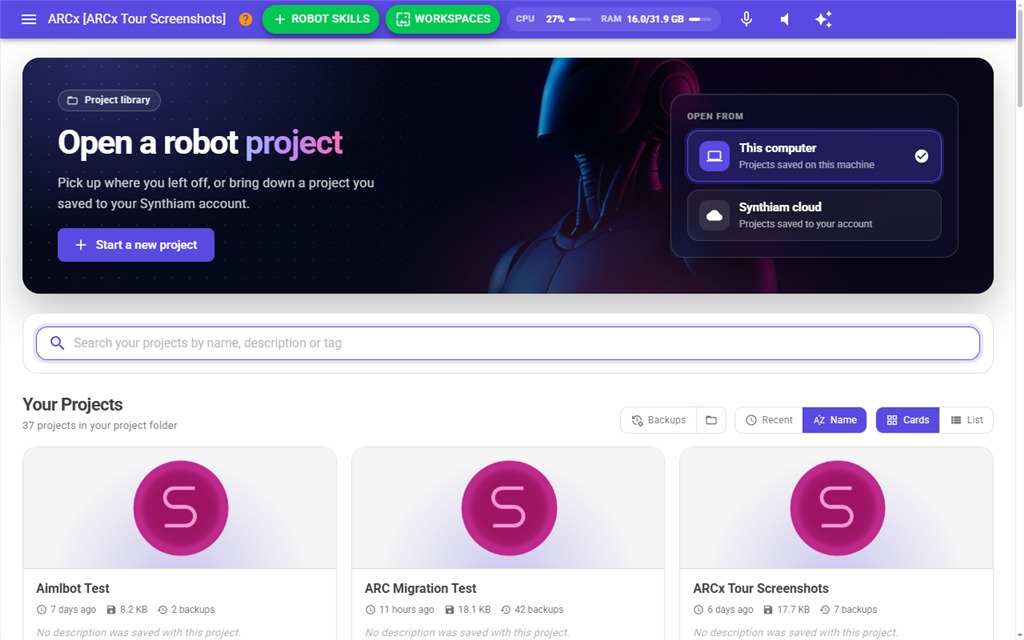
The top of the page has a Start a new project button, which goes to File → New, and an Open from card with two choices:
| Choice | What it lists |
|---|---|
| This computer | Projects saved on this machine, in the My Projects folder inside the ARCx Data folder. |
| Synthiam cloud | Projects saved to your Synthiam account with File → Save → Save To Cloud. |
The page starts on Synthiam cloud if the open project came from the cloud, or if the last project you opened came from the cloud. Otherwise it starts on This computer. Just switching between the two does not change which one the page starts on next time.
This computer
This list shows every project file in the My Projects folder. ARCx reads the folder each time the page opens, so a large folder can take a moment. Placeholder cards are shown while it reads.
| Control | What it does |
|---|---|
| Search box | Shows only projects whose name, description or tags contain what you type. The search starts from two characters; one character shows everything. |
| Tags | Appears when any project has tags. Each tag shows how many projects carry it. Click a tag to show only those projects, or All to show every project. |
| Recent / Name | Sorts by last modified (newest first) or by file name. ARCx remembers your choice. |
| Cards / List | Shows the projects as picture cards or as a compact list. ARCx remembers your choice, and it applies to the cloud list too. |
| Backups | Opens Project backups, which lists every project that has backups. See Project backups below. |
| Folder icon beside Backups | Opens File → File Manager at the Projects Backups folder. |
The heading under the search says how many projects there are, for example 12 projects in your project folder, or 3 of 12 projects when a search or tag is narrowing the list.
When a search or tag is on, the filters are shown as chips such as Search: arm and Tag: testing. Click a chip to remove that filter, or Clear all to remove both.
If nothing matches, the page says No projects match those filters with a Clear filters button. If the folder is empty, it says No projects on this computer yet with a New Project button.
Projects stored anywhere other than the My Projects folder are not listed. To bring in a project file from somewhere else, upload it into My Projects with File → File Manager.
Project cards on this computer
Each card shows:
| Item | What it shows |
|---|---|
| Picture | The project's title image. Click it to open the project. |
| Name | The file name. Click it to open the project. |
| Age | How long ago the project was last saved. Hover to see the exact date and time. |
| Password protected | Shown when the project is encrypted with a password. |
| Size | The size of the project file. |
| (n) backups | How many backups of the project are kept. Shown when there is at least one. Click it to open the project's backups. |
| Description | The first part of the project's description, or No description was saved with this project. |
| Tags | The project's tags. Click one to filter the list by it. |
The card's buttons:
| Button | What it does |
|---|---|
| Open | Opens the project. It replaces the project that is open now. |
| Video icon | Opens the project's video link in a new tab. Only shown when the project has a video link. |
| Merge icon | Opens the merge box, to copy some of this project's robot skills into the open project. See below. |
| Backups icon | Opens Backups of (name), the earlier saves of this project. It is coloured when the project has backups. Hover to see how many. See Project backups below. |
| Info icon | Opens the project details. See below. |
A password protected project's card says The description, tags and robot skills of this project are encrypted. Open it with its password to see them.
Project details
The info icon on a card opens a details box, so you can see what is in a project before you open it. For a password protected project, you are asked for the password first.
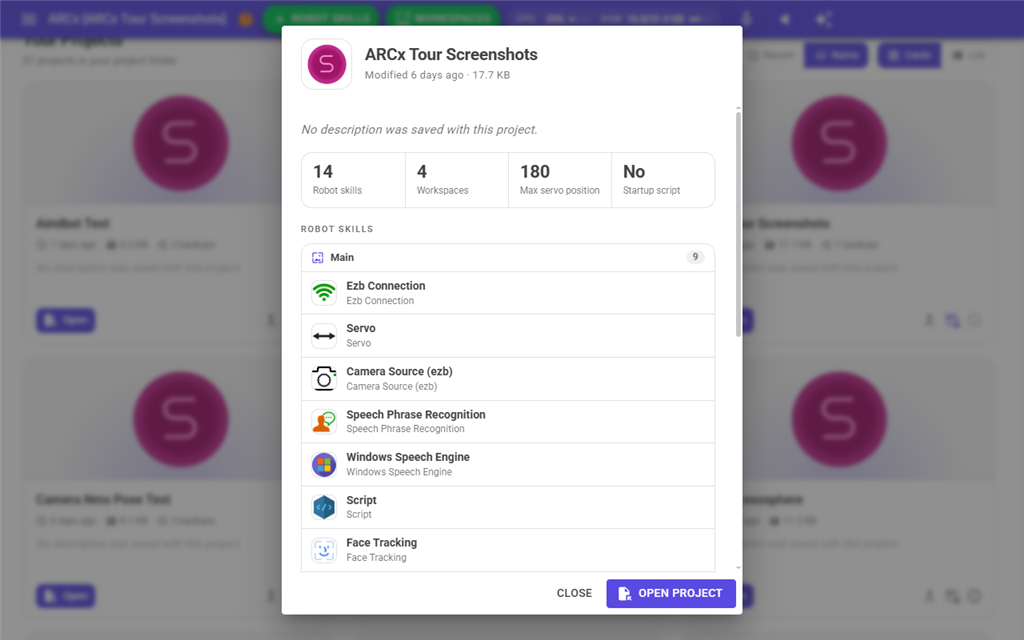
The box shows:
- The project's picture, name, age and file size.
- Its description.
- Robot skills, Workspaces, Max servo position, and Startup script. Startup script shows No, or how many seconds after loading the startup script runs (for example 5s). The script can be cancelled during that time.
- Manual and Video buttons, when the project has those links.
- Robot skills, grouped by workspace, with each skill's window title and type.
- File details, folded away at the bottom: the file's location, last modified date, whether it is password protected, created date, size in bytes, file attributes and Unix file mode.
Press Open project to open it, or Close to go back to the list.
Merging robot skills into the open project
Merging copies robot skills, with their settings, from a saved project into the project that is open now. The open project is not replaced, and its own settings stay as they are.
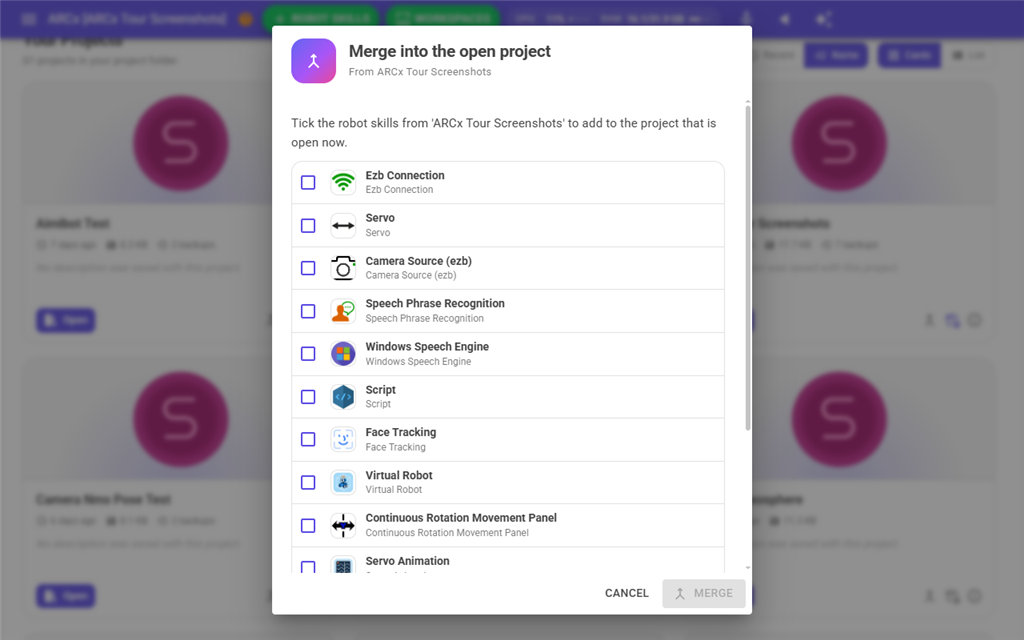
To merge robot skills:
- On the card of the project you want to copy from, click the merge icon.
- If that project is password protected, enter its password.
- In Merge into the open project, tick the robot skills you want.
- Press Merge (n) skills. The button is disabled until at least one skill is ticked.
- ARCx adds the skills and shows the first workspace.
Merged robot skills are always placed on the first workspace, whatever workspace they were on in the other project. A robot skill that is not installed on this computer is downloaded from the store first. If any skill cannot be merged, a Warnings box lists it and the others are still added.
Merging is only available for projects on this computer, not for cloud projects.
Project backups
Each time you save over a project on this computer, ARCx keeps the copy being replaced as a backup. Each project has its own folder inside Projects Backups in the ARCx Data folder, and each backup is named by the date and time it was saved, for example Projects Backups\My Project\2026-08-01-12-23-59.arcx. The newest 50 backups of each project are kept; when there are more, the oldest is deleted to make room. You can change the number, or turn backups off, in Options → Preferences → Backups.
One project's backups
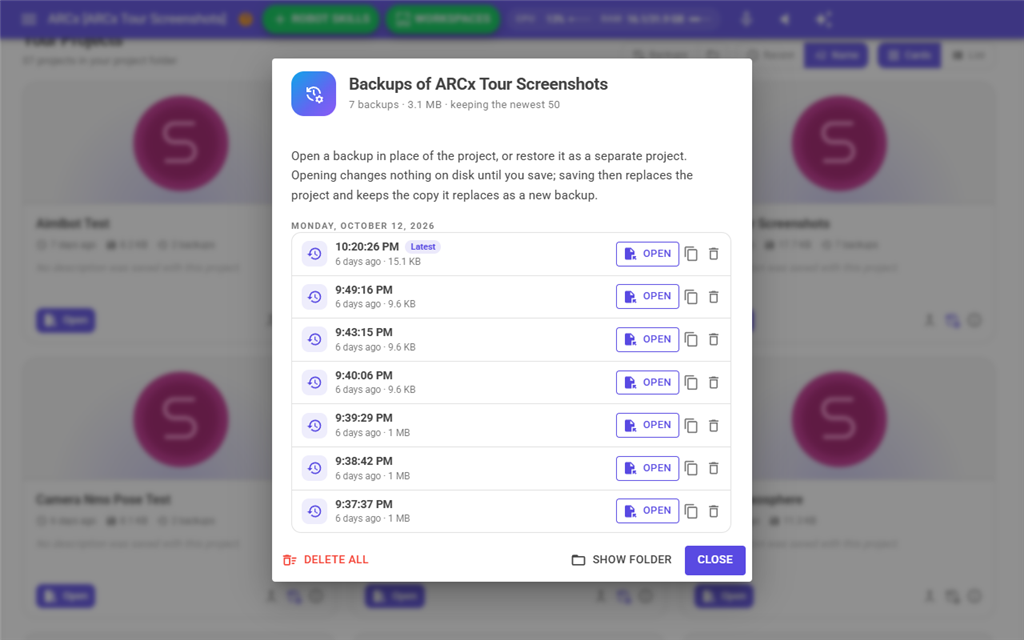
The backups icon on a card, or the (n) backups count, opens Backups of (name). The line under the title says how many backups there are, how much space they use, and how many are kept. The backups are listed newest first, grouped by day (Today, Yesterday, the weekday, or the date). The newest is marked Latest. Each row shows the time it was saved, how long ago that was and its size. A lock icon means the backup is password protected.
| Control | What it does |
|---|---|
| Click the time | Shows what is in the backup: how many robot skills and workspaces, the date and time, the size, the description and the file's location. A password protected backup cannot be looked inside until it is opened. Click again to hide it. |
| Open | Opens the backup in place of the project. Nothing on disk changes until you save. When you then save with File → Save, the backup replaces the project, and the copy it replaces becomes a new backup, so nothing is lost. |
| Copy icon | Restores the backup as a separate project in My Projects, named (name) restored (date and time). The original project is not touched. The new project appears in the list when the box is closed. |
| Bin icon | Deletes that backup, after you confirm. |
| Delete all | Deletes every backup of this project, after you confirm. The project itself is not touched. |
| Show folder | Opens File → File Manager at this project's backup folder. |
| Close | Closes the box. |
If the project has no backups, the box says No backups yet. If backups are turned off, a note at the top says so, with a Turn them on link to Options → Preferences → Backups.
All backups
The Backups button above the list opens Project backups. The top shows how many projects have backups, how many backups there are, how much space they use, and how much space is free on the drive. A warning is shown when the drive is low on space.
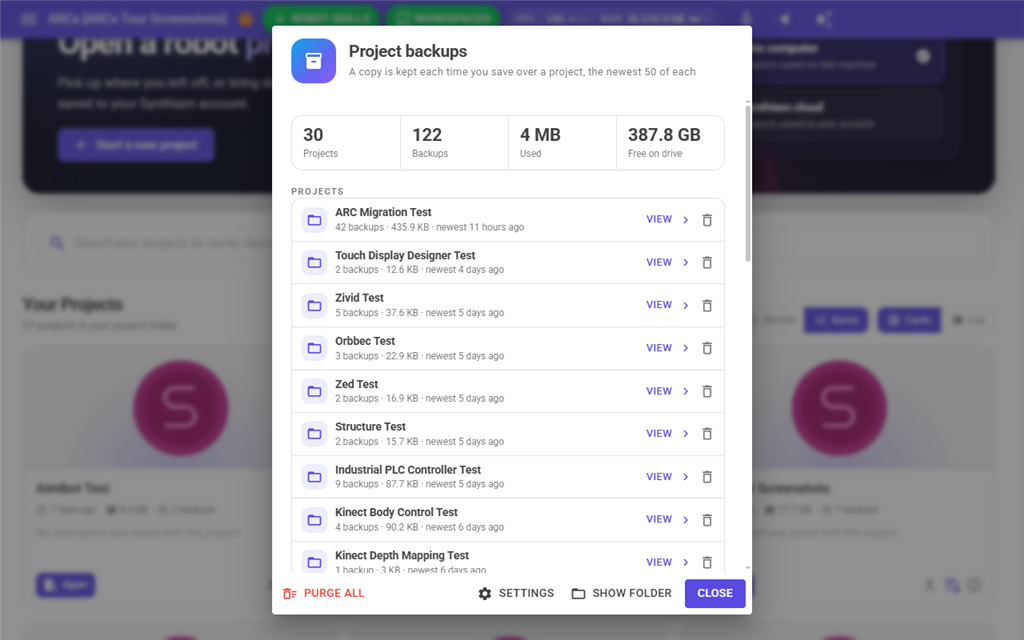
Each project with backups is listed with its number of backups, their size and how long ago the newest was made. A project marked Project deleted no longer exists in My Projects, so its backups are the only copies left; they can still be opened or restored as a copy.
| Control | What it does |
|---|---|
| Project name or View | Opens Backups of (name) for that project, described above. |
| Bin icon | Deletes every backup of that project, after you confirm. |
| Purge all | Deletes every backup of every project, after you confirm, and says how much space was freed. Your projects are not touched. |
| Settings | Goes to Options → Preferences → Backups. |
| Show folder | Opens File → File Manager at the Projects Backups folder. |
When the disk is low
When the drive the backups are on has less free space than the limit set in Options → Preferences → Backups (2048 MB unless you change it), ARCx shows Your disk is running low on space. It shows the free space and how much the backups use. It appears once each time a web browser connects to ARCx, and after a save when the drive has just dropped below the limit. It is only shown when there are backups to purge.
| Button | What it does |
|---|---|
| Not now | Closes the box. |
| Review backups | Opens Project backups, so you can choose what to delete. |
| Purge backups | Deletes every backup, after you confirm. |
| Don't warn me about this again | Turns the warning off. Turn it back on in Options → Preferences → Backups. |
Synthiam cloud
This list shows the ARCx projects saved to your Synthiam account. It has the same search, Tags, Recent / Name and Cards / List controls as the This computer list, with these differences:
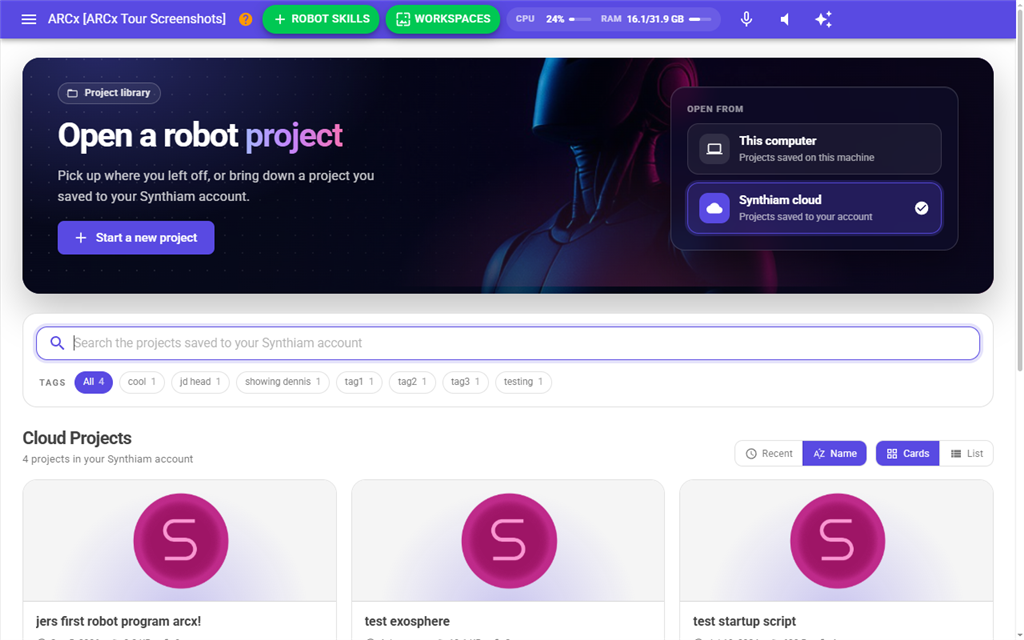
- The search runs on synthiam.com, so each change in the search box asks the server again. It waits half a second after you stop typing.
- Changing Recent / Name also asks the server again.
- The tag filter only rearranges the projects already fetched, so it is instant.
- The list fills in one project at a time. While it does, the heading says Loading (n) projects....
If your account has no cloud projects, the page says Nothing saved to your account yet with a Save a project to the cloud button, which goes to File → Save.
Project cards in the cloud
Cloud cards look like local cards. They show the picture, name, age, file size, how many times the project has been downloaded, the description and tags. A Public badge on the picture means the project is shared publicly on synthiam.com.
| Button | What it does |
|---|---|
| Open (or the picture or name) | Downloads the project and opens it. A Downloading (name) box shows the progress in bytes and percent. The project then replaces the one open now. |
| History icon | Opens Version history of (name), the earlier versions saved to the cloud. See below. |
Version history of (name) lists every saved version at once, newest first and grouped by day. The newest is marked Newest. Each row shows the time it was saved, how long ago that was, its size, its version number and its change description, the note entered when it was saved (or No change description).
Press Open on a version to download it and open it in place of the project. A Downloading (name) box shows while it downloads. A password protected version asks for the password it was saved with. The project stays linked to the same cloud file, so saving it to the cloud makes it the newest version; the older versions stay as they are. A version saved by an older Synthiam program rather than ARCx cannot be opened, and an error says why.
Password protected projects
A project can be encrypted with a password when it is saved (see File → Save). When you open, inspect or merge one:
- A Password protected project box asks for the password.
- If you already used a password in this session, the box is filled in with it and says Filled in with the password you last used in this session. Press Enter or Open.
- If the password is wrong, the box stays open and says The password is incorrect. What you typed is kept so you can correct it.
- Cancel stops, and the open project is left as it was.
The eye icon in the password field shows or hides what you type. A cloud project's password is only asked for after it has been downloaded, because ARCx cannot tell it is protected until then.
What happens when a project opens
- Opening a project closes the project that is open now. ARCx does not ask you to save first, so save your work with File → Save before you open another project.
- A busy overlay shows Opening (name)... until the first workspace of the new project is drawn. Clicking another project while one is opening does nothing.
- Any robot skill in the project that is not installed on this computer is downloaded from the store as the project loads.
- If the project has a startup script, it starts counting down once the project has loaded.
- If some robot skills could not be loaded, a Warnings box lists each one and says the project will be incomplete. The rest of the project opens.
Troubleshooting
| Message | What it means |
|---|---|
| Error reading corrupt project file. Delete? | A file in the My Projects folder could not be read as a project. The box title is the file's location. Yes deletes the file for good; No leaves it in the folder and leaves it out of the list. You are asked again each time the page opens. |
| Unable to open project '...' | The project could not be loaded. The reason follows, for example The file extension must be .arcx, The project file is missing 'projectProperties.json' and cannot be loaded., or There are no workspaces defined in this project. The project is unable to load. When a project fails partway through loading, ARCx starts a new empty project in its place. |
| Cannot download the robot skill because no web browser is connected | Appears in the warnings when a project needs a robot skill that is not installed and ARCx has no browser window to download it through. |
| Unable to view version history. | The version list could not be read from synthiam.com. The reason follows. |
| Unable to open the version of '...' saved ... | The cloud version could not be downloaded or loaded. The reason follows, for example synthiam.com returned no file for this version. |
| Unable to open the backup of '...' | The backup could not be loaded. The reason follows. The project that was open is unchanged. |
| Unable to restore the backup. / Unable to delete the backup. | The backup file could not be copied or deleted, for example because another program has it open. The reason follows. |
| Cloud list keeps showing placeholder cards and Looking in your Synthiam account... | ARCx could not get the list from synthiam.com, for example because there is no internet connection. Check the connection and open the page again. The problem is written to the log. |