
Robot Bus
The Robot Bus is how the parts of an ARCx robot talk to each other and to programs outside ARCx. Robot skills, scripts and ARCx itself publish what they sense on topics, offer what they can do as services, and place their sensors in a tree of frames. A Python or JavaScript program, a ROS node through the ROS Connector, a Viam machine through the Viam Robot Controller or an AI assistant can join the same bus and use all of it.
This screen shows the bus live. It is where you check that a sensor is publishing and how fast, look at the latest message on any topic, publish a test message, call a service by hand, see where every frame is, record topics to replay later, and see which outside programs are connected.
Where to find it: Side menu → Views → Robot Bus. Also on the workspace right-click menu under Views.
Contents
The summary
The chips under the title count the topics, services, frames and external programs on the bus. A red Recording chip shows while the recorder is recording, and an orange Playing chip while a recording is being played back.
External API shows the address outside programs connect to, or says it is off. Programs outside ARCx can only connect once Options → Preferences → Robot Bus → Allow external programs is on. Robot skills and scripts inside ARCx always use the bus.
The page refreshes twice a second.
Topics
A topic is a named stream of messages, such as /arcx/nms/pose. ARCx publishes its own state under /arcx/: the navigation pose and scans, what each camera detects, what speech recognition hears, what the robot is saying, the movement direction, arm poses, global variable changes, controller connections and warnings from the log. Robot skills and outside programs add their own.
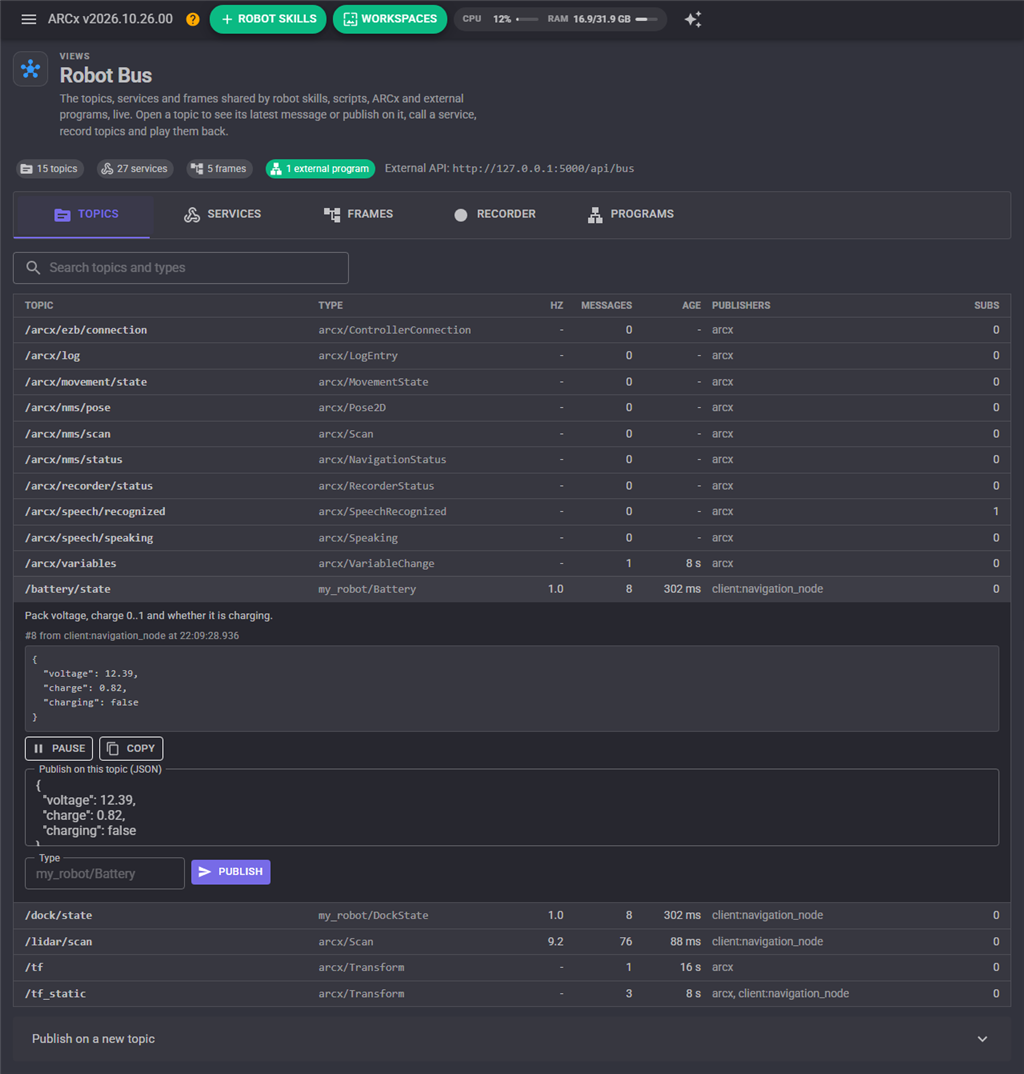
| Column | What it shows |
|---|---|
| Topic | The topic's name. |
| Type | What kind of message it carries, as its publisher named it. It tells a reader which fields to expect. |
| Hz | Messages per second right now. A dash means it has gone quiet. |
| Messages | How many messages have been published on it since ARCx started. |
| Age | How long ago the latest message was published. A sensor whose age keeps growing has stopped. |
| Publishers | Who publishes on it: arcx, a robot skill's name, a script, or client: and the name of an outside program. |
| Subs | How many subscribers receive it. |
Type in the search box to narrow the list by topic name or type.
Click a topic to open it:
- Its description, when the publisher gave one.
- The latest message, formatted, with its sequence number, who published it and when. It updates live; Pause freezes it so you can read it, and Copy copies the whole message.
- Publish on this topic (JSON): a box that starts with the latest message. Change it and press Publish to send it as a new message, for example to test a robot skill that listens to the topic. Type names the message type; leave it empty to keep the topic's own.
Publish on a new topic at the bottom of the list publishes on a topic that does not exist yet. Give the topic name, the message as JSON (or plain text) and, optionally, a type.
Click an open topic again to close it.
Services
A service is a named call: it takes arguments as JSON and returns a JSON result, or fails with a reason. ARCx provides the robot's core actions under /arcx/ (driving, speaking, servos, running scripts, global variables, camera snapshots, the recorder, the transform tree, and every MCP tool), and robot skills and outside programs add their own.
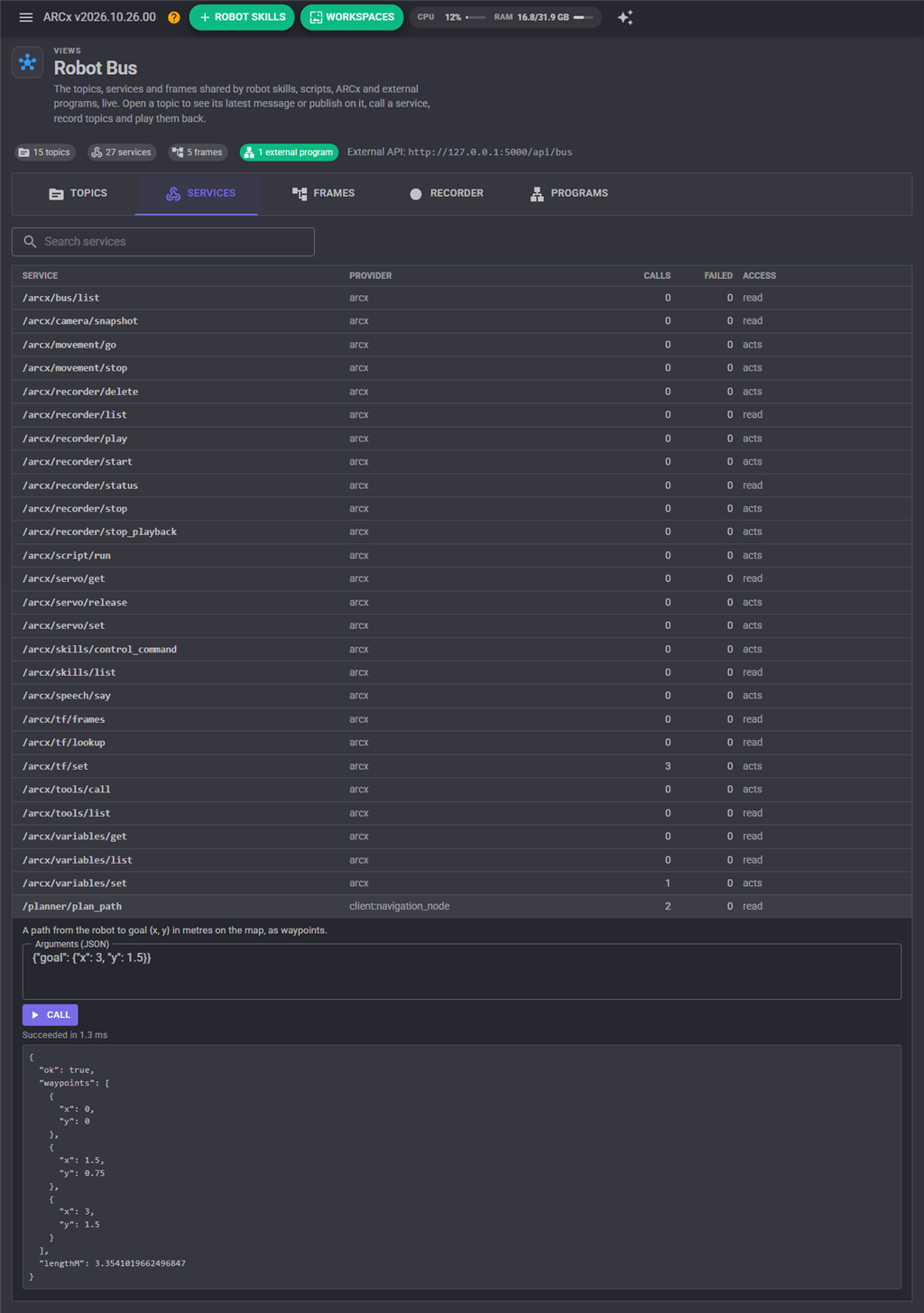
| Column | What it shows |
|---|---|
| Service | The service's name. |
| Provider | Who answers it: arcx, a robot skill's name, or client: and the name of an outside program. |
| Calls | How many times it has been called since ARCx started. |
| Failed | How many of those calls failed. |
| Access | read for a service that only reads, acts for one that does something. Outside programs that are only allowed to read can call the read ones. |
Click a service to open it. It shows what the service does, and Arguments schema lists the arguments it takes when its provider described them. Type the arguments as JSON in Arguments (JSON) ({} for none) and press Call. The result appears below with how long the call took, or the reason it failed.
A service that acts really acts. Calling /arcx/movement/go drives the robot.
Frames
Frames say where things are: the robot's body, its odometry frame, a camera, a lidar, an arm's base. Each frame has a parent and a position and rotation in that parent.
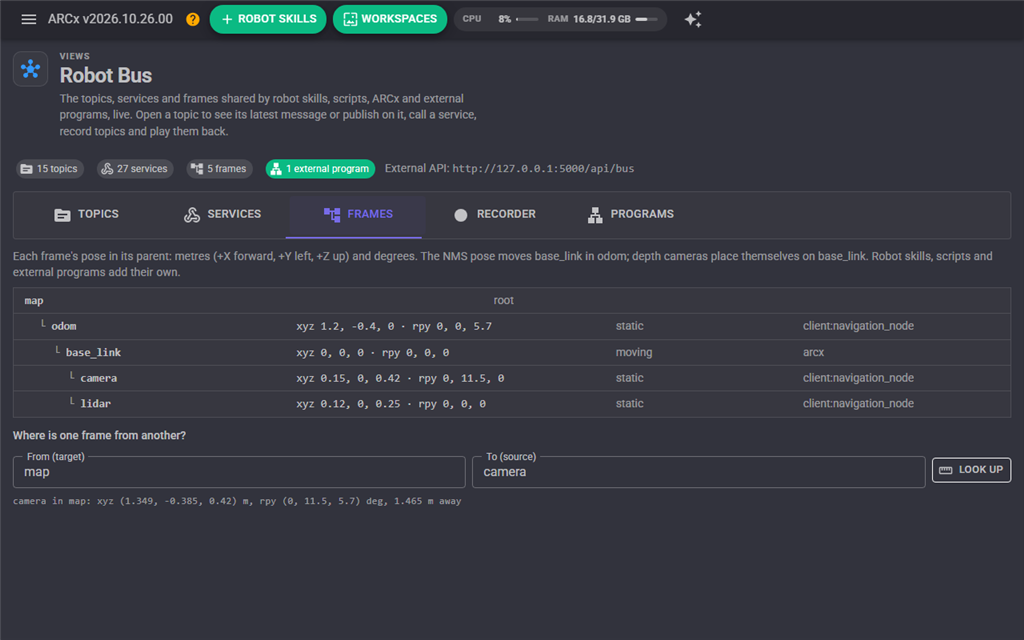
The tree shows every frame under its parent, with its position in metres (+X forward, +Y left, +Z up) and its roll, pitch and yaw in degrees, whether it is static (bolted down) or moving, and who set it. ARCx keeps two frames itself: base_link, the robot, moves in odom with every navigation pose, and each depth camera places itself on base_link from its mount settings.
Where is one frame from another? answers the question for any two connected frames, however many levels apart. Type the frame to measure from in From (target) and the frame to find in To (source), and press Look Up. The answer is the position and rotation of the second frame in the first, and the straight line distance between them.
Recorder
The recorder writes chosen topics to a file and plays them back later with their original timing. Record a navigation run or a vision problem once on the robot, then replay it at your desk as many times as it takes.
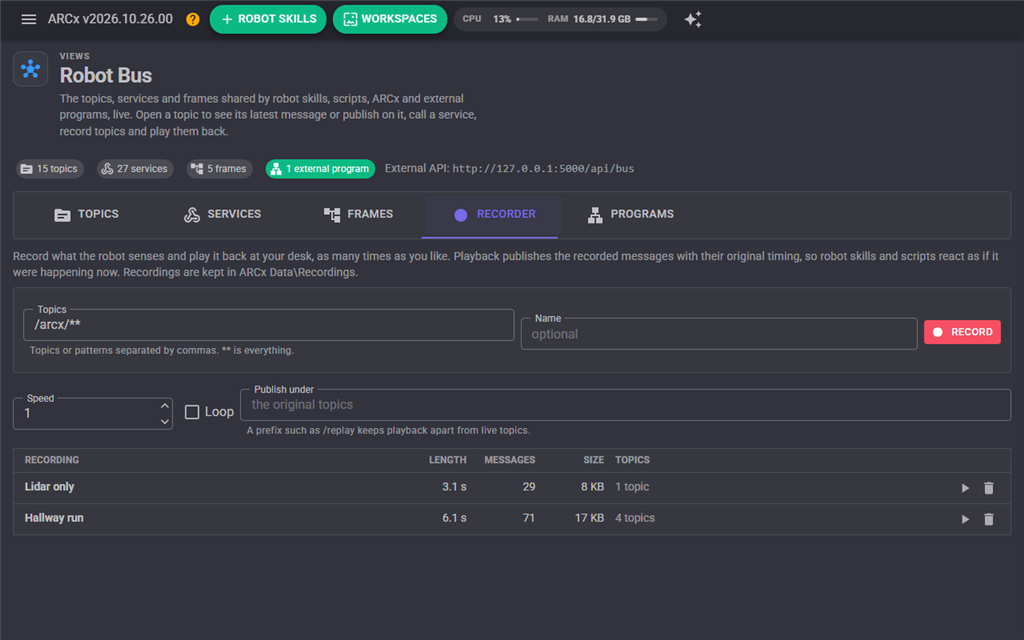
To record:
- In Topics, list the topics or patterns to record, separated by commas.
*matches one level of a name and**any number, so/arcx/nms/**records every navigation topic and**records everything. - Optionally give the recording a Name. Without one it is named by the date and time.
- Press Record. The panel shows how many messages and topics have been recorded so far.
- Press Stop recording when you have what you need.
The list shows every recording with its length, message count, size and topics (hover over the topics for the count on each). To play one, choose the Speed (1 is real time, 2 twice as fast), tick Loop to repeat it, and press its play button. Stop playback stops it.
Playback publishes the recorded messages on their original topics, so robot skills and scripts that listen to them react as if it were happening now. To keep playback apart from what the robot is sensing live, type a prefix such as /replay in Publish under; the messages are then published on /replay/arcx/nms/scan and so on.
The delete button deletes a recording after you confirm. Recordings are kept in the Recordings folder of the ARCx Data folder.
Programs
The programs outside ARCx connected to the bus right now.
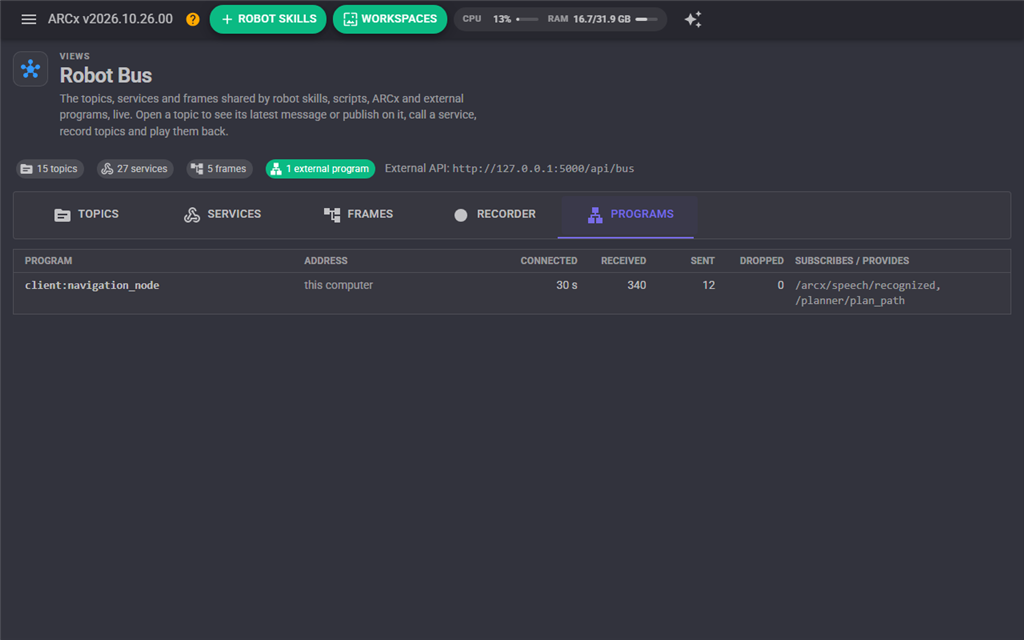
| Column | What it shows |
|---|---|
| Program | The name the program gave when it connected. |
| Address | Where it connected from. this computer for a program on the robot's own computer. |
| Connected | How long it has been connected. |
| Received | Requests and messages received from it. |
| Sent | Messages and replies sent to it. |
| Dropped | Messages it missed because its connection could not keep up. |
| Subscribes / provides | The topics it subscribes to and the services it provides. |
When no program is connected, the tab says where programs connect, or how to allow them.
Notes
- Service calls are never recorded. They are commands, and replaying "drive forward" at a desk is not what anyone wants.
- A slow subscriber never slows the robot. When a subscriber falls behind, it loses its oldest messages instead.
- Topic and service names are not case sensitive.
/My/Topicand/my/topicare the same topic. - Topics and their latest messages last until ARCx closes. Frames set by a program or script last until ARCx closes or they are set again.