
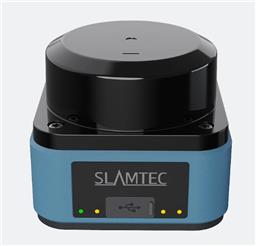
Slamtec RPLidar scanner integration for NMS, global variables, obstacle zones, and live scan view across USB, UART, or network.
 Windows
 ARM
ARM
 Linux
Linux
 MacOS
MacOS
How to add the Rplidar robot skill
- Load the most recent release of ARCx on a compatible operating system (Get ARCx).
- Press the + Skills menu from the top menu bar in ARCx.
- Choose the Navigation category tab.
- Press the Rplidar icon to add the robot skill to your project.
Don't have a robot yet?
Follow the Getting Started Guide to build a robot and use the Rplidar robot skill.
How to use the Rplidar robot skill
Reads any Slamtec RPLidar and feeds it to the Navigation Messaging System (NMS), global variables, an obstacle zone and a live scan view.
The RPLidar robot skill works with every Slamtec lidar: the A1, A2 and A3, the C1, and the S1, S2, S3 and T1. It talks to the lidar directly over its USB adapter, a UART, or the network, on Windows, Linux and macOS alike, with nothing extra to install. Every scan mode the lidar offers is supported, including Express, Boost, Sensitivity, Stability and DenseBoost.
Each revolution is turned into readings around the robot (corrected for how the lidar is mounted, and filtered), then sent to the NMS where a navigator such as Another Navigator builds its map from it. The same readings drive a set of global variables for scripts, an optional obstacle zone that can pause navigation or stop the robot, and the scan view in the window.
The window
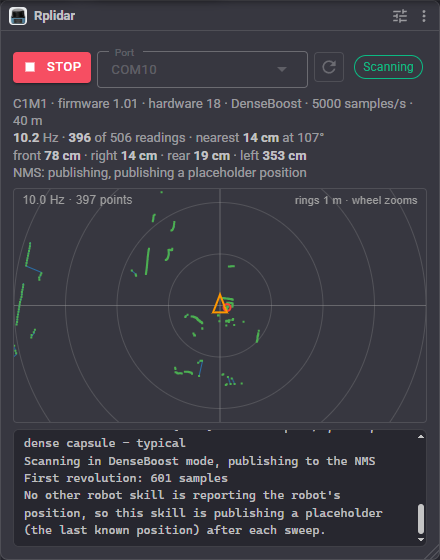
- Start / Stop - connect to the lidar and start scanning, or stop the scan and the motor and close the connection.
- Port - the serial port the lidar is on. The refresh button looks for ports again, which is how to find a lidar that was plugged in after ARCx started. When the lidar is on the network this shows its address instead.
- Status - Stopped, Connecting, Scanning or Reconnecting, and Obstacle while something is inside the obstacle zone.
- Readouts - the lidar's model, firmware and scan mode, how fast it is turning, how many readings it took, the closest thing and where it is, and the closest thing in front, to the right, behind and to the left. The last line says whether the scans are going to the NMS and whether a position placeholder is being published (see below).
- Scan view - the robot seen from above, facing up the screen. Green dots are the readings, the blue lines join readings on the same surface, the red circle marks the closest reading, the orange triangle is the robot, and the grey rings are distance markers (their spacing is shown in the corner). Exclusion zones are outlined in grey and the obstacle zone in orange, turning red when something is in it.
- The mouse wheel zooms the view. Clicking it reports, in the log, the direction and distance of the spot clicked and what the lidar reads in that direction. That is the quickest way to find the angles for an exclusion zone or the obstacle zone.
- Log - what the skill is doing: which baud rate it found, the lidar's details and health, the scan modes it offers, and anything that went wrong.
The scan view costs nothing while it is not on screen, and the readouts are redrawn on their own twice a second, so leaving the window open on a small computer is fine.
Angles
Every angle in this skill is measured around the robot as seen from above: 0 is straight ahead, and it increases clockwise, so 90 is the robot's right, 180 is behind it and 270 its left. This is the same convention the NMS and the navigators use. A range of angles always runs clockwise from the first to the second, so 350 to 10 is the 20 degrees around straight ahead.
Connecting
Plug the lidar's USB adapter in, choose its port, and press Start. With the baud rate on Automatic the skill tries each rate Slamtec lidars ship with until one answers, and says in the log which one worked. Choosing that rate in the configuration skips the search next time.
| Lidar | Baud rate |
|---|---|
| A1, older A2 | 115200 |
| Newer A2, A3, S1 | 256000 |
| C1 | 460800 |
| S2, S3 | 1000000 |
On Linux the adapter appears as /dev/ttyUSB0 or /dev/ttyACM0, and the user running ARCx needs to be in the dialout group to open it.
A network lidar (S2E, T1, or any lidar behind a serial to ethernet bridge) is reached over UDP or TCP. Slamtec network lidars ship as 192.168.11.2, port 8089 for UDP and 20108 for TCP, so the computer needs an address on the same network.
When the connection is lost - the cable is pulled, the lidar stops answering, or the port cannot be opened - the skill keeps trying to reconnect every few seconds until it is stopped, unless that is turned off.
When it connects, the skill checks the lidar's health. A warning is logged and scanning carries on; an error stops it, to avoid bad data or damage. The Reset ControlCommand reboots the lidar, which usually clears either.
The navigation messaging system
Each revolution is sent to the NMS as a set of scan points, measured from the robot's centre. A navigator only receives the scan points when the robot's position is also reported, which is the job of a positioning robot skill such as wheel encoders or a tracking camera.
A robot with a lidar and nothing else would therefore never get its scans to a navigator, even one that works out where the robot is from the lidar alone. The Position placeholder setting fills that gap: after each revolution it repeats the last known position, so the scan is delivered. On its recommended setting it watches for other skills reporting the position and stands aside the moment one does, resuming two seconds after that skill goes quiet. The readouts and the log say which is happening. Always is the ARC version's "fake pose hint" option.
With a fast lidar such as the S2 on a small computer, NMS resolution thins the readings sent to the NMS to the closest one in each slice of so many degrees. No obstacle is lost, because the closest reading in each slice is the one kept, and the navigator has a fraction of the work to do.
Global variables
With Set global variables on, these are published with the configured prefix (Lidar by default), so LidarFrontDistance and so on. Distances are in centimetres from the robot's centre, and 0 means nothing was seen. Only values that have changed are written.
| Variable | Meaning |
|---|---|
| IsRunning | True while the skill is running (always published) |
| NearestDistance, NearestDegree | The closest thing the lidar sees, and its direction |
| FurthestDistance, FurthestDegree | The furthest thing, and its direction |
| FrontDistance, RightDistance, RearDistance, LeftDistance | The closest thing in each direction, within the configured sector width |
| ScanRate | Revolutions per second |
| PointCount | Readings in the last revolution |
| Obstacle, ObstacleDistance, ObstacleDegree | Whether something is in the obstacle zone, and where it was when it entered (only with the obstacle zone on) |
Give each lidar in a project its own prefix so their variables do not overwrite each other.
The obstacle zone
The obstacle zone is a slice of the circle around the robot - by default the 60 degrees in front of it, out to 40 cm. When enough readings fall inside it (three by default, so one stray reflection does not count) the skill can pause a navigation in progress, stop the robot, and run a script. When the zone has stayed clear for the clear time, a paused navigation carries on and a second script runs.
If the skill is stopped while it has navigation paused, navigation stays paused: carrying on with the lidar no longer watching would be the wrong surprise.
Configuration
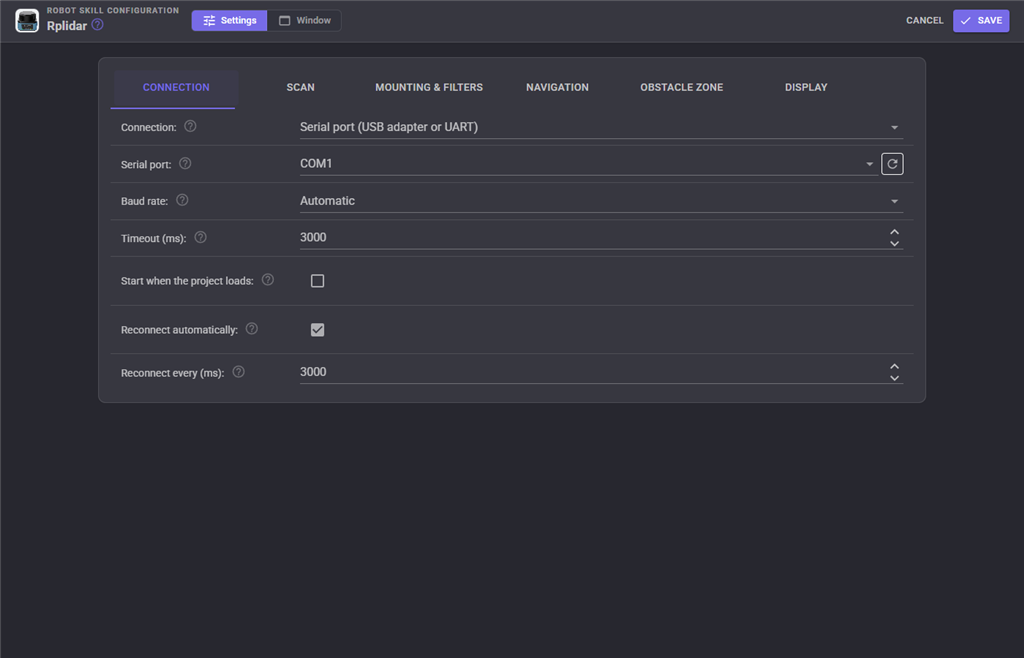
| Setting | What it does |
|---|---|
| Connection | Serial port, or a network lidar over UDP or TCP |
| Serial port | The port the lidar's USB adapter appears as |
| Baud rate | Automatic, or the lidar's rate from the table above |
| Address, Port | A network lidar's IP address and port |
| Timeout | How long to wait for an answer, or for the next revolution, before the connection is treated as lost |
| Start when the project loads | Connect and scan as soon as the project has loaded |
| Reconnect automatically, Reconnect every | Keep trying when the connection is lost, and how often |
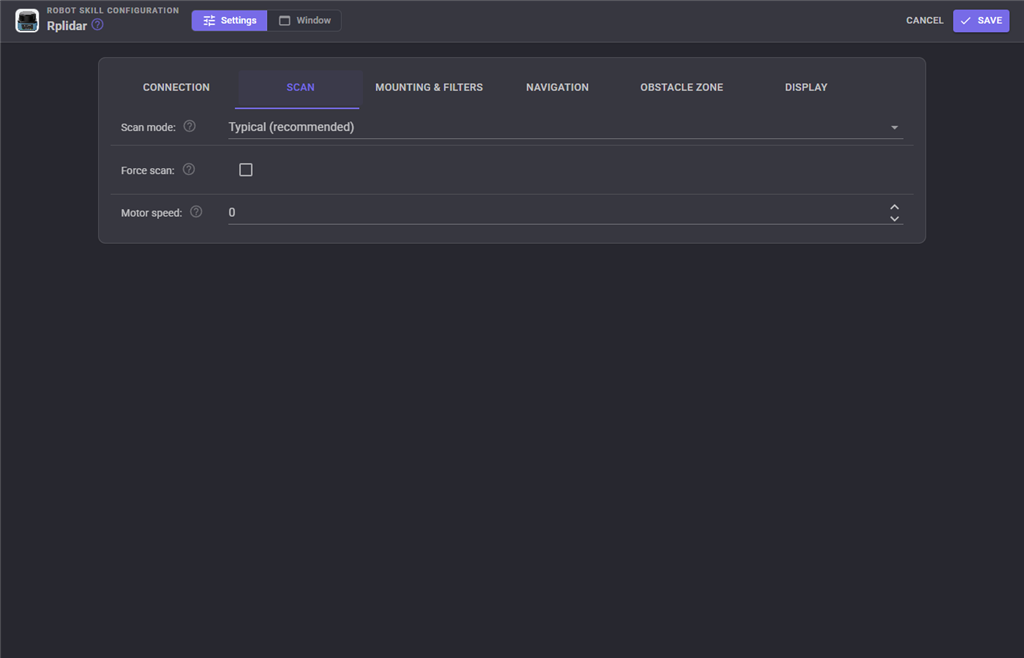
| Setting | What it does |
|---|---|
| Scan mode | Typical uses the mode Slamtec recommend for the model, which suits nearly everyone. The list shows the modes the lidar offered when it last connected. Sensitivity and DenseBoost take the most readings, Stability copes better with sunlight, and Standard is the slowest and works on every lidar |
| Force scan | Standard mode only. Makes the lidar send readings even when it thinks its motor is not up to speed. Leave off unless an A1 refuses to start |
| Motor speed | 0 uses the lidar's own speed. Otherwise a PWM duty from 1 to 1023 on an A2 or A3, or revolutions per minute on an S or T series. An A1 or C1 has no speed control. The log shows the lidar's range when it connects |
| Setting | What it does |
|---|---|
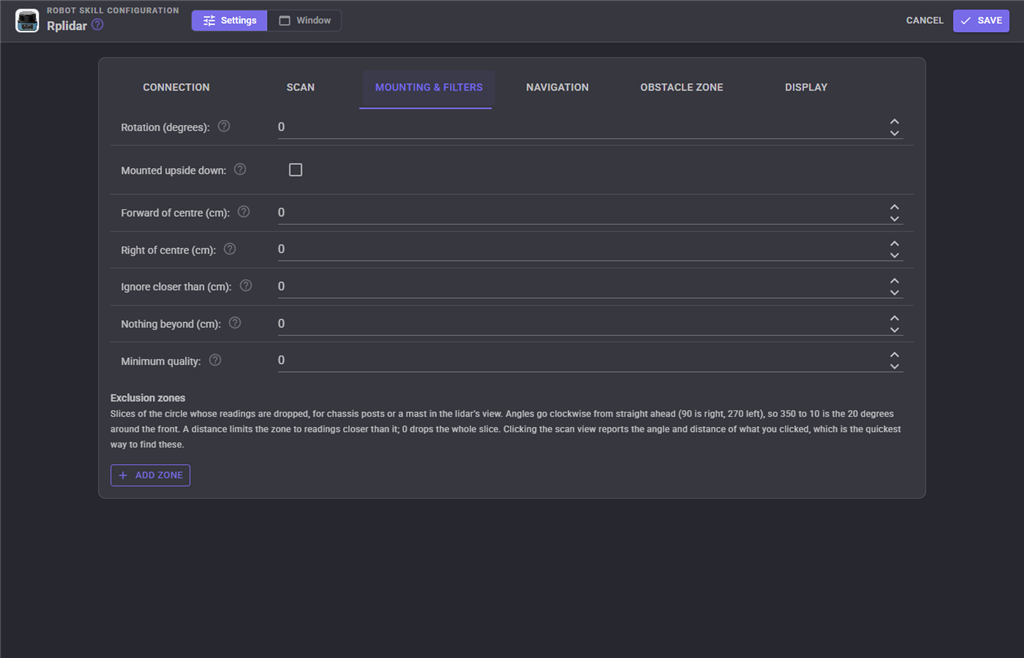
| Rotation | Which way the lidar's front faces, in degrees clockwise from the robot's front. Stand in front of the robot: you should appear at the top of the scan view |
| Mounted upside down | Reverses the direction the readings go round. If walking past the robot's right shows you on its left, tick this |
| Forward of centre, Right of centre | Where the lidar sits relative to the point the robot turns around, in centimetres (negative for behind or left). Readings are moved by this much, because a navigator expects them measured from the robot's centre |
| Ignore closer than | Drops readings closer than this to the robot's centre. Set it just past the robot's own body |
| Nothing beyond | Readings further than this count as "nothing seen" |
| Minimum quality | Drops weak readings. The Express, Boost and DenseBoost modes report the same quality (188) for every reading, so above 188 drops them all |
| Exclusion zones | Slices of the circle whose readings are dropped - chassis posts, a mast, an arm. A distance limits a zone to readings closer than it, so a post can be ignored without blinding the lidar to everything beyond it |
| Setting | What it does |
|---|---|
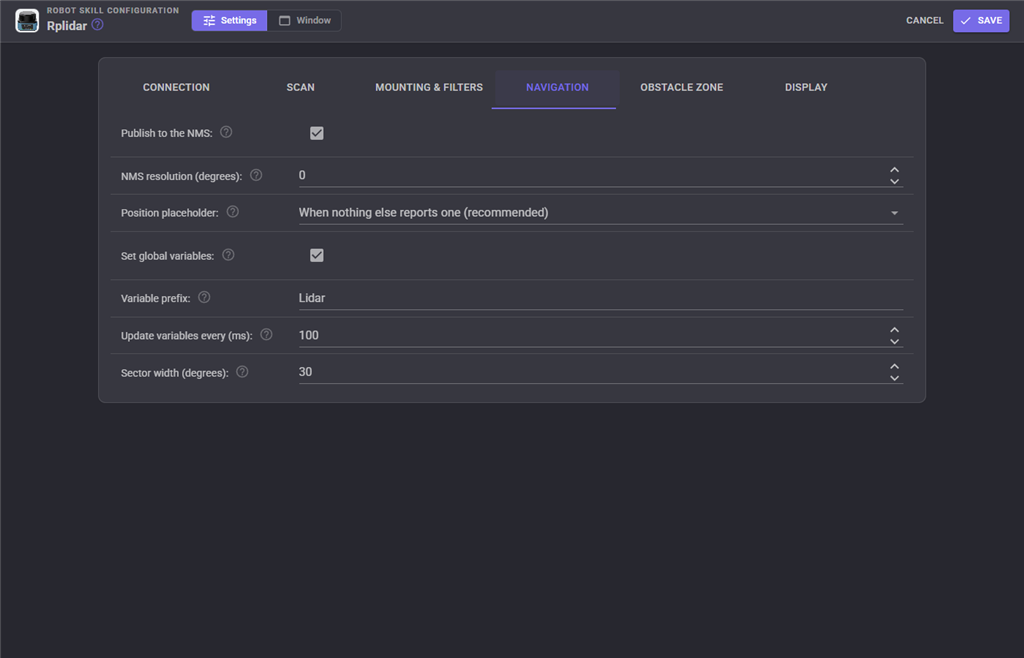
| Publish to the NMS | Send every revolution to the navigation messaging system |
| NMS resolution | 0 sends every reading; above 0 keeps the closest in each slice of that many degrees |
| Position placeholder | When nothing else reports one (recommended), Always, or Never. See above |
| Set global variables, Variable prefix | Publish the readings as global variables, and the start of their names |
| Update variables every | The least time between variable updates |
| Sector width | How wide the front, right, rear and left sectors are |
| Setting | What it does |
|---|---|
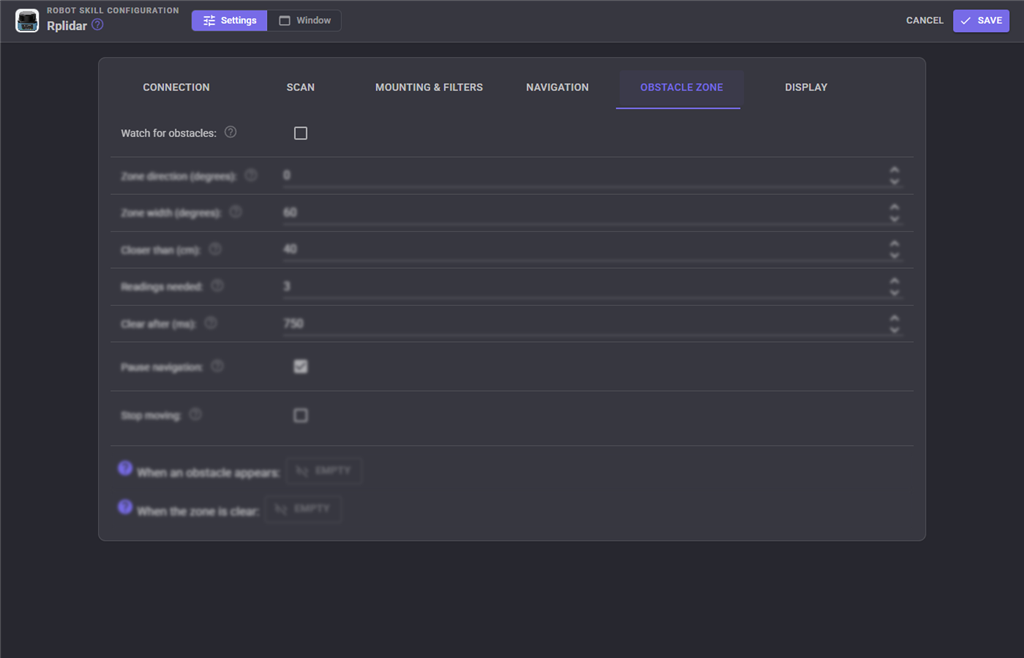
| Watch for obstacles | Turns the obstacle zone on |
| Zone direction, Zone width | Where the zone points and how wide it is. 360 wide watches all the way round |
| Closer than | How close counts as an obstacle |
| Readings needed | How many readings must be in the zone before it counts |
| Clear after | How long the zone must stay empty before the obstacle is gone |
| Pause navigation | Pause a navigation in progress while there is an obstacle |
| Stop moving | Stop the robot the moment something enters the zone |
| When an obstacle appears, When the zone is clear | Scripts run as the zone fills and empties |
| Setting | What it does |
|---|---|
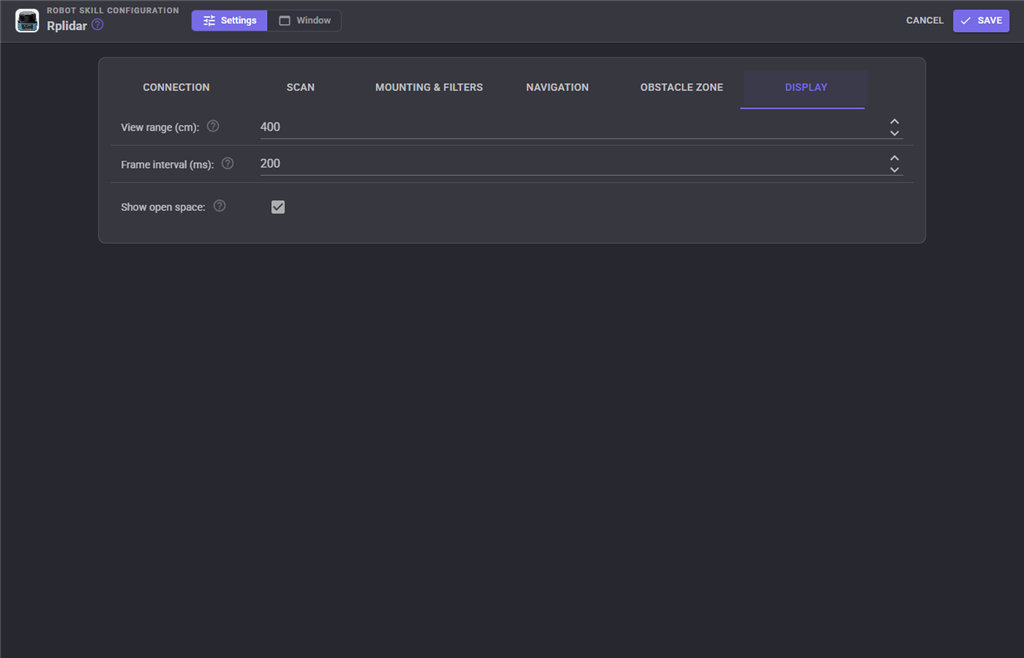
| View range | How far the scan view shows when it opens |
| Frame interval | The least time between frames of the scan view. 200 ms is five frames a second; lower costs more processor time on the computer and network to every browser watching |
| Show open space | Join neighbouring readings on the same surface with a line |
Custom UI
The skill offers a Lidar radar widget for Custom UI screens: the same scan view, with a start/stop button and the distance to the closest thing. Its settings choose the caption and whether the button and the readout are shown.
Troubleshooting
- Nothing answers at any baud rate - check the port, that the USB adapter's switch (on some adapters) is on, and that nothing else has the port open. On Linux, check the user is in the
dialoutgroup. - The motor spins but no revolutions arrive - try the Standard scan mode. On an A1, try Force scan.
- The log reports bad packets climbing steadily - a noisy cable, a long USB lead, or the wrong baud rate.
- Readings are mirrored or rotated - set Rotation and Mounted upside down so that standing in front of the robot puts you at the top of the scan view, and walking to its right puts you on the right.
- The navigator never receives the scans - with no positioning skill in the project, set Position placeholder to "When nothing else reports one".
Control Commands for the Rplidar robot skill
There are Control Commands available for this robot skill which allows the skill to be controlled programmatically from scripts or other robot skills. These commands enable you to automate actions, respond to sensor inputs, and integrate the robot skill with other systems or custom interfaces. If you're new to the concept of Control Commands, we have a comprehensive manual available here that explains how to use them, provides examples to get you started and make the most of this powerful feature.
Control Command ManualThis robot skill has 13 control commands, listed below. Send them from a JavaScript or Python script, from Blockly, or from another robot skill.
The first value is always the window title, which is the name in the title bar of the robot skill on your workspace. It starts out as Rplidar, which is what every example below uses. If you rename the robot skill, or add a second copy of it to the project, use the title as it appears on that window instead.
ControlCommand() can be shortened to CC(), and both spellings work in JavaScript and in Python. The examples are JavaScript; Python is the same call, except that true and false are written True and False.
GetDeviceInfo
The lidar's model, firmware, hardware revision and scan mode from when it last connected. Empty if it never has.
Syntax
ControlCommand("Rplidar", "GetDeviceInfo")
Returns: String
Example
var result = ControlCommand("Rplidar", "GetDeviceInfo");
GetDistance
The distance in metres from the robot's centre to the closest thing within a degree of the given direction, from the latest revolution. angle is in radians counter-clockwise from straight ahead (0 ahead, PI/2 left, -PI/2 right, PI behind; any value is accepted). 0 when nothing is seen there.
Syntax
ControlCommand("Rplidar", "GetDistance", (Number)angle)
Parameters
| # | Name | Type | What to pass |
|---|---|---|---|
| 1 | angle | Number | A number, without quotes |
Returns: Float [1.5e45 to 3.4e38]
Example
var result = ControlCommand("Rplidar", "GetDistance", 0);
GetHealth
The health the lidar reported when it last connected: OK, Warning or Error, with its error code. Empty if it never has.
Syntax
ControlCommand("Rplidar", "GetHealth")
Returns: String
Example
var result = ControlCommand("Rplidar", "GetHealth");
GetNearest
The closest thing the lidar sees as [distance in metres, direction in radians counter-clockwise from straight ahead (-PI to PI: PI/2 left, -PI/2 right)]. [0, 0] when nothing is seen.
Syntax
ControlCommand("Rplidar", "GetNearest")
Returns: Array of Float
Example
var result = ControlCommand("Rplidar", "GetNearest");
GetScan360
The latest revolution as 360 distances in metres (the closest reading in each degree), one per whole degree counter-clockwise around the robot: index i covers i to i + 1 degrees, so index 0 is straight ahead, 90 its left, 180 behind and 270 its right. The index is in degrees even though the other commands take radians. 0 where nothing was seen.
Syntax
ControlCommand("Rplidar", "GetScan360")
Returns: Array of Float
Example
var result = ControlCommand("Rplidar", "GetScan360");
GetSectorDistance
The distance in metres from the robot's centre to the closest thing between two directions, going counter-clockwise from startAngle to endAngle. Both are in radians from straight ahead (PI/2 is left, -PI/2 right; any value is accepted). -0.1745 to 0.1745 is the 20 degrees around straight ahead; 2.9671 to -2.9671 the 20 degrees behind; -PI to PI all the way round. 0 when nothing is seen there.
Syntax
ControlCommand("Rplidar", "GetSectorDistance", (Number)startAngle, (Number)endAngle)
Parameters
| # | Name | Type | What to pass |
|---|---|---|---|
| 1 | startAngle | Number | A number, without quotes |
| 2 | endAngle | Number | A number, without quotes |
Returns: Float [1.5e45 to 3.4e38]
Example
var result = ControlCommand("Rplidar", "GetSectorDistance", 0, 0);
IsObstacleDetected
Whether something is inside the obstacle zone right now. Always false when the obstacle zone is turned off.
Syntax
ControlCommand("Rplidar", "IsObstacleDetected")
Returns: Boolean [true or false]
Example
var result = ControlCommand("Rplidar", "IsObstacleDetected");
IsRunning
Whether the skill is running (connecting, scanning or waiting to reconnect).
Syntax
ControlCommand("Rplidar", "IsRunning")
Returns: Boolean [true or false]
Example
var result = ControlCommand("Rplidar", "IsRunning");
Reset
Reboot the lidar, then carry on scanning if it was. Use it when the lidar reports a health warning or error.
Syntax
ControlCommand("Rplidar", "Reset")
Returns: Boolean [true or false]
Example
var result = ControlCommand("Rplidar", "Reset");
SetMotorSpeed
Change the motor speed while scanning: a PWM duty from 1 to 1023 on an A2 or A3, or RPM on an S or T series lidar. 0 returns to the lidar's preferred speed. An A1 or C1 has no speed control. Returns false when not scanning. Does not change the saved configuration.
Syntax
ControlCommand("Rplidar", "SetMotorSpeed", (Number)speed)
Parameters
| # | Name | Type | What to pass |
|---|---|---|---|
| 1 | speed | Number | A number, without quotes |
Returns: Boolean [true or false]
Example
var result = ControlCommand("Rplidar", "SetMotorSpeed", 0);
SetPublishToNMS
Turn sending the scans to the Navigation Messaging System on or off. Returns the new setting.
Syntax
ControlCommand("Rplidar", "SetPublishToNMS", (Bool)publish)
Parameters
| # | Name | Type | What to pass |
|---|---|---|---|
| 1 | publish | True or false | true or false, without quotes |
Returns: Boolean [true or false]
Example
var result = ControlCommand("Rplidar", "SetPublishToNMS", true);
Start
Connect to the lidar and start scanning. Returns false if it was already running.
Syntax
ControlCommand("Rplidar", "Start")
Returns: Boolean [true or false]
Example
var result = ControlCommand("Rplidar", "Start");
Stop
Stop scanning, stop the lidar's motor and close the connection. Returns false if it was not running.
Syntax
ControlCommand("Rplidar", "Stop")
Returns: Boolean [true or false]
Example
var result = ControlCommand("Rplidar", "Stop");
This list is read out of the robot skill itself each time its package is uploaded, so it matches the published version (v5).


This robot skill has been updated to v1.
What has changed
first release
This robot skill has been updated to v2.
What has changed
updated to work with latest ARCx NMS
This robot skill has been updated to v3.
What has changed
updated to use new threading features of ARCx v2026.10.04.01
This robot skill has been updated to v4.
What has changed
integration support for MCP server
This robot skill has been updated to v5.
What has changed
updated to use some new ARCx UI features for improved performance.