

Camera-guided docking to a printed glyph with charging confirmation, undocking, retries, and Movement Manager support
 Windows
 ARM
ARM
 Linux
Linux
 MacOS
MacOS
How to add the Auto Dock By Camera Glyph robot skill
- Load the most recent release of ARCx on a compatible operating system (Get ARCx).
- Press the + Skills menu from the top menu bar in ARCx.
- Choose any of these category tabs, the robot skill appears in each of them: Camera, Navigation.
- Press the Auto Dock By Camera Glyph icon to add the robot skill to your project.
Don't have a robot yet?
Follow the Getting Started Guide to build a robot and use the Auto Dock By Camera Glyph robot skill.
How to use the Auto Dock By Camera Glyph robot skill
Drives the robot onto its charging station by itself, using a camera on the robot and a printed glyph fixed to the charger. The camera can look down at the floor, with the glyph lying flat on the charger's base plate, or look ahead at the charger, with the glyph standing upright on it. You teach it once where the glyph appears when the robot sits on its charger; after that, Dock drives the robot back into exactly that spot, lined up square, from wherever the glyph is in view. It can also check that the robot is really charging, and back off and try again when it is not.
It drives through the Movement Manager, so it works with any movement panel.
Requirements
- A camera robot skill, such as Camera Source (usb) or Camera Source (ezb), with the camera fixed to the robot. Either pointing down at the floor (straight down works best), so it sees the charger's base plate when the robot is docked, or looking ahead at the charger, so it sees the front of the charger when the robot is docked.
- A movement panel, so the robot can be driven.
- The dock glyph, printed and fixed to the charger: flat on the base plate for a camera looking down, upright on the charger for a camera looking at it. The skill prints it for you at the right size.
- Optional: a global variable that says whether the robot is charging, set by another robot skill or a script from the charger's sensor.
Which way the camera looks
Down at the floor is the most precise. The glyph lies flat, so the picture is a map of the floor and every millimetre shows. But a camera looking down sees only a little floor, so docking has to start close to the charger, with the glyph already in the picture.
At the charger sees the glyph from across the room, so docking can start from much further away. The glyph stands upright on the charger, facing the way the robot comes in, at about the height of the camera. The camera faces the way the robot docks: out of the robot's front when it drives onto the charger, out of its back when it backs on. From far away the skill can tell where the charger is but only roughly which way it faces, so the robot heads straight for it first and lines up square as it gets close, backing off to make room when it arrives too far to one side.
How it works
A glyph is a 5x5 grid of squares: a solid black border with a 3x3 pattern inside. It is the same kind of glyph that the Glyph Recognition skill and ARC use. From the glyph in the picture the skill knows where the charger is, how far away it is and which way it is turned, because the glyph's printed size and pattern are known.
When the robot sits on its charger you press Save Docked Position, and the skill remembers where the glyph appeared in the picture, how it was turned and how big it was. To dock, it works out from the glyph in view where that docked position is from the robot, in centimetres and degrees, and drives until the glyph is back where it was. It aims along the line the robot drives onto the charger, so it turns onto that line and arrives square rather than sideways.
With a camera looking down, the glyph swings a long way across the picture when the robot turns. With a camera looking at the charger, the camera turns with the robot, so the glyph slides across the picture by as much as the robot turns. Either way every move is checked before it is made and cut down to what keeps the glyph in view. When no useful move would, the robot drives on or backs off a little to make room.
Setting up
- Mount the camera and start its video. In this skill's configuration, Camera tab, choose the camera as the Video Source and set Camera Looks to the way it points.
- For a camera looking down, set Camera Forward to the edge of the picture the front of the robot is toward, and roughly measure Camera Ahead Of Wheels: how far ahead of the drive wheels' axle the middle of the picture is.
- For a camera looking at the charger, set Field Of View (most webcams are 55 to 75) and Tilt Down (0 for a camera looking straight ahead), and roughly measure Camera Ahead Of Wheels: how far ahead of the drive wheels' axle the camera's lens is, negative for a camera on the back. Rough values are fine. Choosing this view also turns on Full Resolution.
- Press Print in the skill window and print the page at 100% scale, not "fit to page". To use a different glyph than ARC Glyph 1, choose it in Setup first.
- Cut the glyph out with its white margin. For a camera looking down, fix it flat to the charger's base plate, where the camera sees it when the robot is docked. For a camera looking at the charger, fix it upright on the charger, flat and square to the floor, facing the way the robot comes in, at about the height of the camera.
- Sit the robot on its charger exactly as it should dock, check the glyph is outlined in the Setup video, ideally near the middle, and press Save Docked Position.
- Drive the robot off the charger, so the glyph is still in the picture, and press Dock.
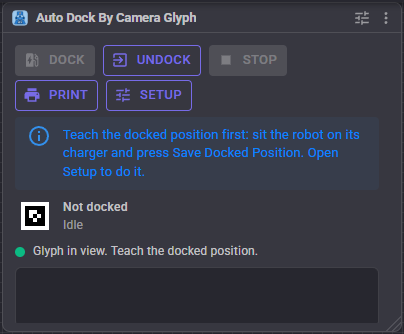
Until the docked position is taught, the window says so and Dock is disabled.
The skill window
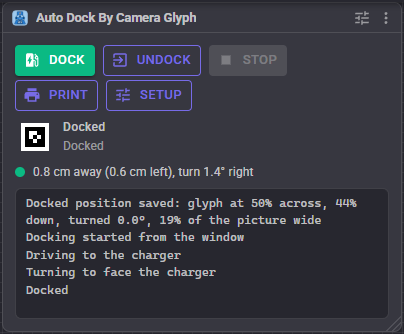
| Control | What it does |
|---|---|
| Dock | Starts docking. Disabled until the docked position is taught |
| Undock | Drives the robot off the charger (see Undock in the configuration) |
| Stop | Stops docking or undocking, and stops the robot |
| Opens a printable page of the dock glyph at its real size, in a new tab | |
| Setup | Opens the Setup window: the camera, Save Docked Position, the glyph designer and the print sheet |
Below the buttons, the glyph icon shows the dock glyph turned the way the camera sees it (faded while it is out of view), with what docking is doing and why. The next line says how far the robot is from docked: the distance, how far to the left or right, and which way and how far to turn. With Confirm Charging on, another line shows whether the charge variable says charging. The log at the bottom lists what docking did, and grows with the window.
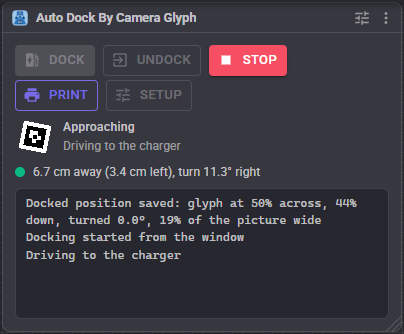
While docking, the status names the phase:
| Phase | Meaning |
|---|---|
| Searching | The glyph is not in view; the robot waits or searches as the Searching tab says |
| Approaching | Driving to the docked position |
| Aligning | In position; turning to face the docked way |
| BackingOff | Backing away to make room, or to try again |
| Pushing | Pressing onto the contacts for the Final Push |
| CheckingCharge | In position, waiting for the charge variable to say charging |
| Docked | Finished. Stays until the robot is moved by anything else |
| Undocking | Driving off the charger |
| Failed | Docking gave up. The reason is in the status and the log |
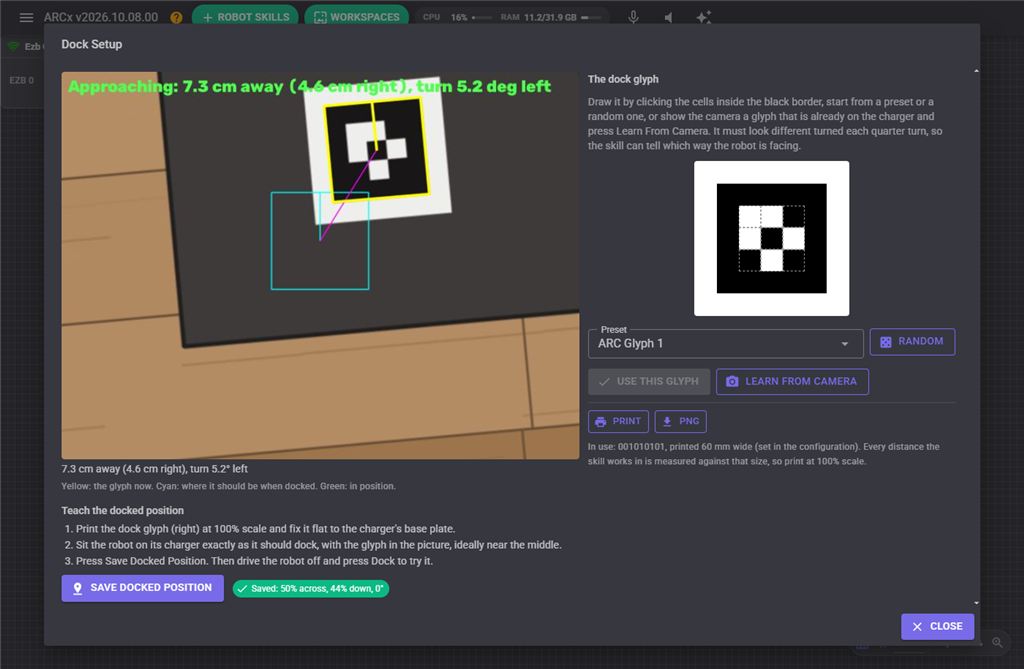
The Setup window
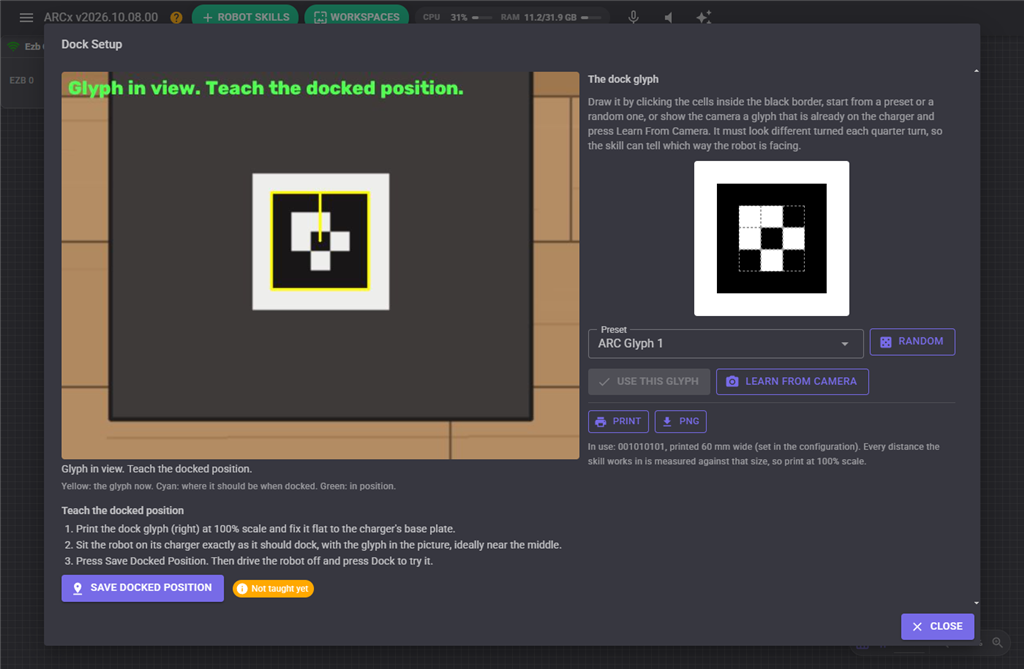
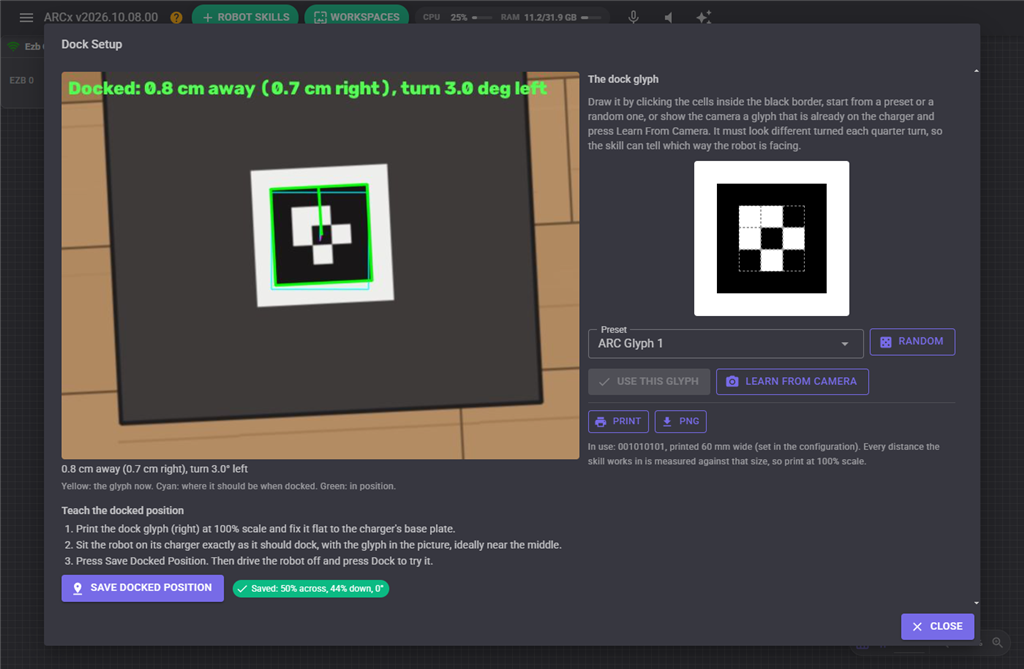
The left side shows the camera with what the skill sees drawn on it:
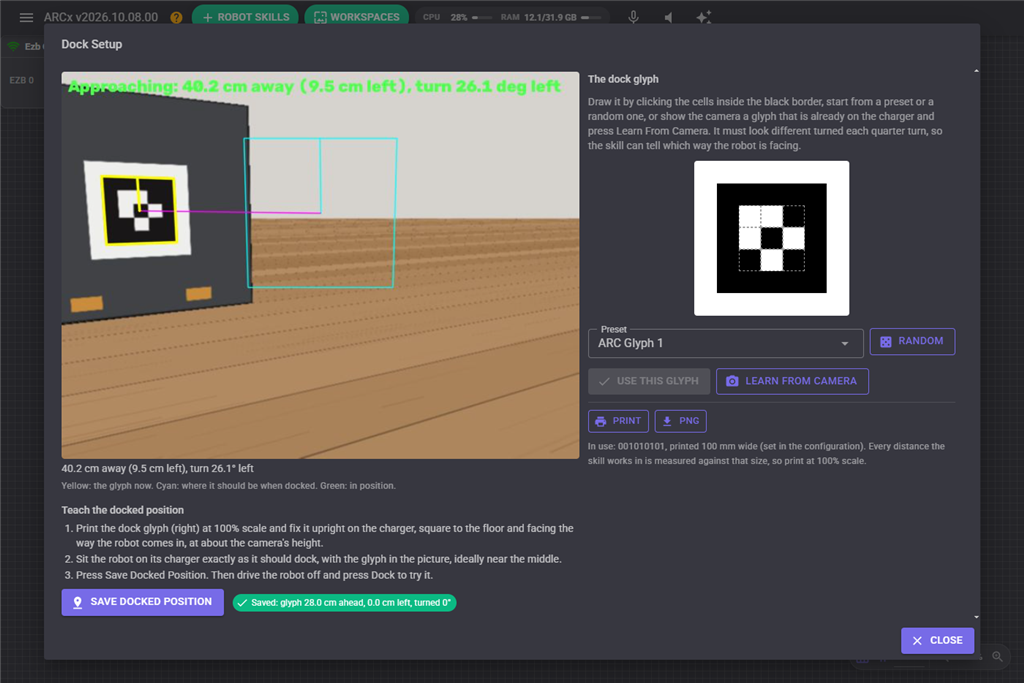
- Yellow outline: the glyph now, with a tick toward its printed top edge.
- Cyan square: where the glyph should be when docked.
- Magenta line: from the glyph now to where it should be.
- Green outline: the glyph is in position, within the position and heading tolerances.
The text along the top of the video and under it says how far the robot is from docked. Save Docked Position remembers the glyph as the camera sees it now. The chip beside it shows what was saved, or Not taught yet. The log has advice when the glyph sits awkwardly, such as near an edge of the picture, where a small turn would lose it.
With a camera looking at the charger, the chip says how far ahead of the camera the glyph was when the docked position was saved, how far to the side, and how much it was turned. The cyan outline is the glyph as it looked from the docked position, so it is larger than the glyph while the robot is further away.
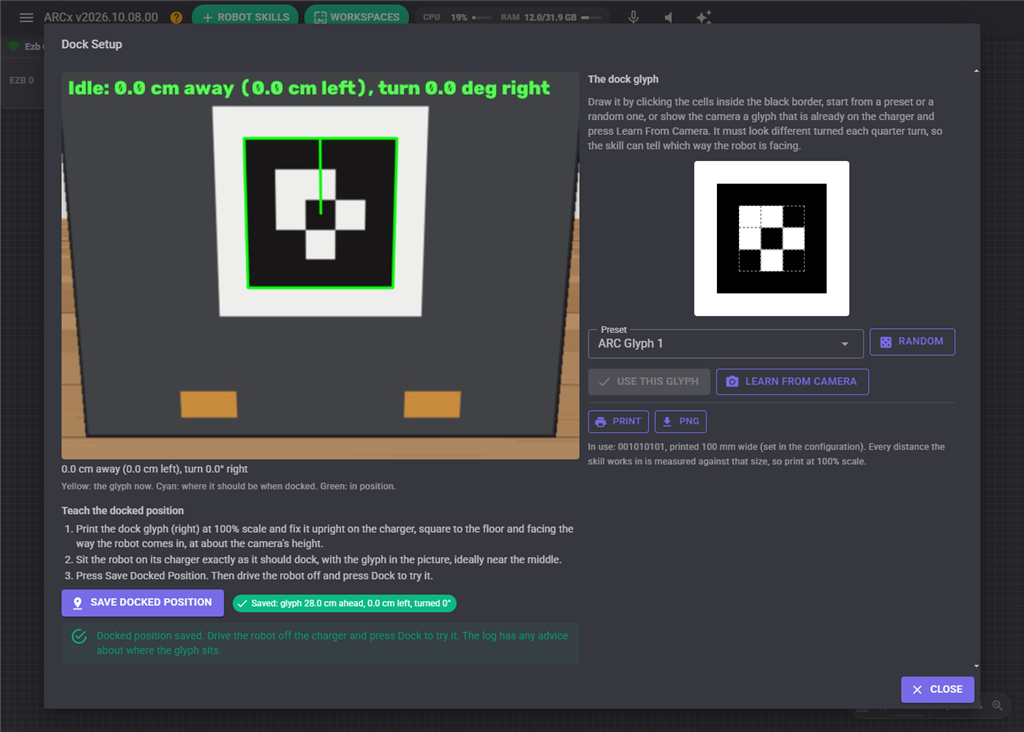
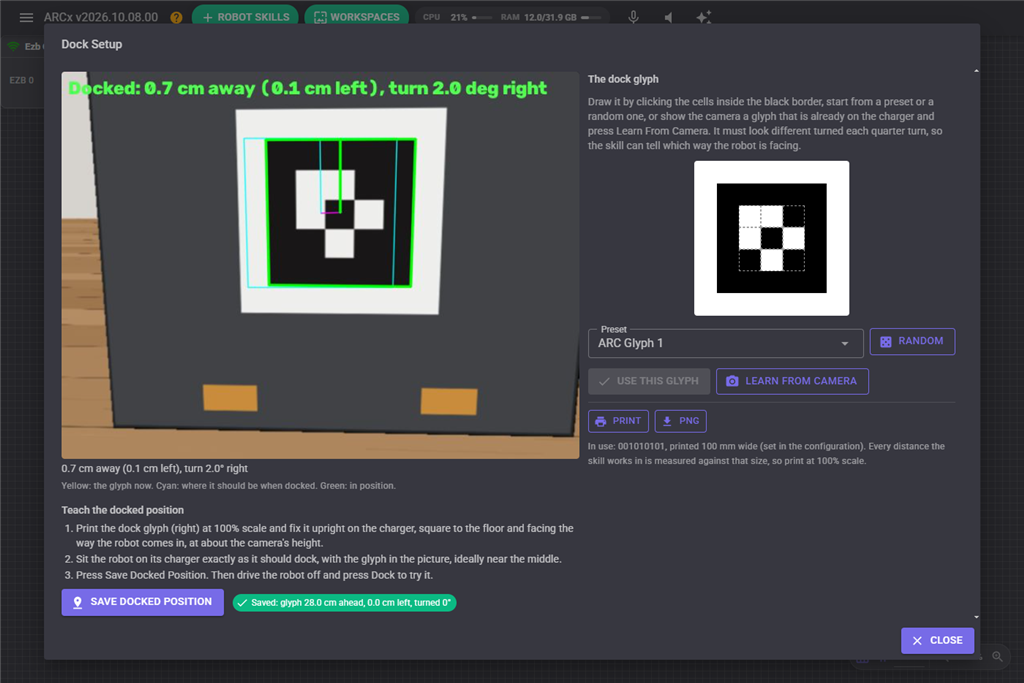
The right side is the dock glyph:
| Control | What it does |
|---|---|
| Pattern | Click the cells inside the black border to switch them between black and white |
| Preset | Starts from a ready-made glyph, including ARC's glyphs |
| Random | A random pattern that works as a dock glyph |
| Use This Glyph | Makes the drawn pattern the dock glyph. The docked position then has to be taught again |
| Learn From Camera | Reads the glyph the camera sees now and makes it the dock glyph, for a glyph that is already on the charger |
| Opens a printable page of the dock glyph at its real size | |
| PNG | Downloads the dock glyph as a picture |
The glyph has to look different turned each quarter turn, so the skill can tell which way the robot is facing. A pattern that does not, such as one that looks the same upside down, cannot be used, and the designer says why.
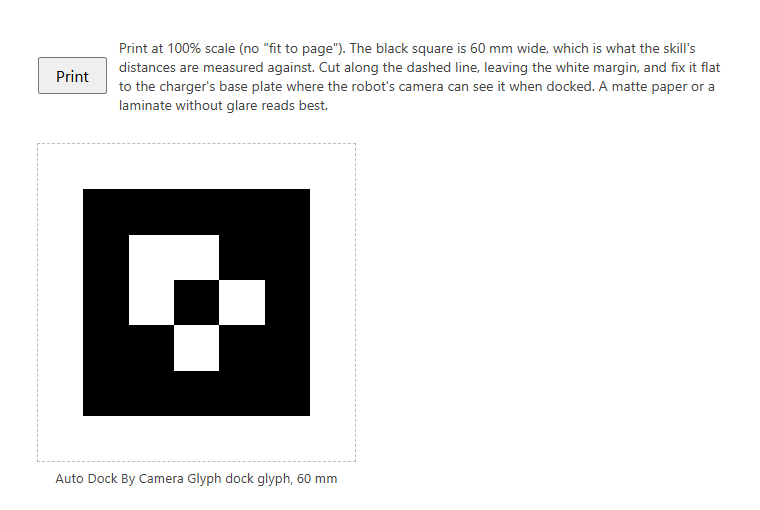
The print sheet draws the glyph's black square at the Glyph Size set in the configuration, 60 mm unless you change it. Every distance the skill works in is measured against that size, so print at 100% scale. A matte paper, or a laminate without glare, reads best.
Charging confirmation
Without a charge variable, the robot counts as docked as soon as it is in position. To be sure the contacts actually touch, turn on Confirm Charging and name a global variable that another skill or a script sets from the charger's sensor, such as IsCharging.
It counts as charging when the variable is true, a number other than 0, or text other than 0, false, no, off or empty. Inverted flips that, for a variable that is true when not charging. Use a variable that says the charger is connected, not one that turns off once the battery is full.
With it on, once the robot is in position it waits Wait For Charging for the variable to say charging. If it does not, the robot backs off and docks again, up to Attempts times, before docking fails.
Dock Again If Charging Stops starts docking again when the variable stops saying charging for more than two seconds while docked, such as when someone bumps the robot off its contacts. Dock When Variable Turns True starts docking by itself when a variable changes to true, such as a BatteryLow variable set by a battery monitor.
Custom UI widget
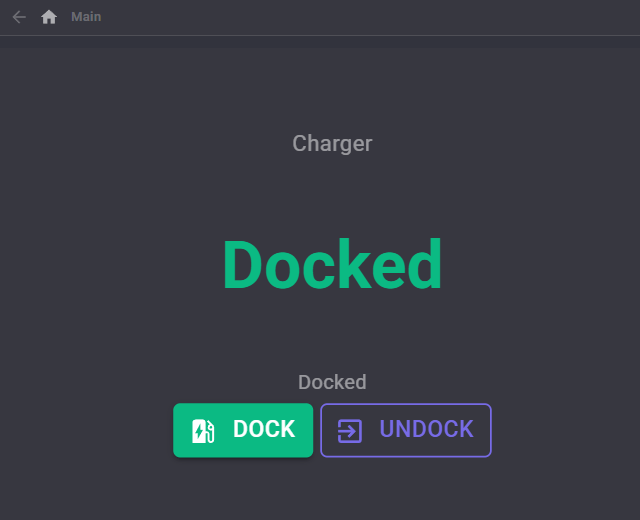
The Dock widget puts the docking state and the Dock, Undock and Stop buttons on one of your own Custom UI screens, such as a phone screen for the robot.
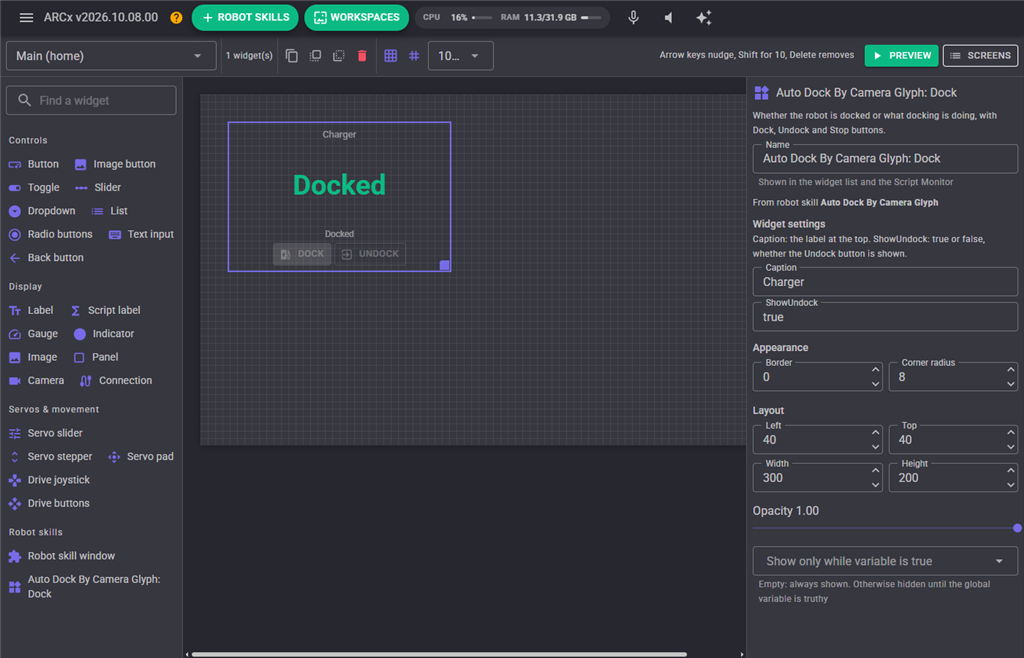
| Setting | What it does |
|---|---|
| Caption | The label at the top of the widget |
| ShowUndock | true or false: whether the Undock button is shown |
Configuration
Camera
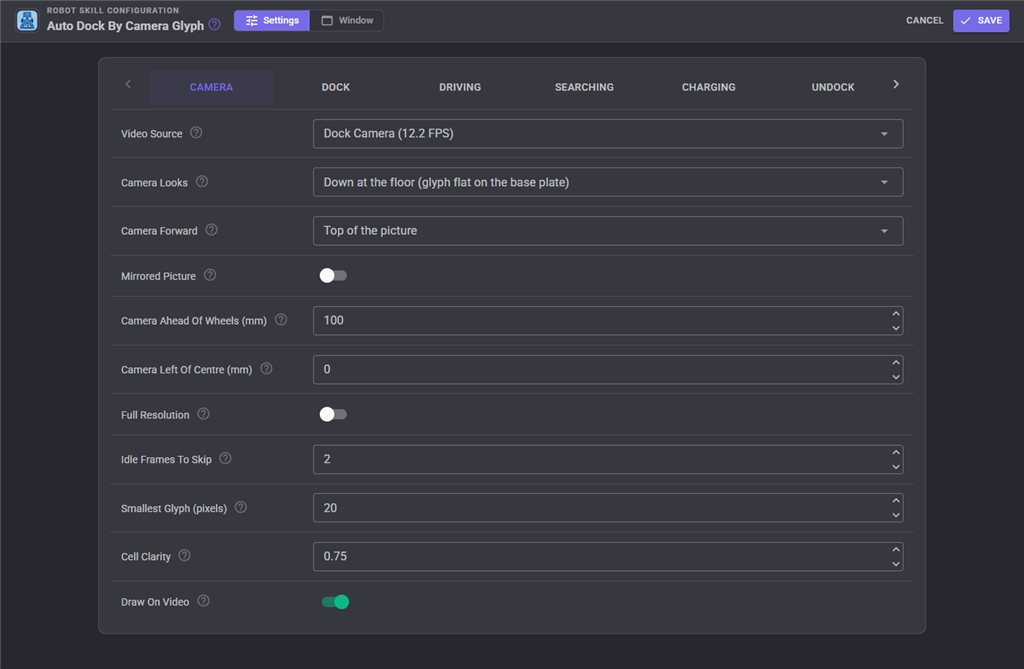
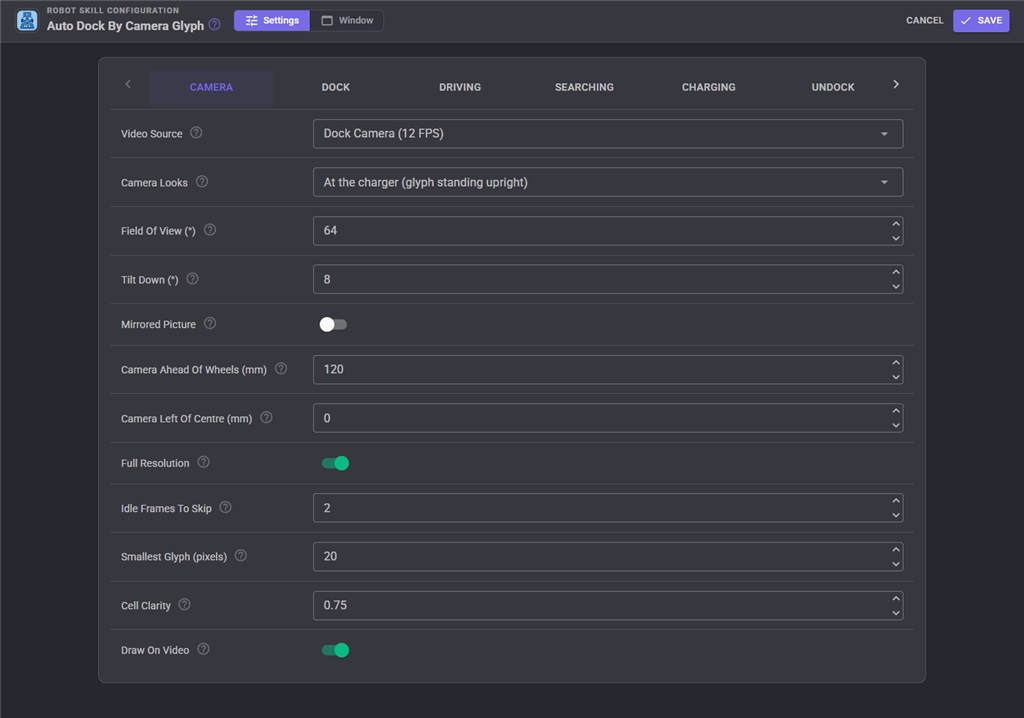
| Setting | What it does |
|---|---|
| Video Source | The camera that sees the glyph when the robot is docked. It must be fixed to the robot |
| Camera Looks | Down at the floor, with the glyph flat on the base plate, or At the charger, with the glyph standing upright on it (see Which way the camera looks). Changing it means teaching the docked position again |
| Camera Forward | Looking down only. Which edge of the picture the front of the robot is toward. Top of the picture for a camera pointing straight down with the top of its picture toward the front |
| Field Of View () | Looking at the charger only. The camera's field of view from the left edge of the picture to the right. A wrong value scales the distances shown, but the robot still docks |
| Tilt Down () | Looking at the charger only. How far the camera is tilted down from level, negative when tilted up. A rough measurement is fine |
| Mirrored Picture | The camera's picture is flipped left to right. Changing it means teaching the docked position again |
| Camera Ahead Of Wheels (mm) | How far ahead of the robot's turning centre (the middle of the drive wheels' axle) the camera is: the floor at the middle of the picture for a camera looking down, the lens for a camera looking at the charger. Negative when behind. A rough measurement is fine |
| Camera Left Of Centre (mm) | How far left of the robot's centre line the camera is, measured the same way. Negative when to the right |
| Full Resolution | Searches the full camera resolution instead of the smaller copy ARCx makes for computer vision. Steadier positions and smaller glyphs, at more processor. Recommended for a camera looking at the charger, and turned on when that view is chosen |
| Idle Frames To Skip | Frames skipped between each one searched while not docking, to save processor. While docking, teaching or learning, every frame is searched |
| Smallest Glyph (pixels) | The shortest edge the glyph's black square may have in the picture |
| Cell Clarity | How clearly every cell must read as black or white, from 0.5 to 1.0. Lower it if the glyph is missed under glare; raise it if something else is mistaken for it |
| Draw On Video | Draws the outlines and the status on the camera's video |
Dock
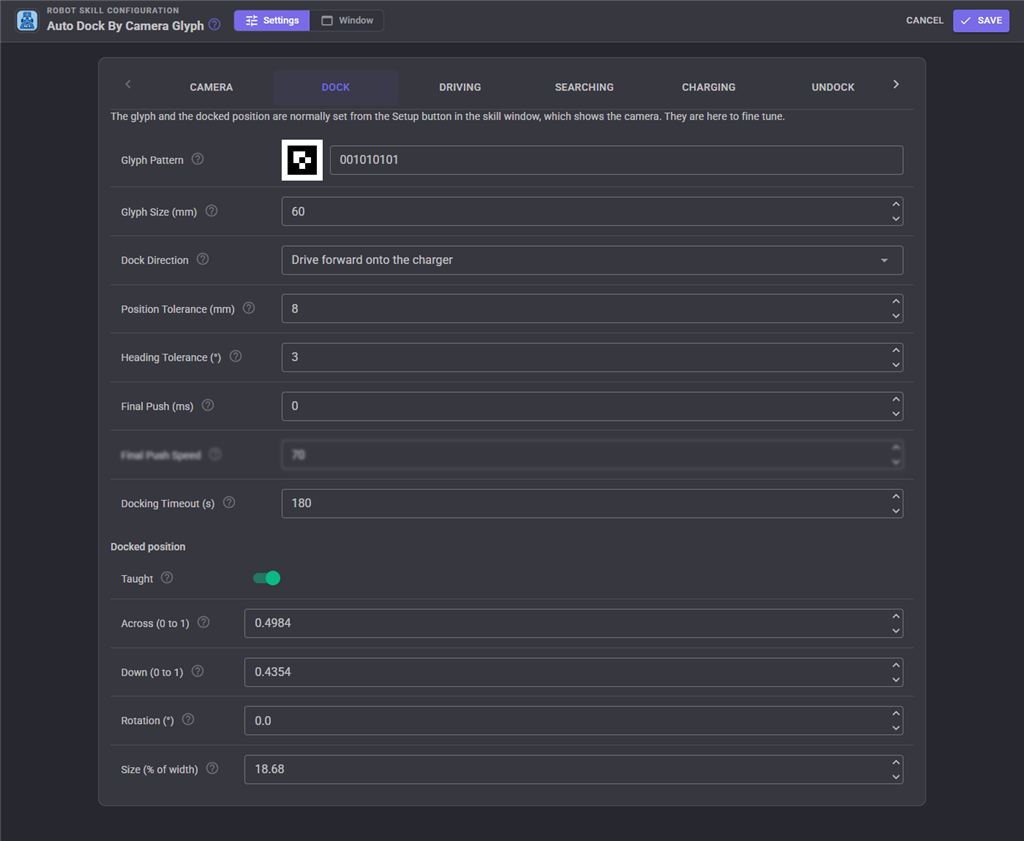
The glyph and the docked position are normally set from the Setup window. They are here to fine tune.
| Setting | What it does |
|---|---|
| Glyph Pattern | The 3x3 cells inside the border, left to right and top row first: 1 is black, 0 is white |
| Glyph Size (mm) | The printed width of the glyph's black square, not counting the white margin |
| Dock Direction | Drive forward onto the charger (contacts on the robot's front), or back onto it (contacts on its back) |
| Position Tolerance (mm) | How close to the docked position counts as arrived |
| Heading Tolerance () | How close to the docked heading counts as arrived |
| Final Push (ms) | Once in position, keep driving onto the charger this long to press the contacts home. 0 for none |
| Final Push Speed | Wheel speed, 1 to 255, for the final push |
| Docking Timeout (s) | How long docking may take before it fails. 0 for no limit. Time held while a configuration window is open does not count |
| Taught, Across, Down, Rotation, Size | Looking down. The docked position: where the glyph's middle appears across and down the picture (0 to 1), how far it is turned clockwise, and its width as a percentage of the picture. Set by Save Docked Position |
| Taught, Glyph When Docked | Looking at the charger. Where the glyph stood from the camera when the docked position was saved. It is worked out from the glyph's corners with the field of view, tilt and glyph size, so correcting those updates it without teaching again |
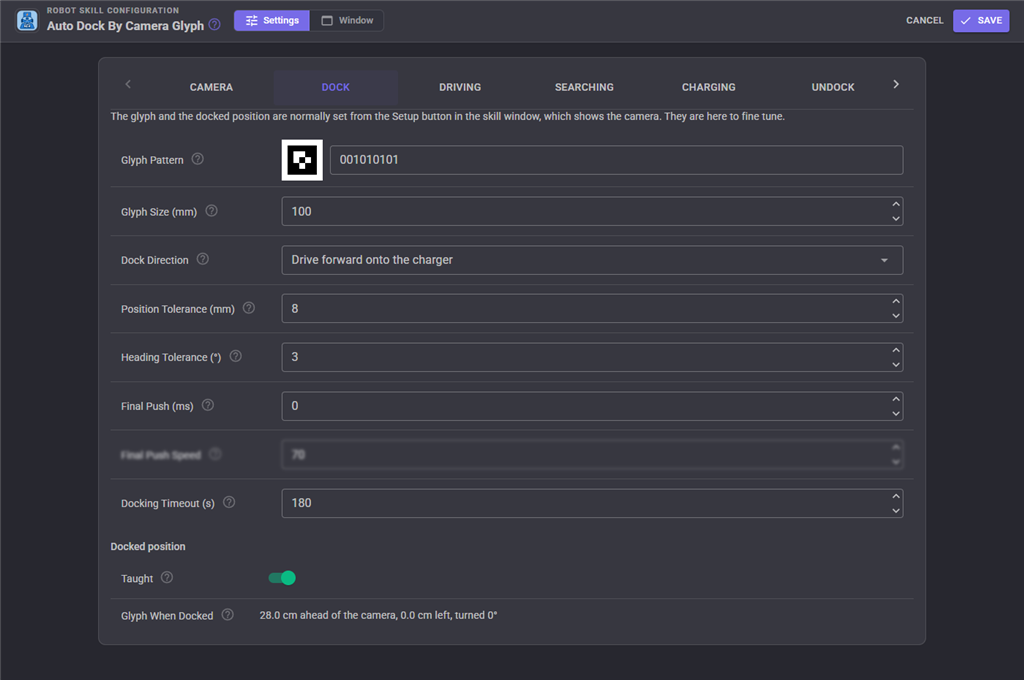
Changing the glyph pattern, Mirrored Picture or Camera Looks forgets the docked position when the configuration is saved.
Driving
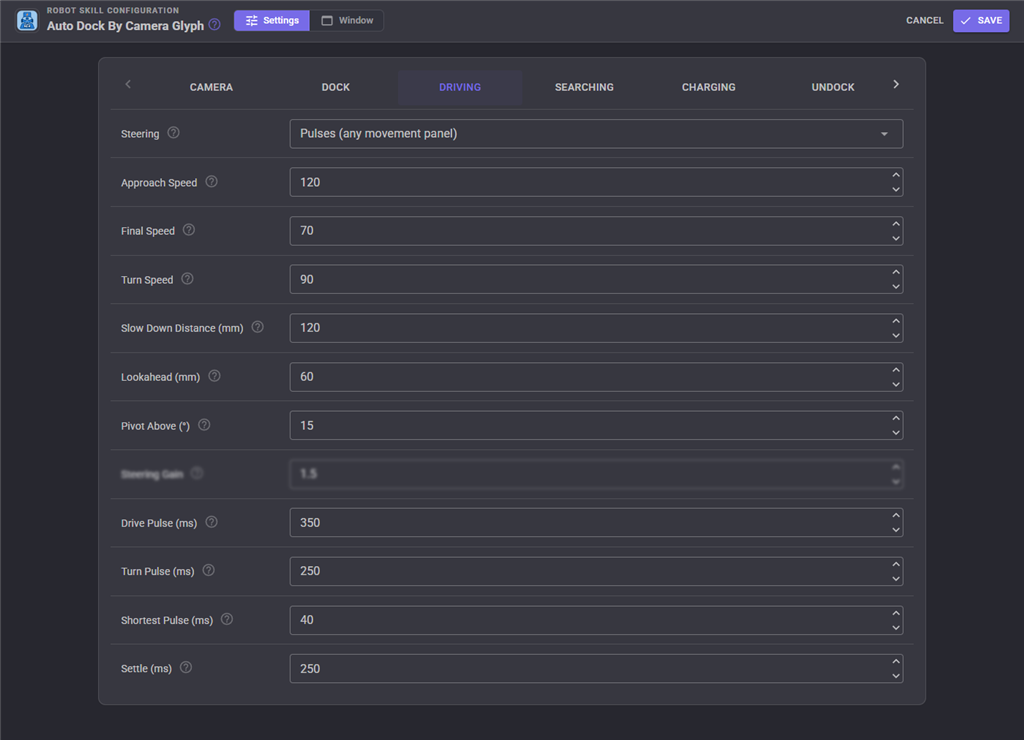
| Setting | What it does |
|---|---|
| Steering | Pulses: turn, stop, look; drive, stop, look. Slow and certain, and works with every Movement Panel and with laggy cameras. Blended wheel speeds: drives continuously, steering with different left and right wheel speeds. Smoother, but needs a Movement Panel that honours separate wheel speeds |
| Approach Speed | Wheel speed while further than the slow down distance |
| Final Speed | Wheel speed inside the slow down distance, and while backing off to line up |
| Turn Speed | Wheel speed while turning on the spot |
| Slow Down Distance (mm) | Inside this distance the robot drives at the final speed, in shorter pulses |
| Lookahead (mm) | How far ahead along the docking line the robot aims. Shorter turns onto the line more sharply |
| Pivot Above () | A heading error larger than this is corrected by stopping and turning on the spot |
| Steering Gain | Blended only: how strongly a heading error changes the wheel speeds |
| Drive Pulse (ms) | Pulses only: the longest a drive pulse lasts |
| Turn Pulse (ms) | The longest a turn on the spot lasts, used for errors of 30 or more. Smaller errors get shorter turns |
| Shortest Pulse (ms) | The shortest pulse sent. Many motors do not move at all for less than a few tens of milliseconds |
| Settle (ms) | How long to wait after each pulse before looking again. Raise it for a laggy camera or a robot that rocks |
Searching
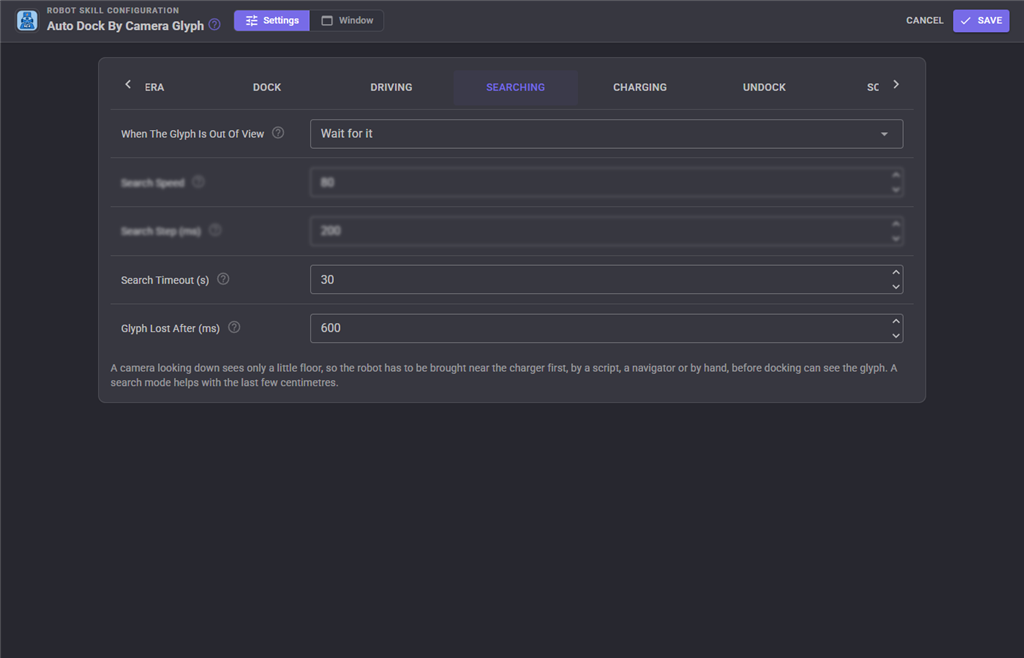
| Setting | What it does |
|---|---|
| When The Glyph Is Out Of View | Wait for it, turn left or right in steps, or creep forward or backward in steps. The robot stops and looks between steps |
| Search Speed | Wheel speed for the search steps |
| Search Step (ms) | How long each search step lasts |
| Search Timeout (s) | How long to search before docking fails |
| Glyph Lost After (ms) | The glyph counts as out of view once it has not been seen this long, and the robot stops |
A camera looking down sees only a little floor, so bring the robot near the charger first, by a script, a navigator or by hand. A search mode helps with the last few centimetres. A camera looking at the charger sees the glyph from across the room, but only while the robot roughly faces the charger, so turning left or right in steps finds it from anywhere nearby.
Charging
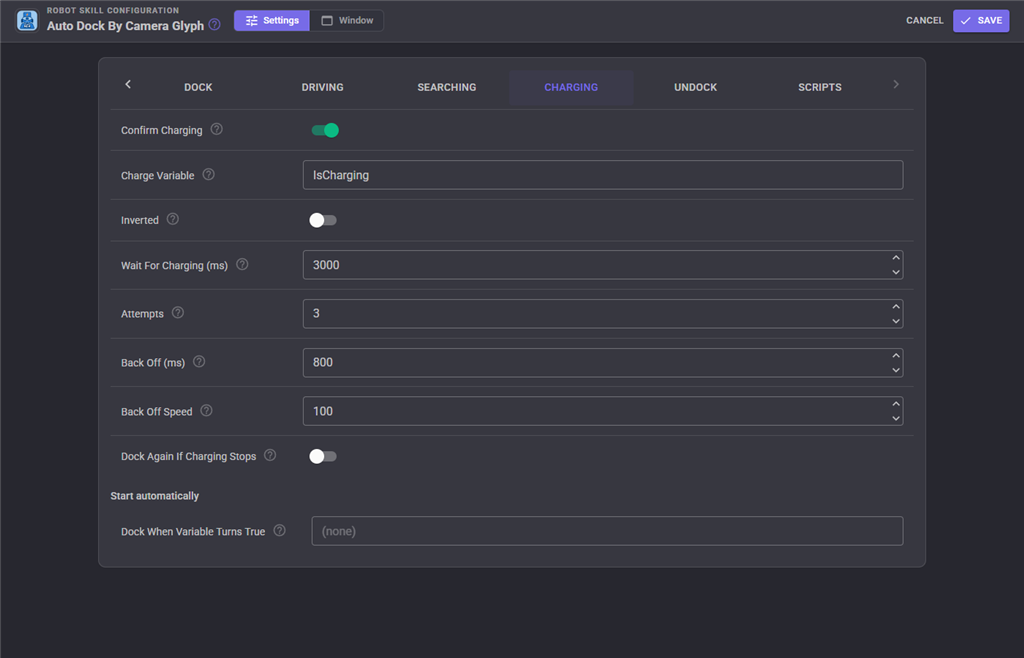
| Setting | What it does |
|---|---|
| Confirm Charging | Read a global variable to confirm the robot is charging (see Charging confirmation above) |
| Charge Variable | The global variable that says the robot is charging, without a $ |
| Inverted | The variable is true when NOT charging |
| Wait For Charging (ms) | How long to wait in position for the variable to say charging before trying again |
| Attempts | How many tries before docking fails |
| Back Off (ms) | How long the robot drives away from the charger before trying again |
| Back Off Speed | Wheel speed while backing off |
| Dock Again If Charging Stops | Redock when the variable stops saying charging while docked |
| Dock When Variable Turns True | A global variable, without a $, that starts docking when it changes to true. Empty for none. Only the change starts docking, so a variable that stays true does not restart a docking that was stopped |
Undock
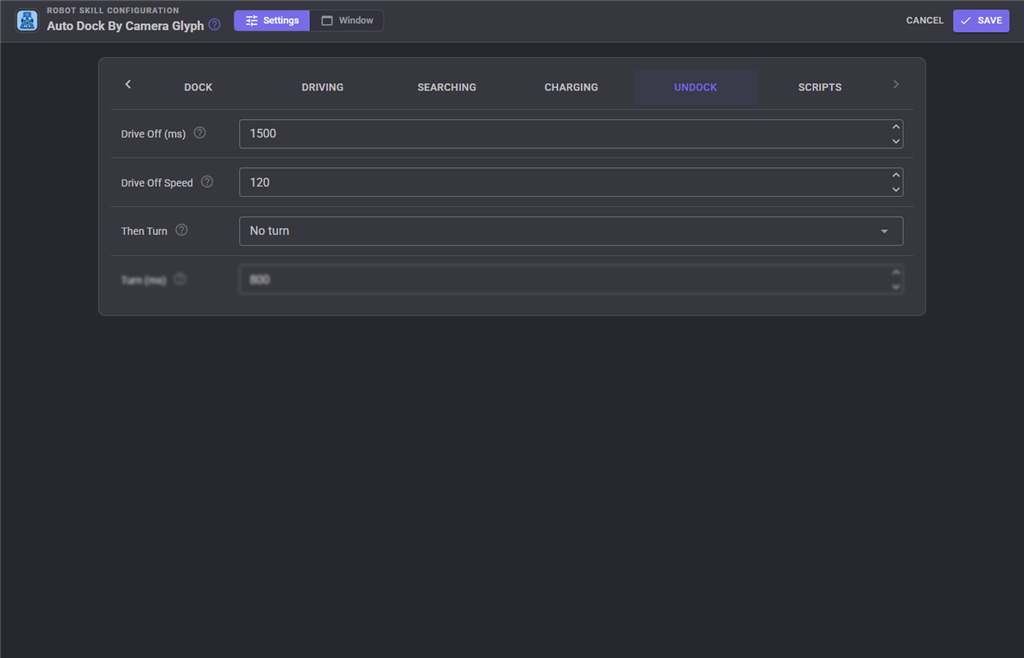
| Setting | What it does |
|---|---|
| Drive Off (ms) | How long the robot drives straight off the charger, the opposite way to the dock direction |
| Drive Off Speed | Wheel speed while driving off |
| Then Turn | No turn, turn left or turn right once clear of the charger, at the turn speed |
| Turn (ms) | How long that turn lasts |
Scripts
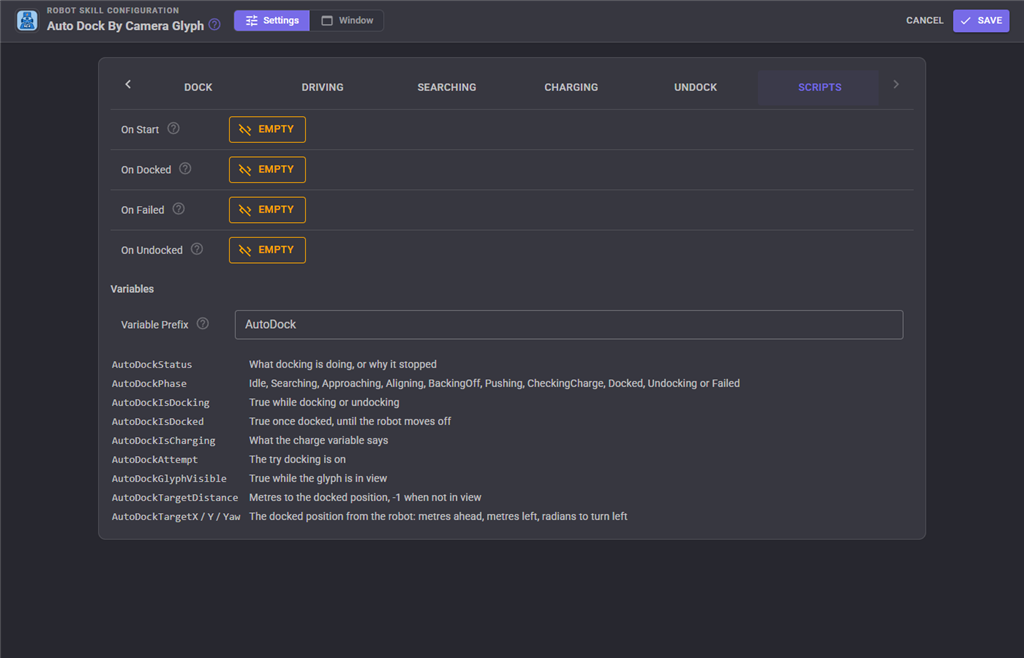
| Script | Runs when |
|---|---|
| On Start | Docking starts |
| On Docked | The robot has docked (and, with Confirm Charging, is charging) |
| On Failed | Docking fails or times out. The reason is in the Status variable |
| On Undocked | Undocking has finished |
Variables
The skill keeps these global variables up to date, named with the Variable Prefix from the Scripts tab (AutoDock unless you change it). Give each copy of the skill its own prefix.
| Variable | Holds |
|---|---|
AutoDockStatus |
What docking is doing, or why it stopped |
AutoDockPhase |
The phase, as in the table under The skill window |
AutoDockIsDocking |
True while docking or undocking |
AutoDockIsDocked |
True once docked, until the robot is moved by anything else |
AutoDockIsCharging |
What the charge variable says |
AutoDockAttempt |
The try docking is on |
AutoDockGlyphVisible |
True while the glyph is in view |
AutoDockTargetDistance |
Metres to the docked position, -1 when the glyph is not in view |
AutoDockTargetX, AutoDockTargetY, AutoDockTargetYaw |
The docked position from the robot: metres ahead, metres to the left, and radians to turn left |
Tips
- The robot turns the wrong way. Camera Forward or Mirrored Picture is wrong. Drive the robot forward a little with the Setup window open: the glyph should move toward the bottom of the picture when Camera Forward is the top. With a camera looking at the charger, turn the robot left a little: the glyph should move to the right of the picture, or Mirrored Picture is wrong.
- A camera looking at the charger wanders or backs off a lot. Print the glyph larger (100 mm or more; set Glyph Size to match) and keep Full Resolution on. The further away the robot is, the more pixels it takes to tell which way the charger faces.
- A camera looking at the charger reads strange distances. Check the glyph is upright and flat, the camera is level from side to side, and Field Of View and Tilt Down are roughly right. The log says when the glyph's edges lean in the picture when the docked position is saved.
- The robot overshoots its turns or keeps losing the glyph. Lower Turn Speed or Turn Pulse, or raise Settle so the camera picture catches up before the next look.
- Short corrections do nothing. Raise Shortest Pulse until the robot actually moves for it.
- It arrives at an angle. Lower Heading Tolerance, or start docking from further back so there is room to turn onto the docking line.
- The glyph is not found. Check it is flat, evenly lit and not glossy, keep its white margin, and lower Cell Clarity a little. Full Resolution helps when the glyph is small in the picture.
Control Commands for the Auto Dock By Camera Glyph robot skill
There are Control Commands available for this robot skill which allows the skill to be controlled programmatically from scripts or other robot skills. These commands enable you to automate actions, respond to sensor inputs, and integrate the robot skill with other systems or custom interfaces. If you're new to the concept of Control Commands, we have a comprehensive manual available here that explains how to use them, provides examples to get you started and make the most of this powerful feature.
Control Command ManualThis robot skill has 14 control commands, listed below. Send them from a JavaScript or Python script, from Blockly, or from another robot skill.
The first value is always the window title, which is the name in the title bar of the robot skill on your workspace. It starts out as Auto Dock By Camera Glyph, which is what every example below uses. If you rename the robot skill, or add a second copy of it to the project, use the title as it appears on that window instead.
ControlCommand() can be shortened to CC(), and both spellings work in JavaScript and in Python. The examples are JavaScript; Python is the same call, except that true and false are written True and False.
Dock
Start driving the robot onto its charger, and return straight away. False when docking could not start: no docked position has been taught, the glyph cannot be used, or it is already docking.
Syntax
ControlCommand("Auto Dock By Camera Glyph", "Dock")
Returns: Boolean [true or false]
Example
var result = ControlCommand("Auto Dock By Camera Glyph", "Dock");
DockAndWait
Drive the robot onto its charger and wait until it has docked or failed. True when docked. At the timeout docking is stopped and false returned; 0 waits as long as docking takes. Stopping the calling script stops docking.
Syntax
ControlCommand("Auto Dock By Camera Glyph", "DockAndWait", (Number)timeoutSeconds)
Parameters
| # | Name | Type | What to pass |
|---|---|---|---|
| 1 | timeoutSeconds | Number | A number, without quotes |
Returns: Boolean [true or false]
Example
var result = ControlCommand("Auto Dock By Camera Glyph", "DockAndWait", 0);
GetStatus
What docking is doing, or why it stopped, in words
Syntax
ControlCommand("Auto Dock By Camera Glyph", "GetStatus")
Returns: String
Example
var result = ControlCommand("Auto Dock By Camera Glyph", "GetStatus");
GetTarget
Where the docked position is from the robot as [x, y, yaw]: metres ahead, metres to the left and the turn in radians (positive left) to face the docked way. An empty array when the dock glyph is not in view or no docked position has been taught.
Syntax
ControlCommand("Auto Dock By Camera Glyph", "GetTarget")
Returns: Array of Double
Example
var result = ControlCommand("Auto Dock By Camera Glyph", "GetTarget");
IsCharging
Does the charge variable say the robot is charging? False when no charge variable is used.
Syntax
ControlCommand("Auto Dock By Camera Glyph", "IsCharging")
Returns: Boolean [true or false]
Example
var result = ControlCommand("Auto Dock By Camera Glyph", "IsCharging");
IsDocked
Did the robot dock, and has it stayed on the charger since?
Syntax
ControlCommand("Auto Dock By Camera Glyph", "IsDocked")
Returns: Boolean [true or false]
Example
var result = ControlCommand("Auto Dock By Camera Glyph", "IsDocked");
IsDocking
Is the robot docking or undocking right now?
Syntax
ControlCommand("Auto Dock By Camera Glyph", "IsDocking")
Returns: Boolean [true or false]
Example
var result = ControlCommand("Auto Dock By Camera Glyph", "IsDocking");
IsGlyphVisible
Is the dock glyph in view of the camera?
Syntax
ControlCommand("Auto Dock By Camera Glyph", "IsGlyphVisible")
Returns: Boolean [true or false]
Example
var result = ControlCommand("Auto Dock By Camera Glyph", "IsGlyphVisible");
LearnGlyph
Learn the glyph the camera sees now as the dock glyph, and return its pattern. The docked position must be saved again afterwards. Raises an error saying why when it cannot.
Syntax
ControlCommand("Auto Dock By Camera Glyph", "LearnGlyph")
Returns: String
Example
var result = ControlCommand("Auto Dock By Camera Glyph", "LearnGlyph");
SaveDockedPosition
With the robot sat on its charger, remember where the dock glyph appears in the camera picture as the docked position. Takes a second or two. Raises an error saying why when it cannot.
Syntax
ControlCommand("Auto Dock By Camera Glyph", "SaveDockedPosition")
Returns: Boolean [true or false]
Example
var result = ControlCommand("Auto Dock By Camera Glyph", "SaveDockedPosition");
SetGlyphPattern
Use a new dock glyph. The pattern is the 3x3 cells inside the black border as 9 characters, left to right and top row first, 1 for black and 0 for white, i.e. "001010101". It must look different turned each quarter turn. The docked position must be saved again afterwards.
Syntax
ControlCommand("Auto Dock By Camera Glyph", "SetGlyphPattern", (String)pattern)
Parameters
| # | Name | Type | What to pass |
|---|---|---|---|
| 1 | pattern | Text | Your text, in quotes |
Returns: Boolean [true or false]
Example
var result = ControlCommand("Auto Dock By Camera Glyph", "SetGlyphPattern", "pattern");
Stop
Stop docking or undocking, and stop the robot
Syntax
ControlCommand("Auto Dock By Camera Glyph", "Stop")
Returns: Boolean [true or false]
Example
var result = ControlCommand("Auto Dock By Camera Glyph", "Stop");
Undock
Drive the robot off its charger, and return straight away
Syntax
ControlCommand("Auto Dock By Camera Glyph", "Undock")
Returns: Boolean [true or false]
Example
var result = ControlCommand("Auto Dock By Camera Glyph", "Undock");
UndockAndWait
Drive the robot off its charger and wait until it has. True when it finished. At the timeout undocking is stopped and false returned; 0 waits as long as it takes.
Syntax
ControlCommand("Auto Dock By Camera Glyph", "UndockAndWait", (Number)timeoutSeconds)
Parameters
| # | Name | Type | What to pass |
|---|---|---|---|
| 1 | timeoutSeconds | Number | A number, without quotes |
Returns: Boolean [true or false]
Example
var result = ControlCommand("Auto Dock By Camera Glyph", "UndockAndWait", 0);
This list is read out of the robot skill itself each time its package is uploaded, so it matches the published version (v3).



This robot skill has been updated to v1.
What has changed
initial release
This robot skill has been updated to v2.
What has changed
camera location selection
This robot skill has been updated to v3.
What has changed
updated to use some new ARCx UI features for improved performance.