Vision
Ask what a camera sees, one picture at a time: whether a colour is in view, how many objects of it there are, how much of the picture it fills, where the largest one is, the average colour of an area and how bright the picture is. Each block looks at the next picture from the camera you pick and gives back plain numbers. The colour blocks come with ready made colours, and with HSV versions for any other colour: hue is 0 to 179, saturation and value 0 to 255, and the average colour block reads those numbers off an object held in front of the camera. To follow an object continuously, use a tracking robot skill instead (Color Tracking, OpenCV Filter Flow).
Where to find it: the Vision category of the toolbox, in any script editor set to Blockly or on Top bar → Workspaces → Blockly
Blocks
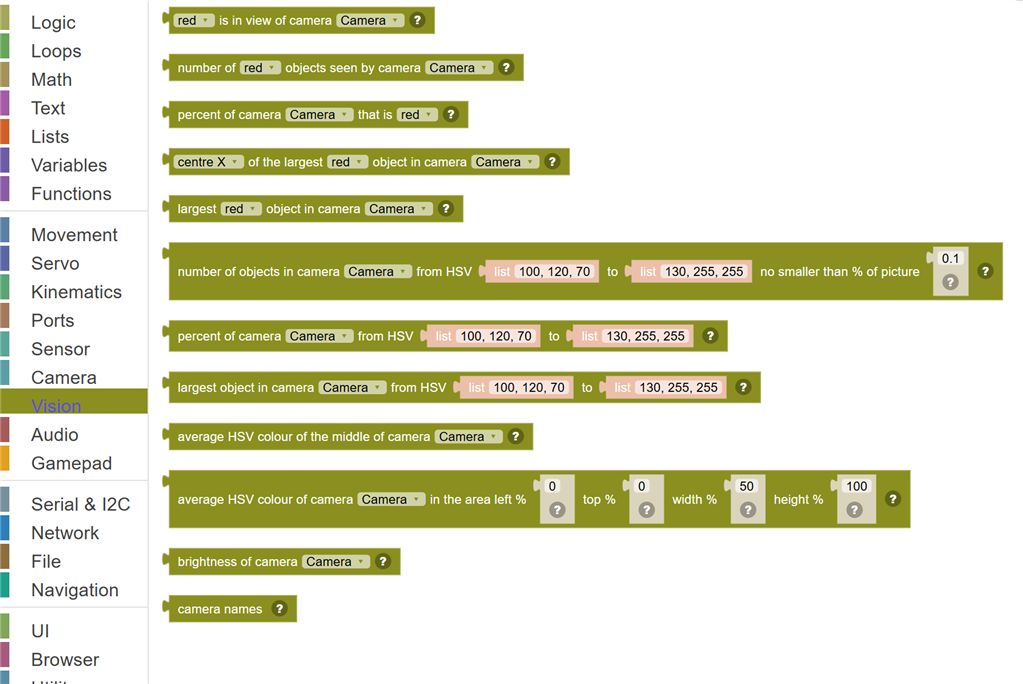
| Block | What it does |
|---|---|
| Is Colour In View | Looks at the next picture from the camera and answers true if it can see at least one object of the colour, or false if it cannot. |
| Count Colour Objects | Counts how many separate objects of the colour the camera can see right now. |
| Percent Of Picture That Is A Colour | Measures how much of the picture is the colour, from 0 (none of it) to 100 (all of it). |
| Where Is The Largest Colour Object | Finds the largest object of the colour and gives back one number about it: the X or Y of its centre, its width or height in camera pixels, or how much of the picture it covers in percent. |
| Largest Colour Object | Finds the largest object of the colour and gives back a list of five numbers: centre X, centre Y, width, height (all in camera pixels) and its area in percent of the picture. |
| Count Objects In An HSV Range | Counts the separate objects whose colour is between two HSV colours, ignoring objects smaller than the percent of the picture you give. |
| Percent Of Picture In An HSV Range | Measures how much of the picture is between two HSV colours, from 0 to 100. |
| Largest Object In An HSV Range | Finds the largest object between two HSV colours and gives back a list: centre X, centre Y, width, height (camera pixels) and area (percent of the picture). |
| Average Colour | Reads the average colour of the middle of the picture as a list of three numbers: hue, saturation and value. |
| Average Colour Of Part Of The Picture | Reads the average colour of a part of the picture you choose, as hue, saturation and value. |
| Camera Brightness | Measures how bright the picture is on average, from 0 (black) to 255 (white). |
| Camera Names | Gives back a list of the names of every video source (camera) in the project. |
Details
Is Colour In View

Looks at the next picture from the camera and answers true if it can see at least one object of the colour, or false if it cannot.
When to use it: Use this inside an If block to make the robot react to a colour: stop at a red card, cheer for a green ball, follow a blue line only when it is there.
Example: If red is in view of camera Camera → Say "I see something red!"
Tips:
- Tiny specks smaller than 0.1% of the picture are ignored, so camera noise does not count.
- Good light helps. Colours look grey in the dark and white in strong sunlight.
- For a colour the list does not have, use the HSV blocks below with numbers from the Average Colour block.
In JavaScript: this block gives back the value of
(Vision.countColor("Camera", [170,120,70], [10,255,255]) > 0)
Count Colour Objects

Counts how many separate objects of the colour the camera can see right now.
When to use it: Use this to count things: how many red blocks are on the table, whether both green balls are still there.
Example: Say "I can see " + number of blue objects seen by camera Camera + " blue things"
Tips:
- Two objects that touch look like one to the camera.
- Objects smaller than 0.1% of the picture are ignored. The HSV version lets you choose the smallest size.
In JavaScript: this block gives back the value of
Vision.countColor("Camera", [170,120,70], [10,255,255])
Percent Of Picture That Is A Colour

Measures how much of the picture is the colour, from 0 (none of it) to 100 (all of it).
When to use it: Use this when size matters more than counting: a bigger number means the object is closer or larger.
Example: If percent of camera Camera that is green > 30 → the green ball is close, stop driving.
Tips:
- Compare against a number you measured with the robot in place, because every camera and room is different.
- This counts every pixel of the colour, even scattered specks.
In JavaScript: this block gives back the value of
Vision.colorPercent("Camera", [170,120,70], [10,255,255])
Where Is The Largest Colour Object

Finds the largest object of the colour and gives back one number about it: the X or Y of its centre, its width or height in camera pixels, or how much of the picture it covers in percent. Gives back -1 when the colour is not in view.
When to use it: Use the centre X to steer: turn left when the object is on the left of the picture and right when it is on the right.
Example: Set x to centre X of the largest red object in camera Camera → if x is less than 200, turn left.
Tips:
- X counts from the left edge of the picture, Y from the top.
- Always check for -1 first: it means nothing of that colour was found.
- Each block looks at its own picture. To read several numbers from the same picture, use the Largest Colour Object block and pick items from its list.
In JavaScript: this block gives back the value of
(function (found) { return found.length > 0 ? found[0] : -1; })(Vision.findColor("Camera", [170,120,70], [10,255,255]))
Largest Colour Object

Finds the largest object of the colour and gives back a list of five numbers: centre X, centre Y, width, height (all in camera pixels) and its area in percent of the picture. The list is empty when the colour is not in view.
When to use it: Use this when you need several facts about the same object from the same picture.
Example: Set ball to largest orange object in camera Camera → if the length of ball > 0, print item 1 of ball (the centre X).
Tips:
- In Blockly lists the first item is number 1: item 1 is the centre X, item 5 is the area.
- An empty list means the colour was not found.
In JavaScript: this block gives back the value of
Vision.findColor("Camera", [170,120,70], [10,255,255])
Count Objects In An HSV Range

Counts the separate objects whose colour is between two HSV colours, ignoring objects smaller than the percent of the picture you give.
When to use it: Use this for a colour the preset list does not have, or when the preset picks up too much or too little.
Example: Number of objects in camera Camera from HSV 100, 120, 70 to 130, 255, 255 at least 1 % of the picture → counts blue objects bigger than 1% of the picture.
Tips:
- HSV is hue (which colour, 0 to 179), saturation (how vivid, 0 to 255) and value (how bright, 0 to 255).
- Hue goes red 0, yellow 30, green 60, cyan 90, blue 120, magenta 150, and back to red at 179.
- If the first hue is bigger than the second, the range wraps around through red, such as 170 to 10.
- Get the numbers from the Average Colour block while holding the object in front of the camera, then widen them a little.
In JavaScript: this block gives back the value of
Vision.countColor("Camera", [100, 120, 70], [130, 255, 255], 0.1)
Percent Of Picture In An HSV Range

Measures how much of the picture is between two HSV colours, from 0 to 100.
When to use it: Use this to measure how big or close an object of your own colour is.
Example: Percent of camera Camera from HSV 20, 100, 100 to 35, 255, 255 → how much of the picture is yellow.
Tips:
- The numbers work the same way as in the Count Objects In An HSV Range block.
In JavaScript: this block gives back the value of
Vision.colorPercent("Camera", [100, 120, 70], [130, 255, 255])
Largest Object In An HSV Range

Finds the largest object between two HSV colours and gives back a list: centre X, centre Y, width, height (camera pixels) and area (percent of the picture). The list is empty when there is none.
When to use it: Use this to find and follow an object of your own colour.
Example: Set target to largest object in camera Camera from HSV 40, 70, 50 to 85, 255, 255 → the largest green object.
Tips:
- Item 1 of the list is the centre X, item 2 the centre Y.
In JavaScript: this block gives back the value of
Vision.findColor("Camera", [100, 120, 70], [130, 255, 255])
Average Colour

Reads the average colour of the middle of the picture as a list of three numbers: hue, saturation and value.
When to use it: Use this to learn the HSV numbers of an object: hold it in the middle of the camera's view and print the result. It can also tell a script which colour card the robot is shown.
Example: Print average HSV colour of the middle of camera Camera → for a blue cup it might print 112, 180, 140.
Tips:
- The middle fifth of the picture is measured, so fill it with the object.
- To turn the numbers into an HSV range, take about 10 off and on the hue, and lower the saturation and value minimums a little.
In JavaScript: this block gives back the value of
Vision.averageColor("Camera")
Average Colour Of Part Of The Picture

Reads the average colour of a part of the picture you choose, as hue, saturation and value. The part is given in percent of the picture.
When to use it: Use this to check one area, such as the floor in front of the robot or one side of the view.
Example: Average HSV colour of camera Camera at left 0 % top 70 % width 100 % height 30 % → the colour of the bottom of the picture, often the floor.
Tips:
- Left 0, top 0, width 50, height 100 is the left half of the picture.
- Smaller areas react faster to change; larger ones are steadier.
In JavaScript: this block gives back the value of
Vision.averageColor("Camera", 0, 0, 50, 100)
Camera Brightness

Measures how bright the picture is on average, from 0 (black) to 255 (white).
When to use it: Use this to tell whether the lights are on, whether something is covering the camera, or whether the robot drove into a dark room.
Example: If brightness of camera Camera < 40 → Say "It is dark in here".
Tips:
- Cameras adjust themselves to light, so a sudden change shows more clearly than a slow one.
In JavaScript: this block gives back the value of
Vision.brightness("Camera")
Camera Names
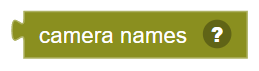
Gives back a list of the names of every video source (camera) in the project.
When to use it: Use this to check a camera exists before using it, or to print which cameras the robot has.
Example: Print camera names → Camera, Video File Source
Tips:
- The camera dropdown on the other Vision blocks lists the same names.
In JavaScript: this block gives back the value of
Vision.getSources()