
Voice-driven nested menus for robots: ask questions, listen for choices, run scripts, and support clickable or tap-to-select options.
 Windows
 ARM
ARM
 Linux
Linux
 MacOS
MacOS
How to add the Conversational Menu robot skill
- Load the most recent release of ARCx on a compatible operating system (Get ARCx).
- Press the + Skills menu from the top menu bar in ARCx.
- Choose the Audio category tab.
- Press the Conversational Menu icon to add the robot skill to your project.
Don't have a robot yet?
Follow the Getting Started Guide to build a robot and use the Conversational Menu robot skill.
How to use the Conversational Menu robot skill
The Conversational Menu robot skill lets a person talk their way through a menu of things the robot can do. The robot asks a question, reads out the options, listens for the answer and runs a script for the choice, then asks the next question or finishes. Menus can be nested as deep as you like, so "move" can lead to "forward, backward, turn left or turn right", and "drinks" can lead to "coffee or tea" and then to "milk or sugar".
It is the voice equivalent of a phone menu, and it suits anything where the robot should offer a fixed set of choices: a reception robot giving directions, a demo robot showing its tricks, a robot taking an order, or a quick way to drive a robot without a joystick.
Every option can also be clicked in the robot skill window, tapped on a Custom UI screen, or chosen from a script. A menu works before the robot has a voice or a microphone, and it still works in a noisy room or for a person the speech engine does not understand.
How a conversation goes
- The robot says the prompt of the main menu, such as "What would you like me to do?", and reads out its options: "move, tell me a joke, how are you, or cancel."
- It listens for the answer. While it listens, the options are shown as buttons in the window.
- When an option is chosen, the robot confirms it ("move. OK."), says the prompt of that option and runs its script.
- If that option has options of its own, the robot asks again. If it has none, the conversation does what the option's When finished setting says: end, go back to the menu it was chosen from, go back to the main menu, or go to any other menu.
At any menu the person can also say repeat to hear the question again, back to return to the previous menu, main menu to start over, or cancel to end the conversation. These phrases can be changed or turned off.
When nobody answers in time, or the answer is not one of the options, the robot says so and asks again, up to the number of times set in Ask Again, before it gives up.
The Window
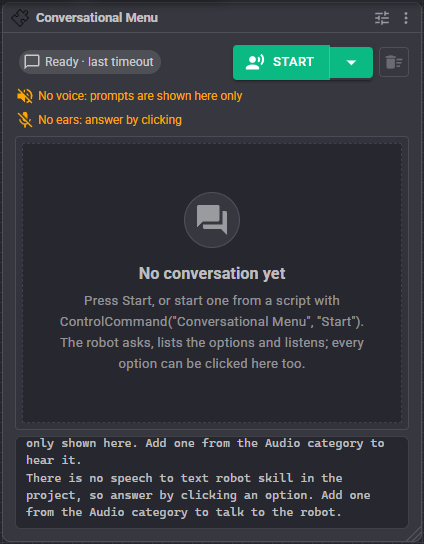
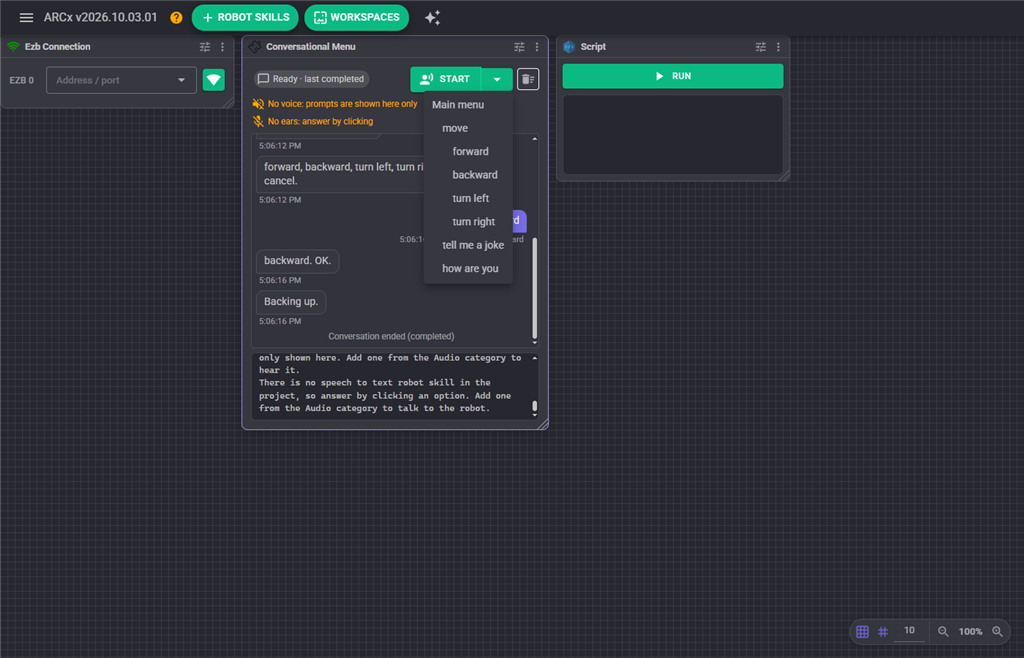
The bar at the top shows what the robot is doing (ready, speaking, running a script, listening with a countdown, or hearing you), where the conversation is in the menu (Main menu move), and the Start and Stop buttons. The arrow beside Start starts the conversation at any menu or option instead of the main menu, which is the quickest way to try one branch while you are building it.
Below the bar, before a conversation starts, the window says which text to speech robot skill the robot speaks with and which speech to text robot skill it listens with. Both are optional; without them, the robot's side of the conversation is only shown in the window and the options are answered by clicking.
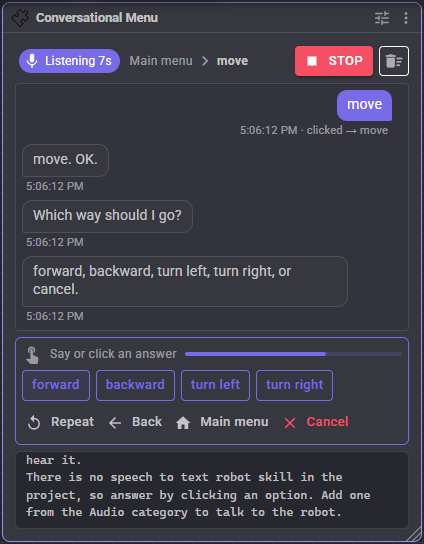
The conversation is shown as chat bubbles: the robot on the left, the person on the right. Under each answer is how it was understood, such as " forward", " coffee (similar)" when it was a near miss, "clicked forward", or "not understood".
While the robot listens, the options of the current menu are shown as buttons with the time left to answer. Clicking one is the same as saying it. The Repeat, Back, Main menu and Cancel buttons do the same as the voice commands.
The log at the bottom shows script output and errors, and anything worth knowing about the speech engines.
Building the menu
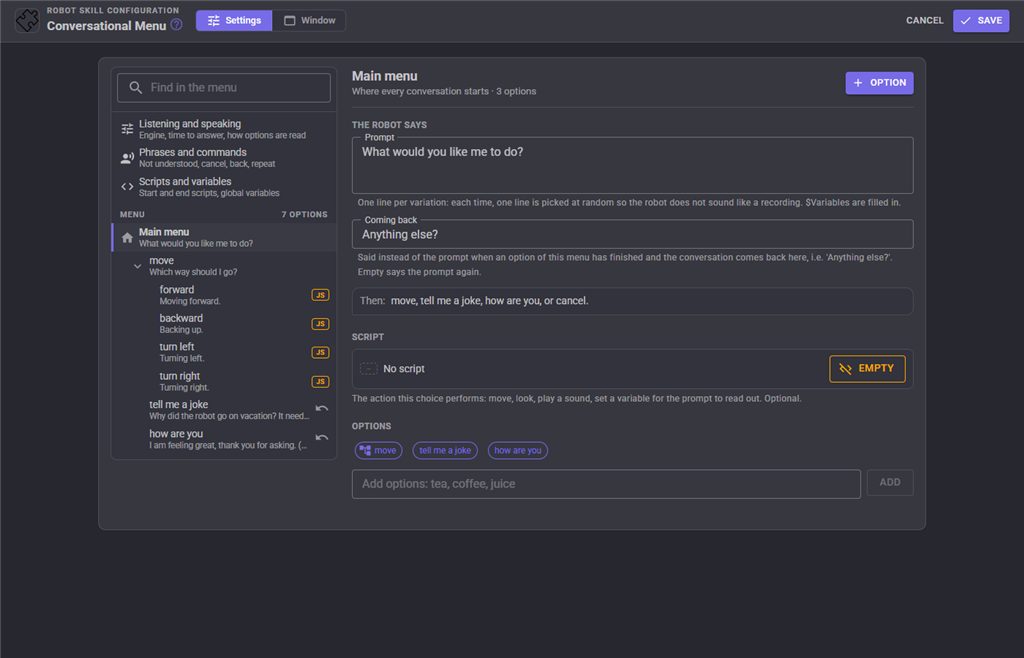
The configuration lists the whole menu as a tree on the left and edits the selected item on the right. The tree shows each item's prompt under its name, a JS, PY or BL tag when it runs a script, an icon for where it goes when finished, and a warning icon when something about it needs a look. Fold a menu with the arrow beside it, and type in the find box to narrow the tree by option, alias or prompt. The settings that apply to the whole conversation are the three entries above the tree.
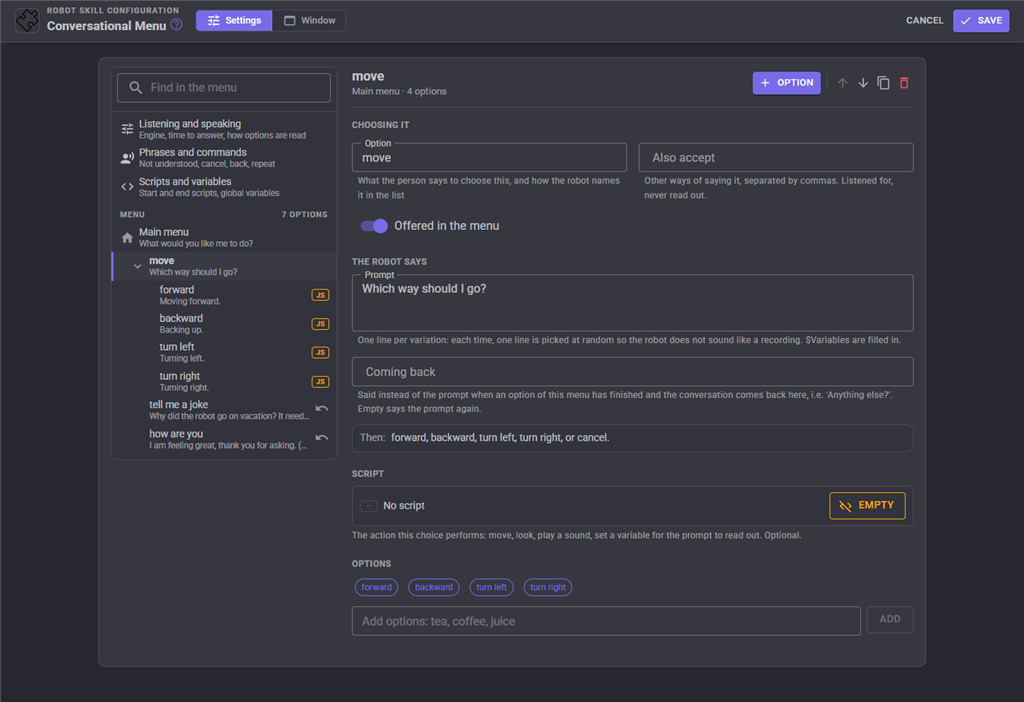
Each item has these settings:
| Setting | Description |
|---|---|
| Option | What the person says to choose the item, and how the robot names it when it reads out the options. Not used on the main menu. |
| Also accept | Other ways of saying the option, separated by commas, such as "espresso, a coffee" for "coffee". They are listened for but never read out. |
| Offered in the menu | Turn it off to park an option without deleting it. A disabled option is not read out, not listened for, and nothing under it can be reached. |
| Prompt | What the robot says when the item is reached. Write several lines to give the robot several ways of saying it; one is picked at random each time so it does not sound like a recording. A $Variable name is replaced by the value of that global variable, such as "It is $Temperature degrees outside". |
| Coming back | Only for an item with options. Said instead of the prompt when one of its options has finished and the conversation comes back to it, such as "Anything else?". Empty says the prompt again. |
| Script | The action the choice performs: move, look, play a sound, set a variable. It runs when the item is reached, not when the person asks to repeat or when the conversation comes back to it. |
| Script timing | After the robot speaks (the default), Before the robot speaks (so the script can set a variable that the prompt reads out), or While the robot speaks (so the robot can wave or move while it talks). The conversation carries on once both the speech and the script have finished. |
| When finished | Only for an item without options. End the conversation, Go back to the menu it was chosen from, Go back to the main menu, or Go to another menu, which jumps to any item in the tree as if it had been chosen. |
Use + Option at the top of an item to add an option to it, or type several options separated by commas into the box under its options and press Add. An item without options becomes a menu as soon as it has one. The arrow buttons move an option up or down, which is the order the robot reads them in. The copy button duplicates an option and everything under it, and the delete button removes it.
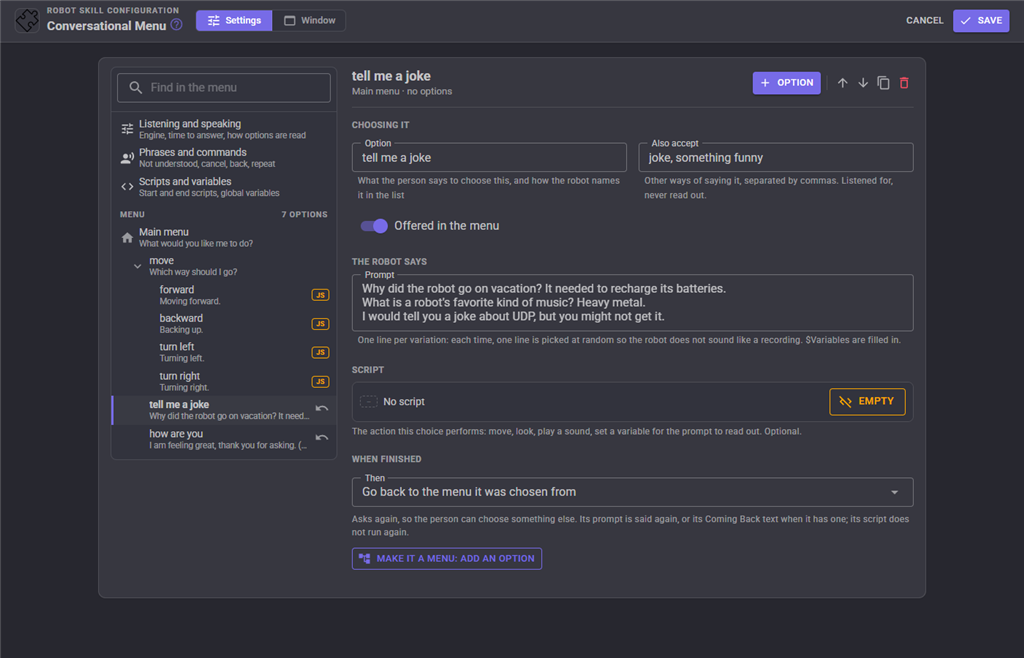
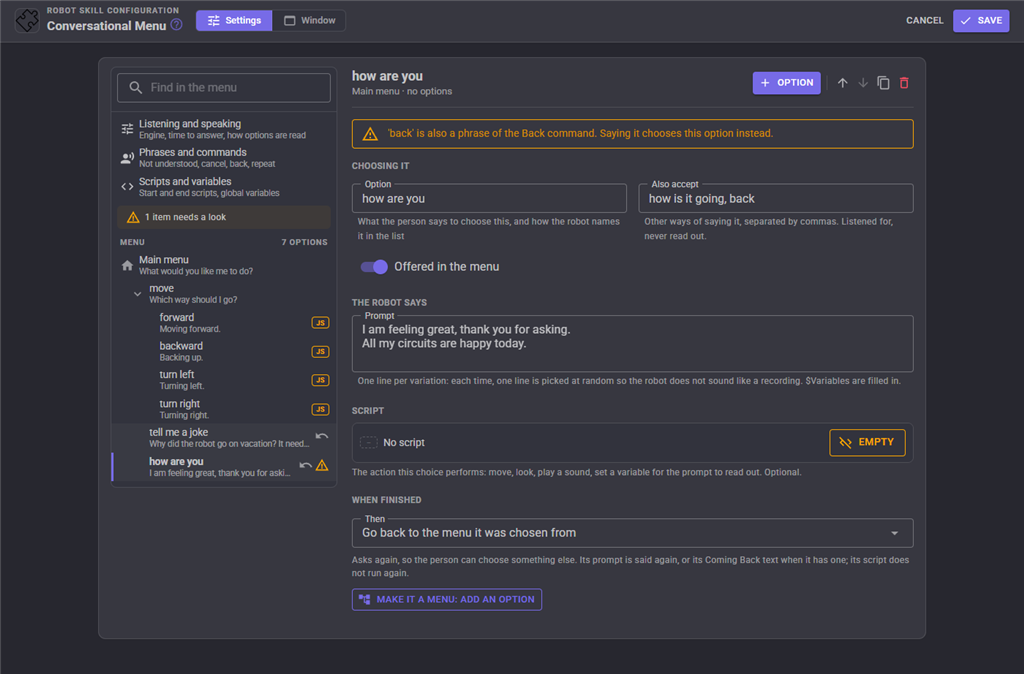
The configuration points out problems before the robot says a word: an option with no words (which cannot be saved), two options of one menu that can be chosen with the same words, an option or alias that is also a voice command, and a Go to another menu that goes nowhere or to itself.
Listening and speaking
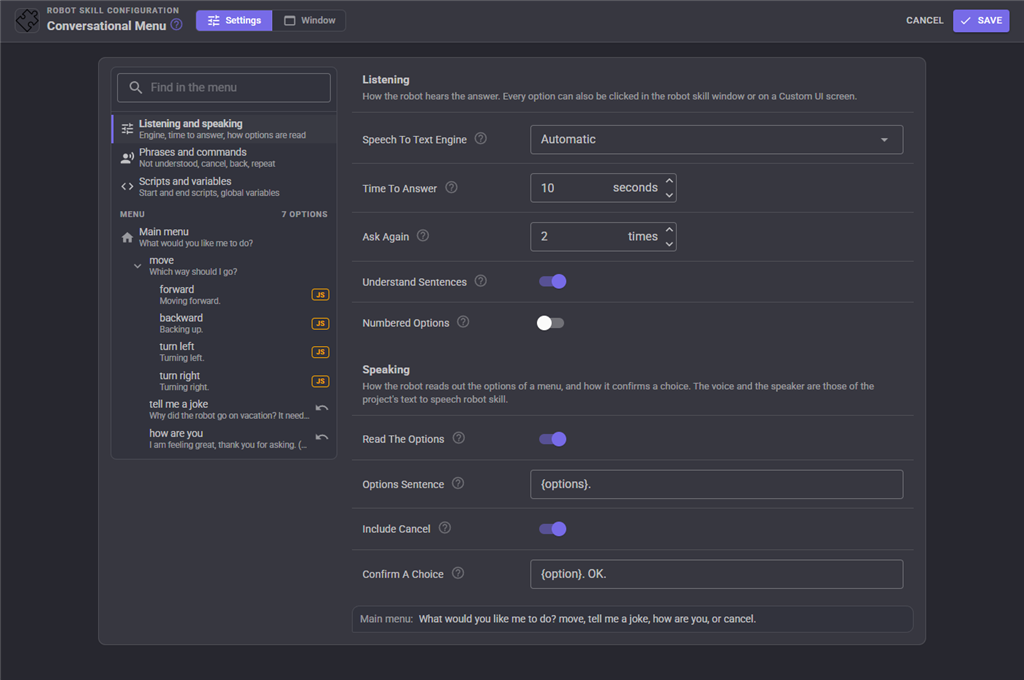
| Setting | Description | Default |
|---|---|---|
| Speech To Text Engine | The speech to text robot skill that listens for answers. Automatic uses the project's Wait For Speech engine, or the first one in the project. A wake word set on that engine is skipped, because the robot asking a question is the trigger. | Automatic |
| Time To Answer | How long the robot waits for an answer after reading the options. | 10 seconds |
| Ask Again | How many more times the robot asks after no answer, or an answer it did not understand, before it gives up. 0 gives up straight away. | 2 |
| Understand Sentences | Accept an answer that contains an option ("I'd like a coffee please" chooses coffee) or is close to one ("cofee"). Needed for speech engines that write down anything that is said, such as cloud engines. When two options are both mentioned, the robot asks again rather than guess. | On |
| Numbered Options | Read the options with numbers ("1, coffee; 2, tea") and accept the number as the answer ("two", "number two", "the second one"). | Off |
| Read The Options | Read the options after the prompt of each menu. Turn it off when the prompts already say what the choices are. | On |
| Options Sentence | How the options are read. {options} is the list; {count}, {menu}, {cancel}, {back}, {repeat} and {mainmenu} are also understood, and $Variables are filled in. For example "You can say ." |
. |
| Include Cancel | Finish the list of options with the cancel phrase, as in "coffee, tea, or cancel". | On |
| Confirm A Choice | Said after an option is chosen, so the person knows what was heard. {option} is the option. Empty says nothing. |
. OK. |
The voice the robot speaks with, and whether it comes out of the computer or the robot's EZB, are settings of the project's text to speech robot skill and audio output, not of this robot skill.
Phrases and commands
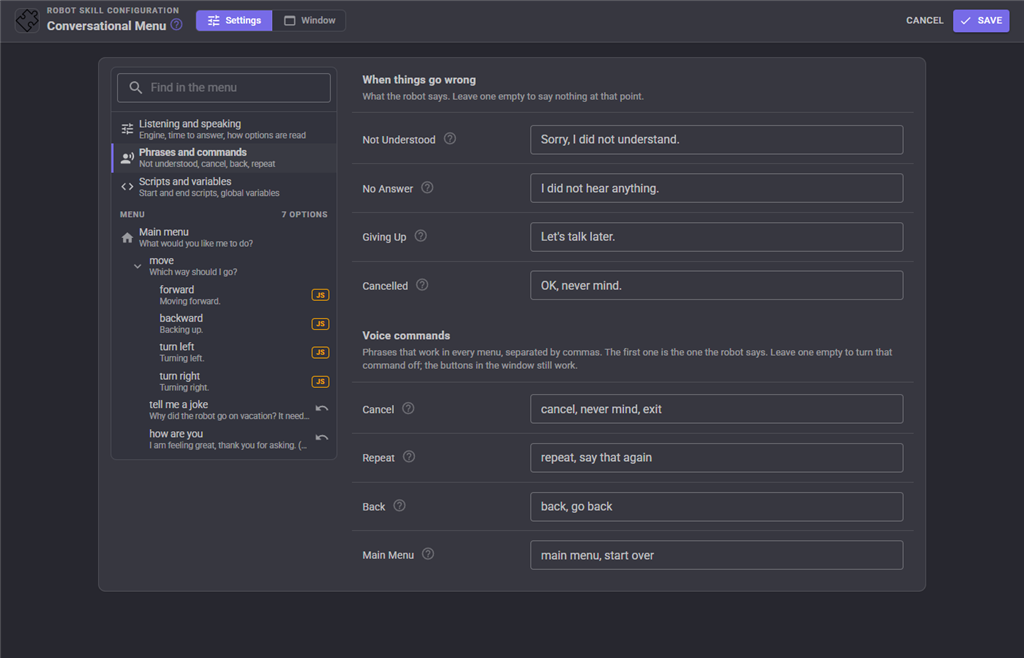
| Setting | Description | Default |
|---|---|---|
| Not Understood | Said when the answer is not one of the options. The options are read again afterwards. | Sorry, I did not understand. |
| No Answer | Said when nobody answers in time and the robot is about to ask again. | I did not hear anything. |
| Giving Up | Said when the robot has asked as many times as Ask Again allows. | Let's talk later. |
| Cancelled | Said when the person cancels. | OK, never mind. |
| Cancel | Phrases that end the conversation. | cancel, never mind, exit |
| Repeat | Phrases that say the prompt and the options of the current menu again. | repeat, say that again |
| Back | Phrases that go back to the previous menu. Only listened for when there is one. | back, go back |
| Main Menu | Phrases that go back to the main menu. Only listened for below the main menu. | main menu, start over |
Each command takes several phrases separated by commas; the first is the one the robot says. Leave a command empty to turn it off by voice. Leave any of the four sentences empty for the robot to say nothing at that point.
Scripts and variables
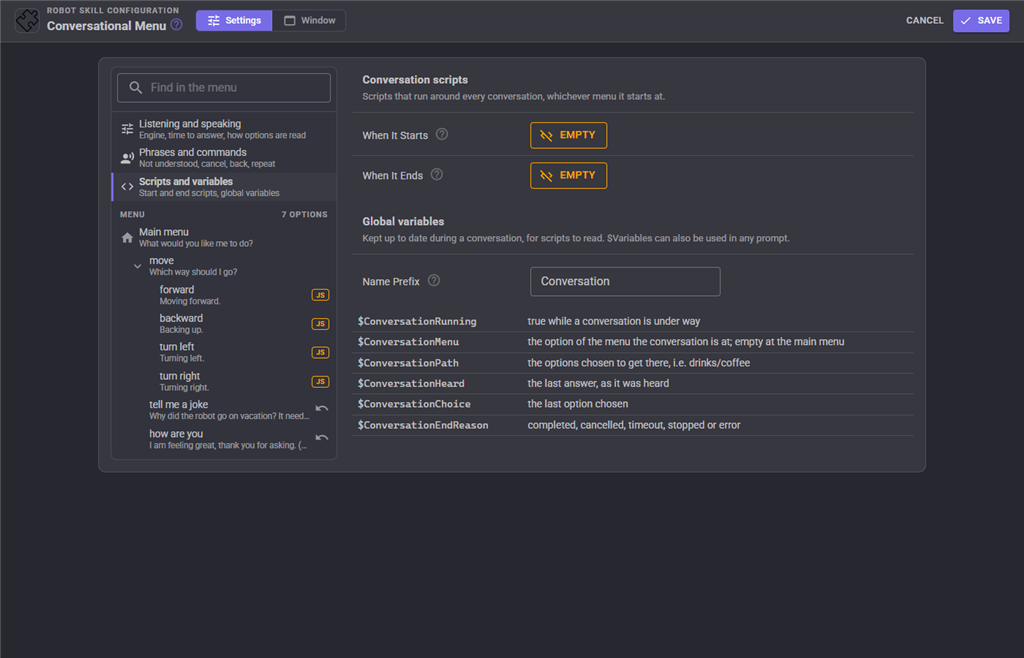
When It Starts runs before the robot says anything, such as turning to face the person or pausing other behaviors. The conversation waits for it to finish. When It Ends runs when the conversation ends, however it ends, including when it is stopped, so it is the place to put the robot back the way it was.
These global variables are kept up to date for scripts to read, and can be used in any prompt. The prefix can be changed, so that two Conversational Menus in one project keep their own.
| Variable | Value |
|---|---|
$ConversationRunning |
True while a conversation is under way. |
$ConversationMenu |
The option of the menu the conversation is at; empty at the main menu. |
$ConversationPath |
The options chosen to get there, such as drinks/coffee. |
$ConversationHeard |
The last answer, as it was heard. |
$ConversationChoice |
The last option chosen. |
$ConversationEndReason |
Why the last conversation ended: completed, cancelled, timeout, stopped or error. |
A conversation is usually started by something else in the project: a Speech Phrase Recognition phrase such as "robot, menu", a face being detected, a button on a Custom UI screen, or a script. A script can also start the conversation and wait for it to end, then act on how it ended. The menu can be started at any menu by its option or by a path of options such as drinks/coffee, and a script can answer the robot's question as if it had been spoken.
While the robot listens, any other robot skill listening through the same speech engine, such as Speech Phrase Recognition, is paused and picks up again when the answer is in, so the two do not fight over the microphone.
The conversation stops when the global Panic button is pressed, and when the configuration of this robot skill is opened.
Custom UI widget
The Conversation widget puts the conversation on a Custom UI screen: what the robot just said, the options as large buttons to tap, the back, main menu and repeat buttons, and a start/stop button. On a tablet mounted on the robot it makes a touch menu that works whether or not anyone talks to it.
| Widget setting | Description | Default |
|---|---|---|
| Caption | An optional label at the top. | Empty |
| ShowPrompt | Show what the robot said. | true |
| ShowOptions | Show the options as buttons to tap. | true |
| ShowCommands | Show the back, main menu and repeat buttons. | true |
| StartText | The label of the start button. | Talk to me |
Coming from ARC
The ARC version of this robot skill always ended the conversation at the end of a branch, gave up after one silence, needed the answer to be exactly the option, and nested a tab control inside a tab control for every level of the menu. The ARCx version adds the tree editor, aliases, sentence and near-miss matching, numbered options, asking again, the main menu command, a choice of what happens at the end of each branch, script timing, prompt variations and variables, clickable and tappable options, and the Custom UI widget. The Use EZB speaker setting is gone because where the robot's voice comes out is a setting of the project's audio output in ARCx.
Control Commands for the Conversational Menu robot skill
There are Control Commands available for this robot skill which allows the skill to be controlled programmatically from scripts or other robot skills. These commands enable you to automate actions, respond to sensor inputs, and integrate the robot skill with other systems or custom interfaces. If you're new to the concept of Control Commands, we have a comprehensive manual available here that explains how to use them, provides examples to get you started and make the most of this powerful feature.
Control Command ManualThis robot skill has 9 control commands, listed below. Send them from a JavaScript or Python script, from Blockly, or from another robot skill.
The first value is always the window title, which is the name in the title bar of the robot skill on your workspace. It starts out as Conversational Menu, which is what every example below uses. If you rename the robot skill, or add a second copy of it to the project, use the title as it appears on that window instead.
ControlCommand() can be shortened to CC(), and both spellings work in JavaScript and in Python. The examples are JavaScript; Python is the same call, except that true and false are written True and False.
GetMenu
The path of options to the menu the conversation is at, separated by /, i.e. "drinks/coffee". Empty at the main menu or when no conversation is running.
Syntax
ControlCommand("Conversational Menu", "GetMenu")
Returns: String
Example
var result = ControlCommand("Conversational Menu", "GetMenu");
GetOptions
The options the robot is listening for right now. Empty when it is not listening.
Syntax
ControlCommand("Conversational Menu", "GetOptions")
Returns: Array of String
Example
var result = ControlCommand("Conversational Menu", "GetOptions");
IsRunning
Is a conversation under way?
Syntax
ControlCommand("Conversational Menu", "IsRunning")
Returns: Boolean [true or false]
Example
var result = ControlCommand("Conversational Menu", "IsRunning");
Select
Answer the robot's question as if it had been spoken, i.e. an option, a number or a command such as "back". Returns true when the robot was listening and took the answer, false when it was not waiting for one.
Syntax
ControlCommand("Conversational Menu", "Select", (String)answer)
Parameters
| # | Name | Type | What to pass |
|---|---|---|---|
| 1 | answer | Text | Your text, in quotes |
Returns: Boolean [true or false]
Example
var result = ControlCommand("Conversational Menu", "Select", "answer");
Start
Start a conversation at the main menu and return straight away. Returns false when a conversation is already running.
Syntax
ControlCommand("Conversational Menu", "Start")
Returns: Boolean [true or false]
Example
var result = ControlCommand("Conversational Menu", "Start");
StartAt
Start a conversation at a menu other than the main menu and return straight away. Name the menu by its option ("coffee") or by its path of options ("drinks/coffee"). Returns false when a conversation is already running.
Syntax
ControlCommand("Conversational Menu", "StartAt", (String)menu)
Parameters
| # | Name | Type | What to pass |
|---|---|---|---|
| 1 | menu | Text | Your text, in quotes |
Returns: Boolean [true or false]
Example
var result = ControlCommand("Conversational Menu", "StartAt", "menu");
StartAtWait
Start a conversation at the named menu (option or path such as "drinks/coffee") and wait for it to end. Returns why it ended: completed, cancelled, timeout, stopped or error.
Syntax
ControlCommand("Conversational Menu", "StartAtWait", (String)menu)
Parameters
| # | Name | Type | What to pass |
|---|---|---|---|
| 1 | menu | Text | Your text, in quotes |
Returns: String
Example
var result = ControlCommand("Conversational Menu", "StartAtWait", "menu");
StartWait
Start a conversation at the main menu and wait for it to end. Returns why it ended: completed, cancelled, timeout, stopped or error (or busy when one was already running). Stopping the calling script stops the conversation.
Syntax
ControlCommand("Conversational Menu", "StartWait")
Returns: String
Example
var result = ControlCommand("Conversational Menu", "StartWait");
Stop
Stop the conversation. The end script still runs. Returns false when no conversation was running.
Syntax
ControlCommand("Conversational Menu", "Stop")
Returns: Boolean [true or false]
Example
var result = ControlCommand("Conversational Menu", "Stop");
This list is read out of the robot skill itself each time its package is uploaded, so it matches the published version (v4).




This robot skill has been updated to v1.
What has changed
first release
This robot skill has been updated to v2.
What has changed
updated to use new threading features of ARCx v2026.10.04.01
This robot skill has been updated to v3.
What has changed
additional MCP feature support
This robot skill has been updated to v4.
What has changed
updated to use some new ARCx UI features for improved performance.