

English-only cloud TTS for ARCx using classic Windows voices; speaks project audio on PC or EZB speaker with one-login setup
 Windows
 ARM
ARM
 Linux
Linux
 MacOS
MacOS
How to add the Basic Speech Synthesis robot skill
- Load the most recent release of ARCx on a compatible operating system (Get ARCx).
- Press the + Skills menu from the top menu bar in ARCx.
- Choose the Audio category tab.
- Press the Basic Speech Synthesis icon to add the robot skill to your project.
Don't have a robot yet?
Follow the Getting Started Guide to build a robot and use the Basic Speech Synthesis robot skill.
How to use the Basic Speech Synthesis robot skill
English-only text to speech. This robot skill is a text to speech engine: it does not speak on its own, it is what ARCx uses when anything in the project asks for speech.
Audio is rendered by Synthiam's cloud service using the classic Windows voice and played out of the PC speaker (or out of an EZB, depending on which script command is used).
Requirements
- You must be logged into your Synthiam account in ARCx. The audio is synthesized by Synthiam's web service, and without a login the skill raises "There is no user logged into ARC."
- An internet connection.
- Only one instance of this skill is allowed per project, and only one text to speech engine skill should be in a project at a time. If you want natural sounding or non-English voices, use Advanced Speech Synthesis instead.
Adding it to a project
- Add the skill to the project (Audio category).
- That is the whole setup - there is nothing to configure.
- Anything that speaks now works: the
Audio.Say()script command, the Autonomous AI skill's voice, speech responses from other skills, and so on.
The window
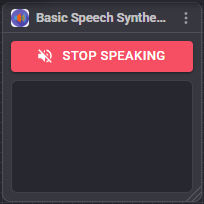
- Stop Speaking - stops whatever is being spoken right now, immediately.
- Log - the last 25 lines of activity, including what was spoken and any errors.
Configuration
There is no configuration for this skill. The voice is fixed.
Speaking from a script
Audio.Say("Hello, I am a robot");          // PC speaker, returns immediately
Audio.SayWait("Hello, I am a robot");      // PC speaker, waits until finished
Audio.SayEZB("Hello from my own speaker"); // EZB #0 speaker
Audio.SayEZBWait("Hello", 0);              // EZB #0 speaker, waits until finished
Every one of these routes through whichever text to speech engine skill is in the project - this one, if it is the one you added.
Troubleshooting
| Symptom | Cause |
|---|---|
| "There is no user logged into ARC" | Log into your Synthiam account in ARCx. |
| Nothing is spoken and nothing is logged | No text to speech engine skill in the project, or something else in the project is speaking through an EZB rather than the PC. |
| The voice is robotic or you need another language | Use the Advanced Speech Synthesis skill, which uses Azure neural voices. |
See also
- Advanced Speech Synthesis - natural sounding, many languages
- Windows Speech Engine - offline synthesis using the voices installed in Windows
Control Commands for the Basic Speech Synthesis robot skill
There are Control Commands available for this robot skill which allows the skill to be controlled programmatically from scripts or other robot skills. These commands enable you to automate actions, respond to sensor inputs, and integrate the robot skill with other systems or custom interfaces. If you're new to the concept of Control Commands, we have a comprehensive manual available here that explains how to use them, provides examples to get you started and make the most of this powerful feature.
Control Command ManualThis skill has no control commands.
It is a text to speech engine. It does not receive commands; it provides the voice that ARCx uses whenever something asks for speech.
How to make it speak
Use the Audio object from a JavaScript or Python script:
| Script command | What it does |
|---|---|
Audio.Say("text") |
Speaks out of the PC speaker and returns immediately. |
Audio.SayWait("text") |
Speaks out of the PC speaker and waits until it has finished. |
Audio.SayEZB("text") |
Speaks out of the speaker on EZB #0. |
Audio.SayEZB("text", ezbIndex) |
Speaks out of the speaker on the given EZB. |
Audio.SayEZBWait("text") |
Speaks out of EZB #0 and waits until it has finished. |
Audio.SayEZBWait("text", ezbIndex) |
Speaks out of the given EZB and waits. |
Example:
Audio.SayWait("Hello, my name is Six");
Audio.Say("I am going to move now");
Stopping speech
The Stop Speaking button in the skill's window stops playback. There is no control command equivalent in this skill.

This robot skill has been updated to v1.
This robot skill has been updated to v2.
This robot skill has been updated to v3.
This robot skill has been updated to v4.
What has changed
compatible with latest ARCx v2026.09.27.01
This robot skill has been updated to v5.
What has changed
spelling fix correction