
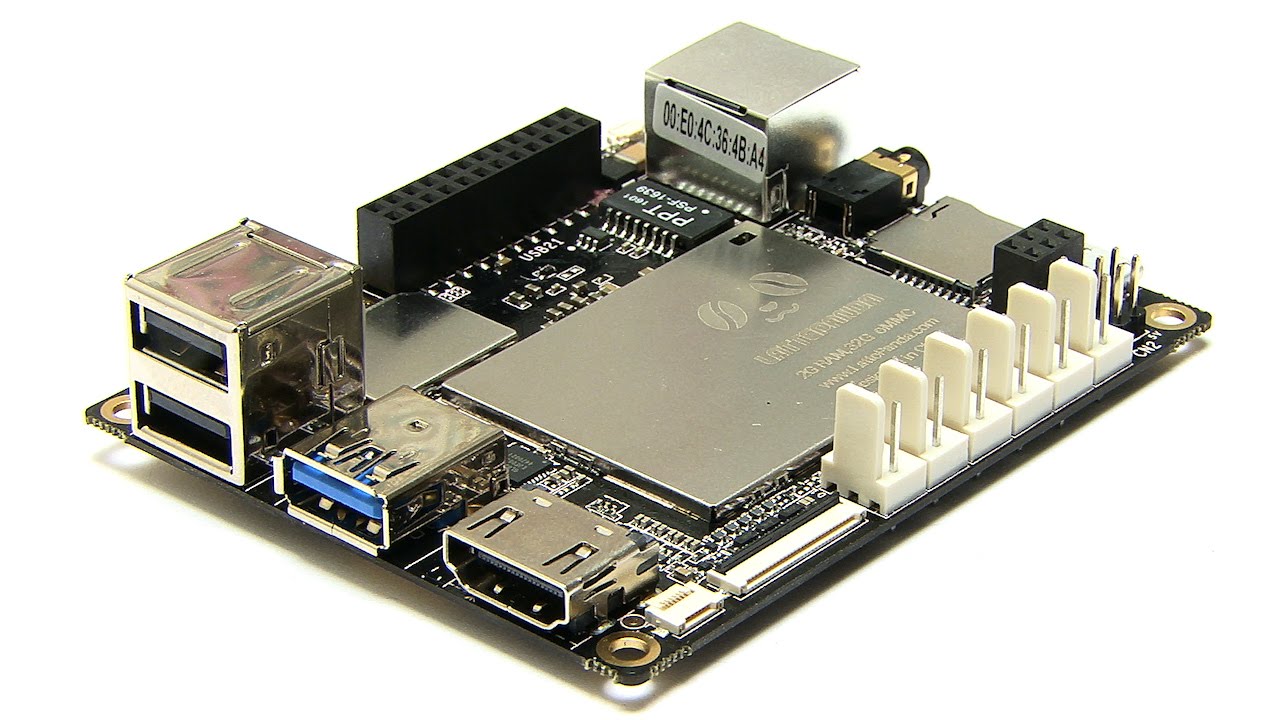
Lattepanda by DF Robot
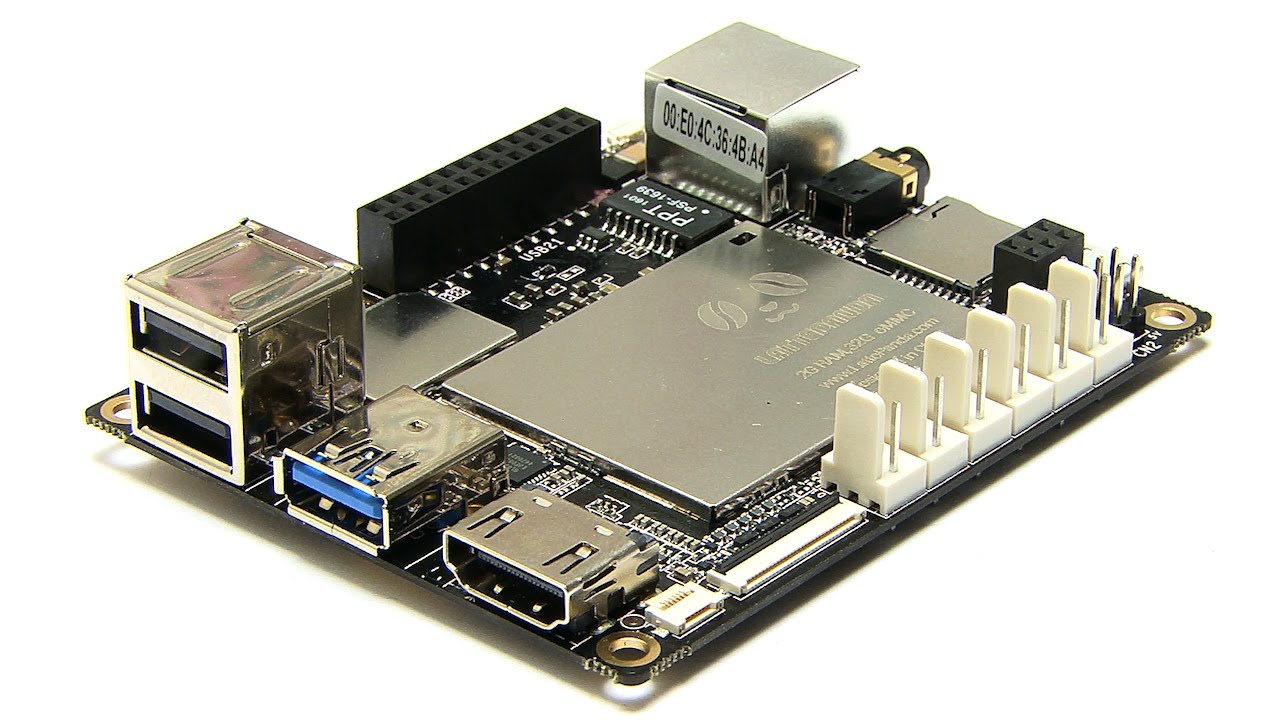
A robot computer with an Arduino built in
The LattePanda is a small x86 computer with an Arduino Leonardo compatible microcontroller on the same board. Run ARCx on it, load EZB firmware onto the built-in Arduino, and one board becomes both the robot's brain and its I/O controller, used from any web browser.
How the LattePanda works with Synthiam. The LattePanda's Intel processor runs a full operating system, so it runs Synthiam software on the robot: ARCx on 64-bit Windows 10/11 or Ubuntu 24.04 LTS, or ARC on Windows. Its on-board ATmega32u4 (Arduino Leonardo compatible) takes EZB firmware and connects to ARCx or ARC over an internal USB serial port, giving the project servos, PWM, digital and analog ports without any other hardware. We recommend ARCx: the robot runs headless and you use it from a browser on any device.
What is the LattePanda?
The LattePanda is a single-board computer from DFRobot. Like a Raspberry Pi it fits in the palm of your hand, but it uses an Intel x86 processor, so it runs the same Windows and Linux software as a desktop PC. It was sold with 64-bit Windows 10 installed.
What makes it special for robots is the second chip on the board: an ATmega32u4, the same microcontroller as an Arduino Leonardo, with its pins broken out on a header and
on Gravity sensor connectors. The computer and the microcontroller talk over an internal USB link, so the Arduino shows up as a COM port on Windows
(or a /dev/ttyACM device on Linux) exactly as a plugged-in Arduino would.
This page covers the original LattePanda (V1). DFRobot has since released other LattePanda models; check your model's documentation for which co-processor it has before using the firmware on this page.
LattePanda at a glance
| Type | x86 single-board computer with an on-board microcontroller |
|---|---|
| Maker | DFRobot |
| Processor | Intel Cherry Trail Z8350 quad-core, 1.44 GHz (up to 1.92 GHz) |
| Memory / storage | 2 GB / 32 GB eMMC (other versions exist) |
| Co-processor | ATmega32u4, Arduino Leonardo compatible, 20 GPIO |
| Connectivity | Wi-Fi 802.11n (2.4 GHz), Bluetooth 4.0, 100 Mbps Ethernet, 1 × USB 3.0, 2 × USB 2.0, HDMI |
| Power | 5 V, 2 A |
| Synthiam uses it for | Running ARCx or ARC on board, with the Leonardo as an EZB |
| Website | dfrobot.com |
Pick the I/O that suits your robot
Built-in Arduino as the EZB
Load the EZB firmware onto the on-board Leonardo. One self-contained board drives servos and reads sensors, with no extra controller. Ideal for small robots.
EZ-B v4 hardwired
Turn the Leonardo into a USB serial adapter and wire it to an EZ-B v4 for 24 I/O ports, three hardware UARTs, eight ADC, I2C, a switching power supply and streaming audio, with no Wi-Fi latency.
Any other EZB
Plug in an Arduino Mega or connect an ESP32, IoTiny or EZ-B v4 over Wi-Fi. A project can use several boards at once, including the built-in Leonardo.
What you can do with it in Synthiam
- Servos and motors on the Leonardo's PWM pins, with movement panels, Auto Position animations, the Servo Pad and Servo Animation.
- Sensors on the digital, analog and I2C pins, read by robot skills and scripts.
- Cameras on the USB ports, for face, color, glyph and object tracking with Camera Source (usb).
- Voice and sound through the headphone jack or a USB microphone and speaker: speech recognition, text to speech and audio playback.
- Programming in Blockly, JavaScript or Python, in the browser.
- AI: ARCx is an MCP server, so AI agents can see, drive and program the robot.
- Custom UI and remote access: touch control screens, and Exosphere for driving the robot from anywhere and telepresence.
LattePanda Arduino pinout
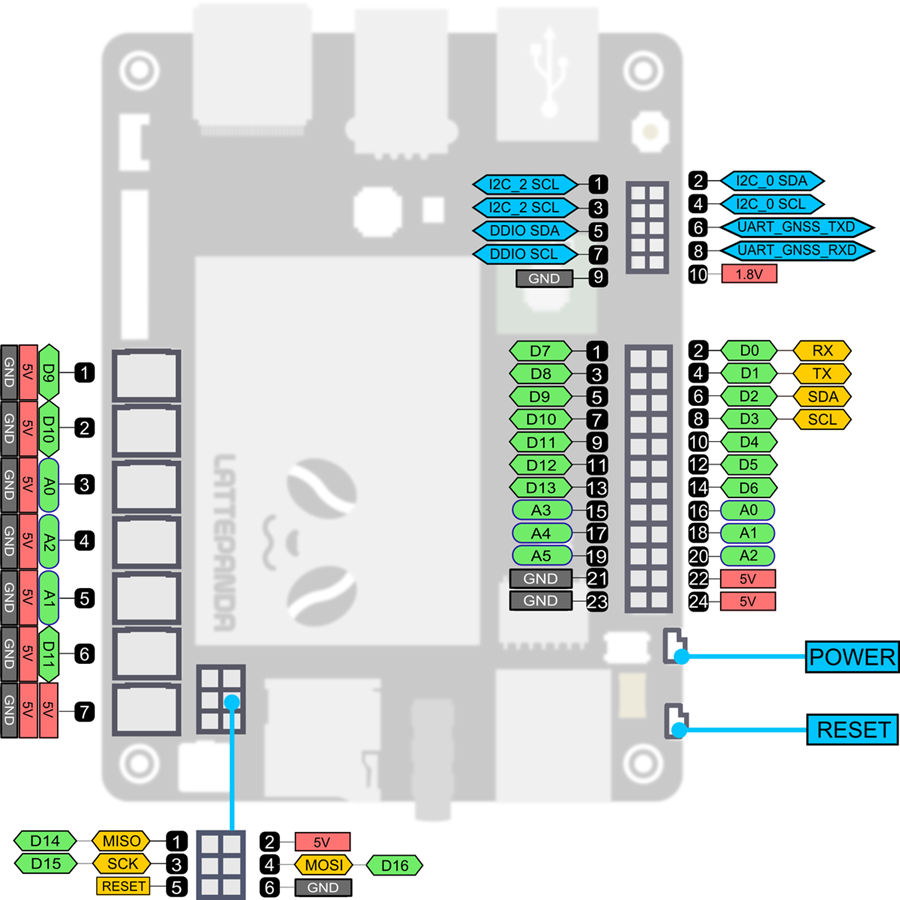
With the EZB firmware loaded, the Leonardo's digital pins can be used for PWM, servos and digital on/off, and analog pins A0-A5 are analog inputs. Digital pin 0 is UART #0 RX and digital pin 1 is UART #0 TX.
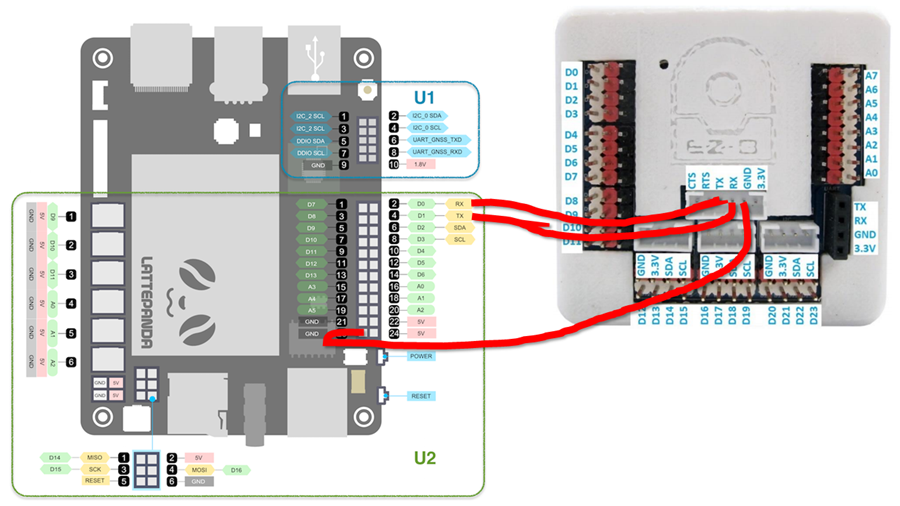
U2 header (Arduino)
| Pin | Signal | Pin | Signal |
|---|---|---|---|
| 1 | D7 | 2 | D0, UART #0 RX |
| 3 | D8 | 4 | D1, UART #0 TX |
| 5 | D9 | 6 | D2, I2C SDA |
| 7 | D10 | 8 | D3, I2C SCL |
| 9 | D11 | 10 | D4 |
| 11 | D12 | 12 | D5 |
| 13 | D13 | 14 | D6 |
| 15 | A3 | 16 | A0 |
| 17 | A4 | 18 | A1 |
| 19 | A5 | 20 | A2 |
| 21 | GND | 22 | 5 V |
| 23 | GND | 24 | 5 V |
Gravity connectors (GND, 5 V, signal)
| Connector | Signal |
|---|---|
| 1 | D9 |
| 2 | D10 |
| 3 | D11 |
| 4 | A0 |
| 5 | A1 |
| 6 | A2 |
ICSP header
| Pin | Signal |
|---|---|
| 1 | MISO (D14) |
| 2 | 5 V |
| 3 | SCK (D15) |
| 4 | MOSI (D16) |
| 5 | RESET |
| 6 | GND |
PWM pins (Leonardo)
| Board | PWM pins | PWM frequency |
|---|---|---|
| Leonardo (LattePanda co-processor) | 3, 5, 6, 9, 10, 11, 13 | 490 Hz (pins 3 and 11: 980 Hz) |
Tidy the wiring with a shield. DFRobot makes a shield for the LattePanda that powers it from 7-12 V and breaks out the I/O for servos and sensors. It saves a lot of loose jumper wires on a robot.
Set up the LattePanda with its built-in Arduino
- Choose the operating system. ARCx needs a 64-bit system: Windows 10 or 11 (x64), or Ubuntu 24.04 LTS (x64). The LattePanda was sold with 64-bit Windows 10, so you can start there. ARC needs Windows.
-
Install ARCx. Follow Install ARCx on Windows 64 or
Install ARCx on Linux x64. To use the robot from another device, start ARCx so it listens on the network
(ARCx Server (Bind Any) on Windows, or
./ARCx -b http://0.0.0.0:5000on Ubuntu) and browse tohttp://<lattepanda-address>:5000. - Load the EZB firmware onto the Leonardo. Download EZ-Genuino_Leonardo.zip (updated Dec 11, 2022), open it in the Arduino IDE on the LattePanda, select the Arduino Leonardo board and the LattePanda's Arduino port, and upload.
- Add the Ezb Connection robot skill and turn on DTR. In ARCx, add Ezb Connection, open its configuration, select EZB 0 and, under Connection, tick Enable DTR. Save. (The Leonardo's USB serial driver only delivers received data with DTR enabled; see Troubleshooting.)
-
Connect. Type or pick the Leonardo's port in the main window (
COM3or similar on Windows,/dev/ttyACM0on Ubuntu) and press the connect button. On Ubuntu, add your user to thedialoutgroup first. - First test. Plug a servo into a PWM pin (for example D3), add a Servo robot skill set to that port, and move it. Then add a movement panel, a camera and speech, and build your robot from there.
Using ARC instead? The steps are the same on Windows: add the EZB Connection skill, press its CONFIG button, tick DTR Enabled on the Connection Config screen (where the baud rate is set), choose the COM port and press CONNECT. This firmware works with ARC version 2019.06.25.00 or newer.
Hardwire an EZ-B v4 to the LattePanda
The on-board Leonardo is convenient, but its GPIO is limited. For a bigger robot, connect an EZ-B v4 directly and get its 24 I/O ports, three hardware UARTs, eight ADC inputs, I2C, digital switching power supply and real-time streaming audio, over a wire with instant response. The LattePanda's Leonardo becomes a 256,000 baud USB UART adapter.
-
Make the cable. The hardwired link uses the EZ-B v4's camera port (see the EZ-B v4 datasheet for its pinout). Modifying an existing EZ-Robot camera cable is the easiest way to reach the pins.
- EZ-B camera port TX to LattePanda U2 pin 2 (D0, RX)
- EZ-B camera port RX to LattePanda U2 pin 4 (D1, TX)
- EZ-B camera port GND to LattePanda U2 pin 23 (GND)
-
Set the EZ-B v4 to 256000 baud. Connect to the EZ-B v4 over Wi-Fi and open its web configuration at
http://192.168.1.1. In Advanced Settings, change the Serial/USB Connection dropdown to 256000 and press Save and Reboot. - Load the pass-through program onto the Leonardo. Upload EZB_Passthrough.zip to the LattePanda's on-board Arduino. Because the LattePanda has no spare hardware UART, this turns the Leonardo into a USB UART adapter at 256,000 baud.
- Enable DTR. In ARCx's Ezb Connection configuration, tick Enable DTR for the board. In ARC, press CONFIG on the connection control and enable DTR Enable.
-
Connect. Choose the Leonardo's COM port (or
/dev/ttyACM0) and connect. You are now connected to the EZ-B v4 by wire, with no Wi-Fi latency.
Both run on it; ARCx is recommended
ARCx Recommended
- Runs on 64-bit Windows 10/11 or Ubuntu 24.04 LTS on the LattePanda.
- Headless: no monitor on the robot. Use it from any browser, several people at once; closing the browser leaves the robot running.
- AI agents connect through MCP; robot skills install from the Synthiam store.
ARC
- Windows desktop application; runs on the LattePanda's Windows 10.
- Use a monitor on the HDMI port or remote desktop software.
- A good choice if you already have ARC projects.
Running Windows on a small board? Our Tips to Make a Robot guide covers freeing storage space, improving performance, powering the board and running headless with remote desktop software.
When something does not work
dialout group with sudo usermod -aG dialout $USER, then log out and back in. The Leonardo normally appears as /dev/ttyACM0.
Frequently asked questions
/dev/ttyACM port. ARC needs Windows.
http://<lattepanda-address>:5000 from any browser. ARCx has no login of its own, so keep it on a trusted network.
One board, a whole robot
Install ARCx on the LattePanda, load the EZB firmware onto its Arduino, and control your robot from any browser.

Hello User, yes you can use EZB out anywhere when no internet because the Latte Panda can connect to the EZB's built in server, No other Wifi needed.
Hi Robo rad,
thanks a lot; good to read, indeed !
Do you have a link for a corresponding wiring between these two units ?
You don't need any cable or wire as both communicate through wireless EZB server wifi. Then when you do want to add a different home Wifi the EZB can be changed to client mode where Latte panda and EZB use the home wifi router. I Use both methods as i bring robot out to cottage where no Wifi, then use just EZB to connect with Panda wireless. You can connect a cable to the Uart on the EZB but I have never tried that, DJ or Jeremie could chime in on that connection. Are you wanting to use windows 10 or the Arduino built in on the Panda,you can use both.
Hi robo rad,
it's for my XXL insect: What will be the pros and cons for the two options to connect a Lattepanda and an EZ-B ?
- 3-wire connection (as shown above) - EZ-B wifi hotspot
I guess, when using the hotspot I may circumvent these software changes in the EZ-B web configuration.
Thanks a lot for any hint !
Cheers
Volker
Yes the default ezb connection works great when you reset it and have no other Wifi . The Latte Panda does not even need to be on the robot but just near by for the wireless to EZB on the robot. I do this because the Latte Panda needs around 3---5 Amps to boot up to windows unless you follow DJ's tutorial how to run micro computers "headless" and other ways to run with less power. The EZB can run with just any 7.4 battery up to something like 16 volts I believe.Even 5 volts Jeremie told me with no extra servos attached.
Sure, a LattePanda does not need to be installed onboard ...
... but then I can also use my Toughbook (it's a CF-D1); a really solid control unit.
In a few weeks I will be confronted with the task to realise remote control for my insect.
Currently I do not see a direct way with Synthiam BLOCKLY.
Maybe I will use a surplus RC gear:
- Low-pass filtering the outputs of the PWM receiver outputs (RC section with long time constant). - Connecting the resulting DC signals to ADC inputs of the EZ-B
Could work; at least worth a try !
Use the user interface and control it by a mobile device or a phone or computer. The user interface also displays the camera feed and gives you access to customizable scripts and buttons. https://synthiam.com/Support/Skills/User-Interface/Interface-Builder?id=16063
Within Blockly ?