
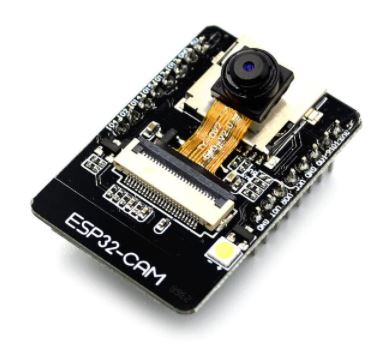
ESP32 Cam by Espressif
Firmware
Transform ESP32-CAM into an EZ-B for Synthiam ARC: simultaneous video streaming and servo control in a compact, cost-effective solution.
Synthiam ARC ESP32-CAM firmware: EZ-B-compatible controller, OV2640 live video, PCA9685 16-channel servo/PWM, stable timing and AP/Client Wi-Fi
ESP32 Cam gateway for Arduino streams live video to Synthiam ARC and routes I/O over WiFi for servo, sensor, and analog control
ESP32 Camera firmware emulates EZ-B v4 camera over UART for plug-and-play, 3.3V-powered, cost-effective video integration and customization.
A Wi-Fi camera and controller on one tiny board
The ESP32-CAM is a small, affordable Wi-Fi microcontroller with a camera on board. Flash Synthiam's firmware and it becomes an EZ-B compatible controller that streams live video to Synthiam ARC for face, color and object tracking, while its spare pins handle digital I/O, sensors and serial devices.
How the ESP32-CAM works with Synthiam. Install one of Synthiam's ESP32-CAM firmwares (listed in the Firmware section below). The board then speaks the EZB protocol over Wi-Fi and serves its camera stream. In ARC, connect with the EZB Connection skill and show the video with the Camera Device skill; this is the proven path for the camera. ARCx recognizes the ESP32-CAM firmware in its Ezb Connection skill for the board's ports, and its Camera Source (ezb) skill is the one to try for the video, but ESP32-CAM video in ARCx has not been confirmed yet. This page is for ESP32 boards with a camera; for boards without one, see the ESP32 page.
What is the ESP32-CAM?
The ESP32-CAM is an ESP32 microcontroller board with a small camera module on a ribbon cable. It costs little, fits almost anywhere, and connects over Wi-Fi, which makes it a popular choice for small rovers, inspection robots, telepresence devices and home monitoring projects.
Many companies make ESP32 camera boards: the common AI-Thinker style ESP32-CAM, M5Stack camera units, ESP-EYE, XIAO ESP32S3 and DFRobot boards among them. The camera uses many of the ESP32's pins, so fewer GPIO pins are free than on a plain ESP32 board. Synthiam's firmware handles that with a pin-mapping table that keeps camera pins safe from accidental use.
What the firmware provides: live camera streaming, EZ-B style control of the free GPIO, AP or client Wi-Fi mode, and a mapping that translates
Synthiam ports (D0-D23, ADC0-ADC7) to the right ESP32 GPIO pins for your camera board.
ESP32-CAM at a glance
| Type | Wi-Fi microcontroller with an onboard camera |
|---|---|
| Chip maker | Espressif Systems; boards from many vendors |
| Camera | OV2640 on common boards |
| Logic level | 3.3 V |
| Connection to Synthiam | Wi-Fi (TCP), access point or client mode |
| Power | 5 V or 3.3 V header pins (AI-Thinker style board) |
| Synthiam uses it for | Robot vision plus digital I/O, ADC and UART |
| Chip maker website | espressif.com |
What you can do with an ESP32-CAM in Synthiam
Robot vision
In ARC, the Camera Device skill gives the robot real-time vision: face, color, glyph and object tracking, and every other camera-enabled skill in your project.
FPV and telepresence
Drive a small rover while watching its live video, for remote inspection, a telepresence device or home monitoring.
Digital I/O and sensors
Switch outputs, read inputs, measure distance with an ultrasonic sensor and read analog values on the pins that the camera leaves free.
Servos through a driver board
The camera uses most of the ESP32's timing resources, so servos are best run from a PCA9685 or another servo controller. One firmware drives a PCA9685 for you.
Serial devices
A UART expansion port (ARC UART #0) talks to serial devices such as motor controllers or another microcontroller.
Scripts and AI
Program reactions with Blockly, JavaScript or Python, and connect what the camera sees to AI robot skills.
Synthiam firmware for ESP32 camera boards
Download the firmware from the Firmware section below. Each build includes configuration details and board-specific notes: selecting the correct camera model, choosing the Wi-Fi mode, confirming the IP address and avoiding pin conflicts. Always follow the comments in the firmware for your specific board.
| Firmware | What it does | Good to know |
|---|---|---|
| ESP32 Cam EZB | The main firmware. Live camera streaming plus digital I/O, ultrasonic distance, optional ADC and a UART expansion port, running at the same time. | Since version 13 it has no servo support: the board is treated strictly as digital + ADC + UART + camera. Use an external servo controller. One EZB client and one camera client at a time. AP address 192.168.1.1 (older versions used 192.168.50.1). |
| ESP32 Cam with PCA9685 | EZ-B compatible controller with live OV2640 video and a PCA9685 for 16 channels of servo/PWM output. | AP mode by default (#define AP_MODE), network GetOffMyLawn, address 192.168.1.1. The camera stream is on TCP port 24. |
| ESP32 Cam Arduino Relay | The ESP32-CAM is a Wi-Fi gateway: it streams video and passes I/O commands to an Arduino, which drives the servos, pins and sensors. | Cross the serial lines: Arduino TX0 to ESP32-CAM RX, Arduino RX0 to ESP32-CAM TX. |
| ESP32 Cam UART | Makes the ESP32-CAM a plug-in replacement for the EZ-B v4 camera, connected to the EZ-B v4's camera port over UART. | Wiring: ESP32 UART0 TX to camera RX, pin 2 to camera RTS, GND to GND, 3.3 V to 3.3 V. The firmware page describes it as untested. |
Supported camera models
The firmware supports many ESP32 camera boards. Before compiling, enable the one #define CAMERA_MODEL_... line that matches your board.
Only one model can be enabled at a time; the wrong one usually shows up as "frame size = 0" or a camera initialisation error.
CAMERA_MODEL_AI_THINKER        (the common ESP32-CAM)
CAMERA_MODEL_WROVER_KIT
CAMERA_MODEL_ESP_EYE
CAMERA_MODEL_M5STACK_PSRAM
CAMERA_MODEL_M5STACK_V2_PSRAM
CAMERA_MODEL_M5STACK_WIDE
CAMERA_MODEL_M5STACK_ESP32CAM
CAMERA_MODEL_M5STACK_UNITCAM
CAMERA_MODEL_M5STACK_CAMS3_UNIT
CAMERA_MODEL_TTGO_T_JOURNAL
CAMERA_MODEL_XIAO_ESP32S3
CAMERA_MODEL_ESP32_CAM_BOARD
CAMERA_MODEL_ESP32S3_CAM_LCD
CAMERA_MODEL_ESP32S2_CAM_BOARD
CAMERA_MODEL_ESP32S3_EYE
CAMERA_MODEL_DFRobot_FireBeetle2_ESP32S3
CAMERA_MODEL_DFRobot_Romeo_ESP32S3Pins and the camera. Camera boards often reuse GPIO pins internally for the camera sensor, the SD card, the flash LED or PSRAM. Those pins cannot be used for digital I/O while the camera is running. This is not a Synthiam limitation; it is how the boards are wired. The firmware documentation calls out the common conflicts and the recommended pins.
Port configuration and pin mapping
ARC and ARCx label controller ports D0-D23, while ESP32 boards label pins with GPIO numbers that vary with the board and its camera wiring.
The firmware's mapping tables let Synthiam always talk in D-ports while the firmware picks the correct, camera-safe GPIO for your model.
Your projects stay the same when you switch boards; only the mapping changes.
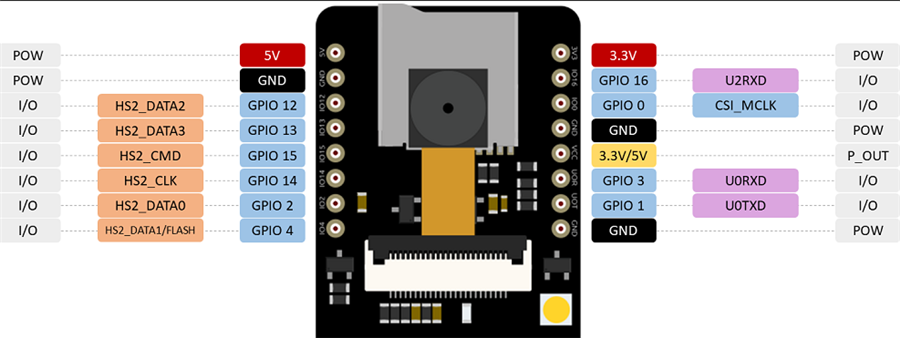
| Header pin | Also used for |
|---|---|
| GPIO 12 | HS2_DATA2 (SD card) |
| GPIO 13 | HS2_DATA3 (SD card) |
| GPIO 15 | HS2_CMD (SD card) |
| GPIO 14 | HS2_CLK (SD card) |
| GPIO 2 | HS2_DATA0 (SD card) |
| GPIO 4 | HS2_DATA1 / flash LED |
| GPIO 16 | U2RXD |
| GPIO 0 | CSI_MCLK (camera clock) |
| GPIO 3 | U0RXD (serial / programming) |
| GPIO 1 | U0TXD (serial / programming) |
| 5V, 3.3V, GND | Power; one pin is a 3.3 V / 5 V output |
Editing the mapping
The mapping arrays are the only board-specific part of the firmware. Each entry is the GPIO for one Synthiam port; 0xff means "not available".
This example from the firmware maps five ports and leaves the rest unused:
const uint8_t ARC_TO_ESP_DIGITAL_PIN_MAPPING[24] = {
  2,    // ARC port D0
  13,   // ARC port D1
  14,   // ARC port D2
  15,   // ARC port D3
  12,   // ARC port D4
  0xff, // ARC port D5 (not used)
  ...   // D6 to D23 not used
};

// Serial expansion UART (ARC UART #0)
#define SERIAL2_RX 12
#define SERIAL2_TX 13
There are always 24 digital entries (D0-D23) and 8 ADC entries (ADC0-ADC7). The UART pins must not overlap camera pins or the ports you mapped.
If a mapped pin overlaps a camera pin, the firmware stops with an error message instead of breaking the camera.
Servos and pin conflicts
On common AI-Thinker style modules, many users have run servos on D2, D12, D13, D14 and D15,
and the general ESP32 recommendation for servo pins is 2, 4, 12-19, 21-23, 25-27, 32-33. The exact safe pins differ by board revision,
camera model, and whether the flash LED or SD card is in use, so validate them on your own board.
The current ESP32 Cam EZB firmware (version 13 and later) has no servo support. The camera needs most of the board's CPU time, DMA bandwidth, GPIO and LEDC timers, so servo pulses are offloaded to a dedicated controller such as a PCA9685 or SSC-32. Choose the ESP32 Cam with PCA9685 firmware if you want servos on the same board.
If a pin is shared with the camera or another onboard feature, the camera may still work, but that pin cannot be used reliably for I/O at the same time.
Wi-Fi modes
AP mode (direct connect)
The ESP32-CAM creates its own Wi-Fi network and your computer connects straight to it, at 192.168.1.1 on current firmware. Simple for quick tests and field use when you do not want a router involved.
Client mode (join your network)
The ESP32-CAM joins your Wi-Fi router, and you connect to the address your network gives it. Open the Arduino serial monitor at 115200 baud to see the connection status and the IP address. If the Wi-Fi drops, the board restarts and joins again on its own.
Set up an ESP32-CAM
- Choose a firmware from the table above and download it from the Firmware section below.
-
Configure it in the Arduino IDE. Install the ESP32 board package from Espressif and any libraries the firmware page lists. Then:
enable the one
CAMERA_MODEL_...line for your board, edit the pin-mapping tables to match the pins your board exposes, and choose AP or client mode (in client mode, enter your network name and password). -
Upload to the board, open the serial monitor at
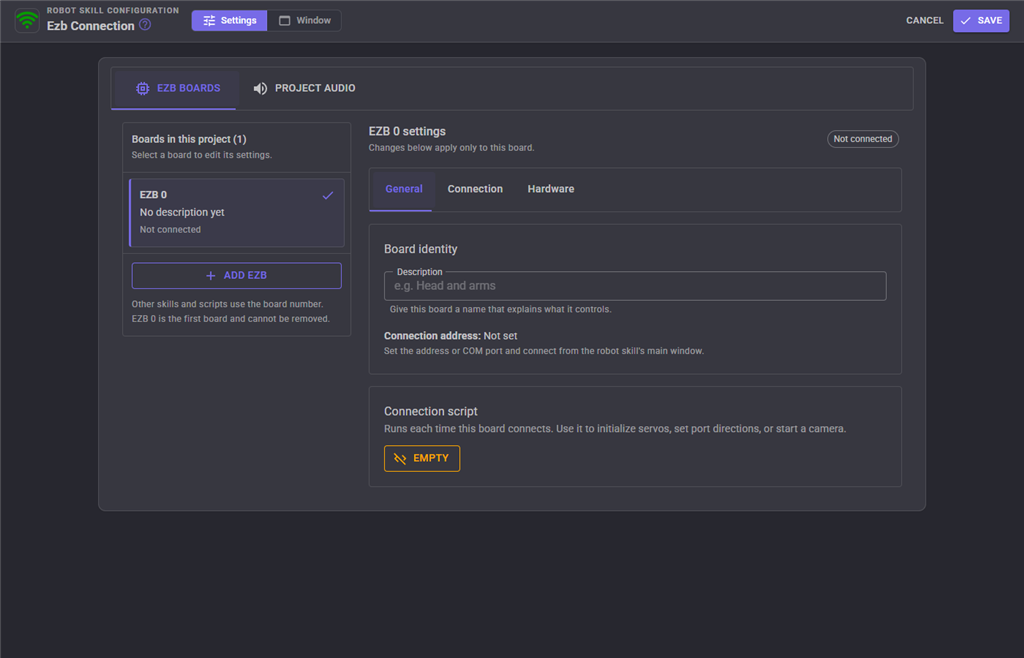
115200, reset the board and note its IP address and any camera messages. - Connect in ARC. Join the right Wi-Fi network, add the EZB Connection skill, enter the board's address and connect. Then add the Camera Device skill and start the camera stream from the board.
- Or connect in ARCx. Install ARCx, type the address into EZB 0 in the Ezb Connection skill and connect to use the board's ports. For video, add Camera Source (ezb) and enter the same address (it uses port 24 by default). ESP32-CAM video in ARCx is not yet confirmed; if it does not start, use ARC for the camera and tell us on the forum.
- Test. Watch the live video, then toggle a digital output on a mapped port. Add a tracking skill once the picture is steady.
Good to know
- The camera XCLK runs at 20 MHz by default. Long or noisy ribbon cables are often steadier at 10 MHz (define
XCLOCK_FREQUENCY). - Steady power matters: a weak supply shows up as camera dropouts and resets.
- Frame rate depends on Wi-Fi signal strength; keep the robot within good range of the access point.
Which software to use today
For an ESP32-CAM, the camera is the main reason to buy one, and the camera is proven in ARC. ARCx is Synthiam's recommended platform wherever it supports the hardware, and it already connects to the board's ports; we will update this page when ESP32-CAM video in ARCx is confirmed.
| ARC | ARCx | |
|---|---|---|
| Runs on | Windows | Windows 10/11 x64, Ubuntu 24.04 x64 and ARM64, including Raspberry Pi 4/5 |
| User interface | Windows desktop application | Any web browser, several people at once; AI agents through MCP |
| Board connection (ports) | EZB Connection | Ezb Connection |
| Camera video | Camera Device: works | Camera Source (ezb): not yet confirmed with the ESP32-CAM |
When something does not work
CAMERA_MODEL_... is enabled, or more than one is. Enable exactly the one for your board and upload again. If the camera fails to start, the firmware prints an error and stops.
0xff and upload again.
0xff) or mapped to a pin shared with the camera, SD card, flash LED or PSRAM. Try a different pin that the firmware notes say is not used by the camera.
115200 baud and reset the board; it prints the Wi-Fi status and the address. In AP mode, current firmware uses 192.168.1.1.
Frequently asked questions
Give your robot eyes on a small budget
Flash the Synthiam firmware, connect, and add vision to your robot project.

Would like to see a video of this working with Arc
I did get the camera working with a FTDI adapter and Arduino code I found
works great
thanks
@EZAng, you've asked this question a number of times in various threads. Please do not repeat across threads
Your question was answered here: https://synthiam.com/Firmware/ESP32-Cam-EZB-5KUNP4UTSW0
Thank DJ
followed your instruction above
I got the ESP32 cam working on ARC also now
Used the FTDI adapter to upload, same setting as when I used the Arduino code instructions..
EzAng
On this chart, where are the DX pins?
D1 = gpio1 d2 = gpio2 d3 = gpio3 etc
*Note: For servo use with EZ-Cam, only pins D2, D12, D13, D14, D15 are recommended.
Tried D12 with GPIO 12 - just got the servo to work -
Camera works good
Find ports that work with your version. They're all different. All versions of the ESP 32 cam are different.
In the esp32 Cam:
Tried D12 with GPIO 12 - D13, and D15 work also
Camera and servos work