ARCx MAVLink autopilot control for Pixhawk/PX4/ArduPilot: drive, nav, obstacle avoidance, geofence, and mowing planner with simulation.
 Windows
 ARM
 Linux
 MacOS
How to add the Mavlink Autopilot robot skill
- Load the most recent release of ARCx on a compatible operating system (Get ARCx).
- Press the + Skills menu from the top menu bar in ARCx.
- Choose any of these category tabs, the robot skill appears in each of them: GPS, Movement Panels, Navigation.
- Press the Mavlink Autopilot icon to add the robot skill to your project.
Don't have a robot yet?
Follow the Getting Started Guide to build a robot and use the Mavlink Autopilot robot skill.
How to use the Mavlink Autopilot robot skill
MAVLink Autopilot connects ARCx to a flight controller that speaks MAVLink 2: a Pixhawk, Cube, Matek, Kakute, Navio or any other board running ArduPilot or PX4. The autopilot keeps doing what it is good at (stabilising, steering, holding a GPS line, enforcing a geofence) while ARCx becomes the brain on top: vision, speech, AI, navigation, scripts and the user interface.
It was built with robotic lawn mowers in mind, so it includes a complete mowing planner, but everything works for any rover, boat, copter, plane or sub the autopilot drives.
What it does
- Becomes the project's movement panel. The movement buttons, joysticks, the Movement Joystick, scripts (
Movement.forward()), navigators and AI assistants all drive the vehicle. Directions become speed and turn rate targets in GUIDED mode (ArduPilot) or Offboard mode (PX4), or RC channel overrides in manual mode. - Feeds the Navigation Messaging System (NMS). The vehicle's GPS position and heading are reported as the robot's pose, so lidar maps and navigators line up with it. The autopilot's own rangefinders become scan points.
- Gives the autopilot ARCx's eyes. Scans from ARCx's lidar and depth camera skills can be sent to the autopilot as proximity data (OBSTACLE_DISTANCE), so ArduPilot's own obstacle avoidance stops for, or steers round, what ARCx sees.
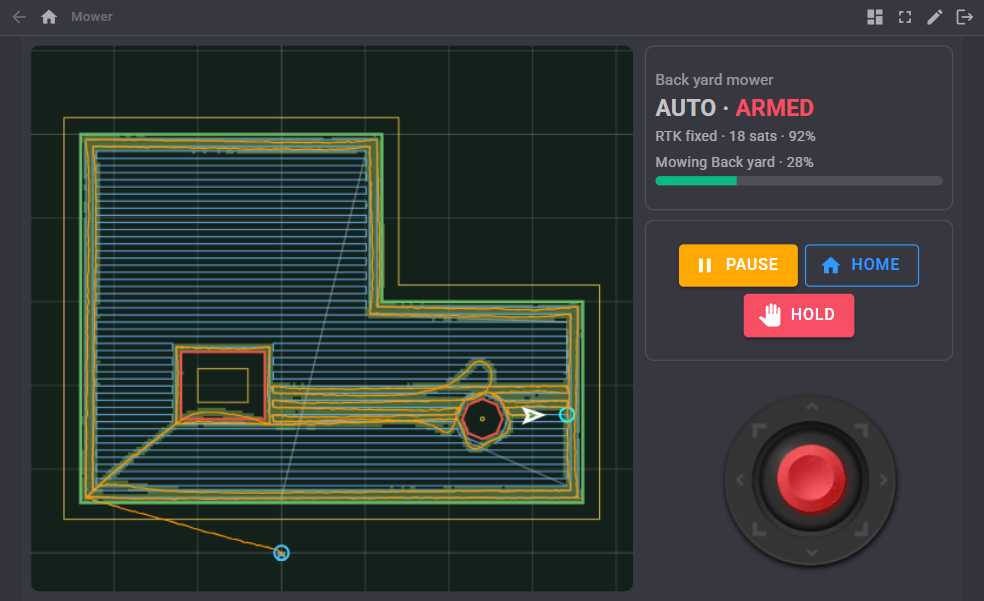
- Plans and runs mowing. Record a lawn by driving round it, add flower beds and trees to avoid, and the skill plans laps round the edge and parallel rows that route round every obstacle, uploads them with a matching geofence, and paints the area cut on a live map.
- Shares the link with QGroundControl. Every frame is forwarded to ground stations you list and their replies go back to the vehicle, so QGroundControl or Mission Planner keeps working beside ARCx on one telemetry radio.
- Exposes everything. Global variables, event scripts, control commands, Robot Bus topics and services, MCP tools for AI assistants (including a picture of the map), and Custom UI widgets.
- Includes a simulated rover. A rover that lives inside ARCx and speaks real MAVLink, so the whole skill can be tried with no hardware at all. It is the default connection, so the skill does something the moment it is added.
Connecting
| Vehicle | Connection | Settings |
|---|---|---|
| Pixhawk on USB | Serial port | The board's port (COMx on Windows, /dev/ttyACM0 on Linux), any baud rate |
| Telemetry radio (SiK, RFD900) | Serial port | The radio's port at 57600 |
| ArduPilot SITL | TCP | 127.0.0.1, port 5760 |
| MAVProxy or mavlink-router | UDP, listen | Port 14551 (leaves 14550 for QGroundControl) |
| Wi-Fi telemetry module | UDP, send to the vehicle | The module's address, port 14550 |
| No hardware | Simulated rover | Start position and heading, GPS noise, top speed |
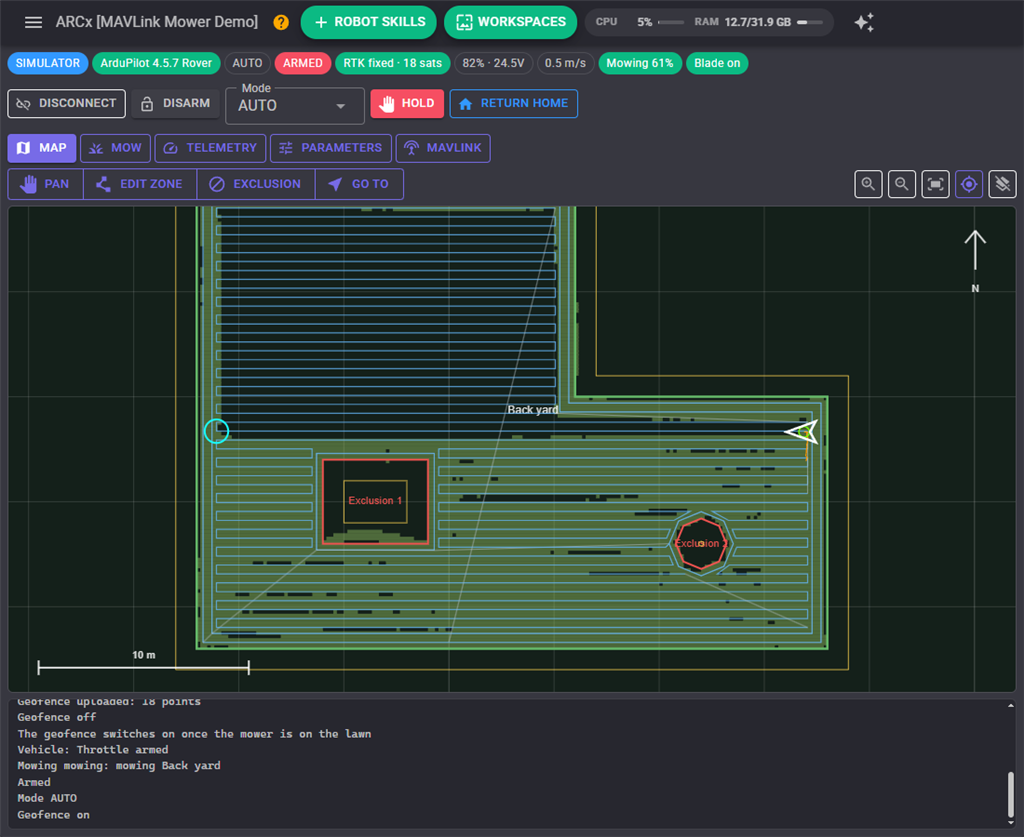
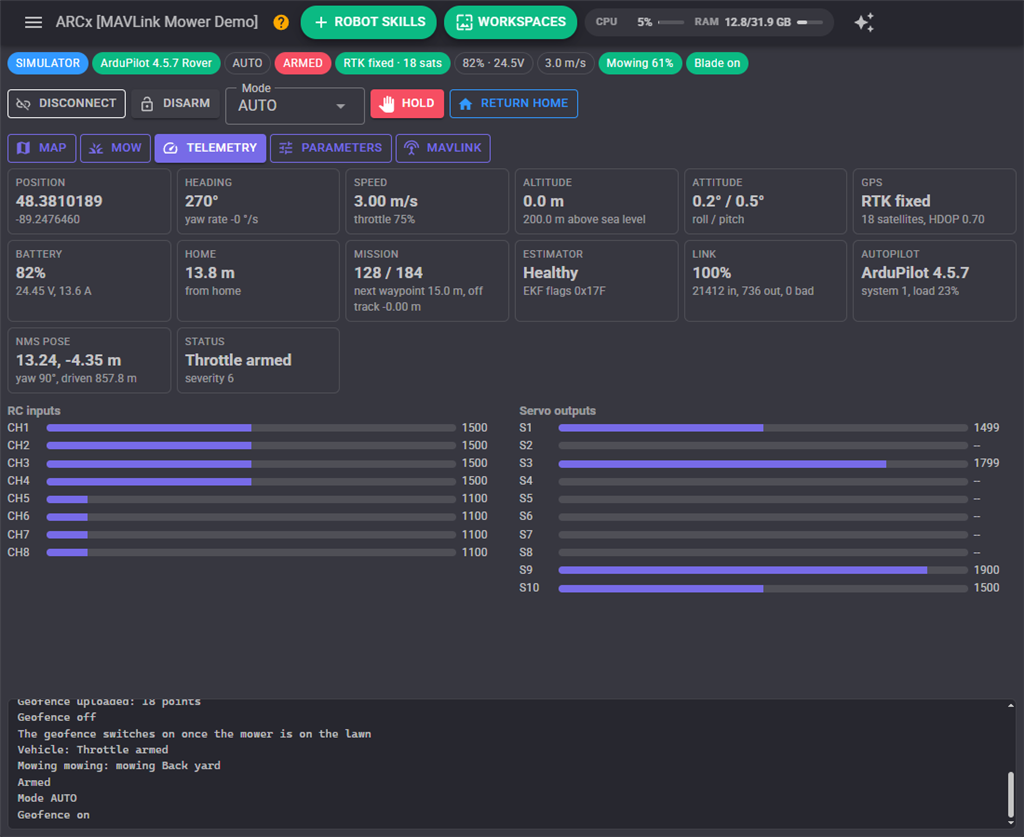
The status bar shows the autopilot, firmware, flight mode, armed state, GPS fix and satellites, battery, speed, mowing progress and any geofence breach. A blue SIMULATOR chip means nothing real is moving.
Using QGroundControl at the same time
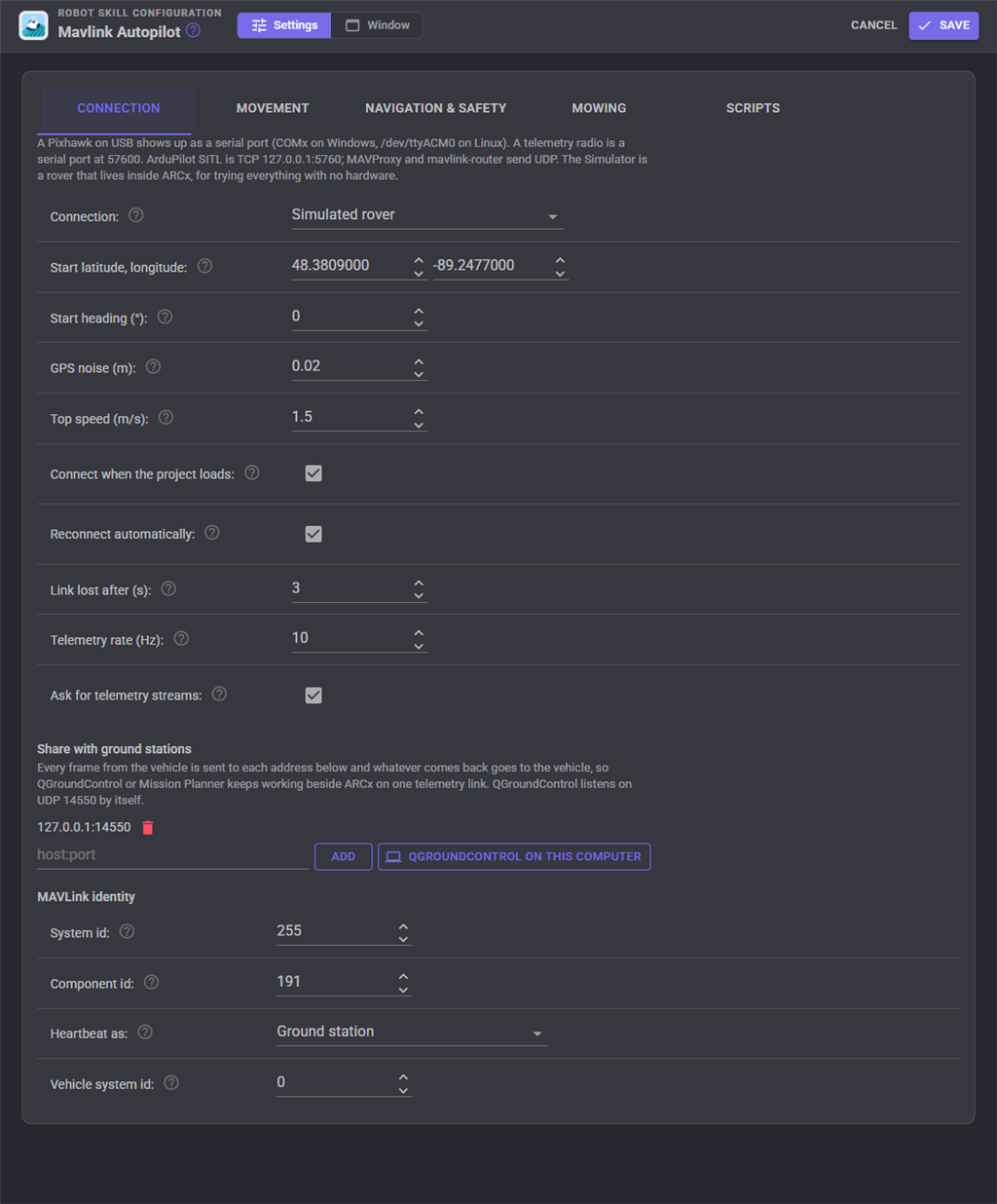
Open the configuration, Connection tab, and press QGroundControl on this computer under Share with ground stations (or type the address of the computer QGroundControl runs on, port 14550). QGroundControl connects by itself. Use it for calibration, tuning and parameters while ARCx drives. ARCx sends as system 255, component 191, so it never collides with QGroundControl's component 190.
The window
| Tab | What it is for |
|---|---|
| Map | The live map: lawn zones (green), exclusions (red), the plan (blue rows, grey travel), the mowed area, the trail, the geofence (yellow), lidar points, home and the vehicle. Drag to pan, wheel to zoom |
| Mow | Zones, recording outlines, planning, and starting, pausing and stopping a mowing job |
| Telemetry | Every reading at a glance, plus RC inputs and servo outputs as bars |
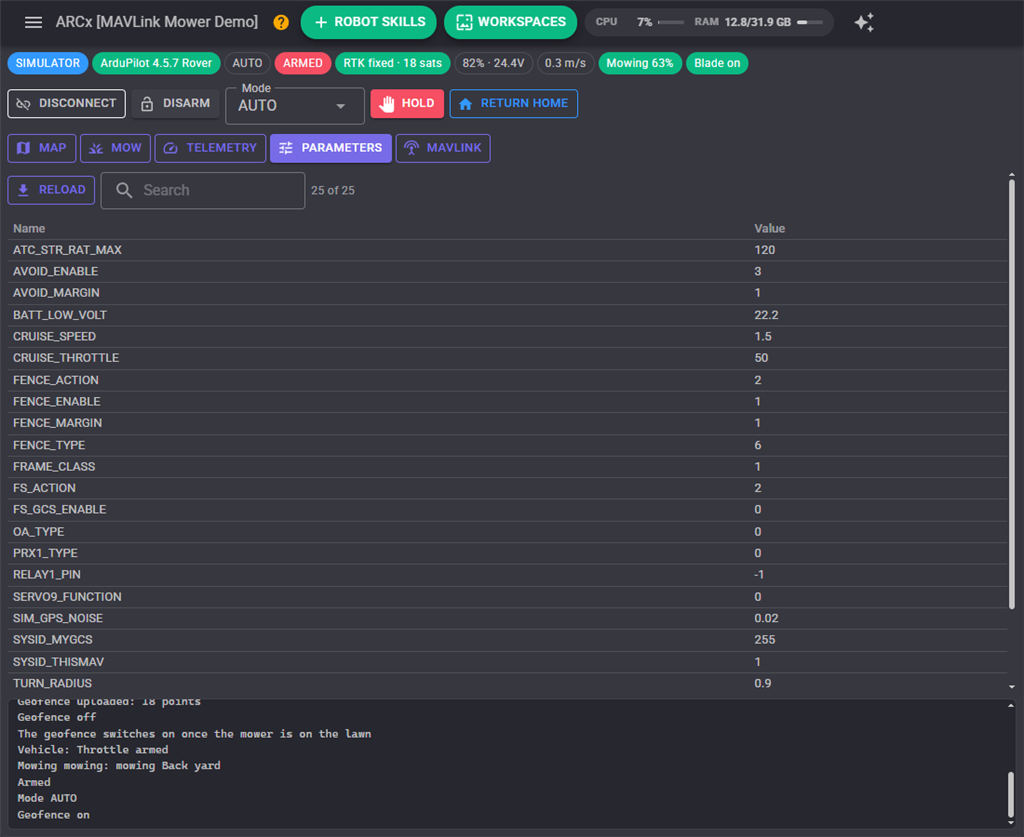
| Parameters | Read all of the autopilot's parameters, search them and change them |
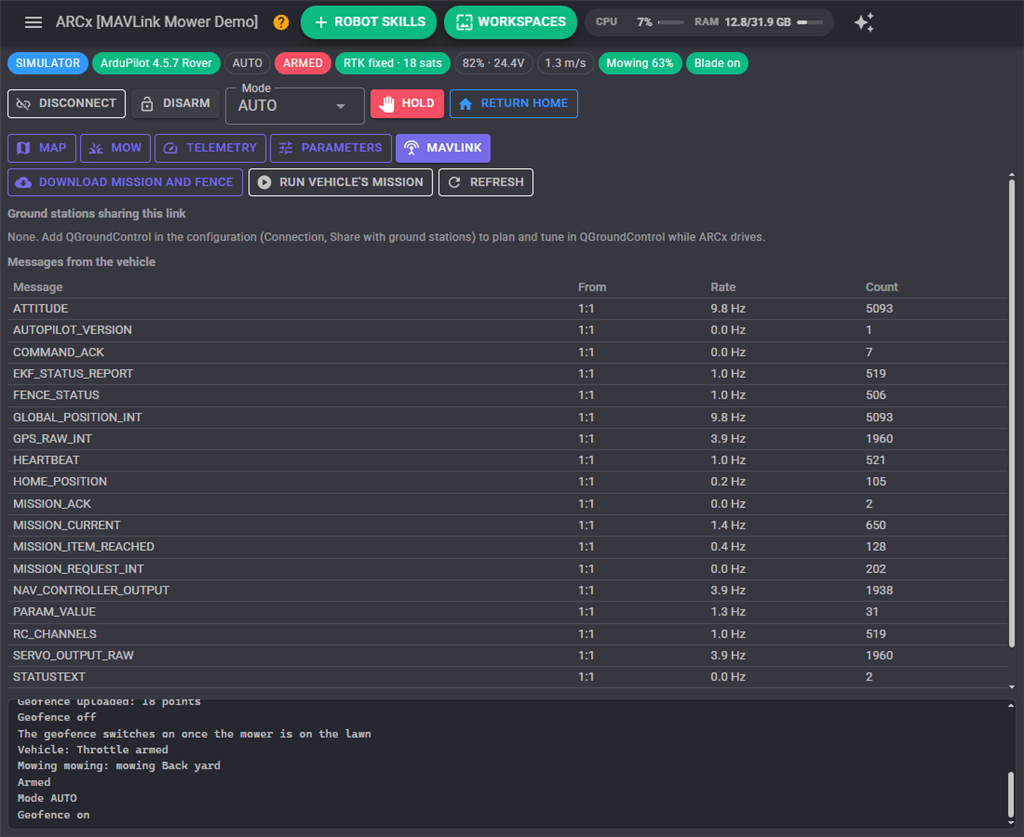
| MAVLink | Every message the vehicle sends with its rate, ground stations sharing the link, and downloading the vehicle's own mission and fence |
The buttons above the tabs arm and disarm, switch flight mode, hold and return home. Hold is the quick stop.
Map tools
| Tool | What a click does |
|---|---|
| Pan | Drag to move the map, wheel to zoom |
| Edit zone | Adds a corner to the selected zone. Drag a corner to move it, right click a corner to delete it |
| Exclusion | Adds a corner to a new exclusion; press Finish when it is closed |
| Go to | Sends the vehicle to that spot in GUIDED mode |
Driving
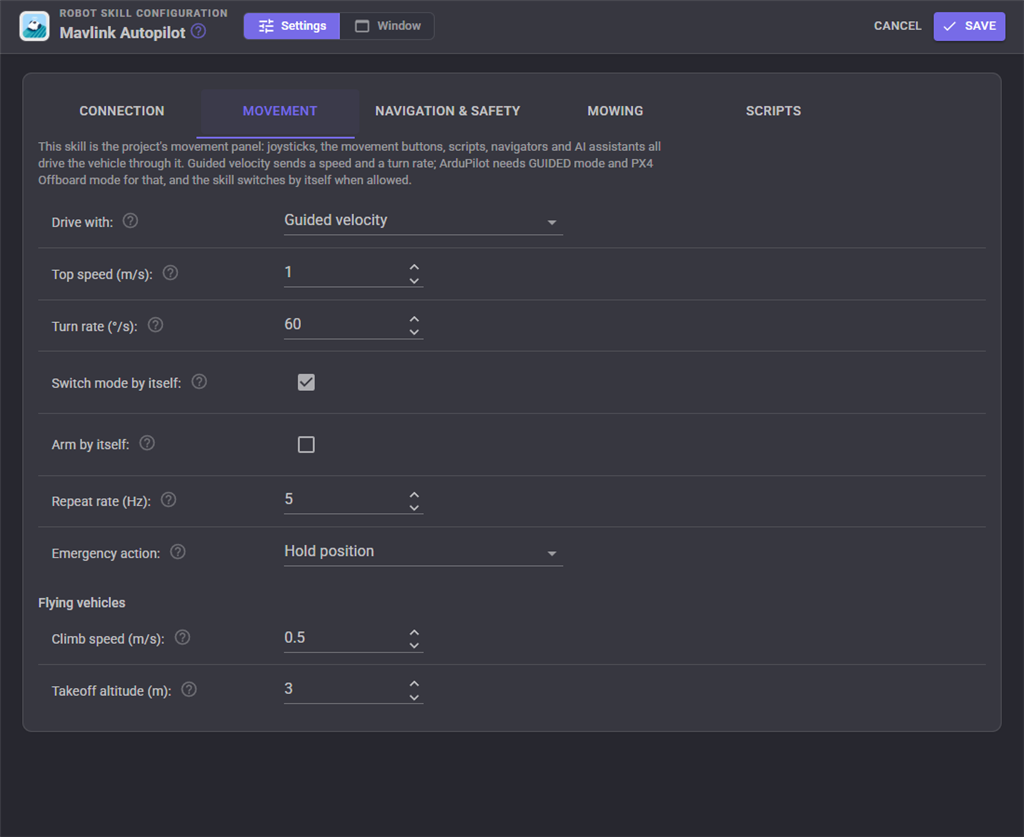
Anything that drives an ARCx robot drives the vehicle: the Movement Panel buttons, a gamepad, a Custom UI joystick, Movement.forward() in a script, a navigator, an AI assistant. The Movement tab sets the top speed and turn rate, whether the skill may switch the vehicle into GUIDED (or Offboard, or MANUAL) and arm it by itself, and what the panic button does. Starting a mission or switching mode in QGroundControl takes control back, and the skill lets go.
Mowing
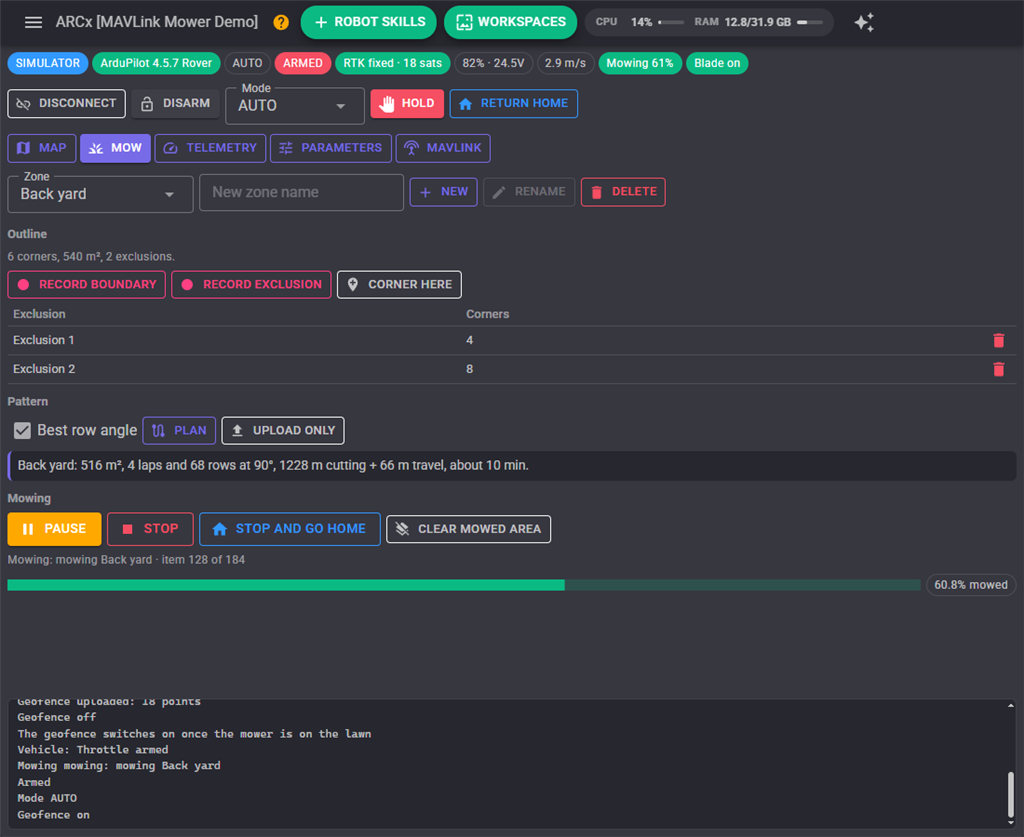
- Make a zone. On the Mow tab type a name (Back yard) and press New.
- Give it an outline. Either press Record boundary and drive the mower round the edge with a joystick or the transmitter, then Stop and save (the recording is simplified to its corners); or walk the mower to each corner and press Corner here; or click the corners on the map with Edit zone.
- Add exclusions the same way: flower beds, trees, ponds, the sandpit. Each one gets its own lap and the rows route round it.
- Plan. The summary shows the area, the laps and rows, the distance and the time it will take. Leave Best row angle on and the planner picks the angle with the fewest turns, or set your own for stripes in a particular direction.
- Start mowing. After a confirmation the plan and the geofence are uploaded, the vehicle arms and the mission runs. The map fills in as the blade passes; the progress bar is the share of the lawn actually covered.
When the last row is done the mower drives to the edge nearest home, the geofence is switched off and it returns home. The geofence only switches on once the mower is on the lawn, so starting from a garage or a dock outside the fence works.
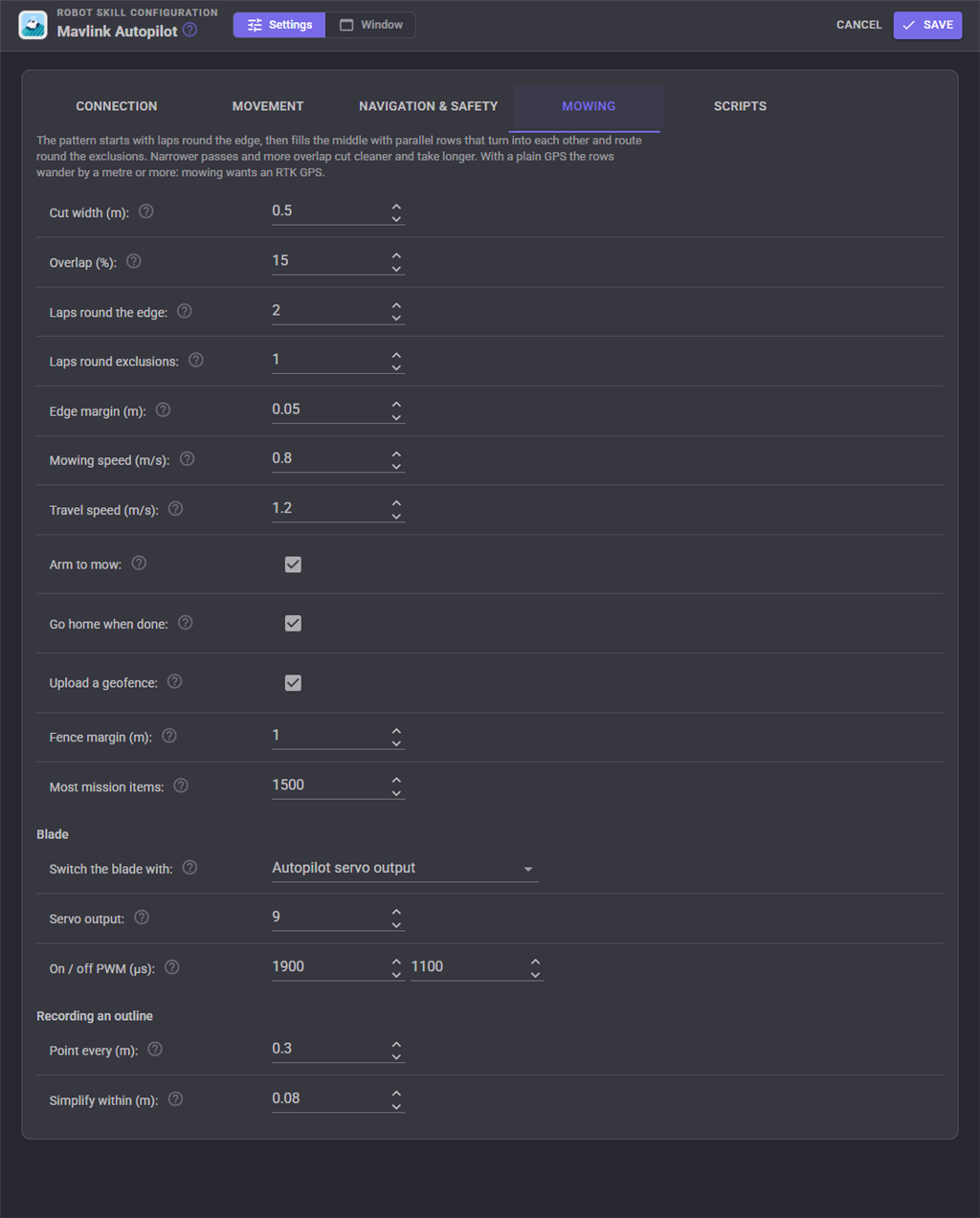
Mowing settings
| Setting | Meaning |
|---|---|
| Cut width | Width of one pass |
| Overlap | How much each pass overlaps the last. More overlap leaves no stripes when the GPS wanders |
| Laps round the edge | Laps along the boundary before the rows, for a clean edge and room to turn |
| Laps round exclusions | Laps round each flower bed or tree |
| Edge margin | Extra distance kept from the boundary and the exclusions |
| Mowing and travel speeds | Speed while cutting and while crossing grass already cut |
| Upload a geofence | Sends the zone as a polygon fence so the autopilot itself stops the vehicle if it ever leaves the lawn |
| Fence margin | How far outside the boundary the fence sits, for GPS error |
| Blade | An autopilot servo output (DO_SET_SERVO in the mission), an autopilot relay, or ARCx scripts (an EZB digital port, a smart plug, anything) |
| Arm to mow | Arm when Start mowing is pressed |
| Go home when done | Return home after the last row |
Getting a good cut
- Use an RTK GPS. A plain GPS wanders a metre or more, which is two rows. Try the simulator with GPS noise at 1.5 to see the difference.
- Set WP_RADIUS small (0.2 to 0.3) on ArduPilot. The default of 2 m cuts every corner of a mowing pattern. The Parameters tab, the
SetParametercommand or an AI assistant can change it. - Skid steer mowers turn on the spot at row ends: keep
WP_PIVOT_ANGLEat about 60. - For the geofence on ArduPilot, set
FENCE_TYPEto include polygons andFENCE_ACTIONto hold.
Safety
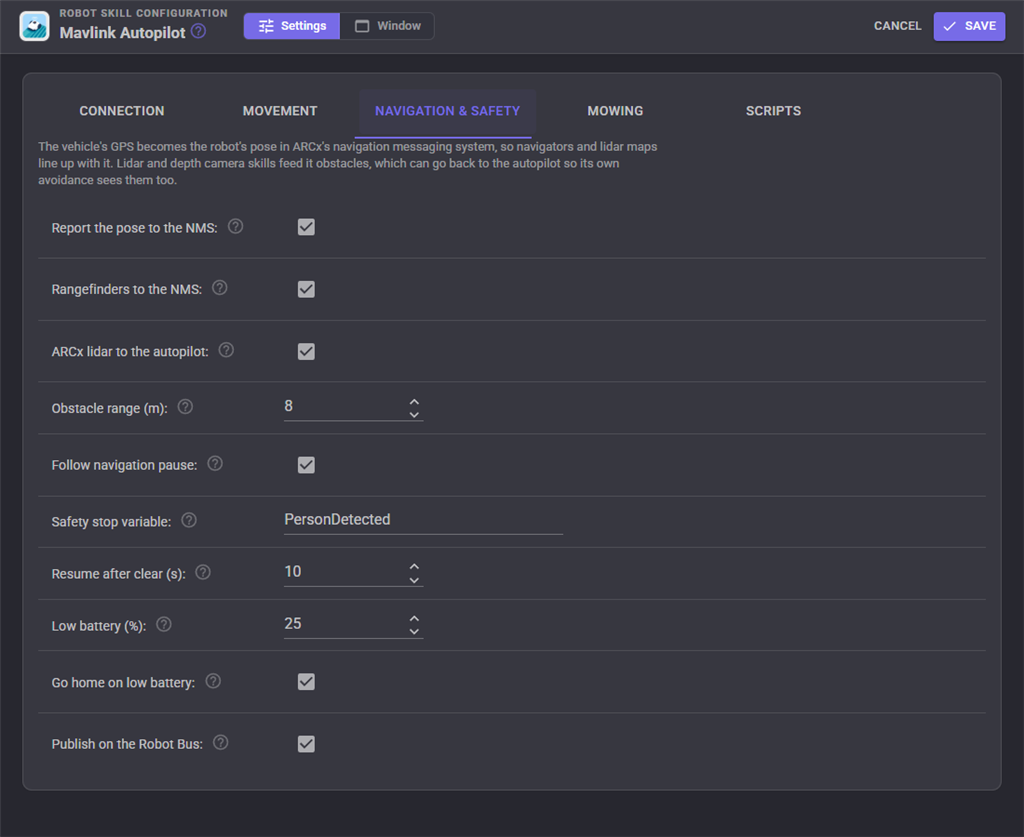
| Setting | Meaning |
|---|---|
| Safety stop variable | A global variable that pauses mowing while it is true. Point it at a camera skill's person or pet detection, a bumper, a rain sensor |
| Resume after clear | Seconds the variable must stay false before mowing resumes by itself; 0 waits for Resume |
| Follow navigation pause | When a navigator or obstacle sensor pauses the NMS, the mowing pauses too |
| Low battery and go home | Runs the low battery script and returns home |
| Emergency action | What ARCx's panic button does: hold, disarm (ground vehicles only), return home or land. A flying vehicle is never disarmed |
Pausing always stops the blade. The vehicle holds where it is and Resume carries on from the same row.
Obstacle avoidance with ARCx's sensors
Add a lidar (RPLidar, Hitachi LDS) or a depth camera skill to the project and turn on ARCx lidar to the autopilot on the Navigation & safety tab. Then on the ArduPilot side set PRX1_TYPE = 2 (MAVLink) and enable AVOID_ENABLE. The autopilot now sees what ARCx sees and stops for (or, with OA_TYPE, steers round) obstacles on its own, even during a mission. The scan points are also drawn on the map in red.
Scripts and variables
Event scripts run when the vehicle connects or loses its link, arms or disarms, changes mode, reaches a waypoint, finishes a mission, runs low on battery or sends a status message. The details are in global variables that start with Mav: MavMode, MavArmed, MavLatitude, MavLongitude, MavGroundSpeed, MavGpsFix, MavBatteryPercent, MavMowState, MavMowPercent, MavStatusText and more. Positions in the navigation frame are MavPoseX, MavPoseY (metres) and MavPoseYaw (radians), as with every ARCx pose source.
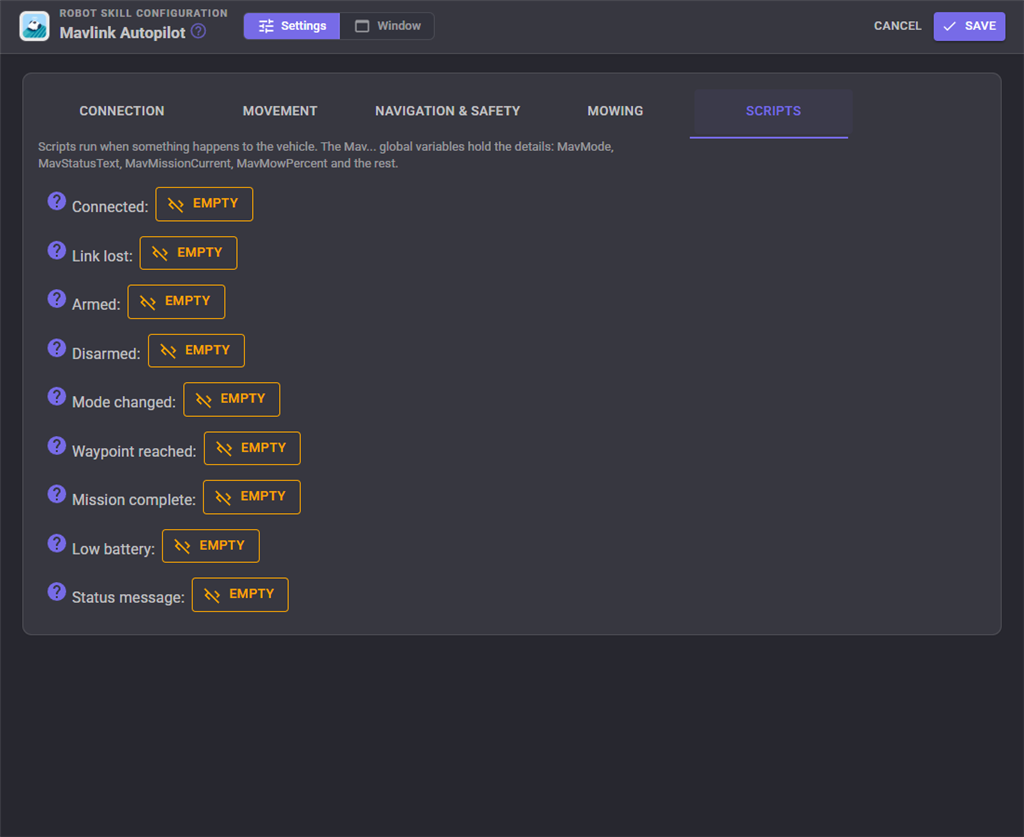
A script that speaks when the lawn is done:
Audio.say("The " + getVar("MavMowZone") + " is mowed, " + Math.round(getVar("MavMowPercent")) + " percent covered.");
AI assistants
With ARCx's MCP server on, an AI assistant such as Claude can drive the mower in plain language. Besides the control commands, the skill offers its own tools: the vehicle state, a picture of the map, listing and creating zones from coordinates, planning (with a picture of the plan), starting, pausing, resuming and stopping mowing, modes, arming, go to, and reading and setting parameters. "Mow the back yard with east-west stripes and tell me when it is done" works.
Robot Bus
Programs outside ARCx (Python, JavaScript, ROS through the ROS Connector) can read /mavlink_autopilot/state, /gps, /attitude, /battery, /mission and /statustext, and call /arm, /disarm, /set_mode, /go_to, /start_mowing, /pause_mowing, /resume_mowing, /return_home and /get_state. The NMS pose is already published by ARCx on /arcx/nms/pose.
Custom UI widgets
| Widget | What it shows |
|---|---|
| Vehicle status | Mode, armed, GPS, battery and mowing progress |
| Map | The whole lawn with the plan, the mowed area and the vehicle; follows the vehicle when it is away from the lawn |
| Mowing controls | Start, pause or resume, home and hold buttons |
A tablet screen built from the three widgets and a drive joystick:
Good to know
- The skill implements MAVLink 2 itself (no extra libraries), generated from the official message definitions, and reads MAVLink 1 as well. Signed frames are accepted but not verified, and ARCx's own frames are unsigned.
- PX4 needs movement targets at least twice a second in Offboard mode; the skill sends them five times a second by default. Leaving Offboard (to Hold, say) stops them.
- On ArduPilot, RC override is only accepted from the ground station system id in
SYSID_MYGCS(255 by default, which is the skill's default). - Mission storage is limited on older boards. A plan bigger than Most mission items is refused before upload; use a wider cut, fewer laps or two zones.
Control Commands for the Mavlink Autopilot robot skill
There are Control Commands available for this robot skill which allows the skill to be controlled programmatically from scripts or other robot skills. These commands enable you to automate actions, respond to sensor inputs, and integrate the robot skill with other systems or custom interfaces. If you're new to the concept of Control Commands, we have a comprehensive manual available here that explains how to use them, provides examples to get you started and make the most of this powerful feature.
Control Command ManualThis robot skill has 41 control commands, listed below. Send them from a JavaScript or Python script, from Blockly, or from another robot skill.
The first value is always the window title, which is the name in the title bar of the robot skill on your workspace. It starts out as Mavlink Autopilot, which is what every example below uses. If you rename the robot skill, or add a second copy of it to the project, use the title as it appears on that window instead.
ControlCommand() can be shortened to CC(), and both spellings work in JavaScript and in Python. The examples are JavaScript; Python is the same call, except that true and false are written True and False.
AddBoundaryPointHere
Add the vehicle's current position as the next corner of a zone's boundary (walk the mower to each corner and call this). Returns the number of corners.
Syntax
ControlCommand("Mavlink Autopilot", "AddBoundaryPointHere", (String)zone)
Parameters
| # | Name | Type | What to pass |
|---|---|---|---|
| 1 | zone | Text | Your text, in quotes |
Returns: Integer [-2,147,483,648 to 2,147,483,647]
Example
var result = ControlCommand("Mavlink Autopilot", "AddBoundaryPointHere", "zone");
Arm
Arm the motors. The vehicle can move after this. Returns true when the autopilot accepted.
Syntax
ControlCommand("Mavlink Autopilot", "Arm")
Returns: Boolean [true or false]
Example
var result = ControlCommand("Mavlink Autopilot", "Arm");
BladeOff
Turn the blade off now.
Syntax
ControlCommand("Mavlink Autopilot", "BladeOff")
Returns: Boolean [true or false]
Example
var result = ControlCommand("Mavlink Autopilot", "BladeOff");
BladeOn
Turn the blade on now with the configured blade method.
Syntax
ControlCommand("Mavlink Autopilot", "BladeOn")
Returns: Boolean [true or false]
Example
var result = ControlCommand("Mavlink Autopilot", "BladeOn");
ClearMowedArea
Forget the mowed area shown on the map.
Syntax
ControlCommand("Mavlink Autopilot", "ClearMowedArea")
Returns: Boolean [true or false]
Example
var result = ControlCommand("Mavlink Autopilot", "ClearMowedArea");
CommandLong
Send any MAVLink COMMAND_LONG (command number, then param1 to param7) and return the MAV_RESULT: 0 accepted, 1 temporarily rejected, 2 denied, 3 unsupported, 4 failed, -1 no answer.
Syntax
ControlCommand("Mavlink Autopilot", "CommandLong", (Number)command, (Number)param1, (Number)param2, (Number)param3, (Number)param4, (Number)param5, (Number)param6, (Number)param7)
Parameters
| # | Name | Type | What to pass |
|---|---|---|---|
| 1 | command | Number | A number, without quotes |
| 2 | param1 | Number | A number, without quotes |
| 3 | param2 | Number | A number, without quotes |
| 4 | param3 | Number | A number, without quotes |
| 5 | param4 | Number | A number, without quotes |
| 6 | param5 | Number | A number, without quotes |
| 7 | param6 | Number | A number, without quotes |
| 8 | param7 | Number | A number, without quotes |
Returns: Integer [-2,147,483,648 to 2,147,483,647]
Example
var result = ControlCommand("Mavlink Autopilot", "CommandLong", 0, 0, 0, 0, 0, 0, 0, 0);
Connect
Open the link to the autopilot (or start the simulator) with the configured connection.
Syntax
ControlCommand("Mavlink Autopilot", "Connect")
Returns: Boolean [true or false]
Example
var result = ControlCommand("Mavlink Autopilot", "Connect");
Disarm
Disarm the motors. Returns true when the autopilot accepted.
Syntax
ControlCommand("Mavlink Autopilot", "Disarm")
Returns: Boolean [true or false]
Example
var result = ControlCommand("Mavlink Autopilot", "Disarm");
Disconnect
Close the link to the autopilot.
Syntax
ControlCommand("Mavlink Autopilot", "Disconnect")
Returns: Boolean [true or false]
Example
var result = ControlCommand("Mavlink Autopilot", "Disconnect");
DownloadMission
Read the mission and geofence the vehicle holds (planned in QGroundControl, say) and draw them on the map. Returns the number of mission items.
Syntax
ControlCommand("Mavlink Autopilot", "DownloadMission")
Returns: Integer [-2,147,483,648 to 2,147,483,647]
Example
var result = ControlCommand("Mavlink Autopilot", "DownloadMission");
DriveDistance
Drive forward this many metres (negative reverses) in GUIDED mode.
Syntax
ControlCommand("Mavlink Autopilot", "DriveDistance", (Number)metres)
Parameters
| # | Name | Type | What to pass |
|---|---|---|---|
| 1 | metres | Number | A number, without quotes |
Returns: Boolean [true or false]
Example
var result = ControlCommand("Mavlink Autopilot", "DriveDistance", 0);
GetBattery
Battery remaining in percent, or -1 when the autopilot does not know.
Syntax
ControlCommand("Mavlink Autopilot", "GetBattery")
Returns: Integer [-2,147,483,648 to 2,147,483,647]
Example
var result = ControlCommand("Mavlink Autopilot", "GetBattery");
GetMode
The current flight mode's name.
Syntax
ControlCommand("Mavlink Autopilot", "GetMode")
Returns: String
Example
var result = ControlCommand("Mavlink Autopilot", "GetMode");
GetModes
Every flight mode this vehicle has.
Syntax
ControlCommand("Mavlink Autopilot", "GetModes")
Returns: Array of String
Example
var result = ControlCommand("Mavlink Autopilot", "GetModes");
GetMowProgress
Percent of the active zone mowed so far (0 to 100), from the area the blade has passed over.
Syntax
ControlCommand("Mavlink Autopilot", "GetMowProgress")
Returns: Double [5.0e324 to 1.7e308]
Example
var result = ControlCommand("Mavlink Autopilot", "GetMowProgress");
GetParameter
Read an autopilot parameter by name (WP_RADIUS, FENCE_ENABLE...).
Syntax
ControlCommand("Mavlink Autopilot", "GetParameter", (String)name)
Parameters
| # | Name | Type | What to pass |
|---|---|---|---|
| 1 | name | Text | Your text, in quotes |
Returns: Double [5.0e324 to 1.7e308]
Example
var result = ControlCommand("Mavlink Autopilot", "GetParameter", "name");
GetPose
The pose in the navigation frame as [x, y, yaw]: metres forward and left of where tracking began, yaw in radians counter-clockwise.
Syntax
ControlCommand("Mavlink Autopilot", "GetPose")
Returns: Array of Double
Example
var result = ControlCommand("Mavlink Autopilot", "GetPose");
GetPosition
The GPS position as [latitude, longitude, altitude above home in metres].
Syntax
ControlCommand("Mavlink Autopilot", "GetPosition")
Returns: Array of Double
Example
var result = ControlCommand("Mavlink Autopilot", "GetPosition");
GoTo
Drive (or fly) to a latitude and longitude in degrees, in GUIDED mode. Returns once the target is sent.
Syntax
ControlCommand("Mavlink Autopilot", "GoTo", (Number)latitude, (Number)longitude)
Parameters
| # | Name | Type | What to pass |
|---|---|---|---|
| 1 | latitude | Number | A number, without quotes |
| 2 | longitude | Number | A number, without quotes |
Returns: Boolean [true or false]
Example
var result = ControlCommand("Mavlink Autopilot", "GoTo", 0, 0);
Hold
Stop and hold position now (HOLD, BRAKE, LOITER or POSHOLD as the vehicle calls it).
Syntax
ControlCommand("Mavlink Autopilot", "Hold")
Returns: Boolean [true or false]
Example
var result = ControlCommand("Mavlink Autopilot", "Hold");
IsArmed
True while the motors are armed.
Syntax
ControlCommand("Mavlink Autopilot", "IsArmed")
Returns: Boolean [true or false]
Example
var result = ControlCommand("Mavlink Autopilot", "IsArmed");
IsConnected
True while the vehicle's heartbeat is arriving.
Syntax
ControlCommand("Mavlink Autopilot", "IsConnected")
Returns: Boolean [true or false]
Example
var result = ControlCommand("Mavlink Autopilot", "IsConnected");
ListZones
The names of the mowing zones.
Syntax
ControlCommand("Mavlink Autopilot", "ListZones")
Returns: Array of String
Example
var result = ControlCommand("Mavlink Autopilot", "ListZones");
PauseMission
Hold the vehicle where it is; ResumeMission carries on from the same waypoint.
Syntax
ControlCommand("Mavlink Autopilot", "PauseMission")
Returns: Boolean [true or false]
Example
var result = ControlCommand("Mavlink Autopilot", "PauseMission");
PauseMowing
Pause mowing: the vehicle holds and the blade stops.
Syntax
ControlCommand("Mavlink Autopilot", "PauseMowing")
Returns: Boolean [true or false]
Example
var result = ControlCommand("Mavlink Autopilot", "PauseMowing");
PlanMowing
Plan the mowing pattern for a zone and show it on the map without uploading. Returns a summary: rows, distance, estimated time.
Syntax
ControlCommand("Mavlink Autopilot", "PlanMowing", (String)zone)
Parameters
| # | Name | Type | What to pass |
|---|---|---|---|
| 1 | zone | Text | Your text, in quotes |
Returns: String
Example
var result = ControlCommand("Mavlink Autopilot", "PlanMowing", "zone");
ResetPose
Make the vehicle's current position and heading the navigation frame's origin.
Syntax
ControlCommand("Mavlink Autopilot", "ResetPose")
Returns: Boolean [true or false]
Example
var result = ControlCommand("Mavlink Autopilot", "ResetPose");
ResumeMission
Carry on with the mission from where it was paused.
Syntax
ControlCommand("Mavlink Autopilot", "ResumeMission")
Returns: Boolean [true or false]
Example
var result = ControlCommand("Mavlink Autopilot", "ResumeMission");
ResumeMowing
Resume mowing from where it paused.
Syntax
ControlCommand("Mavlink Autopilot", "ResumeMowing")
Returns: Boolean [true or false]
Example
var result = ControlCommand("Mavlink Autopilot", "ResumeMowing");
ReturnHome
Return to the home position (RTL). Turns the blade off first.
Syntax
ControlCommand("Mavlink Autopilot", "ReturnHome")
Returns: Boolean [true or false]
Example
var result = ControlCommand("Mavlink Autopilot", "ReturnHome");
SetMode
Switch flight mode by the firmware's name: GUIDED, AUTO, HOLD, RTL, MANUAL, LOITER (ArduPilot) or Mission, Hold, Return, Offboard (PX4). GetModes lists them.
Syntax
ControlCommand("Mavlink Autopilot", "SetMode", (String)mode)
Parameters
| # | Name | Type | What to pass |
|---|---|---|---|
| 1 | mode | Text | Your text, in quotes |
Returns: Boolean [true or false]
Example
var result = ControlCommand("Mavlink Autopilot", "SetMode", "mode");
SetParameter
Set an autopilot parameter and return the value the autopilot confirmed.
Syntax
ControlCommand("Mavlink Autopilot", "SetParameter", (String)name, (Number)value)
Parameters
| # | Name | Type | What to pass |
|---|---|---|---|
| 1 | name | Text | Your text, in quotes |
| 2 | value | Number | A number, without quotes |
Returns: Double [5.0e324 to 1.7e308]
Example
var result = ControlCommand("Mavlink Autopilot", "SetParameter", "name", 0);
SetRelay
Switch an autopilot relay (0 is the first) on or off.
Syntax
ControlCommand("Mavlink Autopilot", "SetRelay", (Number)relay, (Bool)on)
Parameters
| # | Name | Type | What to pass |
|---|---|---|---|
| 1 | relay | Number | A number, without quotes |
| 2 | on | True or false | true or false, without quotes |
Returns: Boolean [true or false]
Example
var result = ControlCommand("Mavlink Autopilot", "SetRelay", 0, true);
SetServo
Set an autopilot servo output (1 to 16) to a PWM in microseconds.
Syntax
ControlCommand("Mavlink Autopilot", "SetServo", (Number)channel, (Number)pwm)
Parameters
| # | Name | Type | What to pass |
|---|---|---|---|
| 1 | channel | Number | A number, without quotes |
| 2 | pwm | Number | A number, without quotes |
Returns: Boolean [true or false]
Example
var result = ControlCommand("Mavlink Autopilot", "SetServo", 0, 0);
StartMission
Run the mission the vehicle holds from the beginning (AUTO / Mission mode), arming first when allowed.
Syntax
ControlCommand("Mavlink Autopilot", "StartMission")
Returns: Boolean [true or false]
Example
var result = ControlCommand("Mavlink Autopilot", "StartMission");
StartMowing
Plan the zone, upload the pattern (and the geofence), arm and start mowing. Returns when the vehicle has started.
Syntax
ControlCommand("Mavlink Autopilot", "StartMowing", (String)zone)
Parameters
| # | Name | Type | What to pass |
|---|---|---|---|
| 1 | zone | Text | Your text, in quotes |
Returns: Boolean [true or false]
Example
var result = ControlCommand("Mavlink Autopilot", "StartMowing", "zone");
StartRecordingBoundary
Start recording a zone's boundary while the vehicle is driven round its edge. Creates the zone if it does not exist. StopRecording saves it.
Syntax
ControlCommand("Mavlink Autopilot", "StartRecordingBoundary", (String)zone)
Parameters
| # | Name | Type | What to pass |
|---|---|---|---|
| 1 | zone | Text | Your text, in quotes |
Returns: Boolean [true or false]
Example
var result = ControlCommand("Mavlink Autopilot", "StartRecordingBoundary", "zone");
StartRecordingExclusion
Start recording an exclusion (an area never driven over) inside a zone while the vehicle is driven round it.
Syntax
ControlCommand("Mavlink Autopilot", "StartRecordingExclusion", (String)zone, (String)name)
Parameters
| # | Name | Type | What to pass |
|---|---|---|---|
| 1 | zone | Text | Your text, in quotes |
| 2 | name | Text | Your text, in quotes |
Returns: Boolean [true or false]
Example
var result = ControlCommand("Mavlink Autopilot", "StartRecordingExclusion", "zone", "name");
StopMowing
Stop mowing: the blade stops and the vehicle holds, or returns home when returnHome is true.
Syntax
ControlCommand("Mavlink Autopilot", "StopMowing", (Bool)returnHome)
Parameters
| # | Name | Type | What to pass |
|---|---|---|---|
| 1 | returnHome | True or false | true or false, without quotes |
Returns: Boolean [true or false]
Example
var result = ControlCommand("Mavlink Autopilot", "StopMowing", true);
StopRecording
Stop recording and save the simplified outline. Returns the number of points kept.
Syntax
ControlCommand("Mavlink Autopilot", "StopRecording")
Returns: Integer [-2,147,483,648 to 2,147,483,647]
Example
var result = ControlCommand("Mavlink Autopilot", "StopRecording");
Turn
Turn on the spot by this many radians, positive to the left (counter-clockwise), in GUIDED mode.
Syntax
ControlCommand("Mavlink Autopilot", "Turn", (Number)radians)
Parameters
| # | Name | Type | What to pass |
|---|---|---|---|
| 1 | radians | Number | A number, without quotes |
Returns: Boolean [true or false]
Example
var result = ControlCommand("Mavlink Autopilot", "Turn", 0);
This list is read out of the robot skill itself each time its package is uploaded, so it matches the published version (v1).


This robot skill has been updated to v1.
What has changed
initial release