
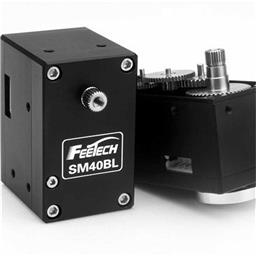
Control Feetech serial bus smart servos via EZB UART or PC COM port in ARC using virtual ports mapped to servo IDs.
 Windows
How to add the Feetech RS485 Servo robot skill
- Load the most recent release of ARC (Get ARC).
- Press the Project tab from the top menu bar in ARC.
- Press Add Robot Skill from the button ribbon bar in ARC.
- Choose the Servo category tab.
- Press the Feetech RS485 Servo icon to add the robot skill to your project.
Don't have a robot yet?
Follow the Getting Started Guide to build a robot and use the Feetech RS485 Servo robot skill.
How to use the Feetech RS485 Servo robot skill
Control Feetech serial bus smart servos over EZB UART or PC COM port. The selected ARC’s Vx virtual ports must match the servo IDs in the config screen - and voila, you're off to the robot races!
Main Window
The main window on the project workspace will display information about active connections and errors. To configure the servos, press the ... configuration in the title bar.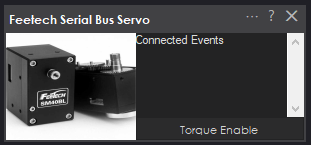
Configuration Screen
The configuration allows selecting the virtual servo ports that represent the ID's of the Freetech servos. For example, if the servo ID is #1, then V1 will be used. Also, the communication type must be specified (EZB UART or PC COM Port).
Baudrate The baud rate of this skill is 1,000,000 bps, which is also the default baud rate for Feetech servos.
ID All new Feetech servos will have a factory default ID of #1, which is V1 in ARC. If you want to reprogram the servo ID, you need to use the SCS15 software V1.6. from here. The software requires connecting the servo to either their USB device or using an Arduino. The Freetech website contains more information.
ARC Capabilities
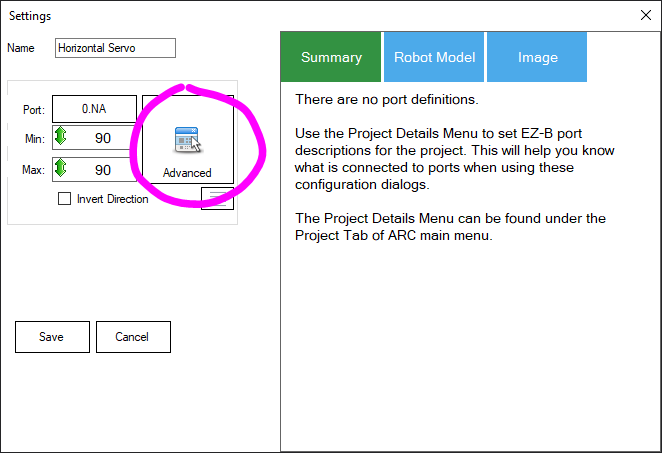
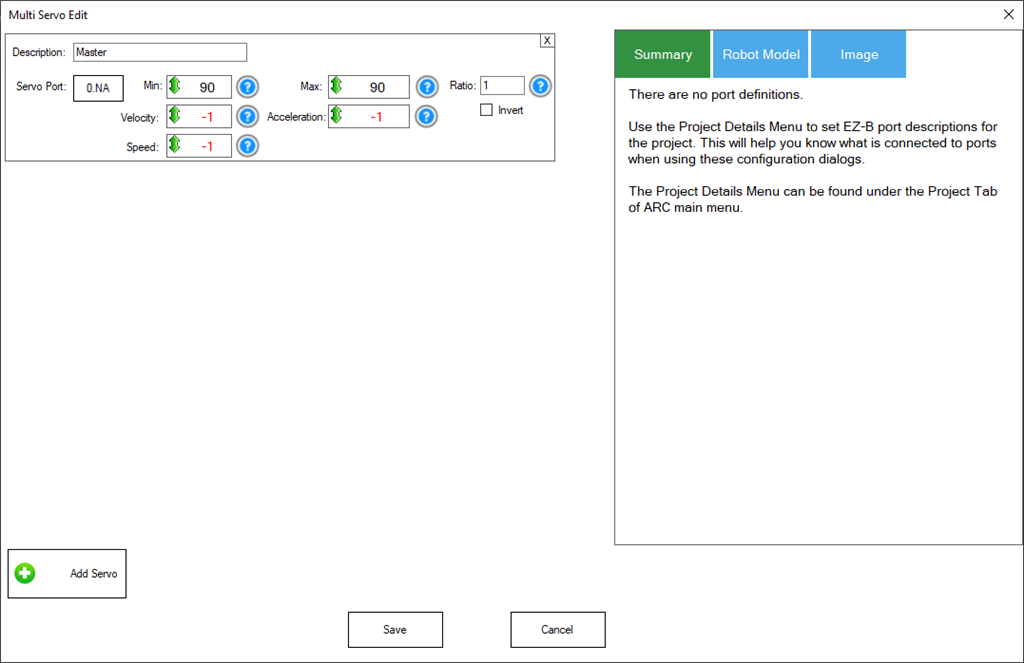
ARC has many parameters that can be assigned to servo movements. When selecting a servo, these parameters are specified by script commands or in the Advanced menu of robot skills. This skill supports the following ARC parameters...- Servo position
- Speed
- Release
- Acceleration
How To Use
These steps will demonstrate how to add the Feetech serial bus skill to a project and use a standard servo skill control to move it. All skill controls that use servos will now be able to move the servo. This includes a camera, joystick, scripting, and more. Simply select the virtual servo port and any skill will be able to move the servo.In this example, we'll be using a USB Feetech servo controller. These controllers will create a COM port on the PC that we will select.
Step 1 Load the latest version of ARC on your Windows-based PC.
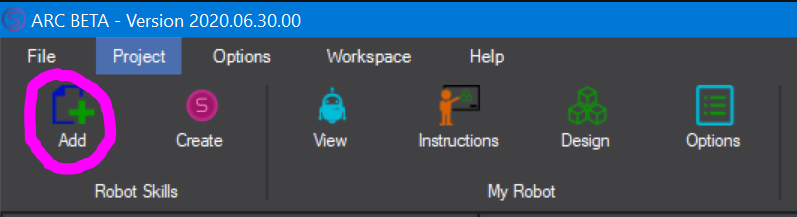
Step 2 In ARC, press Project -> Robot Skills -> Add from the top menu
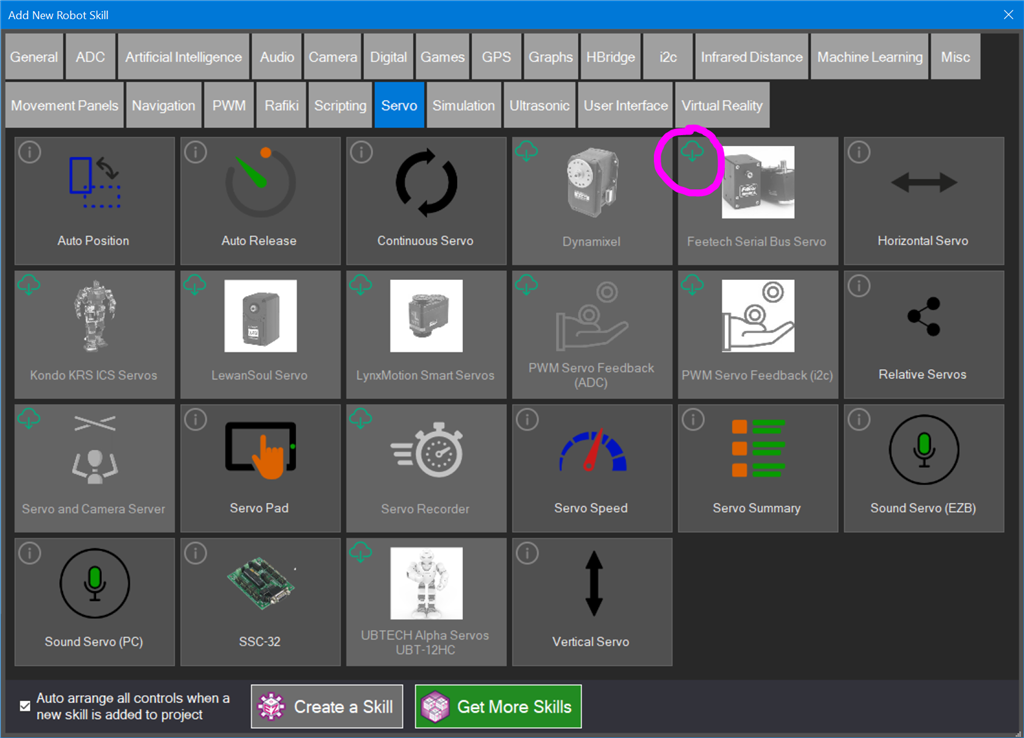
Step 3 When the skills window is displayed, select Servos and locate the Feetech Serial Bus skill. Press the Download icon to download and install the skill to your project.
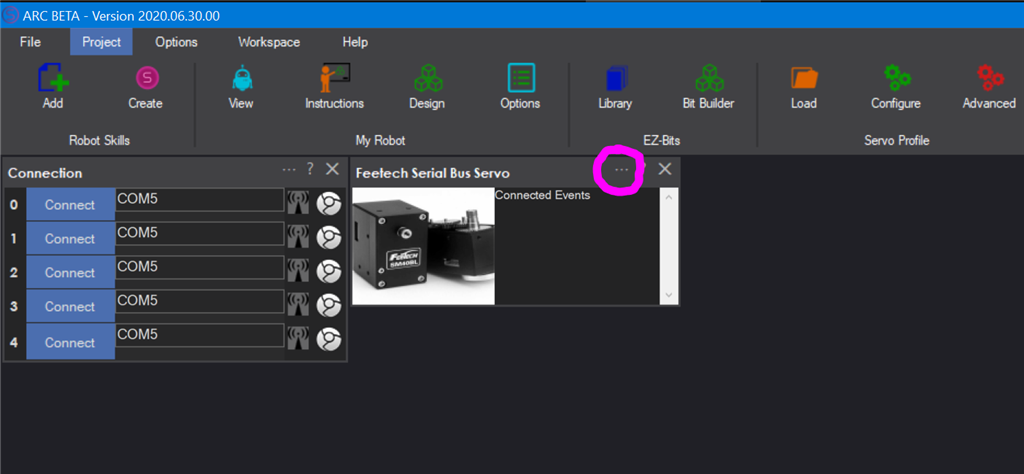
Step 4 Locate the Feetech Serial Bus skill on your project workspace. Press the Config button in the title bar to access the configuration menu.
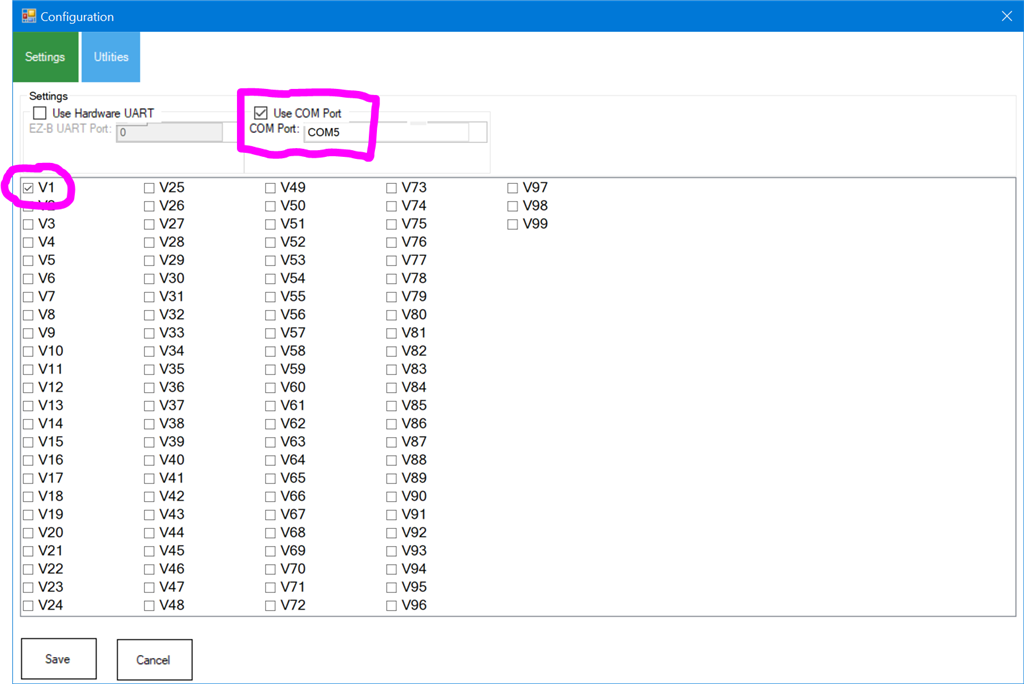
Step 5 We will be using the USB COM Port to control the servos in this example. Select the Use COM Port option and select the COM port for the USB controller.
Additionally, the default ID of a new servo will be #1, which is V1 in ARC. A servo ID of #2 will be V2 in ARC, and so on. Select the V1 so ARC will now map all references of servo V1 to the Feetech servo with ID #1.
Press SAVE
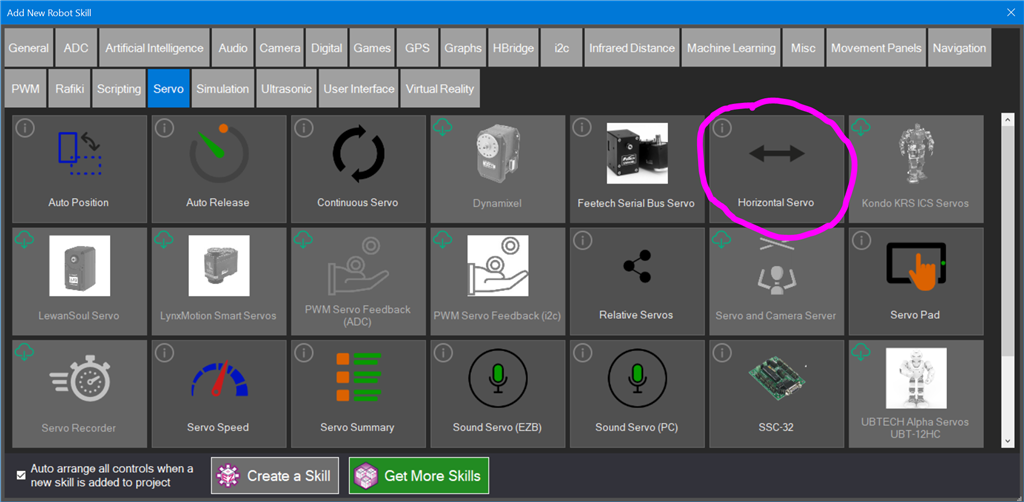
Step 6 Now we will add a basic servo control to test the Feetech servo. Press Project -> Robot Skills -> Add from the top menu. Locate the Servo tab and click the Horizontal Servo to add it to the workspace.
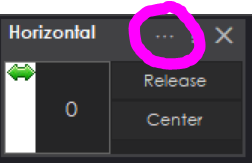
Step 7 Configure the Horizontal Servo skill by pressing the config button in the title bar
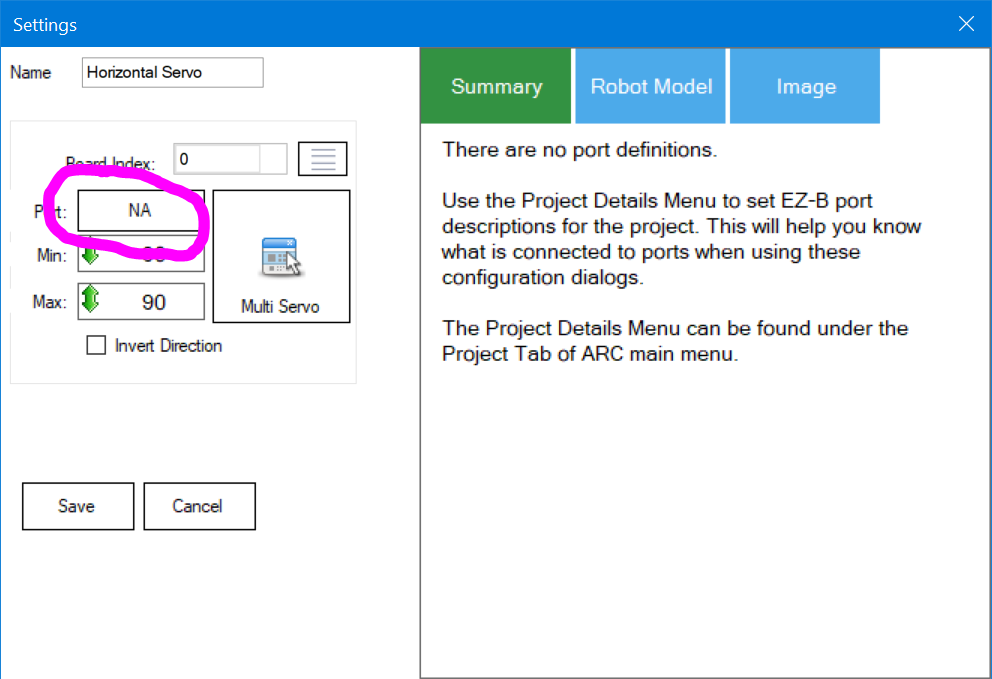
Step 8 Selecting the port for this control. Press the Port button to select the servo port.
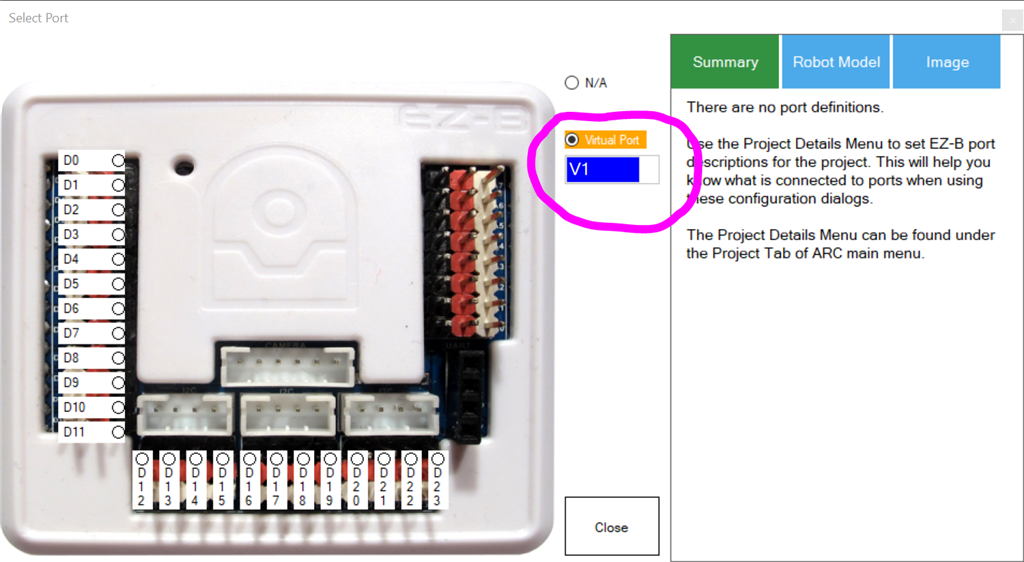
Step 9 The dialog popup for port selection will display. Select V1 from the Virtual Port drop-down list. Press SAVE
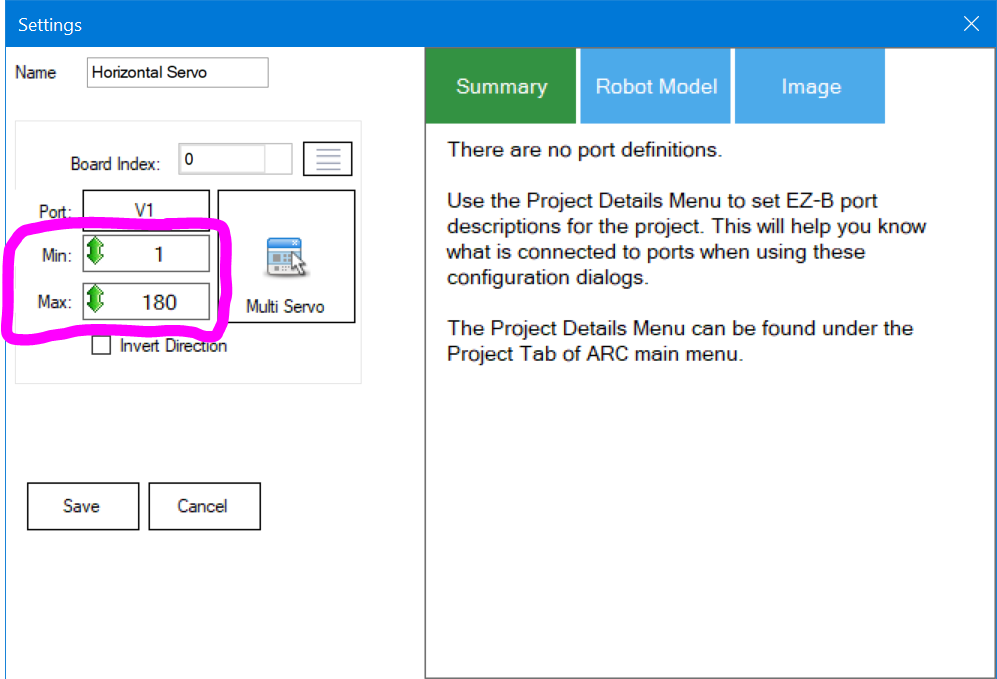
Step 10 The Min and Max range for the servo can be selected. Each control that uses servos will have its own custom range. Click in the Min and Max value and drag the mouse UP or DOWN to select the range. Or, alternatively, you may right-click to enter a range with the keyboard. Keep in mind, the servo will move into each range as you change the value. Press SAVE once the range has been adjusted to return to the workspace.
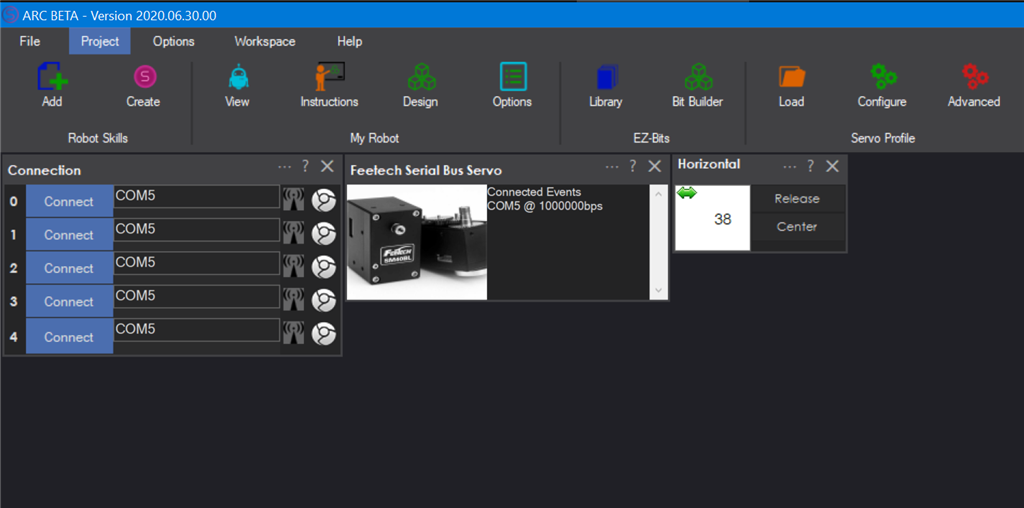
Finished You may now click on the servo value to drag the mouse Left or Right to move the position. If you right-click, a numeric value can be entered by the keyboard. The servo will only move within the range you specify.
Try other robot skill controls, such as the Auto Position or Joystick with this servo. All robot skills that use servos can now reference this servo by the virtual port ID.
Control Commands for the Feetech RS485 Servo robot skill
There are Control Commands available for this robot skill which allows the skill to be controlled programmatically from scripts or other robot skills. These commands enable you to automate actions, respond to sensor inputs, and integrate the robot skill with other systems or custom interfaces. If you're new to the concept of Control Commands, we have a comprehensive manual available here that explains how to use them, provides examples to get you started and make the most of this powerful feature.
Control Command ManualSetPositionRaw
Move the servo to the raw position of the servo, rather than the ARC servo position
- Parameter 3: Virtual servo port (v1, v2, v3 ...) as String (required)
- Parameter 4: Raw position (0 to 4095) as Number (required)
Example:
controlCommand("Feetech RS485 Servo", "SetPositionRaw", "Virtual servo port (v1, v2, v3 ...) as a string", Raw position (0 to 4095) as a number)
SetPositionRawTimed
Move the servo to the raw position using the specified time and speed
- Parameter 3: Virtual servo port (v1, v2, v3 ...) as String (required)
- Parameter 4: Raw position (0 to 4095) as Number (required)
- Parameter 5: Time in ms (0 to ignore) as Number (required)
- Parameter 6: Speed, 50 steps/s per unit (0 for maximum) as Number (required)
Example:
controlCommand("Feetech RS485 Servo", "SetPositionRawTimed", "Virtual servo port (v1, v2, v3 ...) as a string", Raw position (0 to 4095) as a number, Time in ms (0 to ignore) as a number, Speed, 50 steps/s per unit (0 for maximum) as a number)
SetTorqueEnable
Enable or disable the torque of the servo. Disabling the torque releases the servo
- Parameter 3: Virtual servo port (v1, v2, v3 ...) as String (required)
- Parameter 4: true = hold position, false = release as Boolean (required)
Example:
controlCommand("Feetech RS485 Servo", "SetTorqueEnable", "Virtual servo port (v1, v2, v3 ...) as a string", true = hold position, false = release as true or false)
SetSpeed
Set the goal speed of the servo
- Parameter 3: Virtual servo port (v1, v2, v3 ...) as String (required)
- Parameter 4: Goal speed, 50 steps/s per unit (0 for maximum) as Number (required)
Example:
controlCommand("Feetech RS485 Servo", "SetSpeed", "Virtual servo port (v1, v2, v3 ...) as a string", Goal speed, 50 steps/s per unit (0 for maximum) as a number)
SetAcceleration
Set the acceleration of the servo
- Parameter 3: Virtual servo port (v1, v2, v3 ...) as String (required)
- Parameter 4: Acceleration, 100 steps/s^2 per unit (0 to 254) as Number (required)
Example:
controlCommand("Feetech RS485 Servo", "SetAcceleration", "Virtual servo port (v1, v2, v3 ...) as a string", Acceleration, 100 steps/s^2 per unit (0 to 254) as a number)
SetDriveMode
Set the drive mode of the servo. This is saved in the eprom of the servo
- Parameter 3: Virtual servo port (v1, v2, v3 ...) as String (required)
- Parameter 4: 0 = position, 1 = constant speed, 2 = pwm open loop as Number (required)
Example:
controlCommand("Feetech RS485 Servo", "SetDriveMode", "Virtual servo port (v1, v2, v3 ...) as a string", 0 = position, 1 = constant speed, 2 = pwm open loop as a number)
SetPositionAsCenter
Make the current physical position of the servo the center position (2048)
- Parameter 3: Virtual servo port (v1, v2, v3 ...) as String (required)
Example:
controlCommand("Feetech RS485 Servo", "SetPositionAsCenter", "Virtual servo port (v1, v2, v3 ...) as a string")
SetTorqueLimit
Set the runtime torque limit of the servo. This is loaded from the max torque on power up
- Parameter 3: Virtual servo port (v1, v2, v3 ...) as String (required)
- Parameter 4: Torque limit, 1000 = 100% of the stall torque as Number (required)
Example:
controlCommand("Feetech RS485 Servo", "SetTorqueLimit", "Virtual servo port (v1, v2, v3 ...) as a string", Torque limit, 1000 = 100% of the stall torque as a number)
SetMaxTorque
Set the max torque of the servo. This is saved in the eprom of the servo
- Parameter 3: Virtual servo port (v1, v2, v3 ...) as String (required)
- Parameter 4: Max torque, 1000 = 100% of the stall torque as Number (required)
Example:
controlCommand("Feetech RS485 Servo", "SetMaxTorque", "Virtual servo port (v1, v2, v3 ...) as a string", Max torque, 1000 = 100% of the stall torque as a number)
SetMinStartupForce
Set the minimum startup force (punch) of the servo, which is the smallest torque it will output
- Parameter 3: Virtual servo port (v1, v2, v3 ...) as String (required)
- Parameter 4: Minimum startup force, 1000 = 100% of the stall torque as Number (required)
Example:
controlCommand("Feetech RS485 Servo", "SetMinStartupForce", "Virtual servo port (v1, v2, v3 ...) as a string", Minimum startup force, 1000 = 100% of the stall torque as a number)
SetProtectiveCurrent
Set the current at which the servo protection triggers
- Parameter 3: Virtual servo port (v1, v2, v3 ...) as String (required)
- Parameter 4: Protective current, 6.5ma per unit (0 to 511) as Number (required)
Example:
controlCommand("Feetech RS485 Servo", "SetProtectiveCurrent", "Virtual servo port (v1, v2, v3 ...) as a string", Protective current, 6.5ma per unit (0 to 511) as a number)
SetProtectionTorque
Set the torque which the servo uses once the overload protection has triggered
- Parameter 3: Virtual servo port (v1, v2, v3 ...) as String (required)
- Parameter 4: Torque percent (0 to 254) as Number (required)
Example:
controlCommand("Feetech RS485 Servo", "SetProtectionTorque", "Virtual servo port (v1, v2, v3 ...) as a string", Torque percent (0 to 254) as a number)
SetProtectionTime
Set how long the overload torque may be exceeded before the protection triggers
- Parameter 3: Virtual servo port (v1, v2, v3 ...) as String (required)
- Parameter 4: Time, 10ms per unit (0 to 254) as Number (required)
Example:
controlCommand("Feetech RS485 Servo", "SetProtectionTime", "Virtual servo port (v1, v2, v3 ...) as a string", Time, 10ms per unit (0 to 254) as a number)
SetOverloadTorque
Set the torque threshold which starts the overload protection timer
- Parameter 3: Virtual servo port (v1, v2, v3 ...) as String (required)
- Parameter 4: Torque percent (0 to 254) as Number (required)
Example:
controlCommand("Feetech RS485 Servo", "SetOverloadTorque", "Virtual servo port (v1, v2, v3 ...) as a string", Torque percent (0 to 254) as a number)
SetOverCurrentTime
Set how long the protective current may be exceeded before the protection triggers
- Parameter 3: Virtual servo port (v1, v2, v3 ...) as String (required)
- Parameter 4: Time, 10ms per unit (0 to 254) as Number (required)
Example:
controlCommand("Feetech RS485 Servo", "SetOverCurrentTime", "Virtual servo port (v1, v2, v3 ...) as a string", Time, 10ms per unit (0 to 254) as a number)
SetPositionPID
Set the position loop pid of the servo, which is how sensitive the servo is to a position error
- Parameter 3: Virtual servo port (v1, v2, v3 ...) as String (required)
- Parameter 4: P proportional coefficient (0 to 254) as Number (required)
- Parameter 5: D differential coefficient (0 to 254) as Number (required)
- Parameter 6: I integral coefficient (0 to 254) as Number (required)
Example:
controlCommand("Feetech RS485 Servo", "SetPositionPID", "Virtual servo port (v1, v2, v3 ...) as a string", P proportional coefficient (0 to 254) as a number, D differential coefficient (0 to 254) as a number, I integral coefficient (0 to 254) as a number)
SetSpeedP
Set the speed loop proportional coefficient, which is used in constant speed mode
- Parameter 3: Virtual servo port (v1, v2, v3 ...) as String (required)
- Parameter 4: P proportional coefficient (0 to 254) as Number (required)
Example:
controlCommand("Feetech RS485 Servo", "SetSpeedP", "Virtual servo port (v1, v2, v3 ...) as a string", P proportional coefficient (0 to 254) as a number)
SetSpeedI
Set the speed loop integral coefficient, which is used in constant speed mode
- Parameter 3: Virtual servo port (v1, v2, v3 ...) as String (required)
- Parameter 4: I integral coefficient (0 to 254) as Number (required)
Example:
controlCommand("Feetech RS485 Servo", "SetSpeedI", "Virtual servo port (v1, v2, v3 ...) as a string", I integral coefficient (0 to 254) as a number)
SetDeadBand
Set the insensitive zone (dead band) of the servo. A larger value is less sensitive and jitters less
- Parameter 3: Virtual servo port (v1, v2, v3 ...) as String (required)
- Parameter 4: Clockwise dead band in steps (0 to 32) as Number (required)
- Parameter 5: Counter clockwise dead band in steps (0 to 32) as Number (required)
Example:
controlCommand("Feetech RS485 Servo", "SetDeadBand", "Virtual servo port (v1, v2, v3 ...) as a string", Clockwise dead band in steps (0 to 32) as a number, Counter clockwise dead band in steps (0 to 32) as a number)
SetAngleResolution
Set the multiplier of the minimum resolution angle of the position sensor
- Parameter 3: Virtual servo port (v1, v2, v3 ...) as String (required)
- Parameter 4: Resolution multiplier (1 to 100) as Number (required)
Example:
controlCommand("Feetech RS485 Servo", "SetAngleResolution", "Virtual servo port (v1, v2, v3 ...) as a string", Resolution multiplier (1 to 100) as a number)
SetPositionCorrection
Set the position correction (offset) of the servo in steps
- Parameter 3: Virtual servo port (v1, v2, v3 ...) as String (required)
- Parameter 4: Correction in steps (-2047 to 2047) as Number (required)
Example:
controlCommand("Feetech RS485 Servo", "SetPositionCorrection", "Virtual servo port (v1, v2, v3 ...) as a string", Correction in steps (-2047 to 2047) as a number)
SetPositionLimits
Set the raw position limits of the servo. This is saved in the eprom of the servo
- Parameter 3: Virtual servo port (v1, v2, v3 ...) as String (required)
- Parameter 4: Minimum raw position (0 to 4095) as Number (required)
- Parameter 5: Maximum raw position (0 to 4095) as Number (required)
Example:
controlCommand("Feetech RS485 Servo", "SetPositionLimits", "Virtual servo port (v1, v2, v3 ...) as a string", Minimum raw position (0 to 4095) as a number, Maximum raw position (0 to 4095) as a number)
SetTemperatureLimit
Set the maximum operating temperature of the servo
- Parameter 3: Virtual servo port (v1, v2, v3 ...) as String (required)
- Parameter 4: Temperature in celsius (0 to 100) as Number (required)
Example:
controlCommand("Feetech RS485 Servo", "SetTemperatureLimit", "Virtual servo port (v1, v2, v3 ...) as a string", Temperature in celsius (0 to 100) as a number)
SetVoltageLimits
Set the operating voltage window of the servo
- Parameter 3: Virtual servo port (v1, v2, v3 ...) as String (required)
- Parameter 4: Minimum voltage (i.e. 9.0) as Number (required)
- Parameter 5: Maximum voltage (i.e. 14.0) as Number (required)
Example:
controlCommand("Feetech RS485 Servo", "SetVoltageLimits", "Virtual servo port (v1, v2, v3 ...) as a string", Minimum voltage (i.e. 9.0) as a number, Maximum voltage (i.e. 14.0) as a number)
SetUnloadingCondition
Set which protections will release the servo
- Parameter 3: Virtual servo port (v1, v2, v3 ...) as String (required)
- Parameter 4: Bit flags. 1 voltage, 2 sensor, 4 temperature, 8 current, 16 angle, 32 overload as Number (required)
Example:
controlCommand("Feetech RS485 Servo", "SetUnloadingCondition", "Virtual servo port (v1, v2, v3 ...) as a string", Bit flags. 1 voltage, 2 sensor, 4 temperature, 8 current, 16 angle, 32 overload as a number)
SetLedAlarmCondition
Set which protections will flash the led of the servo
- Parameter 3: Virtual servo port (v1, v2, v3 ...) as String (required)
- Parameter 4: Bit flags. 1 voltage, 2 sensor, 4 temperature, 8 current, 16 angle, 32 overload as Number (required)
Example:
controlCommand("Feetech RS485 Servo", "SetLedAlarmCondition", "Virtual servo port (v1, v2, v3 ...) as a string", Bit flags. 1 voltage, 2 sensor, 4 temperature, 8 current, 16 angle, 32 overload as a number)
SetId
Change the bus id of the servo. Only have one servo on the bus when you do this
- Parameter 3: Virtual servo port of the servo today (v1, v2, v3 ...) as String (required)
- Parameter 4: The new id (0 to 253) as Number (required)
Example:
controlCommand("Feetech RS485 Servo", "SetId", "Virtual servo port of the servo today (v1, v2, v3 ...) as a string", The new id (0 to 253) as a number)
SetBaudRate
Change the baud rate of the servo. The plugin baud rate must be changed to match after this
- Parameter 3: Virtual servo port (v1, v2, v3 ...) as String (required)
- Parameter 4: 0=1000000, 1=500000, 2=250000, 3=128000, 4=115200, 5=76800, 6=57600, 7=38400 as Number (required)
Example:
controlCommand("Feetech RS485 Servo", "SetBaudRate", "Virtual servo port (v1, v2, v3 ...) as a string", 0=1000000, 1=500000, 2=250000, 3=128000, 4=115200, 5=76800, 6=57600, 7=38400 as a number)
SetReturnDelayTime
Set how long the servo waits before it responds to an instruction
- Parameter 3: Virtual servo port (v1, v2, v3 ...) as String (required)
- Parameter 4: Delay, 2us per unit (0 to 254) as Number (required)
Example:
controlCommand("Feetech RS485 Servo", "SetReturnDelayTime", "Virtual servo port (v1, v2, v3 ...) as a string", Delay, 2us per unit (0 to 254) as a number)
SetStatusReturnLevel
Set which instructions the servo will answer. Answering everything will slow the bus down
- Parameter 3: Virtual servo port, or ALL for every servo on the bus as String (required)
- Parameter 4: true = only answer read and ping, false = answer everything as Boolean (required)
Example:
controlCommand("Feetech RS485 Servo", "SetStatusReturnLevel", "Virtual servo port, or ALL for every servo on the bus as a string", true = only answer read and ping, false = answer everything as true or false)
SetLock
Lock or unlock the eprom of the servo. The lock must be off to permanently change an eprom value
- Parameter 3: Virtual servo port (v1, v2, v3 ...) as String (required)
- Parameter 4: true = eprom writes are not saved, false = eprom writes are saved as Boolean (required)
Example:
controlCommand("Feetech RS485 Servo", "SetLock", "Virtual servo port (v1, v2, v3 ...) as a string", true = eprom writes are not saved, false = eprom writes are saved as true or false)
FactoryReset
Reset the servo to the factory defaults. This also changes the id of the servo back to 1
- Parameter 3: Virtual servo port (v1, v2, v3 ...) as String (required)
Example:
controlCommand("Feetech RS485 Servo", "FactoryReset", "Virtual servo port (v1, v2, v3 ...) as a string")
WriteRegisterByte
Write a single byte to the specified register address of the servo
- Parameter 3: Virtual servo port (v1, v2, v3 ...) as String (required)
- Parameter 4: Register address as Number (required)
- Parameter 5: Value (0 to 255) as Number (required)
Example:
controlCommand("Feetech RS485 Servo", "WriteRegisterByte", "Virtual servo port (v1, v2, v3 ...) as a string", Register address as a number, Value (0 to 255) as a number)
WriteRegisterInt16
Write a 16 bit value to the specified register address of the servo
- Parameter 3: Virtual servo port (v1, v2, v3 ...) as String (required)
- Parameter 4: Register address as Number (required)
- Parameter 5: Value (-32766 to 32766) as Number (required)
Example:
controlCommand("Feetech RS485 Servo", "WriteRegisterInt16", "Virtual servo port (v1, v2, v3 ...) as a string", Register address as a number, Value (-32766 to 32766) as a number)
ReadRegisterByte
Returns a single byte from the specified register address of the servo
- Parameter 3: Virtual servo port (v1, v2, v3 ...) as String (required)
- Parameter 4: Register address as Number (required)
- Returns: Integer [-2,147,483,648 to 2,147,483,647]
Example:
controlCommand("Feetech RS485 Servo", "ReadRegisterByte", "Virtual servo port (v1, v2, v3 ...) as a string", Register address as a number)
ReadRegisterInt16
Returns a signed 16 bit value from the specified register address of the servo
- Parameter 3: Virtual servo port (v1, v2, v3 ...) as String (required)
- Parameter 4: Register address as Number (required)
- Returns: Integer [-2,147,483,648 to 2,147,483,647]
Example:
controlCommand("Feetech RS485 Servo", "ReadRegisterInt16", "Virtual servo port (v1, v2, v3 ...) as a string", Register address as a number)
ReadRegisterUInt16
Returns an unsigned 16 bit value from the specified register address of the servo
- Parameter 3: Virtual servo port (v1, v2, v3 ...) as String (required)
- Parameter 4: Register address as Number (required)
- Returns: Integer [-2,147,483,648 to 2,147,483,647]
Example:
controlCommand("Feetech RS485 Servo", "ReadRegisterUInt16", "Virtual servo port (v1, v2, v3 ...) as a string", Register address as a number)
GetPosition
Returns the raw position of the servo (0 to 4095)
- Parameter 3: Virtual servo port (v1, v2, v3 ...) as String (required)
- Returns: Integer [-2,147,483,648 to 2,147,483,647]
Example:
controlCommand("Feetech RS485 Servo", "GetPosition", "Virtual servo port (v1, v2, v3 ...) as a string")
GetGoalPosition
Returns the raw position which the servo has been told to move to (0 to 4095)
- Parameter 3: Virtual servo port (v1, v2, v3 ...) as String (required)
- Returns: Integer [-2,147,483,648 to 2,147,483,647]
Example:
controlCommand("Feetech RS485 Servo", "GetGoalPosition", "Virtual servo port (v1, v2, v3 ...) as a string")
GetVelocity
Returns the speed of the servo in steps per second. A negative value is the other direction
- Parameter 3: Virtual servo port (v1, v2, v3 ...) as String (required)
- Returns: Integer [-2,147,483,648 to 2,147,483,647]
Example:
controlCommand("Feetech RS485 Servo", "GetVelocity", "Virtual servo port (v1, v2, v3 ...) as a string")
GetLoad
Returns the load of the servo (-1000 to 1000) where the sign is the direction of the load
- Parameter 3: Virtual servo port (v1, v2, v3 ...) as String (required)
- Returns: Integer [-2,147,483,648 to 2,147,483,647]
Example:
controlCommand("Feetech RS485 Servo", "GetLoad", "Virtual servo port (v1, v2, v3 ...) as a string")
GetVoltage
Returns the voltage of the servo in volts
- Parameter 3: Virtual servo port (v1, v2, v3 ...) as String (required)
- Returns: Double [5.0e324 to 1.7e308]
Example:
controlCommand("Feetech RS485 Servo", "GetVoltage", "Virtual servo port (v1, v2, v3 ...) as a string")
GetTemperature
Returns the temperature of the servo in celsius
- Parameter 3: Virtual servo port (v1, v2, v3 ...) as String (required)
- Returns: Integer [-2,147,483,648 to 2,147,483,647]
Example:
controlCommand("Feetech RS485 Servo", "GetTemperature", "Virtual servo port (v1, v2, v3 ...) as a string")
GetCurrent
Returns the current which the servo is using in ma
- Parameter 3: Virtual servo port (v1, v2, v3 ...) as String (required)
- Returns: Double [5.0e324 to 1.7e308]
Example:
controlCommand("Feetech RS485 Servo", "GetCurrent", "Virtual servo port (v1, v2, v3 ...) as a string")
GetIsMoving
Returns true while the servo is moving
- Parameter 3: Virtual servo port (v1, v2, v3 ...) as String (required)
- Returns: Boolean [true or false]
Example:
controlCommand("Feetech RS485 Servo", "GetIsMoving", "Virtual servo port (v1, v2, v3 ...) as a string")
GetStatus
Returns the active errors of the servo, such as Overload or Temperature. Returns OK when there are none
- Parameter 3: Virtual servo port (v1, v2, v3 ...) as String (required)
- Returns: String
Example:
controlCommand("Feetech RS485 Servo", "GetStatus", "Virtual servo port (v1, v2, v3 ...) as a string")
GetTorqueEnabled
Returns true when the torque of the servo is enabled
- Parameter 3: Virtual servo port (v1, v2, v3 ...) as String (required)
- Returns: Boolean [true or false]
Example:
controlCommand("Feetech RS485 Servo", "GetTorqueEnabled", "Virtual servo port (v1, v2, v3 ...) as a string")
GetPing
Returns true when the servo answers on the bus
- Parameter 3: Virtual servo port (v1, v2, v3 ...) as String (required)
- Returns: Boolean [true or false]
Example:
controlCommand("Feetech RS485 Servo", "GetPing", "Virtual servo port (v1, v2, v3 ...) as a string")



Related Questions
Feetech RS485 Servo Skill Query

Modify Feetech Skill Configuration UI

Upgrade to ARC Pro
Elevate your robot's capabilities to the next level with Synthiam ARC Pro, unlocking a world of possibilities in robot programming.
According to their documentation, moving a servo is written to memory instructions decimal 42
Their documentation provides an example of setting servo ID #2 to position 1,000. The example checksum code and everything is there.
I created this robot skill and tested it against this data. Therefore, the output of the robot skill is exactly what Feetech's protocol documentation wants.
Data sent for raw position 1,000: 255 255 2 9 3 42 232 3 0 0 0 0 220
Notice how the data in the above matches exactly what the protocol definition defines.
Data sent using the robot skill's ControlCommand to set a raw position.
Everything matches. If this robot skill doesn't work, I don't know what else to say...
Man what is with these companies and changing the protocol so much from servo to servo??? It does them no good to sell a line of products that are so difficult to support from a development standpoint!
Let me give this a try....and thanks for the time giving it a go!
Works perfectly! Thanks so much! The only thing you get with rs-485 is distance. I guess you can run them one mile apart...I don't need to do that..but currently, Feetech are only offering their strongest servos with RS-485 instead of using TTL. Robotis doesn't have to worry about the competition..these things are noisy..but they are strong and cheaper than Dynamixels.
v6 updated plugin definition to allow multiple instances within an ARC project
v8
V10 updated with dozens of control commands for interacting with the available commands published by discovering opensource documentation. Due to feetech not publishing their information, we're not able to verify that any of this works. Use at your own risk.