EZ-Inmoov Robot Head by EZ-Robot & Gael Langevin
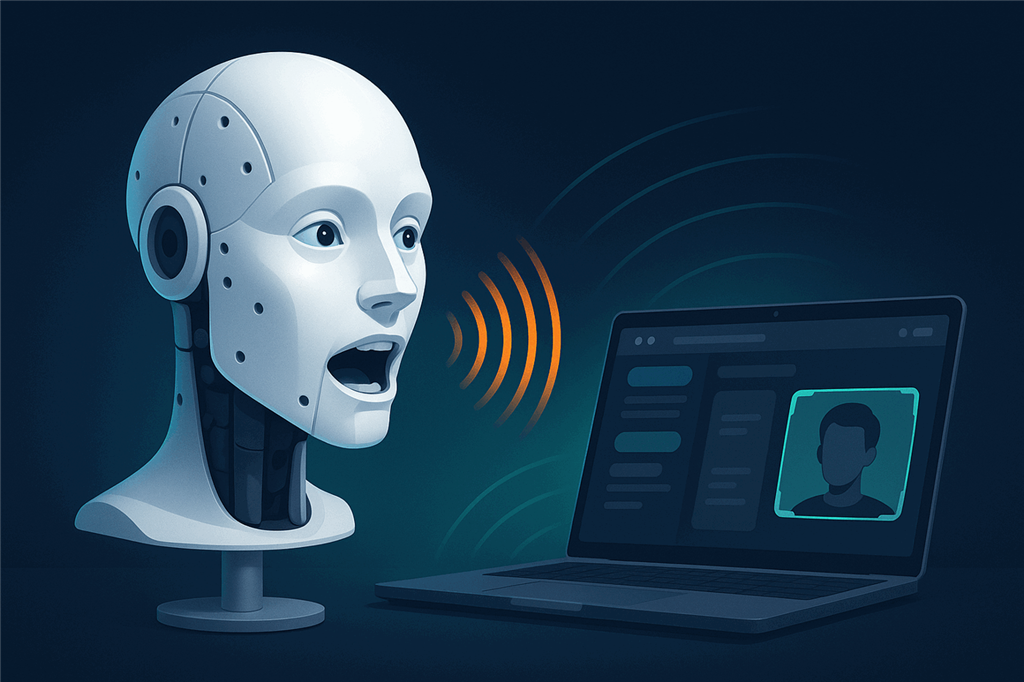
A robot head that sees you, talks and holds a conversation
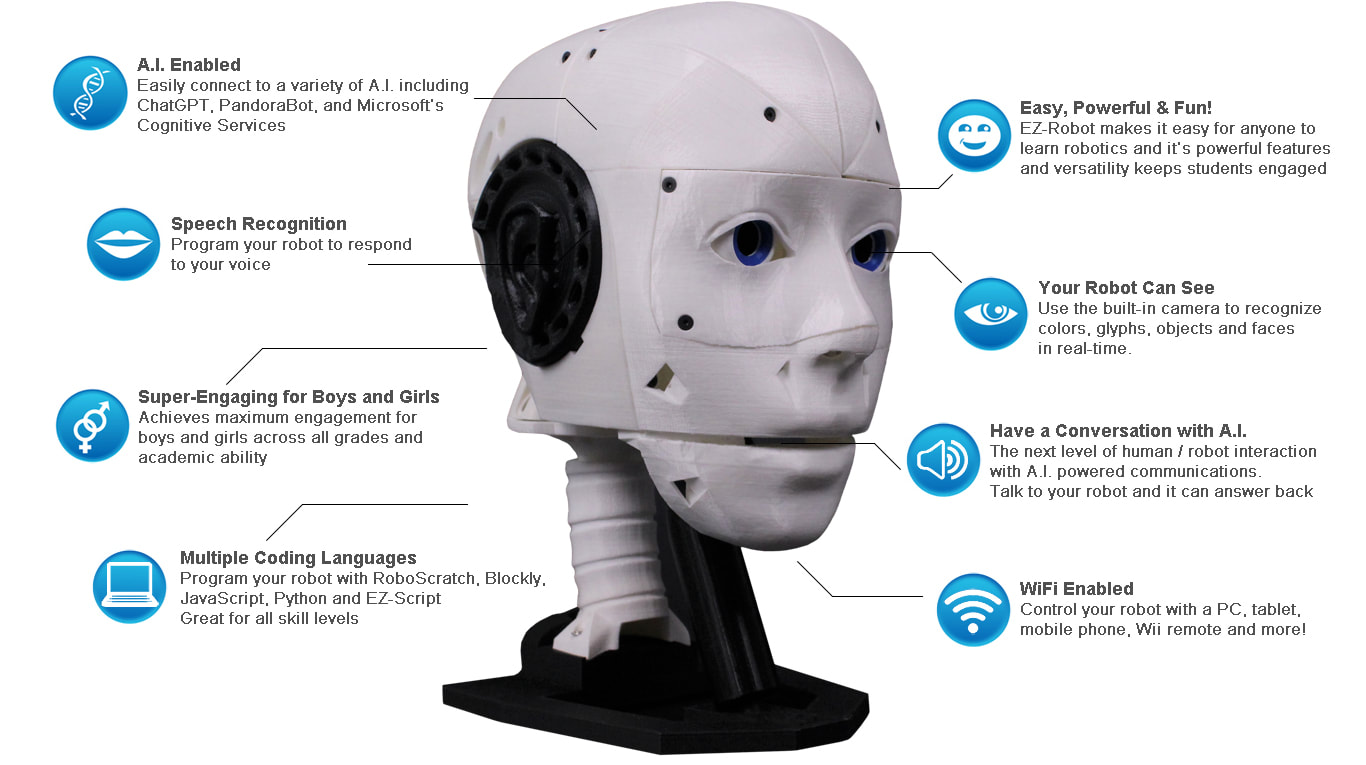
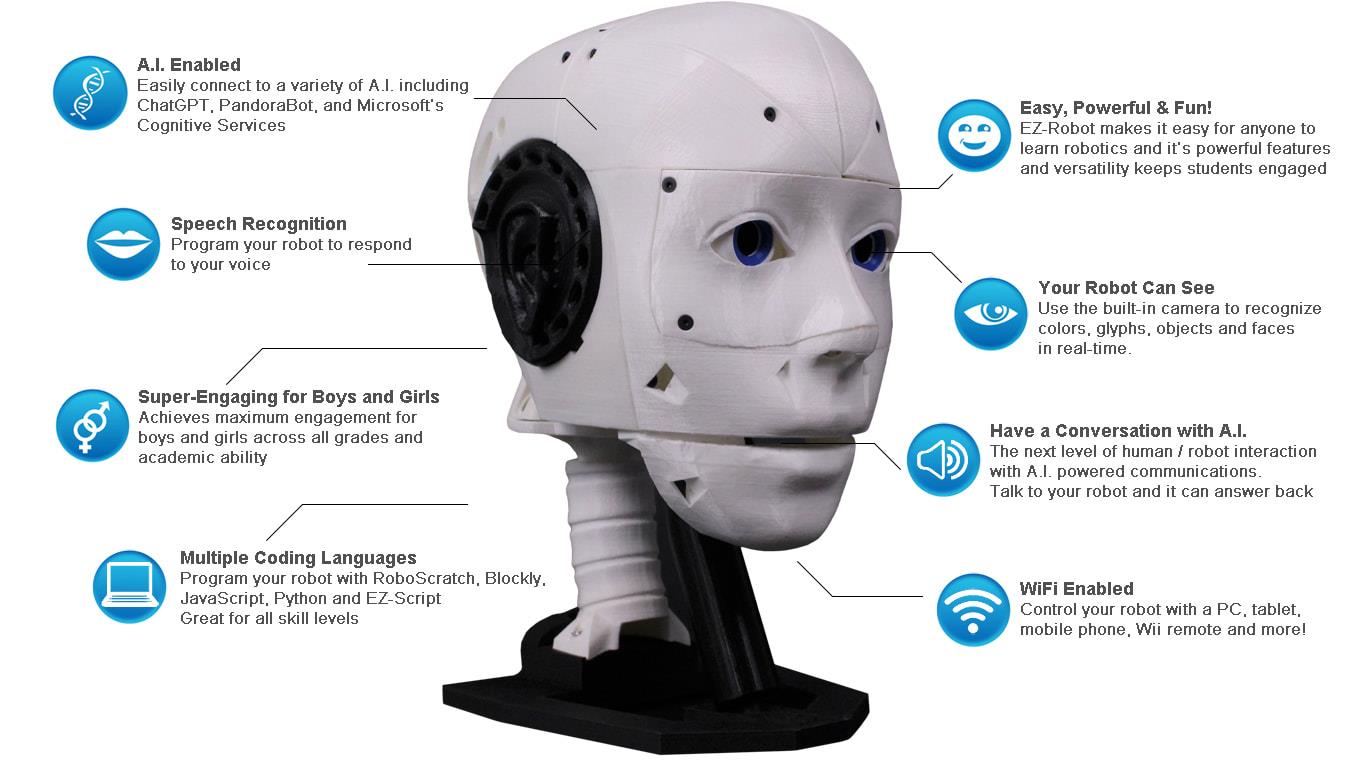
The EZ-InMoov Robot Head is a 3D-printed humanoid head kit with an EZ-B IoTiny controller, a camera eye, moving eyes, a talking jaw and a speaker. Synthiam ARCx brings it to life with face tracking, a jaw that follows its voice, speech recognition and AI conversation, all from a web browser.
How the EZ-InMoov head works with Synthiam. The head is driven by an EZ-B IoTiny, which runs EZB firmware out of the box. ARCx connects to it over Wi-Fi with the Ezb Connection robot skill; then Camera Source (ezb), Talk Servo, speech and AI skills turn it into a conversational robot. EZ-Robot's example projects are for ARC, Synthiam's Windows application, and work as they are. We recommend ARCx for new builds: it runs on Windows, Linux and Raspberry Pi and is used from any web browser.
What is the EZ-InMoov Robot Head?
The EZ-InMoov Humanoid Head is a do-it-yourself educational robot head for learning and experimenting with robotics, AI and human-robot interaction. It is based on, and compatible with, the open-source InMoov head by Gael Langevin, updated and simplified to work smoothly with Synthiam software and the EZ-Robot IoTiny controller.
Think of the kit as a robot head platform you build and then bring to life with software:
- You 3D print the head parts (or use parts you already printed).
- You assemble the mechanics (eyes, jaw, head rotation) with the included screws and hardware.
- You plug in the servos, camera, speaker and battery to the IoTiny controller. No soldering.
- You run Synthiam software to control movement, voice, vision tracking and AI chatbots.
EZ-InMoov head at a glance
| Type | 3D-printed humanoid robot head kit |
|---|---|
| Maker | EZ-Robot, based on InMoov by Gael Langevin |
| Controller | EZ-B IoTiny with speaker (EZB firmware) |
| Movement | Head left/right, eyes pan/tilt, jaw open/close |
| Servos | 2 heavy-duty digital, 2 micro HDD |
| Camera | EZ-B camera in an eye (or the forehead, with the alternate print files) |
| Connection | Wi-Fi |
| Power | 7.4 V 1300 mAh LiPo, or a wall adapter |
| Synthiam uses it for | Conversation, face tracking, speech, AI, human-robot interaction |
| Website | ez-robot.com |
Why use the EZ-InMoov Robot Head?
Hands-on learning
A real robot project that teaches wiring, servos, a camera sensor and software-based AI, including modern conversational AI such as OpenAI GPT.
Research and classroom friendly
Useful for demos and university-level projects on human-robot interaction: speech, face tracking and conversation.
Plug-and-play assembly
The included electronics plug together. No soldering required.
Open, customizable design
The 3D-printable files are open and easy to remix: change colors, add mounts, modify faceplates. It is designed to attach to an InMoov body if you expand later.
Self-contained
A simplified mechanical design with fewer parts and a unified internal bracket. The electronics and battery fit inside the skull for a clean, portable build.
Clear voice
A ported voice box with a small speaker gives clearer sound, and the jaw opens and closes in time with speech.
What you can do with the head in ARCx
Start with simple goals (move the jaw, look left and right, say a phrase), then grow into face tracking, conversation, voice commands and cloud AI services. Every piece is a robot skill, and they combine into a single project.
🗣 A jaw that talks
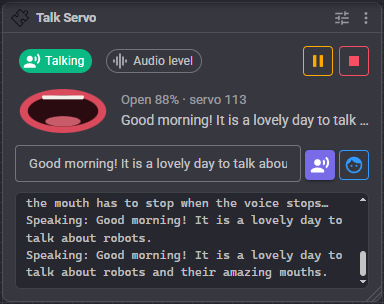
Talk Servo moves the jaw servo with the loudness of the voice, in any language, whether speech plays from the computer or the IoTiny's speaker.
👀 Eyes that follow you
Face Tracking finds faces in the camera; Vision Detection Tracking Script moves the eyes or the head to keep a face centered.
🎙 Listening
Speech Phrase Recognition for commands, with an engine such as Azure, OpenAI Whisper or offline Sherpa-ONNX.
🧠 Conversation
Chat GPT, Autonomous AI, offline Aimlbot and Conversational Menu give the head something to say.
👆 Puppeteering
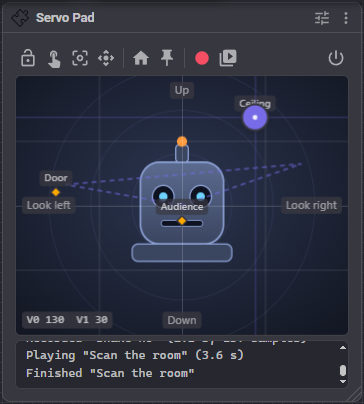
Servo Pad drives the eyes or head from a touch pad, with saved poses like Look at audience, and records takes you can replay.
🎬 Expressions and shows
Auto Position stores gestures like Nod or Surprised; Servo Animation times a whole performance to audio.
More ways to reach it. Use the head from a phone or tablet in any browser, design a Custom UI with buttons for phrases and expressions, program it in Blockly, JavaScript or Python, and let AI agents like Claude see through its camera and make it speak through ARCx's MCP server. With Exosphere, others can join in remotely for telepresence.
Contents and technical specs
The EZ-InMoov head contents
- 1 × IoTiny Smart Robot Controller with speaker
- 1 × EZ-B camera
- 2 × heavy-duty servos (digital)
- 2 × micro HDD servos
- 1 × LiPo robot battery
- 1 × LiPo USB battery charger
- 1 × alternate power adapter connector with Micro Deans
- 1 × wiring harness
- 1 × USB Wi-Fi dongle
- 1 × hex driver (assembly tool)
- All necessary hardware (screws, mounts and so on)
The plastic parts are not included; print them from the free files below.
| Battery output | 7.4 V 1300 mAh |
|---|---|
| Charger input | 5 V 2 A |
| Charger output | 7.4 V 1000 mA |
| Charge time | About 2.5 hours (with the USB charger and a 5 V 2 A power supply) |
| IoTiny ports | 8 × digital I/O, 2 × ADC, 1 × I2C, 1 × camera |
| Ports used (typical head build) | 4 × digital I/O, 1 × camera |
| Movement | Head left/right, eyes pan/tilt, jaw open/close |
| HDD servo torque | 19 kg·cm at 7.4 V |
| Micro servo torque | 7 kg·cm at 7.4 V |
| Assembled size and weight | 30 cm tall, 21 cm long, 16 cm wide; 1250 g |
Downloads
Build the head and connect it to ARCx
- Print and assemble. Print the parts and follow the assembly instructions. Before final tightening of the servo horns and links, set each servo to 90° (center) so it has its full range of motion. The IoTiny's built-in web page can center servos.
- Power and join the Wi-Fi. Power the IoTiny from the battery or a wall adapter, and connect the computer that will run ARCx to the IoTiny's Wi-Fi network, or put the IoTiny on your own network as the IoTiny page explains.
- Install ARCx and connect. Download ARCx, open it in a browser, add Ezb Connection, pick the head from the address list (or type its address) and press the green connect button. Set Project audio to the EZB speaker so the head speaks from its voice box.
- Test movement safely. Add the four servos to an Auto Position skill (or a Servo skill each) and move them slowly to confirm nothing binds. Set servo limits so printed parts never collide.
- Add one feature at a time: camera first (Camera Source (ezb)), then the talking jaw (a text to speech engine plus Talk Servo), then speech recognition, then a chatbot or AI.
- Save the project, and design a Custom UI so anyone can use the head from a tablet.
Before you begin
- You will need: the 3D-printed parts, a computer to run Synthiam software, and some time and patience for assembly.
- No soldering: all electronics connect with plugs.
- Work area: a clean table and a small container for screws help a lot.
- Safety: LiPo batteries must be charged and handled carefully; follow the battery charging instructions.
Using ARC and the example projects?
Install ARC on Windows, power the IoTiny, connect over Wi-Fi with ARC's EZB Connection, and load EZ-Robot's basic or advanced example project to check everything works. Some advanced AI features in ARC need an ARC subscription.
What is in the example projects, and the ARCx equivalents
EZ-Robot's basic and advanced head projects are ARC projects. To build the same robot in ARCx, add the matching ARCx robot skills. Auto Position in ARCx can import an Auto Position configuration from an ARC project file, so the head's gestures carry over.
| Project | ARC robot skill | ARCx robot skill |
|---|---|---|
| Basic | Camera Device | Camera Source (ezb) |
| Basic | Speech Synthesis Settings | Basic Speech Synthesis or Advanced Speech Synthesis |
| Basic | Speech Recognition | Speech Phrase Recognition with a speech to text engine |
| Basic | Auto Position | Auto Position |
| Basic | PandoraBot | Aimlbot (runs offline) |
| Basic | Soundboard (PC), Soundboard (EZB) | Sound Board (plays where Project audio points) |
| Basic | Talk Servo v2 | Talk Servo |
| Advanced | Conversational Menu | Conversational Menu |
| Advanced | Bing Speech Recognition | Azure Speech To Text Engine or OpenAI Whisper |
| Advanced | OpenAI ChatGPT | Chat GPT or Autonomous AI |
In ARC, cloud services such as Microsoft Cognitive Services can also be added for experiments like emotion detection.
Both work, ARCx is recommended for new builds
The head works with both of Synthiam's robot programming platforms, because both speak the IoTiny's EZB protocol. ARC runs EZ-Robot's ready-made example projects; ARCx is the better long-term home, and rebuilding the project in it takes a handful of skills.
| ARCx Recommended | ARC | |
|---|---|---|
| Runs on | Windows 10/11 x64, Ubuntu 24.04 x64 and ARM64, Raspberry Pi (Ubuntu 24.04) | Windows |
| User interface | Any web browser: laptop, tablet or phone, several people at once | Windows desktop application |
| EZ-Robot example projects | Rebuild with the skills above; Auto Position imports from ARC | Open as they are |
| AI agents through MCP | Yes | No |
| Connection skill | Ezb Connection | EZB Connection |
Troubleshooting
- Power off the robot.
- Check that the camera and servo plugs are fully seated in their ports.
- Reroute the wiring to reduce tugging during motion.
Recommended routing: run the wire straight over the jaw pivot cup and back to the IoTiny, and put extra wire length into the cavity at the back of the skull.
The EZ-InMoov projects include software servo limits so printed parts do not collide. If a servo hits a limit too early, its horn was probably not installed at the centered position.
- Use the IoTiny's built-in web server to set the servo to 90° (center).
- Loosen or remove the horn, re-center it mechanically, then reassemble.
- Re-test slowly before full-speed movement.
- Wi-Fi connection 1: computer to IoTiny (the robot's network)
- Internet connection: computer to the internet (Ethernet or a second Wi-Fi adapter)
- Fill the hole with a small amount of hot glue and reinsert the screw carefully.
- Use a 3D printing pen to add plastic back into the hole.
- Very carefully deform the hole with heat (this risks warping the part).
- For repeat builds, pre-thread holes with an M3 tap.
Prevention: tighten screws until snug, not as tight as possible.
- Repair it with cyanoacrylate (super glue) or 3Dgloop.
- Reprint the part with more shells and/or higher infill for strength.
Prevention: avoid over-tightening screws; snug is enough.
Frequently asked questions
Beginner tip: if parts feel weak, increase the shells (for example to 3 or 4) before increasing infill.
- Two printers at about 150 mm/s: roughly 2 to 3 days.
- One printer at about 60 mm/s: roughly 5 to 7 days.
Beginner tip: if the head lives on a desk for demos, wall power is often simpler than managing battery charge cycles.
In ARC: the basic example project is English-focused (PandoraBot and Windows speech), and changing its language can be difficult. The advanced project uses OpenAI GPT and Bing Speech Recognition, which support more languages; change the language in the Bing Speech settings. For text to speech, Windows may need extra language packs, or try the Azure Text To Speech skill.
In ARCx: choose a speech to text engine and a text to speech engine that support your language, such as Azure, OpenAI Whisper or Advanced Speech Synthesis. Talk Servo follows the loudness of the voice, so the jaw moves correctly in any language.
Give your robot head a voice and a mind
Install ARCx, connect the IoTiny with Ezb Connection, and add face tracking, a talking jaw and AI conversation.

hi all
some great progres ,its working . if you do this make sure not to go over the settings. servo d4 is the front servo . it tends to tip over when making side ways motion . this way its very limited for that tip over . how to connect the two side pistons. calibrate bolt servo's and then aline one piston and base ( hole ) put a screw in . then aline the other piston but disconnect the iotiny first . you need to turn by hand , the previeus piston to be able to get second piston in . print the cross connection with 35 infil and the gyroid , in your slicer to make strong parts . things to do is the jack plug holder . i'm gonna make , a tab so you can screw it on the back skull , little more steddy . please remember am a hobby designer , check the parts .
Download: basesmalpistonIN.zip
@Nomad, you should publish your remix and files as a tutorial or a robot. That way people will be able to find it. It will get lost in this lengthy thread in a few days, and no one will see it again.
@dj
thank you for the tip . i will do that . what do you think of this remix ?
I see Gael has a new robot head he just announced (and hands) called the i2 Head Now has eyelids, teeth, brow and various other facial movements. You can also print an inner and outer mold and then make a silicon face. I guess I need to start printing again.
Oh I don't know if i like that haha. I think it just crossed the uncanny valley in my eyes eak
Interesting! Thanks for the "heads up" @Nink
@Nick, where do you get the new head? I can’t find it anywhere. Thanks
Head I2