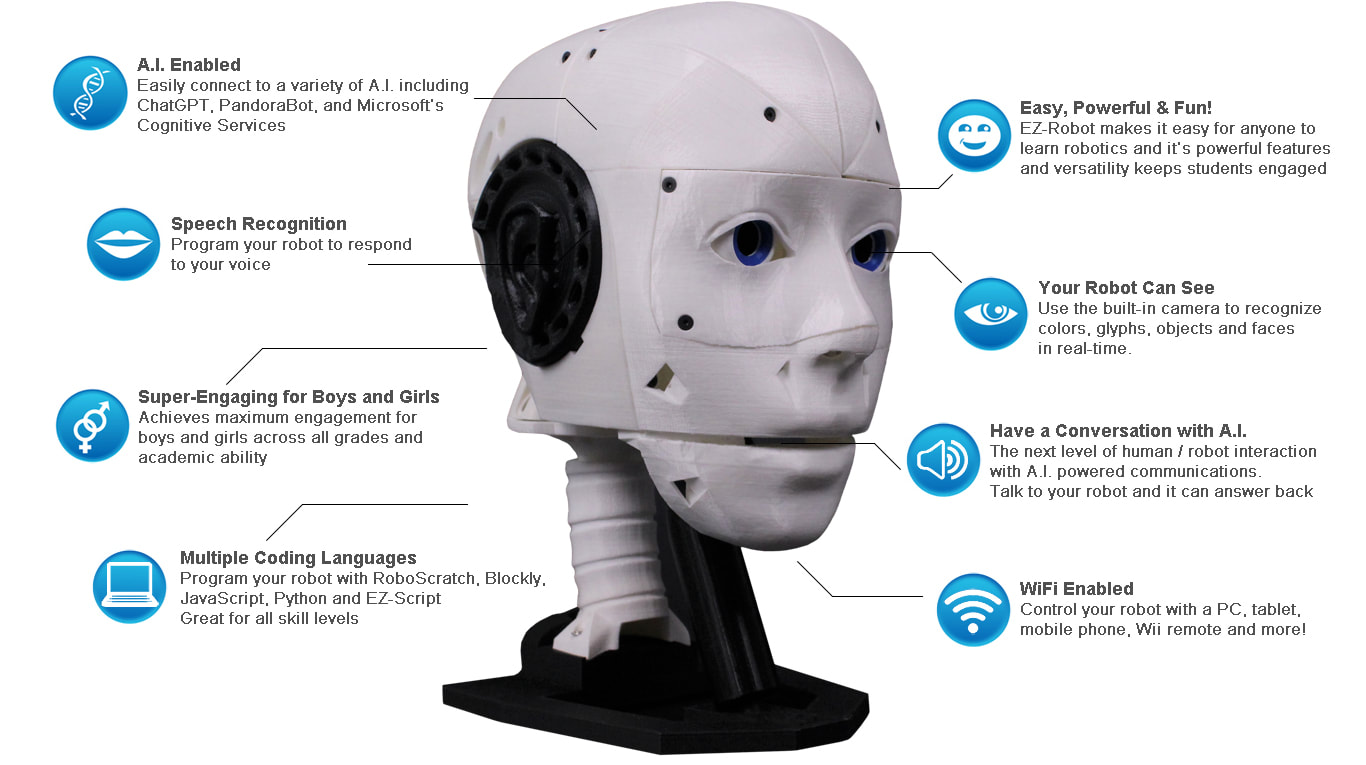
EZ-Inmoov Robot Head by EZ-Robot & Gael Langevin
The EZ-InMoov Humanoid Head is a do-it-yourself (DIY) educational robot head designed for learning and experimenting with robotics, AI, and human-robot interaction. It is based on (and compatible with) the popular open-source InMoov head by Gael Langevin, but updated and simplified to work smoothly with Synthiam ARC software and the EZ-Robot IoTiny controller.
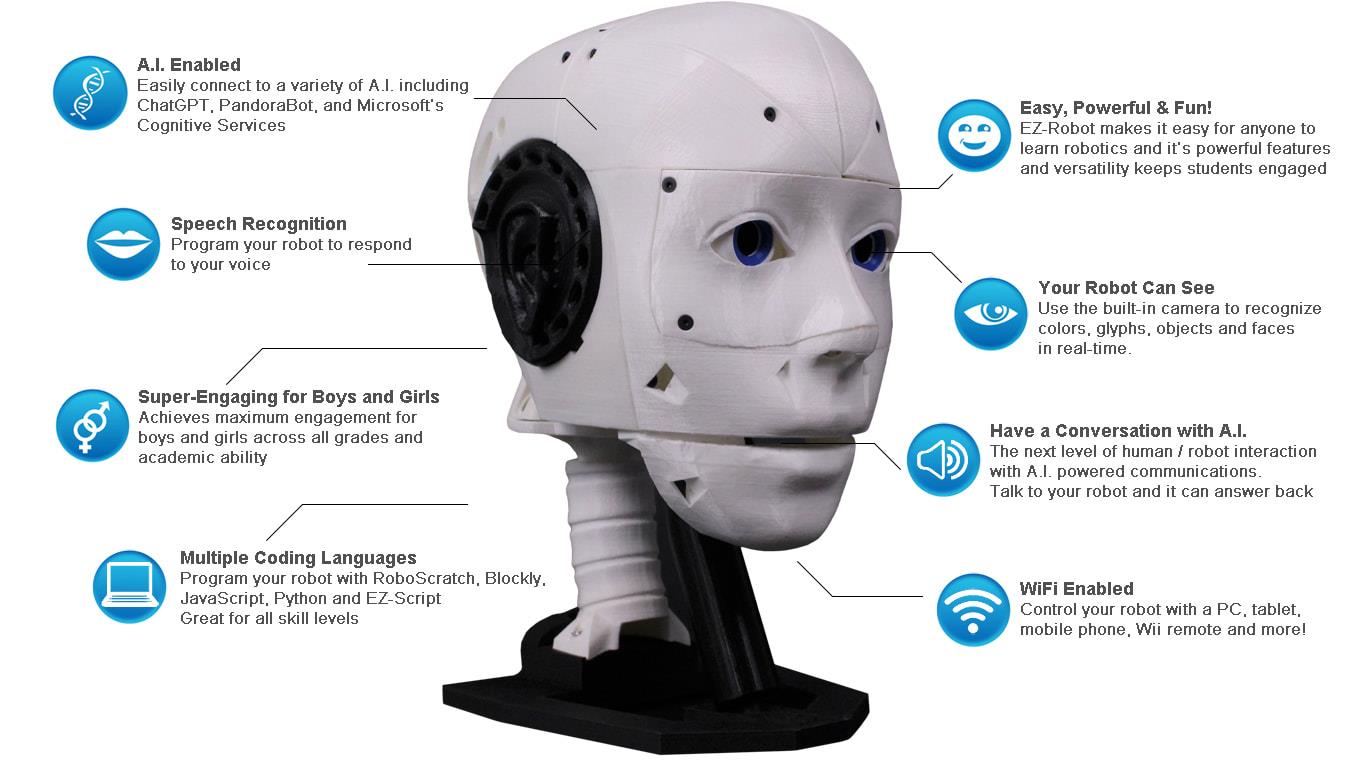
What This Kit Is (Beginner Explanation)
Think of this kit as a “robot head platform” you build and then bring to life with software:
- You 3D print the head parts (or use parts you already printed).
- You assemble the mechanics (eyes, jaw, head rotation) using included screws/hardware.
- You plug in servos, camera, speaker, and battery to the IoTiny controller (no soldering).
- You run ARC on a computer to control movements, voice, vision tracking, and AI/chatbots.
Why Use the EZ-InMoov Robot Head?
- Educational value (hands-on learning): Great for beginners who want a real robot project that teaches wiring, servos, sensors (camera), and software-based AI. You can experiment with modern conversational AI such as OpenAI GPT (via ARC skills).
- Research and classroom friendly: Useful for demos and university-level projects focused on human-robot interaction (speech, face tracking, conversation).
- Beginner-friendly assembly: Designed to be plug-and-play with included electronics—no soldering required.
- Customizable (open 3D files): The 3D printable design is open and easy to remix—change colors, add mounts, modify faceplates, etc.
- Powerful software features: Synthiam ARC supports vision tracking, speech recognition, text-to-speech, and chatbot integration.
- Multiple programming options: Control the robot with Blockly (drag-and-drop), JavaScript, or Python.
- Mobile control option: You can control the robot head from a mobile device (helpful for quick tests and demos).
- Emotion/face research: ARC can integrate with cloud services (such as Microsoft Cognitive Services/Azure) for experiments like emotion detection.
- Portable or stationary power: Use the included battery for portability or a wall adapter for continuous runtime.
Key Features (What You Actually Get to Do)
- Seamless integration: Designed to attach easily to an InMoov body (if you expand later).
- Complete electronics package: Includes controller, camera, servos, battery, charger, and wiring harness.
- Simplified mechanical design: Fewer parts and a unified internal bracket to reduce build complexity.
- Self-contained build: Electronics and battery fit inside the skull for a clean look and portability.
- Expressive motion: Head left/right, eye pan/tilt, and jaw open/close for speaking animations.
- Improved audio: Ported voice box design with a small speaker for clearer sound.
- Wireless control: IoTiny provides wireless connectivity for control through ARC.
- AI experimentation: Vision tracking, speech, and chatbot skills can be combined into a single project.
Before You Begin (Beginner Checklist)
- You will need: 3D printed parts, a computer to run Synthiam ARC, and basic time/patience for assembly.
- No soldering: All electronics connect with plugs.
- Work area: A clean table and a small container for screws helps a lot.
- Safety: LiPo batteries must be charged and handled carefully (see Battery Charging Instructions below).
Downloads
- 3D Print Files for the EZ-InMoov Robot Head
- Assembly Instructions (PDF)
- Battery Charging Instructions
- Default Example ARC Projects for InMoov Head
Details (What Makes This Kit Useful)
The EZ-InMoov Robot Head is a strong choice if you want a project that is approachable for beginners but still powerful enough for advanced AI experiments. You can start with simple goals (move the jaw, look left/right, say a phrase) and then grow into more advanced features (face tracking, conversation, voice-controlled commands, and cloud AI services).
Getting Started in ARC (Beginner Overview)
- Install Synthiam ARC on your computer.
- Power the IoTiny (battery or wall adapter) and connect it to ARC over WiFi.
- Load an example project (basic or advanced) to verify everything works.
- Test movement safely: Run an “Auto Position” or servo test slowly to confirm nothing is binding.
- Calibrate servos to 90° (center position) before final tightening of horns/links for best range of motion.
- Try one feature at a time: camera first, then jaw talking, then speech recognition, then chatbot AI.
EZ-InMoov Robot Head FAQ
Beginner tip: If parts feel weak, increase shells (e.g., 3–4) before increasing infill.
- Two printers at ~150 mm/s: about 2–3 days
- One printer at ~60 mm/s: about 5–7 days
Beginner tip: If your robot is on a desk for demos, wall power is often simpler than managing battery charge cycles.
- Power off the robot.
- Check that the camera and servo plugs are fully seated in their ports.
- Reroute wiring to reduce tugging during motion.
Recommended routing: run wire straight over the jaw pivot cup and back to the IoTiny. Put extra wire length into the cavity at the back of the skull.
Fix (high level):
- Use the IoTiny internal webserver to set servos to 90° (center).
- Loosen/remove the horn, re-center it mechanically, then reassemble.
- Re-test slowly in ARC before full-speed movement.
- Fill the hole with a small amount of hot glue and reinsert the screw carefully.
- Use a 3D printing pen to add plastic back into the hole.
- Very carefully deform the hole with heat (risk: warping the part).
- For repeat builds, pre-thread holes with an M3 tap.
Prevention: Tighten screws until snug, not “as tight as possible.”
- Repair with cyanoacrylate (super glue) or 3Dgloop.
- Reprint the part with more shells and/or higher infill for strength.
Prevention: Avoid over-tightening screws; snug is enough.
- WiFi connection #1: Computer ↔ IoTiny (robot network)
- Internet connection: Computer ↔ internet (Ethernet or a second WiFi adapter)
The basic example project is primarily English-focused (PandoraBot + Windows speech). Changing it to another language can be difficult.
The advanced project uses OpenAI GPT and Bing Speech Recognition, which support additional languages. You can change language options in the Bing Speech settings. For text-to-speech, Windows may require installing additional language packs. For more flexibility, try the Microsoft Azure Text-to-Speech skill.
ARC Project Details (What’s Inside the Example Projects)
Basic Head Project
Includes common core skills such as:
- Camera Device
- Speech Settings
- Speech Recognition
- Auto Position
- PandoraBot
- Soundboard for PC
- Soundboard for EZB
- Talk Servo v2
Advanced Head Project
Builds on the basic project and adds skills like:
- Conversational Menu
- Bing Speech Recognition
- OpenAI ChatGPT
The EZ-InMoov Head Contents
- 1 × IoTiny Smart Robot Controller with Speaker
- 1 × EZ-B Camera
- 2 × Heavy Duty Servos (Digital)
- 2 × Micro HDD Servos
- 1 × LiPo Robot Battery
- 1 × LiPo USB Battery Charger
- 1 × Alternate Power Adaptor Connector with Micro Deans
- 1 × Wiring Harness
- 1 × USB WiFi Dongle
- 1 × Hex Driver (assembly tool)
- All necessary hardware (screws, mounts, etc.)
Technical Specs
| Battery Output | 7.4V 1300mAh |
|---|---|
| Charger Input | 5V 2A |
| Charger Output | 7.4V 1000mA |
| Charge Time | ~2.5 hours (with USB charger + 5V 2A power supply) |
| IoTiny Ports | 8 × digital I/O, 2 × ADC, 1 × I2C, 1 × Camera |
| Ports Used (typical head build) | 4 × digital I/O, 1 × Camera |
| Movement | Head left/right, eyes pan/tilt, jaw open/close |
| HDD Servo Torque | 19 kg·cm @ 7.4V |
| Micro Servo Torque | 7 kg·cm @ 7.4V |

Hi @Nomad, Do you mean the side pistons? I haven't tested the original side pistons, only the front piston which is compatible.
hi jeremie
indeed the front is correct . the side pistons in the back not . am printing the original backpistons so i can compare them . little bit longer neck also . good practise .xD thanks
hi jeremie
your neck part is correct and the org pistons do fit . found the problem . the error i made is to make the inner piston thinner . that changes also the pad that the treath needs to follow . solution . original pistons and slithly higher neck . and two part inner piston .
https://www.youtube.com/shorts/m0e5sGoomJo
Yeah Nomad the original side pistons are definitely too tight of a fit, I’m glad you found a fix for yours!
jeremie
i made a neck extention . one two wervel 68 MM high and one tree wervel 87 MM high . so no need to reprint a new neck . it slide into the original neck . if you are using the , standard neck , the two wervel will be best . i made a 1 wervel too .
Question. I am missing something (which most probably I am) shouldnt there be a left and right forhead with a camera cutout if i want to put the camera in the forehead instead of the eye? In the source files there is only one piece to print out.
dbeard
i
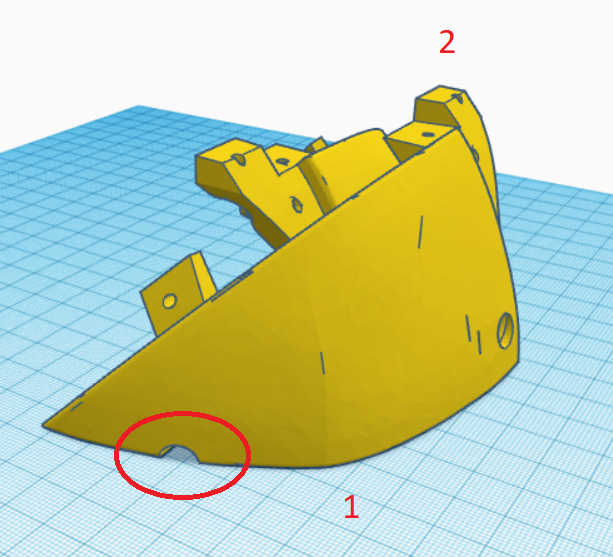
ts one file with two parts in it .Camera tracking works waaaaaaaaaaaay better in the forehead. Because you can use the relative camera option to move the eyes when tracking.