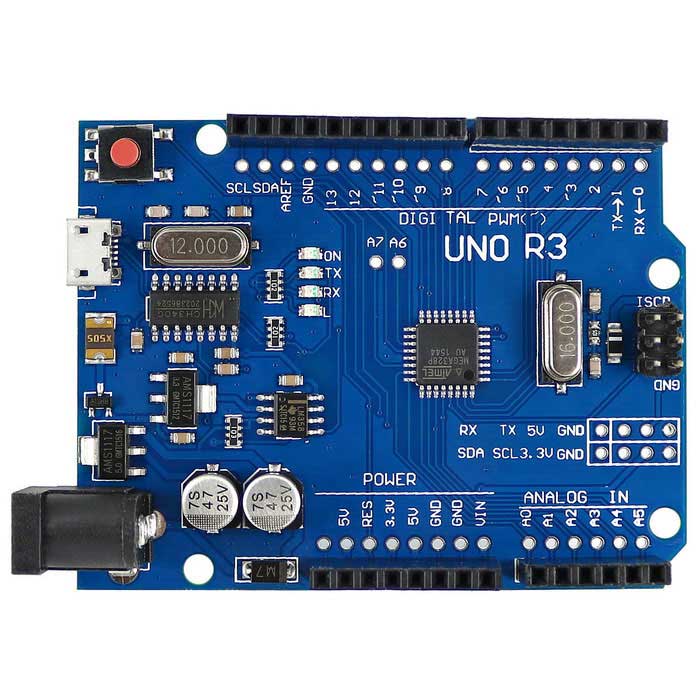
Arduino Genuino Uno by Arduino
Firmware
EZ Wheel Encoder firmware for Arduino UNO integrates with Synthiam ARC Wheel Encoder Counter for interrupt-driven encoder tracking and EZB commands.
Convert an Arduino Uno into an EZ-B with DJ's firmware to control servos, read digital ports and PWM.
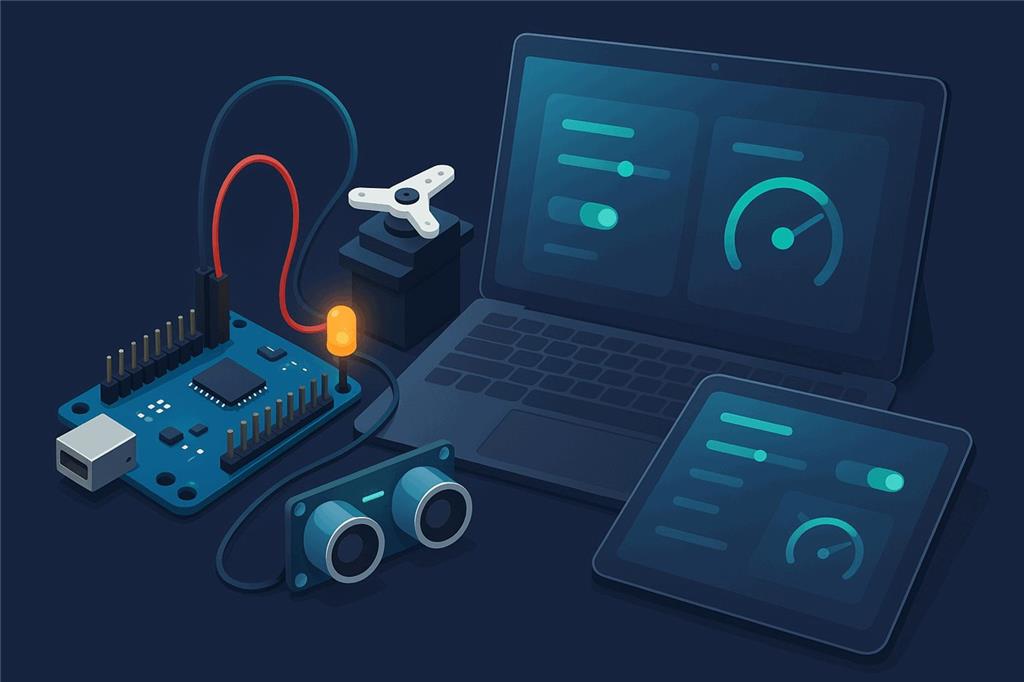
Turn an Arduino Uno into a robot controller
Flash Synthiam's EZB firmware onto an Arduino Uno and it becomes an EZB: a controller that ARCx and ARC drive directly. Move servos, read sensors, switch LEDs and dim motors from a web browser, with no Arduino sketch to write for each project.
How the Uno works with Synthiam.
You upload Synthiam's EZB firmware (listed in the Firmware section below) to the Uno once with the Arduino IDE.
After that, the Uno speaks the EZB protocol over its USB cable. In ARCx, the Ezb Connection robot skill
connects to it through its serial port (COM3 on Windows, /dev/ttyACM0 or /dev/ttyUSB0 on Linux) at 57600 baud, and every servo, digital, PWM and ADC robot skill can use its pins.
ARC connects the same way with its EZB Connection skill.
We recommend ARCx: it runs on Windows, Ubuntu and Raspberry Pi, and you use it from any web browser.
What is the Arduino / Genuino Uno?
The Arduino / Genuino Uno is a small microcontroller board based on the ATmega328P. A microcontroller is like a tiny computer that can read sensors, turn outputs on and off, and control motors and LEDs. The Uno is one of the most common Arduino boards, so beginners find plenty of examples and community support for it.
The Uno includes:
- 14 digital pins (labeled D0–D13) for on/off input and output
- 6 analog input pins (labeled A0–A5) for reading changing voltages from sensors
- 6 PWM-capable pins (a special type of digital output used for dimming LEDs or controlling motor speed)
- USB port for connecting to your computer (programming, and often power)
- Barrel power jack for an external power supply
- Reset button to restart the program on the board
- ICSP header (advanced programming and pin access; most beginners won't need this)
Beginner tip: “Digital” usually means off or on (0 or 1). “Analog” means a range, like a knob that can be turned gradually.
Arduino Uno at a glance
| Type | Microcontroller board (DIY EZB with Synthiam firmware) |
|---|---|
| Maker | Arduino |
| Microcontroller | ATmega328P |
| Connection | USB (serial), 57600 baud with the EZB firmware |
| Power | USB or barrel jack |
| EZB ports | D2–D13 digital, PWM and servo; ADC0–ADC5 |
| Synthiam uses it for | Low-cost servo, sensor and I/O control over USB |
| Website | store.arduino.cc |
What you can do with an Uno in Synthiam
With the EZB firmware, the Uno's pins show up in ARCx and ARC as ordinary EZB ports. Any robot skill or script that uses those ports works with the Uno.
Hobby servos
Up to 12 PWM servos on the digital ports, with release so a servo goes limp. Use the Servo, Servo Pad, Auto Position and Servo Animation robot skills.
Digital I/O
Switch LEDs and relays, and read buttons and switches. The Digital Monitor skill shows and toggles every port live.
PWM and motors
PWM duty from 0% to 100% on the PWM pins, for LED brightness or motor speed through an H-bridge with the Hbridge Movement Panel or Pwm Slider.
Analog sensors
Six 10-bit ADC inputs (scaled to 12 bit inside ARC) for potentiometers, light, force and distance sensors. Watch them with Adc Monitor or graph them with Ez Chart.
Ultrasonic distance
The firmware drives HC-SR04 ping sensors on the digital ports and returns an 8-bit distance (0–255). Read it from a script with Ping.get(d2, d3), or in ARC with the Ultrasonic Distance skill.
Serial transmit
Every digital port can transmit (TX) serial data at a set of preset baud rates, handy for sending commands to a motor controller or sound module. There is no hardware UART receive on the Uno firmware.
Scripting and Blockly
Program the Uno's ports with Blockly, JavaScript or Python in the Script robot skill: Digital.set(d13, true), ADC.get(adc0), Servo.setPosition(d3, 90).
Drive and control
On-screen joysticks, gamepads, Custom UI touch screens and AI agents through ARCx's MCP server all end up as moves on the Uno's ports.
Wheel encoders (ARC)
A second firmware, Wheel Encoder Firmware, counts left and right wheel encoders with interrupts for the ARC Wheel Encoder Counter skill.
Which firmware to use
Both firmwares are listed in the Firmware section below this page, with their version history and downloads. Each is Arduino source code you upload with the Arduino IDE.
| Firmware | What it is for | Works with |
|---|---|---|
| Delicious Arduino Uno Start here | DJ's general-purpose EZB firmware: servos (with release), digital read/write, PWM, 10-bit ADC, serial transmit on every digital port, and HC-SR04 ultrasonic sensors (added in version 5; version 6 fixed the echo pin). | ARCx Ezb Connection, ARC EZB Connection |
| Wheel Encoder Firmware | Extends the EZB protocol to read and reset left and right wheel encoder counts and to set the wheel direction from the movement panel, so counts go up or down correctly when reversing and turning. Version 3 needs Wheel Encoder Counter skill version 12. | ARC Wheel Encoder Counter |
Uno pins and EZB ports
With the EZB firmware, port numbers match the Uno's pin numbers: D3 in ARCx is pin 3 on the Uno, and ADC0 is A0. Only digital ports D2–D13 are usable, because pins 0 and 1 carry the USB serial link to the computer.
| EZB port | Uno pin | Digital I/O | PWM duty | Notes |
|---|---|---|---|---|
| — | 0 (RX), 1 (TX) | No | No | Used by the USB serial connection to ARCx/ARC. Leave them unconnected. |
| D2 | 2 | Yes | No | Servo, digital, serial TX, ping |
| D3 | 3 | Yes | Yes (490 Hz) | Servo, digital, serial TX, ping |
| D4 | 4 | Yes | No | Servo, digital, serial TX, ping |
| D5 | 5 | Yes | Yes (980 Hz) | Servo, digital, serial TX, ping |
| D6 | 6 | Yes | Yes (980 Hz) | Servo, digital, serial TX, ping |
| D7 | 7 | Yes | No | Servo, digital, serial TX, ping |
| D8 | 8 | Yes | No | Servo, digital, serial TX, ping |
| D9 | 9 | Yes | Yes (490 Hz) | Servo, digital, serial TX, ping |
| D10 | 10 | Yes | Yes (490 Hz) | Servo, digital, serial TX, ping |
| D11 | 11 | Yes | Yes (490 Hz) | Servo, digital, serial TX, ping |
| D12 | 12 | Yes | No | Servo, digital, serial TX, ping |
| D13 | 13 | Yes | No | Servo, digital, serial TX, ping |
| ADC0–ADC5 | A0–A5 | Analog input | 10-bit reading (0–1023 on the board), scaled to 12 bit inside ARC | |
| D14 and up | — | — | Do not exist on the Uno. Selecting them does nothing. | |
Servo ports
The Uno spec lists 12 servos (D2–D13). Synthiam's firmware tutorial notes that servo ports on the Uno must be the PWM ports 3, 5, 6, 9, 10 and 11. Start your servos on those ports, and if a servo on another port misbehaves, move it to one of them. Arduino's Servo library also disables PWM on pins 9 and 10 on boards other than the Mega while servos are in use.
PWM pins are special
PWM pins are not the same as “all digital pins.” If you want PWM features (like dimming or speed control), connect your device to one of the PWM-capable pins: 3, 5, 6, 9, 10 and 11 on the Uno. The current Uno firmware does not list I2C or hardware UART among its features.
Understanding PWM (for beginners)
PWM stands for Pulse Width Modulation. PWM pins turn on and off very quickly. By changing how long the signal stays on versus off, the Arduino can simulate “partial power.”
- Common uses: dim an LED, control DC motor speed, control some types of buzzers.
- Not the same as servo control: servos use a different style of pulse timing, which the firmware generates for you when you use a servo robot skill.
- PWM frequency is how fast the on/off switching happens. Different boards and pins have different default PWM frequencies.
| Board | PWM pins | Default PWM frequency |
|---|---|---|
| Uno, Nano, Mini | 3, 5, 6, 9, 10, 11 | 490 Hz (pins 5 and 6: 980 Hz) |
| Mega | 2 - 13, 44 - 46 | 490 Hz (pins 4 and 13: 980 Hz) |
| Leonardo, Micro, Yún | 3, 5, 6, 9, 10, 11, 13 | 490 Hz (pins 3 and 11: 980 Hz) |
| Uno WiFi Rev2, Nano Every | 3, 5, 6, 9, 10 | 976 Hz |
| MKR boards * | 0 - 8, 10, A3, A4 | 732 Hz |
| MKR1000 WiFi * | 0 - 8, 10, 11, A3, A4 | 732 Hz |
| Zero * | 3 - 13, A0, A1 | 732 Hz |
| Nano 33 IoT * | 2, 3, 5, 6, 9 - 12, A2, A3, A5 | 732 Hz |
| Nano 33 BLE/BLE Sense | 1 - 13, A0 - A7 | 500 Hz |
| Due ** | 2 - 13 | 1000 Hz |
| 101 | 3, 5, 6, 9 | pins 3 and 9: 490 Hz, pins 5 and 6: 980 Hz |
Source: Arduino's analogWrite() reference. * These boards also have a true analog output (DAC) on pin A0.
** The Due also has true analog outputs on pins DAC0 and DAC1. Only the Uno, Mega and Leonardo have Synthiam EZB firmware pages.
Connect an Uno to ARCx
- Download the firmware. Get Delicious Arduino Uno from the Firmware section below and extract the zip to a folder.
-
Upload it with the Arduino IDE. Connect the Uno with a USB cable, open the
.inofile in the Arduino IDE, choose Tools → Board → Arduino Uno and the Uno's port, and press Upload. Note the_BAUD_RATEvalue near the top of the sketch (57600 for Synthiam's Uno firmware). The firmware upload tutorial walks through it with pictures. - Install ARCx on the computer the Uno is plugged into: a Windows PC, an Ubuntu computer or a Raspberry Pi running Ubuntu 24.04. Download ARCx.
- Set the baud rate. Add the Ezb Connection robot skill (Communication category), open its configuration, select EZB 0, open the Connection tab and set Baud rate to 57600 (the skill's default is 9600). Save.
-
Connect. In the skill's main window, pick the Uno's serial port and press the green connect button.
Windows: COM3 (check Device Manager for the number) Linux: /dev/ttyACM0 (many clone boards: /dev/ttyUSB0) - Test one thing. Add Digital Monitor and toggle D13, which lights the Uno's on-board LED, or add a Servo skill on D3. Test simple functions before wiring motors or more complex electronics.
Using ARC instead?
In ARC, press Config on the connection control, open the Settings tab, set the baud rate for the EZB index you use for the Uno, and save. Pick the Uno's COM port in the address box and press Connect. ARC lists the firmware's capabilities in its debug window.
Both work, ARCx is recommended
The Uno firmware speaks the standard EZB protocol, so it connects to both of Synthiam's robot programming platforms. Choose ARCx for a new robot. Choose ARC when you need an ARC-only skill, such as the Wheel Encoder Counter.
| ARCx Recommended | ARC | |
|---|---|---|
| Runs on | Windows 10/11 x64, Ubuntu 24.04 x64 and ARM64, Raspberry Pi 4/5 with Ubuntu 24.04 | Windows |
| User interface | Any web browser on the network, several people at once | Windows desktop application |
| Connection skill | Ezb Connection | EZB Connection |
| Uno on a robot, controlled wirelessly | Yes: run ARCx on a Raspberry Pi on the robot, plug the Uno into it, use a phone or laptop browser | Needs a Windows PC on the robot or a long USB cable |
| AI agents | Built-in MCP server: Claude and other agents can see, drive and program the robot | Through ARC robot skills |
| Wheel encoder firmware | No ARCx skill yet | Wheel Encoder Counter |
If something does not work
dialout group. Add the user that runs ARCx to it, then log out and back in:
sudo usermod -aG dialout $USERFrequently asked questions
Serial and calls your functions, and send those bytes from an ARCx or ARC script over the computer's COM port
or through an EZB's UART.
Servo.setPosition(d3, 90, 1) for the second board.
/dev/ttyUSB0 instead of /dev/ttyACM0.
Give your Uno a robot brain
Upload the EZB firmware, install ARCx, add the Ezb Connection skill, and control your Uno from any web browser.

EZAng, I am building a B9... currently I have EZ doing the API calls (stock price, weather, and voice recognition), some servo movements, etc... but on my writs and claws, in the Maestro IDE, you can create animation sequences, with many options to slow or speed up servos, or control how smooth they run... then you save each sequence and call it from Adruino or in my case with B9 just running it on timers and delays... since Maestro has no random built in function... but what I lose is if B9 says, "Oooo I could pinch you" I can't sync that voice call from EZ to the Maestro to call a claw movement... making sense? I love the delays, randoms etc, as it gives some natural random ability as I mix that with some Adruino calls to some of my motors using a motor board... but I want to start syncing all this together with EZ to make it more cohesive
I learned all about Maestro in my full size Star Wars Chopper build to move his utility arm, head arms, tools, door panels etc... all being called from a XBox controller
Sounds cool! I still recommend doing that in the auto position. You can use the same speed and acceleration and velocity and such. You’re familiar with the maestro but you will be limiting yourself if you don’t learn the Auto Position robot skill.
remember that the maestro animator was influenced by the auto position. That’s why they use the same terminology. The difference is that the Auto Position is integrated with ARC and has a ton more features. Since you’re technical, i know you’d be doing a lot with the Auto Position once you learn it
I just don’t want to see your robot being limited
also if you’re using speech recognition for that stuff - have you used the conversation menu robot skill yet? That’s pretty powerful. It’s much easier than the dialog flow.
not sure i know that skill for the conversation... for now, I know it is in another thread... I use one Voice Rec for a call word, so the robot wakes up, pauses that Voice Rec, supplies it to Bing Voice and AI Chat, stores the variable of what it heard and takes action... the issue here is we are limited to the original actor's voice clips we have...
I will have to look at that auto position...
Sounds like a great project, good luck ...
I agree with DJ, Auto Position is the ticket
Dave Schulpius is the B9 specialist - First Real Look At My Ez-b Controlled Full Size Lis B9 Robot
Oh right the actors voice. That’s pretty cool though that you have it. I remember seeing a program from adobe that allows modeling custom voices from samples. I don’t know what came of it.
There’s 730 robot skills, so probably a lot that you didn’t know about. There’s a few places to browse for them. The robot skill store on the products page, or in the support section.
I usually use this page to start from: https://synthiam.com/Support/Skills/Skills-Overview
a few people jump right to the community and ignore the rest of the website - so they miss robot skills, manuals, and all sorts of goodies. The community is really a timeline of updates. So if you’re building your robot based on updated stuff, you’ll miss things that have been there for a while
i am looking at that now, going to try it out on of my servos... oh yea I know Dave he is the man for sure when it comes to B9
my builds: https://www.flickr.com/photos/192838739%40N07
On that link that you supplied, I see may wonderful pictures, which pictures are yours?
All those photos are of my builds, not sure I have any photos of my IG11