
Tracks robot position and heading with Intel RealSense cameras, sending data to ARCx navigation, scripts, variables, video, and maps.
 Windows
 ARM
ARM
 Linux
Linux
 MacOS
MacOS
How to add the Intel Realsense Tracking robot skill
- Load the most recent release of ARCx on a compatible operating system (Get ARCx).
- Press the + Skills menu from the top menu bar in ARCx.
- Choose any of these category tabs, the robot skill appears in each of them: Camera, Navigation.
- Press the Intel Realsense Tracking icon to add the robot skill to your project.
Don't have a robot yet?
Follow the Getting Started Guide to build a robot and use the Intel Realsense Tracking robot skill.
How to use the Intel Realsense Tracking robot skill
Intel RealSense Tracking knows where your robot is. It follows the robot's position and heading with an Intel RealSense camera and reports them to the ARCx Navigation Messaging System (NMS), where navigators and mapping skills use them, and to scripts as variables. It works with every RealSense model: the T265 and T261 tracking cameras measure their own position, and every D400 and D500 depth camera (D405, D415, D435, D435i, D455, D457 and the rest) tracks by depth odometry.
How it tracks
| Camera | How | What it measures |
|---|---|---|
| T265, T261 | The camera's own visual-inertial tracking, read straight from the camera | Position in 3D, heading, pitch and roll, speed, confidence, at 200 readings a second. Saved maps, waypoints stored in the camera, wheel odometry, fisheye video. |
| D400 and D500 depth cameras | Depth odometry: the walls, furniture and doors in the depth picture are matched frame to frame, with the camera's gyroscope for turns when it has one | Position on the floor, heading, speed, confidence, at up to the depth camera's frame rate. |
A depth camera is not opened by this skill. It reads the depth the Intel Realsense robot skill (or any other depth camera skill) shares with ARCx, so the depth camera keeps doing everything else it does (obstacle scan, measured distances, video) and both skills run together. Add the Intel Realsense robot skill for the depth camera and start it; this skill finds it on its own.
With Track with on Automatic, a connected T265 or T261 is used when there is one, otherwise depth odometry from the first depth camera in the project. A robot with both uses the tracking camera.
The window
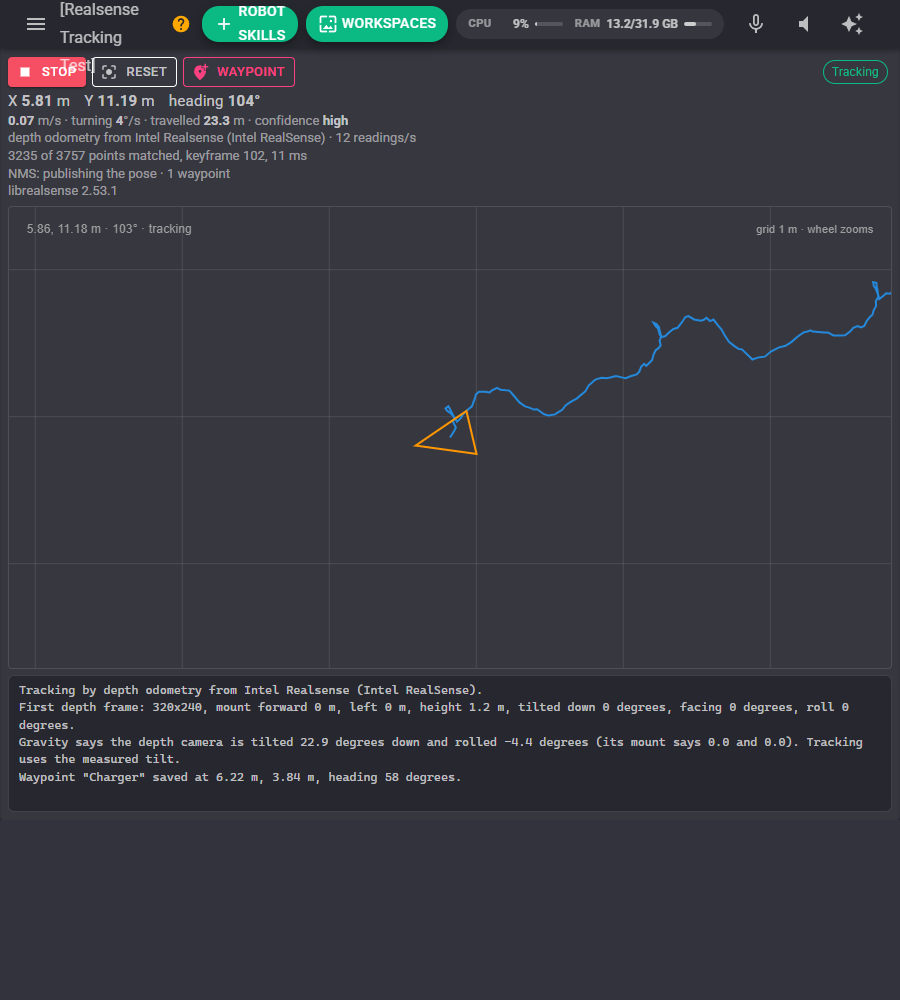
- Start and Stop start and stop tracking. Tracking starts on its own when the project loads unless that is turned off.
- Reset says the robot is at the origin facing 0 now. Every later position is reported from there.
- Waypoint saves where the robot is as a named waypoint (Waypoint 1, Waypoint 2...). Rename them in the configuration.
- The chip on the right says what tracking is doing: Tracking, Tracking (low) when it is unsure, Lost, Waiting for depth, Reconnecting or Stopped.
- The readouts show the position (X forward and Y left of where tracking began, in metres), the heading in degrees (positive left), height for a tracking camera, speed, turning rate, distance travelled and confidence, and below them what is tracking and how well.
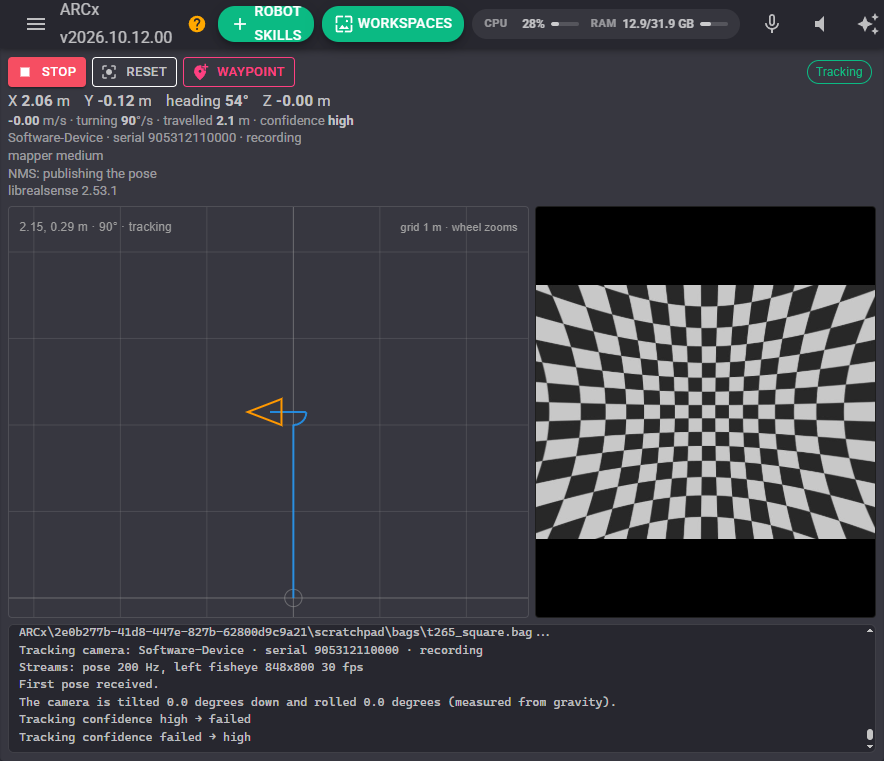
- The map follows the robot from above: the start is up the screen, the path is blue, the robot is the orange triangle (red when lost), and waypoints are purple with their names. The mouse wheel zooms; a click tells you how far away that spot is and which way to turn to face it.
- With a tracking camera publishing its fisheye picture, the picture shows beside the map.
Confidence
Every position comes with a confidence: 3 high, 2 medium, 1 low, 0 failed. A tracking camera reports its own. Depth odometry reports how well the scene pins the robot down: a room with walls facing different ways is high; a long bare corridor or a single blank wall does not show movement along it, so it reports low there and holds the robot where the gyroscope and its last speed put it. A robot that drives long corridors should also have wheel odometry or a lidar navigator. Failed means nothing could be matched (a covered lens, darkness for a tracking camera, a wall too close for depth).
Configuration
Source
| Setting | What it does |
|---|---|
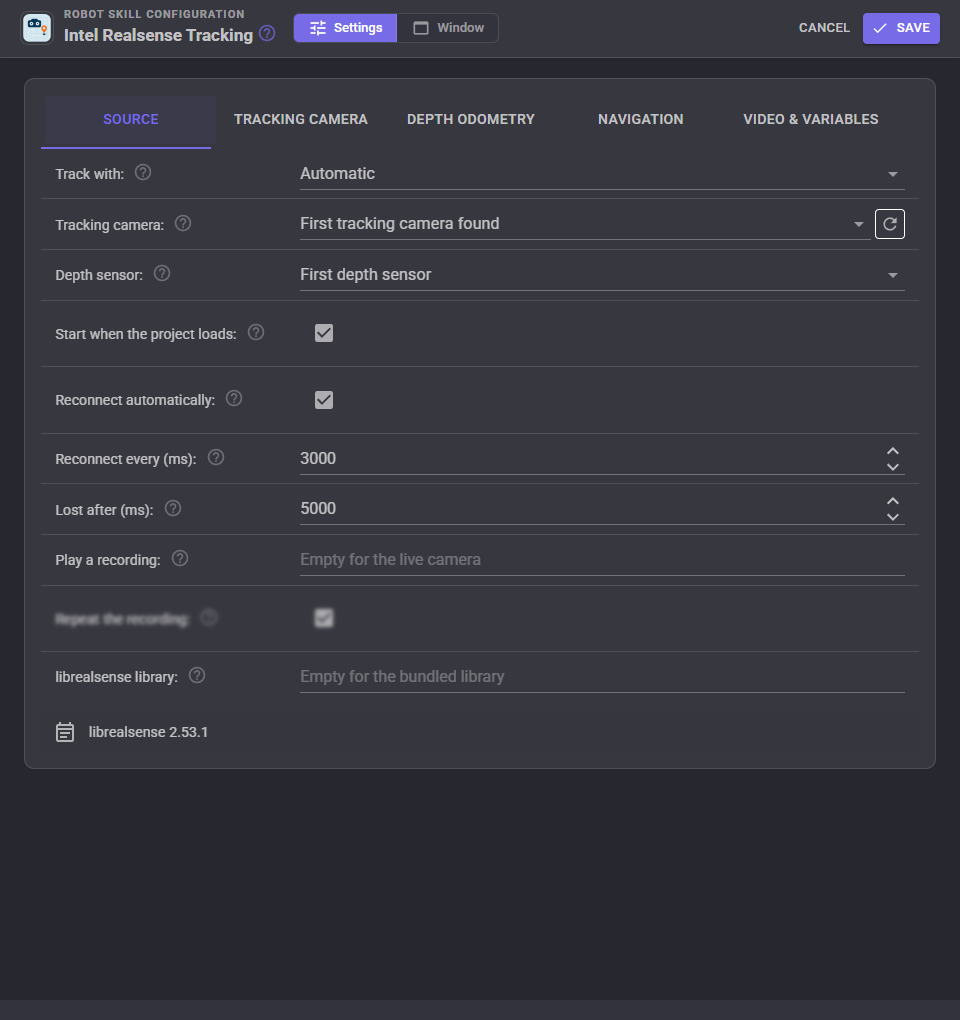
| Track with | Automatic, Tracking camera (T265, T261) or Depth odometry (D400, D500, any depth camera). |
| Tracking camera | Which T265 or T261, by serial number, or the first one found. The refresh button looks again. |
| Depth sensor | Which depth camera depth odometry follows, by the name its skill registered (usually its window title), or the first one. |
| Start when the project loads | Start tracking as soon as the project has loaded. |
| Reconnect automatically, Reconnect every | Keep trying when the camera is unplugged or stops sending. |
| Lost after | How long without data before the camera is treated as lost. |
| Play a recording, Repeat the recording | Play a .bag recording of a tracking camera (made with Intel's RealSense Viewer 2.53.1 or older) instead of a live camera. |
| librealsense library | Leave empty. The skill ships librealsense 2.53.1 (2.51.1 on Linux ARM64), the last release that drives the T265 and T261. Intel removed the tracking cameras after it, so a newer library will not work. Depth odometry needs no library. |
On Linux, a RealSense camera can only be opened once Intel's udev rules are installed. The Source tab shows the one-line command that installs the rules the skill ships when they are missing.
Tracking camera
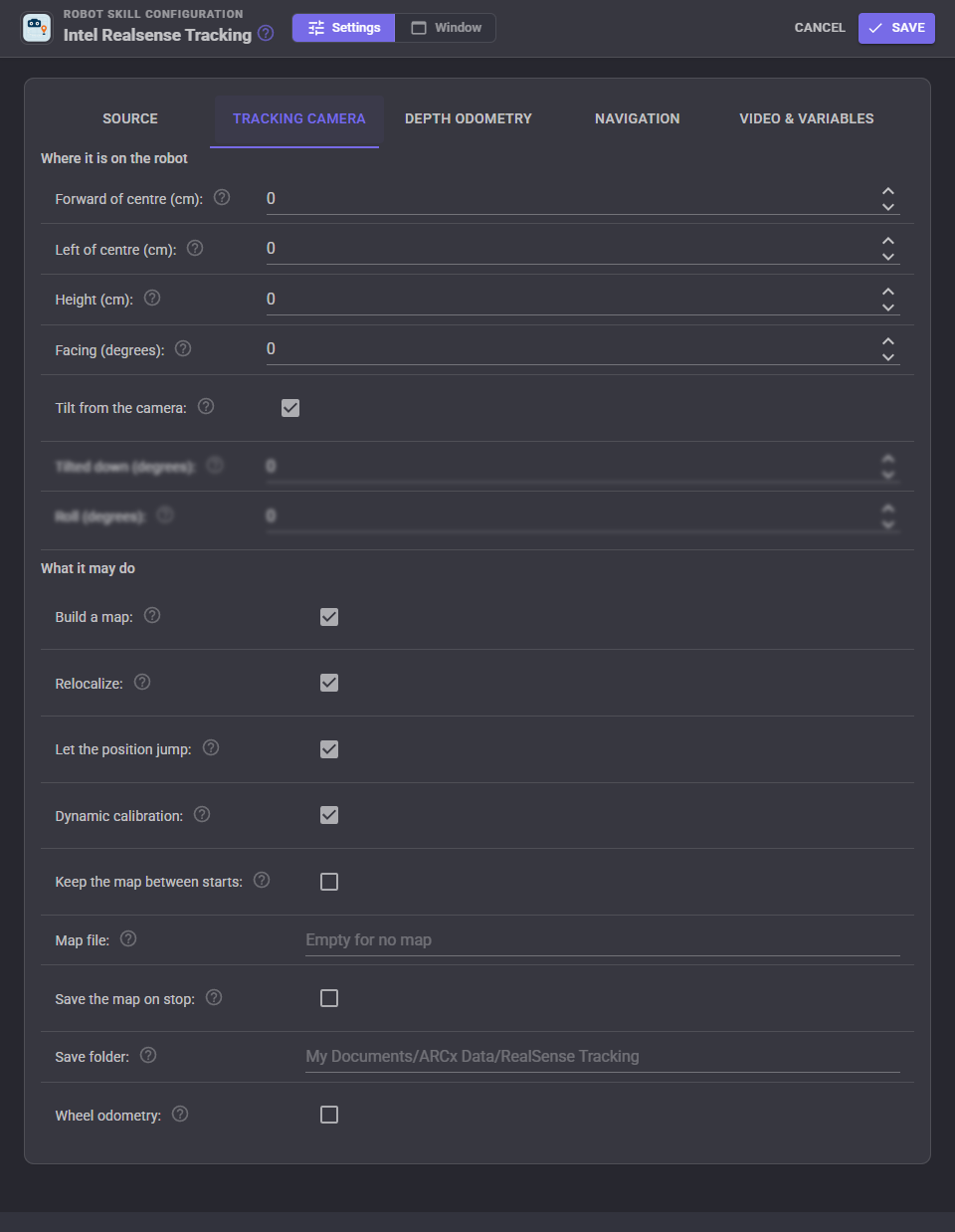
Where the camera is on the robot matters: the position reported is the robot's centre (the middle of the drive wheels), not the camera's, so a camera mounted at the front does not make turning in place look like driving in a circle.
| Setting | What it does |
|---|---|
| Forward of centre, Left of centre | Where the camera is from the robot's centre of rotation, in centimetres. Negative is behind or to the right. |
| Height | From the floor to the camera, so the height reported is the robot's own. |
| Facing | Which way the lenses face on the robot: 0 forward, 90 left, -90 right, 180 backwards. |
| Tilt from the camera | Measure the camera's tilt and roll from gravity when tracking starts (stand the robot on level floor). Off uses the tilt and roll typed below. |
| Build a map | The camera remembers what it sees and corrects drift when it comes back to a place. |
| Relocalize | The camera recognizes a mapped place and corrects its position. Needed for a loaded map. |
| Let the position jump | A correction moves the reported position at once. Off keeps it smooth but keeps the error. |
| Dynamic calibration | The camera refines its own calibration as it runs. |
| Keep the map between starts | Keep the map while the camera stays powered. |
| Map file | A map saved earlier, loaded when tracking starts. Once the camera recognizes the place, positions and waypoints are in the frame the map was made in, so a navigator's routes still line up from one day to the next. |
| Save the map on stop | Save the map to the map file whenever tracking stops, including when ARCx closes. |
| Save folder | Where maps go. Empty uses My Documents/ARCx Data/RealSense Tracking. |
| Wheel odometry | Accept the robot's wheel speed from a script and give it to the camera, which leans on it in the dark, facing blank walls and in fast turns. Send the SendWheelOdometry ControlCommand 10 to 50 times a second while driving. |
Saving a map stops the camera for a moment: the camera only hands its map over when it is stopped. It starts again with the map it just saved, and carries on in the same frame as soon as it recognizes where it is (usually within a second, as it is looking at the same place).
Depth odometry
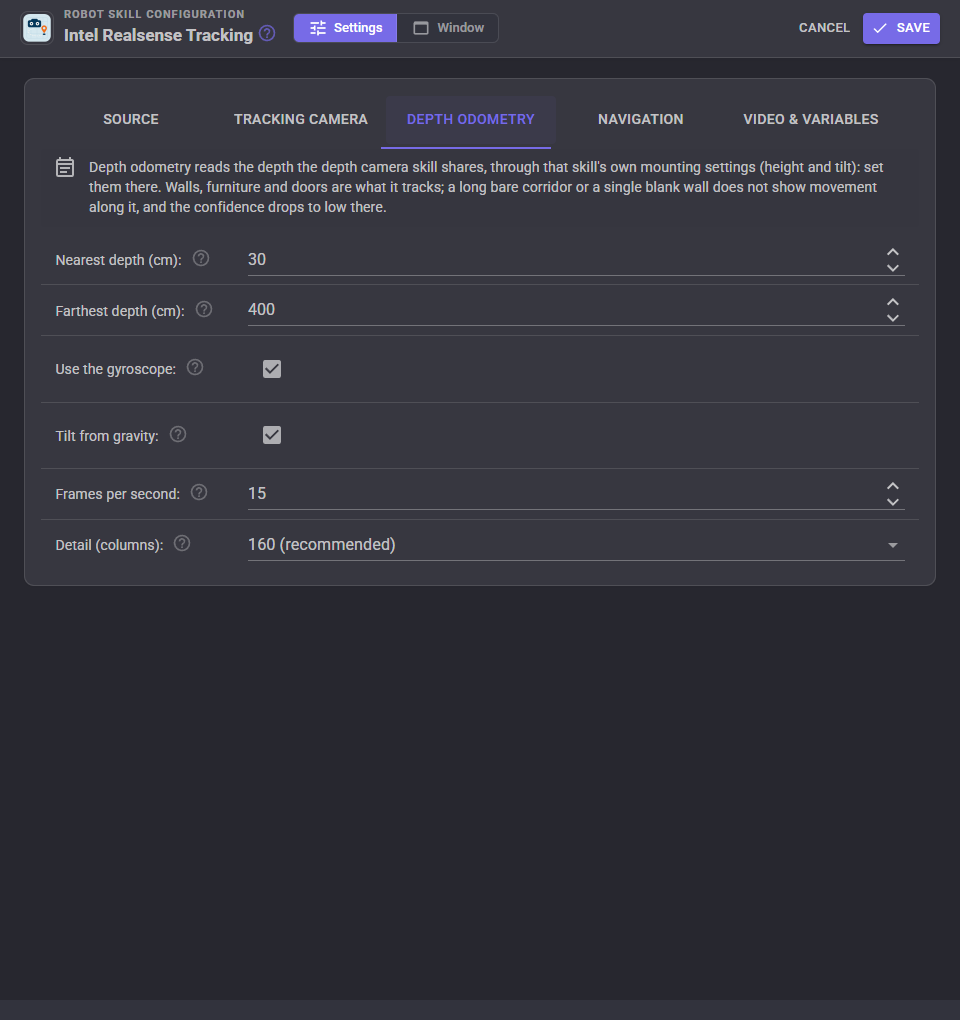
Depth odometry uses the depth camera skill's own mounting settings (its height and tilt), so set those in that skill.
| Setting | What it does |
|---|---|
| Nearest depth, Farthest depth | Depth outside this range is ignored. Stereo depth is noisy far away; 400 cm suits rooms, more helps in large spaces with a D455. |
| Use the gyroscope | Use the depth camera's gyroscope (D435i, D455, D457...) for turns. Strongly recommended; the Intel Realsense skill's inertial sensor stream must be on. Cameras without one (D415, D435, D405) track turns from the depth alone. |
| Tilt from gravity | Measure the depth camera's real tilt and roll with its accelerometer instead of trusting the mounting settings. Right for a robot on level floor; turn it off for one that drives up ramps. The log says when the measured tilt differs from the mounting. |
| Frames per second | The most depth frames processed a second. 15 is plenty at walking pace. |
| Detail | How finely the depth is sampled. 160 suits most robots; 80 halves the processor time. |
Navigation
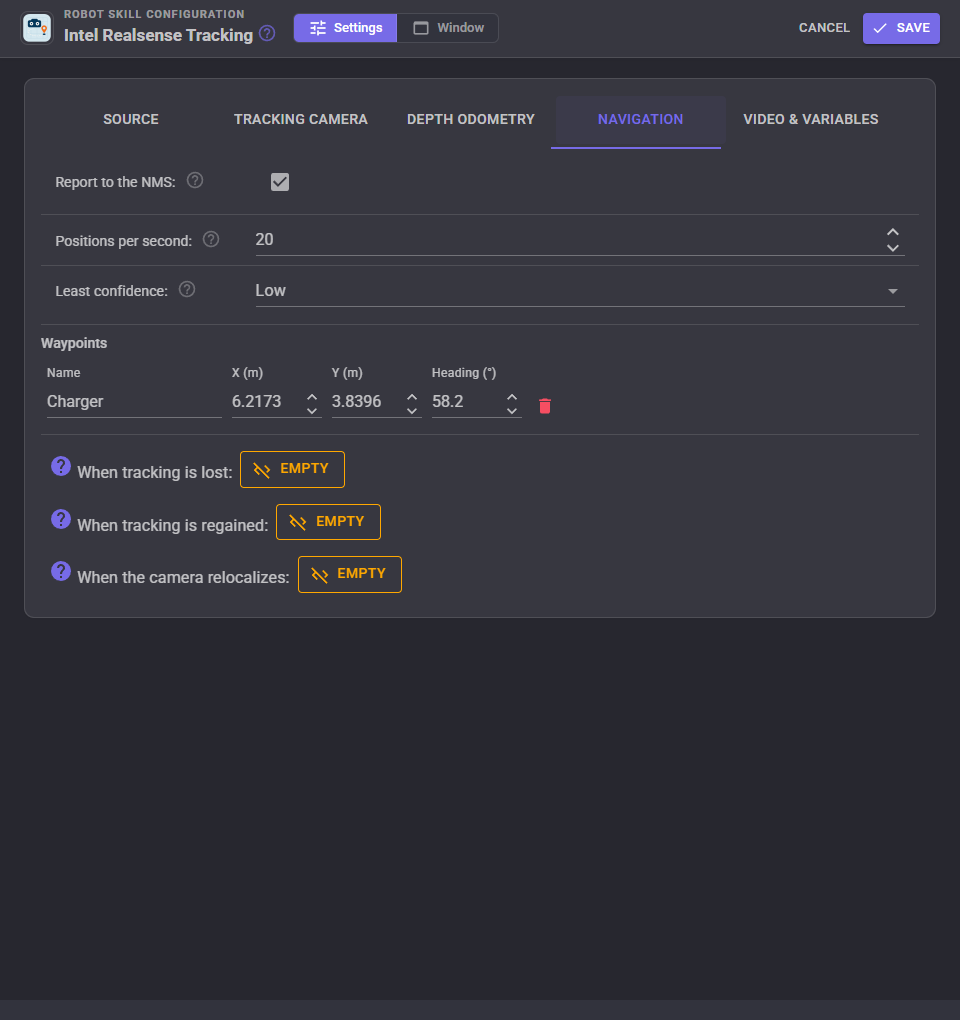
| Setting | What it does |
|---|---|
| Report to the NMS | Send the position to the navigation messaging system, for The Better Navigator, Another Navigator and mapping skills. |
| Positions per second | How often. Navigators work well with 10 to 30. |
| Least confidence | Only positions at least this confident are sent. Low keeps reporting through corridors, where depth odometry is guessing. |
| Waypoints | The saved places: rename them, adjust them or delete them. A tracking camera also keeps them in its map, where relocalization corrects them. |
| When tracking is lost | A script that runs when the confidence falls to failed for half a second. Stopping the robot here is a good idea. |
| When tracking is regained | A script that runs when it comes back. |
| When the camera relocalizes | A script that runs when a tracking camera recognizes a mapped place and corrects its position. |
When this skill reports positions, the Intel Realsense skill notices and stops sending its placeholder position, so the navigator gets this skill's position with the depth camera's obstacle scan.
Video and variables
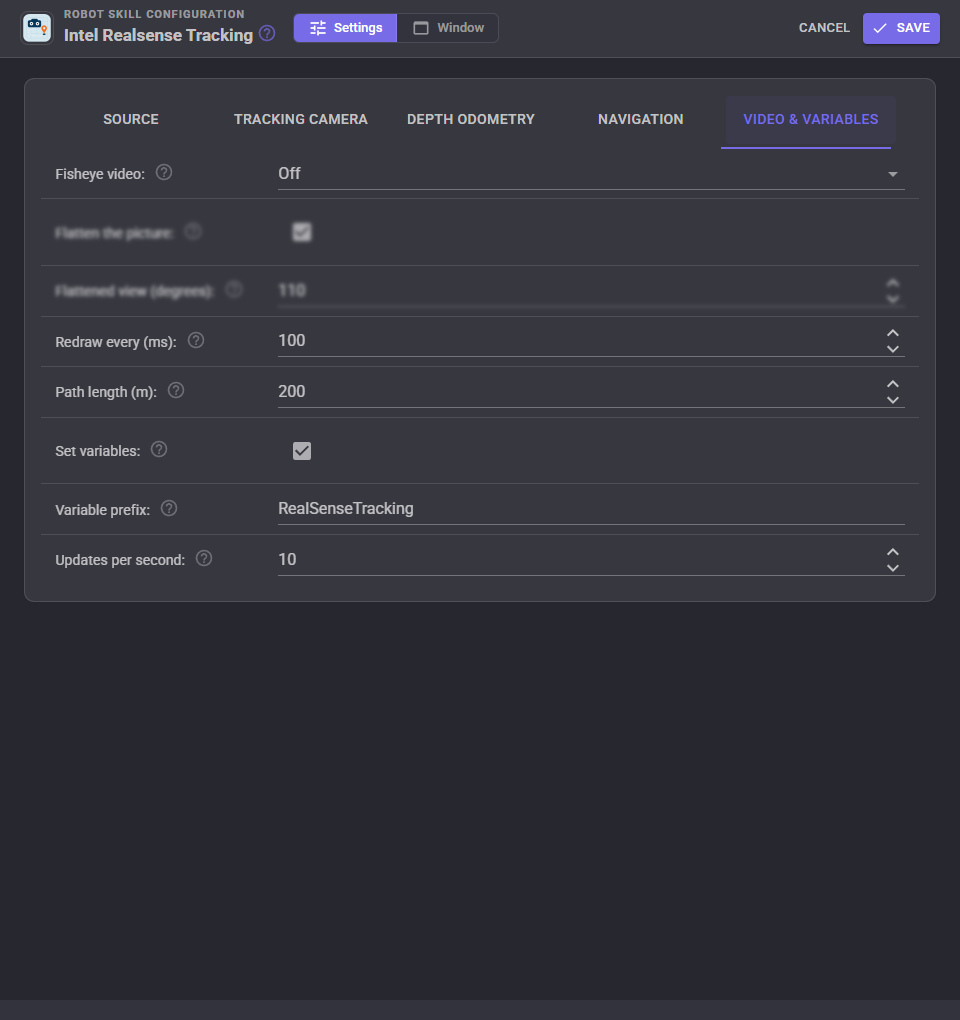
| Setting | What it does |
|---|---|
| Fisheye video | Publish a tracking camera's fisheye pictures as video sources named after the window ("Intel Realsense Tracking Fisheye Left" and "Right") for the camera and vision skills. |
| Flatten the picture, Flattened view | Turn the round fisheye picture into an ordinary 640 x 480 view, this many degrees wide, so straight lines look straight for glyph, colour and face tracking. |
| Redraw every | How often the map and picture are redrawn. |
| Path length | How much of the path the map keeps. |
| Set variables, Variable prefix, Updates per second | Publish the position as global variables, named with the prefix. |
Variables
With the default prefix the variables are $RealSenseTrackingX, $RealSenseTrackingY and $RealSenseTrackingZ (metres), $RealSenseTrackingYaw (radians counter-clockwise), $RealSenseTrackingHeading (degrees), $RealSenseTrackingPitch and $RealSenseTrackingRoll (radians, tracking camera only), $RealSenseTrackingSpeed and $RealSenseTrackingLateralSpeed (metres per second), $RealSenseTrackingYawRate (radians per second), $RealSenseTrackingConfidence, $RealSenseTrackingDistance (metres travelled), $RealSenseTrackingRelocalizations, $RealSenseTrackingIsRunning and $RealSenseTrackingIsTracking.
Positions use the same frame as the NMS and ROS: X forward and Y left of where tracking began, the heading growing as the robot turns left. A script that needs to drive to a waypoint asks for the distance and the bearing to it, and turns by the bearing (positive left).
AI and Custom UI
AI assistants connected to ARCx can read the position, heading, speed and the distance and bearing to every waypoint, set the position, save and remove waypoints, and save a tracking camera's map, in centimetres and degrees.
The Custom UI has a Tracking map widget: the map, the position and heading, and start/stop and reset buttons.
Good to know
- Mount a tracking camera where it sees the room, not the floor or the robot itself, and away from motors that shake it. Its view is very wide, so even a little of the robot's body in view can confuse it.
- The T265 needs light and something to look at. In the dark or facing a blank wall it leans on its inertial sensor and drifts; wheel odometry helps there.
- Depth odometry needs walls and furniture within a few metres facing different ways. It does best at walking pace; very fast turns without a gyroscope can lose it.
- Reset the position when the robot is placed on a known spot (the charger, say) and save that spot as a waypoint, and positions stay meaningful between runs. With a tracking camera, a saved map does that for you.
- On Windows the T265 needs a USB 3 port to start reliably. On Linux it needs Intel's udev rules (see Source). The skill ships its own librealsense; the Intel Realsense skill ships a newer one for the depth cameras, and the two load side by side.
Control Commands for the Intel Realsense Tracking robot skill
There are Control Commands available for this robot skill which allows the skill to be controlled programmatically from scripts or other robot skills. These commands enable you to automate actions, respond to sensor inputs, and integrate the robot skill with other systems or custom interfaces. If you're new to the concept of Control Commands, we have a comprehensive manual available here that explains how to use them, provides examples to get you started and make the most of this powerful feature.
Control Command ManualThis robot skill has 22 control commands, listed below. Send them from a JavaScript or Python script, from Blockly, or from another robot skill.
The first value is always the window title, which is the name in the title bar of the robot skill on your workspace. It starts out as Intel Realsense Tracking, which is what every example below uses. If you rename the robot skill, or add a second copy of it to the project, use the title as it appears on that window instead.
ControlCommand() can be shortened to CC(), and both spellings work in JavaScript and in Python. The examples are JavaScript; Python is the same call, except that true and false are written True and False.
DistanceToWaypoint
How to get to a saved place from here: [distance in metres, bearing in radians counter-clockwise from the robot's heading (positive turn left, negative turn right)]. Throws when there is no place of that name or no position yet.
Syntax
ControlCommand("Intel Realsense Tracking", "DistanceToWaypoint", (String)name)
Parameters
| # | Name | Type | What to pass |
|---|---|---|---|
| 1 | name | Text | Your text, in quotes |
Returns: Array of Double
Example
var result = ControlCommand("Intel Realsense Tracking", "DistanceToWaypoint", "name");
GetConfidence
How sure the tracking is: 0 failed, 1 low (depth odometry in a corridor or facing a blank wall), 2 medium, 3 high. -1 before the first reading.
Syntax
ControlCommand("Intel Realsense Tracking", "GetConfidence")
Returns: Integer [-2,147,483,648 to 2,147,483,647]
Example
var result = ControlCommand("Intel Realsense Tracking", "GetConfidence");
GetOrientation
The robot's attitude as [yaw, pitch, roll] in radians: yaw counter-clockwise, pitch positive nose down, roll positive right side down. Pitch and roll come from a tracking camera only.
Syntax
ControlCommand("Intel Realsense Tracking", "GetOrientation")
Returns: Array of Double
Example
var result = ControlCommand("Intel Realsense Tracking", "GetOrientation");
GetPose
The robot's pose as [x, y, yaw]: metres forward and left of where tracking began (or was reset to), and the heading in radians counter-clockwise. The same frame as the navigation messaging system. [0, 0, 0] before the first reading.
Syntax
ControlCommand("Intel Realsense Tracking", "GetPose")
Returns: Array of Double
Example
var result = ControlCommand("Intel Realsense Tracking", "GetPose");
GetPosition3D
The robot's position as [x, y, z] in metres. z (height) comes from a tracking camera only; depth odometry reports 0.
Syntax
ControlCommand("Intel Realsense Tracking", "GetPosition3D")
Returns: Array of Double
Example
var result = ControlCommand("Intel Realsense Tracking", "GetPosition3D");
GetSourceInfo
What is tracking: the tracking camera's model, serial and firmware, or the depth sensor depth odometry follows, plus the tracking rate and quality.
Syntax
ControlCommand("Intel Realsense Tracking", "GetSourceInfo")
Returns: String
Example
var result = ControlCommand("Intel Realsense Tracking", "GetSourceInfo");
GetSpeed
How the robot is moving as [forward, lateral, yawRate]: metres per second along its own forward direction and to its left, and radians per second turning left.
Syntax
ControlCommand("Intel Realsense Tracking", "GetSpeed")
Returns: Array of Double
Example
var result = ControlCommand("Intel Realsense Tracking", "GetSpeed");
GetWaypoint
A saved place as [x, y, yaw] (metres, radians). With a tracking camera and a loaded map it is where the camera's corrected frame puts it. Throws when there is no place of that name.
Syntax
ControlCommand("Intel Realsense Tracking", "GetWaypoint", (String)name)
Parameters
| # | Name | Type | What to pass |
|---|---|---|---|
| 1 | name | Text | Your text, in quotes |
Returns: Array of Double
Example
var result = ControlCommand("Intel Realsense Tracking", "GetWaypoint", "name");
HardwareReset
Power cycle the tracking camera over USB, for one that has stopped answering. Tracking carries on once it is back when reconnecting is on. Returns false when no tracking camera is running.
Syntax
ControlCommand("Intel Realsense Tracking", "HardwareReset")
Returns: Boolean [true or false]
Example
var result = ControlCommand("Intel Realsense Tracking", "HardwareReset");
IsRunning
Whether tracking is running (connecting, waiting for depth, tracking or waiting to reconnect).
Syntax
ControlCommand("Intel Realsense Tracking", "IsRunning")
Returns: Boolean [true or false]
Example
var result = ControlCommand("Intel Realsense Tracking", "IsRunning");
ListCameras
The RealSense cameras connected to this computer, one "model (serial number)" per item. Tracking cameras are marked [tracking].
Syntax
ControlCommand("Intel Realsense Tracking", "ListCameras")
Returns: Array of String
Example
var result = ControlCommand("Intel Realsense Tracking", "ListCameras");
ListWaypoints
The names of the saved places.
Syntax
ControlCommand("Intel Realsense Tracking", "ListWaypoints")
Returns: Array of String
Example
var result = ControlCommand("Intel Realsense Tracking", "ListWaypoints");
LoadMap
Load a saved relocalization map into the tracking camera (it restarts with it). Once the camera recognizes the place, positions are in the frame the map was made in. Returns true.
Syntax
ControlCommand("Intel Realsense Tracking", "LoadMap", (String)filename)
Parameters
| # | Name | Type | What to pass |
|---|---|---|---|
| 1 | filename | Text | Your text, in quotes |
Returns: Boolean [true or false]
Example
var result = ControlCommand("Intel Realsense Tracking", "LoadMap", "filename");
RemoveWaypoint
Forget a saved place. Returns false when there was none of that name.
Syntax
ControlCommand("Intel Realsense Tracking", "RemoveWaypoint", (String)name)
Parameters
| # | Name | Type | What to pass |
|---|---|---|---|
| 1 | name | Text | Your text, in quotes |
Returns: Boolean [true or false]
Example
var result = ControlCommand("Intel Realsense Tracking", "RemoveWaypoint", "name");
ResetTo
Say the robot is at x, y (metres) facing yaw (radians counter-clockwise, optional: keeps the heading when left out) now, i.e. after placing it on a known spot.
Syntax
ControlCommand("Intel Realsense Tracking", "ResetTo", (Number)x, (Number)y, (Number)yaw)
Parameters
| # | Name | Type | What to pass |
|---|---|---|---|
| 1 | x | Number | A number, without quotes |
| 2 | y | Number | A number, without quotes |
| 3 | yaw | Number | A number, without quotes |
Returns: Boolean [true or false]
Example
var result = ControlCommand("Intel Realsense Tracking", "ResetTo", 0, 0, 0);
ResetToZero
Say the robot is at the origin facing 0 now: every later position is reported from here.
Syntax
ControlCommand("Intel Realsense Tracking", "ResetToZero")
Returns: Boolean [true or false]
Example
var result = ControlCommand("Intel Realsense Tracking", "ResetToZero");
SaveMap
Save the tracking camera's relocalization map (T265/T261 only) to a file: what it has learned of the place and its waypoints. filename is optional: empty uses the configured map file or a dated file in the save folder. The camera stops for a moment and starts again with the map. Returns the file's full path.
Syntax
ControlCommand("Intel Realsense Tracking", "SaveMap", (String)filename)
Parameters
| # | Name | Type | What to pass |
|---|---|---|---|
| 1 | filename | Text | Your text, in quotes |
Returns: String
Example
var result = ControlCommand("Intel Realsense Tracking", "SaveMap", "filename");
SendWheelOdometry
Tell the tracking camera how fast the wheels are moving the robot: forward in metres per second (negative reversing) and lateral to the left (optional, for robots that strafe). Helps it in the dark and facing blank walls. Needs Wheel odometry on in the configuration; send it 10 to 50 times a second while driving. Returns false when the camera is not taking it.
Syntax
ControlCommand("Intel Realsense Tracking", "SendWheelOdometry", (Number)forward, (Number)lateral)
Parameters
| # | Name | Type | What to pass |
|---|---|---|---|
| 1 | forward | Number | A number, without quotes |
| 2 | lateral | Number | A number, without quotes |
Returns: Boolean [true or false]
Example
var result = ControlCommand("Intel Realsense Tracking", "SendWheelOdometry", 0, 0);
SetPublishToNMS
Turn sending the pose to the Navigation Messaging System on or off. Returns the new setting.
Syntax
ControlCommand("Intel Realsense Tracking", "SetPublishToNMS", (Bool)publish)
Parameters
| # | Name | Type | What to pass |
|---|---|---|---|
| 1 | publish | True or false | true or false, without quotes |
Returns: Boolean [true or false]
Example
var result = ControlCommand("Intel Realsense Tracking", "SetPublishToNMS", true);
SetWaypoint
Save where the robot is now under a name (replacing a place of that name). A tracking camera also keeps it in its map. Returns [x, y, yaw].
Syntax
ControlCommand("Intel Realsense Tracking", "SetWaypoint", (String)name)
Parameters
| # | Name | Type | What to pass |
|---|---|---|---|
| 1 | name | Text | Your text, in quotes |
Returns: Array of Double
Example
var result = ControlCommand("Intel Realsense Tracking", "SetWaypoint", "name");
Start
Start tracking (open the tracking camera, or follow the depth camera). Returns false if it was already running.
Syntax
ControlCommand("Intel Realsense Tracking", "Start")
Returns: Boolean [true or false]
Example
var result = ControlCommand("Intel Realsense Tracking", "Start");
Stop
Stop tracking. Returns false if it was not running.
Syntax
ControlCommand("Intel Realsense Tracking", "Stop")
Returns: Boolean [true or false]
Example
var result = ControlCommand("Intel Realsense Tracking", "Stop");
This list is read out of the robot skill itself each time its package is uploaded, so it matches the published version (v2).



This robot skill has been updated to v1.
What has changed
initial release
This robot skill has been updated to v2.
What has changed
updated to use some new ARCx UI features for improved performance.