

Sweeping ultrasonic radar with live display, obstacle avoidance, clearest-direction tracking, NMS output, and scriptable obstacle zones
 Windows
 ARM
ARM
 Linux
Linux
 MacOS
MacOS
How to add the Ping Radar Scan robot skill
- Load the most recent release of ARCx on a compatible operating system (Get ARCx).
- Press the + Skills menu from the top menu bar in ARCx.
- Choose any of these category tabs, the robot skill appears in each of them: Navigation, Servo, Ultrasonic Distance.
- Press the Ping Radar Scan icon to add the robot skill to your project.
Don't have a robot yet?
Follow the Getting Started Guide to build a robot and use the Ping Radar Scan robot skill.
How to use the Ping Radar Scan robot skill
The Ping Radar Scan robot skill turns a servo and an HC-SR04 ultrasonic ping sensor into a sweeping radar. The servo pans the sensor back and forth across the front of the robot, the sensor is read at every step, and the readings are drawn on a live radar display with a fading sweep beam and echoes that persist as they fade.
It does more than draw. After every sweep it works out the nearest obstacle and the clearest direction (the widest open gap), publishes them as global variables, watches an obstacle zone that runs your scripts, can steer the robot away from obstacles through the movement panel, and can send each sweep to the Navigation Messaging System (NMS) like a slow lidar, so a navigator or mapping skill can use an inexpensive ping sensor.
What you need
- An HC-SR04 ultrasonic sensor wired to two digital ports of an EZB (trigger and echo) on a controller whose firmware supports ultrasonic ping sensors, such as the EZ-B v4.
- A servo the sensor is mounted on, so it can turn left and right. A PWM servo on a digital port, or a smart servo on a virtual port (V0 and up) driven by a servo driver skill such as Dynamixel.
- Optionally, a Movement Panel in the project if the radar should steer the robot.
The window
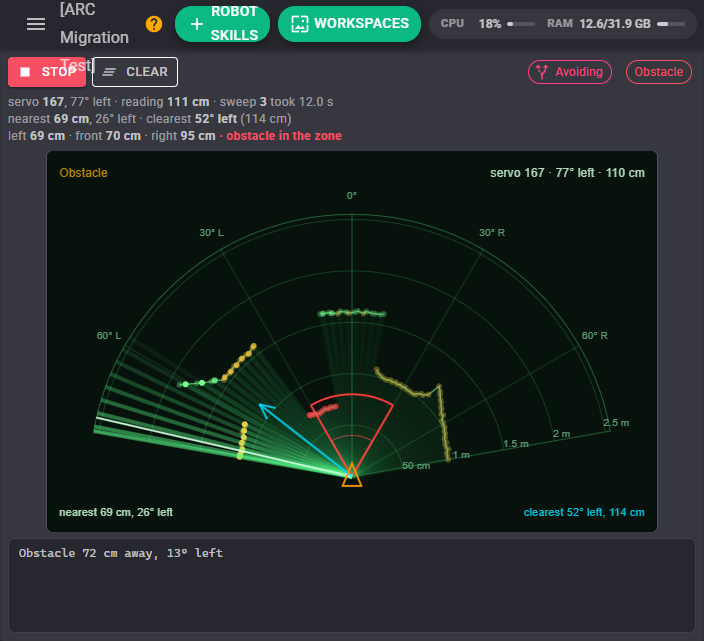
- Start / Stop starts and stops the sweep. Whether it is sweeping is saved with the project, so a project saved while sweeping starts sweeping again when it loads.
- Clear forgets every echo on the radar.
- The chip on the right says what the radar is doing: Sweeping, Obstacle (something is in the obstacle zone), Avoiding, Waiting for forward, Held (a configuration page is open), Not connected or Not configured. An Avoiding chip beside it shows that steering is turned on.
- The readouts under the buttons show the servo position and direction the beam is pointing, the latest reading, how many sweeps have finished and how long one takes, the nearest echo, the clearest direction, and the closest echo to the left, front and right.
- The radar is the robot seen from above with the front at the top. The bright line is the beam and the fading lines behind it are where it has just been. Each echo is a dot that fades as it ages: red inside the avoidance or obstacle zone distance, amber within twice that distance, green beyond. Neighbouring echoes at similar distances are joined into a line so walls read as walls. The dim green rays show the open space each reading measured. The cyan arrow points to the clearest direction of the last sweep, the orange ARC is the obstacle zone (red while something is in it) and the red ARC is the avoidance distance.
- Scroll the mouse wheel over the radar to zoom. Click anywhere on it and the log says the distance and direction you clicked and what the sensor read that way, which is the quickest way to check the sweep's direction and range.
- The log under the radar lists obstacles, avoidance manoeuvres, connection problems and anything a ControlCommand did.
The sweep holds still while any robot skill configuration page is open, so the configuration's sliders can move the servo by hand.
How a sweep works
At each step the servo moves to the next position, waits the step interval for the servo to settle, and the sensor is read. In back and forth mode (as ARC did) a reading is taken in both directions, and each pass from one end to the other is one sweep. In one way mode readings are taken from the lowest position to the highest, then the servo swings straight back to the start without reading.
Each reading's direction comes from the servo position: the position at which the sensor faces straight ahead, and how many degrees the sensor turns per servo position. Directions are counted counter-clockwise like ROS (REP 103): positive is the robot's left, negative its right. If a hand held on the robot's left shows up on the right of the radar, tick Higher positions turn right.
The EZB will not ping the same sensor more often than about every 200 ms, so shorter step intervals are stretched to that. A sweep of 180 positions with a step of 1 therefore takes about 45 seconds; a step of 4 to 6 positions gives a useful picture several times faster.
Avoidance
With Steer the robot on, a reading closer than the avoidance distance and within the avoidance cone steers the robot through the movement panel:
- Turn away from the obstacle (what ARC did): something on the left turns the robot right and the other way round. Something dead ahead turns toward the side that had more room in the last sweep.
- Turn toward open space turns toward the clearest direction of the last sweep, whichever side the obstacle is on.
- Stop only stops the robot and keeps sweeping.
Before turning it can back up for a set time. It turns for the turn time, then carries on forward if the robot was driving forward, or stops. While avoiding, the beam holds its direction and reads it again after the turn, so the robot keeps turning until that direction is clear. By default avoidance only acts while the robot is driving forward; untick Only while driving forward to have a standing robot turn away from something that comes close, as ARC did.
Obstacle zone
The obstacle zone is a wedge in front of the robot, a set depth and width. When an echo lands inside it the Obstacle variable becomes true, the ObstacleDistance and ObstacleAngle variables say where, and the When an obstacle appears script runs. It can also stop the robot and pause a navigator. Once the zone has been empty for the clear time the variable goes false, a paused navigator resumes and the When the zone is clear script runs. The beam only passes through the zone once per sweep, so keep the clear time longer than a sweep takes.
// When an obstacle appears
Audio.say("Something is " + Math.round(getVar("RadarObstacleDistance") * 100) + " centimetres ahead");
Clearest direction
After every sweep each direction is scored by the closest echo within half the clearance width either side of it, where no echo counts as the sensor's full range. The direction with the highest score is the clearest; a tie goes to the direction nearest straight ahead. Set the clearance width to roughly the robot's width as the sensor sees it.
// Turn toward the open space, then drive on
var angle = getVar("RadarClearestAngle");
if (angle > 0.2) {
  Movement.left();
} else if (angle < -0.2) {
  Movement.right();
}
sleep(Math.abs(angle) * 600);
Movement.forward();
Navigation messaging system
With Publish to the NMS on, every finished sweep is sent to the Navigation Messaging System as scan points in ROS's units: metres from the robot's centre and radians counter-clockwise from straight ahead. The pivot's mounting offset is applied, so set how far forward of and left of the robot's centre the servo is. A direction with no echo is sent as "nothing detected". A navigator only receives scan points when a position update arrives; if no skill in the project reports the robot's position (wheel encoders, a tracking camera), set Placeholder position so the last known position is published after each sweep.
Global variables
Distances are in metres and angles in radians counter-clockwise from straight ahead (0 ahead, PI/2 left, -PI/2 right), like every ARCx skill. Every name starts with the variable prefix, Radar by default.
| Variable | Meaning |
|---|---|
| RadarIsRunning | True while sweeping |
| RadarDistance | The latest reading, 0 when no echo came back |
| RadarAngle | The direction the beam points now |
| RadarServoPosition | The servo position the beam is at |
| RadarSweepCount | How many sweeps have finished |
| RadarNearestDistance, RadarNearestAngle | The closest echo of the last sweep |
| RadarClearestAngle, RadarClearestDistance | The clearest direction of the last sweep and how far is open that way |
| RadarFrontDistance | The closest echo within 15 degrees of straight ahead |
| RadarLeftDistance, RadarRightDistance | The closest echo more than 15 degrees to the left or right |
| RadarObstacle | True while something is in the obstacle zone (when the zone is on) |
| RadarObstacleDistance, RadarObstacleAngle | Where the thing that last entered the zone was |
The control commands answer from the readings already taken and never ping the sensor again, except PingAt, which points the sensor and takes one reading while the sweep is stopped:
controlCommand("Ping Radar Scan", "Stop");
var left = controlCommand("Ping Radar Scan", "PingAt", Math.PI / 4);
var right = controlCommand("Ping Radar Scan", "PingAt", -Math.PI / 4);
print(left > right ? "More room on the left" : "More room on the right");
Configuration
Sensor & servo
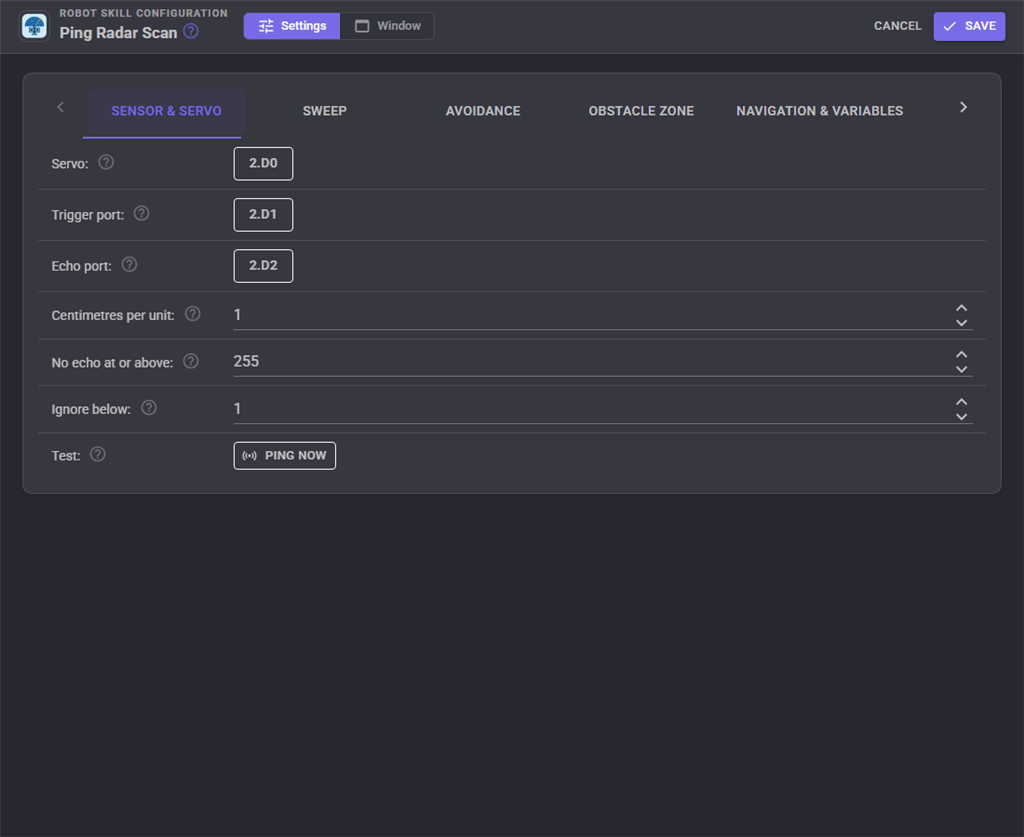
| Setting | What it does |
|---|---|
| Servo | The servo that pans the sensor and the controller it is on |
| Trigger port | The digital port wired to the sensor's TRIG pin |
| Echo port | The digital port wired to the sensor's ECHO pin, on the same controller as the trigger port |
| Centimetres per unit | Converts what the EZB reports into centimetres. The EZB reports roughly centimetres, so 1 is right for nearly everyone |
| No echo at or above | A raw reading this high means nothing echoed back. The EZB reports 255 then |
| Ignore below | Raw readings below this are thrown away as noise. 1 discards only 0, which the sensor reports when its echo times out |
| Test | Takes one reading where the sensor points now |
Sweep
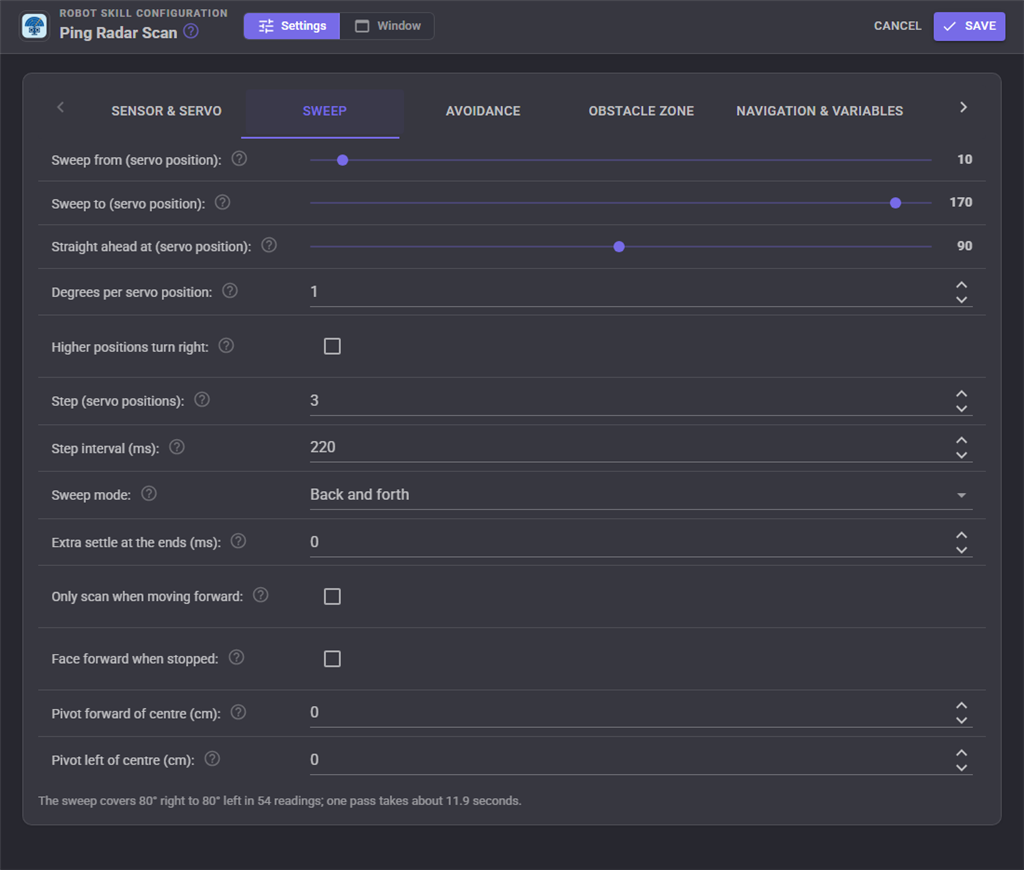
| Setting | What it does |
|---|---|
| Sweep from / Sweep to | The servo positions the sweep runs between. Dragging the sliders moves the servo so the ends can be set by eye |
| Straight ahead at | The servo position at which the sensor faces straight ahead. Dragging moves the servo |
| Degrees per servo position | How far the sensor turns per servo position, 1 for a standard servo |
| Higher positions turn right | Tick when higher servo positions turn the sensor to the robot's right (ARC: Invert Servo) |
| Step | How many servo positions the servo moves between readings, 1 to 36 |
| Step interval | How long the servo settles at each step before the sensor is read |
| Sweep mode | Back and forth, or one way with a swing back |
| Extra settle at the ends | More time for the servo to turn round or swing back before the next reading |
| Only scan when moving forward | Hold the sweep still unless the robot is driving forward |
| Face forward when stopped | Turn the sensor straight ahead whenever the sweep stops |
| Pivot forward of centre / left of centre | Where the servo's pivot is on the robot, for the NMS |
The line under the settings says what they add up to: the directions the sweep covers, how many readings a sweep takes and roughly how long it lasts.
Avoidance
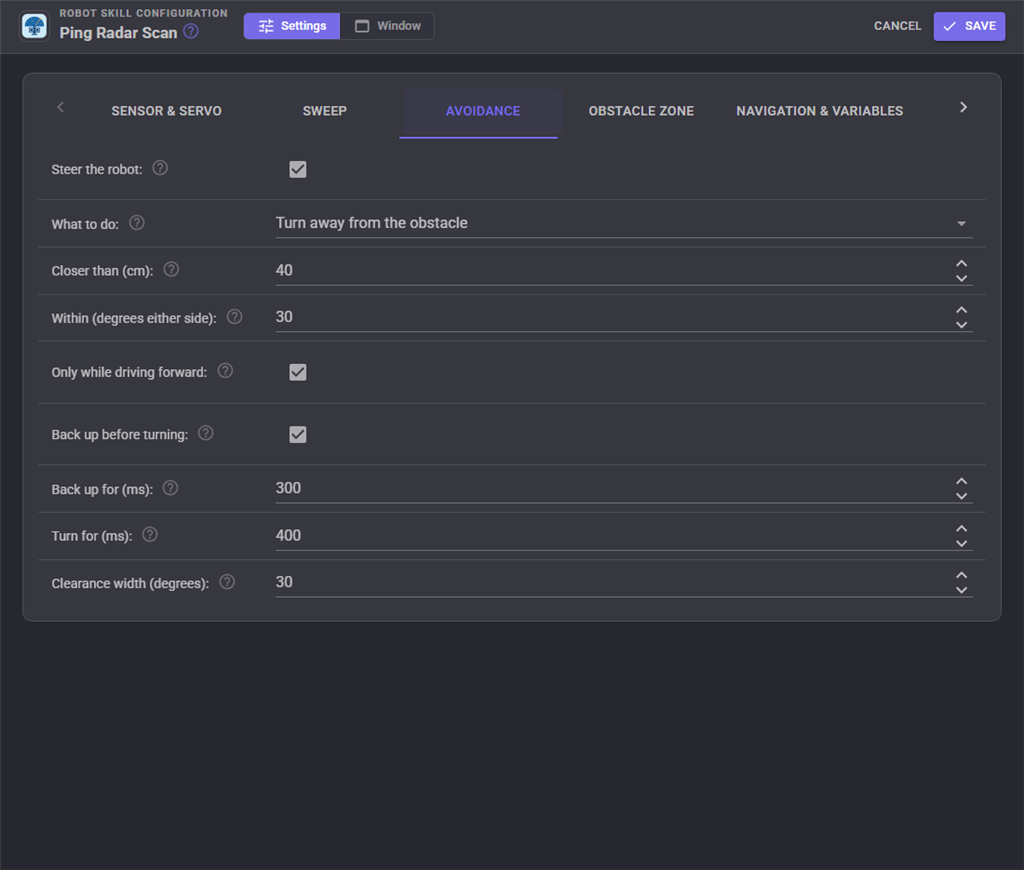
| Setting | What it does |
|---|---|
| Steer the robot | Drive the Movement Panel away from close obstacles |
| What to do | Turn away from the obstacle, turn toward open space, or stop only |
| Closer than | The distance that triggers avoidance |
| Within | Only readings within this many degrees either side of straight ahead trigger it |
| Only while driving forward | Only steer while the robot is driving forward |
| Back up before turning / Back up for | Reverse for a time before turning |
| Turn for | How long to turn before carrying on |
| Clearance width | How wide a gap must be to count as the clearest direction |
Obstacle zone
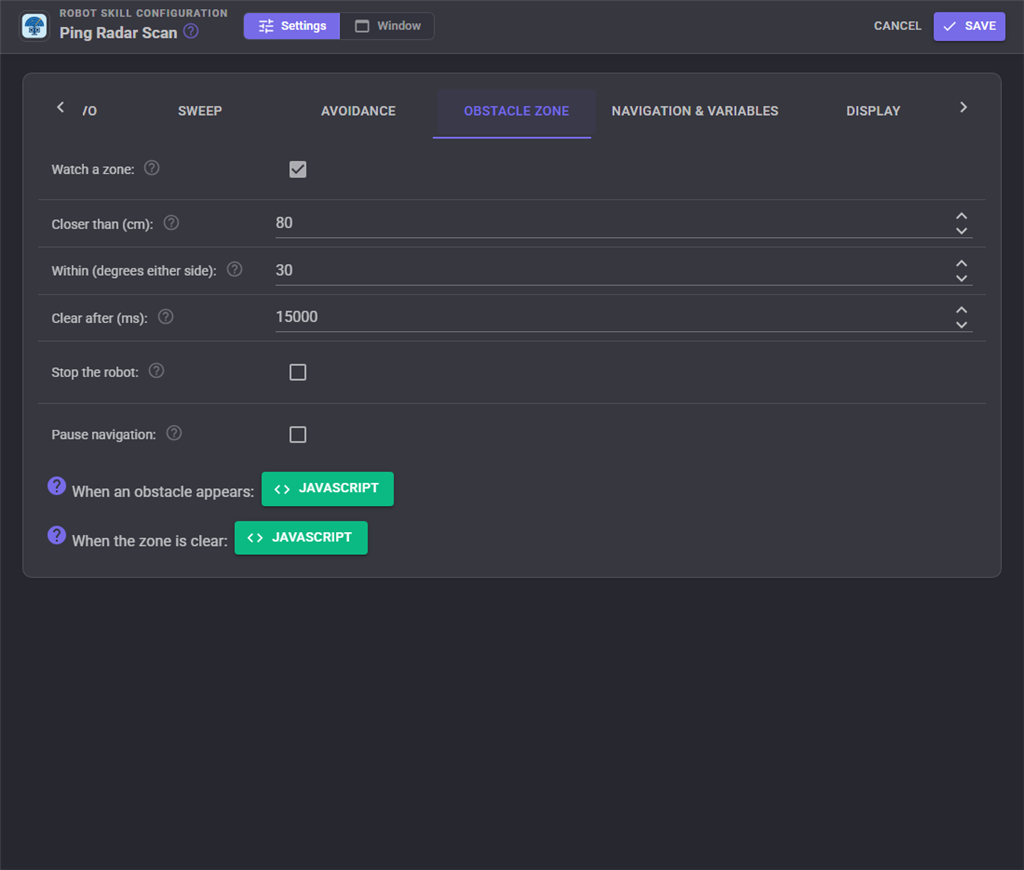
| Setting | What it does |
|---|---|
| Watch a zone | Turn the obstacle zone on |
| Closer than / Within | The zone's depth and its width either side of straight ahead |
| Clear after | How long the zone must be empty before it counts as clear |
| Stop the robot | Stop the Movement Panel when something enters the zone |
| Pause navigation | Pause a navigator while the zone is occupied |
| When an obstacle appears / When the zone is clear | Scripts to run |
Navigation & variables
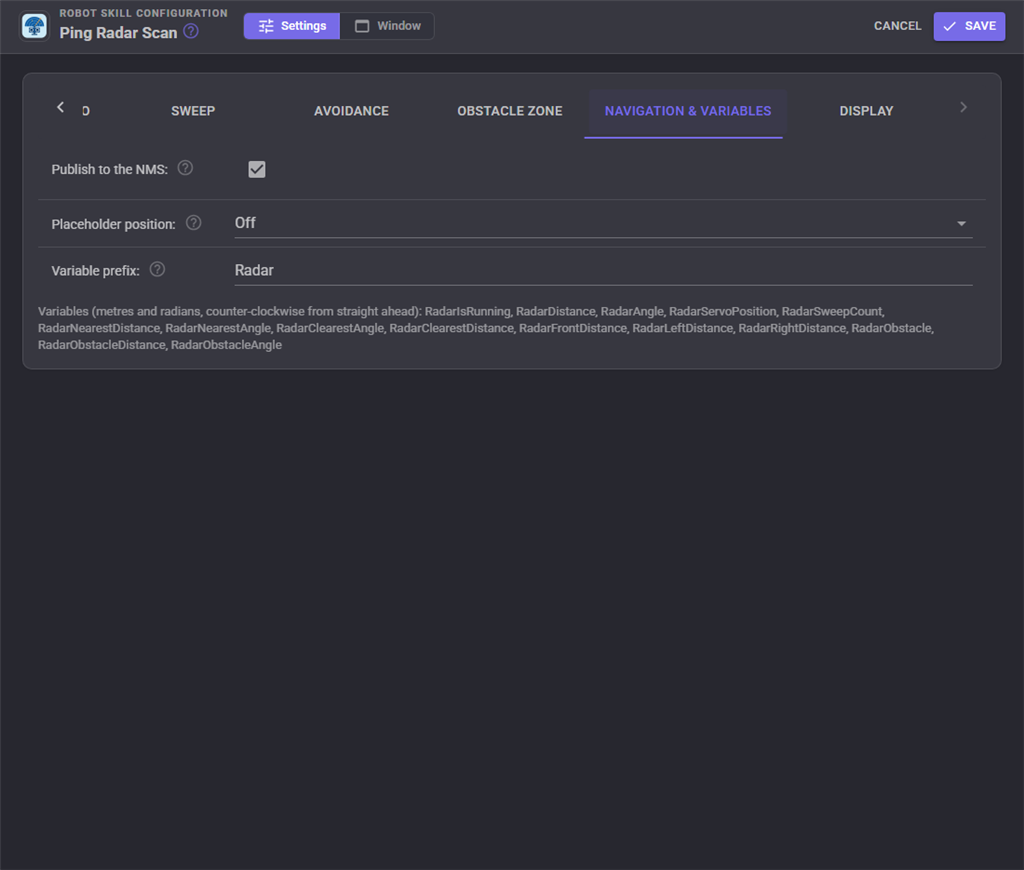
| Setting | What it does |
|---|---|
| Publish to the NMS | Send every finished sweep to the navigation messaging system |
| Placeholder position | Publish the last known position after each sweep when no other skill reports one |
| Variable prefix | The start of every variable name. Give each copy of the skill its own |
Display
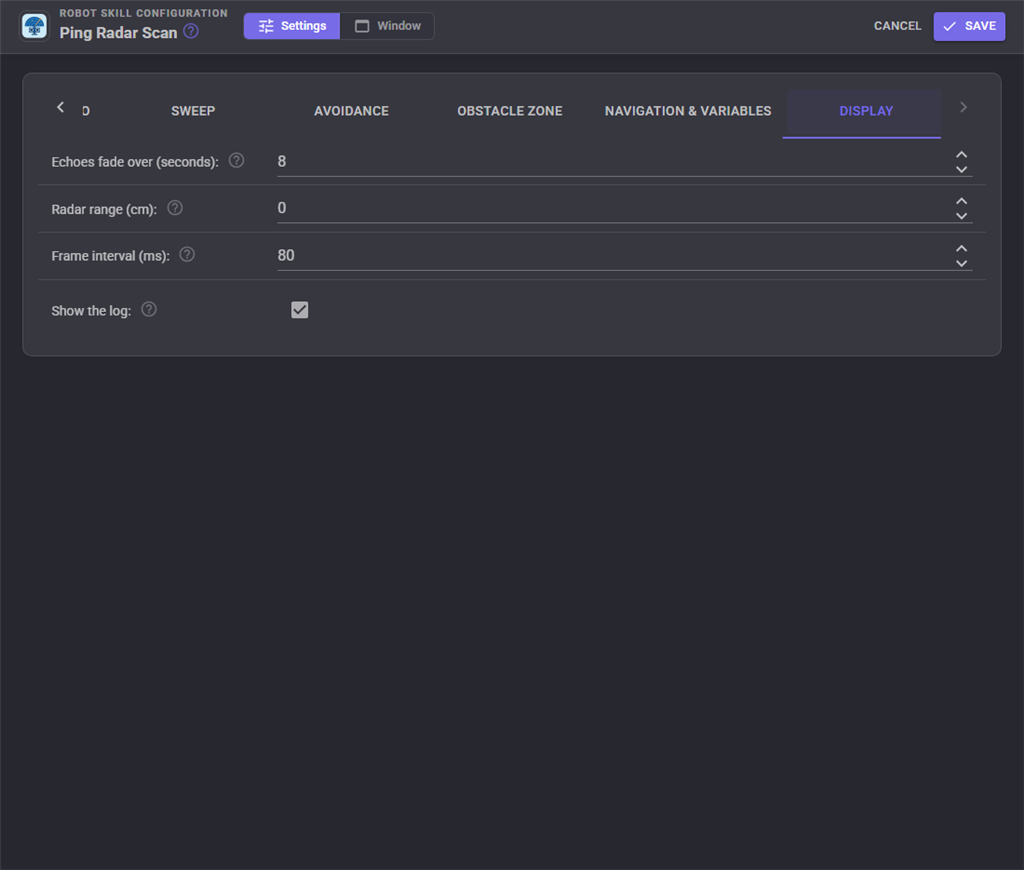
| Setting | What it does |
|---|---|
| Echoes fade over | How long an echo stays on the radar as it fades |
| Radar range | The distance to the edge of the radar, 0 for the sensor's whole range |
| Frame interval | The shortest time between radar frames |
| Show the log | Show the log under the radar |
Custom UI widget
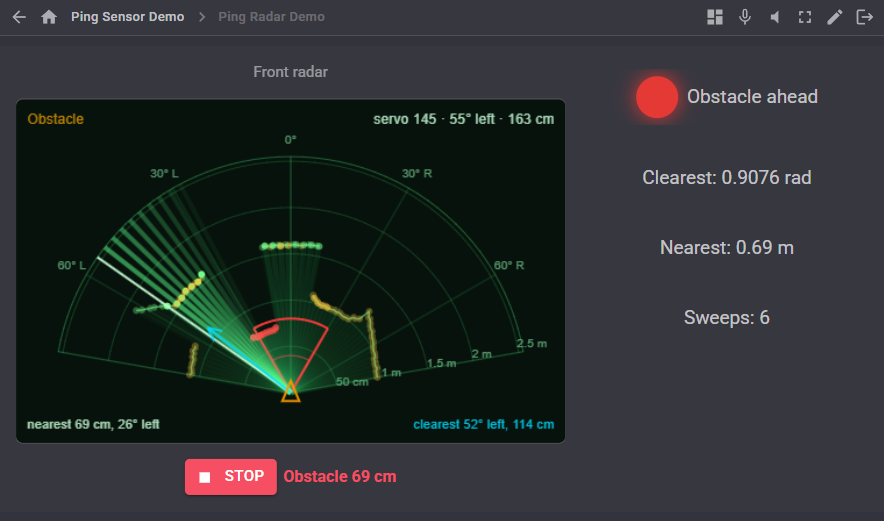
The Ping radar widget puts the live radar on a Custom UI screen, with a start/stop button and a readout of the nearest echo and the direction to go. Its settings are Caption (the label above it, blank for none), ShowButton and ShowReadout.
AI assistants
An AI connected to ARCx (Claude, ChatGPT, Cursor and others) can read the whole radar at once with the get_scan tool: whether it is sweeping, the nearest echo, the clearest direction, the obstacle zone, and the readings grouped into sectors across the sweep (or every reading with detail on). Directions there are degrees counter-clockwise from straight ahead, distances centimetres. It can start, stop and steer the radar with the control commands, and change any setting through the configuration.
Coming from ARC
Projects keep working the way they did: the PauseOn, PauseOff and PauseToggle control commands are unchanged, and every ARC setting has a home: servo Min/Max Position are Sweep from/to, Increment Speed is Step, Scan Interval is Step interval, Invert servo is Higher positions turn right, Only Scan When Moving Forward, Control Movement Panel (Steer the robot), Minimum Distance Before Turn, Reverse Before Turn, Reverse Delay and Turn Delay are all there. One deliberate difference: avoidance now only acts while the robot is driving forward unless you untick that option.
Control Commands for the Ping Radar Scan robot skill
There are Control Commands available for this robot skill which allows the skill to be controlled programmatically from scripts or other robot skills. These commands enable you to automate actions, respond to sensor inputs, and integrate the robot skill with other systems or custom interfaces. If you're new to the concept of Control Commands, we have a comprehensive manual available here that explains how to use them, provides examples to get you started and make the most of this powerful feature.
Control Command ManualThis robot skill has 18 control commands, listed below. Send them from a JavaScript or Python script, from Blockly, or from another robot skill.
The first value is always the window title, which is the name in the title bar of the robot skill on your workspace. It starts out as Ping Radar Scan, which is what every example below uses. If you rename the robot skill, or add a second copy of it to the project, use the title as it appears on that window instead.
ControlCommand() can be shortened to CC(), and both spellings work in JavaScript and in Python. The examples are JavaScript; Python is the same call, except that true and false are written True and False.
Clear
Forget every echo on the radar, as ARC's Clear button did.
Syntax
ControlCommand("Ping Radar Scan", "Clear")
Returns: nothing
Example
ControlCommand("Ping Radar Scan", "Clear");
GetClearestDirection
The direction with the most room in the last finished sweep as [direction in radians counter-clockwise from straight ahead, how far is open in metres]. The open distance is the sensor's range when nothing at all was seen that way.
Syntax
ControlCommand("Ping Radar Scan", "GetClearestDirection")
Returns: Array of Double
Example
var result = ControlCommand("Ping Radar Scan", "GetClearestDirection");
GetDistance
The latest reading, in metres, in the direction closest to the given one. angle is in radians counter-clockwise from straight ahead (0 ahead, PI/2 left, -PI/2 right). 0 when no echo came back there, or the sweep does not reach within 10 degrees of it.
Syntax
ControlCommand("Ping Radar Scan", "GetDistance", (Number)angle)
Parameters
| # | Name | Type | What to pass |
|---|---|---|---|
| 1 | angle | Number | A number, without quotes |
Returns: Double [5.0e324 to 1.7e308]
Example
var result = ControlCommand("Ping Radar Scan", "GetDistance", 0);
GetNearest
The closest echo of the last finished sweep as [distance in metres, direction in radians counter-clockwise from straight ahead]. [0, 0] when nothing was seen.
Syntax
ControlCommand("Ping Radar Scan", "GetNearest")
Returns: Array of Double
Example
var result = ControlCommand("Ping Radar Scan", "GetNearest");
GetScan
The latest reading at every step of the sweep, in metres, from the sweep's lowest servo position to its highest. 0 where no echo came back or nothing has been read yet. GetScanAngles gives the direction of each entry.
Syntax
ControlCommand("Ping Radar Scan", "GetScan")
Returns: Array of Double
Example
var result = ControlCommand("Ping Radar Scan", "GetScan");
GetScanAngles
The direction of each entry of GetScan, in radians counter-clockwise from straight ahead, in the same order.
Syntax
ControlCommand("Ping Radar Scan", "GetScanAngles")
Returns: Array of Double
Example
var result = ControlCommand("Ping Radar Scan", "GetScanAngles");
GetSectorDistance
The closest echo, in metres, between two directions, going counter-clockwise from startAngle to endAngle (radians from straight ahead, PI/2 left, -PI/2 right). -0.2618 to 0.2618 is the 30 degrees around straight ahead. 0 when nothing was seen there.
Syntax
ControlCommand("Ping Radar Scan", "GetSectorDistance", (Number)startAngle, (Number)endAngle)
Parameters
| # | Name | Type | What to pass |
|---|---|---|---|
| 1 | startAngle | Number | A number, without quotes |
| 2 | endAngle | Number | A number, without quotes |
Returns: Double [5.0e324 to 1.7e308]
Example
var result = ControlCommand("Ping Radar Scan", "GetSectorDistance", 0, 0);
IsObstacleDetected
Whether something is inside the obstacle zone right now. Always false while the obstacle zone is turned off.
Syntax
ControlCommand("Ping Radar Scan", "IsObstacleDetected")
Returns: Boolean [true or false]
Example
var result = ControlCommand("Ping Radar Scan", "IsObstacleDetected");
IsRunning
Whether the radar is sweeping (not paused).
Syntax
ControlCommand("Ping Radar Scan", "IsRunning")
Returns: Boolean [true or false]
Example
var result = ControlCommand("Ping Radar Scan", "IsRunning");
PauseOff
Resume the sweep (the same as Start). Returns true, the radar is sweeping.
Syntax
ControlCommand("Ping Radar Scan", "PauseOff")
Returns: Boolean [true or false]
Example
var result = ControlCommand("Ping Radar Scan", "PauseOff");
PauseOn
Pause the sweep (the same as Stop). The servo holds where it is. Returns false, the radar is no longer sweeping.
Syntax
ControlCommand("Ping Radar Scan", "PauseOn")
Returns: Boolean [true or false]
Example
var result = ControlCommand("Ping Radar Scan", "PauseOn");
PauseToggle
Pause the sweep if it is running, resume it if it is paused. Returns whether the radar is sweeping now.
Syntax
ControlCommand("Ping Radar Scan", "PauseToggle")
Returns: Boolean [true or false]
Example
var result = ControlCommand("Ping Radar Scan", "PauseToggle");
PingAt
Point the sensor in a direction (radians counter-clockwise from straight ahead, kept within the sweep range), wait for the servo to settle, take one reading and return it in metres (0 when no echo came back). Only while the sweep is stopped: stop it first with Stop or PauseOn.
Syntax
ControlCommand("Ping Radar Scan", "PingAt", (Number)angle)
Parameters
| # | Name | Type | What to pass |
|---|---|---|---|
| 1 | angle | Number | A number, without quotes |
Returns: Double [5.0e324 to 1.7e308]
Example
var result = ControlCommand("Ping Radar Scan", "PingAt", 0);
SetAvoidance
Turn steering the robot away from obstacles (through the movement panel) on or off. Saved with the project. Returns the new setting.
Syntax
ControlCommand("Ping Radar Scan", "SetAvoidance", (Bool)enabled)
Parameters
| # | Name | Type | What to pass |
|---|---|---|---|
| 1 | enabled | True or false | true or false, without quotes |
Returns: Boolean [true or false]
Example
var result = ControlCommand("Ping Radar Scan", "SetAvoidance", true);
SetPublishToNMS
Turn sending each sweep to the Navigation Messaging System on or off. Saved with the project. Returns the new setting.
Syntax
ControlCommand("Ping Radar Scan", "SetPublishToNMS", (Bool)publish)
Parameters
| # | Name | Type | What to pass |
|---|---|---|---|
| 1 | publish | True or false | true or false, without quotes |
Returns: Boolean [true or false]
Example
var result = ControlCommand("Ping Radar Scan", "SetPublishToNMS", true);
SetSweepRange
Change the servo positions the sweep runs between, for example to look only ahead while driving. Saved with the project. The echoes are forgotten and the sweep starts over.
Syntax
ControlCommand("Ping Radar Scan", "SetSweepRange", (Number)minimum, (Number)maximum)
Parameters
| # | Name | Type | What to pass |
|---|---|---|---|
| 1 | minimum | Number | A number, without quotes |
| 2 | maximum | Number | A number, without quotes |
Returns: nothing
Example
ControlCommand("Ping Radar Scan", "SetSweepRange", 0, 0);
Start
Start sweeping. Returns false if it was already sweeping.
Syntax
ControlCommand("Ping Radar Scan", "Start")
Returns: Boolean [true or false]
Example
var result = ControlCommand("Ping Radar Scan", "Start");
Stop
Stop sweeping. The servo holds where it is, or faces forward if the configuration says so. Returns false if it was already stopped.
Syntax
ControlCommand("Ping Radar Scan", "Stop")
Returns: Boolean [true or false]
Example
var result = ControlCommand("Ping Radar Scan", "Stop");
This list is read out of the robot skill itself each time its package is uploaded, so it matches the published version (v2).



This robot skill has been updated to v1.
What has changed
initial release
This robot skill has been updated to v2.
What has changed
updated to use some new ARCx UI features for improved performance.