

Live robot data charts with alarms, markers, hover stats, CSV/PNG export, and 10 chart types for variables, sensors, scripts, and more
 Windows
 ARM
ARM
 Linux
Linux
 MacOS
MacOS
How to add the Ez Chart robot skill
- Load the most recent release of ARCx on a compatible operating system (Get ARCx).
- Press the + Skills menu from the top menu bar in ARCx.
- Choose any of these category tabs, the robot skill appears in each of them: Display, Graphs, Scripting.
- Press the Ez Chart icon to add the robot skill to your project.
Don't have a robot yet?
Follow the Getting Started Guide to build a robot and use the Ez Chart robot skill.
How to use the Ez Chart robot skill
EZ Chart draws live charts of anything your robot measures. Plot global variables, servo positions, ADC and digital ports, one-line JavaScript expressions, or values your scripts push, as line, area, step, bar, horizontal bar, donut, gauge, radar, XY path or value tile charts. Hover for exact values, scroll to zoom, drag to look back in time, mark moments, set alarms that run scripts, and export everything to CSV or PNG.
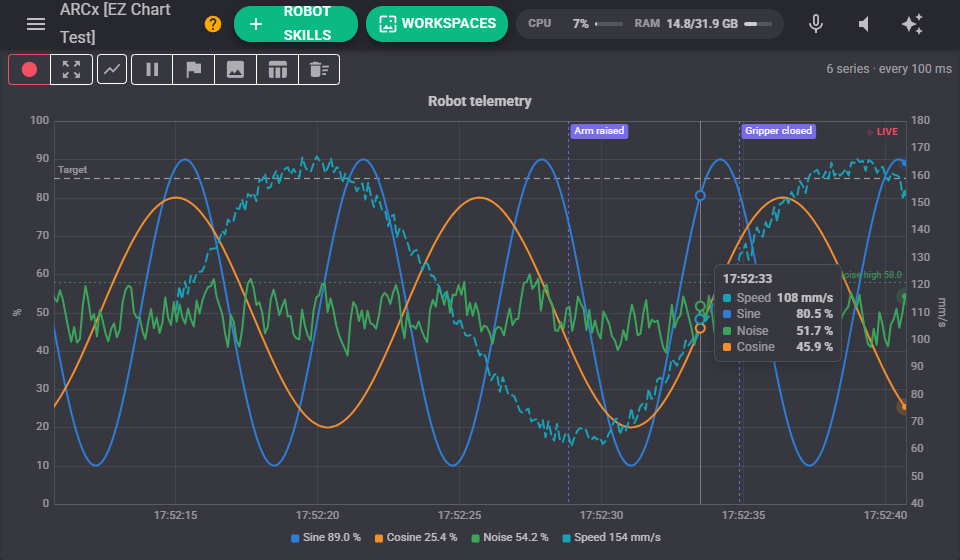
The window
The chart fills the window and keeps scrolling while new values arrive. Everything about how you look at it is your own: two people with the same project open can zoom into different moments without disturbing each other.
- Hover anywhere on a time chart for a read-out of every series at that moment. Hover a bar, slice, gauge, tile or legend entry for its latest, lowest, average and highest values and its sample count.
- Scroll the mouse wheel to zoom the time axis. While the chart is live it stays pinned to the newest value; while it is frozen it zooms around the pointer.
- Drag a time chart to look back in time. Dragging freezes the chart (a blue FROZEN badge replaces the red LIVE one) and new values keep being recorded behind the scenes.
- Double-click to go back to the configured time window, live.
- Click a legend entry to hide or show that series in your view.
The toolbar along the top:
| Button | What it does |
|---|---|
| Live / Frozen | Freezes the view where it is, or follows the newest values again. |
| Reset | Back to the configured time window, live. |
| Chart type | Switches between the ten chart types. The choice is saved with the project. |
| Pause / Resume | Pauses sampling of every series that has a source. Values pushed by scripts are still accepted. |
| Marker | Marks this moment on the time axis. |
| Picture | Downloads the chart as you see it, as a PNG. |
| Spreadsheet | Downloads every recorded sample as a CSV file. |
| Clear | Forgets every sample, statistic and marker after asking you to confirm. The series stay. |
The status on the right says how many series there are and how often they are sampled, or PAUSED.
A new EZ Chart has nothing to chart yet. Press Add demo series for three animated example series (a sine, a cosine and a smoothed noise series with an alarm), then change or remove them in the settings.
Chart types
Line, Area and Step draw values over time. Step holds each value until the next one, which suits digital ports, states and counts.
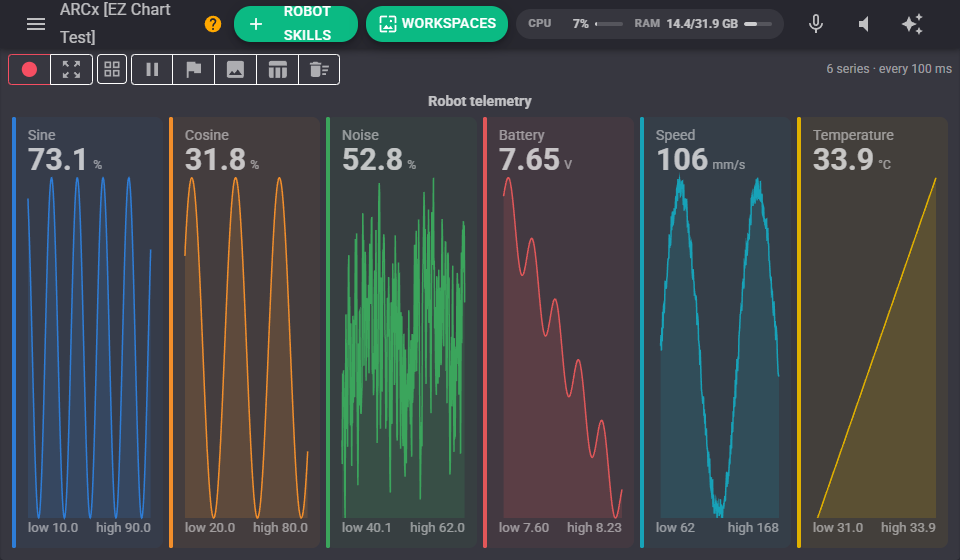
Value tiles show a card per series: its value, a sparkline of the time window, and its lowest and highest. A tile pulses red while its series is in alarm.
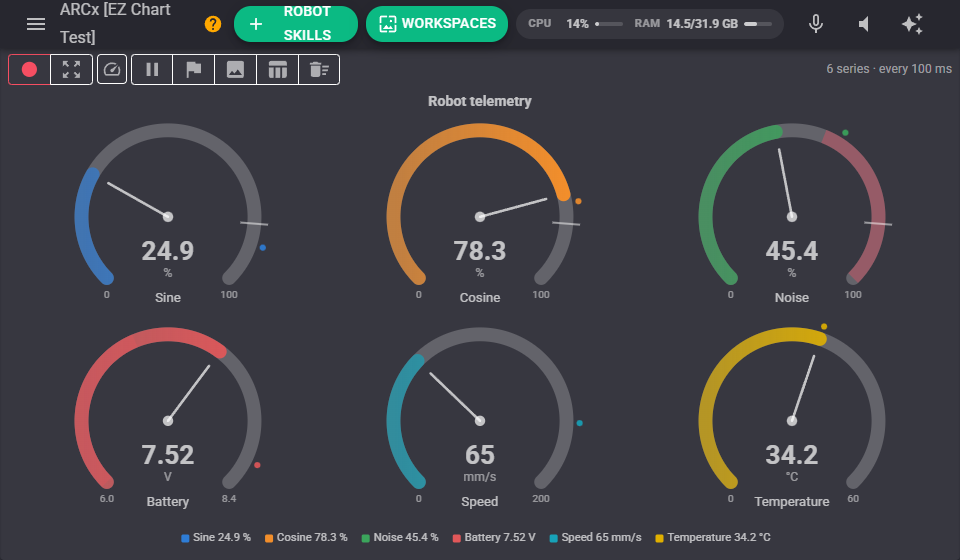
Gauge draws a dial per series with its range, a needle, the alarm zones in red, reference lines as ticks, and a dot at the highest value seen.
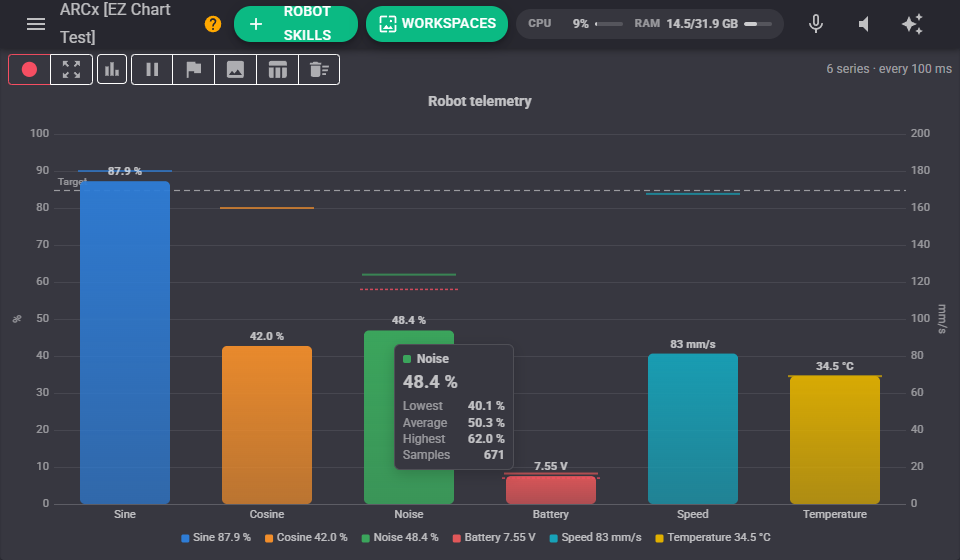
Bar and Horizontal bar show the current value of each series, with a tick at the highest value seen, dashed ticks at the alarm limits, and the reference lines across. A bar turns red while its series is in alarm.
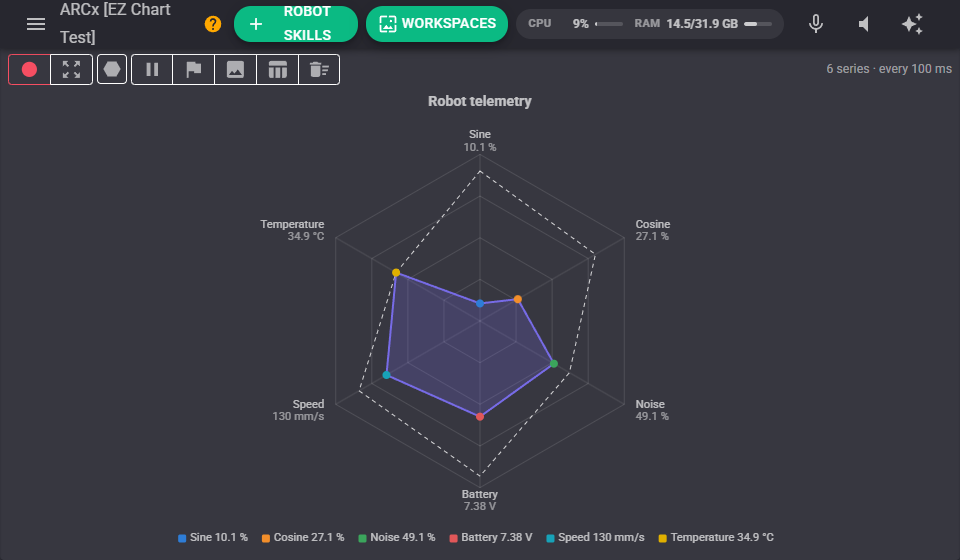
Radar puts each series on its own spoke, each scaled to its own range, so values in different units can share one picture. The dashed outline is the highest each has been. It needs three or more series.
Donut splits a ring between the series by their current values, with the total in the middle. Hover a slice for its share.
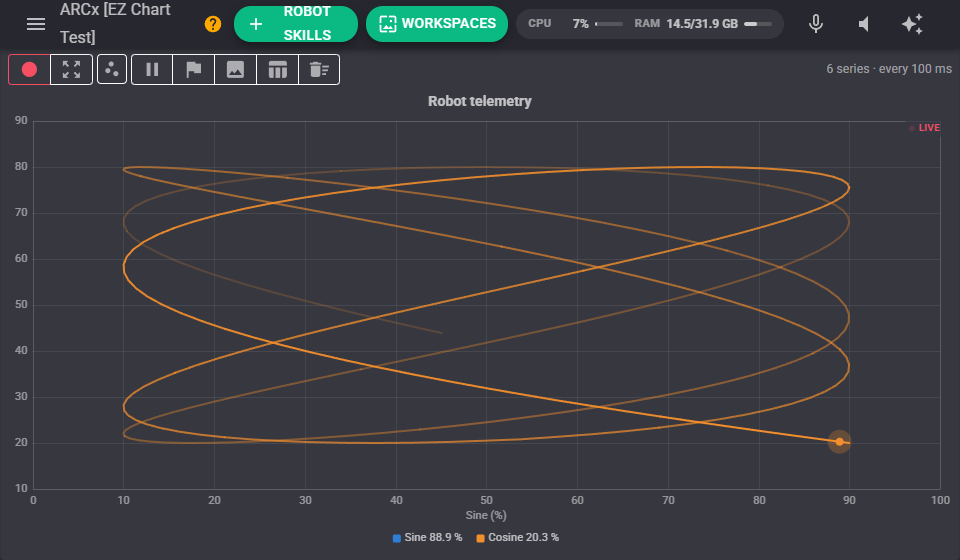
XY path plots every visible series against one chosen series (the XY chart setting), as a trail that fades with age over the time window. Plot a robot's X position against its Y position with Equal scale on and you get a live map of where it has been.
Settings: Chart
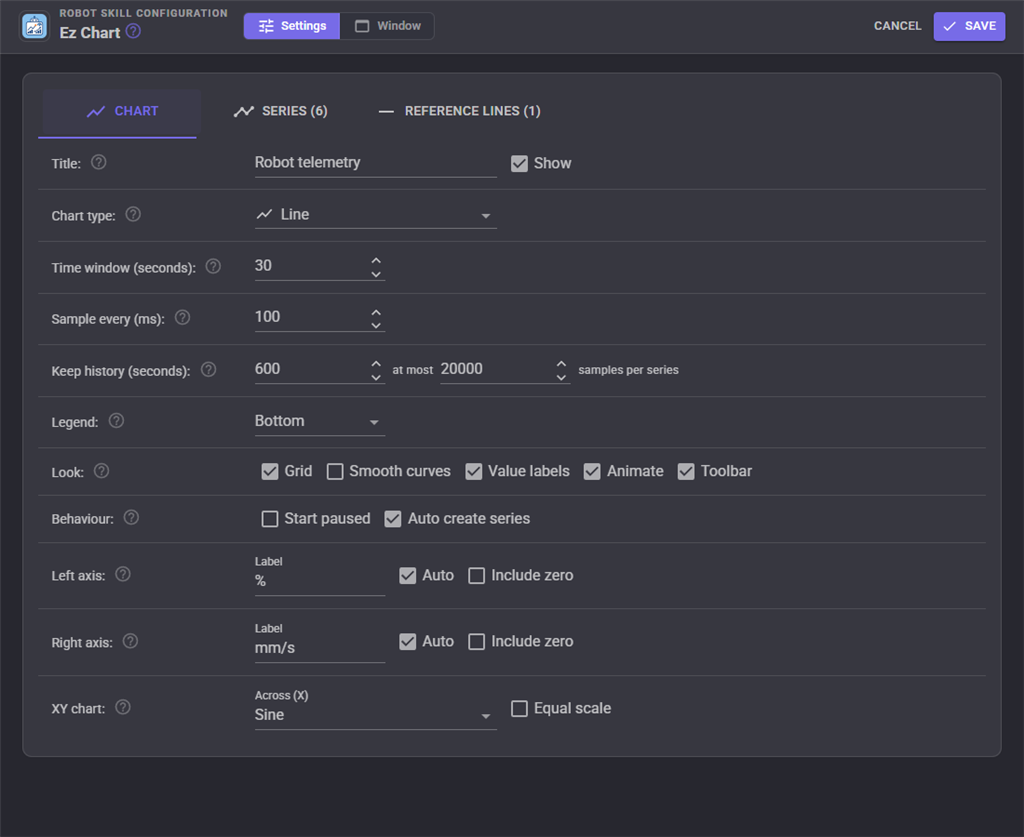
| Setting | What it does |
|---|---|
| Title | The heading above the chart, and whether it is shown. Scripts change it with SetTitle. |
| Chart type | One of the ten chart types above. |
| Time window | How many seconds the time charts show across their width, and how long the XY trail is. Viewers can zoom out further. |
| Sample every | How often every series with a source is read, in milliseconds. Lower draws smoother lines and costs more processor; ADC and digital sources also cost a controller request per read. |
| Keep history | How many seconds of samples are kept for zooming out, the CSV export and AI assistants, with a cap on samples per series so a fast sample rate cannot use unbounded memory. |
| Legend | Top, bottom, right or hidden. |
| Look | Grid lines, smooth curves, value labels on bars and gauges, animation, and the toolbar. |
| Behaviour | Start paused waits for Resume when the project loads. Auto create series lets SetSeriesValue create a series that does not exist yet. |
| Left axis / Right axis | Each axis has a label and either scales itself to the values on screen (optionally always including zero) or stays fixed between a minimum and maximum. Series measured on the right axis get their own scale, for a second unit on the same chart. |
| XY chart | The series that runs across the XY chart, and whether both axes use the same scale. |
Settings: Series
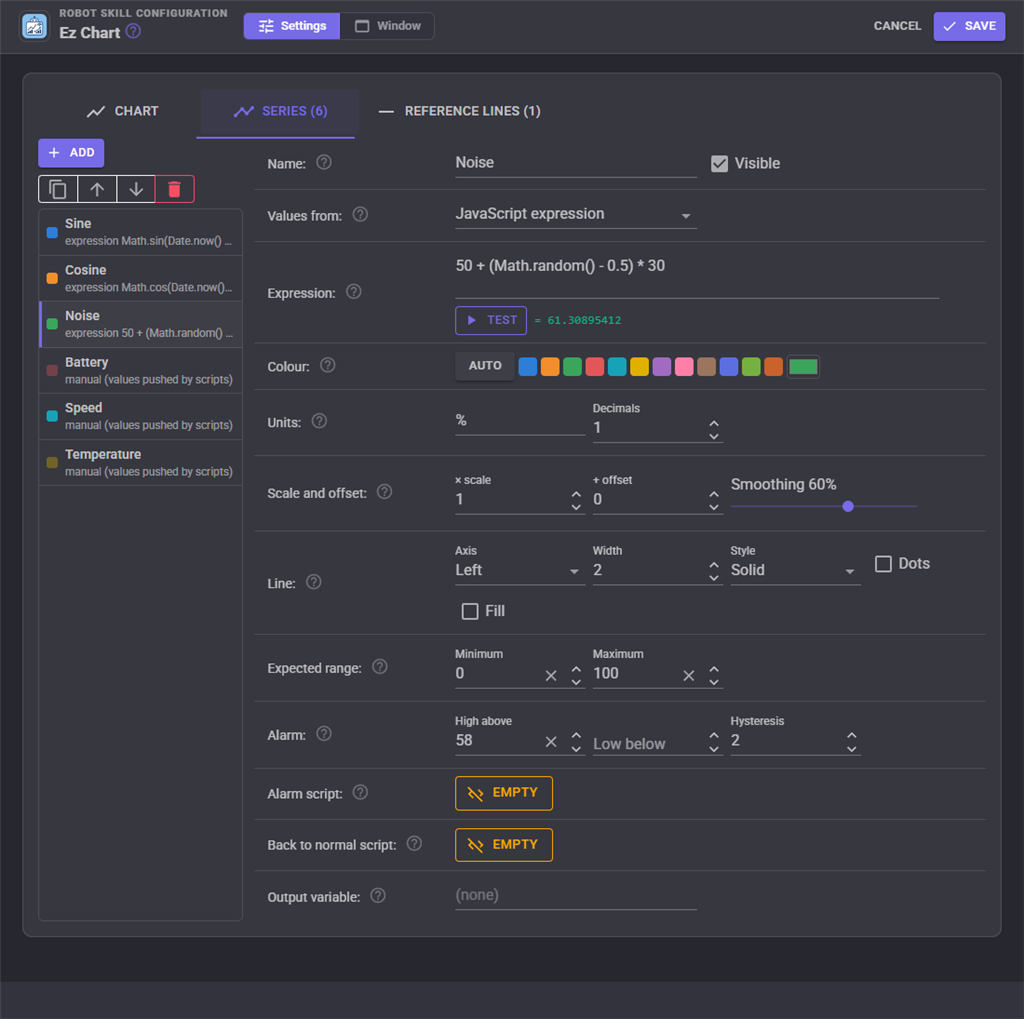
The list on the left holds the series in legend order. Add, duplicate, move up and down, or delete them (you are asked to confirm). Select one to edit it on the right.
| Setting | What it does |
|---|---|
| Name | Shown in the legend and used by scripts. Each series needs its own name. Visible hides a series from the chart while it keeps sampling, alarming and exporting. |
| Values from | Where the values come from: Manual (only values pushed by scripts, AI assistants or other robot skills), Global variable, Servo position (the last position the servo was told to go to, which costs no controller traffic), ADC port (8 or 12 bit), Digital port (0 or 1), or JavaScript expression. |
| Expression | One line of JavaScript evaluated every sample, such as getVar("Speed") * 2 or Math.sin(Date.now() / 1000). Test runs it once and shows the result. true and false plot as 1 and 0. |
| Colour | Auto takes a palette colour by position, or pick a swatch or any colour. |
| Units | The unit written after the value, and the number of decimal places. |
| Scale and offset | Each value is multiplied by the scale and then the offset is added, to turn a raw reading into units. Smoothing averages out noise; higher is smoother but slower to follow. |
| Line | The axis, line width and style (solid, dashed, dotted), dots on every sample, and the area under the line filled. |
| Expected range | The lowest and highest the series should reach. Gauges, radar spokes and tiles use it as their scale; leave it blank to work it out from the data. |
| Alarm | The series is in alarm above the high limit or below the low limit. It is drawn in red, logged, and the alarm script runs. It clears once the value comes back inside the limit by the hysteresis, so a value hovering on a limit does not flicker in and out of alarm. |
| Alarm script / Back to normal script | Run when the series goes into and comes out of alarm. Before they run, the global variables EZChartSeries, EZChartValue and EZChartAlarm (High, Low or None) say what happened. |
| Output variable | A global variable that receives every plotted value after scale, offset and smoothing, so other scripts can use an expression's or ADC port's result. |
Two charts reading the same ADC port both ask the controller for it. When several charts or scripts need one ADC reading, let an ADC Monitor publish it as a variable and chart the variable.
Settings: Reference lines
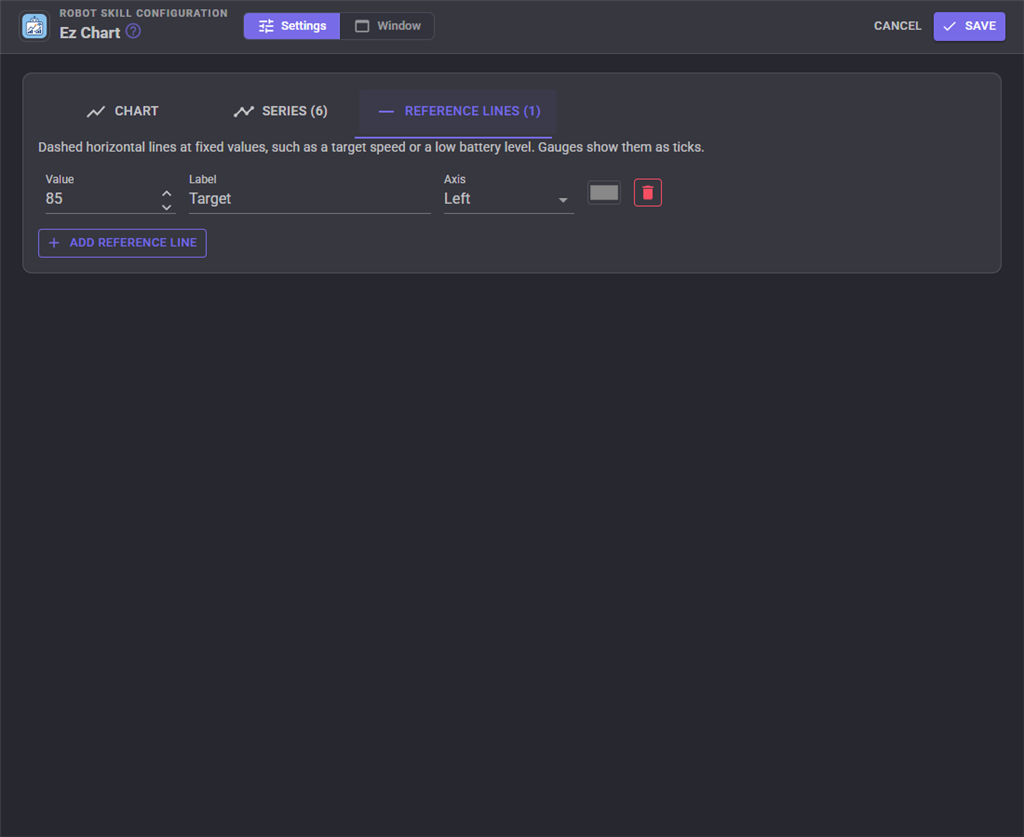
Dashed horizontal lines at fixed values, such as a target speed or a low battery level, each with a label, colour and axis. Gauges show them as ticks on the dial.
Pushing values from scripts
Any script can add a value to a series by name. When the series does not exist it is created, unless Auto create series is off.
// One value
ControlCommand("Ez Chart", "SetSeriesValue", "Speed", 42);

// Several at exactly the same moment, which keeps an XY chart and the CSV lined up
ControlCommand("Ez Chart", "SetSeriesValues", "PosX", x, "PosY", y);

// Mark what just happened
ControlCommand("Ez Chart", "AddMarker", "Arm raised");

// Read back what the chart has seen
var peak = ControlCommand("Ez Chart", "GetSeriesStat", "Speed", "max");
Use the window title of your chart in place of "Ez Chart". Values a script pushes go through the series' scale, offset, smoothing and alarms like any other. Scripts written for the original EZ Chart in ARC keep working: SetTitle, AddSeries, RemoveSeries, SetSeriesTitle and SetSeriesValue take the same parameters, and series can still be addressed by their position as well as by name.
Exporting
The toolbar's Spreadsheet button downloads every recorded sample as CSV: one row per moment, a column per series (with its unit), blank where a series had no value at that moment, and a column for markers. Series sampled together share their timestamps, so their values sit on the same rows. The Picture button downloads the chart exactly as you see it.
Scripts can write the same files on the robot's computer with the ExportCSV and SaveImage control commands. Give them a full path, a file name (saved in the EZ Chart folder of ARCx Data), or nothing for a name made from the window title and the time.
Custom UI
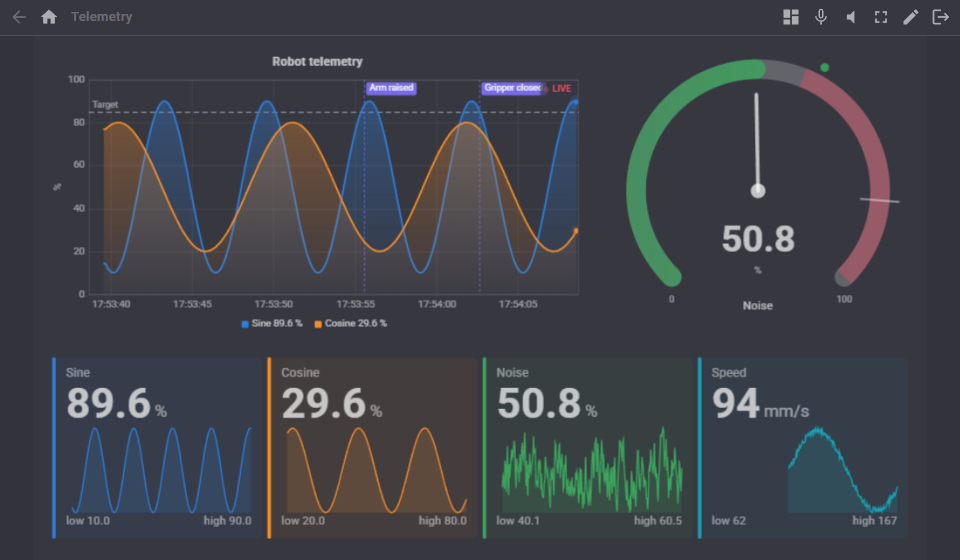
EZ Chart offers three widgets for your Custom UI screens: Chart, Gauges and Value tiles. Each can draw any chart type and any subset of the series, chosen in the widget's settings:
| Widget setting | What it does |
|---|---|
| ChartType | Blank for the chart's own type, or Line, Area, Step, Bar, HorizontalBar, Donut, Gauge, Radar, XY or Tiles. |
| Series | The series names to show, comma separated. Blank shows them all. Name a single series on a tile for one big read-out. |
| ShowTitle, ShowLegend | true or false. |
AI assistants
AI assistants connected to ARCx can read the chart and add to it. They can ask for every series with its source, latest value, statistics and alarm state; read a series' recent history, averaged down to a few points; add values and markers; and look at a picture of the chart, drawn on the robot's computer, to describe what it shows. Ask your assistant things like "what was the highest battery voltage in the last minute?" or "mark this moment as the start of the test".
Control Commands for the Ez Chart robot skill
There are Control Commands available for this robot skill which allows the skill to be controlled programmatically from scripts or other robot skills. These commands enable you to automate actions, respond to sensor inputs, and integrate the robot skill with other systems or custom interfaces. If you're new to the concept of Control Commands, we have a comprehensive manual available here that explains how to use them, provides examples to get you started and make the most of this powerful feature.
Control Command ManualThis robot skill has 26 control commands, listed below. Send them from a JavaScript or Python script, from Blockly, or from another robot skill.
The first value is always the window title, which is the name in the title bar of the robot skill on your workspace. It starts out as Ez Chart, which is what every example below uses. If you rename the robot skill, or add a second copy of it to the project, use the title as it appears on that window instead.
ControlCommand() can be shortened to CC(), and both spellings work in JavaScript and in Python. The examples are JavaScript; Python is the same call, except that true and false are written True and False.
AddMarker
Mark this moment on the time axis with a label, such as "Arm raised". Shown as a flagged line and exported in the CSV. Returns the label.
Syntax
ControlCommand("Ez Chart", "AddMarker", (String)label)
Parameters
| # | Name | Type | What to pass |
|---|---|---|---|
| 1 | label | Text | Your text, in quotes |
Returns: String
Example
var result = ControlCommand("Ez Chart", "AddMarker", "label");
AddSeries
Add a manual series with this name, which scripts then fill with SetSeriesValue. Does nothing when a series of that name exists. Returns true when it was added.
Syntax
ControlCommand("Ez Chart", "AddSeries", (String)series name)
Parameters
| # | Name | Type | What to pass |
|---|---|---|---|
| 1 | series name | Text | Your text, in quotes |
Returns: Boolean [true or false]
Example
var result = ControlCommand("Ez Chart", "AddSeries", "series name");
BindSeriesToVariable
Plot a global variable: the series (created if needed) reads the variable every sample interval.
Syntax
ControlCommand("Ez Chart", "BindSeriesToVariable", (String)series name, (String)variable name)
Parameters
| # | Name | Type | What to pass |
|---|---|---|---|
| 1 | series name | Text | Your text, in quotes |
| 2 | variable name | Text | Your text, in quotes |
Returns: nothing
Example
ControlCommand("Ez Chart", "BindSeriesToVariable", "series name", "variable name");
ClearData
Forget every sample, statistic and marker. The series stay.
Syntax
ControlCommand("Ez Chart", "ClearData")
Returns: nothing
Example
ControlCommand("Ez Chart", "ClearData");
ClearSeries
Forget the samples and statistics of one series.
Syntax
ControlCommand("Ez Chart", "ClearSeries", (String)series name)
Parameters
| # | Name | Type | What to pass |
|---|---|---|---|
| 1 | series name | Text | Your text, in quotes |
Returns: nothing
Example
ControlCommand("Ez Chart", "ClearSeries", "series name");
ExportCSV
Save every sample to a CSV file. Give a full path, a file name (saved in ARCx Data\EZ Chart), or nothing for a name made from the time. Returns the full path written.
Syntax
ControlCommand("Ez Chart", "ExportCSV", "")
Parameters
| # | Name | Type | What to pass |
|---|---|---|---|
| 1 | "" |
Text | The fixed value "". Leave it as it is. |
Returns: String
Example
var result = ControlCommand("Ez Chart", "ExportCSV", "");
GetSeriesNames
The names of every series, in legend order.
Syntax
ControlCommand("Ez Chart", "GetSeriesNames")
Returns: Array of String
Example
var result = ControlCommand("Ez Chart", "GetSeriesNames");
GetSeriesStat
A statistic of a series since its data was last cleared: min, max, average, count or last.
Syntax
ControlCommand("Ez Chart", "GetSeriesStat", (String)series name, (String)min, max, average, count or last)
Parameters
| # | Name | Type | What to pass |
|---|---|---|---|
| 1 | series name | Text | Your text, in quotes |
| 2 | min, max, average, count or last | Text | Your text, in quotes |
Returns: Double [5.0e324 to 1.7e308]
Example
var result = ControlCommand("Ez Chart", "GetSeriesStat", "series name", "min, max, average, count or last");
GetSeriesValue
The latest value of a series, as plotted.
Syntax
ControlCommand("Ez Chart", "GetSeriesValue", (String)series name)
Parameters
| # | Name | Type | What to pass |
|---|---|---|---|
| 1 | series name | Text | Your text, in quotes |
Returns: Double [5.0e324 to 1.7e308]
Example
var result = ControlCommand("Ez Chart", "GetSeriesValue", "series name");
IsAlarm
True while the series is above its high alarm or below its low alarm.
Syntax
ControlCommand("Ez Chart", "IsAlarm", (String)series name)
Parameters
| # | Name | Type | What to pass |
|---|---|---|---|
| 1 | series name | Text | Your text, in quotes |
Returns: Boolean [true or false]
Example
var result = ControlCommand("Ez Chart", "IsAlarm", "series name");
IsPaused
True while sampling is paused.
Syntax
ControlCommand("Ez Chart", "IsPaused")
Returns: Boolean [true or false]
Example
var result = ControlCommand("Ez Chart", "IsPaused");
Pause
Pause sampling. Values pushed with SetSeriesValue are still accepted.
Syntax
ControlCommand("Ez Chart", "Pause")
Returns: nothing
Example
ControlCommand("Ez Chart", "Pause");
RemoveSeries
Remove a series and its data, by name or by its position (0 is the first).
Syntax
ControlCommand("Ez Chart", "RemoveSeries", (String)series name or index)
Parameters
| # | Name | Type | What to pass |
|---|---|---|---|
| 1 | series name or index | Text | Your text, in quotes |
Returns: Boolean [true or false]
Example
var result = ControlCommand("Ez Chart", "RemoveSeries", "series name or index");
Resume
Resume sampling.
Syntax
ControlCommand("Ez Chart", "Resume")
Returns: nothing
Example
ControlCommand("Ez Chart", "Resume");
SaveImage
Save a picture of the chart as a PNG file, the same way as ExportCSV. Returns the full path written.
Syntax
ControlCommand("Ez Chart", "SaveImage", "")
Parameters
| # | Name | Type | What to pass |
|---|---|---|---|
| 1 | "" |
Text | The fixed value "". Leave it as it is. |
Returns: String
Example
var result = ControlCommand("Ez Chart", "SaveImage", "");
SetAutoScale
Let the left value axis scale itself to the data again.
Syntax
ControlCommand("Ez Chart", "SetAutoScale")
Returns: nothing
Example
ControlCommand("Ez Chart", "SetAutoScale");
SetChartType
Change the chart type: Line, Area, Step, Bar, HorizontalBar, Donut, Gauge, Radar, XY or Tiles.
Syntax
ControlCommand("Ez Chart", "SetChartType", (String)chart type)
Parameters
| # | Name | Type | What to pass |
|---|---|---|---|
| 1 | chart type | Text | Your text, in quotes |
Returns: nothing
Example
ControlCommand("Ez Chart", "SetChartType", "chart type");
SetSampleInterval
How often, in milliseconds, the series with a source are read (20 to 60000).
Syntax
ControlCommand("Ez Chart", "SetSampleInterval", (Number)milliseconds)
Parameters
| # | Name | Type | What to pass |
|---|---|---|---|
| 1 | milliseconds | Number | A number, without quotes |
Returns: nothing
Example
ControlCommand("Ez Chart", "SetSampleInterval", 0);
SetSeriesColor
Set a series' colour as #RRGGBB, or blank for the palette colour.
Syntax
ControlCommand("Ez Chart", "SetSeriesColor", (String)series name, (String)#RRGGBB)
Parameters
| # | Name | Type | What to pass |
|---|---|---|---|
| 1 | series name | Text | Your text, in quotes |
| 2 | #RRGGBB | Text | Your text, in quotes |
Returns: nothing
Example
ControlCommand("Ez Chart", "SetSeriesColor", "series name", "#RRGGBB");
SetSeriesTitle
Rename a series, given by name or by its position (0 is the first). Its data is kept.
Syntax
ControlCommand("Ez Chart", "SetSeriesTitle", (String)series name or index, (String)new name)
Parameters
| # | Name | Type | What to pass |
|---|---|---|---|
| 1 | series name or index | Text | Your text, in quotes |
| 2 | new name | Text | Your text, in quotes |
Returns: nothing
Example
ControlCommand("Ez Chart", "SetSeriesTitle", "series name or index", "new name");
SetSeriesValue
Add a value to a series now. The series is created when it does not exist (unless Auto create series is off). Returns the value as plotted, after the series' scale, offset and smoothing.
Syntax
ControlCommand("Ez Chart", "SetSeriesValue", (String)series name, (Number)value)
Parameters
| # | Name | Type | What to pass |
|---|---|---|---|
| 1 | series name | Text | Your text, in quotes |
| 2 | value | Number | A number, without quotes |
Returns: Double [5.0e324 to 1.7e308]
Example
var result = ControlCommand("Ez Chart", "SetSeriesValue", "series name", 0);
SetSeriesValues
Add values to several series at the same moment, as pairs: name, value, name, value... They share one timestamp, which keeps an XY chart and the CSV export lined up. Returns how many were added.
Syntax
ControlCommand("Ez Chart", "SetSeriesValues", (String)series name, (Number)value, (String)series name 2, (Number)value 2)
Parameters
| # | Name | Type | What to pass |
|---|---|---|---|
| 1 | series name | Text | Your text, in quotes |
| 2 | value | Number | A number, without quotes |
| 3 | series name 2 | Text | Your text, in quotes |
| 4 | value 2 | Number | A number, without quotes |
Returns: Integer [-2,147,483,648 to 2,147,483,647]
Example
var result = ControlCommand("Ez Chart", "SetSeriesValues", "series name", 0, "series name 2", 0);
SetSeriesVisible
Show or hide a series. A hidden series keeps sampling and alarming.
Syntax
ControlCommand("Ez Chart", "SetSeriesVisible", (String)series name, (Bool)visible)
Parameters
| # | Name | Type | What to pass |
|---|---|---|---|
| 1 | series name | Text | Your text, in quotes |
| 2 | visible | True or false | true or false, without quotes |
Returns: nothing
Example
ControlCommand("Ez Chart", "SetSeriesVisible", "series name", true);
SetTimeWindow
How many seconds of history the time charts show across their width.
Syntax
ControlCommand("Ez Chart", "SetTimeWindow", (Number)seconds)
Parameters
| # | Name | Type | What to pass |
|---|---|---|---|
| 1 | seconds | Number | A number, without quotes |
Returns: nothing
Example
ControlCommand("Ez Chart", "SetTimeWindow", 0);
SetTitle
Set the title drawn above the chart.
Syntax
ControlCommand("Ez Chart", "SetTitle", (String)title)
Parameters
| # | Name | Type | What to pass |
|---|---|---|---|
| 1 | title | Text | Your text, in quotes |
Returns: nothing
Example
ControlCommand("Ez Chart", "SetTitle", "title");
SetYRange
Fix the left value axis to a minimum and maximum, turning its auto scale off.
Syntax
ControlCommand("Ez Chart", "SetYRange", (Number)minimum, (Number)maximum)
Parameters
| # | Name | Type | What to pass |
|---|---|---|---|
| 1 | minimum | Number | A number, without quotes |
| 2 | maximum | Number | A number, without quotes |
Returns: nothing
Example
ControlCommand("Ez Chart", "SetYRange", 0, 0);
This list is read out of the robot skill itself each time its package is uploaded, so it matches the published version (v1).




This robot skill has been updated to v1.
What has changed
initial release