
Control an EZB digital port PWM duty cycle with a slider, buttons, and script commands for motors, lights, and fans.
 Windows
 ARM
ARM
 Linux
Linux
 MacOS
MacOS
How to add the Pwm Slider robot skill
- Load the most recent release of ARCx on a compatible operating system (Get ARCx).
- Press the + Skills menu from the top menu bar in ARCx.
- Choose the PWM category tab.
- Press the Pwm Slider icon to add the robot skill to your project.
Don't have a robot yet?
Follow the Getting Started Guide to build a robot and use the Pwm Slider robot skill.
How to use the Pwm Slider robot skill
The PWM Slider robot skill sets the PWM duty cycle of one digital port on an EZB with an on-screen slider. Drag it and the port's duty cycle follows, from 0% (off) to 100% (fully on), with buttons to jump to the maximum and to stop.
PWM (pulse width modulation) switches a digital port on and off very quickly, and the duty cycle is the share of the time it is on. A motor speed controller reads it as a speed, an LED behind a transistor or MOSFET glows brighter as it rises, and a fan spins faster. This robot skill is the PWM twin of the servo robot skill: one slider for one port, so add one for each port you want to control by hand or watch while something else drives it.
Requirements
- An EZB whose firmware supports PWM output, such as the EZ-B v4 (ports D0 to D23).
- Something on the port that understands PWM: a motor speed controller or H-bridge enable input, a MOSFET or transistor driving a light, strip or fan.
A digital port only provides a signal. Never connect a motor, a lamp or anything else that draws real current straight to the port; put a driver between them.
The window
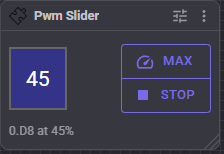
- Slider - the duty cycle in percent. Drag up or right to raise it and down or left to lower it, hold Shift and use the mouse wheel for single steps, or right-click to type a value and press Enter. It is limited to the Minimum and Maximum set in the configuration.
- Max - sets the duty cycle to the configured Maximum.
- Stop - sets the duty cycle to 0 and stops the port.
- Status line - the port (board and port, such as 0.D8) and its duty cycle.
The slider follows the port. When a script, a ControlCommand or another robot skill changes this port's duty cycle, the slider moves to show it.
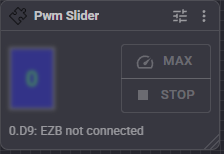
While the EZB is not connected the slider is blurred, the buttons are disabled and the status line says so:
Configuration
| Setting | Meaning |
|---|---|
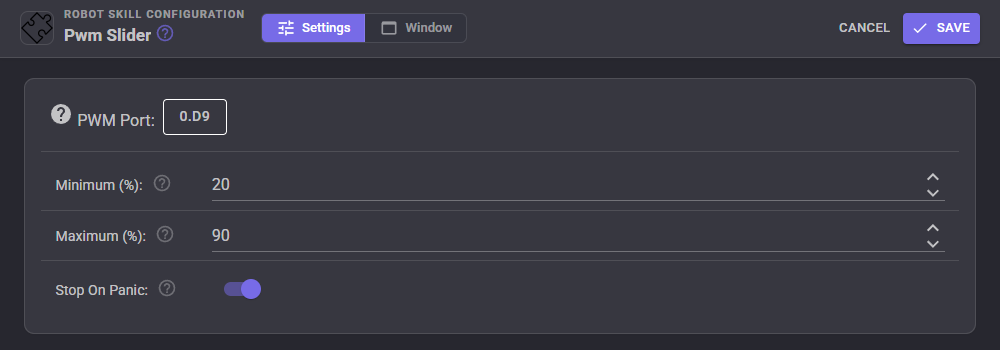
| PWM Port | The EZB (0 is the first connection) and the digital port whose duty cycle the slider sets. Click the button to pick them; the dialog also holds the port's description for the project. |
| Minimum (%) | The lowest duty cycle the slider and the control commands go to while the port is running. Stop always sets 0 whatever this is. Raise it for a motor that stalls and hums below some duty cycle, so the slider never leaves it in that state. |
| Maximum (%) | The highest duty cycle the slider, the Max button and the control commands go to. Lower it to cap the speed of a motor or the brightness of a light. |
| Stop On Panic | Stops the port when ARCx's panic action (release every servo and stop movement) is used. Leave it on for anything that moves. |
When you change PWM Port to another port while this robot skill has the old one running, the old port is stopped, so it is not left running with nothing controlling it.
Using it from scripts
The robot skill's control commands set and read the duty cycle the same way the window does, held to the configured Minimum and Maximum. They wait until the command has been sent to the EZB, and return false when the EZB is not connected:
// Run the fan at 60%, then stop it after ten seconds
controlCommand("Pwm Slider", "SetDutyCycle", 60);
sleep(10000);
controlCommand("Pwm Slider", "Stop");
# Ramp a motor up gently
for i in range(10):
  controlCommand("Pwm Slider", "Increase", 5)
  sleep(200)
Scripts can also set the port directly with the PWM commands, such as PWM.set(d8, 50) in JavaScript. The slider follows that too, but the configured Minimum and Maximum only apply to the robot skill's own slider, buttons and control commands.
Custom UI widget
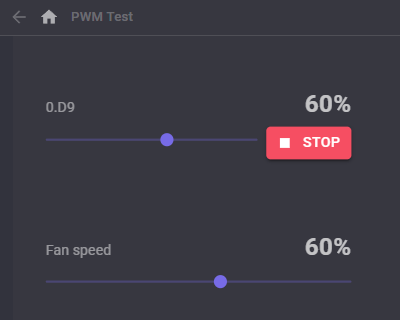
The robot skill adds a PWM Slider widget to the Custom UI designer: a horizontal slider sized for a finger, the duty cycle in large type, and a Stop button.
| Widget setting | Meaning |
|---|---|
| Caption | The label above the slider. Empty shows the port, such as 0.D9. |
| ShowStop | true or false: whether the Stop button is shown. |
Notes
- The duty cycle shown is the last value ARCx sent to the port. The EZB is not asked for it, so if the EZB loses power or is reset while ARCx keeps running, the port is off while the slider still shows the old value. Press Stop, or set the value again.
- If the configured board does not exist in this project (for example, the project came from a robot with more EZBs), the window shows the EZB as not connected.
- A duty cycle of 0 always stops the port, even when Minimum is higher.
Troubleshooting
| Symptom | Cause |
|---|---|
| The slider moves but nothing happens | The EZB is not connected, the wrong board or port is configured, or the device is not wired to a driver that reads PWM. |
| The motor hums but does not turn at low values | The duty cycle is below what the motor needs to start. Raise Minimum. |
| The slider is blurred and the buttons are disabled | The configured EZB is not connected, or does not exist in this project. |
| The port keeps running after Stop On Panic | Stop On Panic is off, or the port is being set by a script or another robot skill after the panic. |
| The light flickers or the motor whines | The device does not like the EZB's PWM frequency. Use a driver or filter suited to it. |
Control Commands for the Pwm Slider robot skill
There are Control Commands available for this robot skill which allows the skill to be controlled programmatically from scripts or other robot skills. These commands enable you to automate actions, respond to sensor inputs, and integrate the robot skill with other systems or custom interfaces. If you're new to the concept of Control Commands, we have a comprehensive manual available here that explains how to use them, provides examples to get you started and make the most of this powerful feature.
Control Command ManualThis robot skill has 7 control commands, listed below. Send them from a JavaScript or Python script, from Blockly, or from another robot skill.
The first value is always the window title, which is the name in the title bar of the robot skill on your workspace. It starts out as Pwm Slider, which is what every example below uses. If you rename the robot skill, or add a second copy of it to the project, use the title as it appears on that window instead.
ControlCommand() can be shortened to CC(), and both spellings work in JavaScript and in Python. The examples are JavaScript; Python is the same call, except that true and false are written True and False.
Decrease
Lower the duty cycle by the given percent. It stops at the configured Minimum; use Stop to go to 0. Returns false when the EZB is not connected.
Syntax
ControlCommand("Pwm Slider", "Decrease", (Number)percent)
Parameters
| # | Name | Type | What to pass |
|---|---|---|---|
| 1 | percent | Number | A number, without quotes |
Returns: Boolean [true or false]
Example
var result = ControlCommand("Pwm Slider", "Decrease", 0);
GetDutyCycle
The duty cycle last set on the port in percent (0 when stopped). Remembered by ARCx, not read from the EZB.
Syntax
ControlCommand("Pwm Slider", "GetDutyCycle")
Returns: Integer [-2,147,483,648 to 2,147,483,647]
Example
var result = ControlCommand("Pwm Slider", "GetDutyCycle");
Increase
Raise the duty cycle by the given percent, up to the configured Maximum. Returns false when the EZB is not connected.
Syntax
ControlCommand("Pwm Slider", "Increase", (Number)percent)
Parameters
| # | Name | Type | What to pass |
|---|---|---|---|
| 1 | percent | Number | A number, without quotes |
Returns: Boolean [true or false]
Example
var result = ControlCommand("Pwm Slider", "Increase", 0);
IsStopped
True when the port is stopped (duty cycle 0).
Syntax
ControlCommand("Pwm Slider", "IsStopped")
Returns: Boolean [true or false]
Example
var result = ControlCommand("Pwm Slider", "IsStopped");
Max
Set the duty cycle to the configured Maximum. Returns false when the EZB is not connected.
Syntax
ControlCommand("Pwm Slider", "Max")
Returns: Boolean [true or false]
Example
var result = ControlCommand("Pwm Slider", "Max");
SetDutyCycle
Set the duty cycle of the port in percent. 0 stops the port; any other value is held between the configured Minimum and Maximum. Returns false when the EZB is not connected.
Syntax
ControlCommand("Pwm Slider", "SetDutyCycle", (Number)dutyCycle)
Parameters
| # | Name | Type | What to pass |
|---|---|---|---|
| 1 | dutyCycle | Number | A number, without quotes |
Returns: Boolean [true or false]
Example
var result = ControlCommand("Pwm Slider", "SetDutyCycle", 0);
Stop
Stop the port (duty cycle 0). Returns false when the EZB is not connected.
Syntax
ControlCommand("Pwm Slider", "Stop")
Returns: Boolean [true or false]
Example
var result = ControlCommand("Pwm Slider", "Stop");
This list is read out of the robot skill itself each time its package is uploaded, so it matches the published version (v1).


This robot skill has been updated to v1.
What has changed
initial release