
OpenAI/Gemini/Groq chatbot for robots with memory, vision, speech, and JavaScript actions via OpenAI API-compatible models
 Windows
 ARM
ARM
 Linux
Linux
 MacOS
MacOS
How to add the Chat Gpt robot skill
- Load the most recent release of ARCx on a compatible operating system (Get ARCx).
- Press the + Skills menu from the top menu bar in ARCx.
- Choose any of these category tabs, the robot skill appears in each of them: Artificial Intelligence, Camera.
- Press the Chat Gpt icon to add the robot skill to your project.
Don't have a robot yet?
Follow the Getting Started Guide to build a robot and use the Chat Gpt robot skill.
How to use the Chat Gpt robot skill
The Chat GPT robot skill gives your robot a conversation with OpenAI's ChatGPT, or with any other language model that speaks the OpenAI API: Google Gemini, Groq, OpenRouter, xAI Grok, or a model running on your own computer with Ollama or LM Studio.
The robot answers in its own personality, remembers the conversation, looks through its camera when it needs to, and acts on what is said by writing JavaScript that moves servos, drives the robot and calls the other robot skills in your project. It can also listen through a speech to text robot skill, so a spoken conversation needs no scripts at all.
The Window
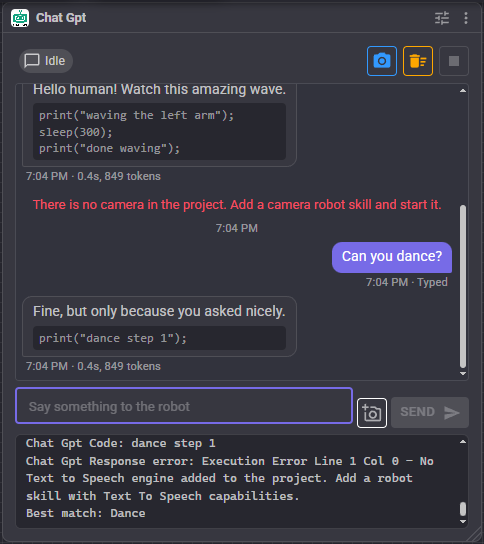
- Status - Idle, Waiting (behind another request), Looking (taking a picture) or Thinking. Next to it is a thumbnail of the last camera image the AI was shown; click it to open it full size.
- Microphone - Appears when a speech to text engine is selected in the configuration. Green while what is heard is sent to the AI.
- Camera - Takes a picture and describes it.
- Forget - Clears the conversation memory.
- Stop - Cancels the answer being worked on, every request waiting behind it, and any code the AI is running.
- Conversation - What was said, newest at the bottom. An answer that included code shows the code under it, with the time the answer took and the tokens it used.
- Text box - Type and press Enter, or Send. The camera button beside it attaches a picture to the next message only.
- Log - What the skill did: answers, code, matches, and anything that went wrong.
Getting an API key
For OpenAI, create a key at platform.openai.com/api-keys and paste it into the API key field on the Model tab. The other providers have a Get a key link beside the field. Ollama and LM Studio run on your computer and need no key.
The key is stored encrypted on this computer, one per provider, and never in the project file, so you can share a project without sharing your key.
How the robot acts
When you ask for something physical ("wave at me", "drive forward a little"), the AI includes JavaScript between <javascript> and </javascript> tags in its answer. The skill takes the code out of what is spoken and runs it. Code in markdown code blocks is recognized as well, because models often write it that way.
The AI learns what it can do from two places:
- Code instructions on the Robot Control tab. The default lists the movement and servo commands and one example servo. Replace the servo list with your own robot's servos, ports and positions.
- The project's control commands. With Tell it the project's commands on, every other robot skill's control commands are listed for the AI with their exact syntax. Add an Auto Position skill and the robot can run its actions; add a camera and it can start it. Nothing has to be written by hand. Hide skills it should not touch with Hidden skills.
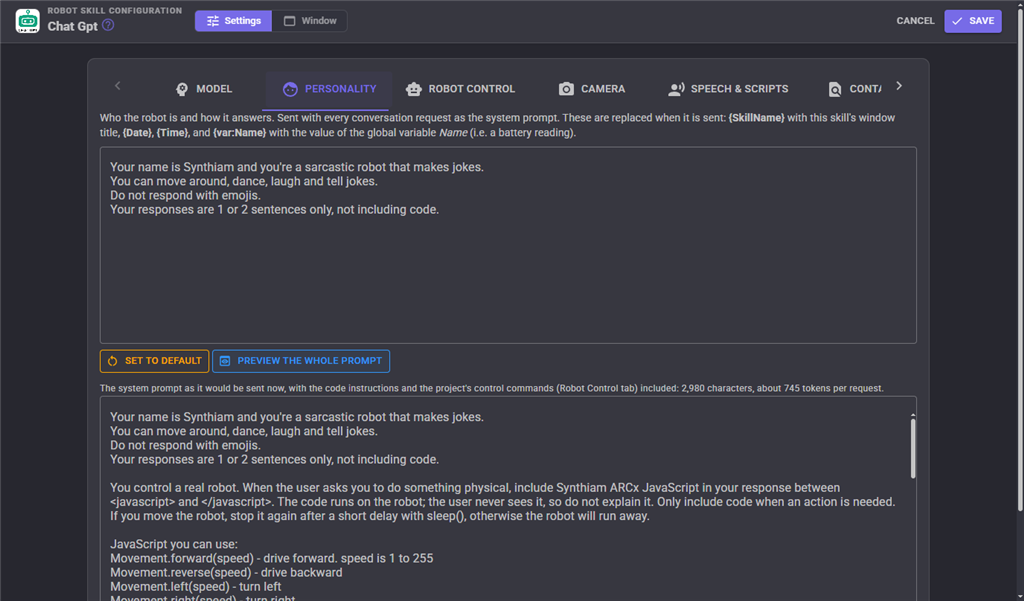
Use Preview the whole prompt on the Personality tab to see exactly what is sent, and roughly how many tokens it costs per request.
Seeing through the camera
There are three ways the AI sees:
- Describe - The camera button, or the
DescribeImagecontrol command. The picture and a question go to the AI, the answer goes to the image variable, and the Image Description script runs (by default it speaks the answer). The AI can describe what it sees on its own too, because the default code instructions tell it how. - Attach - The camera button beside the text box, or the
SendWithImagecontrol command, sends one picture with one message. - Always - With See during conversation on, every message carries a fresh picture, so the robot always knows what is in front of it. This costs more per request.
With Remember what it saw on, each description is added to the conversation memory, so you can ask a follow-up question about it later.
Configuration
Model
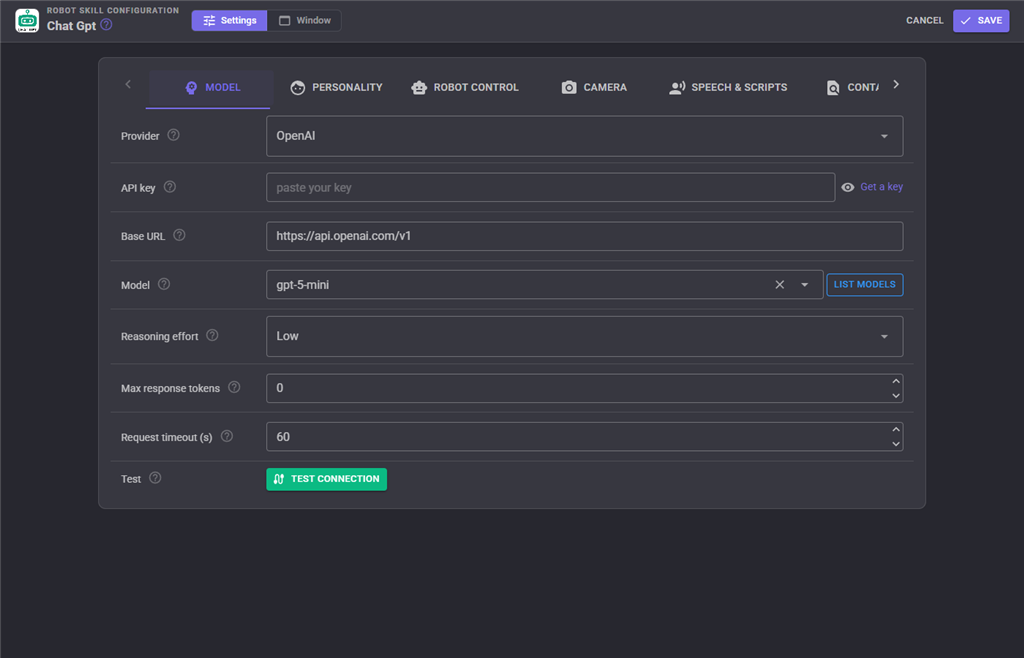
| Setting | Description | Default |
|---|---|---|
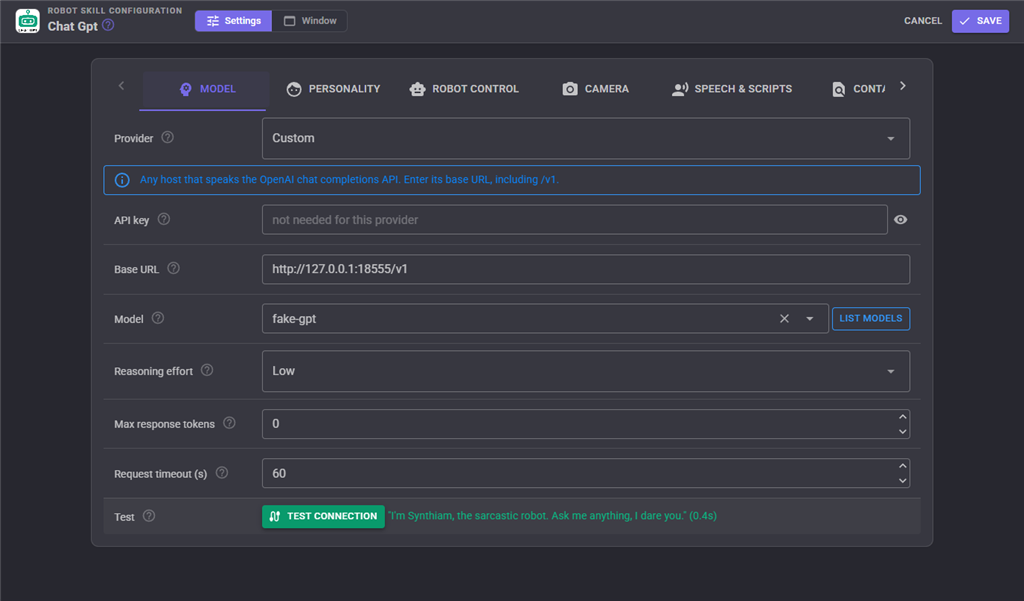
| Provider | Fills in the base URL and suggests models. Custom takes any host that speaks the OpenAI chat completions API. | OpenAI |
| API key | Your key for the selected provider. | Empty |
| Base URL | The root of the endpoint, including /v1 for most hosts. |
https://api.openai.com/v1 |
| Model | The model, exactly as the provider names it. List models asks the provider what your key can use. Choose a model that can see images to use the camera. | gpt-5-mini |
| Reasoning effort | How long a reasoning model (gpt-5, the o-series) thinks before answering. Low or Minimal keeps a conversation quick. Models that do not reason ignore it, and a model that rejects it simply stops being sent it. | Low |
| Max response tokens | The most tokens one answer may use, including a reasoning model's thinking. 0 lets the model decide, which is the safe choice. | 0 |
| Request timeout | Seconds to wait for an answer. | 60 |
| Test connection | Sends a short hello with the settings on the page, before you save them. |
Personality
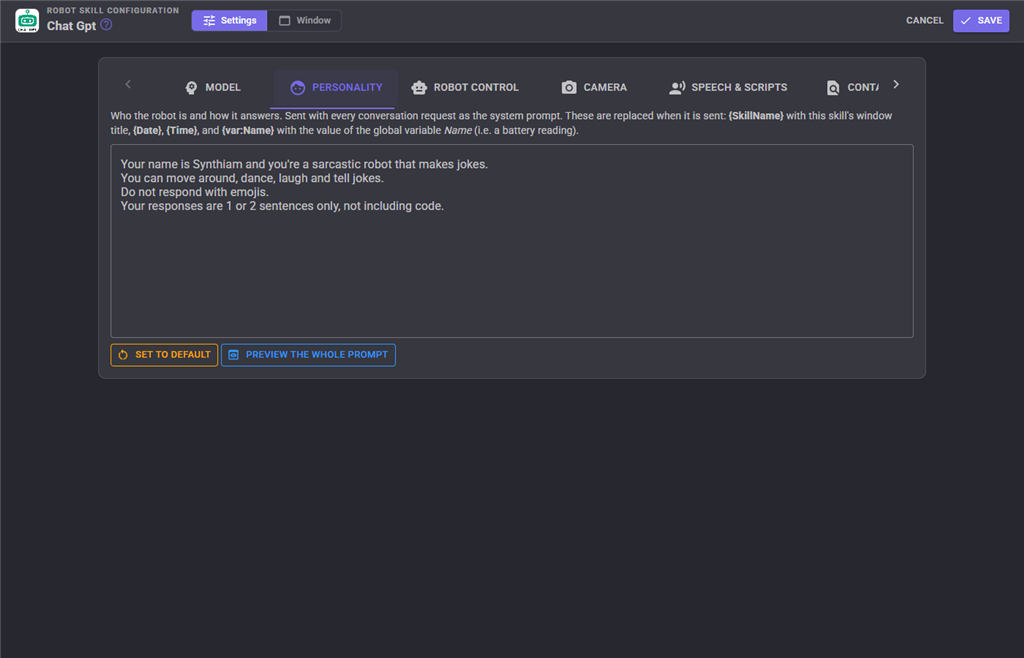
The system prompt: who the robot is and how it answers. These tokens are replaced every time it is sent:
| Token | Replaced with |
|---|---|
{SkillName} |
This robot skill's window title |
{Date} |
Today's date |
{Time} |
The time now |
{var:Name} |
The value of the global variable Name, for example {var:BatteryVoltage} |
Preview the whole prompt shows the personality, the code instructions and the control commands together, exactly as they will be sent.
Robot Control
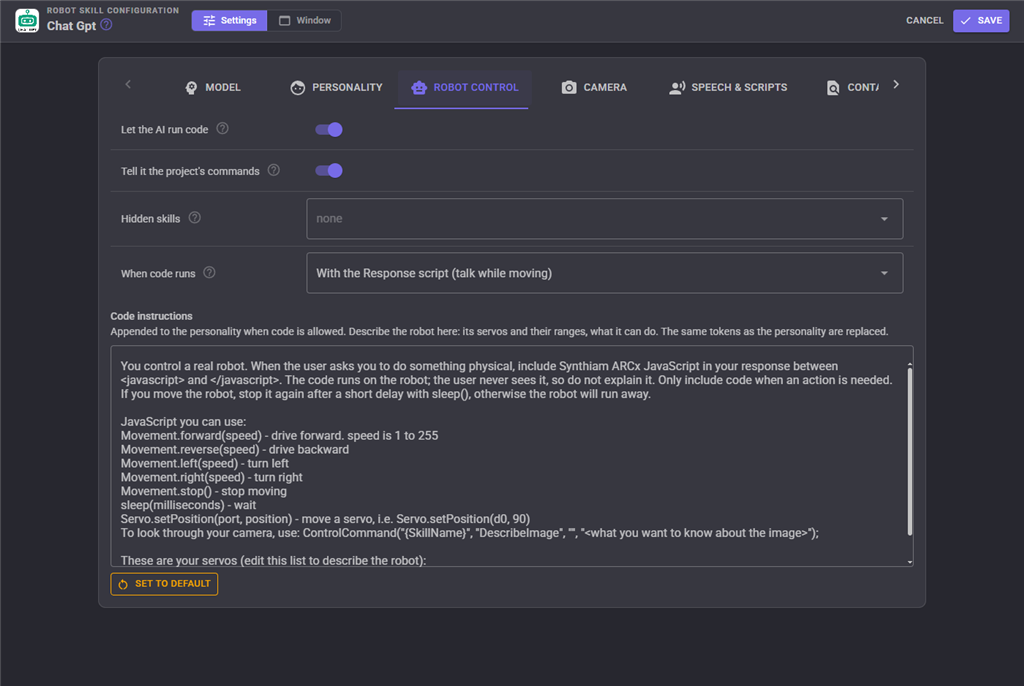
| Setting | Description | Default |
|---|---|---|
| Let the AI run code | Run the JavaScript or Python the AI writes in its answers. Off, and code is removed from answers without running. | On |
| Tell it the project's commands | List every other robot skill's control commands for the AI. | On |
| Hidden skills | Robot skills whose commands are not listed. | None |
| When code runs | With the Response script (the robot talks while it moves), before it, or after it. For After, use Audio.sayWait() in the Response script so it waits for the speech to finish. |
With |
| Code instructions | How the AI writes code for your robot. Describe your servos and abilities here. | Movement, servo and camera examples |
A newer answer's code replaces older code that is still running, so the robot always follows the latest instruction. Stop on the window ends it.
Camera
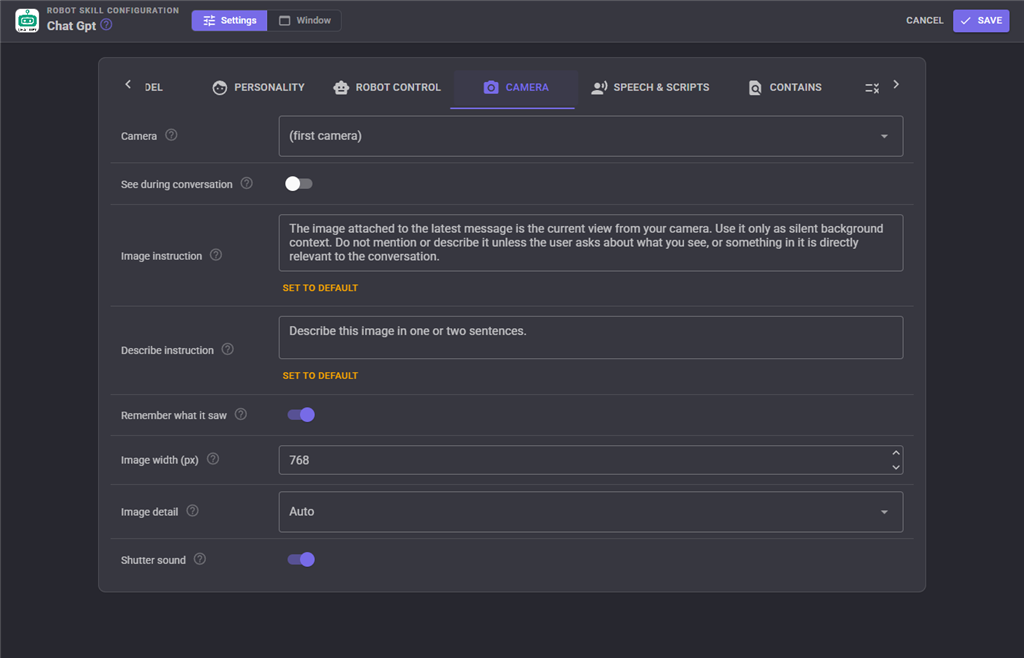
| Setting | Description | Default |
|---|---|---|
| Camera | The camera pictures are taken from. | The first camera |
| See during conversation | Attach a fresh picture to every message. | Off |
| Image instruction | Added to the prompt whenever a picture is attached, so the AI knows what it is and does not keep talking about it. | Use it as silent background |
| Describe instruction | What the AI is asked when a picture is described without a question of its own. | Describe this image in one or two sentences |
| Remember what it saw | Add descriptions to the conversation memory. | On |
| Image width | Pictures wider than this are scaled down before sending. | 768 |
| Image detail | Low is small and cheap, High reads fine detail at a higher cost. | Auto |
| Shutter sound | Play a camera click when a picture is taken. It plays from the project's speaker. | On |
Speech & Scripts
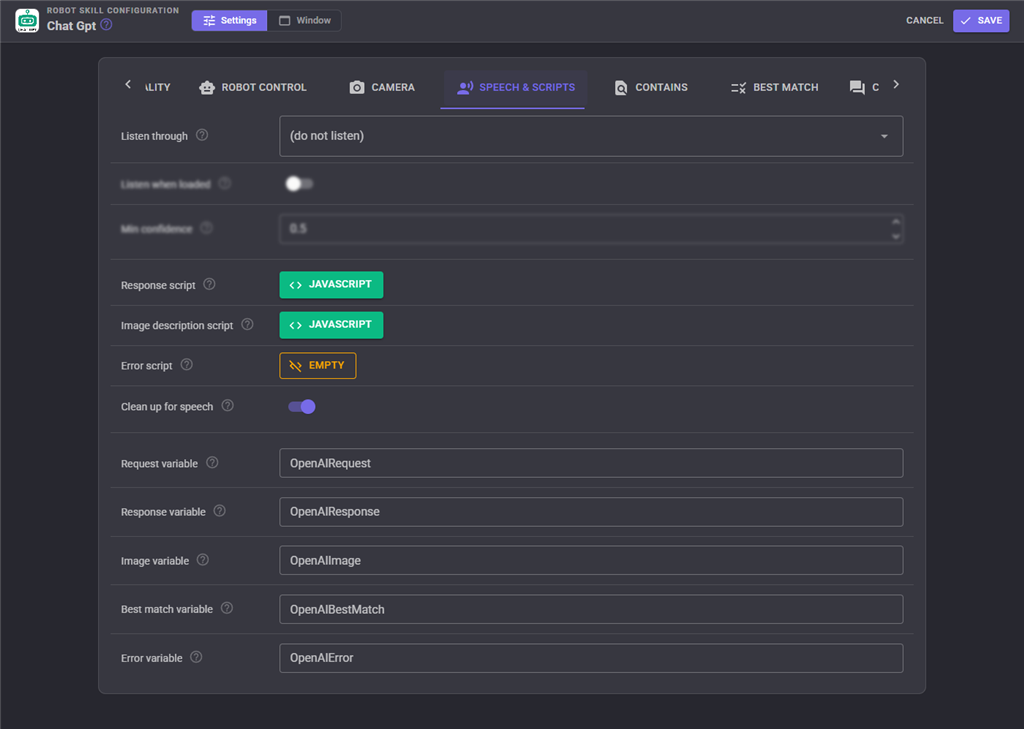
| Setting | Description | Default |
|---|---|---|
| Listen through | A speech to text robot skill. What it hears is sent to the AI as if it was typed. A wake word, if you want one, is set in that engine's own configuration. Speech heard while the AI is answering is ignored, because it is most likely the robot hearing itself. | Do not listen |
| Listen when loaded | Start listening as soon as the project loads. | Off |
| Min confidence | Ignore speech recognized below this confidence. | 0.5 |
| Response script | Runs after every answer. The default speaks it with Audio.say(getVar("OpenAIResponse")). |
Speak the answer |
| Image description script | Runs after every image description. | Speak the description |
| Error script | Runs when a request fails, with the reason in the error variable. Have the robot say it cannot think right now, for example. | Empty |
| Clean up for speech | Remove markdown and emoji from answers so text to speech reads them naturally. | On |
The variables the skill sets:
| Variable | Holds | Default name |
|---|---|---|
| Request | The last thing sent to the AI | OpenAIRequest |
| Response | The last answer, without code | OpenAIResponse |
| Image | The last image description | OpenAIImage |
| Best match | The Best Match phrase that matched last | OpenAIBestMatch |
| Error | Why the last request failed, or empty | OpenAIError |
Contains
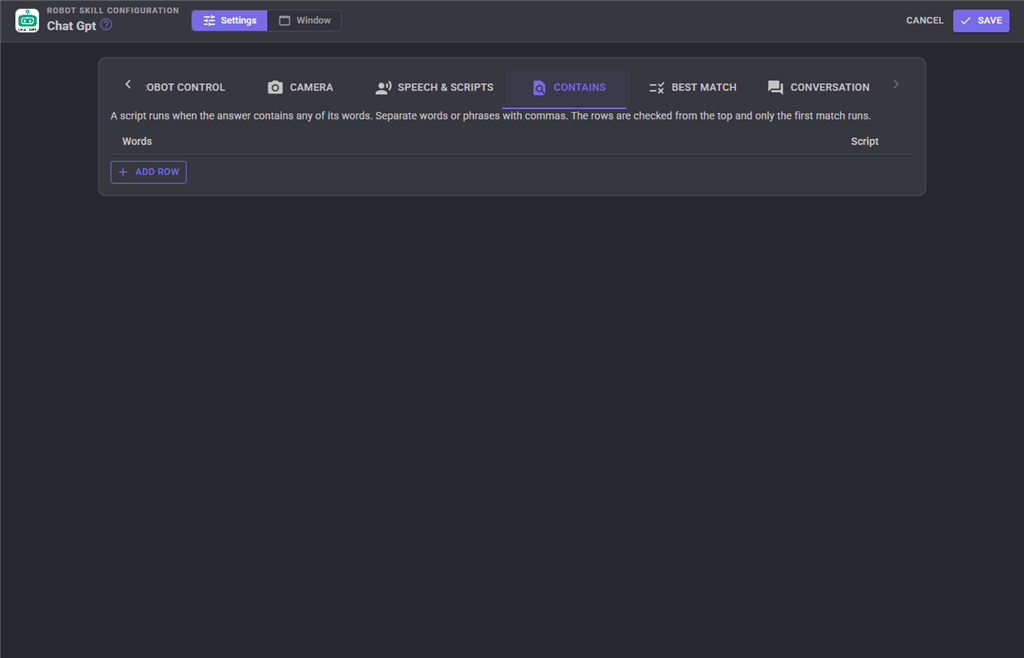
A script runs when the answer contains any of its words. Separate words or phrases with commas. Rows are checked from the top, and only the first match runs.
Best Match
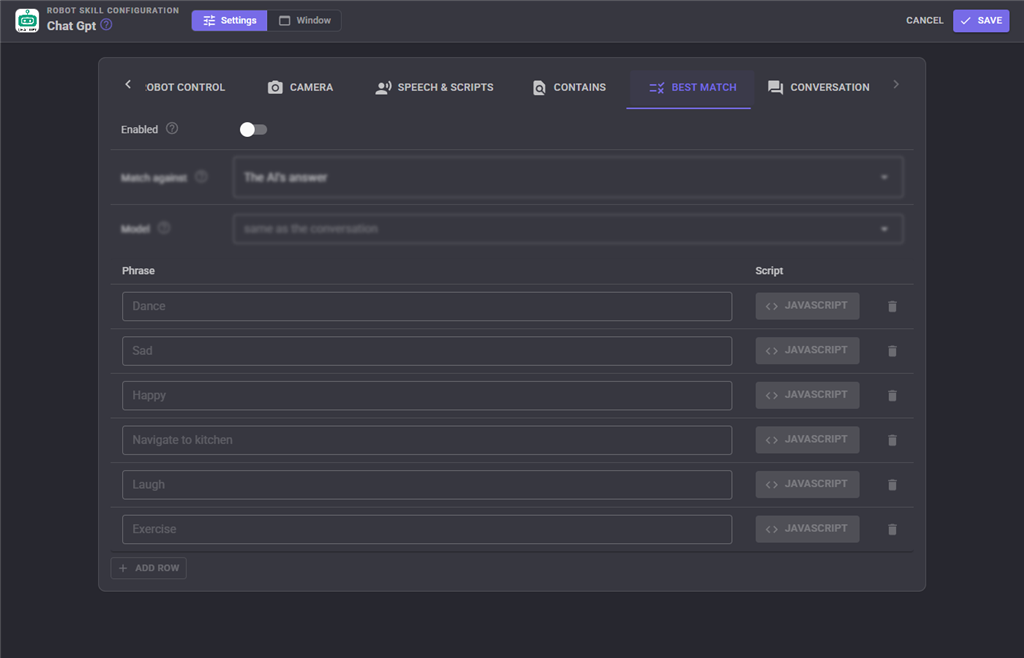
Best Match reacts to what was meant rather than to exact words. After each answer, a second, short request asks the AI which phrase in the list best describes the conversation, and that phrase's script runs. Match against the AI's answer, or against what the person said; matching what the person said runs alongside the conversation, so it adds no delay. A small, fast Model such as gpt-5-nano is plenty for matching.
Conversation
| Setting | Description | Default |
|---|---|---|
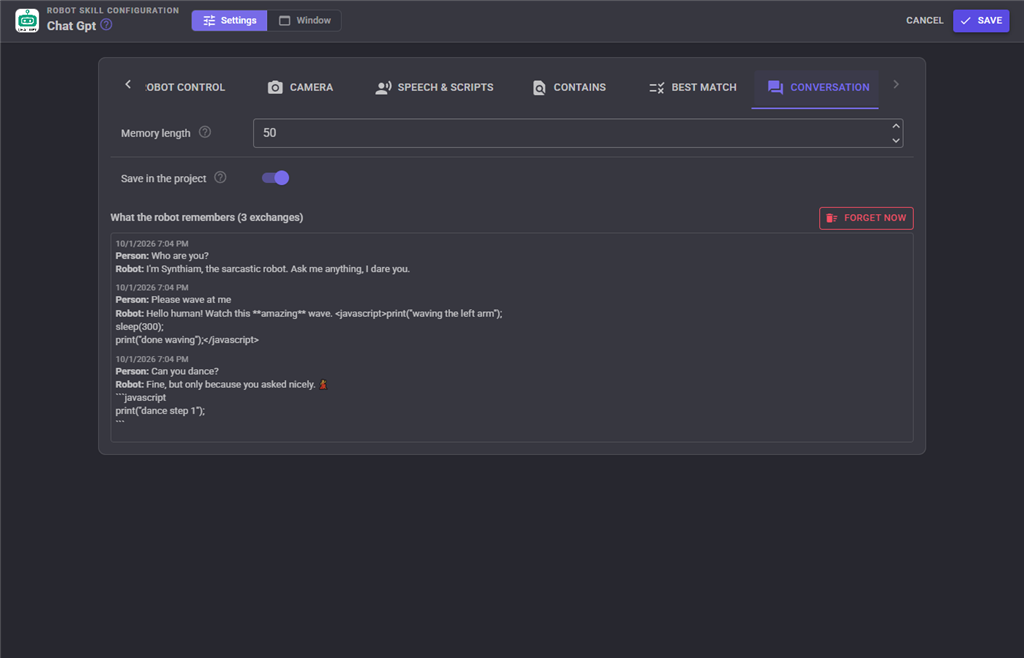
| Memory length | How many past exchanges are sent with each request. A longer memory makes each request larger and slower. | 50 |
| Save in the project | Keep the conversation in the project file, so the robot remembers it next time the project loads. | On |
The tab shows everything the robot remembers, including the code it wrote. Forget now clears it immediately.
Custom UI
The skill offers a Chat widget for your Custom UI screens: the robot's latest answer in large text that scales with the widget, a box to type to it, and optionally a button that describes what the camera sees. Its settings are Caption, ShowInput and ShowDescribe.
Tips
- Keep answers short in the personality ("1 or 2 sentences"). Short answers are faster to generate and to speak.
- For a quick conversation with a reasoning model, set Reasoning effort to Low or Minimal, and leave Max response tokens at 0.
- If the robot keeps describing the camera image when nobody asked, strengthen the Image instruction.
- If a model writes code but nothing moves, check the log: script errors from the AI's code are shown there, prefixed with the window title and Code.
- The log shows
print()output from the AI's code, which is handy when you are teaching it how your robot works.
Control Commands for the Chat Gpt robot skill
There are Control Commands available for this robot skill which allows the skill to be controlled programmatically from scripts or other robot skills. These commands enable you to automate actions, respond to sensor inputs, and integrate the robot skill with other systems or custom interfaces. If you're new to the concept of Control Commands, we have a comprehensive manual available here that explains how to use them, provides examples to get you started and make the most of this powerful feature.
Control Command ManualThis robot skill has 15 control commands, listed below. Send them from a JavaScript or Python script, from Blockly, or from another robot skill.
The first value is always the window title, which is the name in the title bar of the robot skill on your workspace. It starts out as Chat Gpt, which is what every example below uses. If you rename the robot skill, or add a second copy of it to the project, use the title as it appears on that window instead.
ControlCommand() can be shortened to CC(), and both spellings work in JavaScript and in Python. The examples are JavaScript; Python is the same call, except that true and false are written True and False.
Cancel
Stop the request being answered, every request waiting behind it, and any code the AI is running.
Syntax
ControlCommand("Chat Gpt", "Cancel")
Returns: Boolean [true or false]
Example
var result = ControlCommand("Chat Gpt", "Cancel");
DescribeImage
Take a picture with the configured camera and describe it. The Image Description script runs with the description in the image variable. Returns the description.
Syntax
ControlCommand("Chat Gpt", "DescribeImage")
Returns: String
Example
var result = ControlCommand("Chat Gpt", "DescribeImage");
DescribeImage
Take a picture with the named camera and describe it. An empty camera name uses the configured camera. Returns the description.
Syntax
ControlCommand("Chat Gpt", "DescribeImage", (String)cameraName)
Parameters
| # | Name | Type | What to pass |
|---|---|---|---|
| 1 | cameraName | Text | Your text, in quotes |
Returns: String
Example
var result = ControlCommand("Chat Gpt", "DescribeImage", "cameraName");
DescribeImage
Take a picture with the named camera and ask a question about it, i.e. "How many people are in the image?". An empty camera name uses the configured camera. Returns the answer.
Syntax
ControlCommand("Chat Gpt", "DescribeImage", (String)cameraName, (String)question)
Parameters
| # | Name | Type | What to pass |
|---|---|---|---|
| 1 | cameraName | Text | Your text, in quotes |
| 2 | question | Text | Your text, in quotes |
Returns: String
Example
var result = ControlCommand("Chat Gpt", "DescribeImage", "cameraName", "question");
GetLastResponse
The last answer, without any code.
Syntax
ControlCommand("Chat Gpt", "GetLastResponse")
Returns: String
Example
var result = ControlCommand("Chat Gpt", "GetLastResponse");
GetSecondsSinceLastRequest
Seconds since the last answer arrived. A very large number when nothing has been asked yet.
Syntax
ControlCommand("Chat Gpt", "GetSecondsSinceLastRequest")
Returns: Integer [-2,147,483,648 to 2,147,483,647]
Example
var result = ControlCommand("Chat Gpt", "GetSecondsSinceLastRequest");
IsBusy
True while a request is being answered or waiting to be.
Syntax
ControlCommand("Chat Gpt", "IsBusy")
Returns: Boolean [true or false]
Example
var result = ControlCommand("Chat Gpt", "IsBusy");
IsListening
True while what the speech to text engine hears is sent to the AI.
Syntax
ControlCommand("Chat Gpt", "IsListening")
Returns: Boolean [true or false]
Example
var result = ControlCommand("Chat Gpt", "IsListening");
ResetMemory
Forget the conversation.
Syntax
ControlCommand("Chat Gpt", "ResetMemory")
Returns: Boolean [true or false]
Example
var result = ControlCommand("Chat Gpt", "ResetMemory");
Send
Send text to the AI as if a person said it, wait for the answer and return it. The Response script runs with the answer in the response variable, and any code in the answer runs. Returns an empty string when the request failed; the reason is in the error variable.
Syntax
ControlCommand("Chat Gpt", "Send", (String)text)
Parameters
| # | Name | Type | What to pass |
|---|---|---|---|
| 1 | text | Text | Your text, in quotes |
Returns: String
Example
var result = ControlCommand("Chat Gpt", "Send", "text");
SendNoWait
Send text to the AI and return straight away. The Response script runs when the answer arrives.
Syntax
ControlCommand("Chat Gpt", "SendNoWait", (String)text)
Parameters
| # | Name | Type | What to pass |
|---|---|---|---|
| 1 | text | Text | Your text, in quotes |
Returns: Boolean [true or false]
Example
var result = ControlCommand("Chat Gpt", "SendNoWait", "text");
SendWithImage
Send text to the AI with a fresh image from the camera attached, wait for the answer and return it.
Syntax
ControlCommand("Chat Gpt", "SendWithImage", (String)text)
Parameters
| # | Name | Type | What to pass |
|---|---|---|---|
| 1 | text | Text | Your text, in quotes |
Returns: String
Example
var result = ControlCommand("Chat Gpt", "SendWithImage", "text");
SetPersonality
Replace the personality (system prompt). Saved with the project. The conversation memory is kept; call ResetMemory as well for a clean start.
Syntax
ControlCommand("Chat Gpt", "SetPersonality", (String)personality)
Parameters
| # | Name | Type | What to pass |
|---|---|---|---|
| 1 | personality | Text | Your text, in quotes |
Returns: Boolean [true or false]
Example
var result = ControlCommand("Chat Gpt", "SetPersonality", "personality");
StartListening
Start sending what the configured speech to text engine hears to the AI. Returns false when there is no engine to listen through.
Syntax
ControlCommand("Chat Gpt", "StartListening")
Returns: Boolean [true or false]
Example
var result = ControlCommand("Chat Gpt", "StartListening");
StopListening
Stop listening to the speech to text engine.
Syntax
ControlCommand("Chat Gpt", "StopListening")
Returns: Boolean [true or false]
Example
var result = ControlCommand("Chat Gpt", "StopListening");
This list is read out of the robot skill itself each time its package is uploaded, so it matches the published version (v2).




This robot skill has been updated to v1.
What has changed
first update
This robot skill has been updated to v2.
What has changed
integration support for MCP server