

AI robot skill with Hugging Face chat, vision, object finding, watching, and Whisper speech recognition for ARCx
 Windows
 ARM
ARM
 Linux
Linux
 MacOS
MacOS
How to add the Hugging Face robot skill
- Load the most recent release of ARCx on a compatible operating system (Get ARCx).
- Press the + Skills menu from the top menu bar in ARCx.
- Choose any of these category tabs, the robot skill appears in each of them: Artificial Intelligence, Audio, Camera.
- Press the Hugging Face icon to add the robot skill to your project.
Don't have a robot yet?
Follow the Getting Started Guide to build a robot and use the Hugging Face robot skill.
How to use the Hugging Face robot skill
The Hugging Face robot skill gives your robot a mind from Hugging Face, using the AI models Hugging Face and its inference providers run for you. No code is required, and nothing has to be trained.
- Talk - A vision language model sees through the robot's camera, answers out loud, remembers the conversation, and moves: it looks at whoever is talking, moves the joints you give it, drives, and does the actions you define (wave, dance, nod).
- Find - Describe anything ("the red ball", "a person waving") and the robot finds it in the picture and turns its head to look at it.
- Watch - The robot looks around every few seconds on its own. It can think (react to what it sees by itself), detect objects (people, pets, cups, chairs and 80 other everyday things, and where they are), classify the picture (facial emotions, age, food, plants and more), or run any other Hugging Face image model.
- Listen - The skill adds a Whisper speech recognition engine to ARCx, so you can press the microphone and talk to the robot. Other robot skills can use it too.
The Window
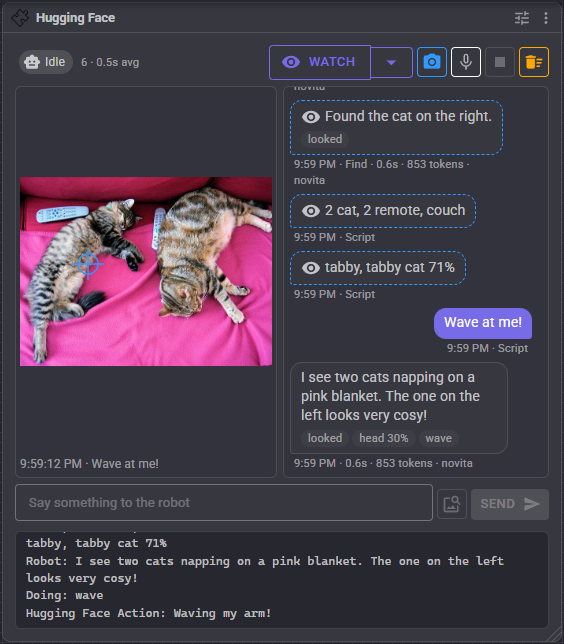
- Status - Idle, Looking (taking a picture), Thinking, Detecting, Classifying, Listening, Waiting (behind another request) or Watching. Beside it, how many requests have been answered and how long they took on average.
- Watch - Starts and stops watching. The arrow beside it chooses what watching does, and Look once now does a single look.
- Camera - Takes a picture and describes it.
- Microphone - Press and say one thing to the robot. Press again to stop listening.
- Stop - Cancels the answer being worked on, the requests waiting behind it, and the robot talking.
- Forget - Clears the conversation and the robot's memory of it (it asks first).
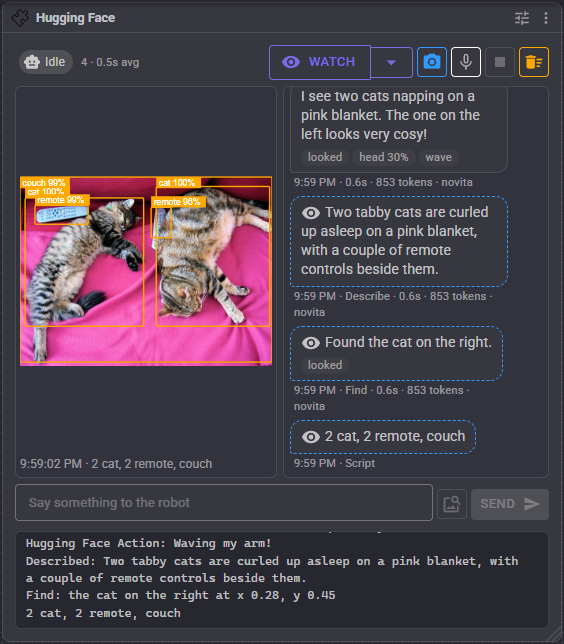
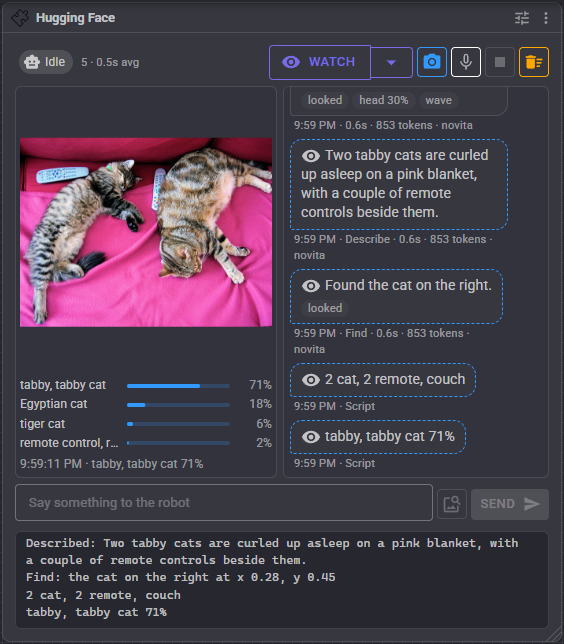
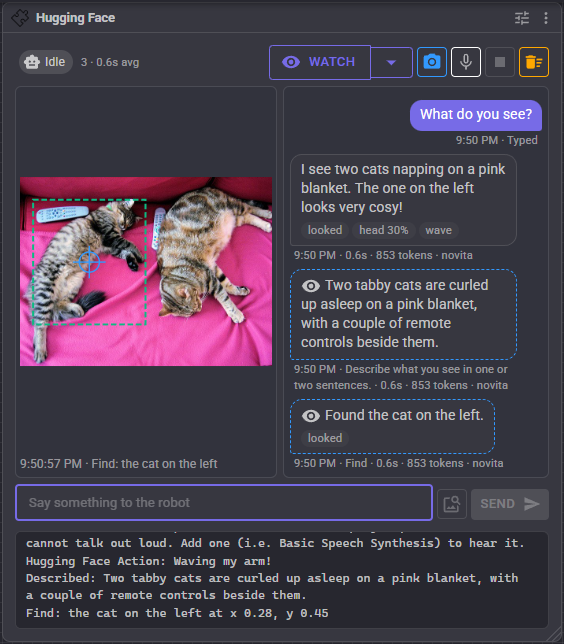
- The picture - The last picture a model looked at. Detected objects are boxed with their label and confidence, a crosshair shows where the robot decided to look, a dashed box shows what Find found, and classification labels appear as bars underneath.
- The conversation - What was said, newest at the bottom. Under each answer are chips for what the robot did (looked, a joint and its position, an action), the time the answer took, the tokens it used and the provider that answered.
- Text box - Type and press Enter, or Send. The search button beside it finds what you typed in the picture and looks at it.
- Log - What the skill did, and anything that went wrong with a plain explanation of how to fix it.
When the window is narrow, the picture and the conversation stack instead of sitting side by side.
Getting started
- Create a free Hugging Face account, and an access token with the Get a token button on the Hugging Face tab of the configuration. A fine-grained token needs the "Make calls to Inference Providers" permission; the link opens the token page with it already ticked.
- Paste the token and press Test. It shows the account the token belongs to.
- Add a camera robot skill to the project and start it.
- Add a text to speech robot skill (i.e. Basic Speech Synthesis) to hear the robot talk.
- Type "What do you see?" in the window.
The token is stored encrypted on this computer and never in the project file, so you can share a project without sharing your token. When no token is saved, the HF_TOKEN environment variable is used, as the Hugging Face tools do.
Every request uses Hugging Face inference credit. A free account includes a small monthly allowance and a PRO account includes more; the See your credit and billing link on the Hugging Face tab shows what is left.
Hugging Face
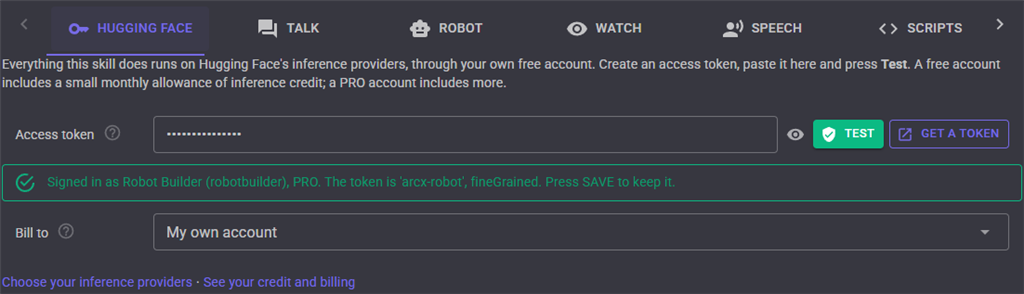
| Setting | What it does |
|---|---|
| Access token | Your Hugging Face access token, stored encrypted on this computer. Test checks it without using any credit. |
| Bill to | Your own account, or one of your organizations (listed once the token has been tested) to pay for the requests instead. |
Talk
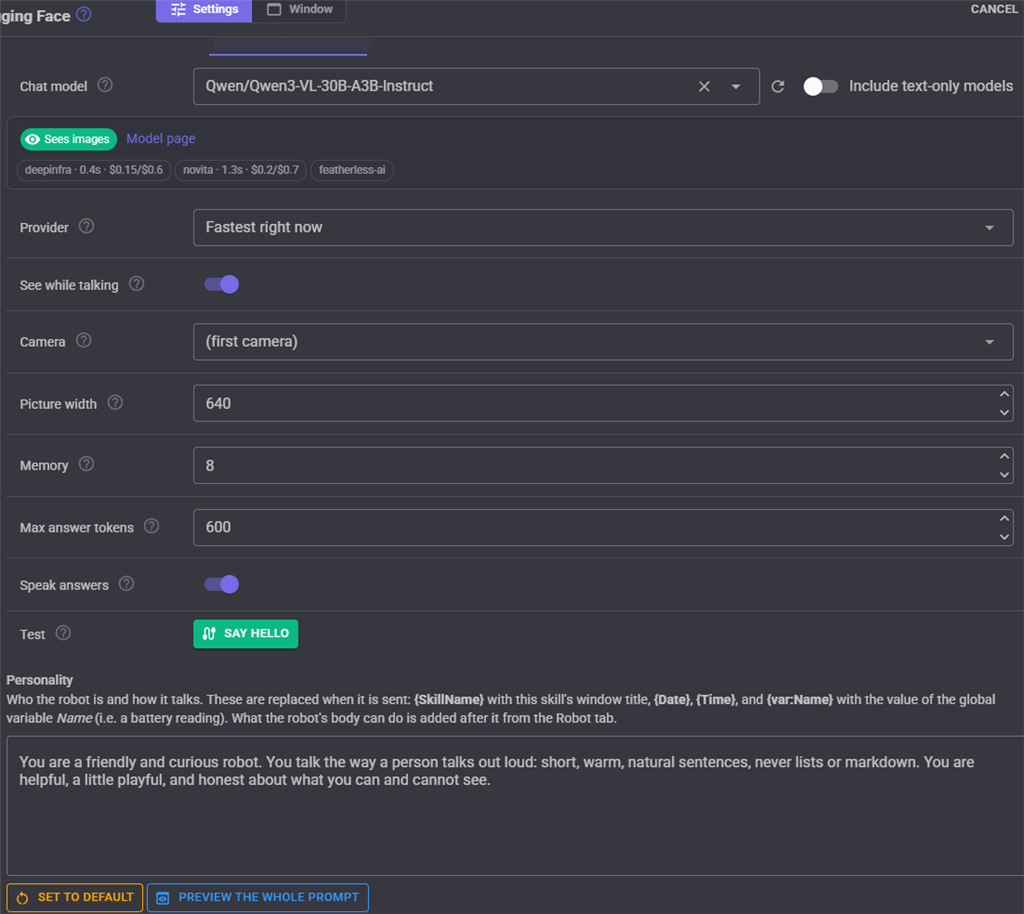
| Setting | What it does |
|---|---|
| Chat model | The vision language model the robot thinks, talks and sees with. The list is every chat model Hugging Face serves right now, the ones that see images first and the quickest first; type to search it. Below it, each provider that runs the model with how quickly it starts answering and its price per million tokens. |
| Provider | Fastest right now, Cheapest, My Hugging Face preference (the order on your inference provider settings page), or Always one provider. |
| See while talking | Sends a fresh camera picture with every question. Off, the robot only sees when asked to look (Describe, Find, Think). |
| Camera | The camera pictures come from. |
| Picture width | Pictures are scaled down to this width before they are sent. Models scale them down anyway, so larger only costs time and credit. |
| Memory | How many earlier questions and answers go with each question, so the robot remembers the conversation. The memory lasts until the project closes or Forget is pressed. |
| Max answer tokens | The most tokens one answer may use. 0 lets the model decide. |
| Speak answers | Says every answer with the project's text to speech robot skill. |
| Test | Say hello sends a hello to the model with the settings on the page, before saving them. |
| Personality | Who the robot is and how it talks. {SkillName}, {Date}, {Time} and {var:Name} (the value of the global variable Name) are replaced when it is sent. Preview the whole prompt shows everything the model is told, including what its body can do. |
A model that cannot see images still works: it talks without the camera, and the log says so once.
Robot
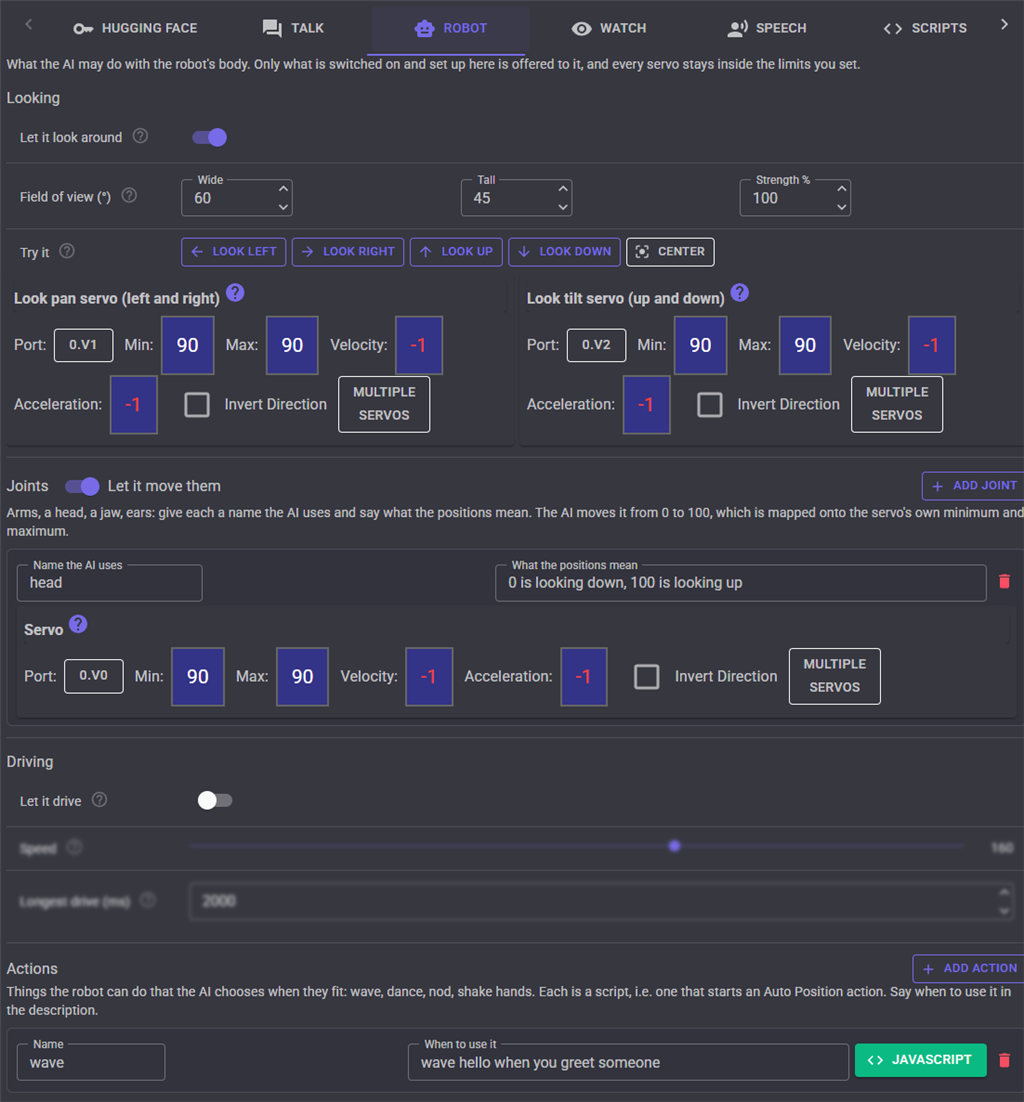
Only what is switched on and set up here is offered to the AI, and every servo stays inside the limits you set on it.
| Setting | What it does |
|---|---|
| Let it look around | The AI can turn the camera to look at any point in the picture: whoever is talking to it, or whatever it is talking about. Find uses the same servos. |
| Look pan servo / Look tilt servo | The servos that turn the camera left and right, and tilt it up and down. Set each servo's minimum and maximum to its safe range. |
| Field of view | How wide and how tall the camera sees, in degrees (a typical webcam is about 60 by 45). Strength scales every look, for a camera that overshoots or falls short. |
| Try it | Moves the look servos with the settings on the page, before saving. Look right should turn the camera right and Look up should tilt it up; tick Invert on a servo that goes the wrong way. |
| Joints | Arms, a head, a jaw, ears. Give each a name the AI uses and say what the positions mean ("0 is down at the side, 100 is straight up"). The AI moves it from 0 to 100, which is mapped onto the servo's own minimum and maximum. |
| Let it drive | The AI can drive forward and back and turn through the project's movement panel, at the Speed set here. Every drive stops by itself after Longest drive, whatever the AI asked for. |
| Actions | Things the robot can do, each a name, a description of when to use it, and a script (i.e. one that starts an Auto Position action). The AI chooses them when they fit; scripts can run one with the DoAction ControlCommand too. |
The AI controls the robot by answering in a small JSON format, which every vision model on Hugging Face can write, so the skill works with all of them rather than only those whose provider supports tool calling. Thinking models are fine: their thinking is ignored.
Watch
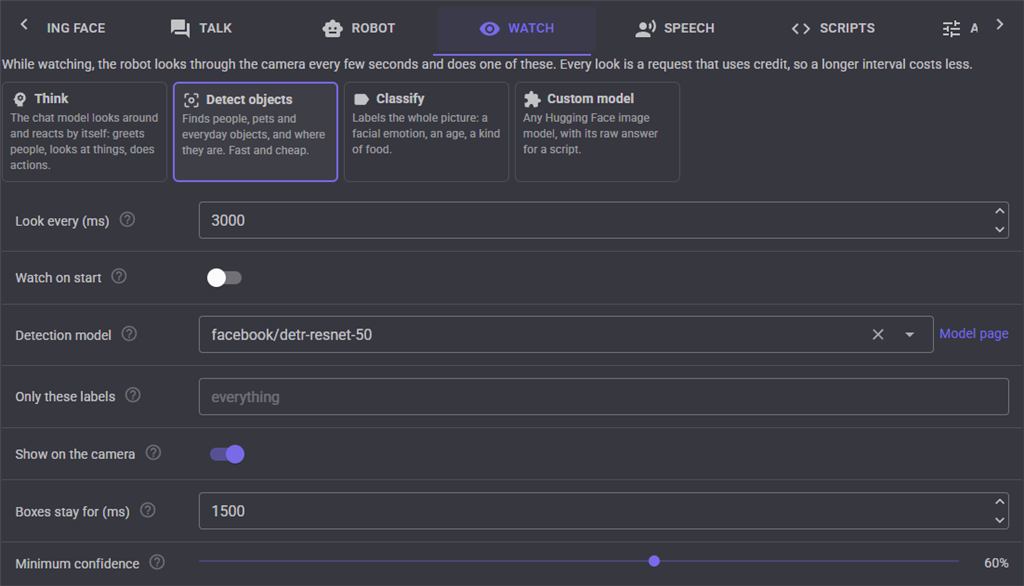
| Mode | What it does |
|---|---|
| Think | The chat model looks around with the instruction in What to think about, remembers what it saw before, and reacts by itself: greets a person who arrives, looks at something that moved, does an action, or stays quiet. It waits for the robot to finish talking before it looks again. |
| Detect objects | An object detection model finds people, pets and everyday objects and where they are, quickly and cheaply. Only these labels limits it to the objects you care about. |
| Classify | An image classification model labels the whole picture. Search for a model that recognizes what you care about: the chips (emotion, age, food...) pick the most liked match. A model that reads facial emotions lets the robot react to how you feel. |
| Custom model | Any Hugging Face model that takes an image. Its raw JSON answer goes in the ModelResponse variable for the On Vision script to read. Parameters are sent with the picture when the model needs them. |
| Setting | What it does |
|---|---|
| Look every | How long between looks while watching. Every look is a request that uses credit, so longer costs less. |
| Watch on start | Starts watching when the project loads. |
| Minimum confidence | Detections scoring less are ignored. For classification, the best label must score at least this to be taken as the answer; the top labels are always shown. |
| Show on the camera | Draws the detection boxes on the camera's own video too, and reports them as detections, so the Vision Detection Tracking Script robot skill can follow them with servos or the movement panel. Results arrive every few seconds, so set that skill's lost time longer than Look every. |
| Boxes stay for | How long the boxes stay on the camera's video after each result. Shorter is better on a camera that moves. |
The model lists show only the models Hugging Face serves right now, each with how many people like it and how long a request takes. Any model id can be typed instead.
Watching stops by itself when Hugging Face refuses the same request several times in a row (a token that does not work, credit that has run out), so a problem does not spend the night failing.
Speech
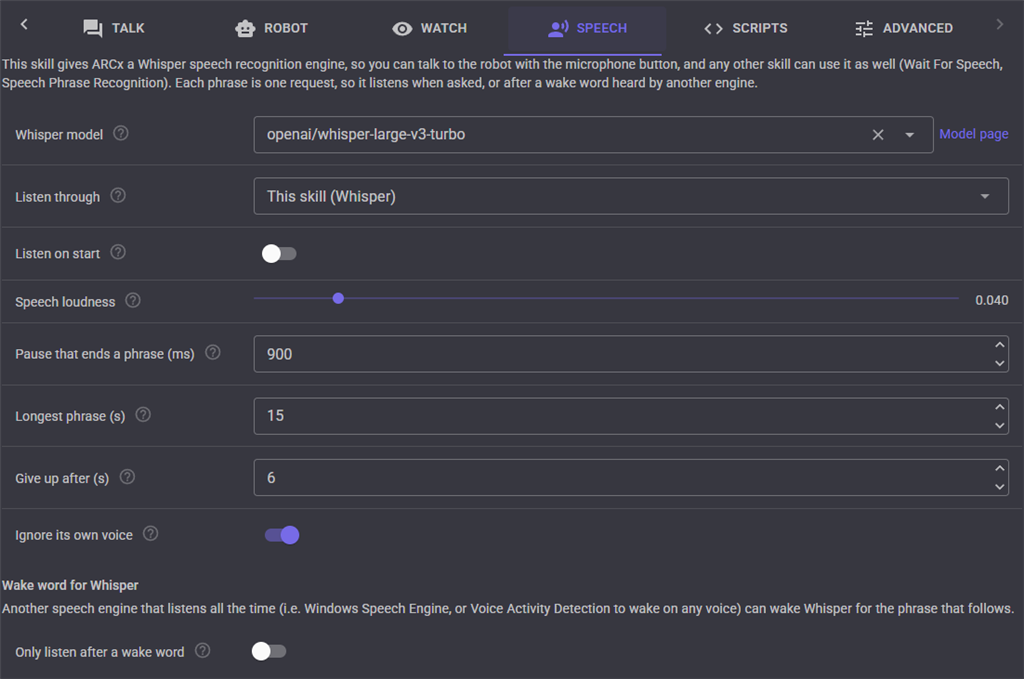
This skill gives ARCx a Whisper speech recognition engine. The microphone button uses it unless another speech to text robot skill is chosen, and every other skill in the project can use it as well: the Wait For Speech popup, Audio.waitForSpeech() in a script, or Speech Phrase Recognition.
Each phrase is one recording sent to Hugging Face, so the engine never listens all the time by itself. It listens when something asks it to, or after a wake word heard by another speech engine that does listen all the time (i.e. Windows Speech Engine, or Voice Activity Detection to wake on any voice), set under Wake word for Whisper.
| Setting | What it does |
|---|---|
| Whisper model | The speech recognition model. whisper-large-v3-turbo is quick and accurate in many languages. |
| Listen through | The speech recognition the microphone button and the Listen commands use. |
| Listen on start | Sends everything the engine above hears to the robot from when the project loads. Needs an engine that listens all the time, or Whisper with a wake word. |
| Speech loudness | How loud the microphone must be to count as speech. Lower it if quiet speech is missed; raise it if background noise keeps a recording going. |
| Pause that ends a phrase | How long the speaker must be quiet before the phrase is sent. |
| Longest phrase | The longest one recording may be. |
| Give up after | How long to wait for somebody to start talking. Nothing is sent when nobody does, so silence costs nothing. |
| Ignore its own voice | Does not listen while the robot is talking, so it does not hear itself. |
Scripts and variables
| Script | When it runs |
|---|---|
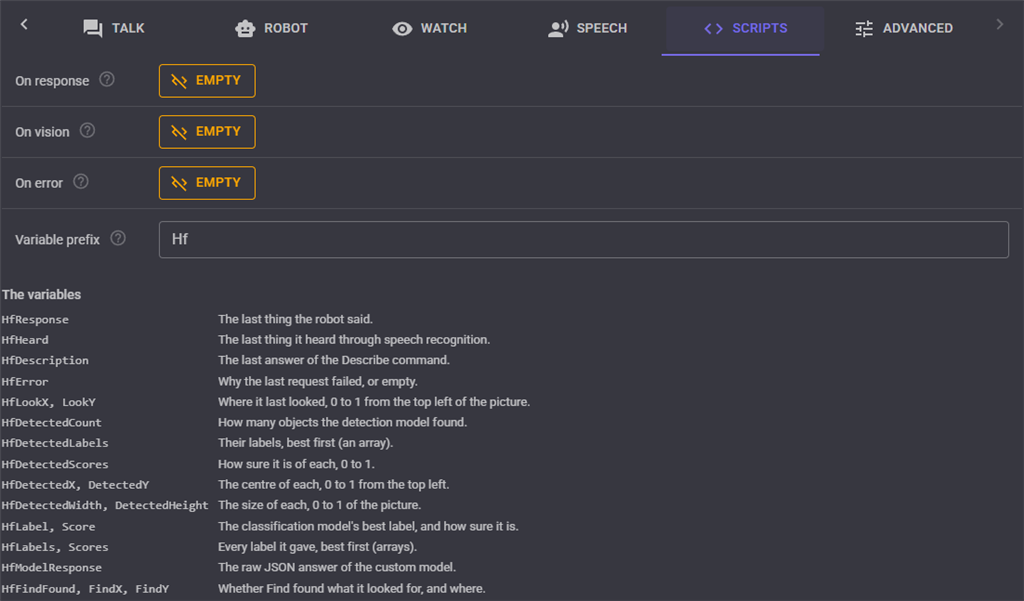
| On response | After every answer from the robot. |
| On vision | After every detection, classification or custom model result. |
| On error | When a request fails, with the reason in the Error variable. |
The variables all start with the Variable prefix (Hf unless you change it, and give each copy of the skill its own):
| Variable | What it holds |
|---|---|
| HfResponse | The last thing the robot said. |
| HfHeard | The last thing it heard through speech recognition. |
| HfDescription | The last answer of the Describe command. |
| HfError | Why the last request failed, or empty. |
| HfLookX, HfLookY | Where it last looked, 0 to 1 from the top left of the picture. |
| HfDetectedCount | How many objects the detection model found. |
| HfDetectedLabels, HfDetectedScores | Their labels and confidences, best first. |
| HfDetectedX, HfDetectedY, HfDetectedWidth, HfDetectedHeight | The centre and size of each, 0 to 1 of the picture. |
| HfLabel, HfScore | The best classification label, when it is sure enough, and its confidence. |
| HfLabels, HfScores | The top classification labels and their confidences, best first. |
| HfModelResponse | The raw JSON answer of the custom model. |
| HfFindFound, HfFindX, HfFindY | Whether Find found what it looked for, and where. |
A script can talk to the robot and use the answer, i.e. var answer = ControlCommand("Hugging Face", "Ask", "Is anyone in the room?");, ask about the picture without the robot saying anything with Describe, or have it look for something with Find. Every command waits for its answer and returns it.
An On Vision script that reacts to a facial emotion classifier:
if (getVar("HfLabel") == "happy")
  Audio.say("You look happy today!");
Advanced
| Setting | What it does |
|---|---|
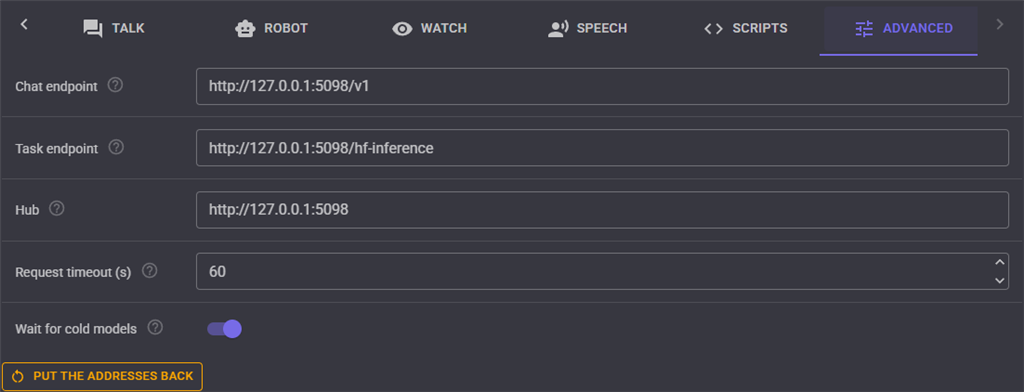
| Chat endpoint | The OpenAI compatible chat completions address. Change it for a dedicated Inference Endpoint, or a TGI or vLLM server of your own. |
| Task endpoint | Where the detection, classification, custom and Whisper models are called. |
| Hub | The Hugging Face Hub, for testing the token and listing models. |
| Request timeout | How long to wait for one answer before giving up. |
| Wait for cold models | Asks Hugging Face to wait while a model that has not been used lately loads, rather than failing with "model is loading". |
Put the addresses back restores the Hugging Face addresses.
Custom UI
The skill offers two widgets for your own control panel screens: Talk (what the robot said last, a box to talk to it, and a microphone button) and What it sees (the last picture with its boxes and labels, and a button to watch).
Control Commands for the Hugging Face robot skill
There are Control Commands available for this robot skill which allows the skill to be controlled programmatically from scripts or other robot skills. These commands enable you to automate actions, respond to sensor inputs, and integrate the robot skill with other systems or custom interfaces. If you're new to the concept of Control Commands, we have a comprehensive manual available here that explains how to use them, provides examples to get you started and make the most of this powerful feature.
Control Command ManualThis robot skill has 30 control commands, listed below. Send them from a JavaScript or Python script, from Blockly, or from another robot skill.
The first value is always the window title, which is the name in the title bar of the robot skill on your workspace. It starts out as Hugging Face, which is what every example below uses. If you rename the robot skill, or add a second copy of it to the project, use the title as it appears on that window instead.
ControlCommand() can be shortened to CC(), and both spellings work in JavaScript and in Python. The examples are JavaScript; Python is the same call, except that true and false are written True and False.
Ask
Say something to the robot and wait for its answer. It sees the camera when that is switched on in the configuration, speaks the answer, and moves, looks and does actions as it decides. Returns what it said, or an empty string when the request failed (the reason is in the Error variable).
Syntax
ControlCommand("Hugging Face", "Ask", (String)text)
Parameters
| # | Name | Type | What to pass |
|---|---|---|---|
| 1 | text | Text | Your text, in quotes |
Returns: String
Example
var result = ControlCommand("Hugging Face", "Ask", "text");
AskNoWait
Say something to the robot and return straight away. The On Response script runs when it has answered.
Syntax
ControlCommand("Hugging Face", "AskNoWait", (String)text)
Parameters
| # | Name | Type | What to pass |
|---|---|---|---|
| 1 | text | Text | Your text, in quotes |
Returns: Boolean [true or false]
Example
var result = ControlCommand("Hugging Face", "AskNoWait", "text");
AskWithImage
The same as Ask, always with a fresh camera picture.
Syntax
ControlCommand("Hugging Face", "AskWithImage", (String)text)
Parameters
| # | Name | Type | What to pass |
|---|---|---|---|
| 1 | text | Text | Your text, in quotes |
Returns: String
Example
var result = ControlCommand("Hugging Face", "AskWithImage", "text");
AskWithoutImage
The same as Ask, without a camera picture. Quicker and cheaper for a question that is not about what the robot sees.
Syntax
ControlCommand("Hugging Face", "AskWithoutImage", (String)text)
Parameters
| # | Name | Type | What to pass |
|---|---|---|---|
| 1 | text | Text | Your text, in quotes |
Returns: String
Example
var result = ControlCommand("Hugging Face", "AskWithoutImage", "text");
Cancel
Stop the request being answered, every request waiting behind it, and the robot talking.
Syntax
ControlCommand("Hugging Face", "Cancel")
Returns: Boolean [true or false]
Example
var result = ControlCommand("Hugging Face", "Cancel");
CenterLook
Put the look servos back in the middle of their ranges.
Syntax
ControlCommand("Hugging Face", "CenterLook")
Returns: Boolean [true or false]
Example
var result = ControlCommand("Hugging Face", "CenterLook");
Classify
Label a fresh picture with the image classification model. Fills the Label, Score, Labels and Scores variables and runs the On Vision script. Returns the best label, or an empty string when none scored high enough.
Syntax
ControlCommand("Hugging Face", "Classify")
Returns: String
Example
var result = ControlCommand("Hugging Face", "Classify");
Describe
Take a picture and describe it in a sentence or two. Nothing is said out loud and nothing moves. Returns the description, which also goes in the Description variable.
Syntax
ControlCommand("Hugging Face", "Describe")
Returns: String
Example
var result = ControlCommand("Hugging Face", "Describe");
Describe
Take a picture and answer a question about it, i.e. "How many people are there?" or "Is the door open?". Nothing is said out loud and nothing moves. Returns the answer.
Syntax
ControlCommand("Hugging Face", "Describe", (String)question)
Parameters
| # | Name | Type | What to pass |
|---|---|---|---|
| 1 | question | Text | Your text, in quotes |
Returns: String
Example
var result = ControlCommand("Hugging Face", "Describe", "question");
Detect
Find the objects in a fresh picture with the object detection model. Fills the Detected variables (labels, scores, positions) and runs the On Vision script. Returns how many were found, or -1 when the request failed.
Syntax
ControlCommand("Hugging Face", "Detect")
Returns: Integer [-2,147,483,648 to 2,147,483,647]
Example
var result = ControlCommand("Hugging Face", "Detect");
DoAction
Run one of the actions on the Robot tab by its name, as the AI would. Returns false when there is no action with that name.
Syntax
ControlCommand("Hugging Face", "DoAction", (String)name)
Parameters
| # | Name | Type | What to pass |
|---|---|---|---|
| 1 | name | Text | Your text, in quotes |
Returns: Boolean [true or false]
Example
var result = ControlCommand("Hugging Face", "DoAction", "name");
Find
Look for something by describing it, i.e. "the red ball" or "a person waving", and turn the camera to it with the look servos when it is found. Nothing has to be trained. Returns whether it was found; FindX and FindY say where, 0 to 1.
Syntax
ControlCommand("Hugging Face", "Find", (String)thing)
Parameters
| # | Name | Type | What to pass |
|---|---|---|---|
| 1 | thing | Text | Your text, in quotes |
Returns: Boolean [true or false]
Example
var result = ControlCommand("Hugging Face", "Find", "thing");
GetLastResponse
The last thing the robot said.
Syntax
ControlCommand("Hugging Face", "GetLastResponse")
Returns: String
Example
var result = ControlCommand("Hugging Face", "GetLastResponse");
IsBusy
True while a request is being answered or waiting to be.
Syntax
ControlCommand("Hugging Face", "IsBusy")
Returns: Boolean [true or false]
Example
var result = ControlCommand("Hugging Face", "IsBusy");
IsListening
True while what the speech engine hears goes to the robot.
Syntax
ControlCommand("Hugging Face", "IsListening")
Returns: Boolean [true or false]
Example
var result = ControlCommand("Hugging Face", "IsListening");
IsWatching
True while watching.
Syntax
ControlCommand("Hugging Face", "IsWatching")
Returns: Boolean [true or false]
Example
var result = ControlCommand("Hugging Face", "IsWatching");
Listen
Listen for one phrase through the speech engine set on the Speech tab (this skill's Whisper engine unless another is chosen) and return what was heard, or an empty string.
Syntax
ControlCommand("Hugging Face", "Listen")
Returns: String
Example
var result = ControlCommand("Hugging Face", "Listen");
ListenAndAsk
Listen for one phrase and say it to the robot, like the microphone button. Returns the robot's answer.
Syntax
ControlCommand("Hugging Face", "ListenAndAsk")
Returns: String
Example
var result = ControlCommand("Hugging Face", "ListenAndAsk");
LookAt
Turn the camera with the look servos so the point x, y of the picture ends up in the middle. x and y run 0 to 1 from the top left; 0.5, 0.5 is the middle. Returns whether a servo moved.
Syntax
ControlCommand("Hugging Face", "LookAt", (Number)x, (Number)y)
Parameters
| # | Name | Type | What to pass |
|---|---|---|---|
| 1 | x | Number | A number, without quotes |
| 2 | y | Number | A number, without quotes |
Returns: Boolean [true or false]
Example
var result = ControlCommand("Hugging Face", "LookAt", 0, 0);
QueryModel
Run any Hugging Face image model on a fresh picture and return its raw JSON answer, which also goes in the ModelResponse variable.
Syntax
ControlCommand("Hugging Face", "QueryModel", (String)model)
Parameters
| # | Name | Type | What to pass |
|---|---|---|---|
| 1 | model | Text | Your text, in quotes |
Returns: String
Example
var result = ControlCommand("Hugging Face", "QueryModel", "model");
QueryModel
Run any Hugging Face image model on a fresh picture with JSON parameters, i.e. {"top_k": 3}, and return its raw JSON answer.
Syntax
ControlCommand("Hugging Face", "QueryModel", (String)model, (String)parametersJson)
Parameters
| # | Name | Type | What to pass |
|---|---|---|---|
| 1 | model | Text | Your text, in quotes |
| 2 | parametersJson | Text | Your text, in quotes |
Returns: String
Example
var result = ControlCommand("Hugging Face", "QueryModel", "model", "parametersJson");
ReleaseServos
Release every servo the AI can move (the joints and the look servos) so none holds its position. Returns how many were released.
Syntax
ControlCommand("Hugging Face", "ReleaseServos")
Returns: Integer [-2,147,483,648 to 2,147,483,647]
Example
var result = ControlCommand("Hugging Face", "ReleaseServos");
ResetMemory
Forget the conversation.
Syntax
ControlCommand("Hugging Face", "ResetMemory")
Returns: Boolean [true or false]
Example
var result = ControlCommand("Hugging Face", "ResetMemory");
SetChatModel
Change the vision chat model, by Hugging Face model id, i.e. Qwen/Qwen3-VL-30B-A3B-Instruct. Saved with the project.
Syntax
ControlCommand("Hugging Face", "SetChatModel", (String)model)
Parameters
| # | Name | Type | What to pass |
|---|---|---|---|
| 1 | model | Text | Your text, in quotes |
Returns: Boolean [true or false]
Example
var result = ControlCommand("Hugging Face", "SetChatModel", "model");
SetPersonality
Replace who the robot is and how it talks. Saved with the project. The conversation memory is kept; call ResetMemory too for a clean start.
Syntax
ControlCommand("Hugging Face", "SetPersonality", (String)personality)
Parameters
| # | Name | Type | What to pass |
|---|---|---|---|
| 1 | personality | Text | Your text, in quotes |
Returns: Boolean [true or false]
Example
var result = ControlCommand("Hugging Face", "SetPersonality", "personality");
SetWatchMode
Change what watching does: Think (the AI looks around and decides what to do), DetectObjects, ClassifyImage or CustomModel. Takes effect on the next look.
Syntax
ControlCommand("Hugging Face", "SetWatchMode", (String)mode)
Parameters
| # | Name | Type | What to pass |
|---|---|---|---|
| 1 | mode | Text | Your text, in quotes |
Returns: Boolean [true or false]
Example
var result = ControlCommand("Hugging Face", "SetWatchMode", "mode");
StartListening
Send everything the speech engine hears to the robot. Needs an engine that can listen continuously, or one with a wake word. Returns false when there is no engine to listen through.
Syntax
ControlCommand("Hugging Face", "StartListening")
Returns: Boolean [true or false]
Example
var result = ControlCommand("Hugging Face", "StartListening");
StartWatching
Start looking through the camera every few seconds in the configured watch mode. Returns false when there is no access token.
Syntax
ControlCommand("Hugging Face", "StartWatching")
Returns: Boolean [true or false]
Example
var result = ControlCommand("Hugging Face", "StartWatching");
StopListening
Stop sending what the speech engine hears to the robot.
Syntax
ControlCommand("Hugging Face", "StopListening")
Returns: Boolean [true or false]
Example
var result = ControlCommand("Hugging Face", "StopListening");
StopWatching
Stop watching.
Syntax
ControlCommand("Hugging Face", "StopWatching")
Returns: Boolean [true or false]
Example
var result = ControlCommand("Hugging Face", "StopWatching");
This list is read out of the robot skill itself each time its package is uploaded, so it matches the published version (v1).




This robot skill has been updated to v1.
What has changed
initial release