

Voice command phrase recognition that triggers scripts via your project’s speech-to-text engine, with confidence filtering and wake-word support.
 Windows
 ARM
ARM
 Linux
Linux
 MacOS
MacOS
How to add the Speech Phrase Recognition robot skill
- Load the most recent release of ARCx on a compatible operating system (Get ARCx).
- Press the + Skills menu from the top menu bar in ARCx.
- Choose the Audio category tab.
- Press the Speech Phrase Recognition icon to add the robot skill to your project.
Don't have a robot yet?
Follow the Getting Started Guide to build a robot and use the Speech Phrase Recognition robot skill.
How to use the Speech Phrase Recognition robot skill
Listens for a list of phrases you define and runs a script when one of them is spoken. This is how a robot gets voice commands - "robot move forward", "go to sleep", "what time is it".
It does not do the listening itself. It uses whichever speech to text engine skill is in the project (Windows Speech Engine, Azure Speech To Text Engine, or any other), hands that engine the list of phrases as its grammar, and reacts to what comes back.
Only one instance per project.
Requirements
- A speech to text engine robot skill in the project. Any of them will do, including one that answers a phrase at a time - ARCx starts it again after each phrase. An engine that only listens when it is triggered, such as Azure Speech To Text Engine, needs a wake word set in its own configuration before anything is heard here.
- A working microphone.
Adding it to a project
- Add a speech to text engine skill (for example Windows Speech Engine).
- Add Speech Phrase Recognition (Audio category).
- Open its configuration. The Speech To Text Engine is filled in with the first engine found, so usually there is nothing to change.
- Edit the phrase table at the bottom: each row is a phrase and the script that runs when it is heard. The skill ships with movement commands as examples.
- Save. Listening starts immediately.
If no engine is selected when the project loads, the first available one is chosen automatically.
The window
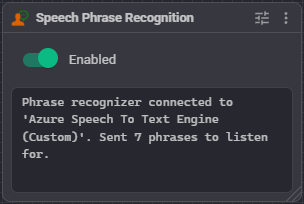
- Enabled switch - when off, phrases are still recognized and logged but their scripts do not run. The enable and disable phrases still work.
- Log - every recognized phrase with its confidence, low-confidence rejections, wake and sleep transitions, microphone hints from the engine, and script output.
How a phrase is handled
When the engine reports speech, in this order:
SpeechPhraseandSpeechConfidenceare set, whatever happens next.- If the confidence is below Min Confidence, the Low Confidence Script runs and nothing else happens. Engines that report no confidence of their own are not filtered this way, because every phrase from them arrives at full confidence.
- If it matches the Enable Phrase, listening is enabled and the Enable Script runs.
- If it matches the Disable Phrase, listening is disabled and the Disable Script runs.
- If the skill is disabled, nothing more happens.
- If it matches a row in the phrase table: the Any Detected Phrase Script runs first and is waited for, then that row's script is started in the background.
The enable and disable phrases work even while the skill is disabled - that is how you switch it back on by voice.
Wake words
The wake word is a setting of the engine, not of this skill. Open the configuration of the speech to text engine you selected and turn on its wake word: pick which other engine listens for the wake phrase, type the phrase, and set how long it stays awake.
That is where the setting belongs because it describes the engine - a cloud engine billed per phrase should not be listening all day, whether this skill or an AI skill is the one using it. ARCx does the waking itself, so nothing needs configuring here.
What this skill sees of it:
- While the engine is asleep, nothing is recognized and
SpeechAwakeisfalse. - When the wake phrase is heard, the Engine Woke Script runs and
SpeechAwakebecomestrue. Phrases are recognized from then on. - Every phrase heard keeps the engine awake for another Stay Awake window.
- When that window lapses, the Engine Slept Script runs and
SpeechAwakereturns tofalse.
Most engines with no wake word configured listen whenever this skill asks them to: their wake and sleep scripts never run and SpeechAwake stays true.
An engine that only listens when it is triggered, such as Azure Speech To Text Engine, is the exception. With no wake word set it stays quiet and nothing is ever recognized here
- it says so in this skill log when listening starts. That is deliberate: such an engine is rationed or billed per phrase, and ARCx will not spend that allowance listening to an empty room. Set a wake word in that engine configuration, or drive it by hand with the Wake control command.
The Wake and Sleep control commands work the same way, on whichever engine is selected. Wake is also how a script can drive a triggered engine with no wake word set: it listens for one phrase and goes quiet again. They do nothing for an ordinary engine that is never asleep.
Variables published
| Variable | Contents |
|---|---|
SpeechPhrase |
The text of the last recognized phrase. Set even when the confidence was too low. |
SpeechConfidence |
The confidence of that phrase, 0 to 1. |
SpeechAwake |
true while the engine is listening, false while it waits for its wake word. Always true for an engine without one. |
All three names are configurable.
Configuration
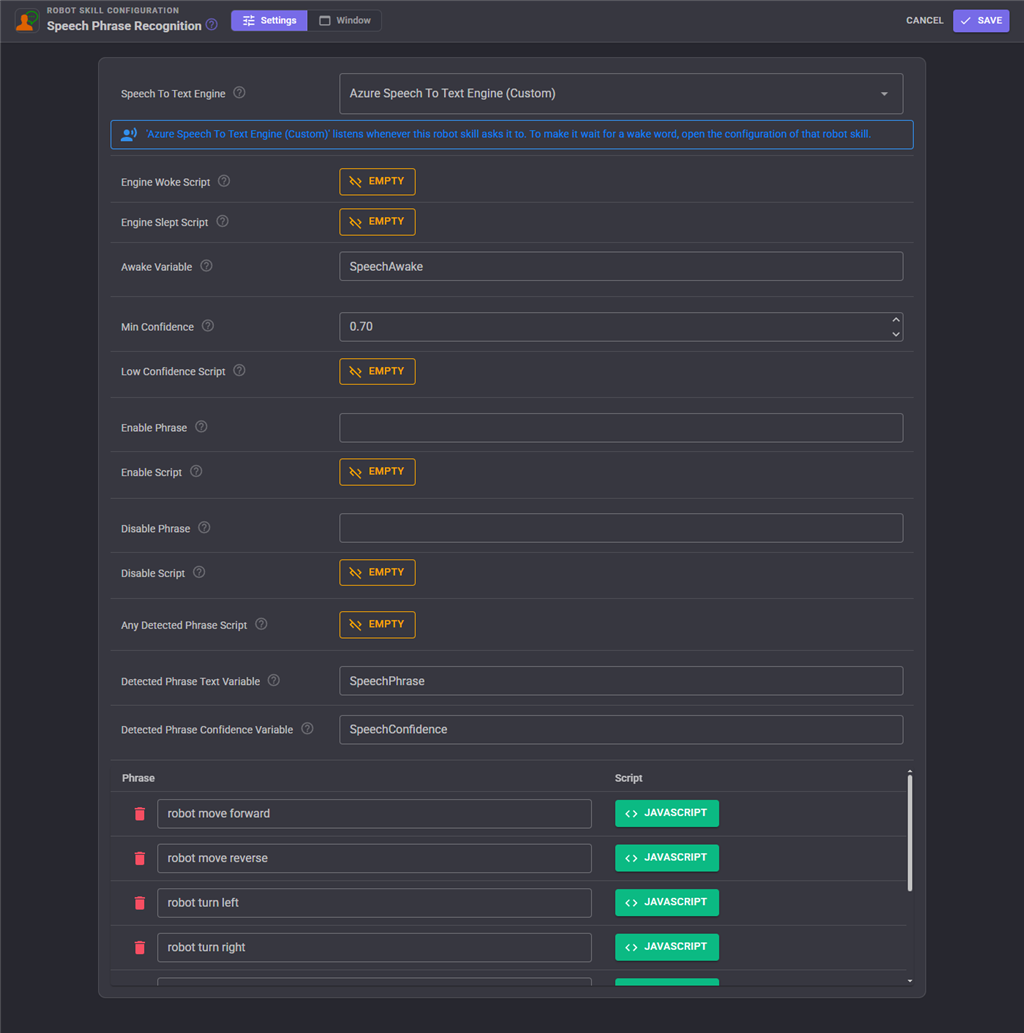
| Setting | Meaning | Default |
|---|---|---|
| Speech To Text Engine | The engine that listens for the phrases. Every engine in the project is offered. | first found |
| Engine Woke Script | Runs when the engine hears its wake word - a beep, an LED, a spoken "yes?". Never runs for an engine without one. | empty |
| Engine Slept Script | Runs when the awake window of the engine lapses. | empty |
| Awake Variable | Name of the awake variable. | SpeechAwake |
| Min Confidence | Phrases below this confidence are rejected. 1 is certain, 0.5 is halfway. Lower it for a poor microphone, but too low invites false positives. Ignored for engines that report no confidence. | 0.70 |
| Low Confidence Script | Runs when something was heard but rejected - a good place for asking the person to repeat themselves. | empty |
| Enable Phrase | Spoken phrase that re-enables acting on commands. Empty to disable the feature. | empty |
| Enable Script | Runs when the enable phrase is heard. | empty |
| Disable Phrase | Spoken phrase that pauses acting on commands. Empty to disable the feature. | empty |
| Disable Script | Runs when the disable phrase is heard. | empty |
| Any Detected Phrase Script | Runs before any matched phrase's own script, and is waited for. Use it for a common acknowledgement. | empty |
| Detected Phrase Text Variable | Name of the phrase variable. | SpeechPhrase |
| Detected Phrase Confidence Variable | Name of the confidence variable. | SpeechConfidence |
| Phrase table | The phrases and their scripts. Add rows with the + button, remove them with the bin icon. | 7 example rows |
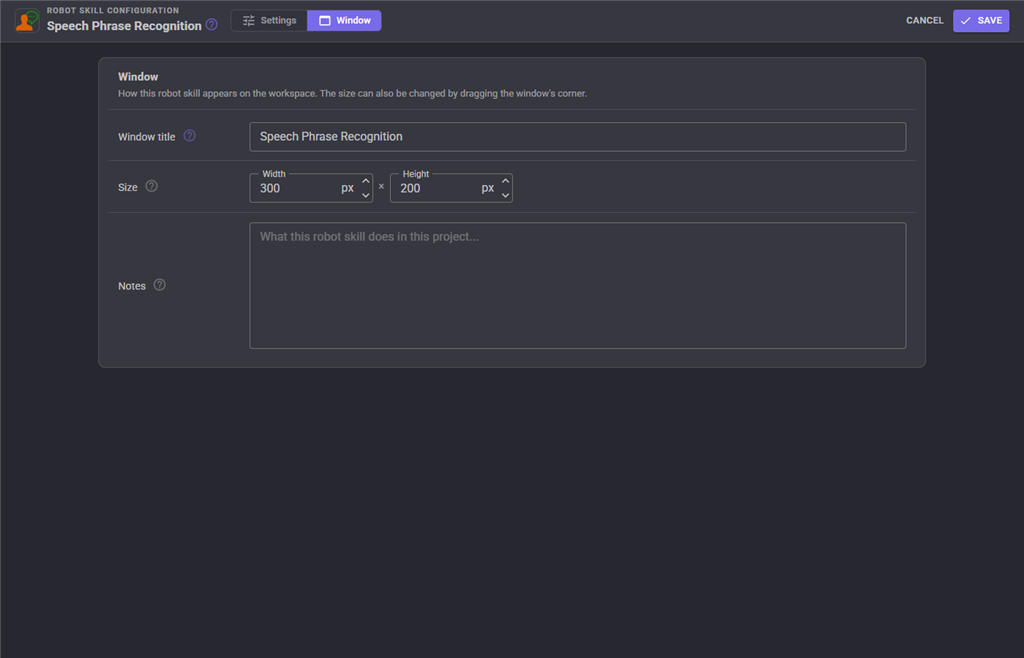
The Window tab sets the robot skill's window title, its size on the workspace and notes about what it does in this project.
Writing good phrases
- The whole phrase list is given to the engine as its grammar, so an engine that supports a grammar only ever tries to hear these phrases. Short, distinct, multi-word phrases work best. A cloud engine that only does free text ignores the list, and this skill matches the text itself.
- Avoid phrases that sound alike; "robot move forward" and "robot move backward" differ by one word and are the usual cause of the wrong script running.
- Prefixing every command with the robot's name ("robot stop") makes accidental triggers from ordinary conversation much rarer.
- Matching is case-insensitive, trimmed, and on the whole phrase.
The example phrases include two rows that call PhrasesShow and PhrasesHide control commands on a skill named "Speech Recognition" - a legacy from ARC. This skill does not provide those commands; delete those two rows or point them at something real.
Troubleshooting
| Symptom | Cause |
|---|---|
| "There is no default speech to text engine selected" | No speech to text engine skill in the project. Add one. |
| "Could not listen through ..." in the log | Something else already has that engine listening continuously - an AI skill, or another phrase parser. Give one of them a different engine. The ARCx log names both. |
| Phrases are logged as Low confidence | Lower Min Confidence, use a better microphone, or speak more clearly. |
| Nothing happens when a phrase is recognized | The Enabled switch is off. |
| "Wierd, heard but not detected" in the log | The engine returned text that is not in the phrase list - usually an engine running in dictation mode. |
| The robot keeps going back to sleep mid-conversation | Raise Stay Awake in the configuration of the engine, not here. |
| Nothing is heard at all | The engine is not receiving audio, or it is asleep waiting for its wake word. Check the microphone, and the log of the engine skill itself. |
| "only listens when it is triggered, and it has no wake word set" in the log | Exactly what it says. Open that engine configuration and set a wake word, or use the Wake control command. |
See also
- Windows Speech Engine - offline recognition, Windows only
- Azure Speech To Text Engine - cloud recognition, any platform
- Script - the skill whose scripts you will be calling from here
Control Commands for the Speech Phrase Recognition robot skill
There are Control Commands available for this robot skill which allows the skill to be controlled programmatically from scripts or other robot skills. These commands enable you to automate actions, respond to sensor inputs, and integrate the robot skill with other systems or custom interfaces. If you're new to the concept of Control Commands, we have a comprehensive manual available here that explains how to use them, provides examples to get you started and make the most of this powerful feature.
Control Command ManualThis robot skill has 5 control commands, listed below. Send them from a JavaScript or Python script, from Blockly, or from another robot skill.
The first value is always the window title, which is the name in the title bar of the robot skill on your workspace. It starts out as Speech Phrase Recognition, which is what every example below uses. If you rename the robot skill, or add a second copy of it to the project, use the title as it appears on that window instead.
ControlCommand() can be shortened to CC(), and both spellings work in JavaScript and in Python. The examples are JavaScript; Python is the same call, except that true and false are written True and False.
Disable
Disable acting on detected phrases (same as speaking the disable phrase)
Syntax
ControlCommand("Speech Phrase Recognition", "Disable")
Returns: Boolean [true or false]
Example
var result = ControlCommand("Speech Phrase Recognition", "Disable");
Enable
Enable acting on detected phrases (same as speaking the enable phrase)
Syntax
ControlCommand("Speech Phrase Recognition", "Enable")
Returns: Boolean [true or false]
Example
var result = ControlCommand("Speech Phrase Recognition", "Enable");
IsAwake
Is the speech engine currently listening? Returns true|false
Syntax
ControlCommand("Speech Phrase Recognition", "IsAwake")
Returns: Boolean [true or false]
Example
var result = ControlCommand("Speech Phrase Recognition", "IsAwake");
Sleep
Stop the speech engine listening and go back to waiting for its wake word. Only does anything when the engine is configured with a wake word. Returns true|false
Syntax
ControlCommand("Speech Phrase Recognition", "Sleep")
Returns: Boolean [true or false]
Example
var result = ControlCommand("Speech Phrase Recognition", "Sleep");
Wake
Start the speech engine listening as if its wake word had been heard. Only does anything when the engine is configured with a wake word. Returns true|false
Syntax
ControlCommand("Speech Phrase Recognition", "Wake")
Returns: Boolean [true or false]
Example
var result = ControlCommand("Speech Phrase Recognition", "Wake");
This list is read out of the robot skill itself each time its package is uploaded, so it matches the published version (v8).


Related Questions
Bing Speech Controlled By A Script
Arcx Bing Speech Recognition Support

Upgrade to ARC Pro
Subscribe to ARC Pro, and your robot will become a canvas for your imagination, limited only by your creativity.
This robot skill has been updated to v1.
This robot skill has been updated to v3.
This robot skill has been updated to v4.
This robot skill has been updated to v5.
This robot skill has been updated to v6.
This robot skill has been updated to v7.
This robot skill has been updated to v8.
What has changed
compatible with the latest ARCx v2026.09.27.01