Animate servo poses into actions for walking, waving, standing or sitting; supports joystick movement and gait control for humanoids/hexapods.
 Windows
 ARM
ARM
 Linux
Linux
 MacOS
MacOS
How to add the Auto Position (Movement Panel) robot skill
- Load the most recent release of ARCx on a compatible operating system (Get ARCx).
- Press the + Skills menu from the top menu bar in ARCx.
- Choose any of these category tabs, the robot skill appears in each of them: Movement Panels, Servo.
- Press the Auto Position (Movement Panel) icon to add the robot skill to your project.
Don't have a robot yet?
Follow the Getting Started Guide to build a robot and use the Auto Position (Movement Panel) robot skill.
How to use the Auto Position (Movement Panel) robot skill
Auto Position (movement panel)
Animates a group of servos. Pose the robot, capture the pose as a frame, string frames together into a named action, and the robot walks, waves, stands up or sits down.
It is also a movement panel: five of its actions are reserved for Forward, Reverse, Left, Right and Stop, so a joystick, a Wiimote, a script's Movement.Forward() or the Autonomous AI skill can walk a hexapod or a humanoid exactly the way they would drive a wheeled robot.
Concepts
| Term | Meaning |
|---|---|
| Servo | One joint. The skill drives a fixed list of servos; every frame holds a position for each of them. |
| Frame | A named pose - one position per servo. |
| Action | A named, ordered list of frames, each with its own transition speed. An action can repeat until stopped. |
| Transition | Moving into a frame gradually, described by delay, steps and ramp. |
Requirements
- A connected EZB (or servo driver skill providing virtual ports).
- The servos of the limb or body you want to animate.
- Only one Movement Panel skill in a project.
Adding it to a project
- Connect the hardware.
- Add the skill (Movement Panels / servo category).
- Open the configuration and go to the Servos tab. Add every servo this panel will drive, with its port and limits.
- On the Frames tab, pose the robot, press Capture and name the pose.
- On the Actions tab, create an action and Append frames to it in order.
- To make the robot walk, put your gait frames into the reserved Forward, Left, Right, Reverse and Stop actions.
The window
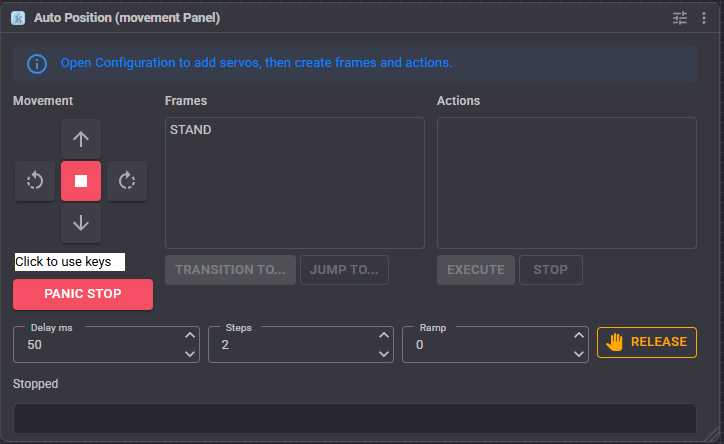
- Panic Stop - stops all auto-position movement immediately.
- Frames list, with:
- Transition To... - move into the selected frame using the delay, steps and ramp below;
- Jump To... - snap straight to the frame with no transition.
- Actions list, with Execute and Stop.
- Delay ms, Steps and Ramp - the panel's own transition settings, used by the Transition button and as the defaults for the frame control command.
- Release - stop moving and release every servo so the robot can be posed by hand.
Delay, steps and ramp
Together these decide how a transition looks:
| Setting | Meaning | Effect |
|---|---|---|
| Delay ms | Milliseconds between each step. | Higher is slower. Default 50. |
| Steps | Servo positions moved per step. | Higher is faster and coarser. Default 2. |
| Ramp | Steps over which the movement accelerates and decelerates. | 0 moves at a constant rate. A few steps of ramp makes a motion look much less mechanical. |
A slow, smooth move is a large delay with few steps; a snappy one is a small delay with more steps.
Configuration tabs
Frames
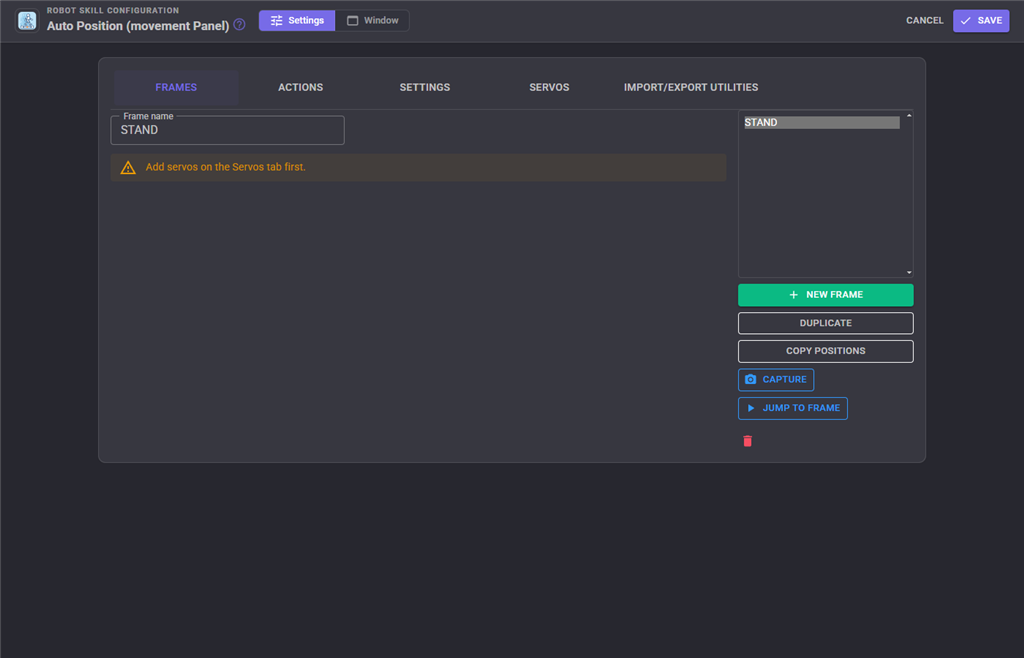
Build poses. Pose the robot with the sliders (or by hand with Release), press Capture to store the current servo positions into the frame, Duplicate a frame as the basis for the next one, and preview with Stop always to hand.
With Realtime update on, moving a slider moves the real servo at once, so the robot follows along while you build the pose.
If a robot picture has been loaded, the servo controls are positioned over the picture where each joint actually is, which makes a 20 servo humanoid far easier to work with than a list. The positions are stored as percentages, so the layout survives the window being resized.
Actions
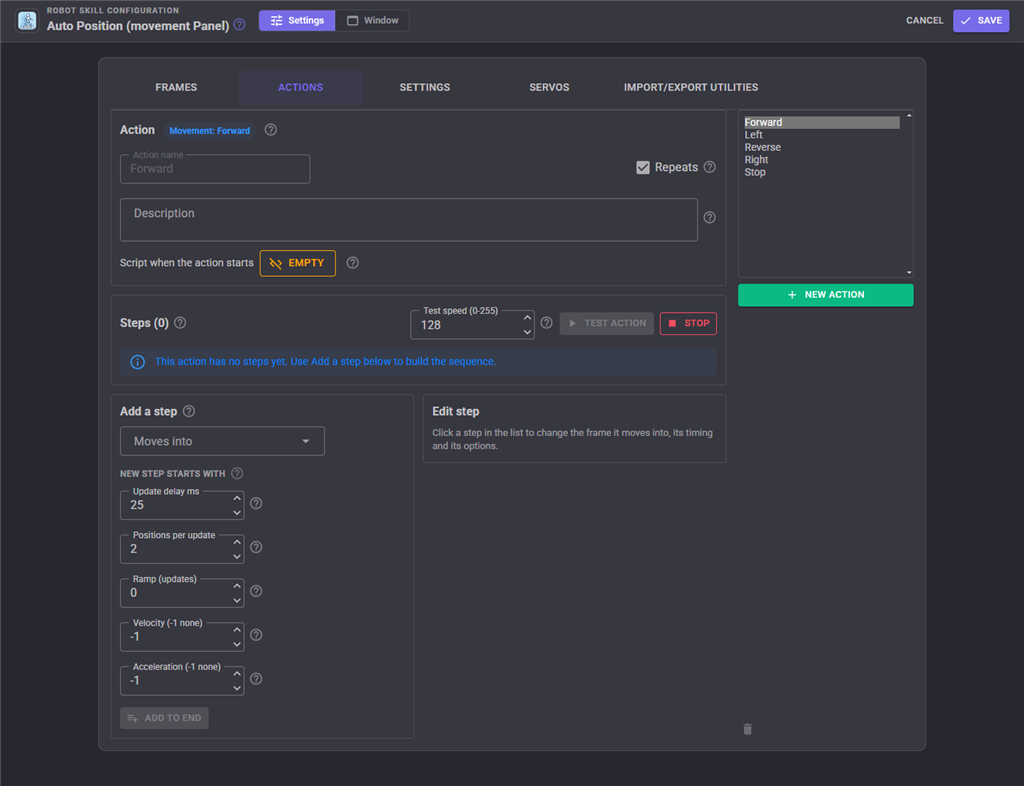
Assemble frames into a sequence. Each row in an action is a frame plus the delay, steps and ramp used to transition into it, so timing is set per step of the animation. An action can be marked to repeat, which is what a walking gait needs.
The five movement actions - Forward, Reverse, Left, Right and Stop - cannot be deleted, because a movement request would then have nothing to run.
Settings
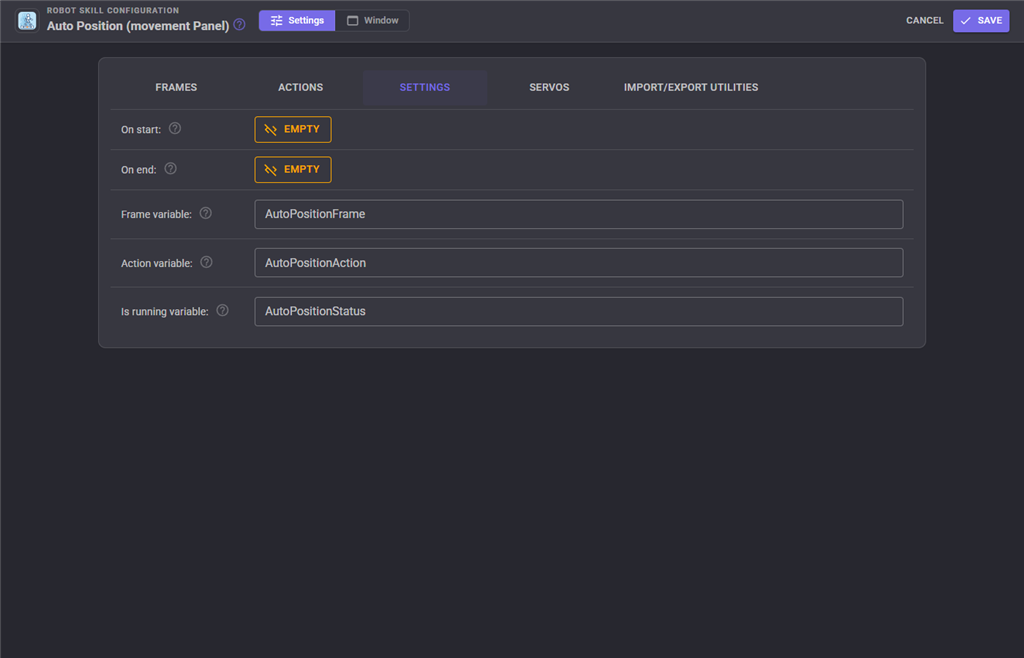
| Setting | Meaning | Default |
|---|---|---|
| On start | Script that runs when an action begins. | empty |
| On end | Script that runs when the auto positioner has finished moving. | empty |
| Frame variable | Global variable set to the title of the frame being moved into. | AutoPositionFrame |
| Action variable | Global variable set to the title of the running action. | AutoPositionAction |
| Is running variable | Global variable set to true while the panel is moving. | AutoPositionStatus |
Servos
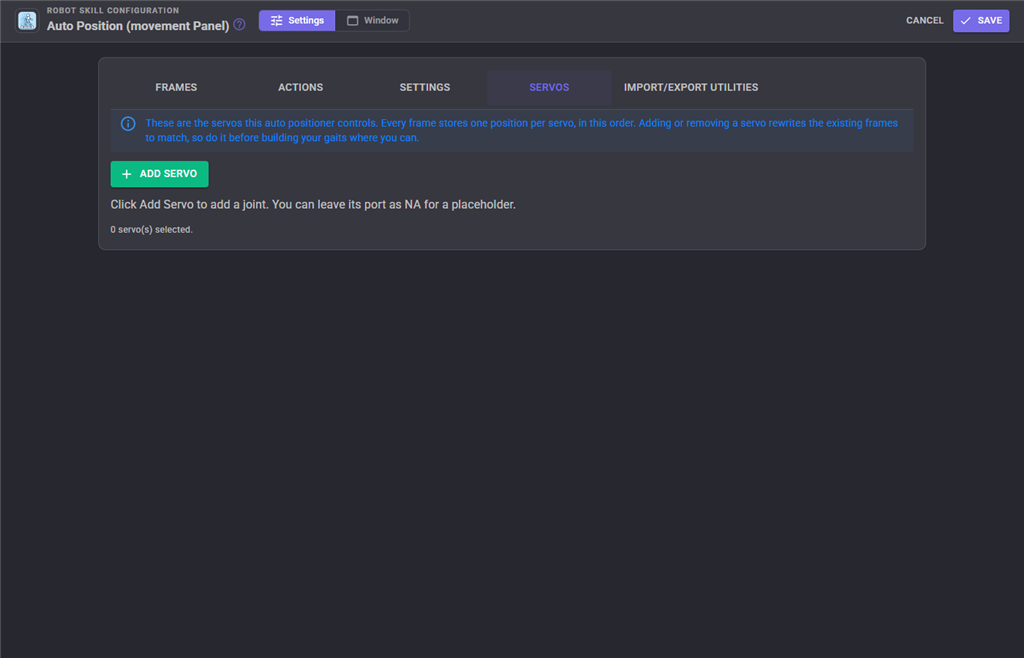
The servo list: port, board, limits and inversion per joint. Every frame has one position per servo in this list, so adding or removing a servo here affects every frame.
Import/Export Utilities
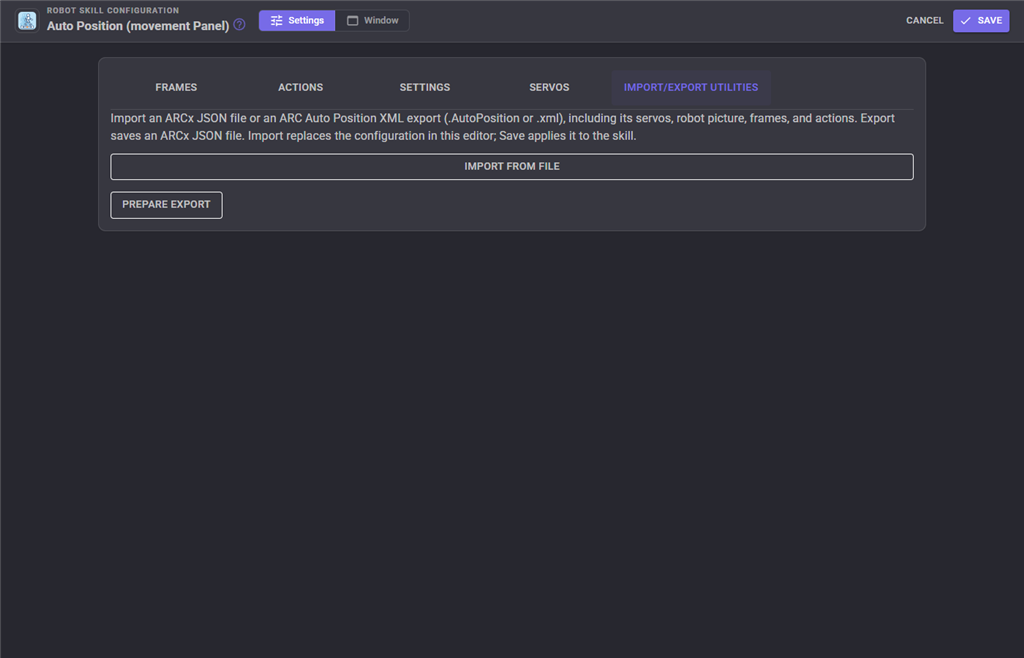
Import an Auto Position configuration from an ARC (EZ-Builder) project file. Anything that could not be brought across exactly is recorded as an import note.
A JSON export from the plain Auto Position skill imports here too, since both skills share the same configuration format. An action named Forward, Reverse, Left, Right or Stop becomes that movement action, so a gait built in the plain skill is ready to walk with.
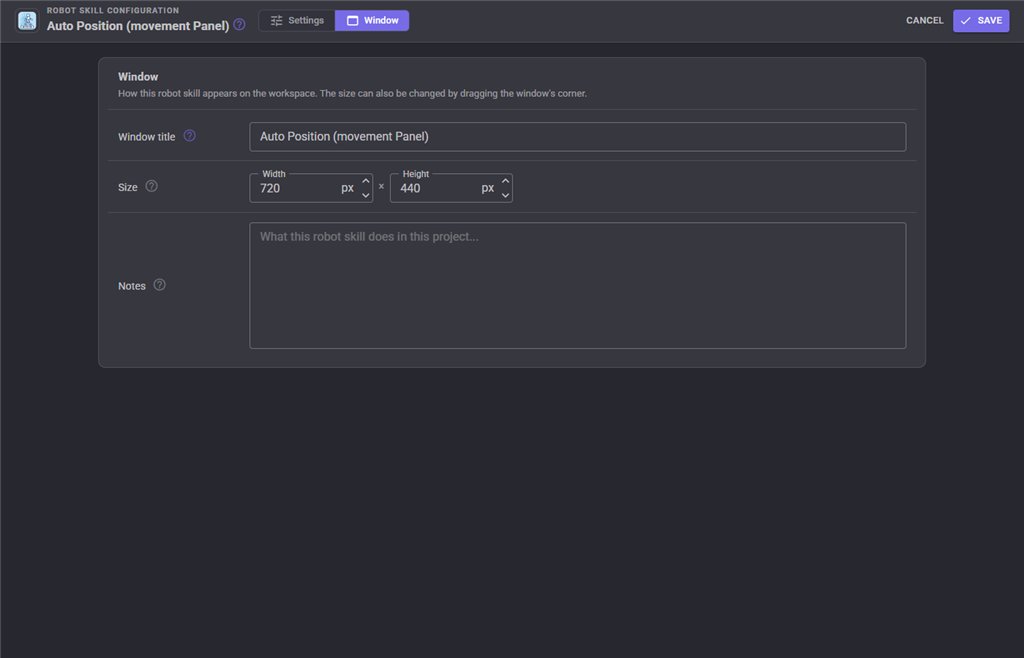
The Window tab sets the robot skill's window title, its size on the workspace and notes about what it does in this project.
Walking - how movement requests are handled
When anything in ARCx asks the robot to move:
- Stop always restarts the Stop action, because the robot has to settle wherever it currently is.
- The other four only restart when the direction actually changed. A repeating gait would otherwise be reset to its first frame on every movement request, and the robot would twitch on the spot instead of walking.
- The movement speed sets the action's velocity. One gait cannot turn at two speeds, so when the left and right speeds differ the faster one wins.
Troubleshooting
| Symptom | Cause |
|---|---|
| The robot twitches instead of walking | The gait frames are in the wrong action, or the action does not repeat. |
| Movement commands do nothing | The reserved movement action has no frames. |
| The motion is jerky | Fewer steps with a bigger delay, and add a little ramp. |
| A servo goes the wrong way | Invert it on the Servos tab rather than re-capturing every frame. |
| A joint slams at the start of an action | The first frame is far from where the robot is standing; add an intermediate frame, or transition into a neutral pose first. |
| "The action '...' cannot be deleted." | It is one of the five movement actions. |
| An action never finishes | It repeats. Use AutoPositionAction rather than the waiting form, or turn repeating off. |
| The servos buzz when idle | Press Release. |
See also
- Movement Joystick, Wiimote - drive this panel by hand
- Rgb Eyes Animator - the same action-by-name idea for LEDs
- Inverse Kinematics / Kinematics Service - drive an arm by coordinates instead of poses
Control Commands for the Auto Position (Movement Panel) robot skill
There are Control Commands available for this robot skill which allows the skill to be controlled programmatically from scripts or other robot skills. These commands enable you to automate actions, respond to sensor inputs, and integrate the robot skill with other systems or custom interfaces. If you're new to the concept of Control Commands, we have a comprehensive manual available here that explains how to use them, provides examples to get you started and make the most of this powerful feature.
Control Command ManualThis robot skill has 9 control commands, listed below. Send them from a JavaScript or Python script, from Blockly, or from another robot skill.
The first value is always the window title, which is the name in the title bar of the robot skill on your workspace. It starts out as Auto Position (movement Panel), which is what every example below uses. If you rename the robot skill, or add a second copy of it to the project, use the title as it appears on that window instead.
ControlCommand() can be shortened to CC(), and both spellings work in JavaScript and in Python. The examples are JavaScript; Python is the same call, except that true and false are written True and False.
AutoPositionAction
Execute the action in the background and continue running the script.
Syntax
ControlCommand("Auto Position (movement Panel)", "AutoPositionAction", (String)action name)
Parameters
| # | Name | Type | What to pass |
|---|---|---|---|
| 1 | action name | Text | Your text, in quotes |
Returns: Boolean [true or false]
Example
var result = ControlCommand("Auto Position (movement Panel)", "AutoPositionAction", "action name");
AutoPositionActionWait
Execute the action and wait for it to complete before continuing the script. An action that repeats cannot be used, because it would never finish.
Syntax
ControlCommand("Auto Position (movement Panel)", "AutoPositionActionWait", (String)action name)
Parameters
| # | Name | Type | What to pass |
|---|---|---|---|
| 1 | action name | Text | Your text, in quotes |
Returns: Boolean [true or false]
Example
var result = ControlCommand("Auto Position (movement Panel)", "AutoPositionActionWait", "action name");
AutoPositionAddFrameToAction
Capture the current servo positions as a new frame and append it to the named action, creating the action if it does not exist.
Syntax
ControlCommand("Auto Position (movement Panel)", "AutoPositionAddFrameToAction", (String)action name, (Number)delay, (Number)steps)
Parameters
| # | Name | Type | What to pass |
|---|---|---|---|
| 1 | action name | Text | Your text, in quotes |
| 2 | delay | Number | A number, without quotes |
| 3 | steps | Number | A number, without quotes |
Returns: Boolean [true or false]
Example
var result = ControlCommand("Auto Position (movement Panel)", "AutoPositionAddFrameToAction", "action name", 0, 0);
AutoPositionAddPauseToAction
Append a pause of the specified milliseconds to the named action.
Syntax
ControlCommand("Auto Position (movement Panel)", "AutoPositionAddPauseToAction", (Number)delay ms, (String)action name)
Parameters
| # | Name | Type | What to pass |
|---|---|---|---|
| 1 | delay ms | Number | A number, without quotes |
| 2 | action name | Text | Your text, in quotes |
Returns: Boolean [true or false]
Example
var result = ControlCommand("Auto Position (movement Panel)", "AutoPositionAddPauseToAction", 0, "action name");
AutoPositionDeleteActionAndAssociatedFrames
Delete the named action and the frames that only it used.
Syntax
ControlCommand("Auto Position (movement Panel)", "AutoPositionDeleteActionAndAssociatedFrames", (String)action name)
Parameters
| # | Name | Type | What to pass |
|---|---|---|---|
| 1 | action name | Text | Your text, in quotes |
Returns: Boolean [true or false]
Example
var result = ControlCommand("Auto Position (movement Panel)", "AutoPositionDeleteActionAndAssociatedFrames", "action name");
AutoPositionFrame
Transition into the frame. Delay, steps and ramp are optional and default to the panel's own settings.
Syntax
ControlCommand("Auto Position (movement Panel)", "AutoPositionFrame", (String)frame name, (Number)delay, (Number)steps, (Number)ramp steps)
Parameters
| # | Name | Type | What to pass |
|---|---|---|---|
| 1 | frame name | Text | Your text, in quotes |
| 2 | delay | Number | A number, without quotes |
| 3 | steps | Number | A number, without quotes |
| 4 | ramp steps | Number | A number, without quotes |
Returns: Boolean [true or false]
Example
var result = ControlCommand("Auto Position (movement Panel)", "AutoPositionFrame", "frame name", 0, 0, 0);
AutoPositionFrameJump
Move to the frame immediately with no transition.
Syntax
ControlCommand("Auto Position (movement Panel)", "AutoPositionFrameJump", (String)frame name)
Parameters
| # | Name | Type | What to pass |
|---|---|---|---|
| 1 | frame name | Text | Your text, in quotes |
Returns: Boolean [true or false]
Example
var result = ControlCommand("Auto Position (movement Panel)", "AutoPositionFrameJump", "frame name");
AutoPositionStop
Stop the current action or frame transition.
Syntax
ControlCommand("Auto Position (movement Panel)", "AutoPositionStop")
Returns: Boolean [true or false]
Example
var result = ControlCommand("Auto Position (movement Panel)", "AutoPositionStop");
ReleaseServos
Stop moving and release every servo so the robot can be posed by hand.
Syntax
ControlCommand("Auto Position (movement Panel)", "ReleaseServos")
Returns: Boolean [true or false]
Example
var result = ControlCommand("Auto Position (movement Panel)", "ReleaseServos");
This list is read out of the robot skill itself each time its package is uploaded, so it matches the published version (v6).


This robot skill has been updated to v1.
This robot skill has been updated to v2.
This robot skill has been updated to v3.
This robot skill has been updated to v4.
What has changed
compatible with latest ARCx v2026.09.27.01
This robot skill has been updated to v5.
What has changed
Reformated the ACTION tab in the config to make it easier to understand. Updated the config by adding hoverable question marks on every option.
This robot skill has been updated to v6.
What has changed
Config menu holds new designer and ui fixes