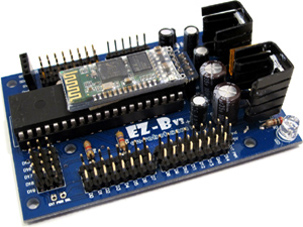
EZ-B V3 by EZ-Robot
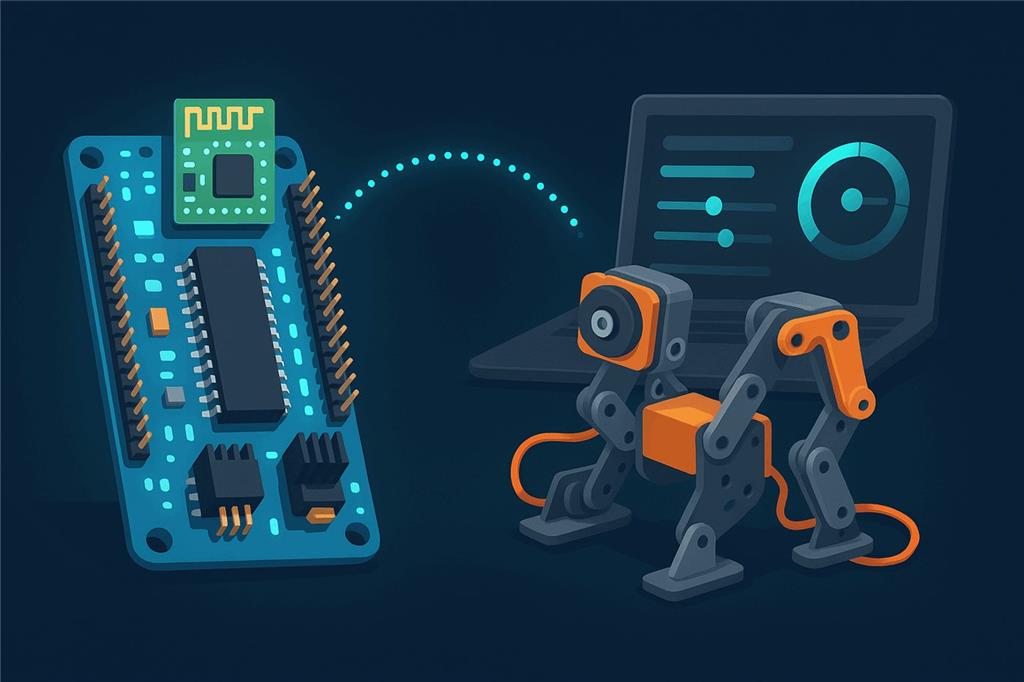
The classic Bluetooth EZ-B
The EZ-B v3 was EZ-Robot's Bluetooth robot controller from 2011 to 2013, before the Wi-Fi EZ-B v4 replaced it. It is discontinued, but Synthiam ARC still supports it, so a v3 in a drawer can still move servos, read sensors and run scripts today.
How the EZ-B v3 works with Synthiam: the board runs EZB firmware from the factory and needs no hardware programmer. A Windows computer pairs with it over Bluetooth, Windows gives the pairing a COM port, and ARC connects to that COM port with the EZB Connection skill. From then on you control the ports with ARC's robot skills and scripts. ARC is the proven path for the v3. ARCx on Windows may also work through the paired COM port, but this has not been tested.
What is the EZ-B v3?
The EZ-B v3 is a compact microcontroller board for robotics: the connection between your computer running ARC and robot parts such as servos, sensors, LEDs and motors. Instead of writing firmware or uploading sketches, you connect ARC to it over Bluetooth and control the ports with ARC's tools and scripts.
EZ-Robot designed it as an all-in-one hardware and software robotics platform and as a reusable controller: many builders made several robots and moved the same EZ-B from one project to the next. It combines several robotics-friendly features in one place:
- Voltage regulation for stable controller power (and, depending on wiring, for servos and sensors)
- Bluetooth so ARC connects without a USB cable
- Digital I/O for switches, LEDs and on/off signals
- Analog inputs (ADC) for sensors with a varying voltage
- Servo ports for RC servos
- Serial ports for modules that talk TTL serial
- TellyMate interface support, a legacy feature used by some older builds
EZ-B v3 at a glance
| Type | Bluetooth robot controller running EZB firmware |
|---|---|
| Maker | EZ-Robot |
| Available | 2011–2013 (discontinued, replaced by the EZ-B v4) |
| Connection | Class 2 Bluetooth, about 10 m (30 ft) typical range |
| Ports | 20 digital/servo, 8 ADC, serial TTL |
| Camera / audio | None on the board |
| Software | Synthiam ARC (Windows) |
| Successor | EZ-B v4 |
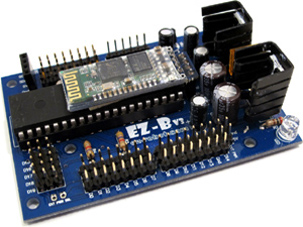
EZ-B v3 features
| Feature | EZ-B v3 |
|---|---|
| Digital I/O | 20 input/output ports |
| Servo ports | 20 |
| Analog inputs | 8 analog-to-digital converter (ADC) inputs |
| Serial TTL (standard) | 20 ports at 9600, 19200, 38400 or 57600 baud |
| Serial TTL (high speed) | 1 port at 115200 baud |
| Wireless | Class 2 Bluetooth (2.5 mW, 4 dBm), about 10 m / 30 ft typical range |
| Long-range options | Optional XBee, Synapse or Wi-Fi with the right add-on hardware |
| Expansion | Arduino shield support for sensors and peripherals |
Ready to use
Compact, shipped pre-assembled, and no hardware programmer needed.
Servos and sensors
Servo, ADC graph, digital and script skills in ARC drive every port.
iRobot Roomba
iRobot Roomba support was one of the v3's listed features.
Mind the power
Servos and motors can draw more current than a small battery or USB supply provides. Resets and erratic behavior are usually power.
Connect an EZ-B v3 to ARC
The exact steps vary a little with your Windows version and Bluetooth adapter, but the flow is always the same: power, pair, find the COM port, connect.
- Power the EZ-B v3 with a suitable battery or power source. Confirm it powers on (the LED indicators vary by revision), and keep it close to the computer for the first pairing.
-
Pair it in Windows. Open Bluetooth settings, choose Add a device and select the EZ-B v3 when it appears.
If you are asked for a PIN, try
1234or0000(it depends on the module and firmware). -
Find the COM port. After pairing, Windows assigns a serial port. Open Device Manager, expand Ports (COM & LPT)
and note the Bluetooth serial port for the EZ-B, for example:
Standard Serial over Bluetooth link (COM5) - Connect from ARC. Open ARC, select that COM port (for example COM5) in the EZB Connection skill and press Connect.
- Add robot skills. Servo controls, ADC graphs, digital controls and scripts all work with the connected v3. The EZ-B v3 Configuration skill views and changes the board's built-in settings, such as its Bluetooth name; the changes are stored on the board.
ARC is the supported choice for the v3
Use ARC with the EZ-B v3. It supports the board directly through its Bluetooth COM port and includes the EZ-B v3 Configuration skill.
ARCx, Synthiam's browser-based platform, connects to EZB boards over USB/serial and the network with its Ezb Connection skill. Because a paired v3 appears in Windows as an ordinary COM port, ARCx on Windows may be able to connect to it the same way, but Synthiam has not tested the v3 with ARCx. If you try it, enter the COM port as the address.
When something does not work
1234, then 0000. The PIN depends on the Bluetooth module and firmware revision.
Frequently asked questions
Put your EZ-B v3 back to work
Pair it, open ARC, and connect to the COM port. Ready for Wi-Fi, a camera and a browser interface? Step up to the EZ-B v4 and ARCx.

@Kwixson, this thread may give you more info on getting that V3 up and running:
https://synthiam.com/Community/Questions/Ezb-v3-software-for-windows-10-18994/comments#comments-list
If the link doesn't work try cutting and pasting it into your browser window.
Personally I think you'd be better off buying a V4 and using that wonderful work of art. There used to be a by back program. I don't know if it's still available anymore.
Thank you. I doubt the buy back program is still operative. If anybody happens across some material from some enthusiast or other, please let us know!
I saw a couple of these on Ebay....
Wow - people are really charing a lot for those old kits. Actually, those look like the original v3 not the v3.1! Thats ancient
how do you code with it on the ARC ide/ ARC
To code with the EZ-B v3 using the ARC (formerly known as EZ-Builder) IDE, you can follow these steps:
1. Install ARC Software
First, ensure you have the latest version of ARC installed on your computer. You can download it from the Synthiam website: Download ARC.
2. Connect EZ-B v3 to ARC
3. Add and Configure Robot Skills
4. Programming with JavaScript or Python
ARC supports multiple programming languages, but JavaScript or Python is recommended for more advanced scripting. Here’s a basic example of how to move a servo using JavaScript or Python:
Example: Moving a Servo
5. Using ControlCommand()
You can use the
ControlCommand()function to interact with other controls in your project. For example, if you have a camera control and want to start face tracking when a button is pressed, you can use:6. Testing and Debugging
Additional Resources
Feel free to ask more questions if you need further assistance!
I ordered a V4 Nov,27th and finally received an email saying they are back logged, so i cancelled the order and am going to just use my V3.
I've been waiting many months for a warrantee replacement EZB. They've been saying the same thing to me. "Backlogged". Not sure what's going on with EZ Robot. Maybe paying attention to their Education customers supply.
I was forced to buy from the only other palace who has them in stock, The Robot Shop". Their website says they have two available.
https://www.robotshop.com/products/ez-b-v4-2-wifi-robot-controller?qd=25e4bde5385eac636faff052c1c487c7