Esp32 by Espressif
Firmware
ESP32Plus for Synthiam ARC enables ESP32 robot control with audio streaming, ESP32-CAM passthrough, PCA9685 16-servo I2C control and UART expansion.
Convert ESP32 DOIT DevKit v1 into an EZ-B for Synthiam ARC: WiFi bridge with servo and I/O support for compact robotics projects.
ESP32 as Synthiam ARC EZ-B controller using PCA9685 over I2C for 16-channel 12-bit servo/PWM control and expanded I/O
Turn a low-cost ESP32 into a Wi-Fi robot controller
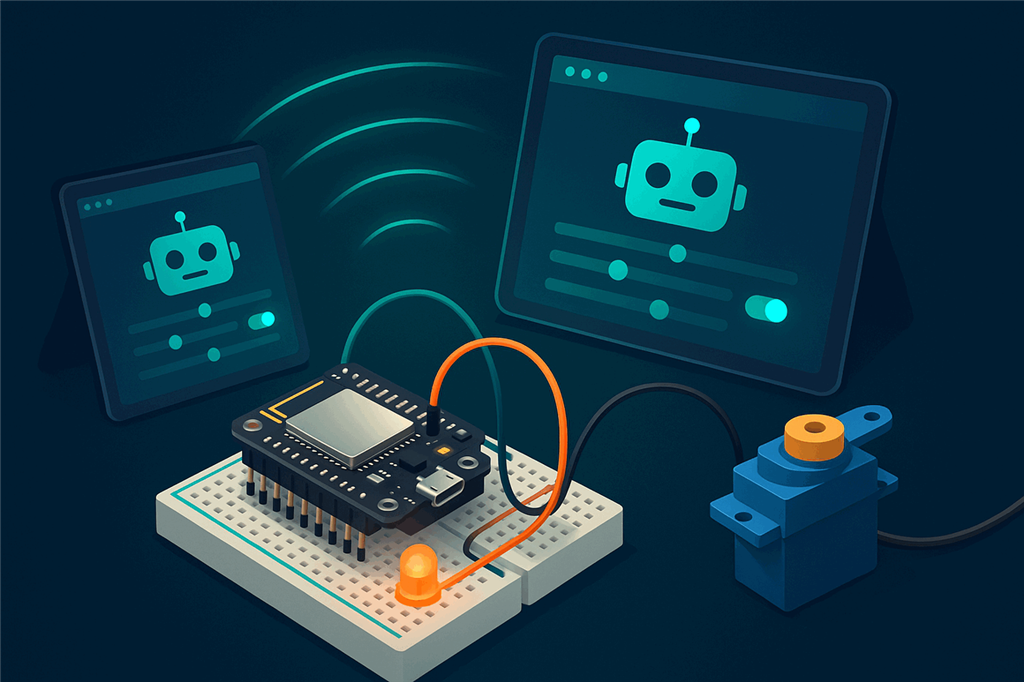
Flash Synthiam's EZB firmware onto an ESP32 board and it behaves like an EZ-B controller. ARCx connects to it over Wi-Fi, and from any web browser you can move servos, switch LEDs and relays, read sensors and talk to serial devices, with drag-and-drop robot skills instead of hand-written microcontroller code.
How the ESP32 works with Synthiam. The ESP32 does not run ARC or ARCx itself. You install one of Synthiam's ESP32 EZB firmwares (listed in the Firmware section below), and the board starts speaking the EZB protocol over Wi-Fi. In ARCx, the Ezb Connection robot skill connects to it by IP address; in ARC, the EZB Connection skill does the same. We recommend ARCx: it runs on Windows, Linux and Raspberry Pi, and you use it from any web browser on the network. This page covers ESP32 boards without a camera. For camera boards, see the ESP32-Cam page.
What is the ESP32?
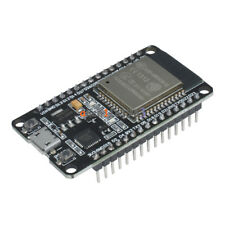
The ESP32 is a small, low-cost microcontroller from Espressif with Wi-Fi and Bluetooth built in. A microcontroller is a tiny computer whose job is to control hardware: it reads inputs (buttons, distance sensors, switches, analog modules), controls outputs (LEDs, relays, motors and servos using PWM, buzzers) and communicates over Wi-Fi.
The ESP32 is also generic hardware. Many companies sell boards built around the same ESP32 chip, so you will see names like DevKit v1, DOIT and NodeMCU-32S. The boards look slightly different, but the setup on this page is the same. Synthiam's main ESP32 firmware targets the DOIT ESP32 DevKit v1, in both its 30-pin and 36-pin versions.
Beginner tip: the names can be confusing
- ESP32 is the chip family (the "brain").
- DevKit / DOIT / NodeMCU are different boards built around the ESP32 chip.
- GPIO numbers are the pin names printed on the board, such as
GPIO2orGPIO23. - Synthiam ports (
D0,D1... andADC0,ADC1...) are the names ARC and ARCx show you. The firmware maps each one to a specific GPIO pin (see the port reference below).
ESP32 at a glance
| Type | Wi-Fi microcontroller (chip family) and development boards |
|---|---|
| Chip maker | Espressif Systems; boards from many vendors |
| Module | ESP-WROOM-32 on the DOIT DevKit v1 |
| Logic level | 3.3 V |
| Connection to Synthiam | Wi-Fi (TCP), access point or client mode |
| Power | USB, or the VIN pin; servos need their own 5 V supply |
| Synthiam uses it for | A low-cost EZB: servos, digital I/O, ADC, UART |
| Board reference | DOIT DevKit v1 · PlatformIO board docs |
Synthiam firmware for the ESP32
The firmware is what makes the ESP32 act like an EZB controller. Download it from the Firmware section below, open it in the Arduino IDE and upload it to the board. Each firmware page has its own instructions; this is a quick guide to which one to choose.
| Firmware | What it gives you | Good to know |
|---|---|---|
| DJs ESP32 DOIT DevKit v1 | The standard choice. Hobby servos and PWM on digital ports, digital read/write, 12-bit ADC, a hardware UART, and ultrasonic distance sensors. | Wi-Fi AP or client mode, chosen in the firmware code. In AP mode the board's address is 192.168.1.1. Built with the Espressif esp32 board package 3.0.7 and the ESP32Servo library 3.0.6. |
| ESP32Plus | Audio playback through the ESP32's built-in DAC, a camera passthrough for an ESP32-CAM wired to its serial port, an I2C master bus for add-on boards such as a PCA9685 servo driver, and a UART expansion port. | Original ESP32 only (not S2, S3, C3, C6 or H2). It has no servo driver of its own: drive servos with an I2C PWM board such as a PCA9685. Default AP name GetOffMyLawn (open), address 192.168.1.1. |
| EZ-ESP32 with Adafruit PCA9685 | Uses a PCA9685 board over I2C for 16 channels of 12-bit servo/PWM output, plus the ESP32's own I/O. | Typical wiring is SDA to GPIO21 and SCL to GPIO22. Power the servos from the PCA9685's V+ terminal, not from the ESP32. |
What you can do with an ESP32 in Synthiam
Servos
Move hobby servos from the Servo skill, Servo Pad, Auto Position animations and scripts. Need more than the board's pins? Add a PCA9685 driver for 16 more channels.
Digital outputs and inputs
Switch LEDs, relays and buzzers, set PWM duty from 0 to 100% for LED dimming or motor drivers, and read buttons and switches.
Sensors
Read analog sensors on the ADC ports and ultrasonic distance sensors, then react in a script or show the values on a dashboard.
Serial devices
Talk to GPS modules, motor controllers and other serial devices through the board's hardware UART from any script.
Scripting and Blockly
Program the robot with Blockly, JavaScript or Python in ARCx. The same script runs whichever ESP32 board you use, because the firmware handles the pin mapping.
AI and remote control
ARCx is an MCP server, so AI agents can see and drive the robot. Build touch-friendly Custom UI screens, and use Exosphere to drive the robot from anywhere.
Synthiam ports vs ESP32 GPIO pins
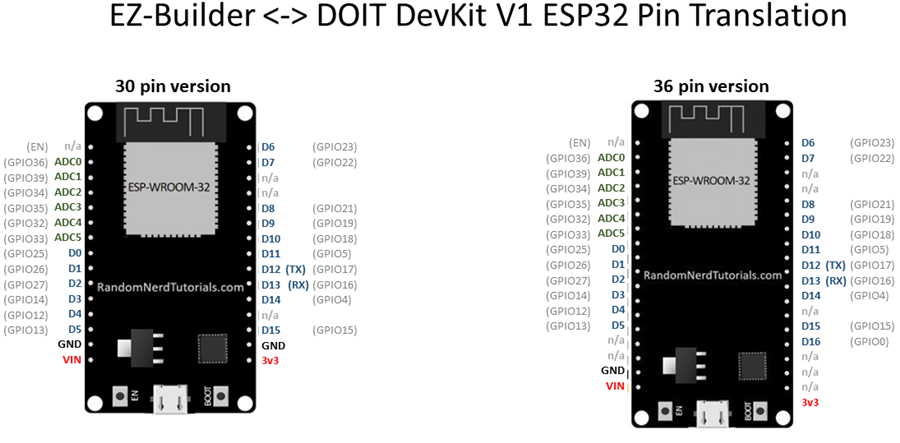
ARC and ARCx name digital ports D0, D1, D2... and analog ports ADC0, ADC1...
On the board, the pins are labeled with GPIO numbers that do not run in order down the board, and some GPIO numbers do not exist on every breakout.
If a robot skill asks for D4, wire your device to the GPIO that the firmware maps to D4.
| Synthiam port | ESP32 pin |
|---|---|
D0 | GPIO25 |
D1 | GPIO26 |
D2 | GPIO27 |
D3 | GPIO14 |
D4 | GPIO12 |
D5 | GPIO13 |
D6 | GPIO23 |
D7 | GPIO22 |
D8 | GPIO21 |
D9 | GPIO19 |
D10 | GPIO18 |
D11 | GPIO5 |
D12 | GPIO17 (TX on the diagram) |
D13 | GPIO16 (RX on the diagram) |
D14 | GPIO4 |
D15 | GPIO15 |
D16 | GPIO0 (36-pin version only) |
| Synthiam port | ESP32 pin |
|---|---|
ADC0 | GPIO36 |
ADC1 | GPIO39 |
ADC2 | GPIO34 |
ADC3 | GPIO35 |
ADC4 | GPIO32 |
ADC5 | GPIO33 |
Safe pins for servos
Some ESP32 pins are used during boot or have special functions. For servos, use these commonly recommended GPIO pins:
2, 4, 12-19, 21-23, 25-27, 32-33The wrong pin can cause jittery servo movement, random reboots, or an ESP32 that will not boot until the servo is unplugged. If something behaves strangely, move the signal wire to another safe pin first.
Pins labeled TX and RX are serial (UART) pins. On many boards the main TX/RX pair is the ESP32's first serial port (UART0 / Serial0), which is also used for USB programming and the serial log.
Power, voltage and servo wiring
Quick wiring basics
- GND to GND: most sensors, and every servo, need a shared ground.
- Signal to GPIO: the control or data wire goes to the pin for the port you choose in Synthiam.
- Power to the correct pin: many sensors use 3V3; some modules use 5V / VIN.
Typical sensor labels: VCC = power in, GND = ground, OUT / SIG / DATA = signal to a GPIO pin.
Voltage levels
- ESP32 GPIO logic is 3.3 V. A HIGH signal is about 3.3 V.
- Some modules run from 5 V but still output a safe 3.3 V signal; it depends on the module.
- A device that outputs 5 V into a GPIO pin may need a level shifter or voltage divider to avoid damaging the ESP32.
When in doubt, look up the module's logic level or output voltage.
Servo power
- The ESP32 board cannot safely power multiple servos from USB. Servos pull a lot of current when starting or under load.
- Use a separate regulated 5 V supply. As a beginner rule, budget about 1 A per small servo (more for larger servos).
- Never power servos from the ESP32's 3V3 pin.
- Connect the servo supply's GND (−) to the ESP32 GND for a common ground.
| Servo wire | Usual color | Connect to |
|---|---|---|
| Signal | White, yellow or orange | An ESP32 GPIO pin from the safe list |
| Power +5 V | Red | External regulated 5 V supply (+) |
| Ground | Brown or black | External supply (−) and ESP32 GND |
If the ESP32 resets when a servo moves, that is almost always a power problem (a voltage drop). Use a stronger 5 V supply and keep servo power wires short and thick. For several servos, consider a dedicated servo power distribution board. Skip the shared ground and servos may twitch, not respond, or act randomly.
Wi-Fi modes: how ARCx reaches the board
The Synthiam firmware supports two Wi-Fi modes. In both, ARCx or ARC talks to the ESP32 over the network. Pick the one that matches how you use your robot.
AP mode (the board is the hotspot)
The ESP32 creates its own Wi-Fi network, like a phone hotspot. Connect your computer to it, then connect to the board at 192.168.1.1.
- Best for: quick testing, portable robots, demos, no router available.
- Gotcha: the computer may lose Internet access while on the robot's Wi-Fi.
- Gotcha: Windows may switch back to your normal Wi-Fi on its own, which drops the connection.
Client mode (the board joins your router)
The ESP32 joins your existing Wi-Fi like any other device, and you connect to it by its IP address on that network.
- Best for: longer range, several computers or tablets watching, keeping Internet access.
- Gotcha: you need the board's current IP address.
- Gotcha: guest Wi-Fi networks often block devices from seeing each other.
Tip: set a DHCP reservation in your router so the IP address stays the same.
Find the IP address with the serial monitor
- Connect the ESP32 to your computer by USB.
- Open the Arduino IDE (or another serial terminal) and go to Tools > Serial Monitor.
- Set the baud rate to
115200. - Reset the ESP32 (press EN, or unplug and replug it) and read the messages.
The firmware prints its Wi-Fi status and current IP address. Random symbols mean the baud rate is wrong: set it to 115200.
Connect an ESP32 to ARCx
- Gather the parts. An ESP32 breakout board (DevKit v1, DOIT or NodeMCU-32S, not an ESP32-CAM), a USB cable that carries data (charge-only cables power the board but cannot upload firmware), and, for servos, a regulated 5 V supply with enough amps. A breadboard, jumper wires and a basic multimeter make life easier.
- Install the firmware. Download a firmware from the Firmware section below and open it in the Arduino IDE. Add the ESP32 board package from Espressif in Boards Manager, install any libraries the firmware page lists, choose your board (for the DOIT firmware, Tools > Board > ESP32 > DOIT ESP32 DEVKIT V1) and the board's port, then upload. If the upload fails, hold the BOOT button until the IDE shows it is writing.
- Choose AP or client mode in the firmware's Wi-Fi settings before uploading. If you are unsure, AP mode is the easiest first test.
- Put your computer on the right network. In AP mode, join the ESP32's Wi-Fi. In client mode, make sure the computer running ARCx is on the same router network as the board.
- Install ARCx and add the Ezb Connection skill. Download ARCx for Windows, Linux or Raspberry Pi, then add Ezb Connection from the Communication category (new projects often include it already).
-
Connect. Type the board's address in the EZB 0 box, or pick it if ARCx's scanner found it, and press the connect button.
The default EZB port 23 is used when you do not add one. In ARC, add the EZB Connection skill and enter the same address.192.168.1.1 AP mode 192.168.1.57 client mode: the address from the serial monitor (example) - Test something simple. Toggle an LED (with a resistor) or an LED module on a safe GPIO pin. Once that works, add one servo with external 5 V power and move it from the Servo skill. Then add more.
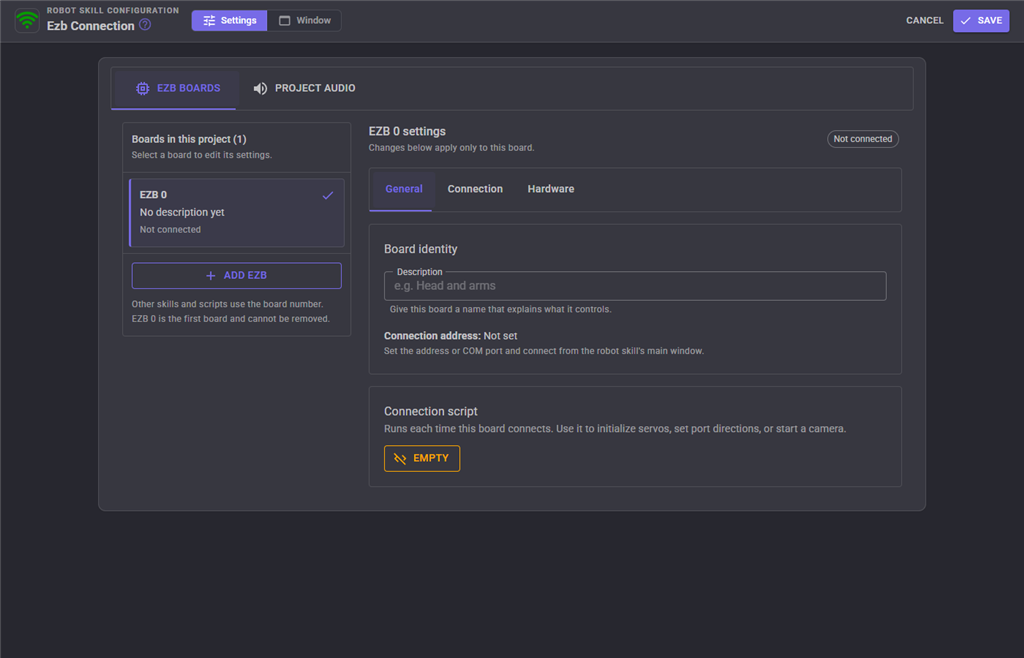
Both work; ARCx is recommended
The ESP32 firmware speaks the same EZB protocol to both of Synthiam's platforms. If you are starting today, choose ARCx.
| ARCx + Ezb Connection Recommended | ARC + EZB Connection | |
|---|---|---|
| Runs on | Windows 10/11 x64, Ubuntu 24.04 x64 and ARM64, including Raspberry Pi 4/5 | Windows |
| User interface | Any web browser on the network, several people at once; closing the browser leaves the robot running | Windows desktop application |
| Connects to the ESP32 by | IP address over Wi-Fi, or picked from the network scanner | IP address over Wi-Fi |
| Several boards in one project | Yes (EZB 0, 1, 2...) | Yes |
| AI agents | Built-in MCP server: Claude and other agents can see, drive and program the robot | Through robot skills |
When something does not work
115200 and reset the board.
2, 4, 12-19, 21-23, 25-27, 32-33), because some pins are used during boot.
If the board resets when a servo moves, the power supply is too weak: use a stronger regulated 5 V supply with short, thick wires.
If servos twitch or do not respond, check that the servo supply ground is connected to the ESP32 GND.
Frequently asked questions
Give your ESP32 a robot brain
Flash the Synthiam firmware, install ARCx, and control your ESP32 from any web browser in minutes.

Wiring was getting too messy (even for me) so I created a little ESP32 servo shield. In hindsight I really don’t need the FTDI as I won’t reprogram it unless a new firmware comes out so I think I will order just the ESP chips from China and make some smaller shields just for servo control.
That's a great idea! Looks good with the sticker labels!
Very cool work.
Small problem with ESP servo calibration and degrees of movement. Take a HDD servo connect to an ESP and press center and it is about 10 degrees off. Now plug it into a EZB press center Perfect.
OK recalibrate for ESP. Now add servo control and move it to 1 degree it should be at 90 degrees to servo motor but it is about 45 degrees. Now move it to 180 degrees and it is only at about 135 degrees.
now move back to 0 and press release and it will move back to 135 degrees now move servo by hand to 0 and press release again this time it moves back to 135 but doesnt release
using latest ESP firmware and port D5
That’s the esp32 servo firmware for ya. All of the arduino servo libraries are off a little. They weren’t written that well. Might want to take a look at other servo libraries to try instead of the one I choose. I think it choose that one because it was the highest recommended.
Take a look at this, I’m not sure what it means "different channels" vs "same channel". I often wonder if the esp32 has enough clock left over after the tcp stack to run timers in real-time: https://www.arduino.cc/reference/en/libraries/esp32servo/
Wanna try a new firmware for me? I updated the servo library to the latest - see if this helps. Let me know if it works before I update it on the website firmware list: EZ-ESP32.zip
went to bed with a broken servo, woke up to a working servo. Nice thank for the quick turn around. you still have to recalibrate (although i guess I could use an offset with my bots that use them) and release doesn't work but I get 180 degrees and it is a lot snappier, the old driver was a bit grindy.
I think the ESP has a lot of promise as a controller. There are a lot of things that work with arduino like LIDAR etc and having a single $5 controller that does a lot of things with ARC would be great.
I am sure the new ESP32-S3 will solve all the performance issues as well
https://www.espressif.com/en/news/ESP32_S3