
Esp32plus Firmware
ESP32Plus for Synthiam ARC enables ESP32 robot control with audio streaming, ESP32-CAM passthrough, PCA9685 16-servo I2C control and UART expansion.
Compatible Hardware
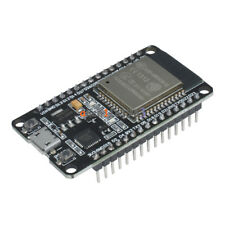
Description
Firmware that turns an ESP32 development board into a Synthiam ARC-compatible EZB device. Once flashed, ARC discovers the board over WiFi and controls it using the standard EZB protocol.
Features
- EZB protocol server over WiFi (TCP port 23)
- Camera / UART data passthrough server (TCP port 24)
- Auto-discovery via EZB Scan UDP broadcast - appears in ARC's connection dialog automatically
- I2C master bus for reading and writing I2C devices from ARC
- UART expansion port (ARC UART #0) for sending and receiving serial data from ARC
- Onboard audio playback using the ESP32's built-in DAC via I2S DMA
- Access Point or WiFi Client mode (single
#definetoggle) - Multi-task FreeRTOS architecture for stable, concurrent TCP, UART, audio, and discovery
- Connect / disconnect audio chimes so you hear when ARC attaches
Hardware
Any original ESP32 development board (ESP32-WROOM, ESP32-DevKitC, etc.) will work.
Important: This firmware uses the ESP32's built-in DAC via I2S. That peripheral only exists on the original ESP32. It is not supported on ESP32-S2, S3, C3, C6, or H2. Using one of those variants will halt the firmware with a fatal error at boot.
Pin Assignments
| Function | GPIO | Notes |
|---|---|---|
| Serial1 RX (camera passthrough) | GPIO 12 | Data from camera / external serial device |
| Serial1 TX (camera passthrough) | GPIO 13 | |
| Serial2 RX (ARC UART #0) | GPIO 16 | ARC UART.Read() / UART.Write() |
| Serial2 TX (ARC UART #0) | GPIO 17 | |
| I2C SDA | GPIO 14 | ARC I2C.Write() / I2C.Read() |
| I2C SCL | GPIO 15 | |
| Audio DAC Out | GPIO 25 + GPIO 26 | Mono audio, both pins carry the same signal |
| USB Serial (debug) | - | 115200 baud |
Installation
1. Install the Arduino IDE
Download and install the Arduino IDE.
2. Install the ESP32 board package
- Open File Preferences.
- Add this URL to Additional Board Manager URLs:
https://raw.githubusercontent.com/espressif/arduino-esp32/gh-pages/package_esp32_index.json - Open Tools Board Boards Manager, search for
esp32, and install ESP32 by Espressif Systems.
This firmware was developed and tested against ESP32 by Espressif Systems version 3.3.7.
3. Open the sketch
Open EZ-ESP32Plus.ino in the Arduino IDE.
4. Configure WiFi mode
Near the top of the sketch, pick one of the two WiFi modes.
Access Point mode (ESP32 creates its own network - easiest for first use):
#define AP_MODE

#define WIFI_AP_SSID "GetOffMyLawn"
#define WIFI_AP_PWD  ""
Leave AP_MODE defined and set the SSID and password you want the ESP32 to broadcast. Leave the password blank for an open network.
Client mode (ESP32 joins your existing WiFi network):
// #define AP_MODE

#define WIFI_CLIENT_SSID "My Network"
#define WIFI_CLIENT_PWD  "My Password"
Comment out #define AP_MODE and fill in your network credentials.
5. Set the device name
#define DEVICE_NAME "ESP32Plus"
This name is broadcast over UDP so ARC's EZB Scan can show the board in its connection dialog. Change it if you have more than one board on the same network.
6. Select board and upload
- Tools Board select your ESP32 dev board (e.g. ESP32 Dev Module).
- Tools Port select the COM port for the board.
- Click Upload.
Open Tools Serial Monitor at 115200 baud to see boot messages and connection activity.
Connecting From ARC
- In ARC, add an EZ-B v4 / IoTiny connection (or use EZB Scan from the connection dialog).
- If you used AP mode, join the WiFi network you configured (default SSID
GetOffMyLawn), then the board's IP will be192.168.1.1. - If you used Client mode, read the IP from the Serial Monitor at boot, or let EZB Scan auto-discover the device by name.
- Click Connect. You'll hear a two-tone "connect" chime from the DAC output. A matching "disconnect" chime plays when ARC disconnects.
Supported ARC Commands
The firmware implements the EZB protocol used by ARC. All commands are accepted so the protocol stream stays in sync, but not every command drives physical hardware on a generic ESP32.
| Feature | Status | Notes |
|---|---|---|
| Ping / Firmware ID | Fully supported | Reports firmware ID 23149 |
| I2C Read / Write | Fully supported | Uses GPIO 21/22 |
| I2C bus clock speed | Fully supported | ARC can override at runtime |
| UART Expansion #0 (init / write / read / available) | Fully supported | Uses GPIO 16/17 |
| UART Expansion #1 and #2 | Accepted, no-op | Consumed for protocol sync only |
| Sound streaming (init / load / play / stop) | Fully supported | 8-bit PCM @ 14700 Hz via built-in DAC |
| Servo position / PWM speed / release all | Accepted, no-op | No servo driver is wired by default |
| Digital port on / off / read | Accepted, no-op | Reads return 0 |
| ADC read | Accepted, no-op | Returns 0 |
| Camera data passthrough (port 24) | Fully supported | Streams Serial1 RX to TCP clients |
If you need real servo output, connect an I2C PWM driver (such as a PCA9685) to GPIO 21/22 and drive it from ARC using the I2C commands.
Camera / Data Passthrough (Port 24)
Anything received on Serial1 (GPIO 12 RX) is streamed to whichever client is connected to TCP port 24. This is the mechanism ARC uses to pull JPEG frames from an attached camera module, but it will pass through any byte stream - not just video. Use it to bridge serial telemetry, sensor streams, or any data source that speaks a raw UART over WiFi.
The bridge uses 1460-byte chunks with a 10 ms flush timeout for low latency. Serial1 uses a 32 KB RX buffer so brief WiFi stalls don't drop data.
Audio Output
ARC's sound-streaming feature plays 8-bit unsigned PCM at 14700 Hz through the ESP32's built-in DAC. Both DAC pins (GPIO 25 and GPIO 26) carry the same mono signal - connect either pin to an amplifier or powered speaker through a coupling capacitor.
The firmware also plays short sine-wave chimes on connect and disconnect so you get audible feedback without watching the Serial Monitor.
Troubleshooting
Board halts at boot with "i2s_driver_install failed" You're using an ESP32-S2/S3/C3/C6/H2. These variants don't have the built-in DAC peripheral this firmware uses. Use an original ESP32.
ARC can't discover the device Confirm the board and PC are on the same network. In Client mode, check the Serial Monitor for the assigned IP. UDP broadcasts are sent to the subnet every 4 seconds on port 4242 - some routers and guest networks block UDP broadcast, in which case connect by IP address directly.
Connection drops or audio stutters Strong WiFi signal matters. The firmware disables WiFi power saving, but weak signal still causes TCP stalls. Move the board closer to the access point or use Client mode on your main network instead of AP mode.
I want to change the pin assignments
Edit the #define blocks near the top of the sketch (SERIAL1_RX, SERIAL2_RX, I2C_SDA, etc.) and re-upload. The DAC pins (GPIO 25/26) are fixed in hardware and cannot be changed.
