
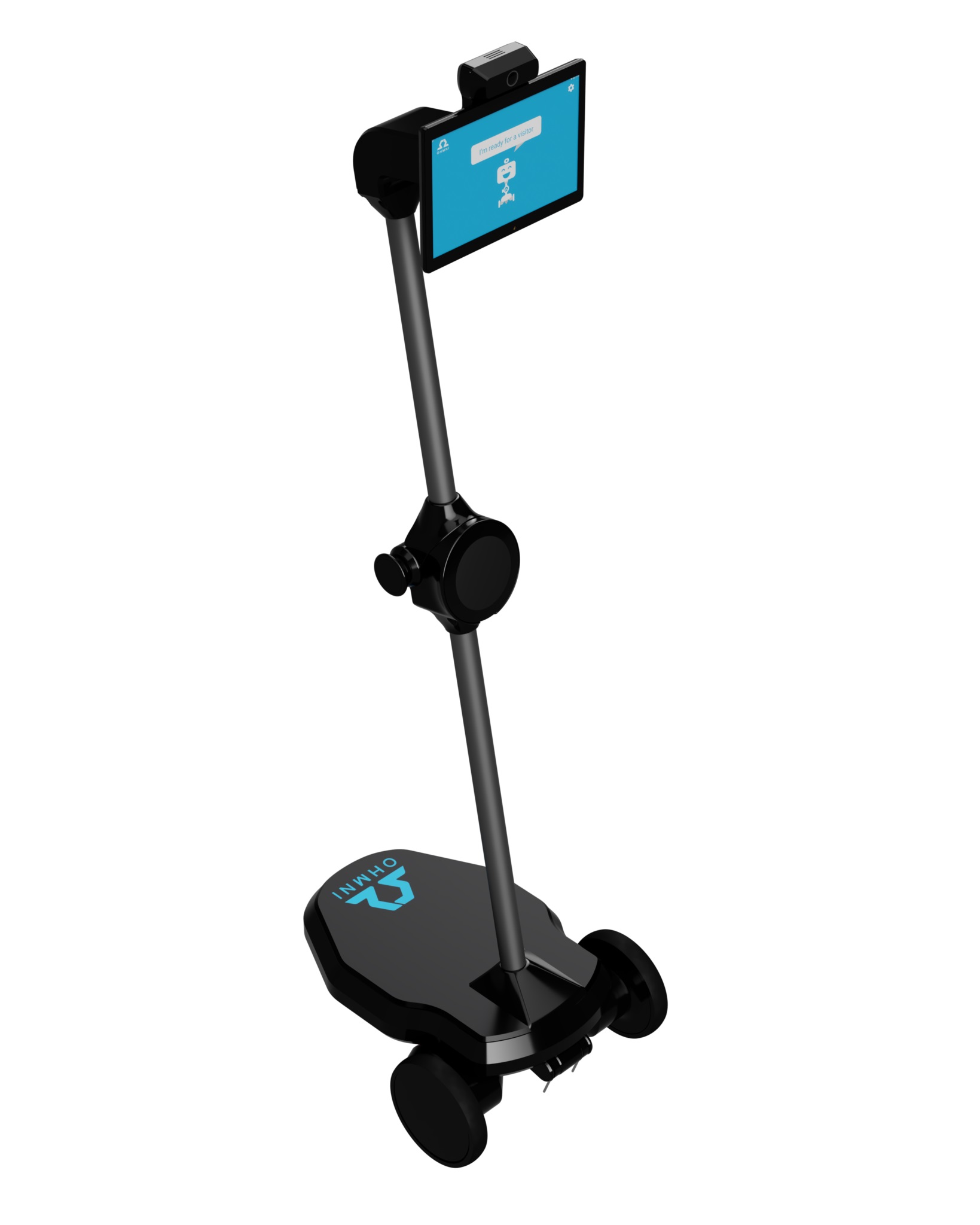
Telepresence Robot by Ohmnilabs
Firmware
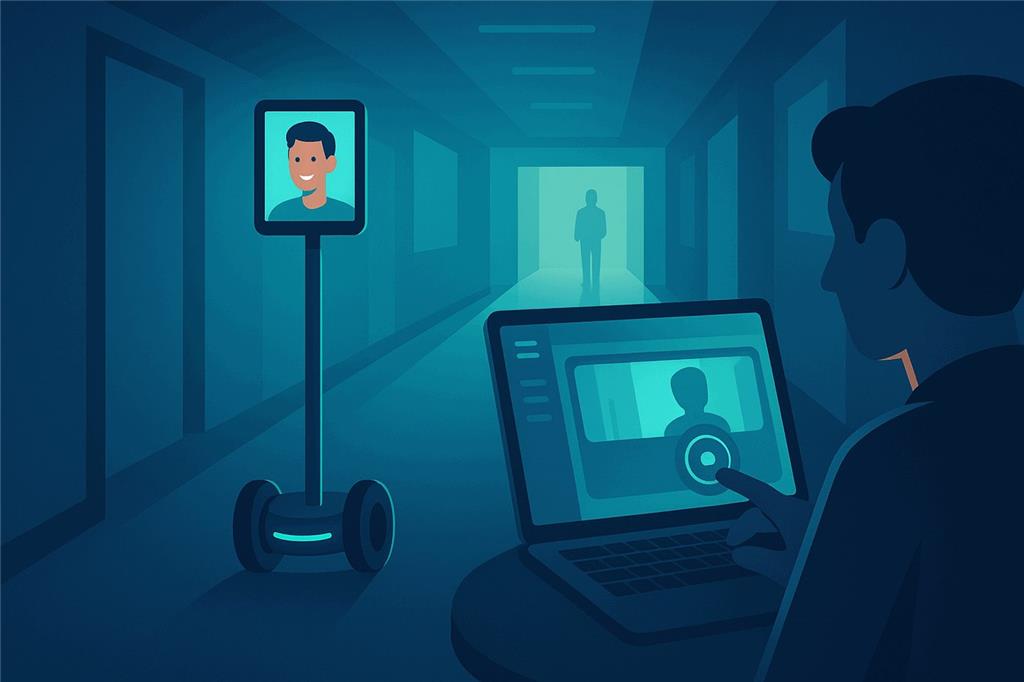
Be there from anywhere with an Ohmni robot
Telepresence means being somewhere else by driving a robot remotely and seeing and hearing what it sees and hears. Synthiam turns the Ohmni into a fully programmable robot: drive it, tilt its neck, read its battery and dock, color its light ring, add vision and AI, and share it with the people who need to use it.
How the Ohmni works with Synthiam. The Ohmni is not an EZB. Synthiam talks straight to the robot's control board, the board behind the tablet that runs the wheels, the neck, the battery and the light ring, over its USB serial cable. A computer inside the robot runs Synthiam with a dedicated movement panel robot skill, and the Ohmni becomes a Synthiam robot that no longer needs the Ohmni app or cloud. Add the Exosphere robot skill for remote telepresence. We recommend ARCx with its Ohmnilabs Telepresence skill: it runs on the robot's computer and is used from any web browser.
What is the Ohmni telepresence robot?
Ohmni, from OhmniLabs, is a telepresence robot designed to make remote presence simple: connect, drive and talk in a few steps. It has a two-wheeled base with a charging dock, a slim neck that tilts the tablet head, a light ring, and an onboard computer.
The Ohmni Supercam includes a high-resolution 13 MP camera. Combined with Ohmni's low-latency encoding it gives a wide field of view while keeping good detail, which helps when navigating hallways, reading signs and talking with people. Ohmni robots are designed in Silicon Valley, California and built with 3D printers.
OhmniLabs is now part of Symbotic, which continues to sell and support Ohmni products.
Ohmni at a glance
| Type | Telepresence robot |
|---|---|
| Maker | OhmniLabs (now part of Symbotic) |
| Onboard computer | UP Board |
| Control board link | USB serial cable, 115200 baud |
| Moves | Two drive wheels and a tilting neck |
| Power | Rechargeable battery (three or five cells, depending on the core board) with a dock |
| Synthiam uses it for | Telepresence, remote driving, vision tracking and autonomous behaviors |
| Website | ohmnilabs.com |
Three ways to use an Ohmni with Synthiam
1. Run Synthiam on the robot
Install an operating system on the robot's onboard computer (the UP Board) and run Synthiam there, so it controls the hardware locally. ARCx runs on Windows 10/11 x64 or Ubuntu 24.04 x64; ARC needs Windows 10 x64 and the FT230x driver.
2. The movement panel skill
The key driving skill connects to the control board over its serial link. Once connected you drive the robot and send movement commands directly. Start here if you simply want to drive and test, then add camera features.
3. Exosphere telepresence
Ohmni shines when set up for telepresence with Exosphere, which is designed for remote access: drive the robot from far away in a web browser and invite others to use it. Follow the Exosphere Telepresence Tutorial.
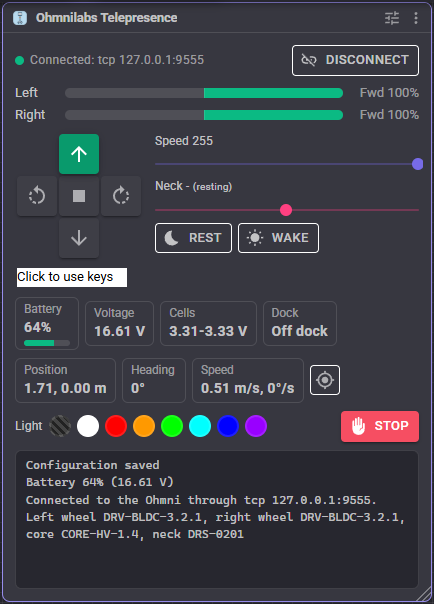
What the ARCx Ohmnilabs Telepresence skill does
🎮 Drive
A movement panel: joysticks, scripts, navigators, the Autonomous AI skill or a ROS /cmd_vel binding all drive the Ohmni. Velocity mode holds speed up slopes and stops by itself if commands stop.
👀 Tilt the neck
The neck follows servo port V0, so a slider, a script, Auto Position, a joystick or face tracking tilts the tablet. It rests at low power between uses.
🔋 Battery and dock
Cell voltages, pack voltage, estimated charge and dock state as variables, with Docked, Undocked and Low battery scripts so a script can send the robot home.
🧭 Position
Odometry from the wheel counts in the ROS frame, optionally sent to the navigation messaging system, plus DriveDistance and Turn commands that stop on the mark.
💡 Light ring
Quick colors from the window, a color on connect, and control from scripts.
📱 Custom UI
An Ohmni Status widget (battery, voltage, docked, connected, optional Stop button) to put beside a joystick on a phone screen.
Demo: an Ohmni that follows a ball
In this demo the Ohmni robot is running ARC and is connected remotely over Wi-Fi. The camera is enabled, color tracking is turned on, and the robot automatically follows a colored ball. It is a simple, fun way to confirm your camera, tracking and movement are all working together.
Connect an Ohmni to ARCx
- Decide where ARCx will run. Usually on the robot's onboard computer, with its control board's USB serial cable plugged into it. A serial-to-network bridge inside the robot (ser2net on a single board computer, or an ESP32 running ESP-Link) also works, with ARCx on another computer.
- Free the serial port. If the Ohmni's own tablet software is still installed and running, unplug it from the board first: only one program can own the port.
- Install ARCx and add the Ohmnilabs Telepresence robot skill from Robot Skills, Movement Panels. Download ARCx.
-
Choose the port and test. Select the board's serial port at 115200 baud and press Test: it asks the board for its battery and firmware without connecting.
Windows: COM3 Linux: /dev/ttyUSB0 - Connect and drive. Press Connect, then confirm you can drive forward, back and turn. With the wheels off the ground, the wheel test on the Wheels tab shows whether a wheel needs Invert.
- Add camera features and telepresence. Add camera, tracking and speech skills, then Exosphere for remote access. Tick Connect when the project loads once everything works.
Using ARC instead?
Install Windows 10 x64 and the FT230x driver on the robot's UP Board, install ARC, and add the Ohmnilabs Standalone skill from Project, Add Robot Skill, Movement Panels. Select the robot's COM port and press Connect. The neck is on port V0.
Quick start checklist
- Decide where Synthiam runs: on the robot or on another PC through a bridge.
- Install and open ARCx (or ARC) on that computer.
- Add the Ohmni movement panel skill.
- Confirm you can drive the robot: forward, back, turn.
- Enable camera features: view video, try tracking.
- For telepresence, follow the Exosphere tutorial and test a remote connection.
Both drive the Ohmni. ARCx drives it better.
If you are starting today, choose ARCx. It runs headless on the robot's computer, is used from any web browser by several people at once, keeps the robot running when the browser closes, and lets AI agents see, drive and program the robot through MCP.
| ARCx + Ohmnilabs Telepresence Recommended | ARC + Ohmnilabs Standalone | |
|---|---|---|
| Runs on | Windows 10/11 x64, Ubuntu 24.04 x64 and ARM64 | Windows 10 x64 |
| Connection | Serial port, or a serial bridge over TCP | COM port |
| Wheel drive | Velocity (the wheels' own speed loop, stops if commands stop) or PWM | Fixed power (PWM) |
| Neck on V0 | Yes, with rest and wake, and the real position read back | Yes |
| Battery | Cell voltages in volts, estimated charge, dock state, low battery script | Battery variables |
| Odometry, DriveDistance, Turn, NMS position | Yes | - |
| Light ring, reconnect, wheel and neck tests, widget | Yes | - |
With Drive mode set to PWM and the neck settings at their defaults, the ARCx skill drives and tilts exactly as the ARC version did, and keeps its Connect and Disconnect commands and $Ohmni... variable names.
The ARC version's battery numbers were read in the wrong byte order; in ARCx $OhmniBattery1 to $OhmniBattery5 are each cell's voltage in volts.
Troubleshooting
Frequently asked questions
$Ohmni... variable names, and its PWM drive mode matches the old behavior.
Scripts that read the battery variables need updating, because ARCx now reports real cell voltages.
Make your Ohmni a Synthiam robot
Install ARCx on the robot, add the Ohmnilabs Telepresence skill, and drive, program and share it from any browser.

Nice demonstration, to bad Ohmni Supercam is roughly $2200.00
:-)