Balance Robot by Sain

Make a two-wheeled robot balance, drive and learn
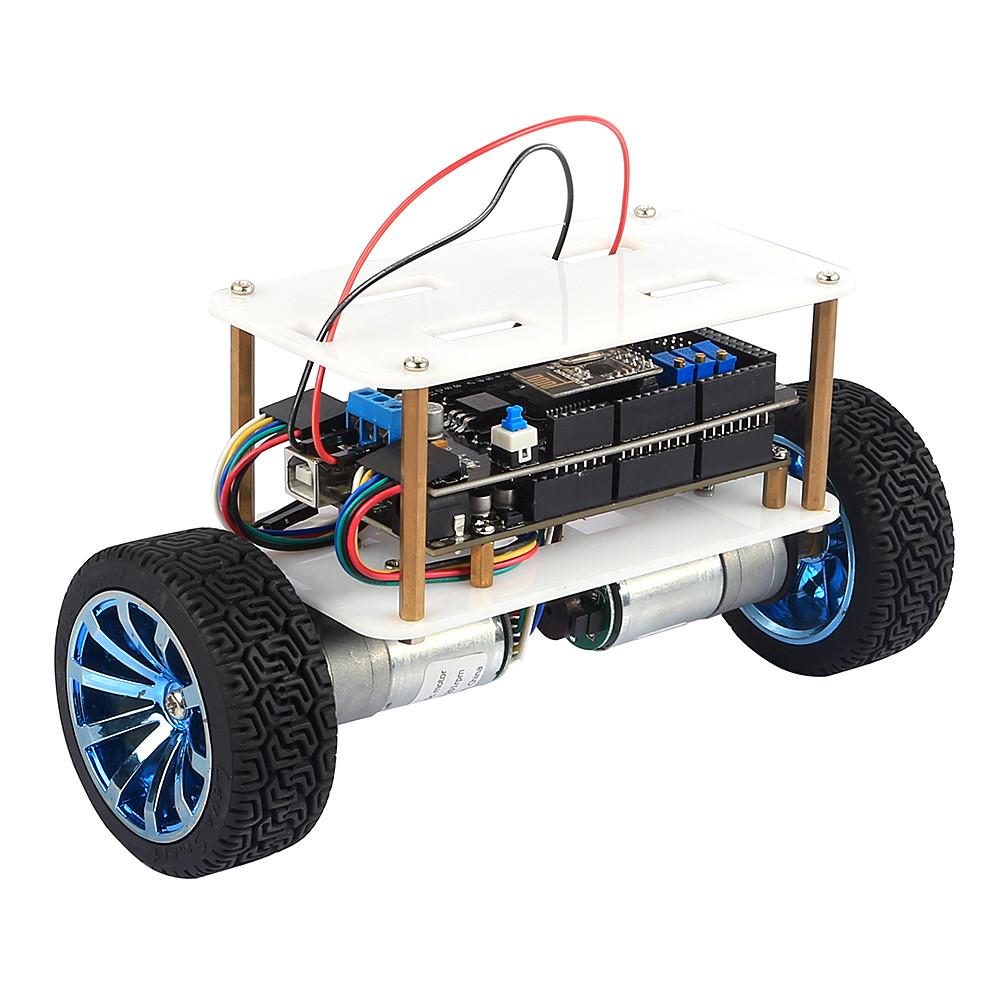
The SainSmart InstaBots Upright Rover v3 is a self-balancing robot built on an Arduino Mega and an MPU6050 motion sensor. With Synthiam firmware on the Mega, you can tune its balance live, drive it like any other robot, and add it to scripts, joysticks and AI.
How this robot works with Synthiam. The robot's Arduino Mega runs Synthiam firmware that does the balancing itself, and a movement panel robot skill talks to it over USB or Bluetooth serial. There are two ways to do it. The original approach uses the EZ-Mega v1 Balance Robot firmware written for this kit with ARC's Inverted Pendulum skill. The newer approach uses ARCx's Two Wheel Self Balancing Robot skill and its own firmware, which supports the same kind of hardware (Arduino Mega, MPU6050, an IN1/IN2/PWM motor driver and encoder motors) after a one-time pin edit, and adds an auto-tuner and EEPROM-saved settings. For a new build we recommend ARCx; the ARC firmware is the one made and shown working on this exact kit.
What is a balance robot?
A balance robot is an inverted pendulum: it stands upright on two wheels, the way you balance a broom on your hand. To stay standing it constantly reads its tilt angle with an IMU sensor and speeds the motors up or down to drive the wheels back under its body.
The SainSmart InstaBots Upright Rover v3 kit provides the hardware: an Arduino Mega, an MPU6050 IMU, a dual motor driver and two gear motors with wheel encoders. Synthiam's firmware replaces the kit's own sketch so Synthiam can talk to the robot, drive it and adjust its tuning.
Perfect balance takes patience, because the PID values (the numbers that decide how strongly the robot corrects itself when it leans) need tuning for each robot. ARC lets you adjust them with sliders; ARCx can also find them for you with its auto-tuner.
Balance Robot at a glance
| Type | Two-wheeled self-balancing robot kit |
|---|---|
| Maker | SainSmart (InstaBots Upright Rover v3) |
| Controller | Arduino Mega |
| IMU | MPU6050 |
| Motors | Two DC gear motors with wheel encoders, dual H-bridge driver |
| Connection | USB (115200 baud) or a Bluetooth serial module |
| Synthiam uses it for | A balancing robot base driven and tuned from Synthiam |
| Website | sainsmart.com (listed as discontinued) |
Two firmware options for the same robot
ARC + EZ-Mega v1 Balance Robot firmware
- Written for the SainSmart Upright Rover rev. 3.0; the pins are already right.
- The ARC Inverted Pendulum skill sets Kp, Ki and Kd with sliders, corrects the balance angle, drives the robot and sends a calibrate command.
- Shows Kp, Ki, Kd, omega, angle, distance, encoder values, angle offset and speed live.
- Windows only. The skill is described as beta.
ARCx + Two Wheel Self Balancing Robot firmware
- One sketch for Arduino Uno, Nano, Mega or ESP32. Set the motor driver type and pins once in section 1; no extra libraries.
- Every PID gain, the balance point, speed limits, motor and encoder directions and IMU orientation are set live from ARCx and saved to the robot's EEPROM.
- An auto-tuner finds the gains on the floor in a few minutes.
- Keeps balancing if the link drops. Windows, Linux and Raspberry Pi, used from any browser.
Set up the robot with ARC
What you need
- A SainSmart v3 Balance Robot kit (or equivalent hardware), with its Arduino Mega and MPU6050 IMU shield
- A Windows PC with Synthiam ARC installed
- A USB cable for the Arduino Mega (recommended for first-time setup)
- Optional: a compatible Bluetooth serial module for wireless control
-
Download the firmware source.
Download EZ-Mega v1 Balance Robot Sourcecode
Source package date: Feb 4, 2019.
- Compile and upload it to the Mega. Follow the tutorial to compile the source code and upload the firmware to the SainSmart Mega Arduino. You need the Arduino IDE (or the toolchain the tutorial describes). Uploading firmware is how the Arduino is programmed.
- Add the movement skill in ARC. Add the Inverted Pendulum skill. It sends balancing and movement commands to the firmware on the Mega.
- Connect and tune. Select the COM port and connect. Adjust Kp first, then Kd, then Ki: Kp is usually the larger value and Kd very low. Use the angle correction slider if the robot creeps one way.
Beginner tip: start with USB. It is simpler, more reliable and easier to troubleshoot than Bluetooth.
Common beginner issue: if ARC cannot connect over USB, double-check the COM port selected in ARC, and that no other program (like the Arduino IDE Serial Monitor) is using that port. The Mega has one USB port, so the Serial Monitor and ARC cannot connect at the same time.
USB or Bluetooth with the EZ-Mega v1 firmware
At the top of the firmware source is a small configuration section where you choose which serial port to use and the baud rate. ARC must be set to the same baud rate.
| Mega port | Pins | Use |
|---|---|---|
Serial | USB | Recommended. 115200 baud over the Arduino's built-in USB connection. |
Serial1 | 19 (RX), 18 (TX) | Do not use. Pin 18 is used by a wheel encoder in this robot, so Serial1 would conflict and make balancing unreliable. |
Serial2 | 16 (RX2), 17 (TX2) | Recommended for a Bluetooth module. 9600 baud, or whatever your module is set to. |
Serial3 | 15 (RX), 14 (TX) | Available. |
USB at 115200 (recommended)
Use this when the Arduino Mega is plugged into the PC with a USB cable. The best option for beginners.
// The communication baud rate
#define _BAUD_RATE 115200

// The primary communication interface between ARC and this controller
// Serial  - USB (recommended 115200 baud)
// Serial1 - 19(RX), 18(TX) <- do not use because pin 18 is used by wheel encoder
// Serial2 - 16(RX), 17(TX) <- recommended for bluetooth dongle
// Serial3 - 15(RX), 14(TX)
#define COMMUNICATION_PORT Serial
Bluetooth on Serial2 at 9600 (optional)
Use this with a Bluetooth serial module wired to the Mega's Serial2 pins. The baud rate must match the module's setting. TX always goes to RX: Mega TX2 (pin 17) to the module's RX, Mega RX2 (pin 16) to the module's TX.
// The communication baud rate
#define _BAUD_RATE 9600

// The primary communication interface between ARC and this controller
// Serial  - USB (recommended 115200 baud)
// Serial1 - 19(RX), 18(TX) <- do not use because pin 18 is used by wheel encoder
// Serial2 - 16(RX), 17(TX) <- recommended for bluetooth dongle
// Serial3 - 15(RX), 14(TX)
#define COMMUNICATION_PORT Serial2Use the robot with ARCx
The ARCx Two Wheel Self Balancing Robot skill comes with its own firmware, downloaded from the skill's Firmware tab with a README. It balances 200 times a second on the Mega, and ARCx drives it, shows what it is doing, tunes it live and saves the tuning into the robot.
Pins for the Upright Rover
The firmware's default Mega pins are not the Upright Rover's. These are the pins the original EZ-Mega v1 firmware uses on this kit; enter them in section 1 of the ARCx sketch with
MOTOR_DRIVER set to DRIVER_IN1_IN2_PWM.
| Signal | Mega pin | ARCx sketch setting |
|---|---|---|
| Left motor direction | 23, 22 | LEFT_IN1_PIN, LEFT_IN2_PIN |
| Left motor speed (ENA) | 5 | LEFT_PWM_PIN |
| Right motor direction | 24, 25 | RIGHT_IN1_PIN, RIGHT_IN2_PIN |
| Right motor speed (ENB) | 4 | RIGHT_PWM_PIN |
| Encoder, one wheel | 19 (interrupt), 18 | ..._ENC_A_PIN, ..._ENC_B_PIN |
| Encoder, other wheel | 3 (interrupt), 2 | ..._ENC_A_PIN, ..._ENC_B_PIN |
| MPU6050 | 20 (SDA), 21 (SCL) | Picked by the Wire library |
| Motor driver standby | Not used by the original firmware | MOTOR_STANDBY_PIN -1 |
| Battery divider | Not used by the original firmware | BATTERY_PIN -1 unless you add one |
The original firmware's comments do not make clear which encoder belongs to which wheel. If the Robot tab's wheel test counts on the wrong wheel, swap the left and right encoder pins.
- Edit and upload the sketch. Set the pins above, pick the Mega and its port in the Arduino IDE, upload, and close the Serial Monitor.
- Add the skill in ARCx from Robot Skills, Movement Panels, choose the COM port and leave DTR off (raising DTR resets the Mega, and the robot falls every time ARCx connects).
- Check the hardware on the Robot tab, in order: IMU orientation (Upright, then Tilted forward), each wheel's motor and encoder direction with the wheels lifted, encoder counts per wheel turn and wheel diameter.
- Auto-tune on the floor and stay with the robot: it tells you when to hold it, let go and stand it back up. Then Use these values, Save, and Save to robot.
- Drive it with the direction buttons, a joystick, scripts or the Custom UI.
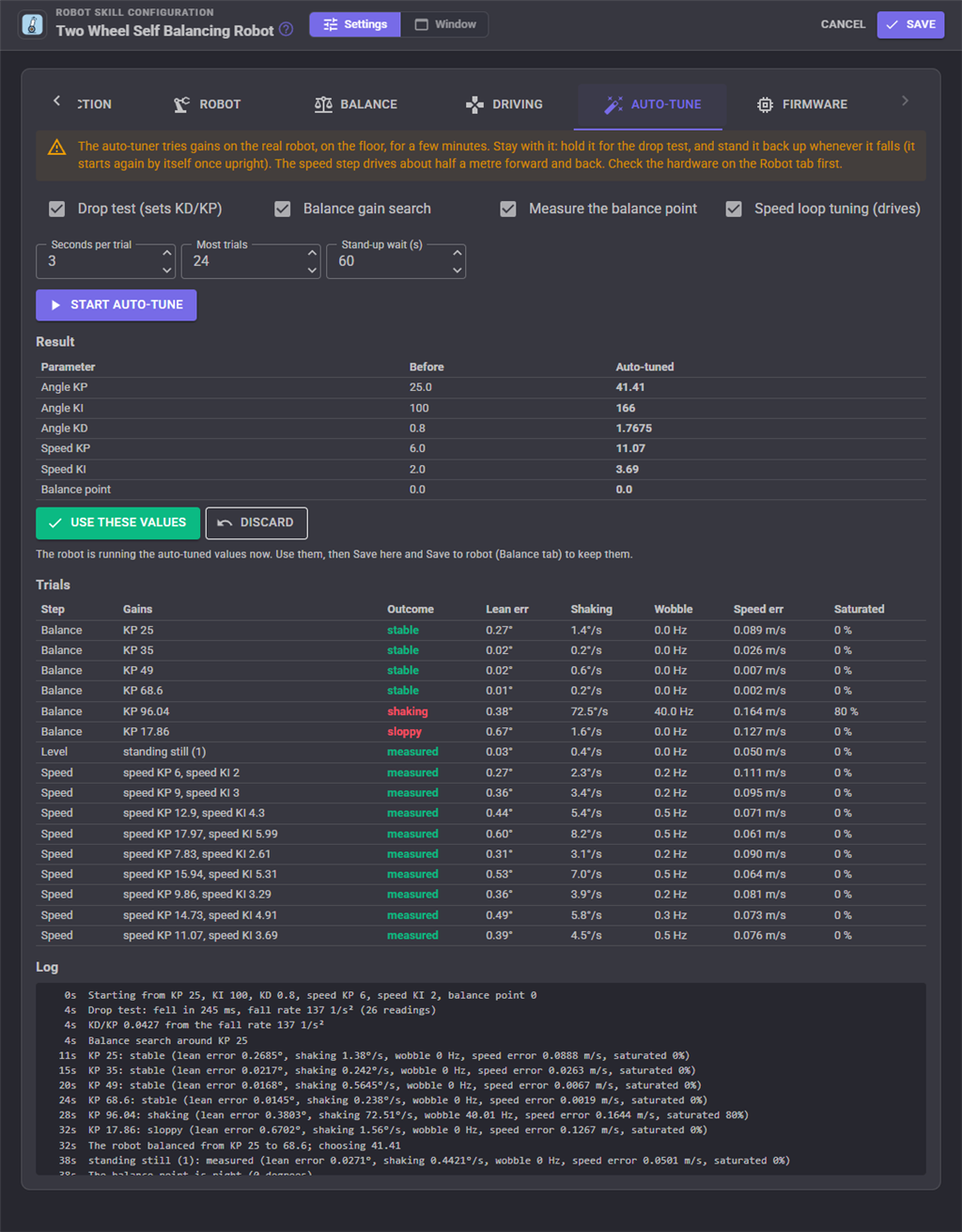
The auto-tuner runs four steps:
- Drop test: the robot falls with its motors off; how fast it falls sets the ratio of Angle KD to Angle KP.
- Balance gain search: Angle KP is raised until the robot shakes and lowered until it gets sloppy; the middle of the range is chosen.
- Balance point: the robot's average lean standing still.
- Speed loop: the robot drives about half a meter each way while Speed KP is tuned.
The robot's lean, speed, distance, battery and state are published as variables such as $BalanceLean and $BalanceIsBalancing.
After you connect
Safety
- Place the robot on a safe surface: start on the floor, not a table.
- Be ready to catch it. Early PID values may make it jerk or fall.
- A balancing robot can suddenly accelerate while tuning. Keep hands, cables and loose clothing away from the wheels.
Reading the robot
- Shakes rapidly or drives away at once: adjust the PID tuning and check the motor directions.
- Falls the same way every time: the IMU orientation, a motor or an encoder is backwards.
- Creeps one way while standing: the balance point (angle offset) is wrong.
- Buzzes: too much KD, or a loose IMU.
Which one should I use?
| ARCx + Two Wheel Self Balancing Robot Recommended | ARC + Inverted Pendulum | |
|---|---|---|
| Runs on | Windows 10/11 x64, Ubuntu 24.04 x64 and ARM64, Raspberry Pi | Windows |
| Firmware for this kit | Generic sketch; enter the Upright Rover pins once | EZ-Mega v1, written for this kit |
| Tuning | Live gains, auto-tuner, saved to the robot's EEPROM | Kp, Ki, Kd and angle offset sliders |
| Balances without the PC | Yes, with the saved tuning | Uses the firmware's built-in gains until ARC sends new ones |
| Links | USB, Bluetooth serial, ESP32 Wi-Fi, serial bridge, EZB UART | USB or Bluetooth serial |
| Tested on this kit | Not yet | Yes (see the video) |
ARCx is Synthiam's newer platform: it runs headless on the robot's computer or any PC, is used from any web browser by several people at once, and lets AI agents drive and program the robot through MCP.
Troubleshooting
COMMUNICATION_PORT is Serial2, and that the firmware baud rate matches the module's.
Do not use Serial1: pin 18 is a wheel encoder.
Frequently asked questions
Get your robot balancing
Flash the firmware, add the balancing skill, and tune, drive and program your two-wheeled robot.

I assume the communication is going through a ESP8266 on the bot? Contacted the company to purchase one of the shields (to build myself) but was told it was discontinued You must have to buy the whole bot from them now.
Thanks in advance.
Yeah - we should be able to recreate the same build with DIY parts. The shield is merely an HBridge, but you can use any hbridge (specifically the EZ-Robot one). The IMU it uses is the MPU6050.
As for wireless... I'm actually using a Bluetooth <-> UART module. The same ones that were on the EZ-B v3.
Can i use this for esp32