Add
Add Workspace adds a new, empty workspace to the project. A workspace is a desktop that holds robot skill windows. Add one when a desktop is getting crowded and you want to group robot skills by job, such as Movement, Vision or Speech.
Where to find it: Top bar → Workspaces → Add Workspace, or right-click an empty part of a workspace → Workspaces → Add Workspace. Workspaces → Edit Workspaces has an Add Workspace button as well.
Adding a workspace
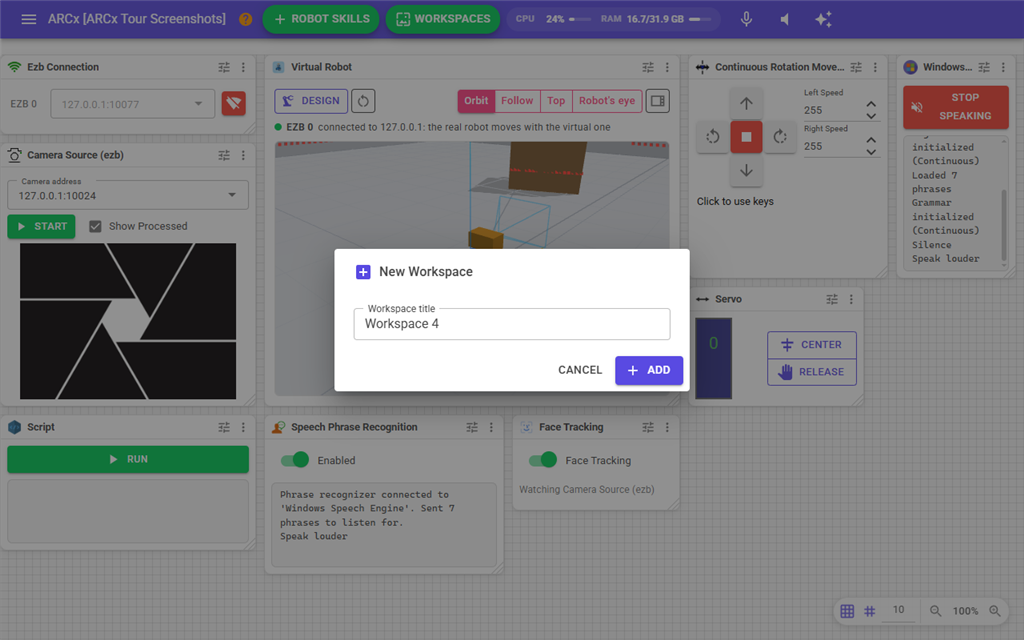
- Choose Add Workspace. The New Workspace dialog opens.
- The title is filled in as "Workspace" followed by a number. Type a name that says what the workspace is for.
- Press Add, or Enter. The workspace is added to the end of the list and opens straight away. Press Cancel to close the dialog without adding anything.
The new workspace is empty. Add robot skills to it with its Add Robot Skill button or Robot Skills → Add in the top bar, or move skills onto it with the Desktops item in a robot skill window's menu. New robot skills go to the workspace you looked at last.
Notes
- The title cannot be blank. A blank title shows "Enter a title for the workspace." and the dialog stays open so you can type one. Spaces at the start and end are removed.
- Two workspaces can have the same title, but different titles make the Workspaces menu easier to read.
- Workspaces are saved with the project. Save the project with File → Save to keep the new workspace.
- To rename or remove a workspace, use Workspaces → Edit Workspaces.