
Add
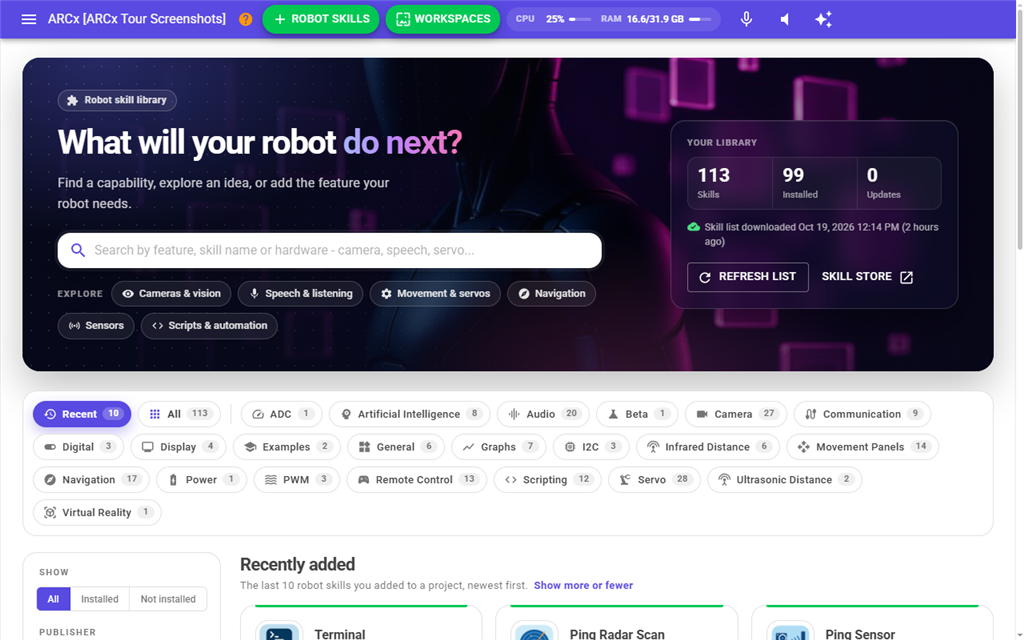
This is the robot skill library. It lists every robot skill you can add to your project: the ones already installed on this computer and the ones in the Synthiam Robot Skill Store. It opens on the robot skills you added most recently. Search it, pick a category, filter by publisher, read about a skill, and add it to your project with one click. ARCx downloads a skill the first time you add it.
Use this screen whenever your robot needs something new: a camera, speech recognition, a servo controller, navigation and so on.
Where to find it: Top bar → Robot Skills → Add. The Robot Skills menu also has a Recently Added list. See Recently Added.
Contents
- Quick start
- Search and Explore
- Your library
- Tabs: Recent, All and categories
- Filters
- Results and sorting
- Robot skill cards
- The details window
- Adding a robot skill
- Updating a robot skill
- Recently Added
- Troubleshooting
Quick start
- Open Robot Skills → Add.
- The Recent tab shows the robot skills you added lately. To find something else, type what you need in the search box, such as
camera, or pick a category from the tabs under the banner. - Click a skill's icon or name to read about it.
- Press Add (installed skills) or Install & add (skills not on this computer yet).
- ARCx adds the skill to your project and opens the workspace, where the new skill appears.
Search and Explore
The search box at the top searches by feature, skill name or hardware. Results update as you type.
- A skill is shown only if every word you typed appears somewhere in it. The words can be in any order and in different places: the name, the categories, the short description, the publisher or the manual.
- With Best match sorting, skills with your words in the name come first, then skills with them in a category, then in the description, publisher and manual.
- Press the clear button in the box to remove the search.
The Explore shortcuts under the search box run a search for a common need. A shortcut is only shown if the library has skills that match it.
| Shortcut | Searches for |
|---|---|
| Cameras & vision | camera |
| Speech & listening | speech |
| Movement & servos | servo |
| Navigation | navigation |
| Sensors | sensor |
| Scripts & automation | script |
Your library
The card on the right of the banner gives a summary of the library.
| Item | Meaning |
|---|---|
| Skills | How many robot skills are in the library, installed and in the store together. |
| Installed | How many of them are downloaded to this computer. |
| Updates | How many installed skills have a newer version in the store. |
| Freshness line | When ARCx last downloaded the store's list of skills, and how long ago, for example Skill list downloaded .... If it was never downloaded, it says Skill list has not been downloaded yet. |
| Refresh list | Downloads the store's skill list again and rebuilds the page. Use it to see skills that were published since the last download. |
| Skill store | Opens the Robot Skill Store on synthiam.com in a new tab. |
Tabs: Recent, All and categories
The row of tabs under the banner chooses where to look. The number on each tab is how many skills it holds, taking the Show and Publisher filters into account but not the search. A category those filters leave empty is dimmed. On a narrow screen, such as a phone, the tabs are one row that scrolls sideways.
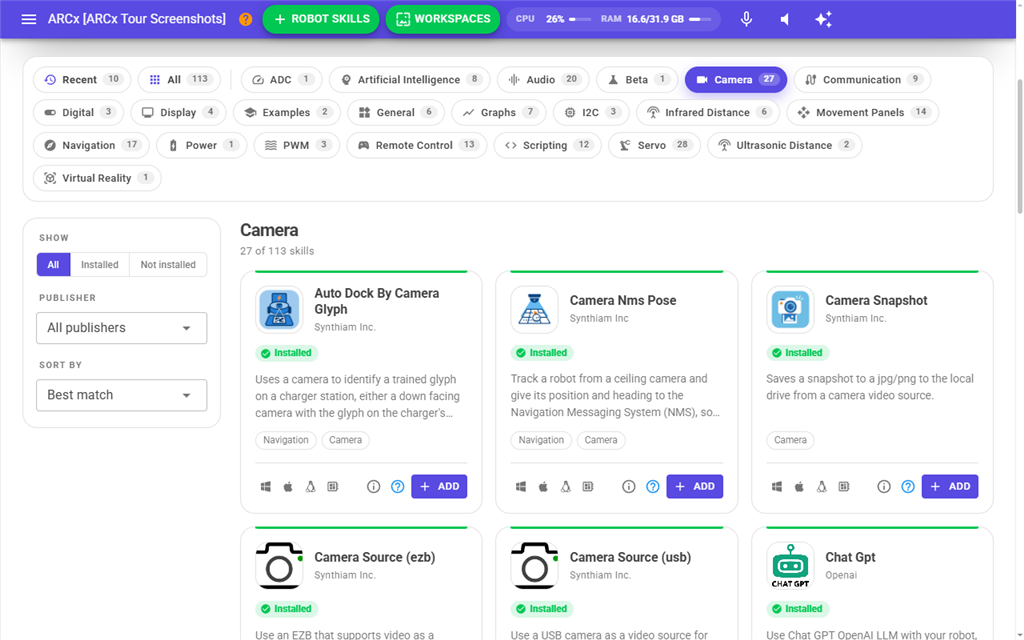
| Tab | What it shows |
|---|---|
| Recent | The robot skills you added to a project most recently, newest first. This is the tab the page opens on. It shows 10 by default; change the number with Recent robot skills in Options → Preferences → Interface, or the Show more or fewer link beside the heading. The tab is hidden until you have added a robot skill, and the page opens on All instead. |
| All | Every robot skill in the library. |
| A category | Only the skills in that category, such as Camera or Servo. |
Picking a tab clears the search. Searching from the Recent tab searches every robot skill. Searching after you pick a category searches within that category.
Filters
The panel on the left narrows the list and stays in view as you scroll through the results. On a narrow screen it sits above the results.
| Filter | What it does |
|---|---|
| Show | All, Installed (skills on this computer) or Not installed (skills you would have to download). |
| Publisher | Shows only the skills from one company or author. All publishers removes it. |
| Sort by | The order of the results. See Results and sorting. Hidden on the Recent tab, which is always newest first. |
| Clear filters | Removes the search, Show and Publisher filters. Shown while any of them is set. The tab stays as it is. |
The active filters are listed as chips above the results. Click a chip's × to remove that filter, or Clear all to remove them all.
The filters are part of the page's web address. The browser's back button takes you back to the previous filter, and you can bookmark or share a filtered list.
Results and sorting
The heading shows the tab and how many skills match, for example 12 of 340 skills matching “camera”. On the Recent tab it reads Recently added, with how many of your recent skills are shown.
Sort by, in the panel on the left, has three choices:
| Choice | Order |
|---|---|
| Best match | The most relevant first when you have searched. Otherwise featured skills come first, then alphabetical order. |
| Name: A–Z | Alphabetical. |
| Recently updated | The skills most recently updated in the store first. |
Robot skill cards
Each skill is shown as a card. Installed skills are highlighted.
| Part | What it does |
|---|---|
| Icon and name | Click to open the details window. |
| Publisher | The company, or the author if no company is given. |
| Badges | Installed or Available to download, plus Update available when the store has a newer version than the one installed. |
| Description | The skill's short description. |
| Category tags | Click a tag to list every skill in that category. This clears your other filters. |
| Platform icons | The kinds of computer the skill runs on: Windows, macOS, Linux and ARM64 boards. Hover over one for the full list, or click it for an explanation. |
| Update | Shown when an update is available. See Updating a robot skill. |
| Info button | Opens the details window. |
| Add / Install & add | Adds the skill to your project. Install & add means it will be downloaded first. |
The details window
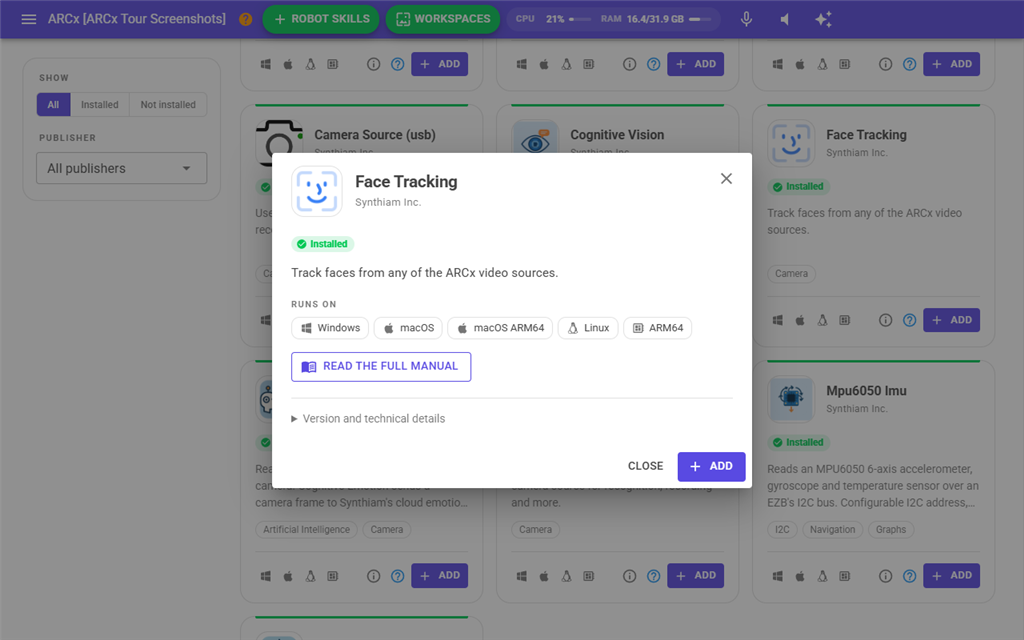
| Part | What it shows |
|---|---|
| Badges and description | The same as on the card. |
| Runs on | Every platform the skill supports. |
| Read the full manual | Opens the skill's manual on synthiam.com in a new tab. |
| Version and technical details | Click to expand: Company, Author, Version, Updated, Installed, In skill store and GUID, the skill's store ID. |
| Close | Closes the window. |
| Add / Install & add | The same as the button on the card. |
Adding a robot skill
When you press Add or Install & add:
- If the skill is not on this computer, ARCx downloads it. A window shows Downloading with the skill's name and a progress bar. Downloading needs you to be signed in to your Synthiam account (Options → Account).
- ARCx adds the skill to your project with its default settings. It is placed on the workspace you were last using. If the project already has a skill with that name, the new one gets a different window title.
- The workspace opens with the new skill on it. Open its configuration to set it up.
While this happens the button reads Installing… or Adding…, and you can't press it again. The skill is also put at the top of the Recently Added list.
Adding a skill changes the open project. Save the project with File → Save to keep it.
Updating a robot skill
When a card shows Update available, press Update to download the store version over the installed one. The button reads Updating… while it works.
An update can fail if the skill's files are in use, which happens when the skill is in the open project or was used earlier in this session. ARCx then says Ensure the robot skill is not in use before updating. You can close ARCx and reload with an empty project to ensure the robot skill is not in use.
ARCx also updates installed robot skills by itself when it starts, if you are signed in.
Recently Added
The Robot Skills menu in the top bar lists the robot skills you added most recently, newest first, under Recently Added. It shows up to 10 of them; the Recent tab of this page lists every one ARCx remembers, which is set by Recent robot skills in Options → Preferences → Interface. The heading is hidden until you have added a skill.
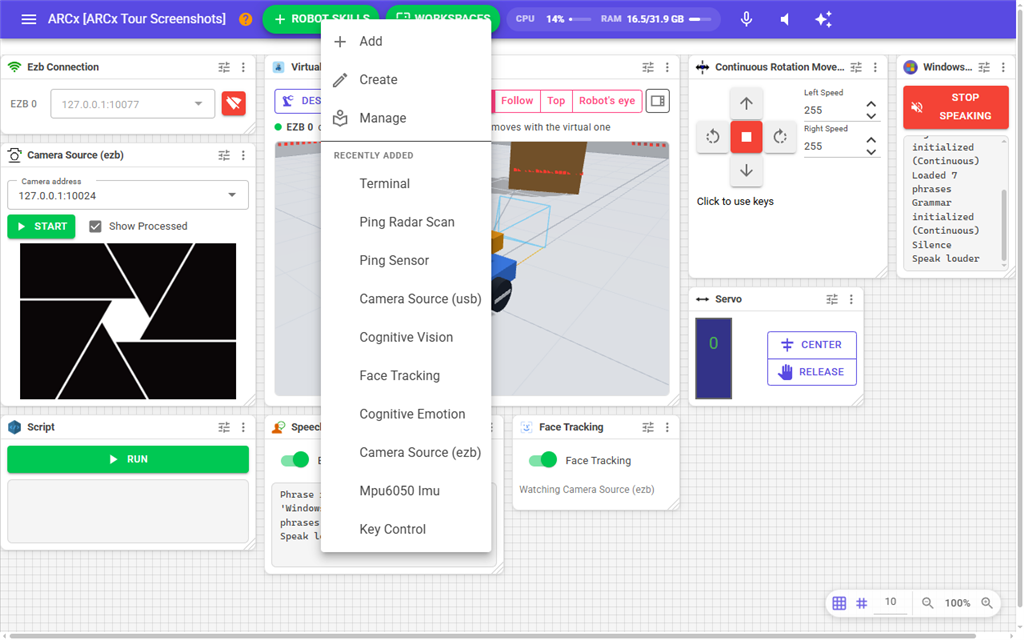
Clicking a skill in this list adds it to your project straight away, without opening the library, and then opens the workspace. It is downloaded first if it is not on this computer. If the add fails, ARCx shows Unable to add robot skill with the reason, then opens the workspace anyway.
Troubleshooting
| Message | What to do |
|---|---|
| The robot skill library could not be loaded. | Press Try again. If it keeps failing, the store's skill list has probably never been downloaded. Press Download skill list. |
| The skill list could not be refreshed. Check your internet connection and try again. | The computer running ARCx could not reach synthiam.com. The page still shows the last list it downloaded. |
| None of your recent skills match | The Show or Publisher filter hides every skill on the Recent tab. Clear the filters, or press Explore all skills. |
| No skills found this time | Nothing matches the search and filters. Try a shorter word, remove a filter, or press Explore all skills. |
| Your skill library is empty | No skills are installed and no store list has been downloaded. Press Refresh list, or Visit skill store. |
| Unable to add followed by the skill name, with Sign in to your Synthiam account to download robot skills. | Sign in under Options → Account and try again. |
| Unable to add with a message from the store | The store refused the download and its reason is shown, for example the skill is not public or needs a subscription. |
| Error writing a file. The file may be in use... | Restart ARCx and try again. |