
File Manager
The File Manager lets you browse the ARCx data folder on the computer ARCx runs on, from any web browser connected to ARCx. You can look inside files, download them to the computer or phone you are using, upload files to the robot, create folders and delete things.
It is most useful when ARCx runs on a robot or another computer that you control from a browser: you can upload a project or a sound file, download a log, or check what a robot skill has saved, without going to that computer.
Where to find it: Side menu → File → File Manager. Views → File Monitor also has a button that opens it.
Contents
What the File Manager can reach
The File Manager only shows the ARCx Data folder and everything inside it. That is the ARCx Data folder in your Documents folder on Windows, or in your home folder on Linux and macOS. The full location is shown in the box at the top of the page.
Folders you will usually find in it include My Projects, where your projects are saved, Projects Backups, where older copies are kept when you save (one folder per project, each backup named by the date and time it was saved), and Logs.
Some pages open the File Manager at a particular folder, with that folder and the ones above it already expanded. The backups buttons on File → Open, File → Save and Options → Preferences → Backups open it at the backups folder, and the Show buttons in Views → Diagnostics open it at each folder of the ARCx Data folder.
Nothing outside this folder is listed, and uploads and new folders can only go inside it.
The folder tree
The page shows the folder as a tree, starting from ARCx Data, which is already open. Folders are listed before files, each in name order.
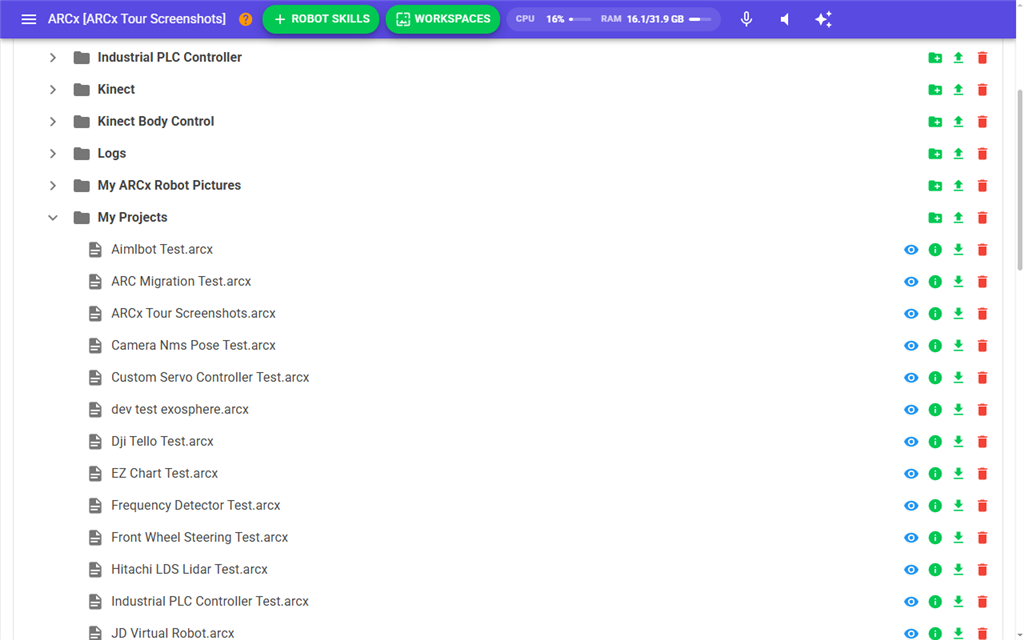
- Click a folder's arrow to open it. Its contents are read from disk the first time you open it, so a large folder can take a moment.
- Press the refresh button at the top right of the page to read the folders from disk again, for example after a robot skill has written new files. Folders you have open stay open.
- After an upload or a new folder, the folder it went into is opened so you can see the result.
While the tree is first read, the page shows Reading files....
Folder buttons
Each folder row has three buttons on the right:
| Button | What it does |
|---|---|
| New folder (green folder with a plus) | Opens Create a new folder. Type the name in New Folder Name and press OK. Characters that cannot be used in a folder name are removed. Cancel closes the box. |
| Upload (green arrow up) | Opens Upload File. Press Select File and choose a file on the computer or phone you are using. It is copied into this folder under its own name. |
| Delete (red bin) | Asks This cannot be undone. Are you sure? Yes deletes the folder and everything inside it. |
The top ARCx Data folder has the same buttons, including delete. Deleting it removes all your projects, backups, logs and other ARCx data on this computer. Do not press Yes unless that is what you want.
File buttons
Each file row has four buttons on the right:
| Button | What it does |
|---|---|
| View (eye) | Opens the file in the viewer. See below. |
| File Info (i) | Shows when the file was created, when it was last modified, and its size in bytes. |
| Download (arrow down) | Asks Download '(name)' ((size) Bytes) and Are you sure?. Yes downloads the file to the browser you are using, under the same name. |
| Delete File (red bin) | Asks This cannot be undone. Are you sure? Yes deletes the file. |
To copy a project from another computer onto the robot:
- On the robot's ARCx, open File → File Manager.
- Open ARCx Data, then find My Projects.
- Press the upload button on the My Projects row, then Select File, and choose the .arcx file.
- The project now appears in File → Open under This computer.
The file viewer
The viewer shows a file without changing it. It never writes to the file. The title bar shows the file name, its size, and buttons to switch how the file is shown:
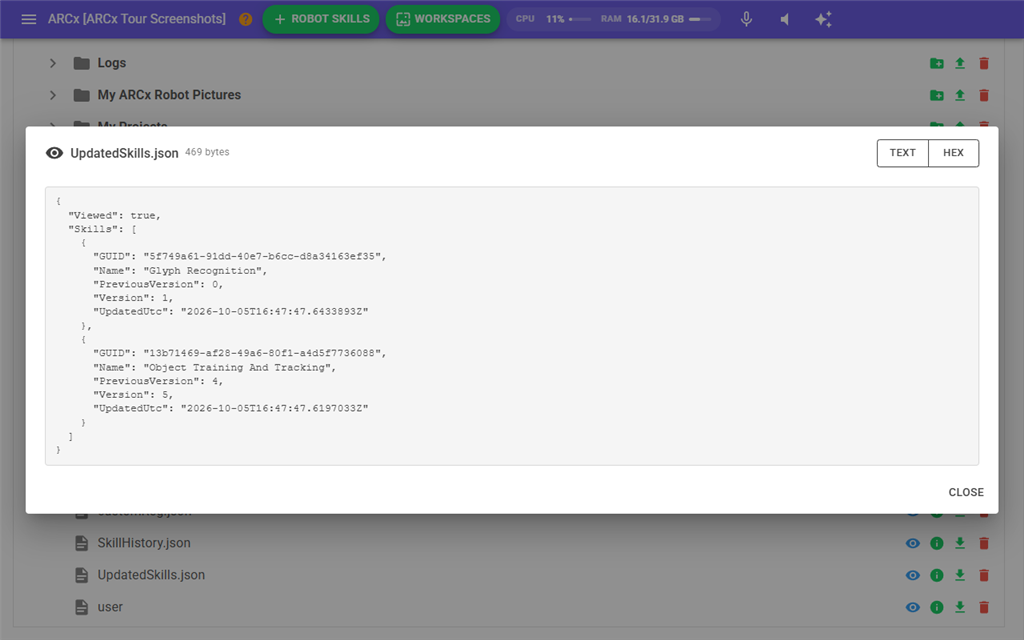
| Mode | What it shows |
|---|---|
| Text | The file as text. Only the first 1 MB (1024 KB) is shown; a larger file says Large file - showing the first 1024 KB only. If the file looks like it is not text, a warning says so and offers View as hex. |
| Hex | The raw bytes, 16 to a row, with the readable characters beside them. The file is shown 4 KB at a time; use First, Prev, Next and Last to move through it. The line beside them says which bytes are shown, for example Showing 0 - 4,096 of 20,480 bytes. Hex works quickly on a file of any size. |
| Image | The picture. Only offered for image files: .png, .jpg, .jpeg, .gif, .bmp, .webp, .ico and .avif. |
How a file opens depends on its type:
- Images open in Image mode.
- Common text files, such as .txt, .log, .json, .xml, .csv, .md, .py, .js, .html and .svg, open in Text mode. SVG images are shown as text, not drawn.
- For any other type, ARCx asks How would you like to view '(name)'?, with Text, Hex and Cancel.
Before showing a large file, ARCx asks '(name)' is a large file and tells you the size. This happens for text files over 1 MB and images of 4 MB or more, because a large image has to be sent to the browser in full before it appears. Press View to go ahead, or Cancel. Images over 32 MB are not shown; download them or view them as hex instead.
Press Close or Escape to close the viewer.
Notes
- Uploads can be up to 256 MB per file.
- An upload never replaces a file. If a file with the same name is already in the folder, the upload stops with Unable to upload file. '(name)' already exists. Delete or rename the old file first.
- Deleting is permanent. Deleted files and folders do not go to the recycle bin or trash.
- If a file is deleted or moved by something else while the page is open, viewing it says '(name)' no longer exists. Press refresh to update the tree.
- If something fails, an Error box explains it, such as Unable to delete file: ..., Unable to create folder in ... or Unable to Download ..., followed by the reason. Each problem is also written to the log.
- Files that are in use, such as a log that is still being written, can still be viewed.